> ## Documentation Index
> Fetch the complete documentation index at: https://notes.kodekloud.com/llms.txt
> Use this file to discover all available pages before exploring further.
# Run Jobs on the installed Shell Executor
> This guide explains configuring and optimizing a CI/CD pipeline on a self-hosted GitLab Runner using the Shell executor.
In this guide, you’ll learn how to configure and optimize a CI/CD pipeline on a self-hosted GitLab Runner using the Shell executor. We’ll walk through:
1. Defining a **basic pipeline**.
2. Selecting your **self-managed runner** with tags.
3. Troubleshooting **shell-profile** issues.
4. Installing **Node.js** on the runner VM.
5. Caching **npm dependencies** between runs.
6. Customizing the runner’s **cache directory**.
***
## 1. Basic Pipeline Configuration
Begin by creating a simple `.gitlab-ci.yml` that runs unit tests against your Node.js project. This example sets up environment variables, uses stages, and caches `node_modules` to speed up subsequent runs.
```yaml theme={null}
workflow:
name: Shell Executor Demo
variables:
MONGO_URI: 'mongodb+srv://supercluster.d83jj.mongodb.net/superData'
MONGO_USERNAME: superuser
MONGO_PASSWORD: SuperPassword
stages:
- test
unit_test:
stage: test
cache:
policy: pull-push
key:
files:
- package-lock.json
prefix: node-modules
paths:
- node_modules
before_script:
- npm install
script:
- npm test
```
| Section | Purpose |
| --------------- | ------------------------------------------ |
| `variables` | Secure strings for database connection |
| `stages` | Defines workflow steps (only `test` here) |
| `cache` | Speeds up `npm install` by reusing modules |
| `before_script` | Pre-test setup commands |
| `script` | Actual test command |
***
## 2. Selecting the Self-Managed Runner
To ensure jobs land on your Shell executor, add the same tags you used during runner registration:
```yaml theme={null}
unit_test:
tags:
- nodejs
- linux
- local
stage: test
cache:
policy: pull-push
key:
files:
- package-lock.json
prefix: node-modules
paths:
- node_modules
before_script:
- npm install
script:
- npm test
```
Runner tags must match exactly (case-sensitive). Review **Settings > CI/CD > Runners** in your project to confirm tag names.
Your project’s **CI/CD settings** should display your tagged runner:
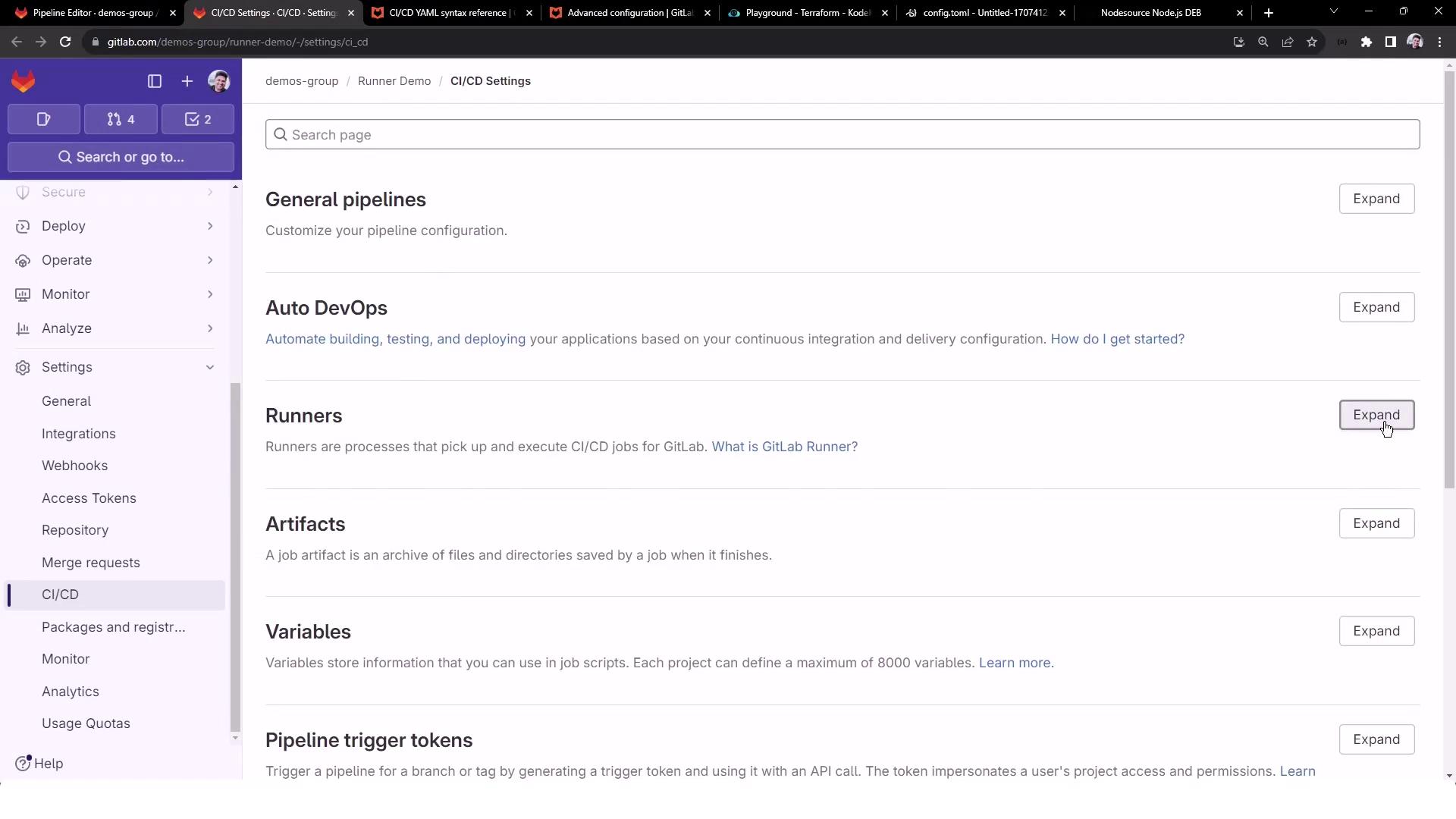
After committing these changes, GitLab will automatically trigger a new pipeline.
***
## 3. Troubleshooting Shell-Executor Profiles
If the job fails during **prepare environment**, you might see:
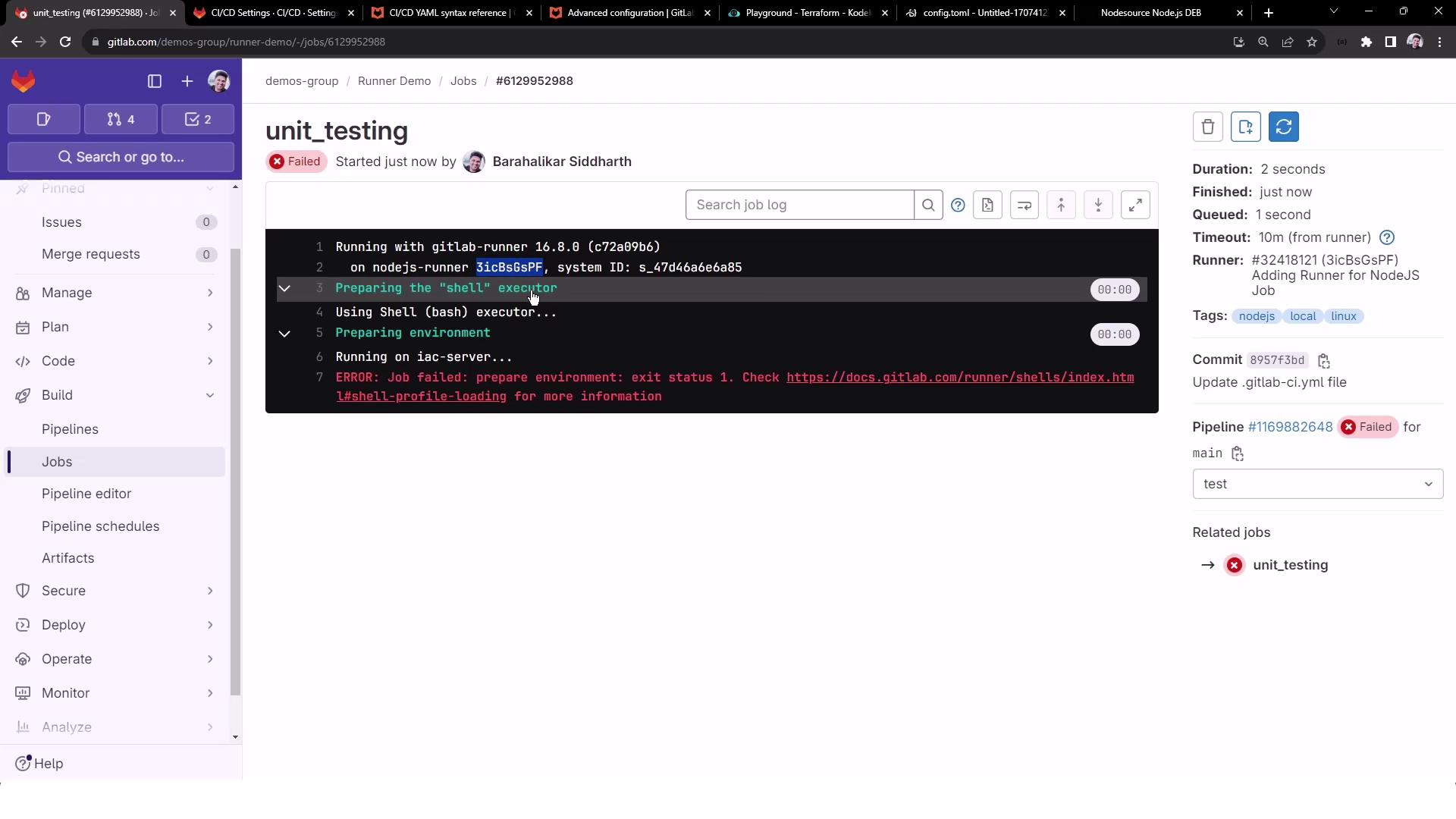
```plaintext theme={null}
Preparing environment
Running on iac-server...
ERROR: Job failed: prepare environment: exit status 1.
Check https://docs.gitlab.com/runner/shells/index.html#shell-profile-loading
```
This usually means your shell’s logout or profile scripts are clearing the console. On the runner VM, edit `~/.bash_logout`:
```bash theme={null}
# ~/.bash_logout: executed when a login shell exits
# if [ "$SHLVL" -eq '1' ]; then
# [ -x /usr/bin/clear_console ] && /usr/bin/clear_console -q
# fi
```
Comment out any `clear_console` lines, commit the update, and rerun the pipeline.
Modifying shell profiles on production runners can affect all jobs. Always back up files before editing.
***
## 4. Installing Node.js on the Runner
Since the Shell executor uses your VM’s environment, you must install Node.js globally:
```bash theme={null}
sudo apt-get update && sudo apt-get install -y ca-certificates curl gnupg
# Add NodeSource repository (replace 'nodistro' with your distro codename, e.g., 'jammy')
curl -fsSL https://deb.nodesource.com/gpgkey/nodesource-repo.gpg.key \
| sudo gpg --dearmor -o /etc/apt/keyrings/nodesource.gpg
NODE_MAJOR=20
echo "deb [signed-by=/etc/apt/keyrings/nodesource.gpg] \
https://deb.nodesource.com/node_${NODE_MAJOR}.x nodistro main" \
| sudo tee /etc/apt/sources.list.d/nodesource.list
sudo apt-get update && sudo apt-get install -y nodejs
```
Verify:
```bash theme={null}
node -v # e.g., v20.x.x
npm -v # e.g., 9.x.x
```
Rerun your pipeline—`npm install` and `npm test` should now succeed.
***
## 5. Caching Dependencies for Faster Builds
Your pipeline’s cache settings will automatically save `node_modules` on success:
```plaintext theme={null}
Saving cache for successful job
Creating cache node-modules--protected...
node_modules: found 5735 matching files
Created cache locally
```
Inspect the runner’s cache directory:
```bash theme={null}
cd /home/gitlab-runner/cache//node-modules--protected
unzip cache.zip
ls node_modules
```
On future runs, the cache is restored:
```plaintext theme={null}
Restoring cache
Successfully extracted cache
$ npm install
up to date in 1s
```
| Cache Phase | Description |
| ----------- | ------------------------------------------------- |
| pull-push | Downloads & uploads cache for every job run |
| key | Uniquely identifies cache based on `package-lock` |
| paths | Directories to cache (e.g., `node_modules`) |
***
## 6. Customizing the Runner’s Cache Directory
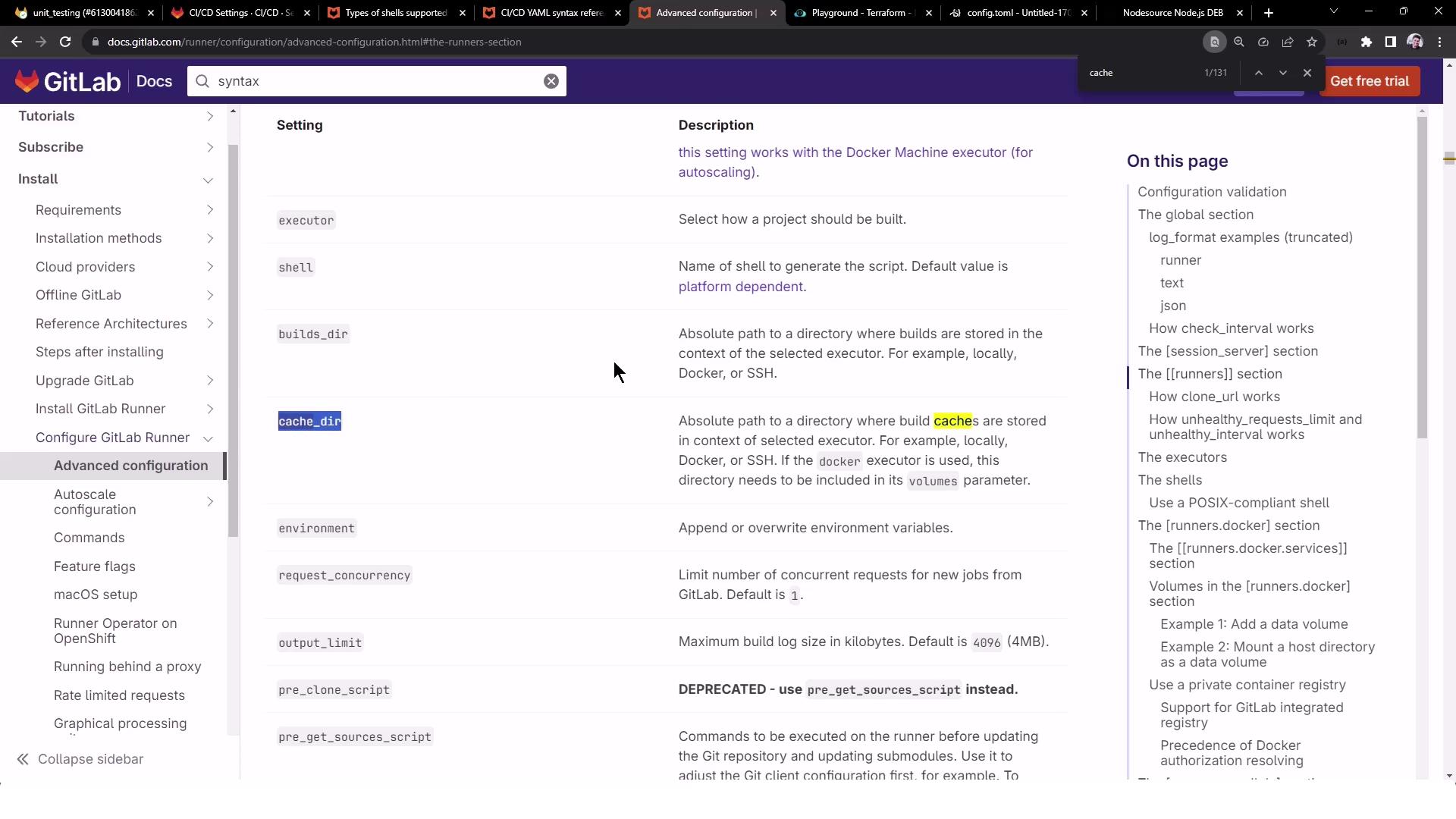
By default, caches live under GitLab Runner’s home folder. To change it, update `/etc/gitlab-runner/config.toml`:
```toml theme={null}
[[runners]]
name = "nodejs-runner"
url = "https://gitlab.com"
id = 32418121
token = "glrt-..."
executor = "shell"
cache_dir = "/home/gitlab-runner/builds" # custom path
[runners.cache]
MaxUploadedArchiveSize = 0
```
Restart the service:
```bash theme={null}
sudo gitlab-runner restart
```
Subsequent cache archives will appear under your new `cache_dir`:
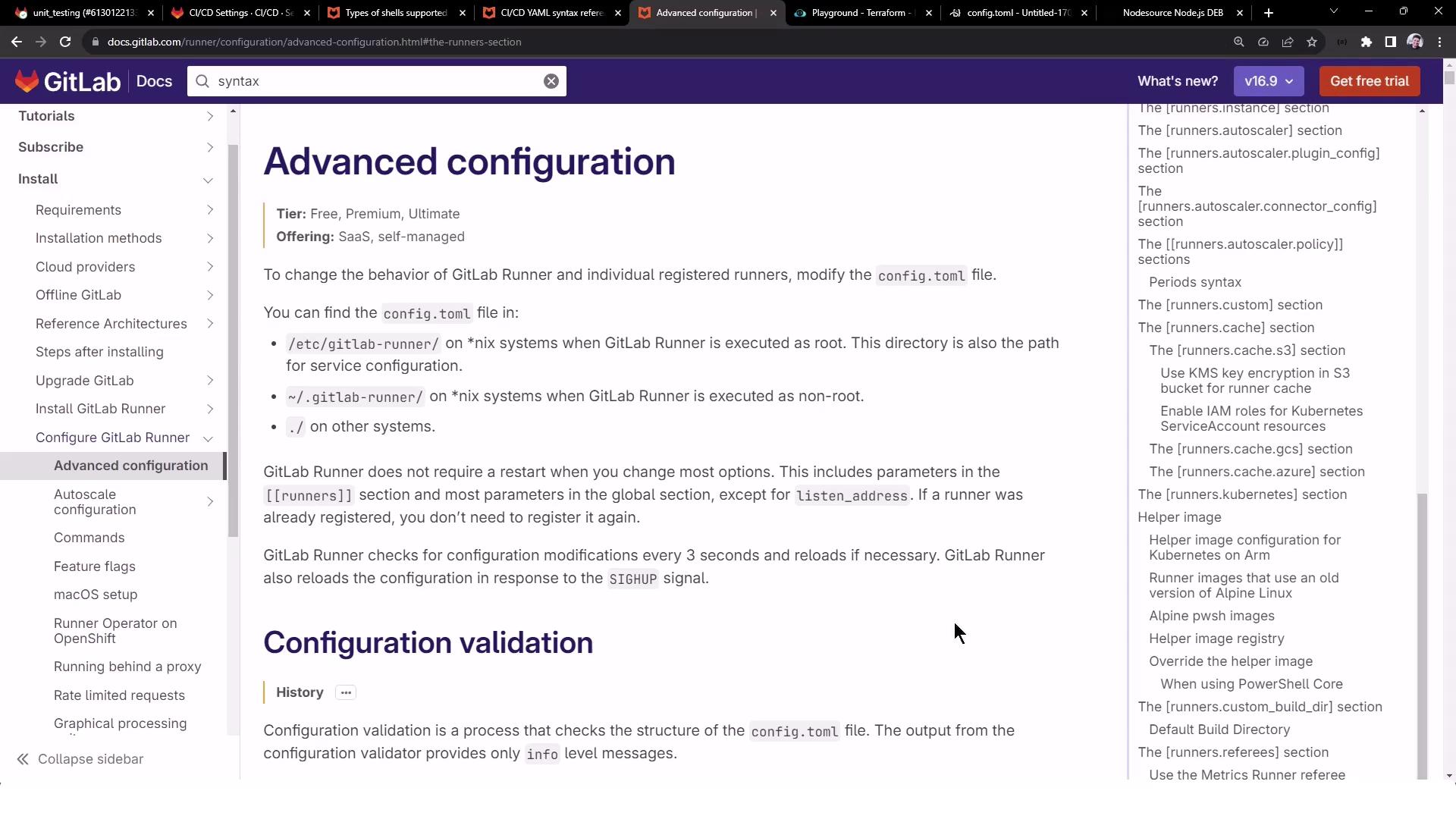
For a deep dive into advanced runner settings, consult the official docs:
***
## Links and References
* [GitLab Runner Shell Executor](https://docs.gitlab.com/runner/executors/shell.html)
* [Shell Profile Loading](https://docs.gitlab.com/runner/shells/index.html#shell-profile-loading)
* [Advanced Runner Configuration](https://docs.gitlab.com/runner/configuration/advanced-configuration.html)