> ## Documentation Index
> Fetch the complete documentation index at: https://notes.kodekloud.com/llms.txt
> Use this file to discover all available pages before exploring further.
# Use Local Template to Upload Reports to AWSMinio S3 Bucket
> This guide explains how to configure a GitLab CI/CD job to upload test reports to an S3-compatible object store.
In this guide, you’ll learn how to configure a [GitLab CI/CD job](https://docs.gitlab.com/ee/ci/) that uploads your test reports (`test-results.xml`) to an S3-compatible object store (AWS S3 or [MinIO](https://min.io)). We’ll define a reusable local template and then include it in our pipeline.
## 1. Review Existing Test Jobs
In the **Solar System** repository, two jobs already generate test artifacts:
```yaml theme={null}
unit_testing:
stage: test
extends: .prepare_nodejs_environment
script:
- npm test
artifacts:
when: always
expire_in: 3 days
name: Moca-Test-Result
paths:
- test-results.xml
reports:
junit: test-results.xml
code_coverage:
stage: test
extends: .prepare_nodejs_environment
script:
- npm run coverage
artifacts:
when: always
expire_in: 3 days
name: Code-Coverage-Result
paths:
- coverage/
```
We want to pick up `test-results.xml` from the `unit_testing` job and push it into our S3-compatible bucket.
## 2. Set Up MinIO
[MinIO](https://min.io) is an open-source, high-performance object storage compatible with AWS S3 APIs. After installing and starting MinIO:
* Sign in at the browser UI\
Username: `minioadmin`\
Password: `minioadmin`
* Create a bucket named `solar-system-reports-bucket`:
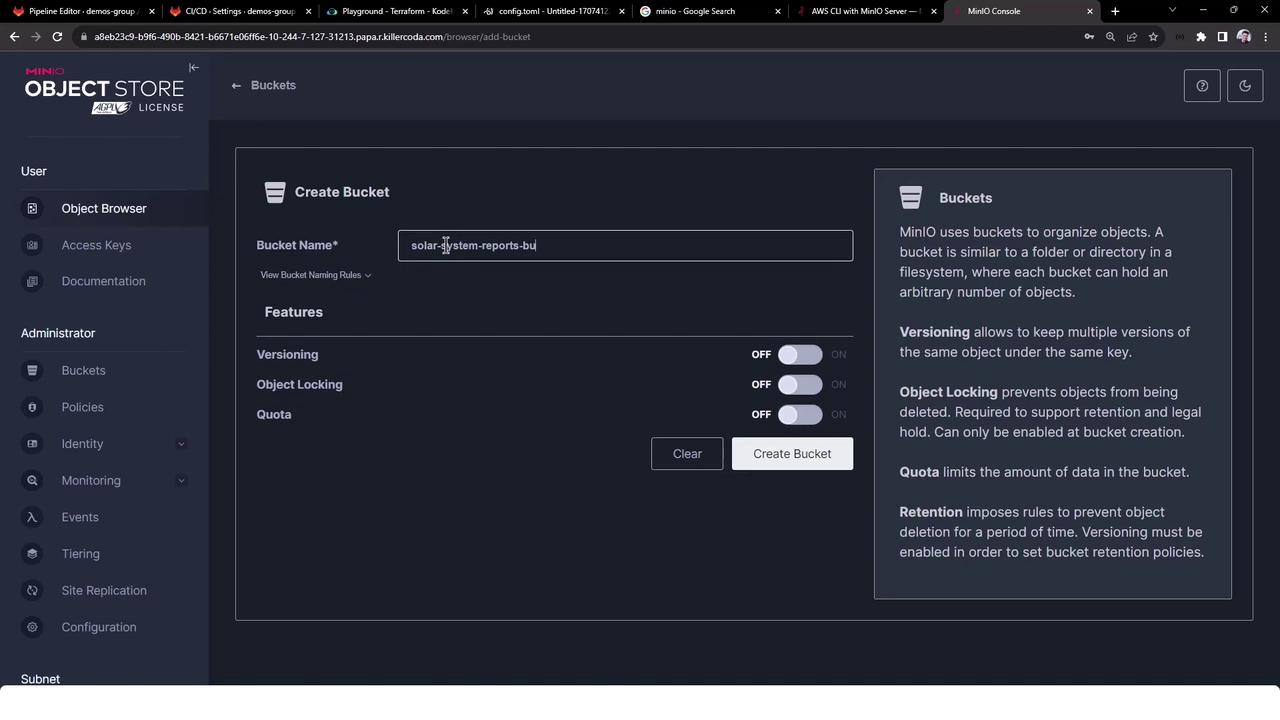
Once the bucket exists, it’s initially empty:

Keep your MinIO credentials (`minioadmin:minioadmin`) and endpoint (`https://:`) secure. Consider using [GitLab CI/CD variables](/docs/variables/).
## 3. Create a Local Template
We’ll define a reusable job in `templates/aws-reports.yml`. Open your Web IDE, create the `templates/` folder, and add:
```yaml theme={null}
variables:
MINIO_URL: https://:
BUCKET_NAME: solar-system-reports-bucket
AWS_ACCESS_KEY_ID: minioadmin
AWS_SECRET_ACCESS_KEY: minioadmin
.reporting_job:
stage: reporting
needs:
- unit_testing
image:
name: amazon/aws-cli:latest
entrypoint:
- /usr/bin/env
before_script:
- ls -ltr
- mkdir reports-$CI_PIPELINE_ID
- mv test-results.xml reports-$CI_PIPELINE_ID/
- ls -ltr reports-$CI_PIPELINE_ID/
script:
- aws configure set default.s3.signature_version s3v4
- aws --endpoint-url=$MINIO_URL s3 ls s3://$BUCKET_NAME
- aws --endpoint-url=$MINIO_URL s3 cp ./reports-$CI_PIPELINE_ID s3://$BUCKET_NAME/reports-$CI_PIPELINE_ID --recursive
- aws --endpoint-url=$MINIO_URL s3 ls s3://$BUCKET_NAME
```
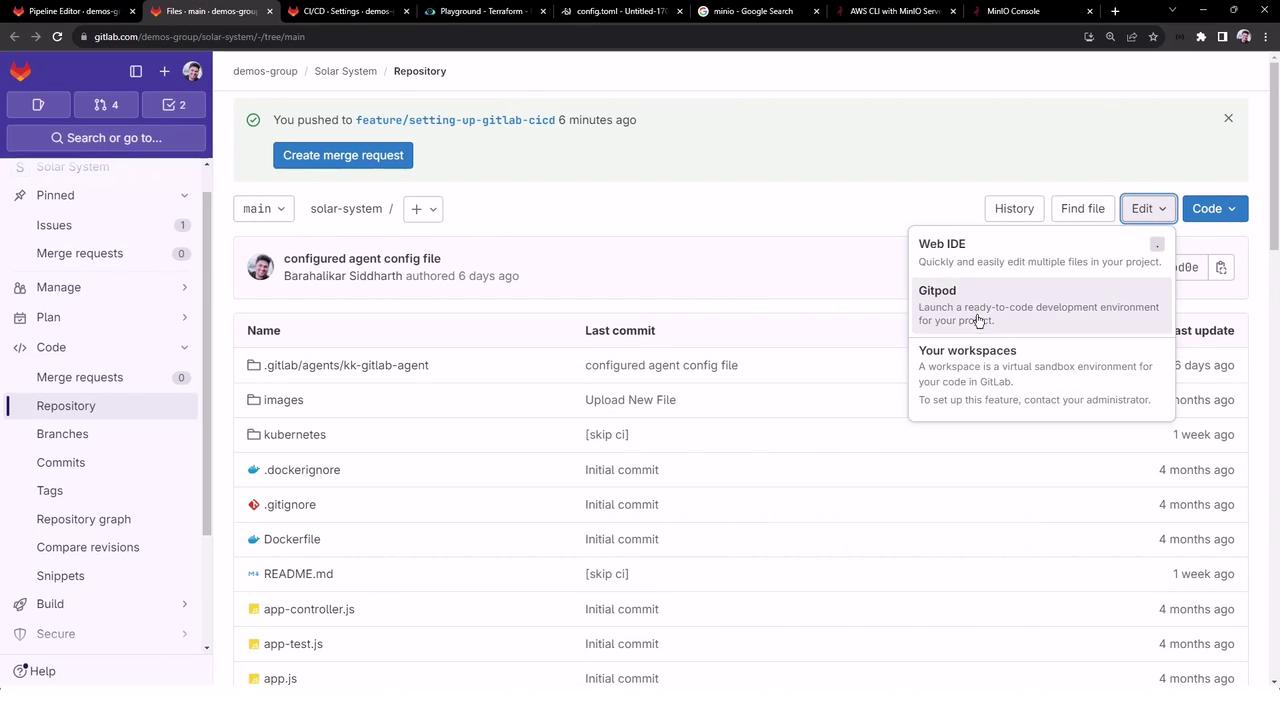
Replace `MINIO_URL` with your actual MinIO endpoint (including port).\
Use [protected CI/CD variables](/docs/variables/#protected-environment-variables) for credentials.
## 4. Integrate the Template in `.gitlab-ci.yml`
Include and invoke the template in your main CI file:
```yaml theme={null}
workflow:
rules:
- if: '$CI_COMMIT_BRANCH == "main" || $CI_COMMIT_BRANCH =~ /feature/'
when: always
stages:
- test
- reporting
- containerization
- dev-deploy
- stage-deploy
include:
- local: 'templates/aws-reports.yml'
variables:
DOCKER_USERNAME: siddharth67
IMAGE_VERSION: $CI_PIPELINE_ID
K8S_IMAGE: $DOCKER_USERNAME/solar-system:$IMAGE_VERSION
MONGO_URI: 'mongodb://$MONGO_USERNAME@supercluster.d83jj.mongodb.net/superData'
MONGO_USERNAME: superuser
MONGO_PASSWORD: $M_DB_PASSWORD
SCAN_KUBERNETES_MANIFESTS: "true"
.prepare_nodejs_environment:
image: node:17-alpine3.14
services:
- name: siddharth67/mongo-db:non-prod
rules:
- when: always
unit_testing:
stage: test
extends: .prepare_nodejs_environment
tags:
- docker
- linux
- aws
script:
- npm test
artifacts:
when: always
expire_in: 3 days
name: Moca-Test-Result
paths:
- test-results.xml
reports:
junit: test-results.xml
reporting:
<<: *reporting_job
tags:
- docker
- linux
- aws
```
### Pipeline Stages
| Stage | Purpose |
| ---------------- | ----------------------------------------- |
| test | Run unit tests and generate JUnit reports |
| reporting | Upload reports to S3/MinIO bucket |
| containerization | Build and push Docker images |
| dev-deploy | Deploy to development environment |
| stage-deploy | Deploy to staging environment |
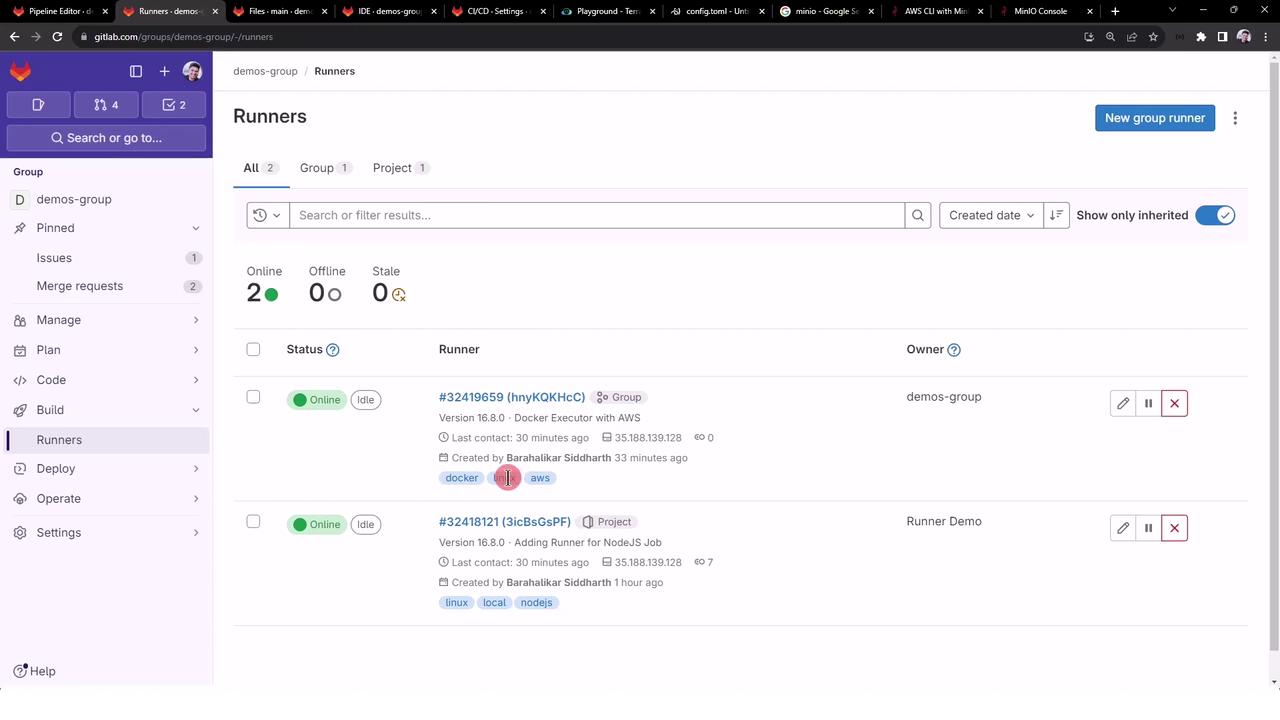
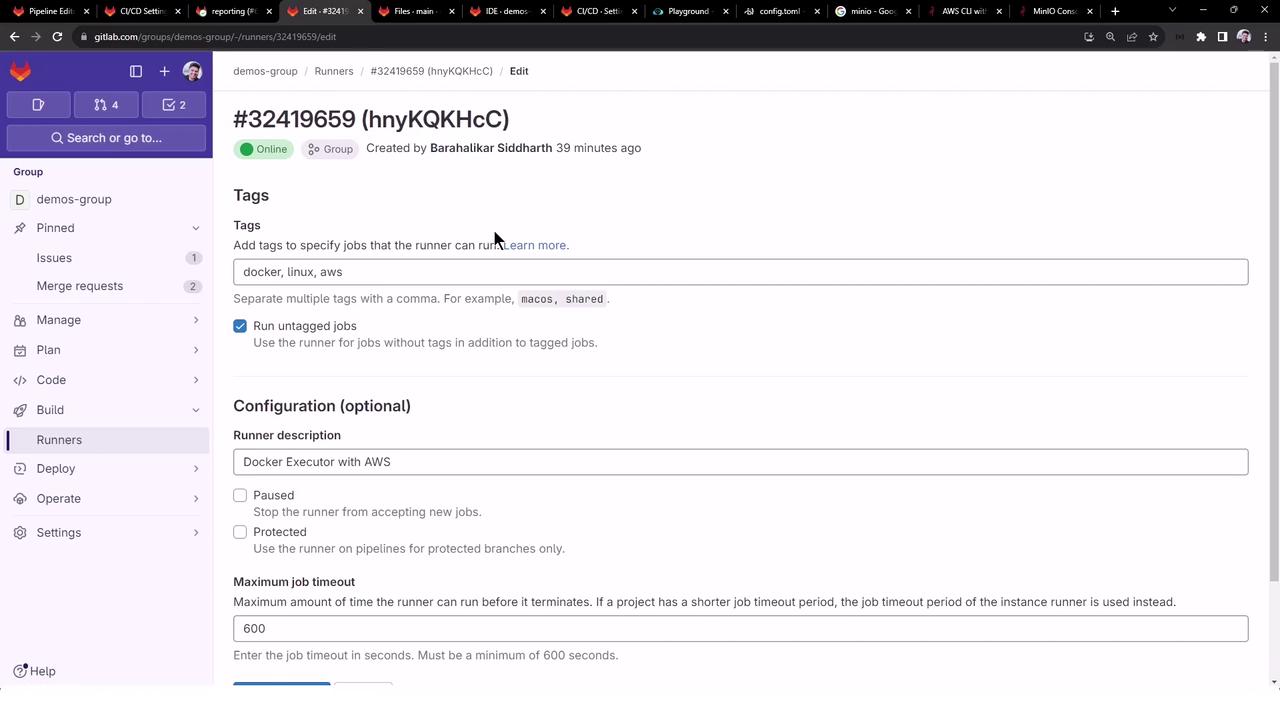
If you’re using self-managed runners, ensure the tags (`docker`, `linux`, `aws`) match your runner configuration, or enable untagged jobs.
## 5. Verify Your Runners
Confirm that your group-level or project runner is online and tagged correctly:
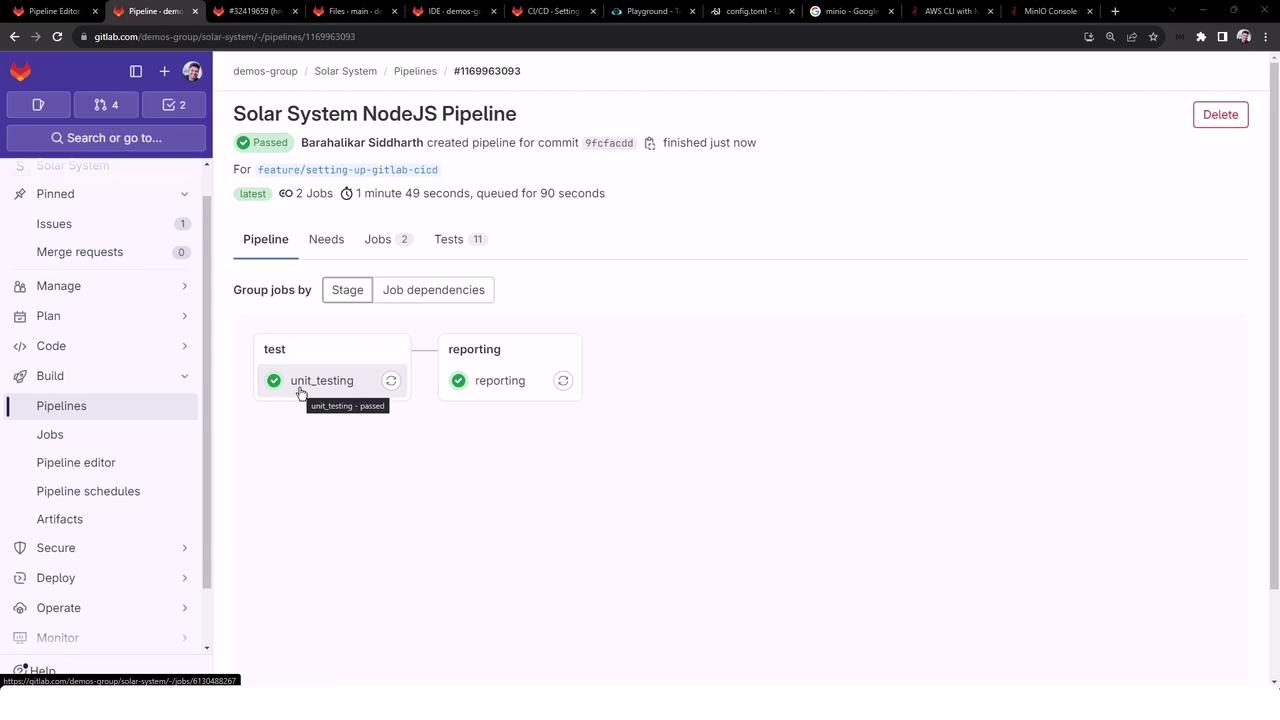
## 6. Execute the Pipeline
Trigger a pipeline on `main` or any `feature/*` branch. If tags or permissions are misconfigured, jobs may stay pending.
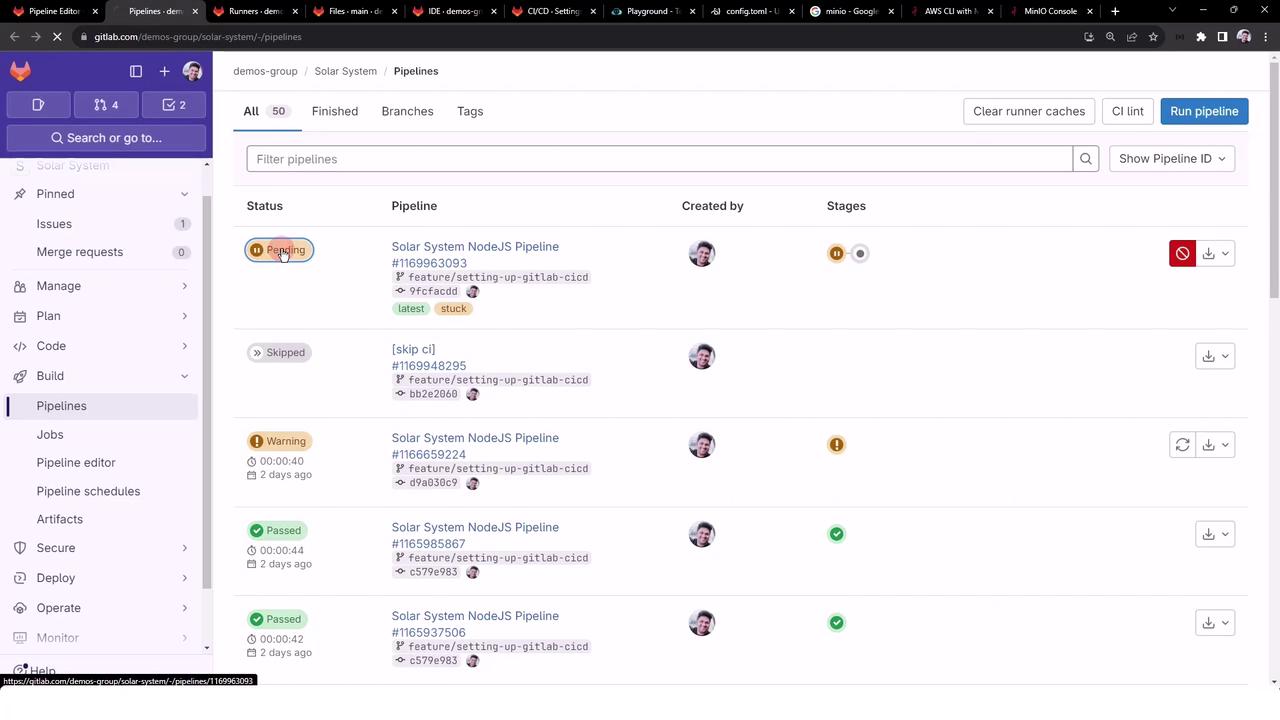
Once everything is set up correctly, both `unit_testing` and `reporting` will pass:
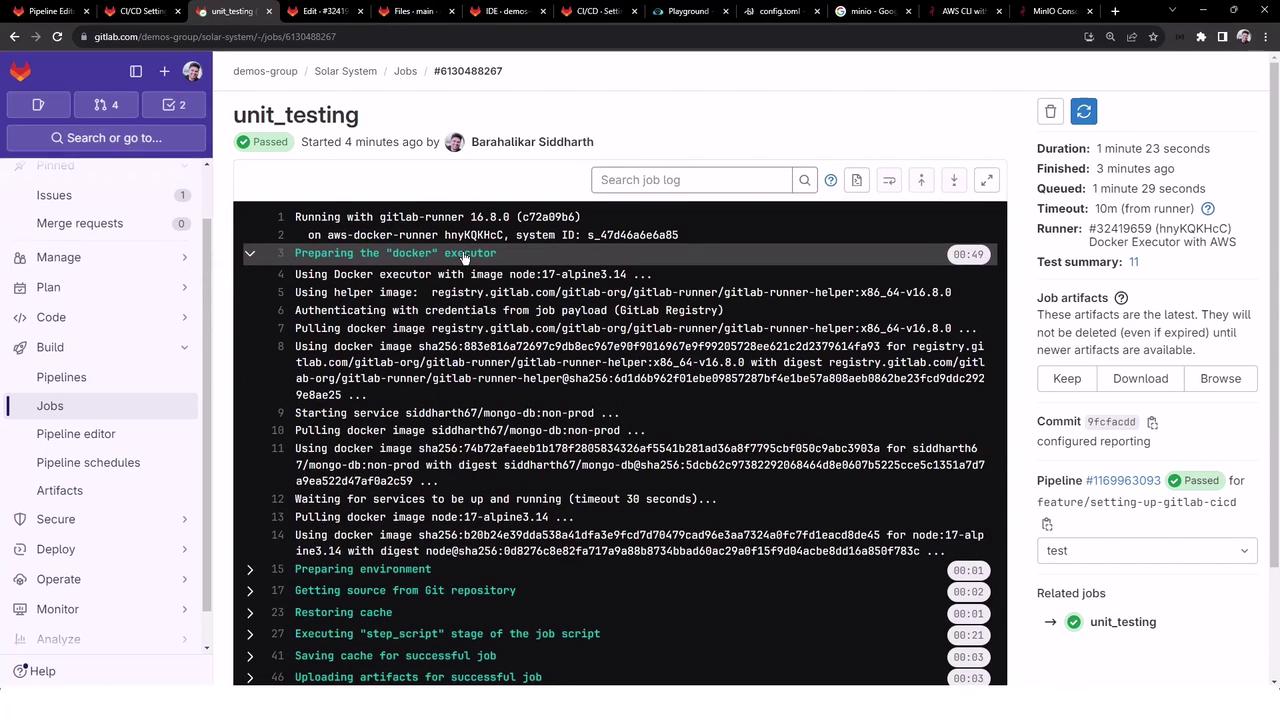
### Sample Job Logs
```bash theme={null}
$ ls -ltr
$ mkdir reports-$CI_PIPELINE_ID
$ mv test-results.xml reports-$CI_PIPELINE_ID/
$ aws configure set default.s3.signature_version s3v4
$ aws --endpoint-url=$MINIO_URL s3 ls s3://$BUCKET_NAME
$ aws --endpoint-url=$MINIO_URL s3 cp ./reports-$CI_PIPELINE_ID s3://$BUCKET_NAME/reports-$CI_PIPELINE_ID --recursive
upload: reports-1169963093/test-results.xml to s3://solar-system-reports-bucket/reports-1169963093/test-results.xml
$ aws --endpoint-url=$MINIO_URL s3 ls s3://$BUCKET_NAME
PRE reports-1169963093/
```
## 7. Verify in the MinIO Console
Open the MinIO browser again—you should now see the `reports-/test-results.xml` folder and file:

## 8. Runner Configuration Interface
Need to update tags, timeouts, or other settings? Visit your runner’s edit page:
***
You now have a reusable local template that automates uploading GitLab CI test reports to any S3-compatible storage.
## Links and References
* [GitLab CI/CD Documentation](https://docs.gitlab.com/ee/ci/)
* [AWS S3](https://aws.amazon.com/s3)
* [MinIO](https://min.io)
* [AWS CLI User Guide](https://docs.aws.amazon.com/cli/latest/userguide/)
* [JUnit Report Format](https://junit.org/)