> ## Documentation Index
> Fetch the complete documentation index at: https://notes.kodekloud.com/llms.txt
> Use this file to discover all available pages before exploring further.
# ArgoCD Notifications with Slack
> Learn to configure ArgoCD for sending notifications to Slack using a custom application, covering setup, secrets, templates, and testing.
Learn how to configure ArgoCD to send notifications to a Slack channel using a custom Slack application. This guide covers the complete process—from creating a Slack application to configuring ArgoCD secrets, setting up notification templates, and testing the notifications.
***
## 1. Creating a Slack Application
To send notifications through Slack, start by creating a Slack application. You will need an active Slack workspace. Follow these steps:
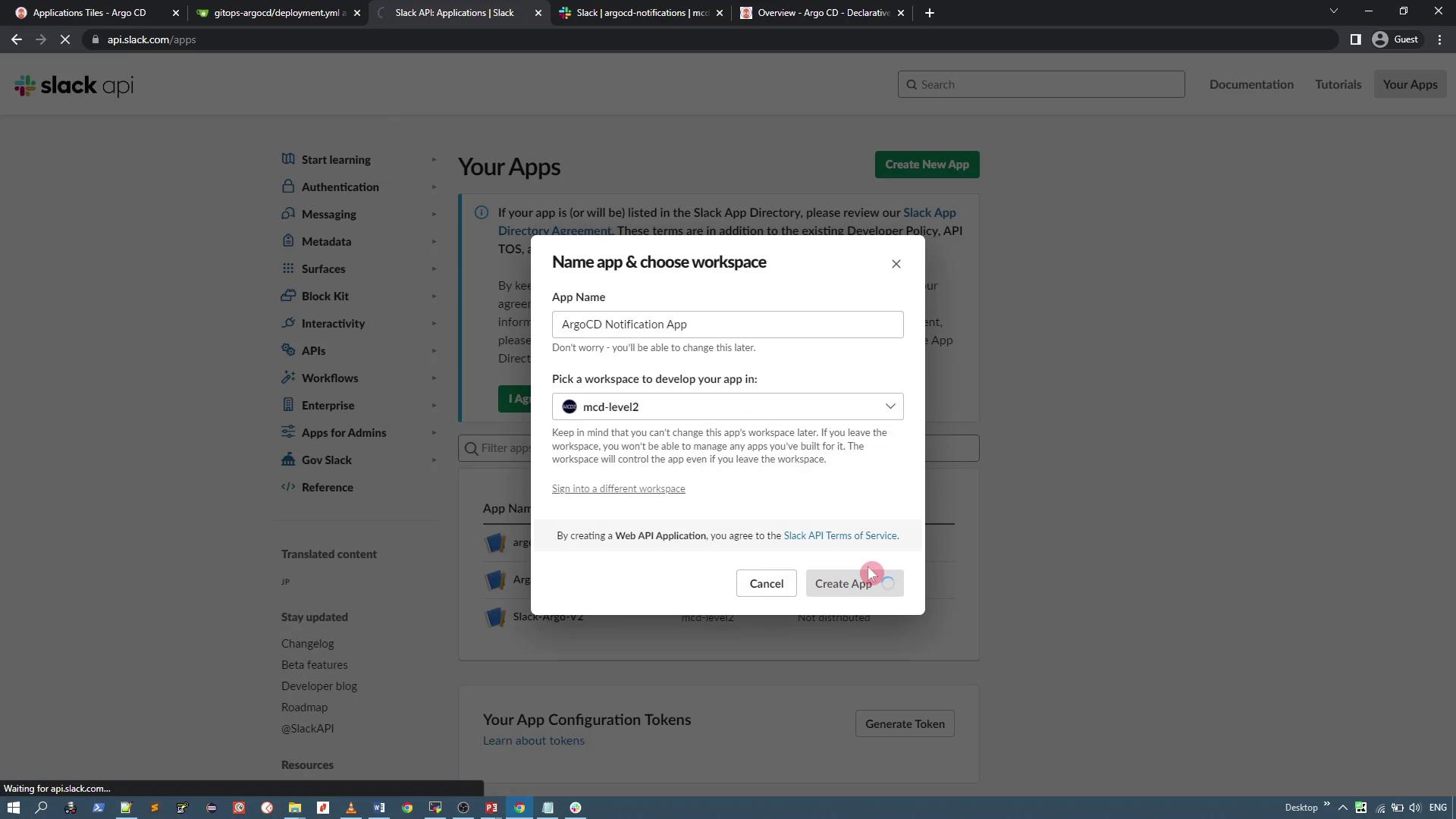
1. Navigate to the Slack Apps page and click on **Create New App from scratch**.
2. Provide a name for your app (e.g., *Agostini Notification App*) and select your desired workspace (e.g., *MCD level 2*).
3. Once the app is created, click on it to open its settings.
***
## 2. Configuring OAuth Permissions
After creating the app, configure the OAuth scopes to allow ArgoCD to send messages. Complete the following steps:
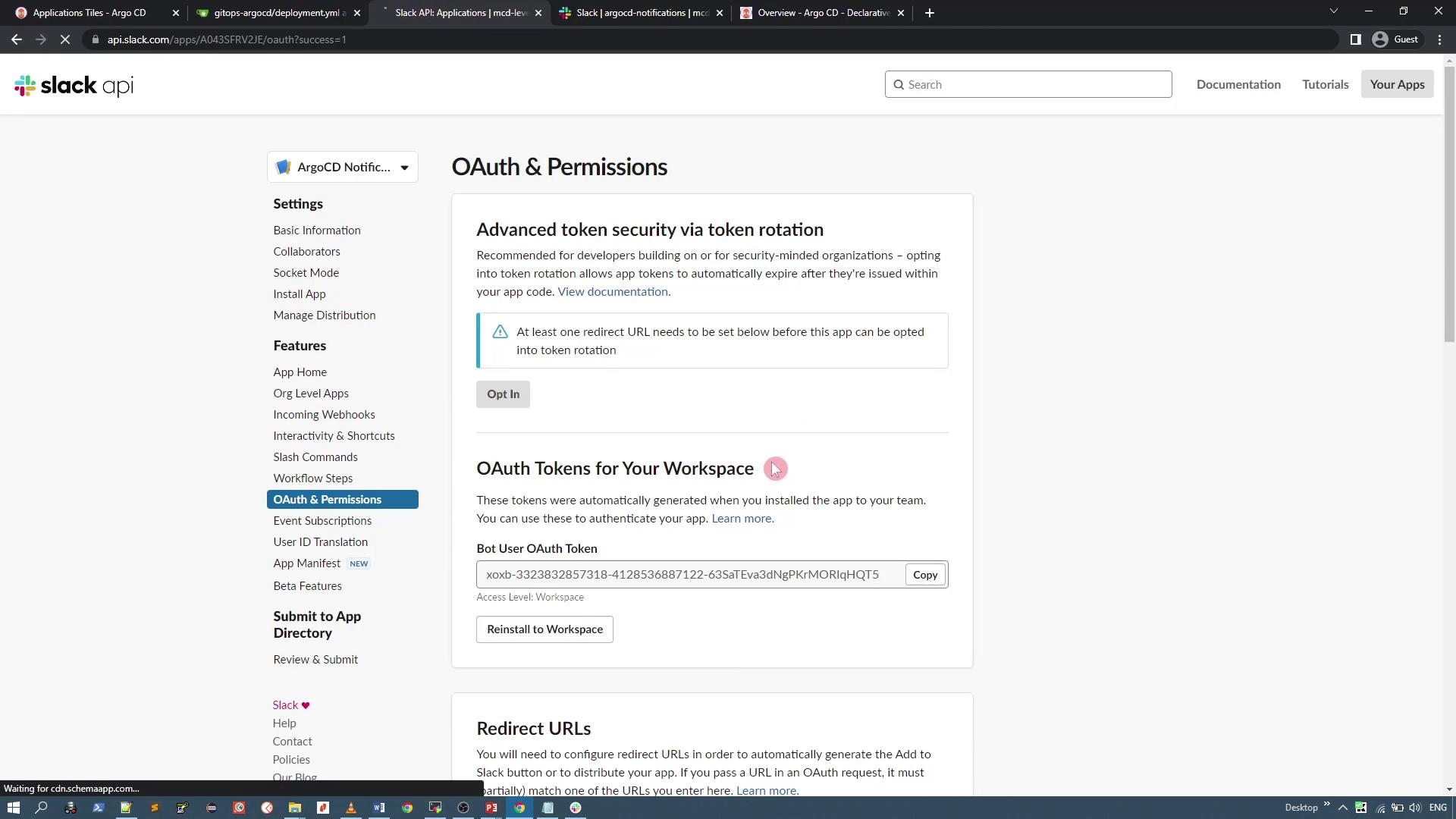
1. Within your app settings, scroll down to **OAuth & Permissions**.
2. Under the scopes section, add the following OAuth scopes:
* `chat:write`
* `chat:write.custom`
3. Click **Install to Workspace** (or *Allow* if prompted). This installs the app to your workspace and generates an OAuth token. Make sure to copy this token as it will be needed later.
!!! note "Important"
Keep your OAuth token secure and store it safely. You will use it to integrate Slack with ArgoCD.
***
## 3. Configuring the ArgoCD Notifications Secret
Next, add the OAuth token to the ArgoCD notifications secret. This allows the notifications controller to access the token and send Slack messages.
1. Locate the ArgoCD notifications deployment with the following command:
```bash theme={null}
kubectl -n argocd get all | grep -i notif
```
You should see an output similar to:
```plaintext theme={null}
pod/argocd-notifications-controller-54dd686846-4b4r4 1/1 Running 0 30h
service/argocd-notifications-controller-metrics ClusterIP 10.110.116.143 9001/TCP 30h
deployment.apps/argocd-notifications-controller 1/1 1 1 30h
replicaset.apps/argocd-notifications-controller-54dd686846 1 1 1 30h
```
2. Edit the `argocd-notifications-secret` to include your Slack token as plaintext data:
```yaml theme={null}
apiVersion: v1
kind: Secret
metadata:
name: argocd-notifications-secret
namespace: argocd
annotations:
kubectl.kubernetes.io/last-applied-configuration: |
{"apiVersion":"v1","kind":"Secret","metadata":{"annotations":{},"name":"argocd-notifications-secret","namespace":"argocd"},"type":"Opaque"}
stringData:
slack-token: xoxb-332832875318-4128536871122-63SaTEva3dNgPKrMORIqHQT5
type: Opaque
```
Save the secret and verify that the Slack token is added. (Note: When retrieved, the token will be Base64-encoded.)
3. (Optional) To add additional credentials, such as email credentials, use a similar approach. For example:
```bash theme={null}
export EMAIL_USER=
export PASSWORD=
kubectl apply -n argocd -f - << EOF
apiVersion: v1
kind: Secret
metadata:
name: argocd-notifications-secret
stringData:
email-username: $EMAIL_USER
email-password: $PASSWORD
type: Opaque
EOF
```
***
## 4. Configuring the Notifications ConfigMap
Now, configure the ArgoCD notifications ConfigMap to define the Slack service, triggers, and message templates. This ConfigMap specifies when notifications should be sent and what content they should include.
1. Edit the ConfigMap `argocd-notifications-cm` in the `argocd` namespace to define the Slack service configuration:
```yaml theme={null}
apiVersion: v1
kind: ConfigMap
metadata:
name: argocd-notifications-cm
namespace: argocd
annotations:
kubectl.kubernetes.io/last-applied-configuration: |
{"apiVersion":"v1","kind":"ConfigMap","metadata":{"annotations":{},"name":"argocd-notifications-cm","namespace":"argocd"}}
data:
service.slack: |
token: $slack-token
username: argocd-bot
icon: ":rocket:"
```
2. Add a trigger and its corresponding template. For example, configure a trigger to send a notification when an application is synchronized:
```yaml theme={null}
apiVersion: v1
kind: ConfigMap
metadata:
name: argocd-notifications-cm
namespace: argocd
data:
service.slack: |
token: $slack-token
username: argocd-bot
icon: ":rocket:"
trigger.on_sync-succeeded: |
- when: app.status.sync.status == 'Synced'
send: [app-sync-succeeded-slack]
template.app-sync-succeeded-slack: |
message: |
Application {{ .app.metadata.name }} is now {{ .app.status.sync.status }}
slack:
attachments: |
[{
"title": "{{ .app.metadata.name }}",
"title_link": "{{ .context.argocdUrl }}/applications/{{ .app.metadata.name }}",
"color": "#18be52",
"fields": [
{
"title": "Sync Status",
"value": "{{ .app.status.sync.status }}",
"short": false
},
{
"title": "Repository",
"value": "{{ .app.spec.source.repoURL }}",
"short": false
},
{
"title": "Revision",
"value": "{{ .app.status.sync.revision }}",
"short": false
},
{
"title": "Commit Author",
"value": "{{ (call .repo.GetCommitMetadata .app.status.sync.revision).Author }}",
"short": false
},
{
"title": "Commit Message",
"value": "{{ (call .repo.GetCommitMetadata .app.status.sync.revision).Message }}",
"short": false
},
{
"title": "Commit Date Time",
"value": "{{ (call .repo.GetCommitMetadata .app.status.sync.revision).Date }}",
"short": false
}
]
}]
```
This configuration sets a trigger that checks if the application's sync status is 'Synced.' When the condition is met, ArgoCD sends a detailed Slack message showing repository information, revision details, and commit metadata.
***
## 5. Annotating Applications or Projects for Notifications
To enable notifications on specific applications or projects, add the appropriate annotations. This allows you to control which applications send notifications upon synchronization.
To have all applications under the default project send a Slack notification when synchronized, update the default AppProject as shown below:
```yaml theme={null}
apiVersion: argoproj.io/v1alpha1
kind: AppProject
metadata:
name: default
namespace: argocd
annotations:
notifications.argoproj.io/subscribe-on-sync-succeeded.slack: argocd-notifications
spec:
clusterResourceWhitelist:
- group: '*'
kind: '*'
destinations:
- server: '*'
namespace: '*'
sourceRepos:
- '*'
```
For granular control, you can also annotate individual applications:
```yaml theme={null}
apiVersion: argoproj.io/v1alpha1
kind: Application
metadata:
name: my-application
namespace: argocd
annotations:
notifications.argoproj.io/subscribe-on-sync-succeeded.slack: my_channel
```
!!! note "Tip"
Annotating projects or individual applications helps you manage notifications efficiently. Use project-level annotations to cover multiple applications and individual annotations for finer control.
***
## 6. Testing the Notifications
Once all changes are applied, you can test the configuration by synchronizing an application and verifying the notifications in Slack.
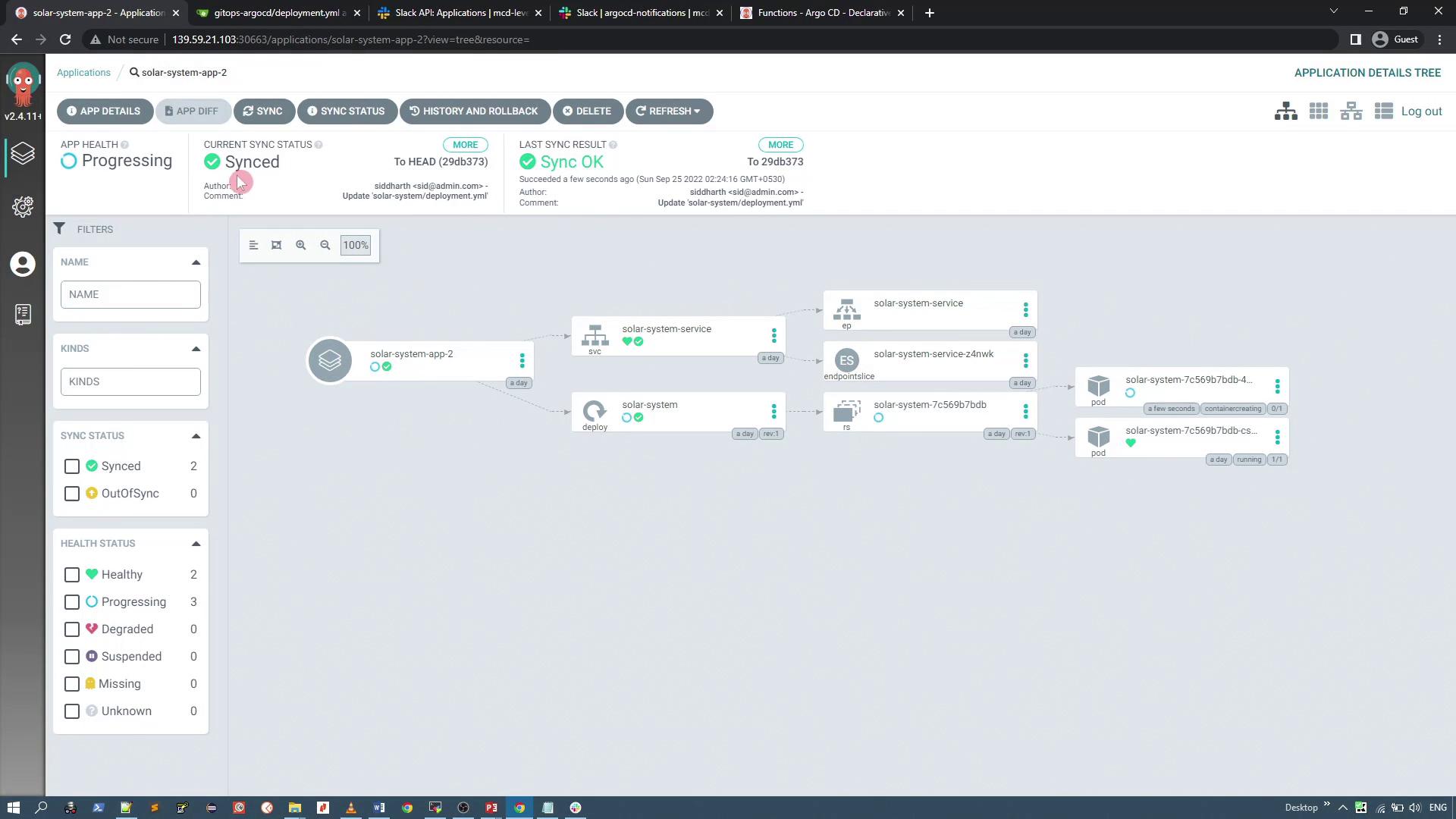
1. Synchronize an application using the ArgoCD UI; its status should change to *Synced*.
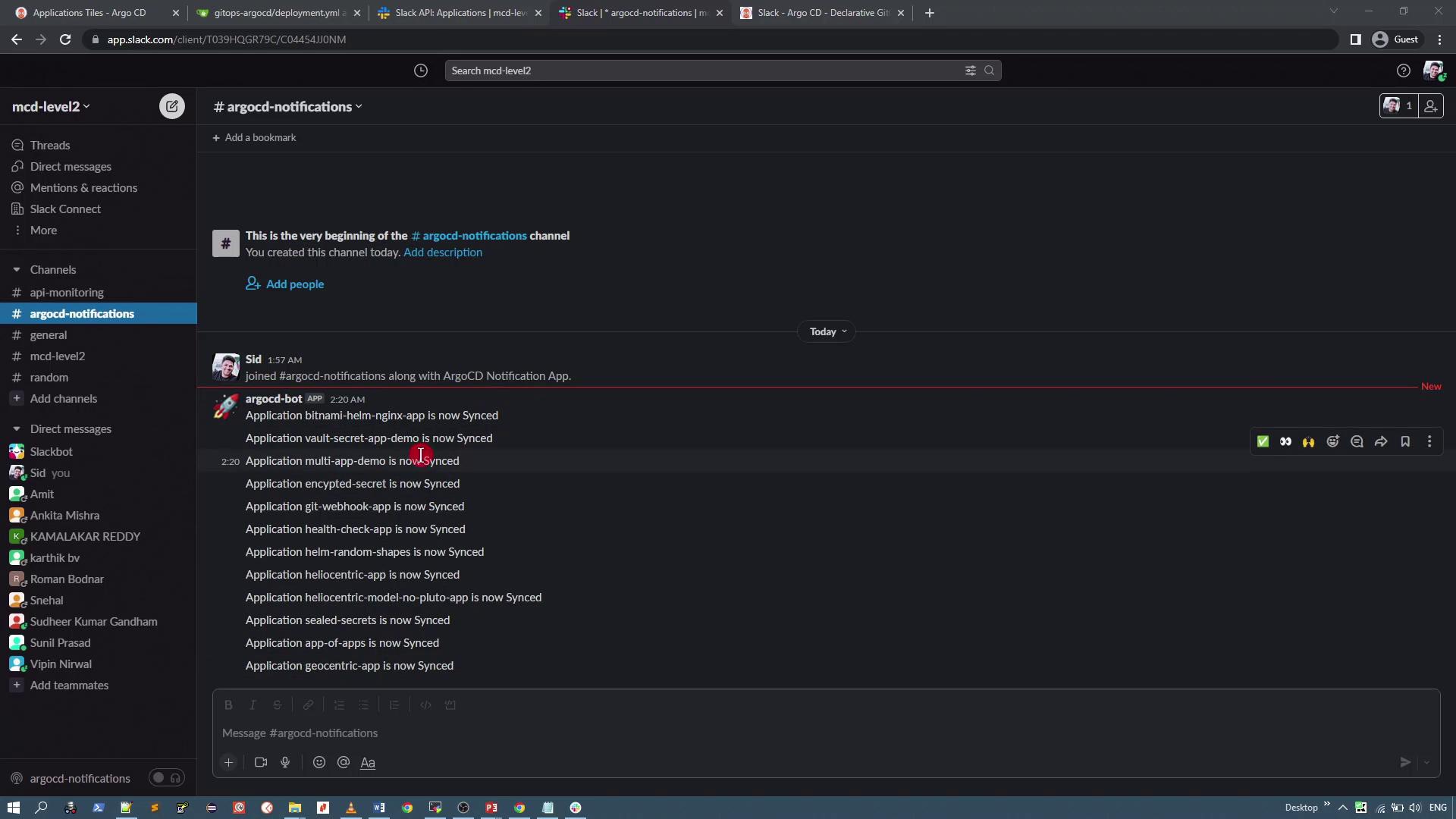
2. Verify that the notification is sent to your designated Slack channel.
3. Check the Slack channel (e.g., *argocd-notifications*) to view the detailed message with attachments showing sync status, repository details, revision info, commit author, commit message, and commit date.
***
## 7. Expanding Notification Templates
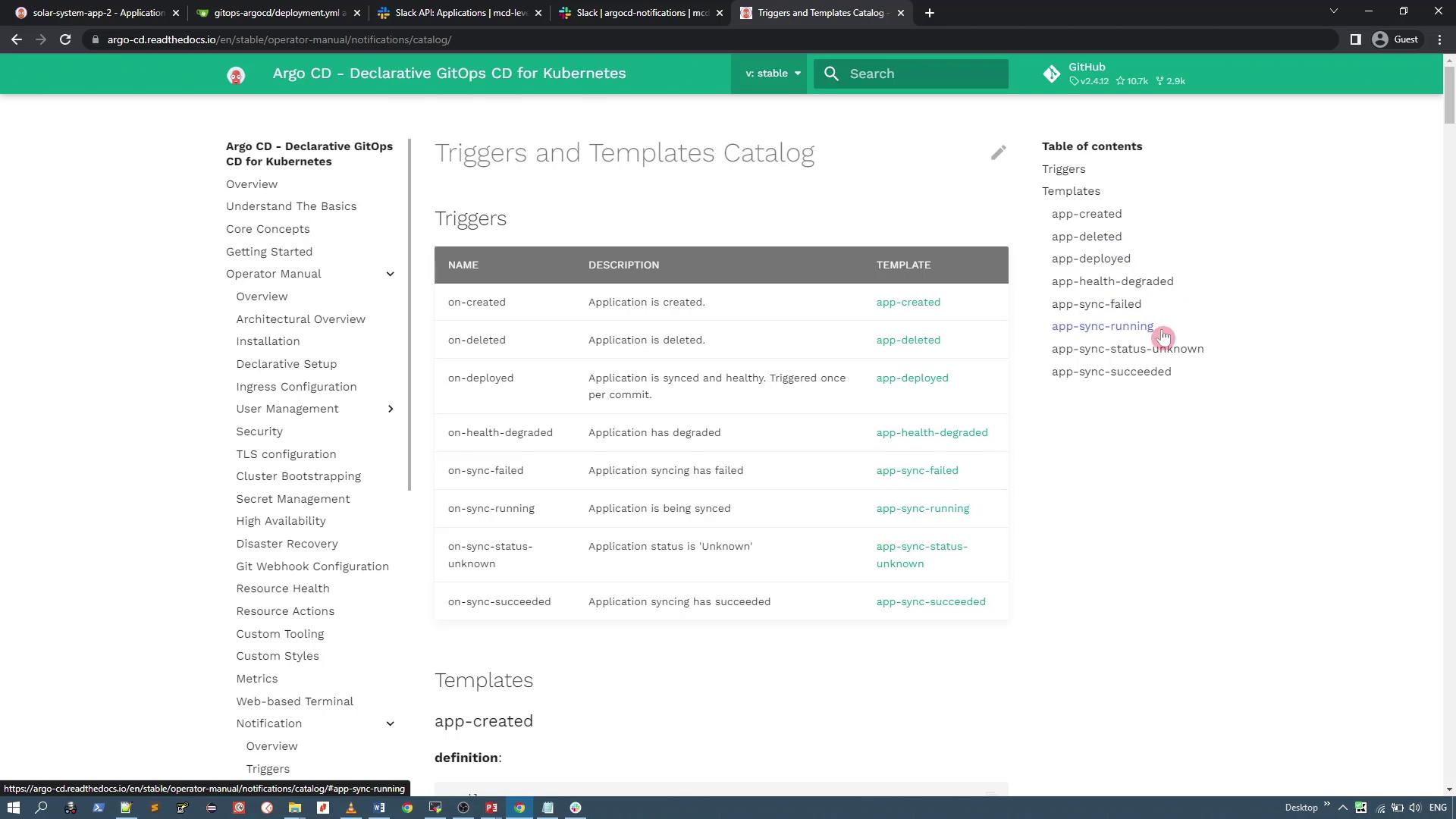
The basic configuration provided above can be extended to include more detailed notifications. For instance, you can add multiple triggers and templates covering scenarios such as "Health Degraded," "Sync Failed," or "Status Unknown."
Below is an example of an expanded template including additional details like commit information:
```yaml theme={null}
template.app-sync-status: |
message: |
Application {{ .app.metadata.name }} sync is {{ .app.status.sync.status }}.
Application details: [{{ .context.argocdUrl }}/applications/{{ .app.metadata.name }}].
slack:
attachments: |
[{
"title": "{{ .app.metadata.name }}",
"title_link": "{{ .context.argocdUrl }}/applications/{{ .app.metadata.name }}",
"color": "#18be52",
"fields": [
{
"title": "Sync Status",
"value": "{{ .app.status.sync.status }}",
"short": true
},
{
"title": "Repository",
"value": "{{ .app.spec.source.repoURL }}",
"short": true
},
{
"title": "Revision",
"value": "{{ .app.status.sync.revision }}",
"short": true
},
{
"title": "Commit Author",
"value": "{{ (call .repo.GetCommitMetadata .app.status.sync.revision).Author }}",
"short": true
},
{
"title": "Commit Message",
"value": "{{ (call .repo.GetCommitMetadata .app.status.sync.revision).Message }}",
"short": true
},
{
"title": "Commit Date Time",
"value": "{{ (call .repo.GetCommitMetadata .app.status.sync.revision).Date }}",
"short": true
}
]
}]
```
To deploy the complete notifications catalog with additional triggers and templates, run the following command:
```bash theme={null}
kubectl apply -n argocd -f https://raw.githubusercontent.com/argoproj/argo-cd/stable/notifications_catalog/install.yaml
```
This command updates your ArgoCD notifications ConfigMap with extra features that you can further customize.
***
## Conclusion
In this guide, you learned how to set up Slack notifications for ArgoCD. We began by creating a Slack application and configuring its OAuth permissions. Next, we integrated the OAuth token into ArgoCD’s notifications secret and configured the notifications through a ConfigMap by defining triggers and custom Slack message templates. Finally, we enabled notifications via annotations on applications or projects and verified the workflow through testing.
Thank you for reading, and happy deploying!