> ## Documentation Index
> Fetch the complete documentation index at: https://notes.kodekloud.com/llms.txt
> Use this file to discover all available pages before exploring further.
# DEMO Alerts amp Providers
> This tutorial configures the Flux Notification Controller to send GitOps alerts to a Slack channel.
In this tutorial, you'll configure the Flux Notification Controller to automatically send GitOps alerts to a Slack channel. By the end, you will have a working Slack App, Flux provider, and alert definitions driving real-time notifications.
***
## 1. Prepare Your Slack Workspace and Channel
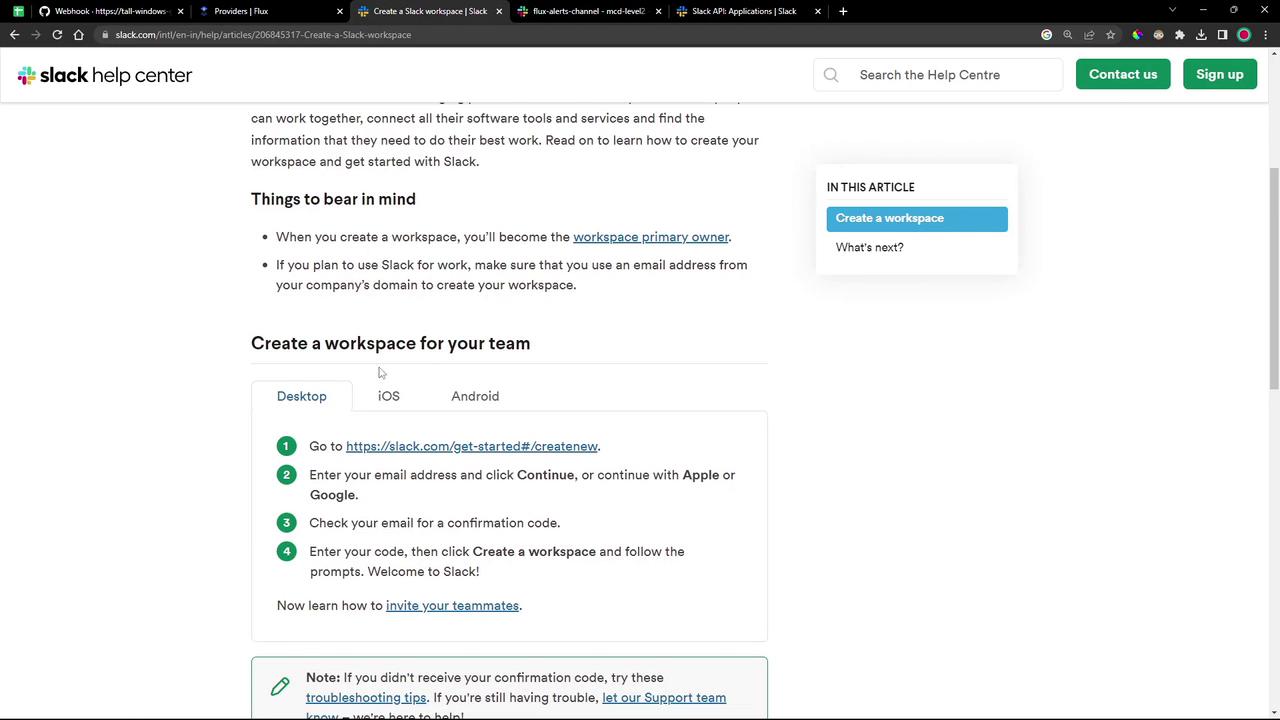
If you don’t have a Slack workspace yet, create one by following [Slack’s Help Center instructions](https://slack.com/help/articles/218080037-Create-a-Slack-workspace):
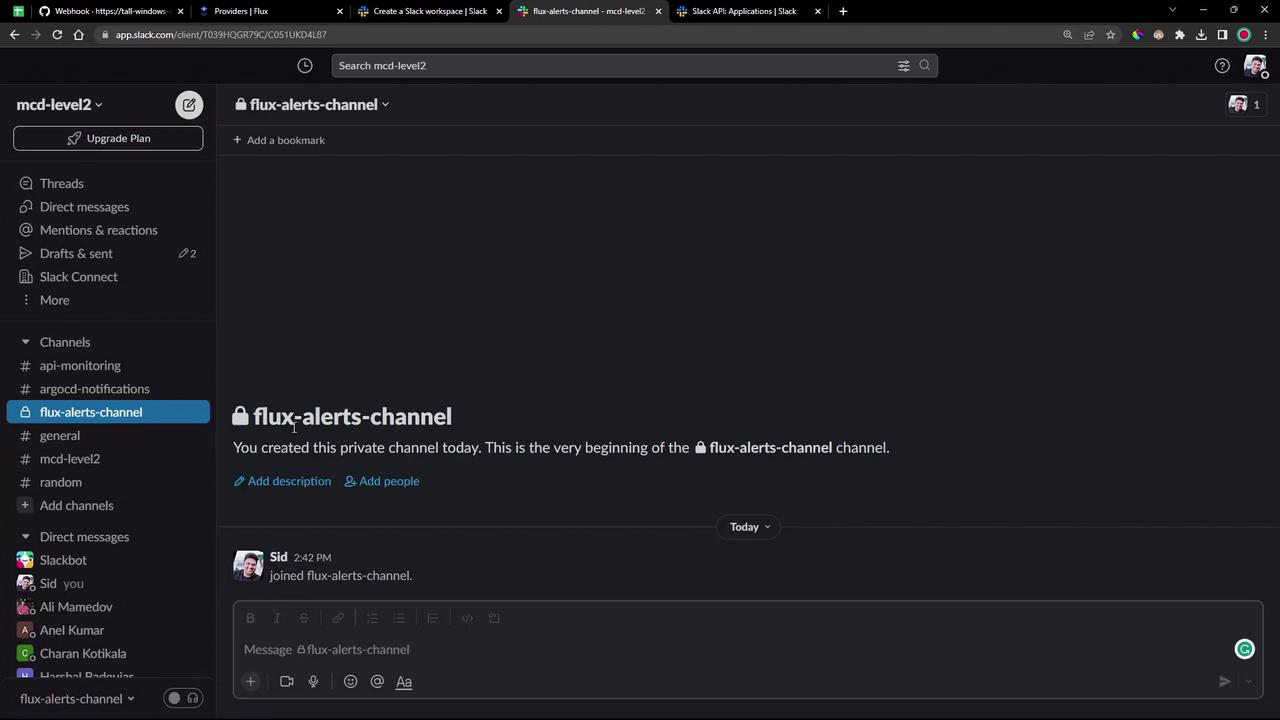
Once your workspace is ready, create a new channel (public or private) for Flux alerts. In this demo, we’ll use `flux-alerts-channel`:
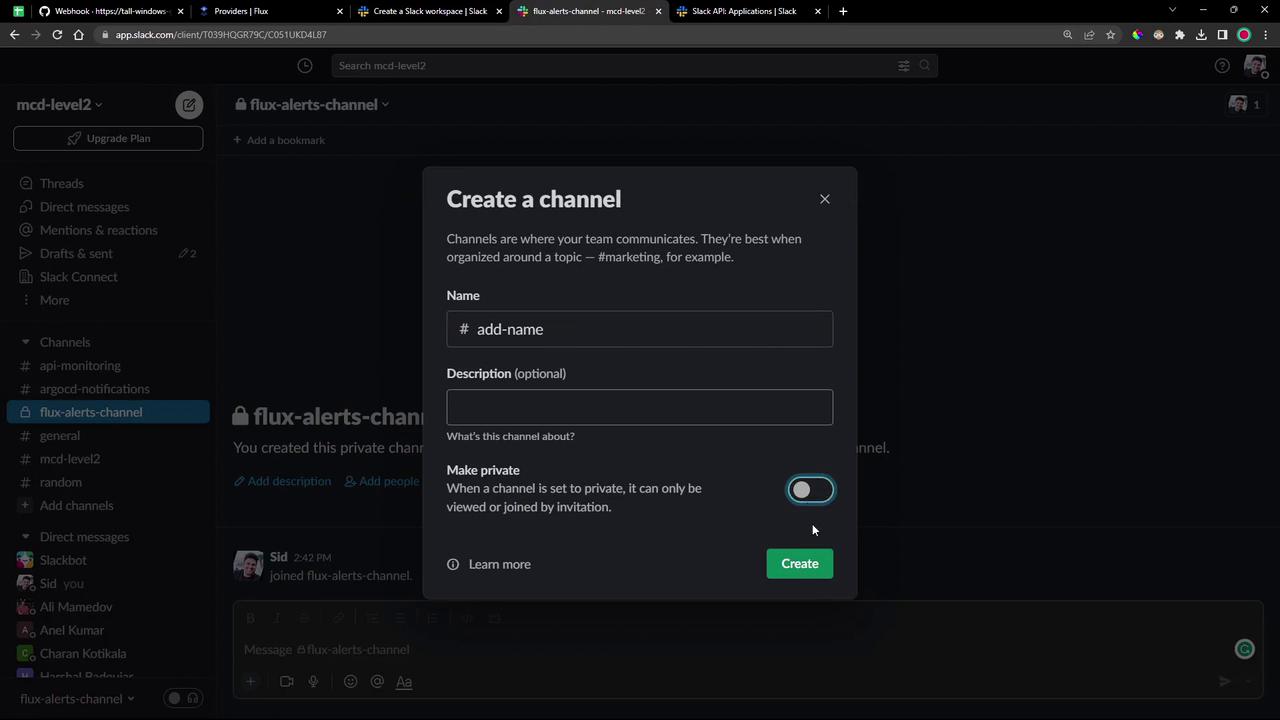
If you need to customize the channel settings, use the channel-creation pop-up:
***
## 2. Create and Configure a Slack App
### 2.1 Create the Slack App
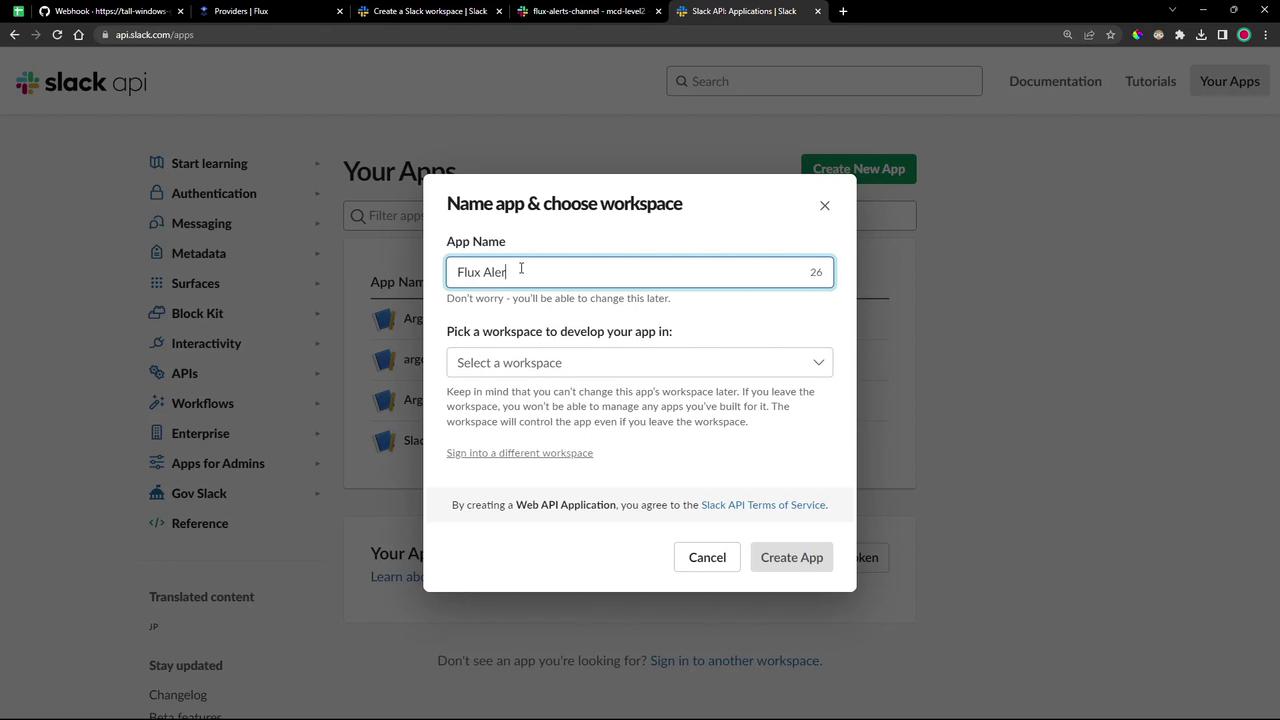
1. Go to the [Slack API dashboard](https://api.slack.com/apps).
2. Click **Create an App**, give it a name (e.g., **Flux Alerts Application**), and select your workspace.
### 2.2 Configure OAuth & Permissions
Under **Features → OAuth & Permissions**, add the following **Bot Token Scopes**:
| Scope | Description |
| -------------------- | ---------------------------------- |
| chat:write | Send messages as the app |
| channels:read | Read public channel information |
| chat:write.customize | Send messages with a custom avatar |
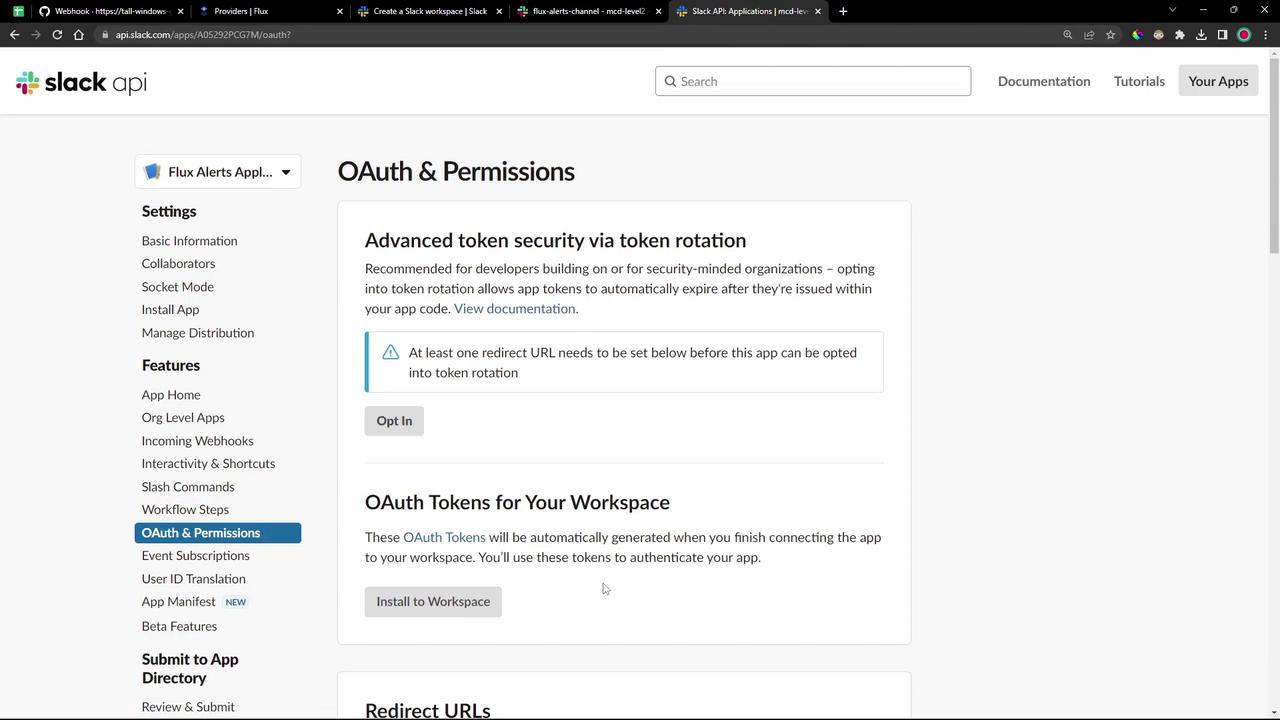
After adding the scopes, install the app:
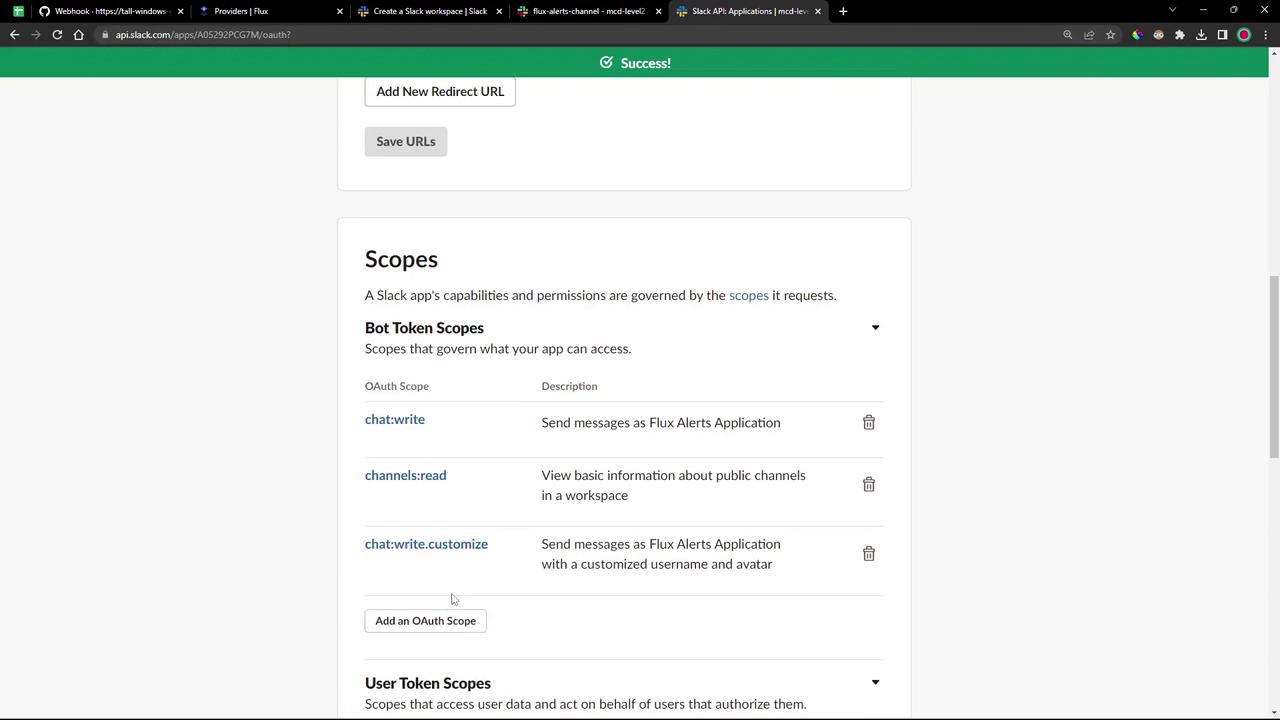
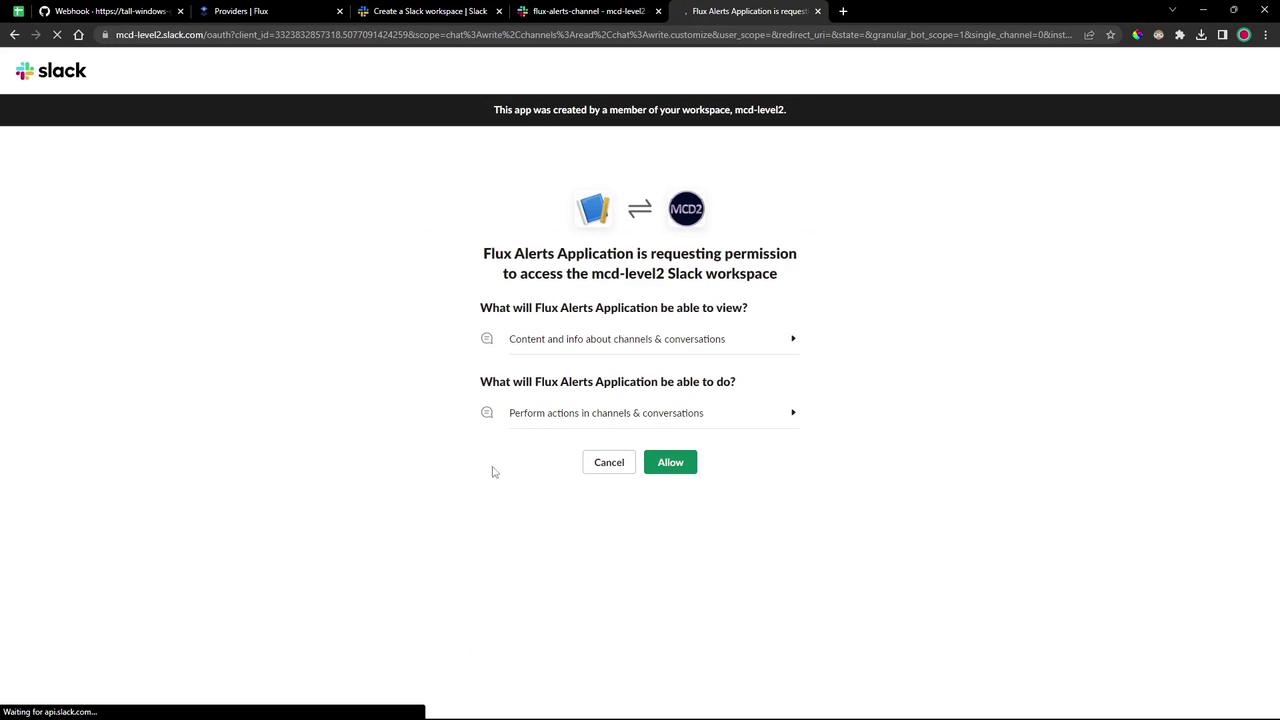
On the authorization screen, click **Allow**:
Once installed, copy the **Bot User OAuth Token** from the **OAuth & Permissions** page.
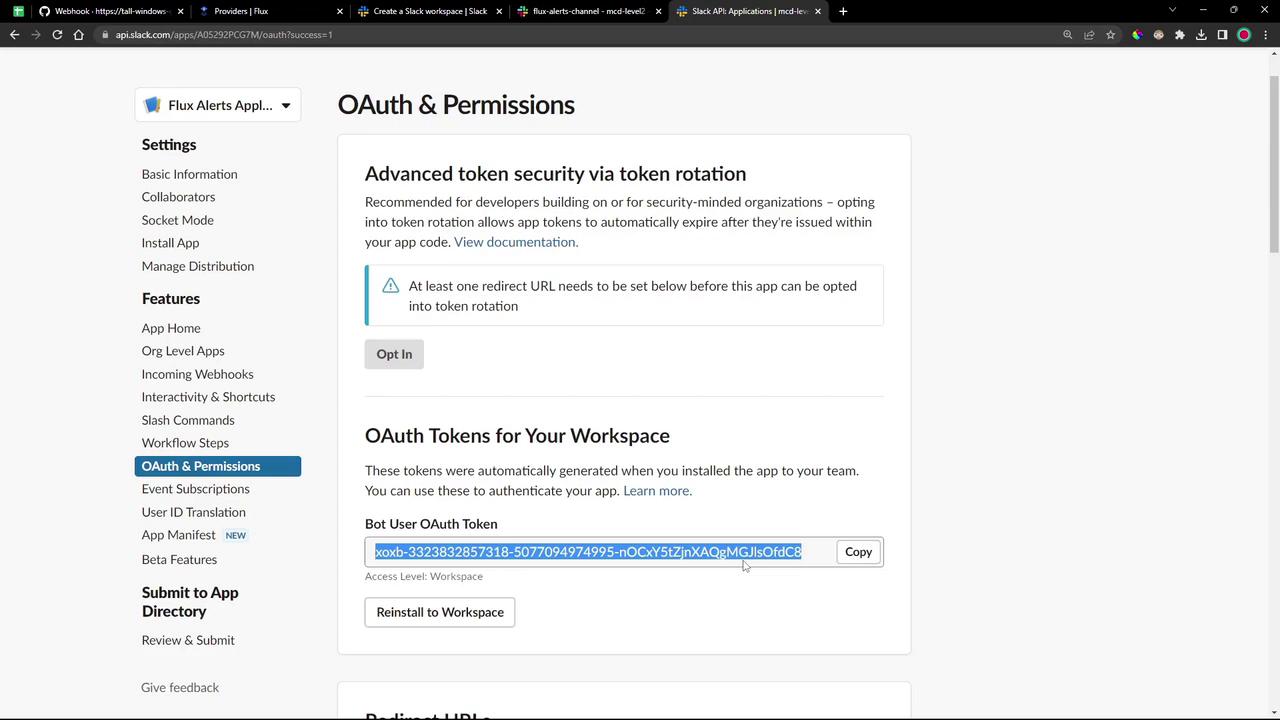
Keep your Bot User OAuth Token secure. Treat it like any sensitive credential.
### 2.3 Invite the Bot to Your Alert Channel
If your alerts channel is private, you must add the app as a member:
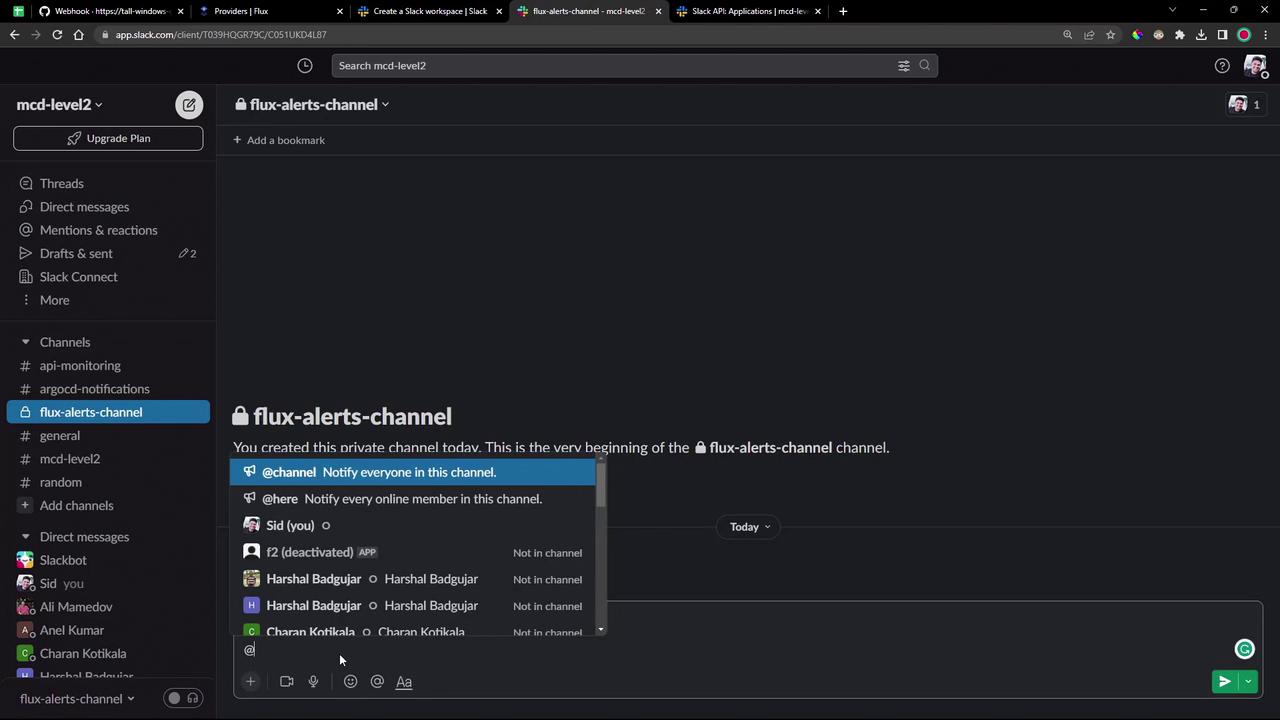
Once invited, you’ll see a confirmation in the channel:
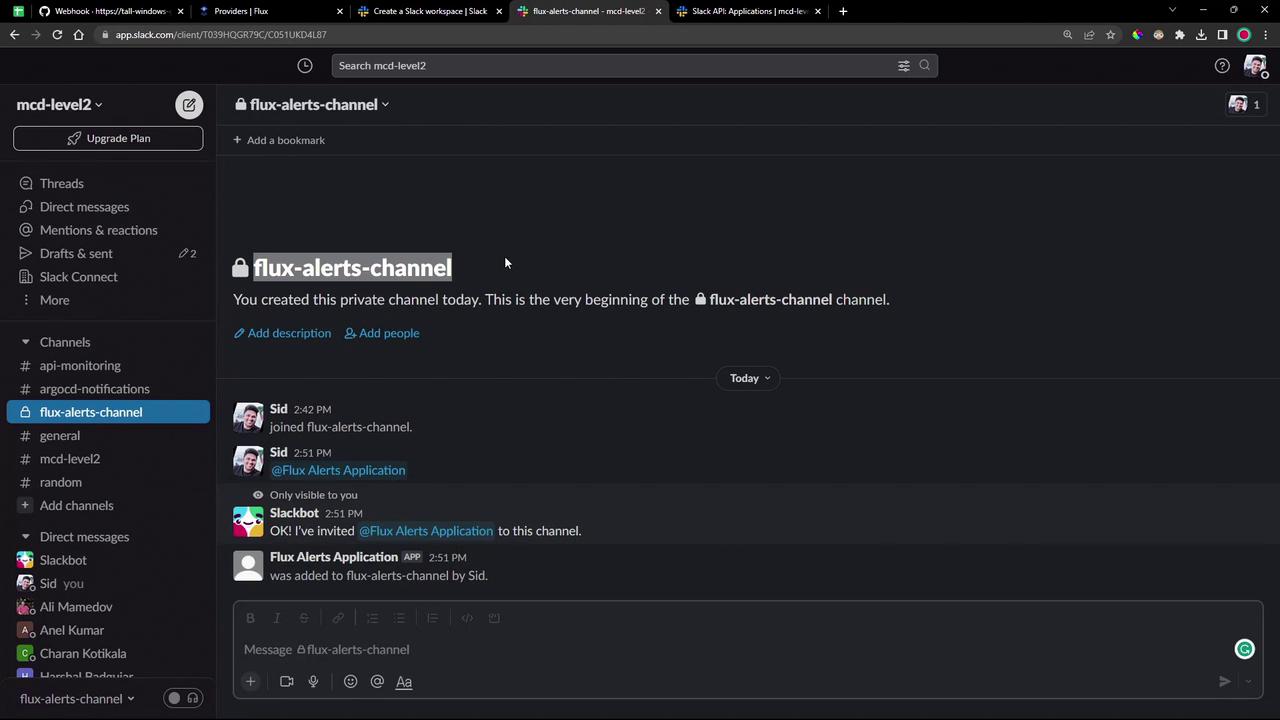
***
## 3. Configure Flux Notification Controller
### 3.1 Create the Slack Bot Token Secret
Store your Slack Bot Token in the `flux-system` namespace:
```bash theme={null}
kubectl -n flux-system create secret generic slack-bot-token \
--from-literal=token=xoxb-xxxxxxxxxxxxxxxxxxxx
```
Replace `xoxb-xxxxxxxxxxxxxxxxxxxx` with your actual Bot User OAuth Token.
### 3.2 Define the Slack Provider
Flux’s Provider API lets you specify how notifications are sent. See [Flux Notification Providers](https://kodekloud.com/kk-media/image/upload/v1752877685/notes-assets/images/GitOps-with-FluxCD-DEMO-Alerts-amp-Providers/flux-documentation-notification-providers.jpg):
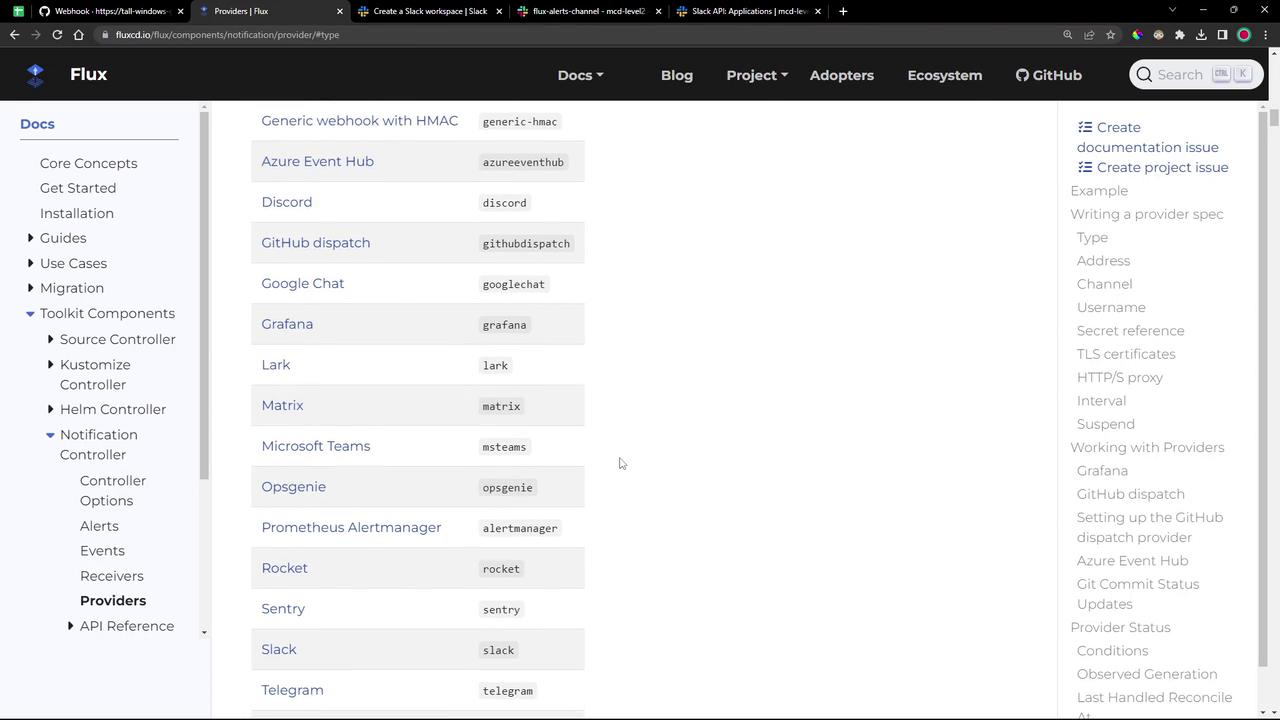
**Option A: Apply a YAML manifest**\
Create `notification-provider-slack.yaml`:
```yaml theme={null}
apiVersion: notification.toolkit.fluxcd.io/v1beta2
kind: Provider
metadata:
name: notification-provider-slack
namespace: flux-system
spec:
type: slack
channel: flux-alerts-channel
address: https://slack.com/api/chat.postMessage
secretRef:
name: slack-bot-token
username: flux-bot
```
Apply it:
```bash theme={null}
kubectl -n flux-system apply -f notification-provider-slack.yaml
```
**Option B: Generate with the Flux CLI**
```bash theme={null}
flux create provider notification slack notification-provider-slack \
--channel flux-alerts-channel \
--username flux-bot \
--secret-ref slack-bot-token \
--address https://slack.com/api/chat.postMessage \
--export > notification-provider-slack.yaml
```
***
### 3.3 Define an Alert
Alerts let you filter events by severity and resource type before sending them via your provider.
Create `notification-alert-slack.yaml`:
```yaml theme={null}
apiVersion: notification.toolkit.fluxcd.io/v1beta2
kind: Alert
metadata:
name: notification-alert-slack
namespace: flux-system
spec:
eventSeverity: info
eventSources:
- kind: Kustomization; name: "*"
- kind: GitRepository; name: "*"
- kind: Bucket; name: "*"
- kind: OCIRepository; name: "*"
- kind: HelmChart; name: "*"
- kind: HelmRepository; name: "*"
- kind: HelmRelease; name: "*"
- kind: ImageRepository; name: "*"
- kind: ImagePolicy; name: "*"
- kind: ImageUpdateAutomation; name: "*"
providerRef:
name: notification-provider-slack
```
Or generate with the Flux CLI:
```bash theme={null}
flux create alert notification-alert-slack \
--event-severity info \
--provider-ref notification-provider-slack \
--event-source Kustomization/* \
--event-source GitRepository/* \
--event-source Bucket/* \
--event-source OCIRepository/* \
--event-source HelmChart/* \
--event-source HelmRepository/* \
--event-source HelmRelease/* \
--event-source ImageRepository/* \
--event-source ImagePolicy/* \
--event-source ImageUpdateAutomation/* \
--export > notification-alert-slack.yaml
```
Apply your Alert:
```bash theme={null}
kubectl -n flux-system apply -f notification-alert-slack.yaml
```
***
## 4. Confirm Setup
Make sure Flux picks up your changes and that both the provider and alert are `READY`:
```bash theme={null}
flux reconcile source git flux-system
flux get alert
flux get providers notification
```
***
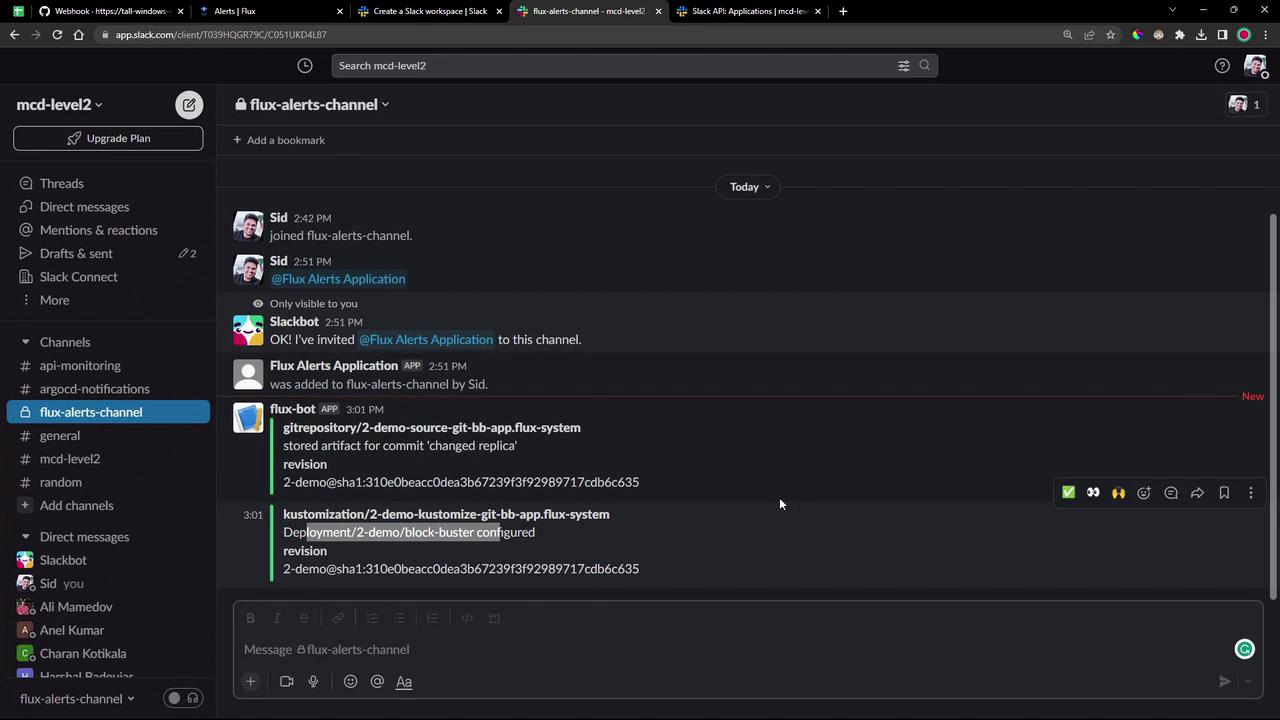
## 5. Trigger and Observe Notifications
Change something in your Git repository—for example, reduce the replica count in your deployment:
```yaml theme={null}
# in bb-app-source/2-demo/deployment.yaml
spec:
replicas: 1
```
Commit and push the update. Once Flux reconciles, you will see a notification in **flux-alerts-channel**:
***
## 6. Verify the Update in Kubernetes
Confirm that your deployment reflects the new replica count:
```bash theme={null}
kubectl -n 2-demo get pods
```
***
Congratulations! You have successfully configured Flux Notification Controller to deliver Slack alerts for all your Flux events.
***
## Links and References
* [Flux Notification Providers](https://fluxcd.io/docs/components/notification/providers/)
* [Flux CLI](https://fluxcd.io/docs/cmd/flux/)
* [Kubernetes kubectl Reference](https://kubernetes.io/docs/reference/kubectl/overview/)
* [Slack API Documentation](https://api.slack.com/)