> ## Documentation Index
> Fetch the complete documentation index at: https://notes.kodekloud.com/llms.txt
> Use this file to discover all available pages before exploring further.
# Printing Variables
> Learn methods to print variables in Go, including strings, formatted printing, and handling newlines using the fmt package.
In this article, you'll learn various methods to print variables in Go (Golang). We will cover printing plain strings, variables, mixing strings and variables, handling newlines, and formatted printing using the `fmt` package. These techniques lay the foundation for effectively displaying data in your Go applications.
## Printing a String
Begin by declaring a package, importing the `fmt` package, and using its `Print` function to output a string. For instance, to print "Hello World", use the following code:
```go theme={null}
package main
import "fmt"
func main() {
fmt.Print("Hello World")
}
```
Run the program using:
```bash theme={null}
go run main.go
```
The output will be:
```text theme={null}
Hello World
```
## Printing a Variable
To print a variable, declare and initialize it, then pass it to `fmt.Print`. For example, the code below declares a variable named `city` with a value of `"Kolkata"` and prints it:
```go theme={null}
package main
import "fmt"
func main() {
var city string = "Kolkata"
fmt.Print(city)
}
```
Running this code displays the variable's value.
## Printing Variables and Strings Together
Often, you need to combine static text with variable values. Here's an example where two variables, `name` and `user`, are printed alongside string literals:
```go theme={null}
package main
import "fmt"
func main() {
var name string = "KodeKloud"
var user string = "Harry"
fmt.Print("Welcome to ", name, ", ", user)
}
```
Executing the program results in:
```text theme={null}
Welcome to KodeKloud, Harry
```
Remember that the `fmt.Print` function does not append a newline by default. When printing multiple items consecutively, they will appear without any line breaks.
For example, printing two variables without a newline:
```go theme={null}
package main
import "fmt"
func main() {
var name string = "KodeKloud"
var user string = "Harry"
fmt.Print(name)
fmt.Print(user)
}
```
Produces this output:
```text theme={null}
KodeKloudHarry
```
## Adding Newlines with "\n"
To create line breaks, include the newline character (`\n`) in your string expressions. The following example demonstrates how to print variables on separate lines:
```go theme={null}
package main
import "fmt"
func main() {
var name string = "KodeKLOUD"
var user string = "Harry"
fmt.Print(name, "\n")
fmt.Print(user)
}
```
The output will be:
```text theme={null}
KodeKLOUD
Harry
```
The newline character (`\n`) is interpreted as a line break rather than printed literally.
## Automatic Newlines with fmt.Println
For convenience, the `fmt` package offers the `Println` function, which appends a newline automatically after printing each argument:
```go theme={null}
package main
import "fmt"
func main() {
var name string = "KodeKloud"
var user string = "Harry"
fmt.Println(name)
fmt.Println(user)
}
```
Running this code produces:
```text theme={null}
KodeKloud
Harry
```
## Formatted Printing Using fmt.Printf
When managing multiple arguments, formatted printing can simplify your code. The `fmt.Printf` function lets you embed format specifiers within a template string to control the output of each variable.
### What is String Formatting?
String formatting allows you to integrate variables within a predefined text template. For example:
```go theme={null}
fmt.Printf("Template string %s", object)
```
Here, the `%s` specifier indicates where a string variable should be inserted.
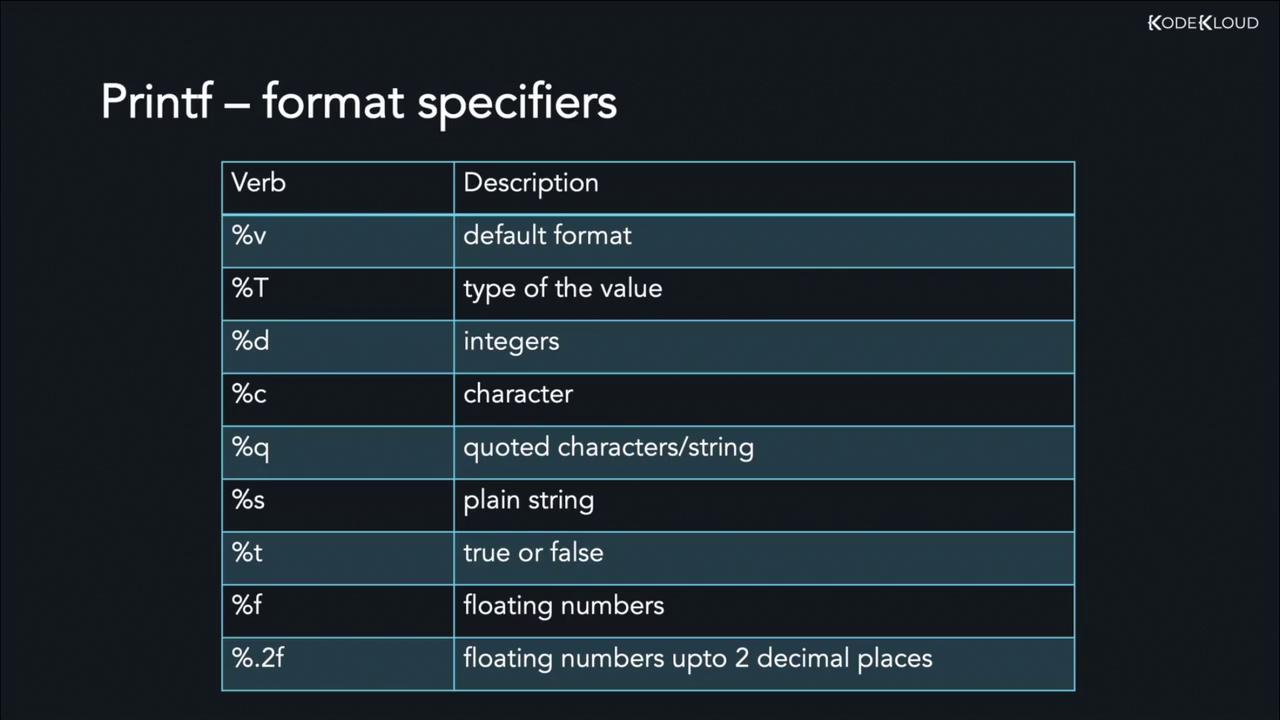
### Common Format Specifiers
Below are some frequently used format specifiers in Go:
| Format Specifier | Description |
| ---------------- | ---------------------------- |
| `%v` | Default format for the value |
| `%T` | Data type of the value |
| `%d` | Decimal integer |
| `%c` | Character |
| `%q` | String enclosed in quotes |
| `%t` | Boolean value |
| `%f` | Floating-point number |
#### Example: Printing a String with `%v`
```go theme={null}
package main
import "fmt"
func main() {
var name string = "KodeKloud"
fmt.Printf("Nice to see you here, at %v", name)
}
```
The output will be:
```text theme={null}
Nice to see you here, at KodeKloud
```
#### Example: Printing an Integer with `%d`
```go theme={null}
package main
import "fmt"
func main() {
var grades int = 42
fmt.Printf("Marks: %d", grades)
}
```
This code produces:
```text theme={null}
Marks: 42
```
#### Combining Format Specifiers
You can combine multiple format specifiers in a single `Printf` call. For instance, the following example integrates a string and an integer:
```go theme={null}
package main
import "fmt"
func main() {
var name string = "Joe"
var score int = 78
fmt.Printf("Hey, %v! You have scored %d/100 in Physics", name, score)
}
```
The output appears as:
```text theme={null}
Hey, Joe! You have scored 78/100 in Physics
```
## Summary of Format Specifiers
Below is an image that summarizes commonly used `fmt.Printf` format specifiers in Go:
That concludes our guide on printing variables in Go. In the next lesson, we will delve into more advanced topics to further enhance your Go programming skills.