> ## Documentation Index
> Fetch the complete documentation index at: https://notes.kodekloud.com/llms.txt
> Use this file to discover all available pages before exploring further.
# Demo Working with PubSub
> Guide demonstrating how to create Pub/Sub topics and subscriptions in GCP, publish JSON messages with attributes using gcloud, and pull messages while following best practices
This demo shows how to create a topic and subscription in the Google Cloud Console, publish JSON messages with attributes using Cloud Shell and the `gcloud` CLI, and pull those messages from a pull subscription. It covers best practices for labels, retention, and message attributes so you can organize and filter messages efficiently.
## 1. Create a Topic in the GCP Console
1. Open the GCP Console and search for "Pub/Sub".
2. From the Pub/Sub home page, click Create topic and choose a meaningful Topic ID (for this demo we use `kodekloud-demo-topic`). Keep defaults unless you need a schema, ingestion setting, or export configuration.
3. Scroll down and click Create. Pub/Sub manages the underlying infrastructure for you.
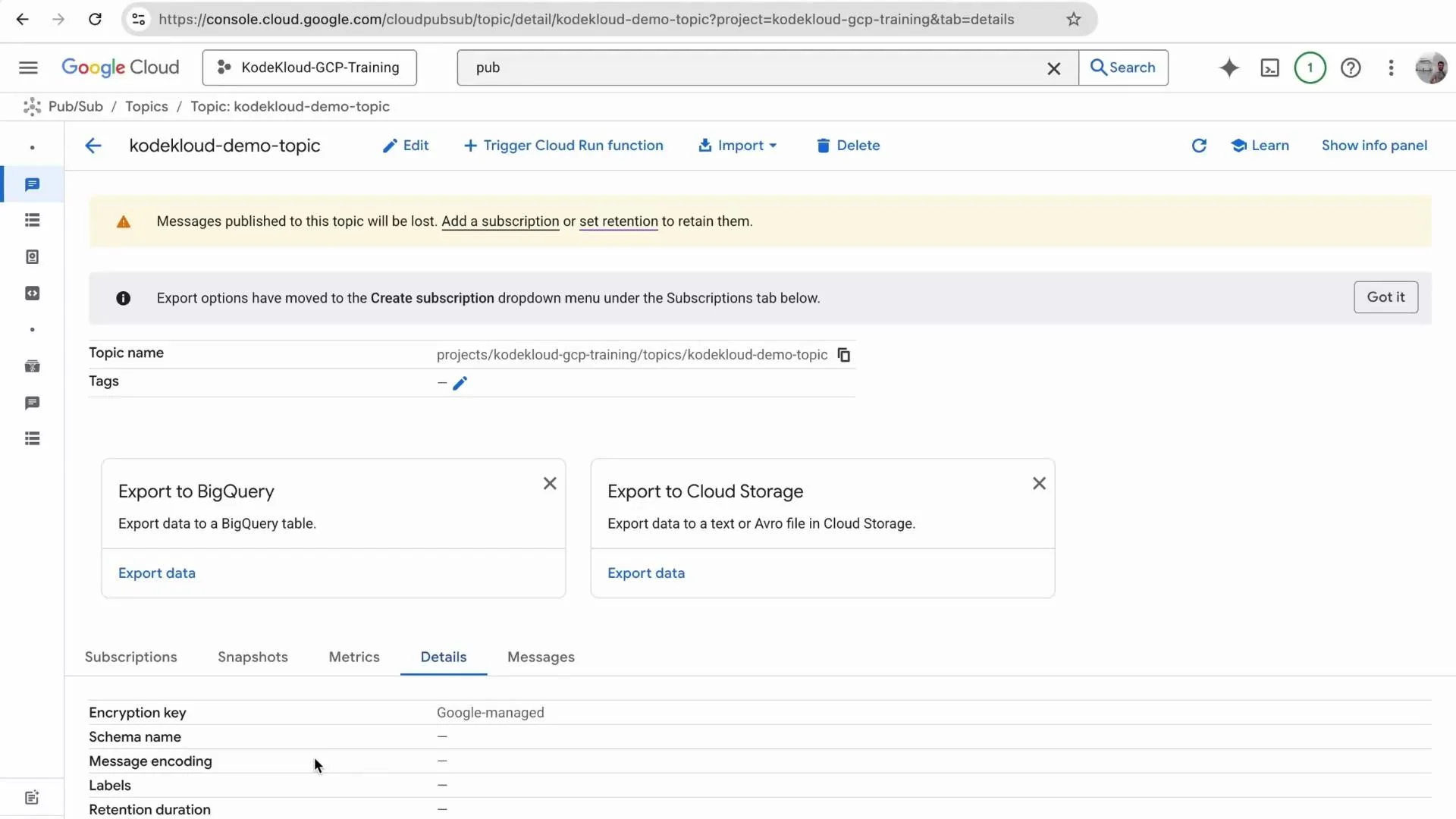
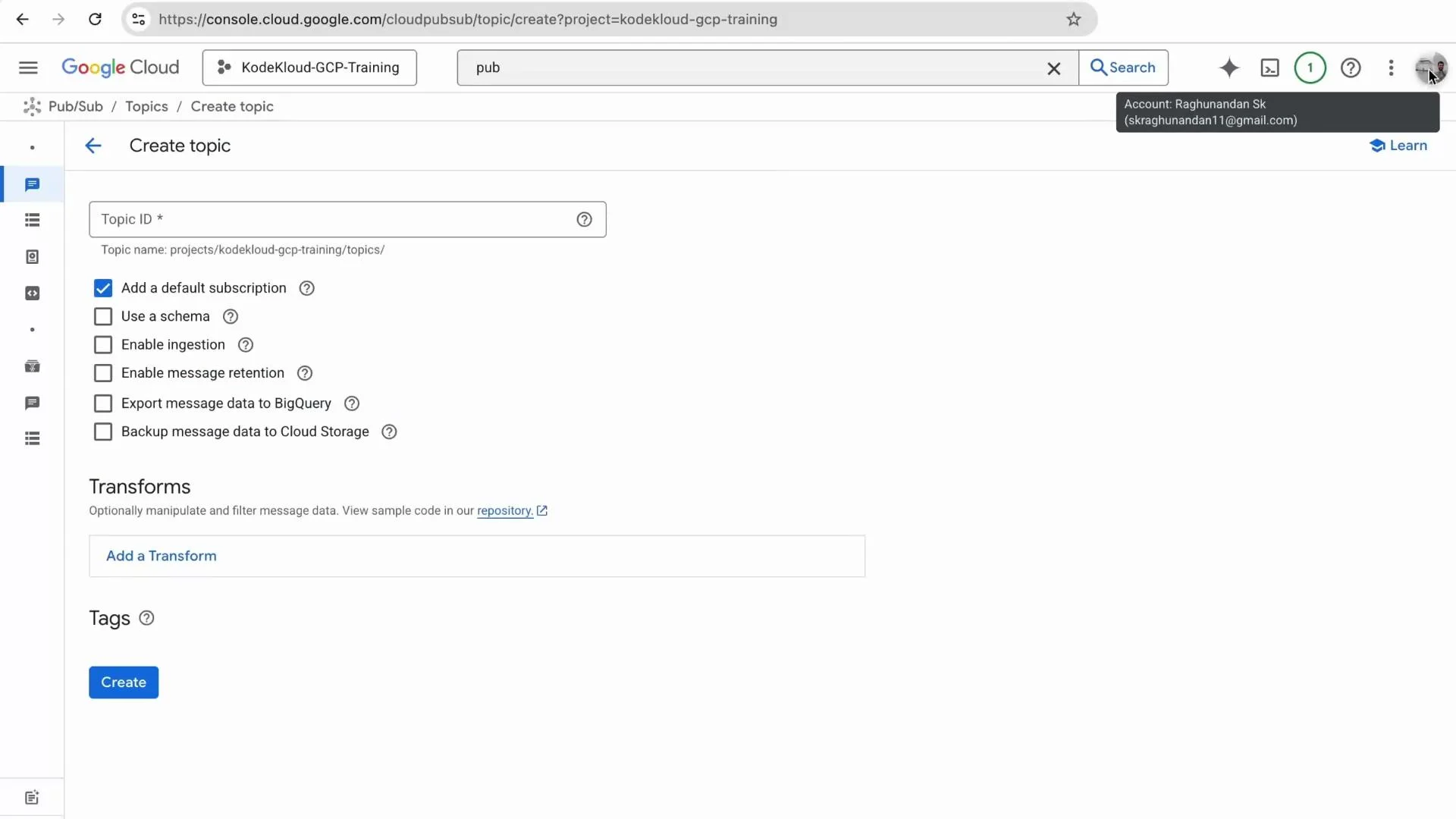 After creating the topic, open it to review or edit configuration such as schema, ingestion, or export options. Under Details you can view metadata and configuration parameters.
Best practice: add labels when creating topics so you can organize, search, and filter resources later.
After creating the topic, open it to review or edit configuration such as schema, ingestion, or export options. Under Details you can view metadata and configuration parameters.
Best practice: add labels when creating topics so you can organize, search, and filter resources later.
 ## 2. Create a Subscription
From the left-hand menu click Subscriptions → Create subscription.
* Subscription ID: e.g. `kodekloud-pull-sub`
* Topic: `kodekloud-demo-topic`
* Delivery type: Pull (this demo uses Pull)
Retention: by default Pub/Sub retains unacknowledged messages for up to 7 days. Retaining acknowledged messages must be explicitly enabled. The retention duration is configurable.
A pull subscription requires your application to request messages (good for batch or controlled processing). Push subscriptions forward messages to an HTTP(S) endpoint.
## 2. Create a Subscription
From the left-hand menu click Subscriptions → Create subscription.
* Subscription ID: e.g. `kodekloud-pull-sub`
* Topic: `kodekloud-demo-topic`
* Delivery type: Pull (this demo uses Pull)
Retention: by default Pub/Sub retains unacknowledged messages for up to 7 days. Retaining acknowledged messages must be explicitly enabled. The retention duration is configurable.
A pull subscription requires your application to request messages (good for batch or controlled processing). Push subscriptions forward messages to an HTTP(S) endpoint.
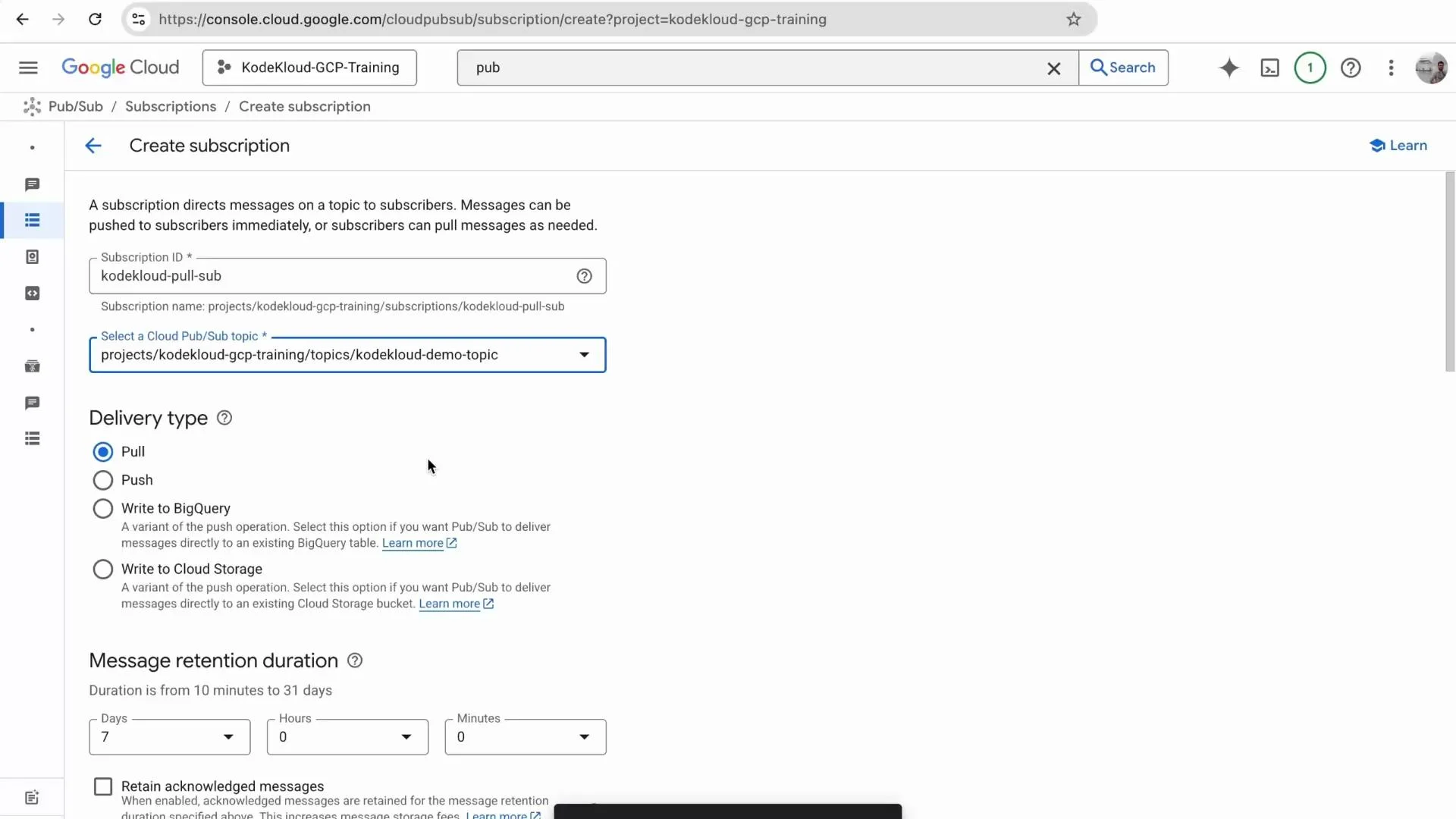 Pull subscriptions require the client to explicitly request messages. Push subscriptions send messages to a configured endpoint. Choose the mode that suits your processing pattern.
## 3. Publish Messages with Cloud Shell and gcloud
Open Cloud Shell and set environment variables:
```bash theme={null}
export PROJECT_ID="kodekloud-gcp-training"
export TOPIC_ID="kodekloud-demo-topic"
export MESSAGE_ID_PREFIX="kodekloud-message"
gcloud config set project "$PROJECT_ID"
```
Create a small Bash script `publish_demo.sh` to publish three JSON messages with attributes:
```bash theme={null}
#!/bin/bash
for i in 1 2 3; do
gcloud pubsub topics publish "$TOPIC_ID" \
--message "{\"id\":\"${MESSAGE_ID_PREFIX}${i}\", \"status\": \"created\", \"source\": \"kodekloud\"}" \
--attribute env=demo \
--attribute team=kodekloud
done
```
Make the script executable and run it:
```bash theme={null}
bash publish_demo.sh
```
Example concise output (each publish returns a message ID):
```console theme={null}
messageIds:
- '16406205265696513'
messageIds:
- '16406362145303396'
messageIds:
- '16406178636819281'
```
Note: Attributes are small key/value metadata attached to a message. They are useful for filtering and routing, but they consume part of the message size quota—design attributes accordingly.
## 4. Pull Messages from the Subscription (Console)
1. In the Pub/Sub Console go to Subscriptions → select `kodekloud-pull-sub`.
2. Open Messages → Pull to trigger a pull request and view messages.
Pulled message payloads will look like the JSON bodies below:
```json theme={null}
{"id":"kodekloud-message-1","status":"created","source":"kodekloud"}
{"id":"kodekloud-message-2","status":"created","source":"kodekloud"}
{"id":"kodekloud-message-3","status":"created","source":"kodekloud"}
```
The UI displays message attributes as well (for example `env: demo`, `team: kodekloud`). You can use these attributes with subscription filters or in your subscriber logic to process only relevant messages.
If you update the script to change attributes (for example `team=kodekloud` → `team=raghu`) and publish again, the new attribute values will appear when pulling messages. This demonstrates how attributes enable flexible metadata-based routing for multiple producers sharing a topic.
## Quick Reference
| Resource | Purpose | Example CLI |
| ------------------ | --------------------------------------------- | ------------------------------------------------------------------------------------------------------ |
| Topic | Message hub to which publishers send messages | `gcloud pubsub topics create kodekloud-demo-topic` |
| Subscription | Consumer view of a topic (Pull or Push) | `gcloud pubsub subscriptions create kodekloud-pull-sub --topic=kodekloud-demo-topic --ack-deadline=10` |
| Message attributes | Key/value metadata for filtering/routing | `--attribute env=demo` |
For full Pub/Sub concepts and best practices, see the official documentation: [Cloud Pub/Sub documentation](https://cloud.google.com/pubsub/docs).
## Summary
* Create a topic in the GCP Console; add labels for easier organization.
* Create a subscription (choose Pull or Push based on your consumer architecture).
* Publish messages using the `gcloud` CLI or client libraries; include attributes for metadata and filtering.
* Pull messages from pull subscriptions (console, client libraries, or `gcloud`).
* Use subscription filters and message attributes to route and process only relevant messages.
That concludes this demo: creating a topic, publishing messages, and pulling them from a subscription.
Pull subscriptions require the client to explicitly request messages. Push subscriptions send messages to a configured endpoint. Choose the mode that suits your processing pattern.
## 3. Publish Messages with Cloud Shell and gcloud
Open Cloud Shell and set environment variables:
```bash theme={null}
export PROJECT_ID="kodekloud-gcp-training"
export TOPIC_ID="kodekloud-demo-topic"
export MESSAGE_ID_PREFIX="kodekloud-message"
gcloud config set project "$PROJECT_ID"
```
Create a small Bash script `publish_demo.sh` to publish three JSON messages with attributes:
```bash theme={null}
#!/bin/bash
for i in 1 2 3; do
gcloud pubsub topics publish "$TOPIC_ID" \
--message "{\"id\":\"${MESSAGE_ID_PREFIX}${i}\", \"status\": \"created\", \"source\": \"kodekloud\"}" \
--attribute env=demo \
--attribute team=kodekloud
done
```
Make the script executable and run it:
```bash theme={null}
bash publish_demo.sh
```
Example concise output (each publish returns a message ID):
```console theme={null}
messageIds:
- '16406205265696513'
messageIds:
- '16406362145303396'
messageIds:
- '16406178636819281'
```
Note: Attributes are small key/value metadata attached to a message. They are useful for filtering and routing, but they consume part of the message size quota—design attributes accordingly.
## 4. Pull Messages from the Subscription (Console)
1. In the Pub/Sub Console go to Subscriptions → select `kodekloud-pull-sub`.
2. Open Messages → Pull to trigger a pull request and view messages.
Pulled message payloads will look like the JSON bodies below:
```json theme={null}
{"id":"kodekloud-message-1","status":"created","source":"kodekloud"}
{"id":"kodekloud-message-2","status":"created","source":"kodekloud"}
{"id":"kodekloud-message-3","status":"created","source":"kodekloud"}
```
The UI displays message attributes as well (for example `env: demo`, `team: kodekloud`). You can use these attributes with subscription filters or in your subscriber logic to process only relevant messages.
If you update the script to change attributes (for example `team=kodekloud` → `team=raghu`) and publish again, the new attribute values will appear when pulling messages. This demonstrates how attributes enable flexible metadata-based routing for multiple producers sharing a topic.
## Quick Reference
| Resource | Purpose | Example CLI |
| ------------------ | --------------------------------------------- | ------------------------------------------------------------------------------------------------------ |
| Topic | Message hub to which publishers send messages | `gcloud pubsub topics create kodekloud-demo-topic` |
| Subscription | Consumer view of a topic (Pull or Push) | `gcloud pubsub subscriptions create kodekloud-pull-sub --topic=kodekloud-demo-topic --ack-deadline=10` |
| Message attributes | Key/value metadata for filtering/routing | `--attribute env=demo` |
For full Pub/Sub concepts and best practices, see the official documentation: [Cloud Pub/Sub documentation](https://cloud.google.com/pubsub/docs).
## Summary
* Create a topic in the GCP Console; add labels for easier organization.
* Create a subscription (choose Pull or Push based on your consumer architecture).
* Publish messages using the `gcloud` CLI or client libraries; include attributes for metadata and filtering.
* Pull messages from pull subscriptions (console, client libraries, or `gcloud`).
* Use subscription filters and message attributes to route and process only relevant messages.
That concludes this demo: creating a topic, publishing messages, and pulling them from a subscription.