> ## Documentation Index
> Fetch the complete documentation index at: https://notes.kodekloud.com/llms.txt
> Use this file to discover all available pages before exploring further.
# Demo Hands on with Dataproc
> Hands-on demo showing how to run a PySpark job on Google Cloud Dataproc to aggregate CSV orders from Cloud Storage and write results back to Cloud Storage
Welcome — in this hands-on demo you'll learn how to run a simple PySpark job on Google Cloud Dataproc that reads data from Cloud Storage, aggregates it, and writes results back to Cloud Storage. Dataproc is a fully managed, scalable service for running Apache Spark, Apache Hadoop, and related open-source data-engineering tools.
What you'll do
* Create a Cloud Storage bucket and upload input data plus a PySpark script.
* Create a Dataproc cluster (single-node or multi-node).
* Submit a PySpark job to the cluster that reads from Cloud Storage, aggregates totals per customer, and writes results back to Cloud Storage.
* Inspect the job using the Dataproc Console and Spark History Server, then verify output in Cloud Storage.
Prerequisites
* A GCP project with billing enabled.
* Permissions to create Storage buckets and Dataproc clusters (roles like Storage Admin and Dataproc Editor are helpful).
* Cloud SDK (`gcloud`) installed if you plan to submit jobs from the CLI.
## Create a Cloud Storage bucket
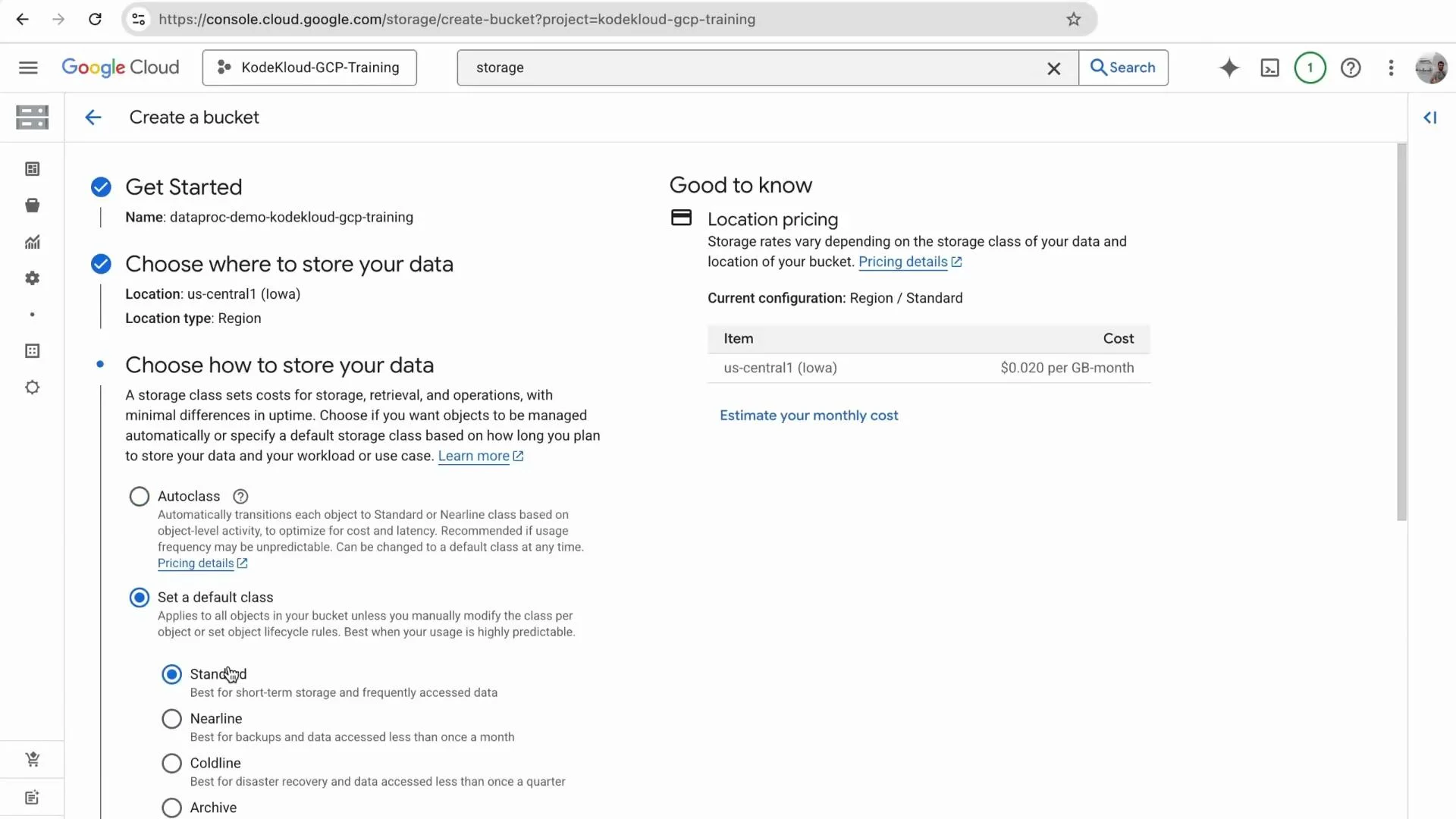
Open the GCP Console, search for “Storage”, and create a new bucket. Choose a globally unique name and a region (this demo uses `us-central1`). Configure the storage class and other options as needed, then create the bucket.
 ## Prepare the input data
Create a small CSV file named `orders.csv` with order data. Example contents:
```csv theme={null}
order_id,customer_id,amount
101,1,500.00
102,2,150.50
103,1,300.00
104,3,1200.00
105,2,50.00
```
Upload `orders.csv` to the bucket you created (e.g., `gs:///orders.csv`).
## PySpark job (process\_orders.py)
Create a PySpark script `process_orders.py`. The script below reads a CSV from Cloud Storage, aggregates total spend per customer, and writes the result back to Cloud Storage as CSV.
```python theme={null}
import sys
from pyspark.sql import SparkSession
from pyspark.sql.functions import sum as _sum
if len(sys.argv) != 3:
print("Usage: process_orders.py ")
sys.exit(-1)
input_path = sys.argv[1]
output_path = sys.argv[2]
spark = SparkSession.builder.appName("OrderAggregation").getOrCreate()
# Read CSV with header and schema inference
df = spark.read.option("header", "true").option("inferSchema", "true").csv(input_path)
# Aggregate: total spend per customer
result_df = df.groupBy("customer_id").agg(_sum("amount").alias("total_spend"))
# Write result to GCS (CSV, overwrite mode)
result_df.write.mode("overwrite").csv(output_path)
print("Job completed successfully.")
spark.stop()
```
Notes:
* The script expects two arguments: the input GCS path (CSV) and the output GCS folder path where Spark will write part files.
* It uses `SparkSession` to read the CSV, group by `customer_id`, sum `amount`, and write CSV output.
## Upload files to Cloud Storage
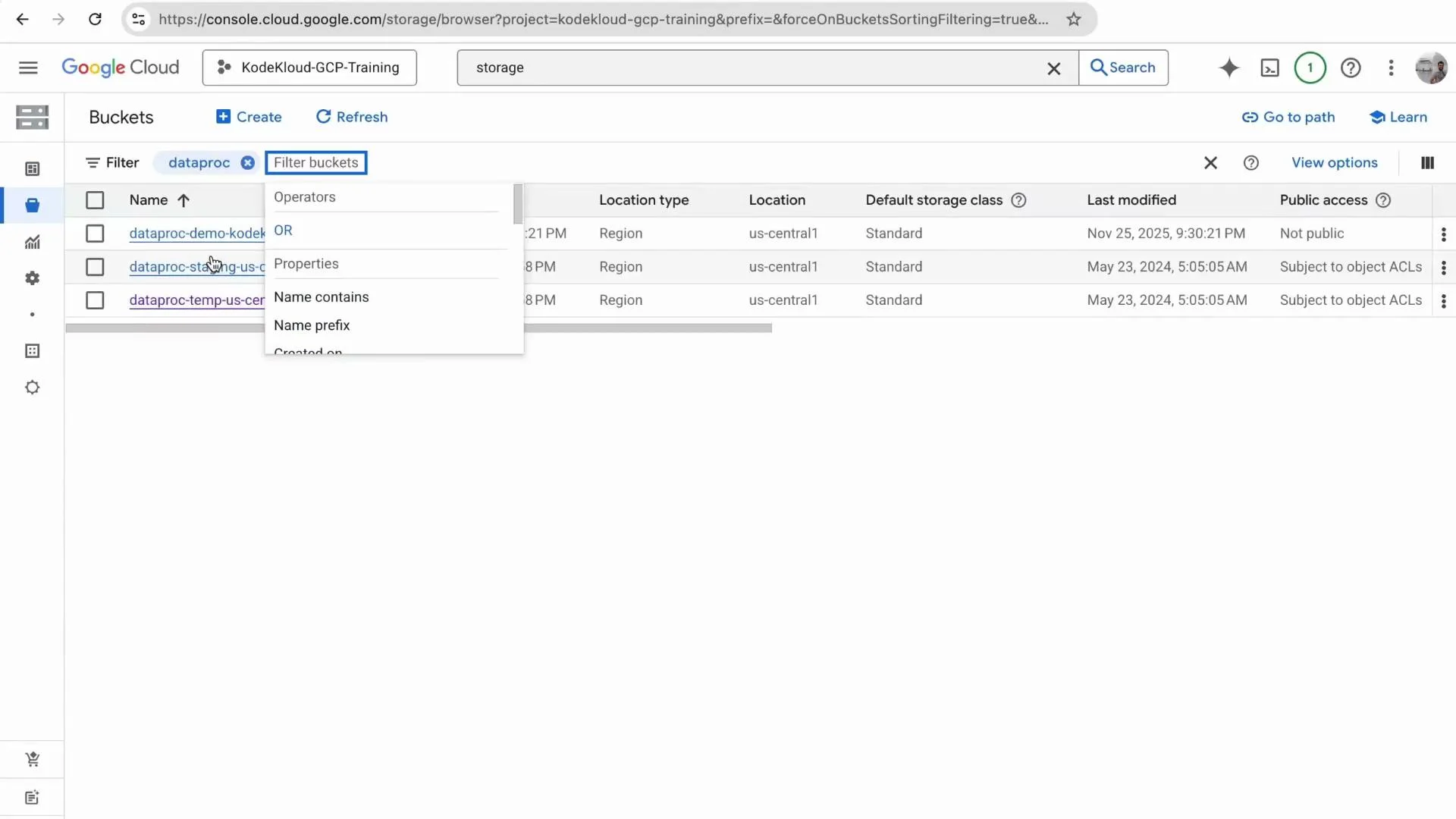
Upload both `orders.csv` and `process_orders.py` to your bucket. If you uploaded the wrong file name, delete and re-upload the corrected files.
## Prepare the input data
Create a small CSV file named `orders.csv` with order data. Example contents:
```csv theme={null}
order_id,customer_id,amount
101,1,500.00
102,2,150.50
103,1,300.00
104,3,1200.00
105,2,50.00
```
Upload `orders.csv` to the bucket you created (e.g., `gs:///orders.csv`).
## PySpark job (process\_orders.py)
Create a PySpark script `process_orders.py`. The script below reads a CSV from Cloud Storage, aggregates total spend per customer, and writes the result back to Cloud Storage as CSV.
```python theme={null}
import sys
from pyspark.sql import SparkSession
from pyspark.sql.functions import sum as _sum
if len(sys.argv) != 3:
print("Usage: process_orders.py ")
sys.exit(-1)
input_path = sys.argv[1]
output_path = sys.argv[2]
spark = SparkSession.builder.appName("OrderAggregation").getOrCreate()
# Read CSV with header and schema inference
df = spark.read.option("header", "true").option("inferSchema", "true").csv(input_path)
# Aggregate: total spend per customer
result_df = df.groupBy("customer_id").agg(_sum("amount").alias("total_spend"))
# Write result to GCS (CSV, overwrite mode)
result_df.write.mode("overwrite").csv(output_path)
print("Job completed successfully.")
spark.stop()
```
Notes:
* The script expects two arguments: the input GCS path (CSV) and the output GCS folder path where Spark will write part files.
* It uses `SparkSession` to read the CSV, group by `customer_id`, sum `amount`, and write CSV output.
## Upload files to Cloud Storage
Upload both `orders.csv` and `process_orders.py` to your bucket. If you uploaded the wrong file name, delete and re-upload the corrected files.
 Helpful file layout (example)
| File | Example GCS path | Purpose |
| -------------- | ------------------------------------ | ---------------------------------------------- |
| Input data | `gs://your-bucket/orders.csv` | Raw CSV input for the Spark job |
| PySpark script | `gs://your-bucket/process_orders.py` | Main job entrypoint |
| Job output | `gs://your-bucket/output/` | Spark writes `part-*` CSV files and `_SUCCESS` |
## Create a Dataproc cluster
Open Dataproc in the GCP Console (search for “Dataproc”), go to Clusters, and click Create cluster. For this demo you can choose:
* Standard cluster (1 master + workers) for distributed workloads.
* Single-node cluster (master-only) to save cost for small tests.
Select additional components (Hive, Jupyter, etc.) if needed and click Create. Cluster provisioning usually takes a few minutes.
Helpful file layout (example)
| File | Example GCS path | Purpose |
| -------------- | ------------------------------------ | ---------------------------------------------- |
| Input data | `gs://your-bucket/orders.csv` | Raw CSV input for the Spark job |
| PySpark script | `gs://your-bucket/process_orders.py` | Main job entrypoint |
| Job output | `gs://your-bucket/output/` | Spark writes `part-*` CSV files and `_SUCCESS` |
## Create a Dataproc cluster
Open Dataproc in the GCP Console (search for “Dataproc”), go to Clusters, and click Create cluster. For this demo you can choose:
* Standard cluster (1 master + workers) for distributed workloads.
* Single-node cluster (master-only) to save cost for small tests.
Select additional components (Hive, Jupyter, etc.) if needed and click Create. Cluster provisioning usually takes a few minutes.
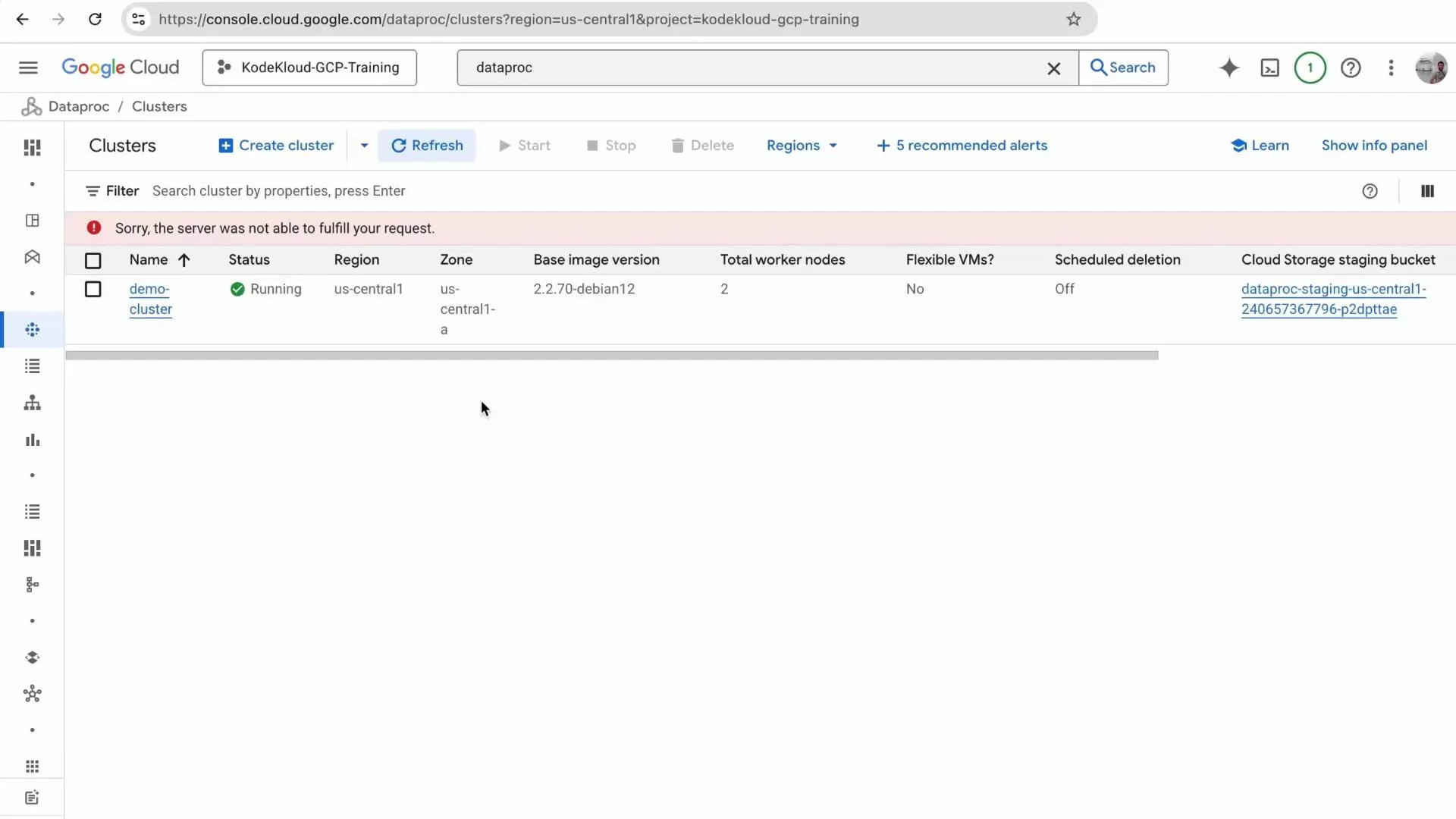
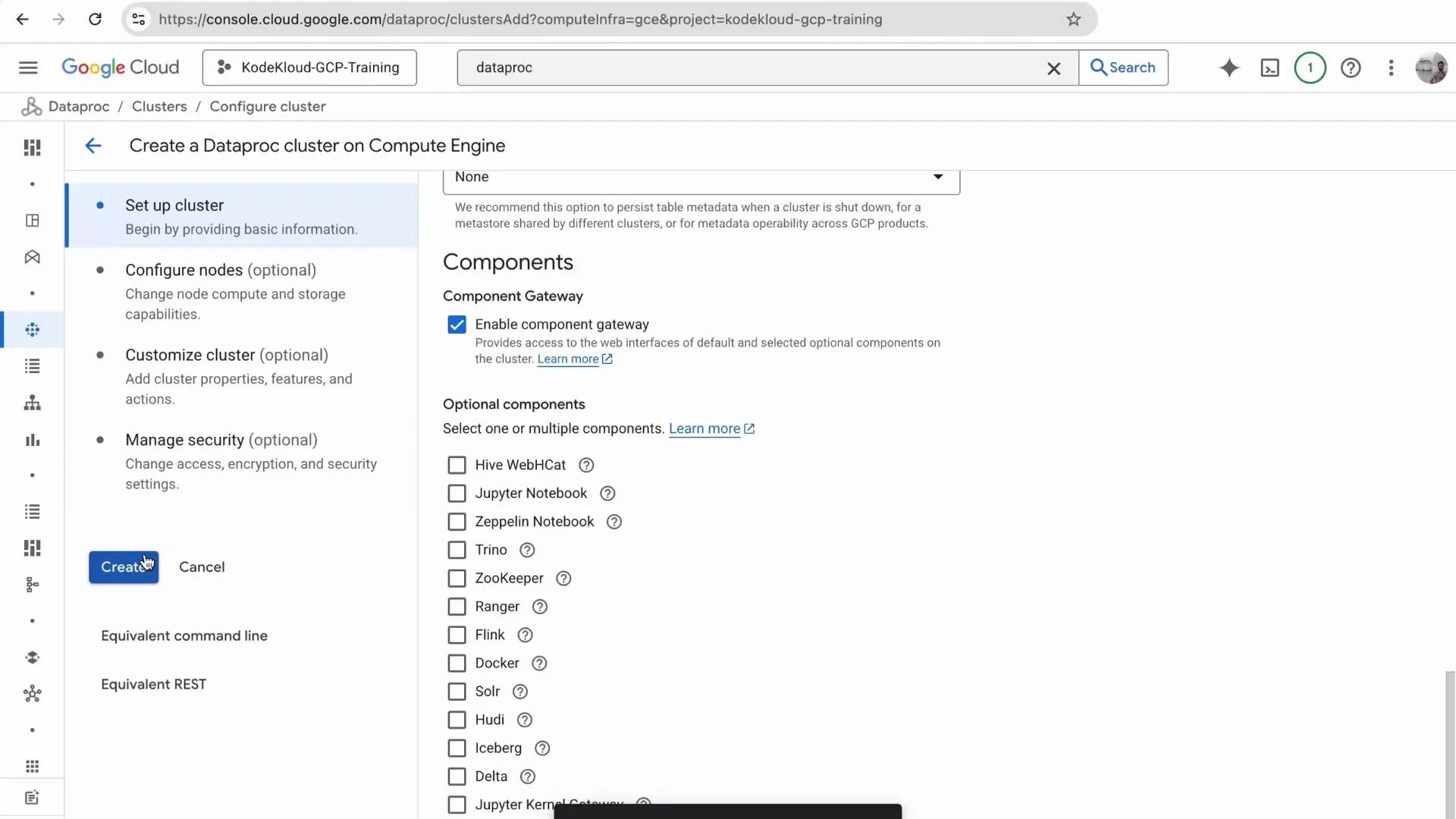 Monitor cluster creation; when the cluster status becomes Running, open the cluster details.
 ## Submit the PySpark job from the Console
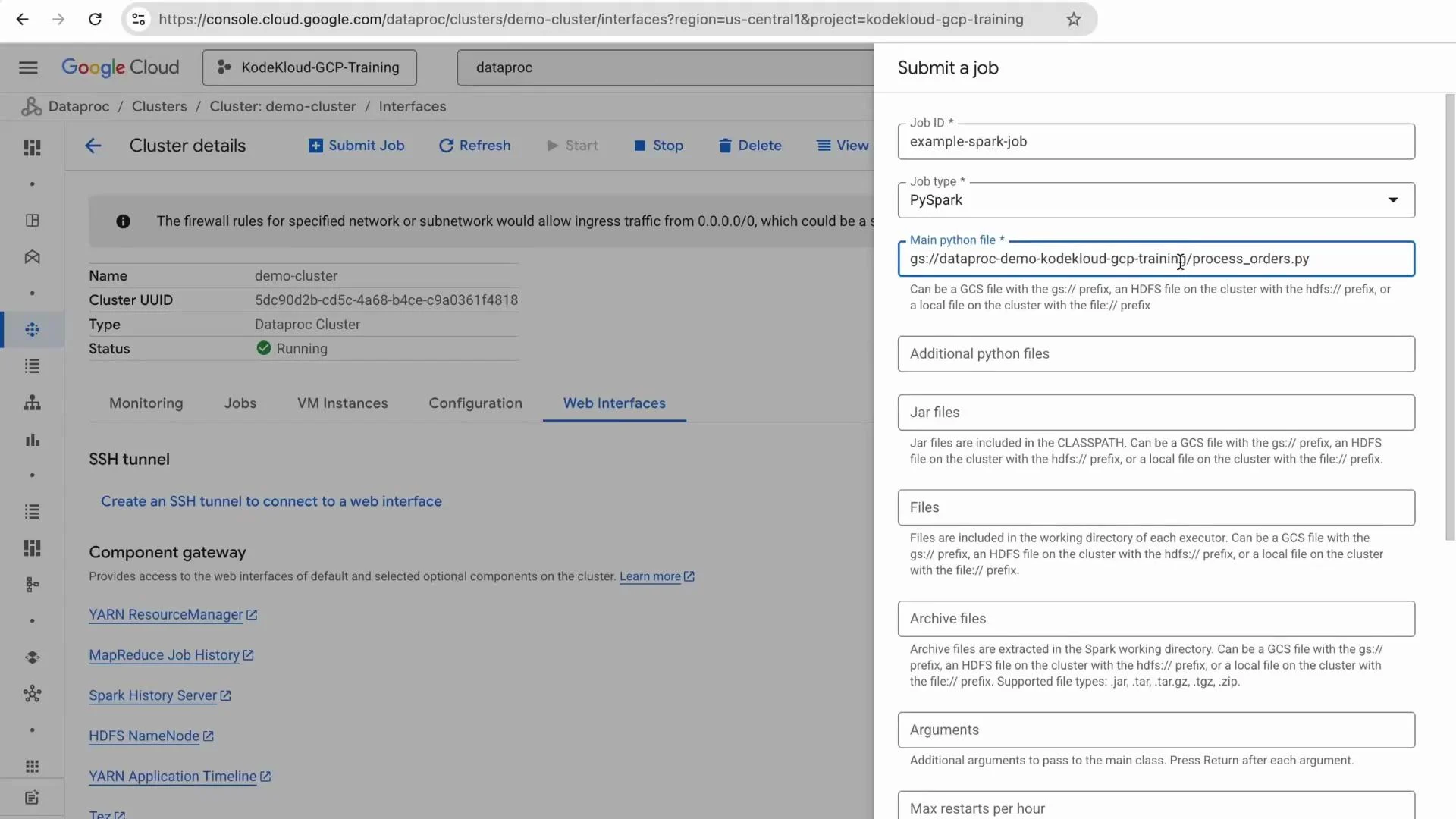
From the Dataproc cluster details page, click Submit job. Set the job type to PySpark, provide a job name (for example `example-spark-job`), and set the main Python file path to your uploaded script (for example `gs://your-bucket/process_orders.py`). Provide the two required arguments, each on its own line:
Example arguments (each on a separate line):
```text theme={null}
gs://your-bucket/orders.csv
gs://your-bucket/output/
```
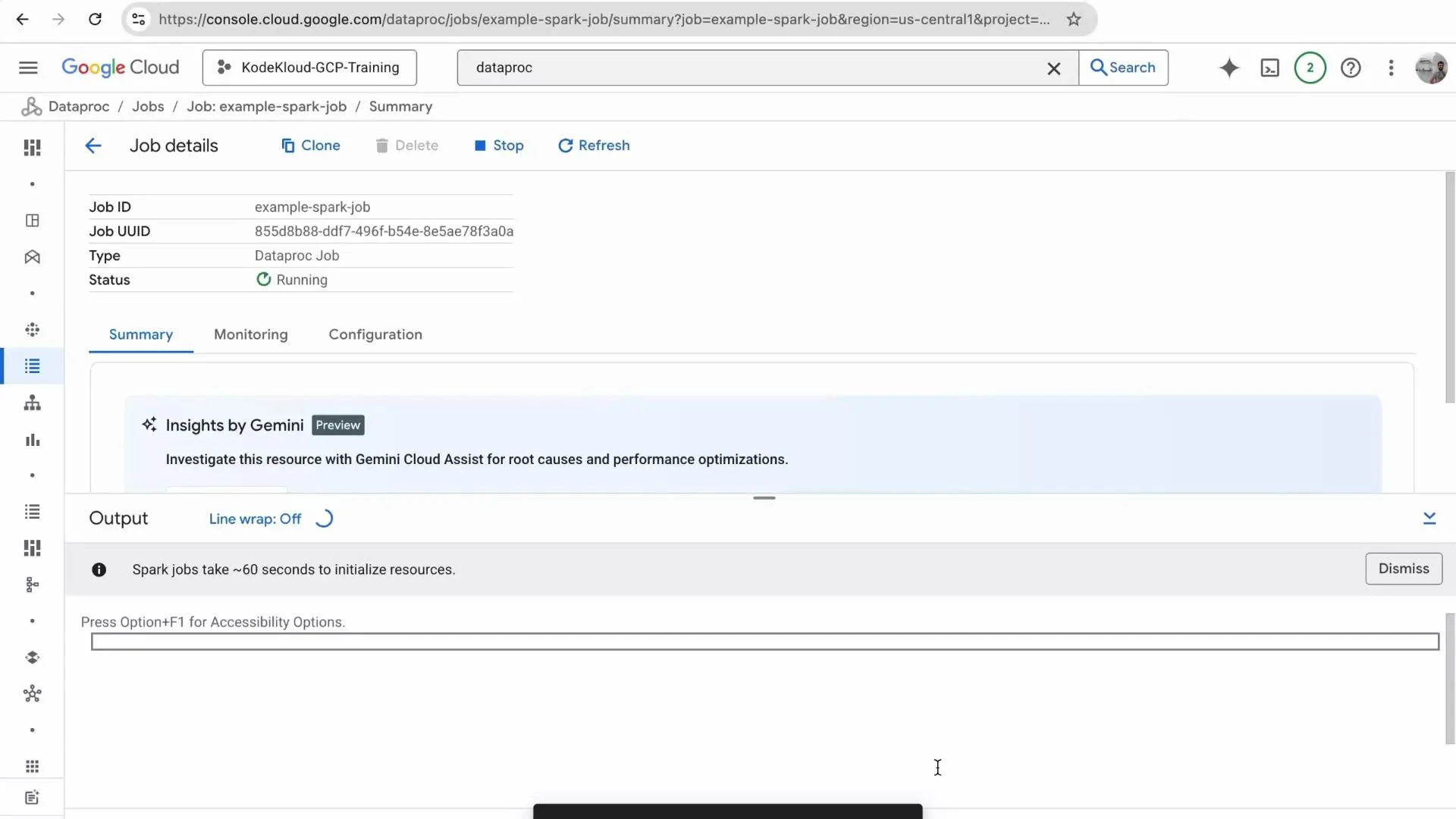
Then submit the job. The job will appear in the Jobs list; click it to view logs and status.
## Submit the PySpark job from the Console
From the Dataproc cluster details page, click Submit job. Set the job type to PySpark, provide a job name (for example `example-spark-job`), and set the main Python file path to your uploaded script (for example `gs://your-bucket/process_orders.py`). Provide the two required arguments, each on its own line:
Example arguments (each on a separate line):
```text theme={null}
gs://your-bucket/orders.csv
gs://your-bucket/output/
```
Then submit the job. The job will appear in the Jobs list; click it to view logs and status.
 While the job runs you can stream logs from the job details page to troubleshoot issues.
 ## Inspect the job via Spark History Server and Console
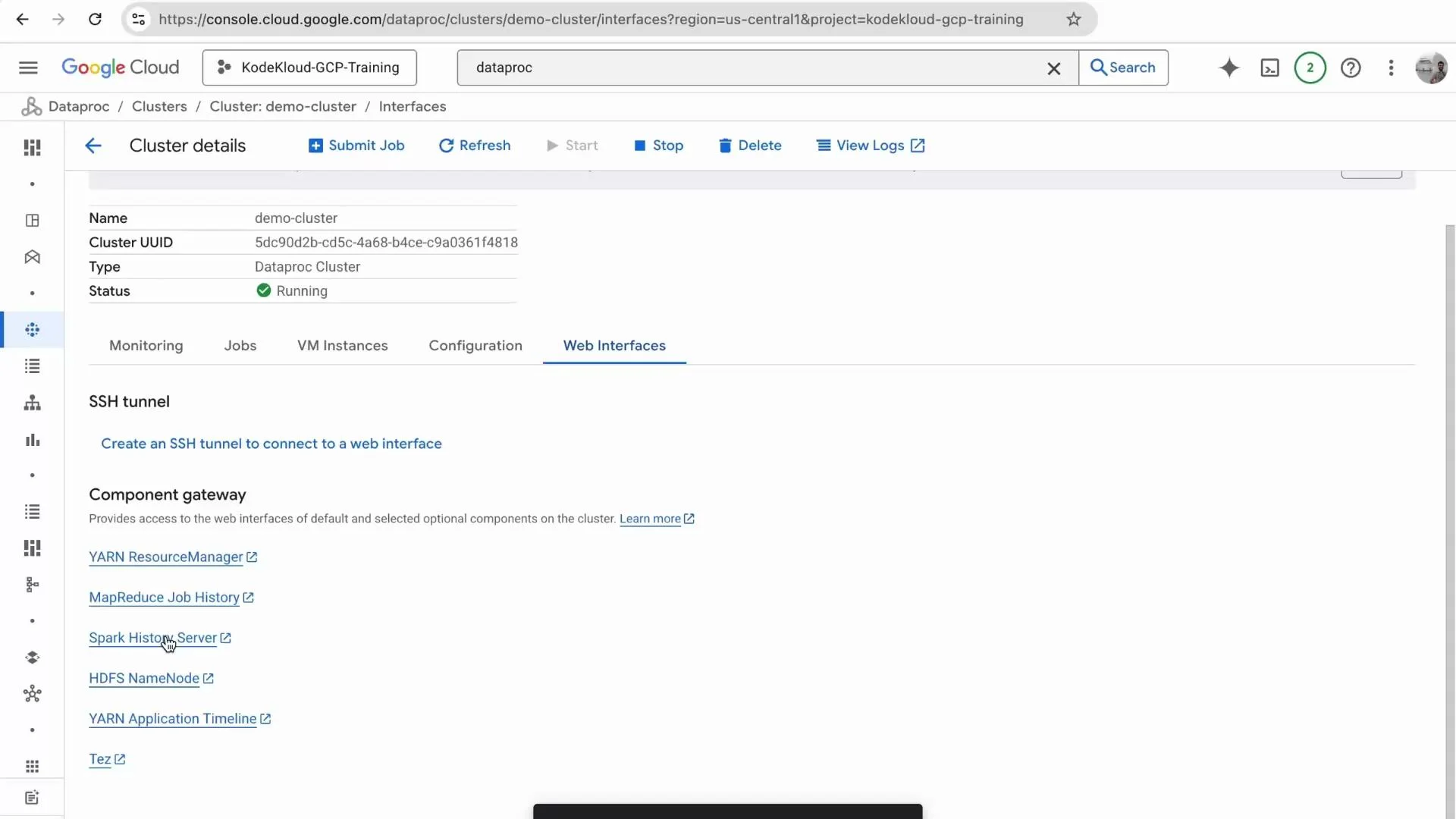
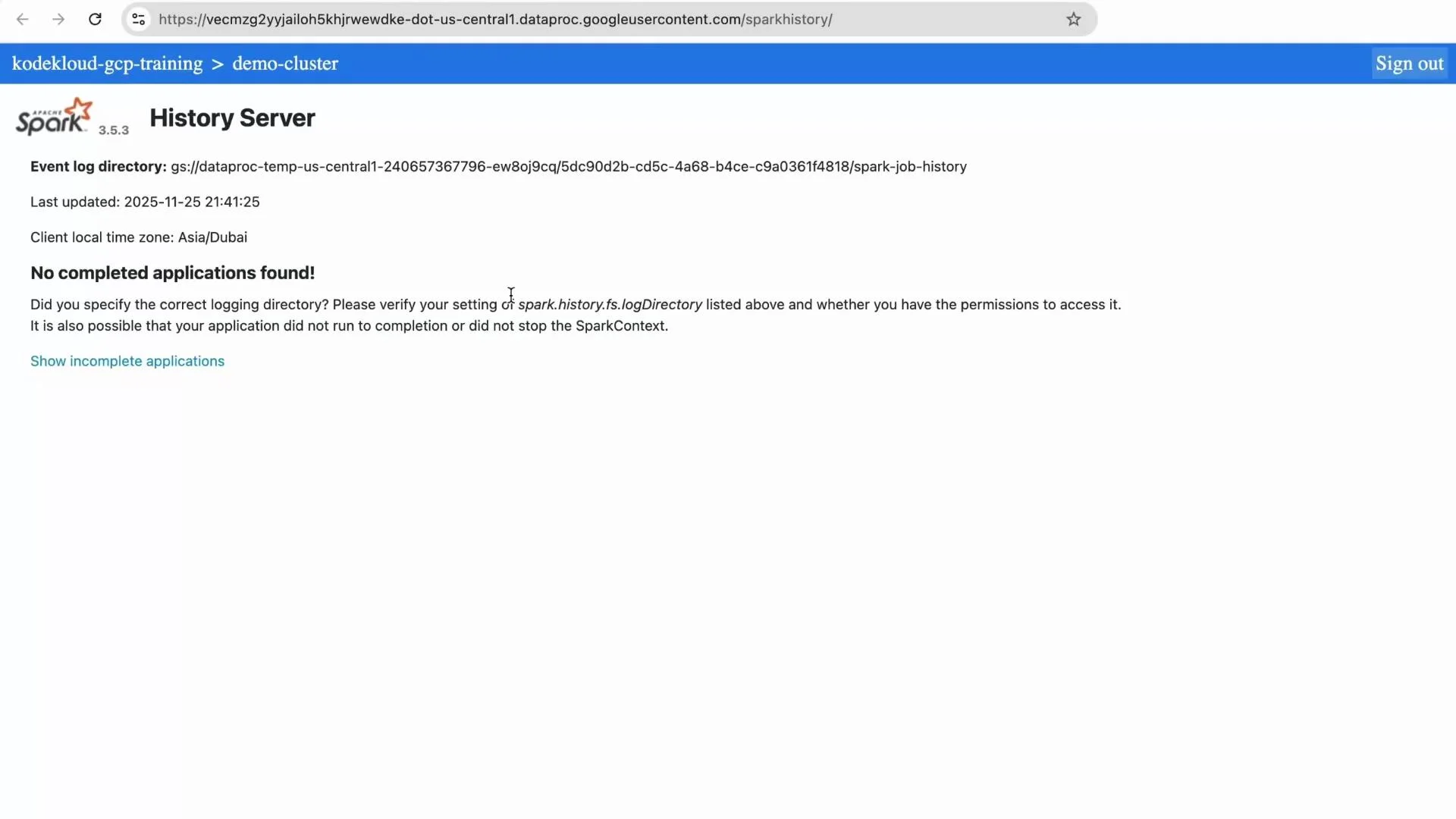
From the cluster details, open Web Interfaces and launch the Spark History Server to inspect completed applications, stages, and executors. If the job has not finished you may initially see “No completed applications found.” After completion the History Server lists the application and stages for deeper debugging and performance analysis.
## Inspect the job via Spark History Server and Console
From the cluster details, open Web Interfaces and launch the Spark History Server to inspect completed applications, stages, and executors. If the job has not finished you may initially see “No completed applications found.” After completion the History Server lists the application and stages for deeper debugging and performance analysis.
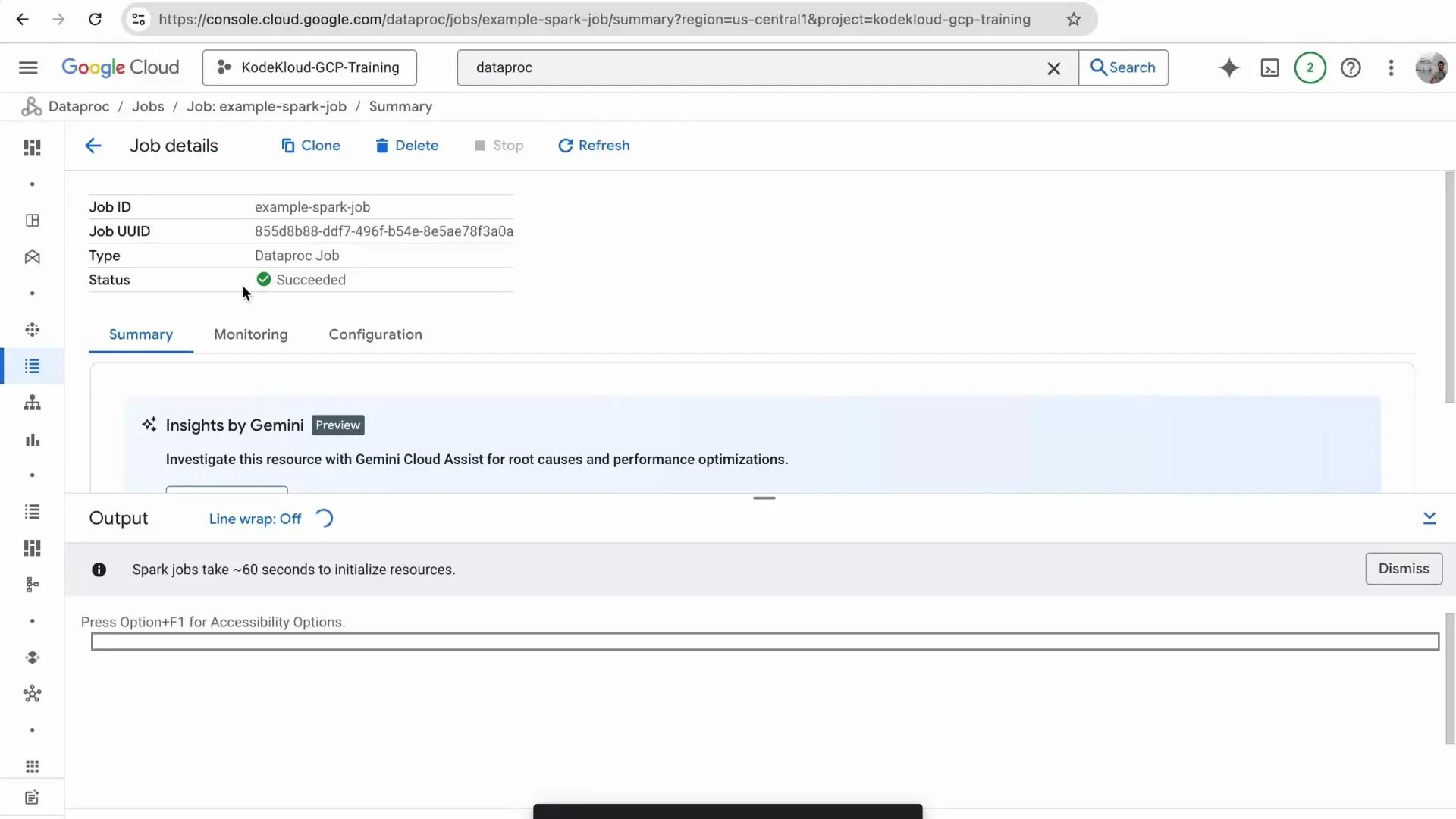
 When the job completes successfully the Console shows a green Succeeded status. You can inspect logs to confirm processing details and check the output folder for result files.
 ## Note: alternatives to console submission
You can also submit Dataproc jobs using the `gcloud` CLI, Dataproc REST or client libraries (Python, Java), or orchestrate them via Airflow operators for production workflows. See the Dataproc docs for examples and best practices: [https://cloud.google.com/dataproc/docs/reference](https://cloud.google.com/dataproc/docs/reference)
Cost and cleanup warning
Dataproc clusters incur compute and networking costs while running. For demos, delete or stop clusters when not in use to avoid unexpected charges. Consider using single-node clusters or autoscaling for cost savings.
## Verify the output in Cloud Storage
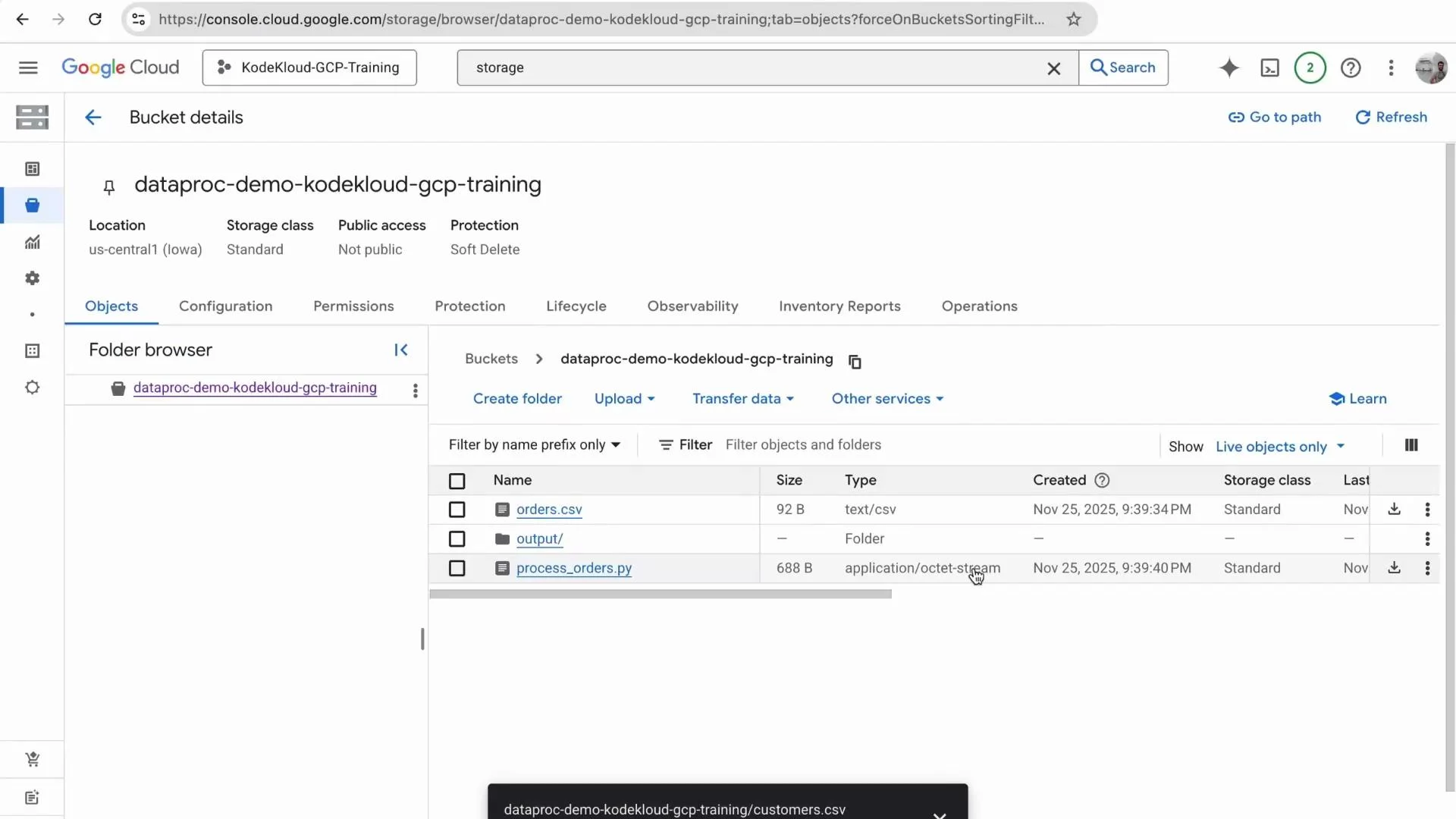
After the job succeeds, refresh your Cloud Storage bucket. The output folder contains Spark’s CSV part files (for example `part-00000-*.csv`) and a `_SUCCESS` file indicating completed write.
## Note: alternatives to console submission
You can also submit Dataproc jobs using the `gcloud` CLI, Dataproc REST or client libraries (Python, Java), or orchestrate them via Airflow operators for production workflows. See the Dataproc docs for examples and best practices: [https://cloud.google.com/dataproc/docs/reference](https://cloud.google.com/dataproc/docs/reference)
Cost and cleanup warning
Dataproc clusters incur compute and networking costs while running. For demos, delete or stop clusters when not in use to avoid unexpected charges. Consider using single-node clusters or autoscaling for cost savings.
## Verify the output in Cloud Storage
After the job succeeds, refresh your Cloud Storage bucket. The output folder contains Spark’s CSV part files (for example `part-00000-*.csv`) and a `_SUCCESS` file indicating completed write.
 ## Typical production pipeline considerations
In production you’ll commonly separate storage layers (raw, processed, analytics). A typical flow:
* Raw data ingested into a raw-data bucket.
* ETL/processing Spark jobs write to a processed bucket.
* Final aggregated results loaded into BigQuery or an analytics store for reporting.
Common production patterns include:
| Area | Recommendation |
| -------------- | ------------------------------------------------------------------------- |
| Orchestration | Use Airflow or Cloud Composer to schedule and retry jobs |
| Monitoring | Send Dataproc/Cloud Logging logs to a central monitoring/alerting system |
| Storage layout | Use separate buckets or prefixes for raw, processed, and analytics layers |
| Permissions | Use least-privilege IAM roles for job/service accounts |
Links and references
* Dataproc: [https://cloud.google.com/dataproc](https://cloud.google.com/dataproc)
* Cloud Storage: [https://cloud.google.com/storage](https://cloud.google.com/storage)
* Apache Spark: [https://spark.apache.org/](https://spark.apache.org/)
* Spark History Server: [https://spark.apache.org/docs/latest/monitoring.html#spark-history-server](https://spark.apache.org/docs/latest/monitoring.html#spark-history-server)
* BigQuery: [https://cloud.google.com/bigquery](https://cloud.google.com/bigquery)
## Closing
This walkthrough showed how to create a bucket, prepare data and a PySpark job, spin up a Dataproc cluster, submit a job from the Console, inspect it, and verify results in Cloud Storage. Thanks for following along — try extending the script to write Parquet output or to load results into BigQuery for analytics.
## Typical production pipeline considerations
In production you’ll commonly separate storage layers (raw, processed, analytics). A typical flow:
* Raw data ingested into a raw-data bucket.
* ETL/processing Spark jobs write to a processed bucket.
* Final aggregated results loaded into BigQuery or an analytics store for reporting.
Common production patterns include:
| Area | Recommendation |
| -------------- | ------------------------------------------------------------------------- |
| Orchestration | Use Airflow or Cloud Composer to schedule and retry jobs |
| Monitoring | Send Dataproc/Cloud Logging logs to a central monitoring/alerting system |
| Storage layout | Use separate buckets or prefixes for raw, processed, and analytics layers |
| Permissions | Use least-privilege IAM roles for job/service accounts |
Links and references
* Dataproc: [https://cloud.google.com/dataproc](https://cloud.google.com/dataproc)
* Cloud Storage: [https://cloud.google.com/storage](https://cloud.google.com/storage)
* Apache Spark: [https://spark.apache.org/](https://spark.apache.org/)
* Spark History Server: [https://spark.apache.org/docs/latest/monitoring.html#spark-history-server](https://spark.apache.org/docs/latest/monitoring.html#spark-history-server)
* BigQuery: [https://cloud.google.com/bigquery](https://cloud.google.com/bigquery)
## Closing
This walkthrough showed how to create a bucket, prepare data and a PySpark job, spin up a Dataproc cluster, submit a job from the Console, inspect it, and verify results in Cloud Storage. Thanks for following along — try extending the script to write Parquet output or to load results into BigQuery for analytics.