> ## Documentation Index
> Fetch the complete documentation index at: https://notes.kodekloud.com/llms.txt
> Use this file to discover all available pages before exploring further.
# Demo Setting up GCS Bucket
> Guide to creating and configuring Google Cloud Storage buckets, including lifecycle rules, access control, storage classes, uploading objects, and gsutil CLI examples
Welcome. In this lesson we'll create and configure a Google Cloud Storage (GCS) bucket and cover basic lifecycle policies and access controls. GCS is a highly available, low-maintenance object store commonly used for hosting files, storing Airflow DAGs, serving static websites, and acting as a landing/staging layer for data lakes. Creating a bucket is quick, but planning lifecycle rules and access controls helps control costs and protect data.
Below we walk through the Console-based workflow step-by-step, show lifecycle and permission settings, and include a quick CLI alternative for automation.
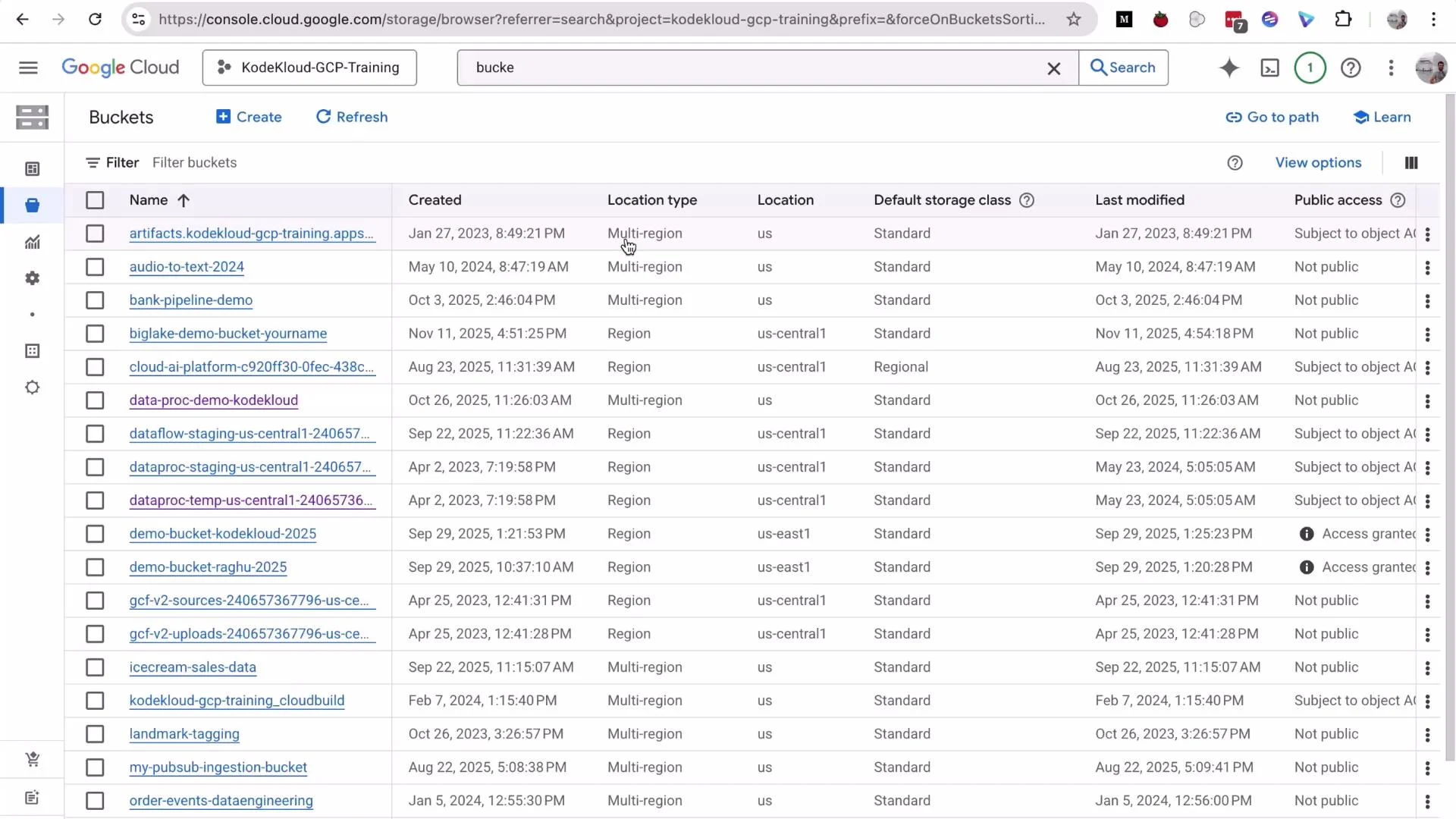
Open the GCP Console, search for "Buckets", and click on Buckets. You may see many buckets in my account; your view might be empty if you have no buckets yet.
 ## Create a new bucket (Console)
1. Click **Create** and enter a globally unique bucket name. GCS bucket names must be unique across all Google Cloud projects.
* Example name used in this demo: `gcs-demo-cloud`
2. Click **Continue**, choose a location (for this demo we use `us-central1` — a single-region), then **Continue**.
3. Choose a storage class. For general-purpose usage, select **Standard** (default). Click **Continue**.
Bucket-naming tips: Use lowercase letters, numbers, and dashes; avoid dots when possible. Names must be globally unique and should reflect purpose or environment (for example, `myproject-staging-2026`).
When you reach the permissions step, note the following console defaults and recommended settings:
* "Enforce public access prevention on this bucket" may be enabled by default—this prevents anonymous public reads even if an object would otherwise be public.
* Access control model: choose **Uniform** (uniform bucket-level access) to simplify permission management via IAM and disable ACLs. Uniform access is recommended for most use cases.
## Create a new bucket (Console)
1. Click **Create** and enter a globally unique bucket name. GCS bucket names must be unique across all Google Cloud projects.
* Example name used in this demo: `gcs-demo-cloud`
2. Click **Continue**, choose a location (for this demo we use `us-central1` — a single-region), then **Continue**.
3. Choose a storage class. For general-purpose usage, select **Standard** (default). Click **Continue**.
Bucket-naming tips: Use lowercase letters, numbers, and dashes; avoid dots when possible. Names must be globally unique and should reflect purpose or environment (for example, `myproject-staging-2026`).
When you reach the permissions step, note the following console defaults and recommended settings:
* "Enforce public access prevention on this bucket" may be enabled by default—this prevents anonymous public reads even if an object would otherwise be public.
* Access control model: choose **Uniform** (uniform bucket-level access) to simplify permission management via IAM and disable ACLs. Uniform access is recommended for most use cases.
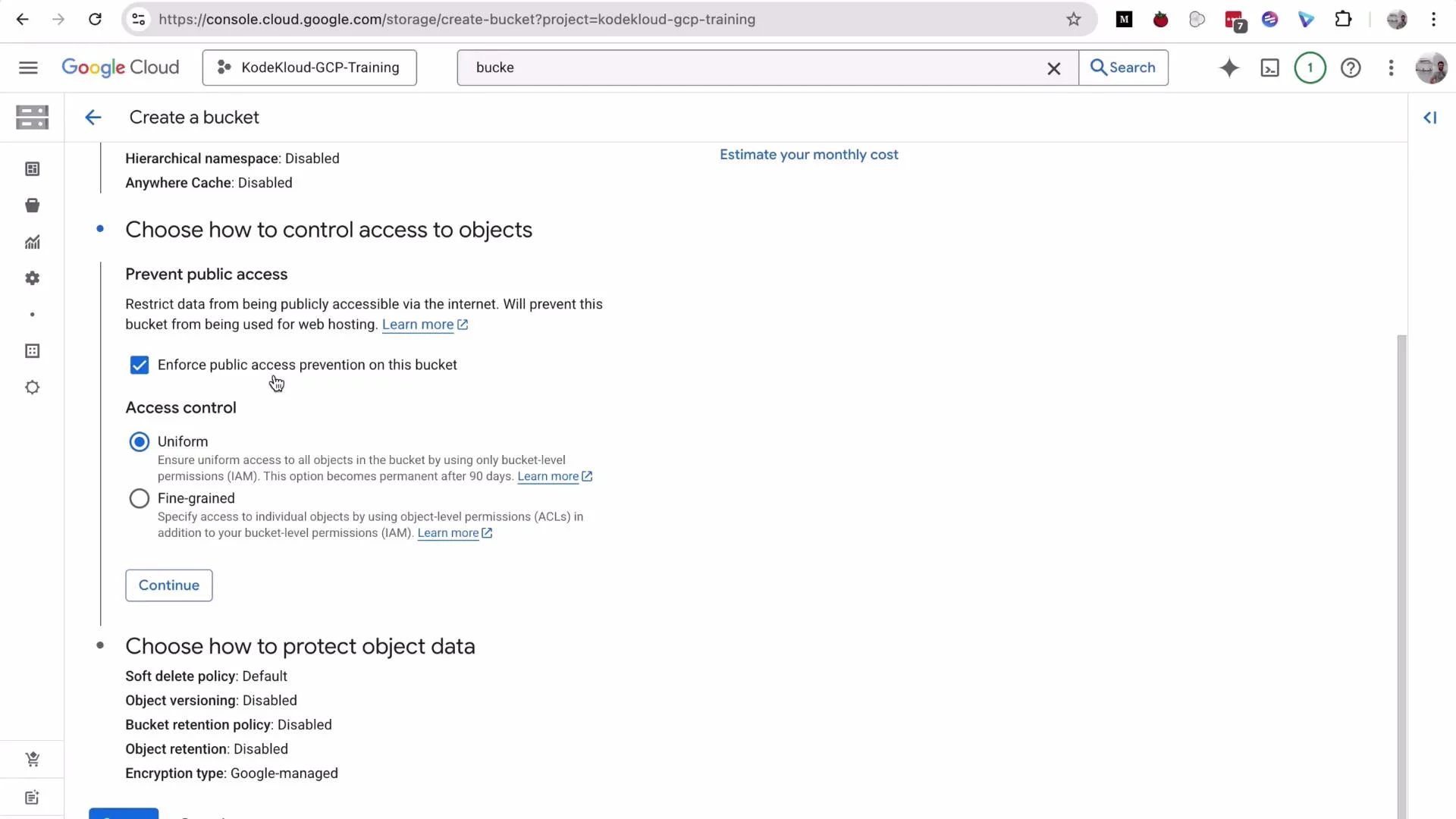 Click **Continue**, then **Create**, and confirm. Your bucket should be created in under a minute. Once created, you can use it as a staging area, landing zone, or data lake for CSVs, logs, or intermediate files that downstream systems (like BigQuery) will consume.
## Storage classes — quick reference
| Storage class | Use case | Typical example |
| ------------- | ---------------------------- | ----------------------------------- |
| Standard | Frequently accessed objects | Active datasets, website assets |
| Nearline | Infrequent access (≥30 days) | Backups, infrequently read archives |
| Coldline | Rare access (≥90 days) | Long-term backups |
| Archive | Very rare access (≥365 days) | Regulatory archives |
## Lifecycle rules: control costs automatically
GCS lifecycle rules help automate storage class transitions or deletions of older objects (or older versions). This keeps storage costs under control and prevents accumulation of temporary files.
To add a lifecycle rule in the Console:
1. Open your bucket and go to **Lifecycle**.
2. Click **Add a rule**.
3. Choose an action: change storage class or delete objects. For this demo we add a rule to **delete** objects older than 30 days (good for temporary files or intermediary outputs).
Click **Continue**, then **Create**, and confirm. Your bucket should be created in under a minute. Once created, you can use it as a staging area, landing zone, or data lake for CSVs, logs, or intermediate files that downstream systems (like BigQuery) will consume.
## Storage classes — quick reference
| Storage class | Use case | Typical example |
| ------------- | ---------------------------- | ----------------------------------- |
| Standard | Frequently accessed objects | Active datasets, website assets |
| Nearline | Infrequent access (≥30 days) | Backups, infrequently read archives |
| Coldline | Rare access (≥90 days) | Long-term backups |
| Archive | Very rare access (≥365 days) | Regulatory archives |
## Lifecycle rules: control costs automatically
GCS lifecycle rules help automate storage class transitions or deletions of older objects (or older versions). This keeps storage costs under control and prevents accumulation of temporary files.
To add a lifecycle rule in the Console:
1. Open your bucket and go to **Lifecycle**.
2. Click **Add a rule**.
3. Choose an action: change storage class or delete objects. For this demo we add a rule to **delete** objects older than 30 days (good for temporary files or intermediary outputs).
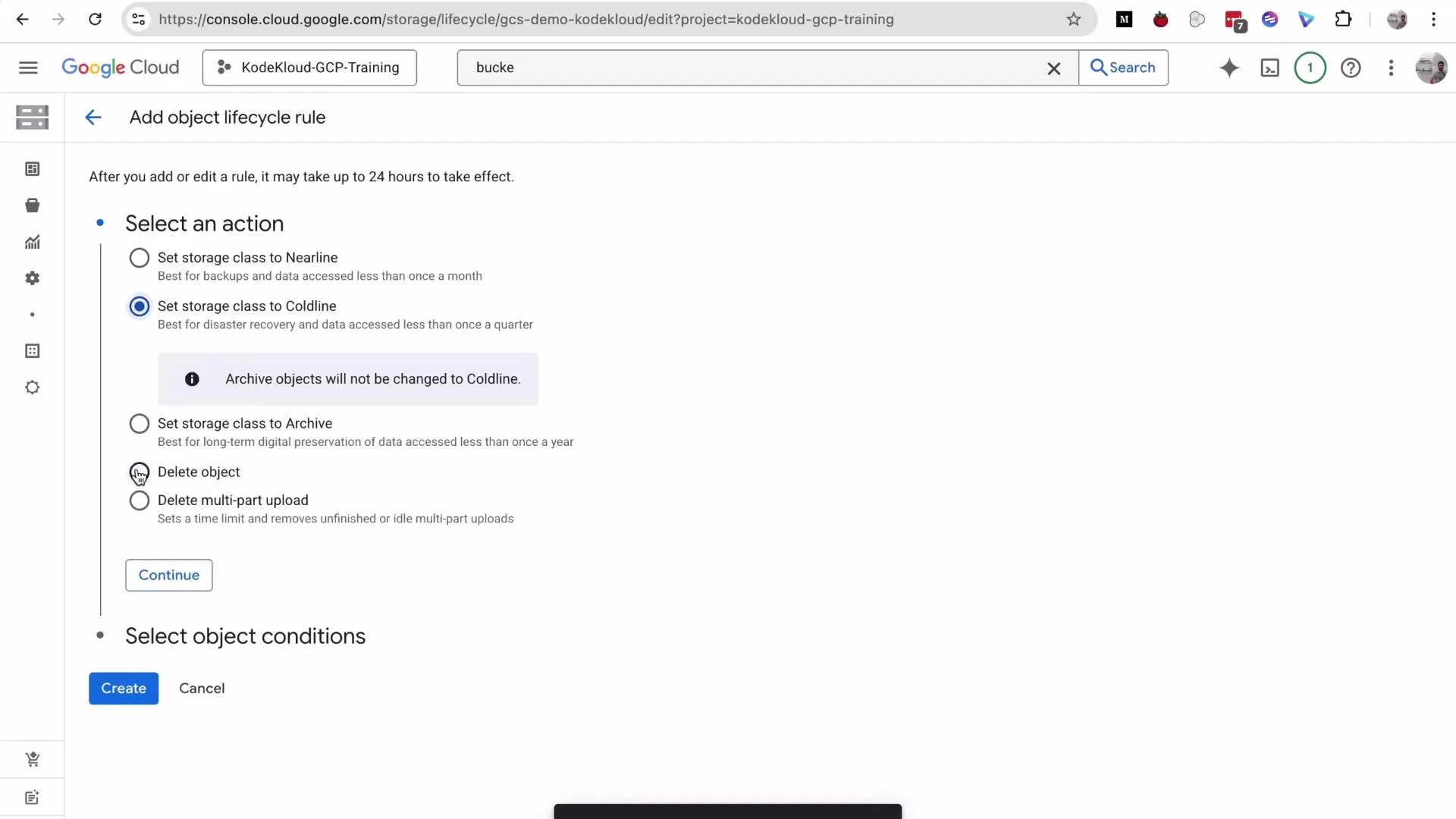 Set the Age condition to 30 days, then Continue and Create. The lifecycle will automatically remove objects older than 30 days (or older object versions if versioning is enabled).
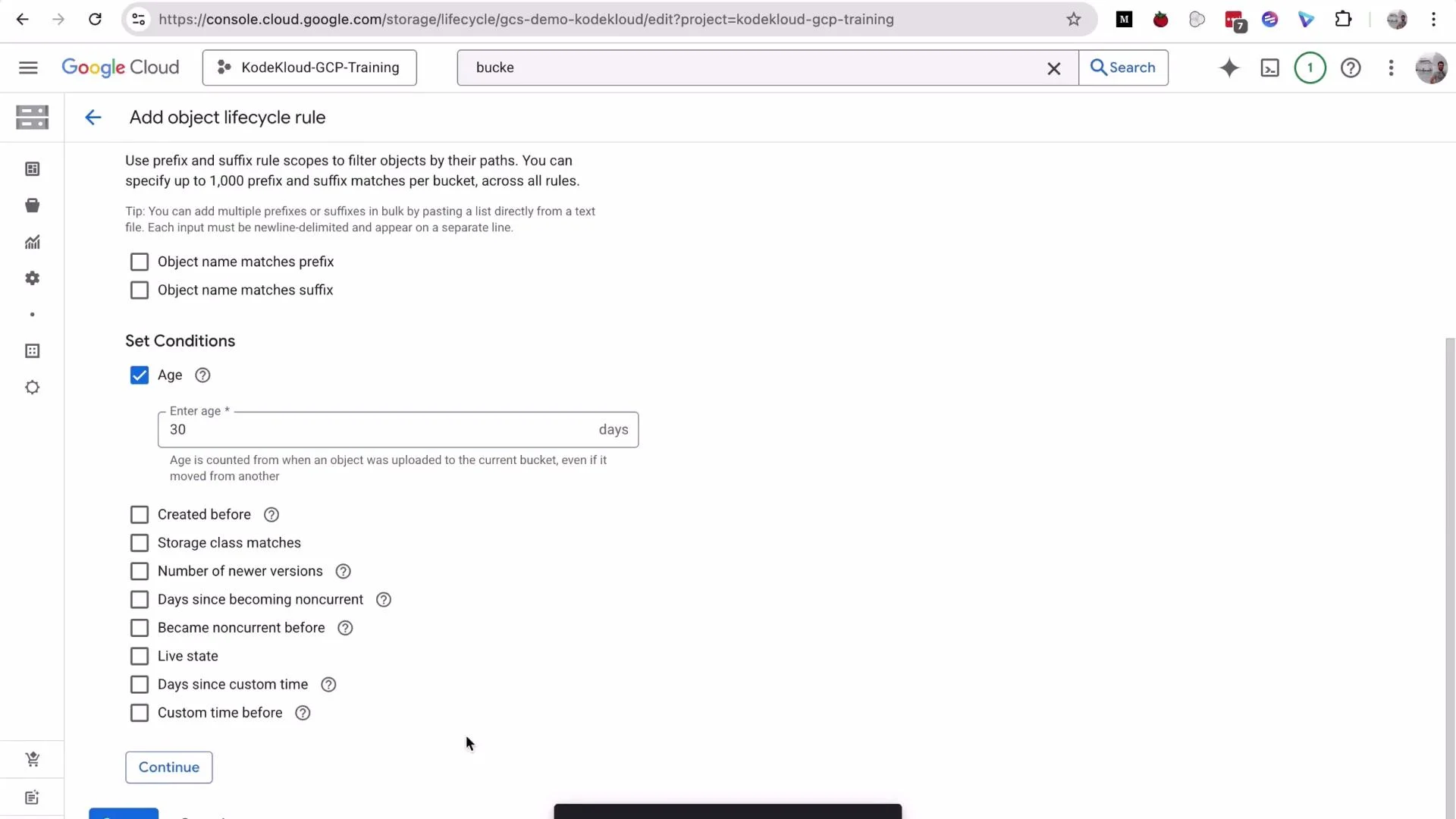 Lifecycle rule summary examples:
| Action | Typical condition | When to use |
| ----------------- | ------------------------ | ------------------------------------------- |
| `Delete` | Age = 30 days | Temporary files, staging objects |
| `SetStorageClass` | Age = 90 days → Coldline | Cost savings for infrequently accessed data |
| `SetStorageClass` | Age = 365 days → Archive | Long-term archival retention |
## Upload an object and view object details
Upload a file (for example, `index.html`) via drag-and-drop or the **Upload files** button. After upload, click **Refresh** to see the object listed.
Lifecycle rule summary examples:
| Action | Typical condition | When to use |
| ----------------- | ------------------------ | ------------------------------------------- |
| `Delete` | Age = 30 days | Temporary files, staging objects |
| `SetStorageClass` | Age = 90 days → Coldline | Cost savings for infrequently accessed data |
| `SetStorageClass` | Age = 365 days → Archive | Long-term archival retention |
## Upload an object and view object details
Upload a file (for example, `index.html`) via drag-and-drop or the **Upload files** button. After upload, click **Refresh** to see the object listed.
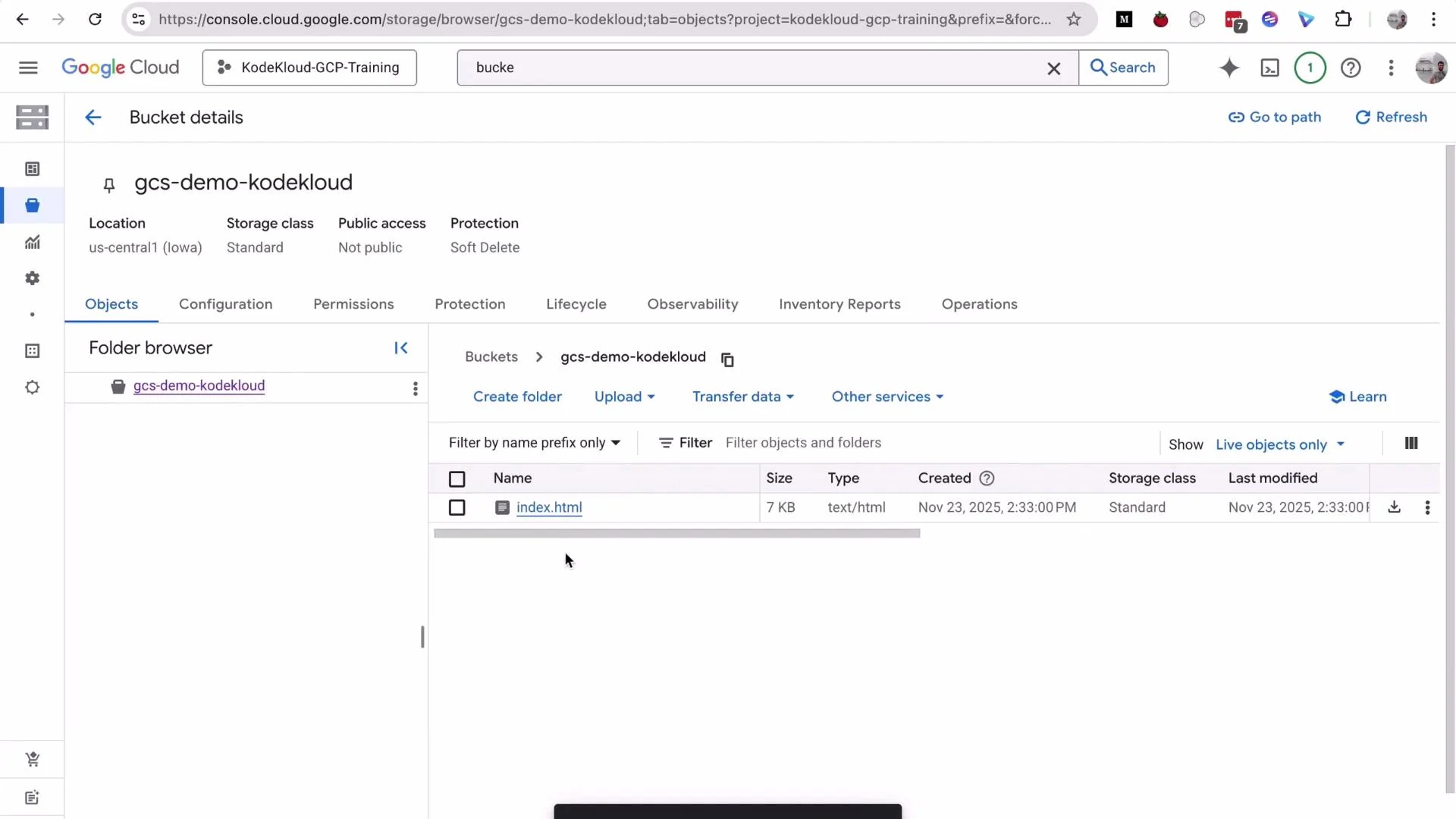 Click the `index.html` object to view its details. The object details pane shows two URL types:
* Public URL — accessible by anonymous users when an object is publicly readable.
* Authenticated URL — requires valid credentials or IAM permissions to access.
If public access prevention is enabled, the Public URL will return an access denied error when accessed anonymously. Example error returned when attempting to access an object publicly without permissions:
```xml theme={null}
Click the `index.html` object to view its details. The object details pane shows two URL types:
* Public URL — accessible by anonymous users when an object is publicly readable.
* Authenticated URL — requires valid credentials or IAM permissions to access.
If public access prevention is enabled, the Public URL will return an access denied error when accessed anonymously. Example error returned when attempting to access an object publicly without permissions:
```xml theme={null}
AccessDenied
Access denied.
Anonymous caller does not have storage.objects.get access to the Google Cloud Storage object. Permission 'storage.objects.get' denied on resource (or it may not exist).
```
## Manage permissions
To modify who can read or write objects:
1. Open the bucket and go to **Permissions**.
2. Use **Grant access** to add a user, group, or service account and assign roles such as `Storage Object Viewer`, `Storage Object Creator`, or `Storage Admin`.
3. To make objects public (not recommended for sensitive data), you must first remove public access prevention and then bind the `allUsers` member to the `Storage Object Viewer` role — or enable ACL-based control and set object ACLs accordingly.
Do not make production data publicly accessible. Only remove public access prevention or grant public access in controlled, non-sensitive demos or for intentionally public sites.
In this demo I removed public access prevention to demonstrate public access mechanics. In real environments, follow your organization’s security policies and prefer IAM + uniform bucket-level access over ACLs.
## Quick CLI alternative (gsutil)
To create the same bucket using the CLI (example):
```bash theme={null}
# Create a single-region bucket with Standard storage class
gsutil mb -p YOUR_PROJECT -l us-central1 -c STANDARD gs://gcs-demo-cloud/
```
To upload an object:
```bash theme={null}
gsutil cp index.html gs://gcs-demo-cloud/index.html
```
To set a lifecycle configuration (example JSON file `lifecycle.json`):
```json theme={null}
[
{
"action": { "type": "Delete" },
"condition": { "age": 30 }
}
]
```
Apply it:
```bash theme={null}
gsutil lifecycle set lifecycle.json gs://gcs-demo-cloud
```
## Typical GCS use cases
* Static website hosting (public frontend assets)
* Staging/landing zones for ETL and data pipelines
* Intermediate or persistent storage for data lakes
* Storing artifacts (build outputs, backups)
GCS is a flexible, low-maintenance option well-suited to these patterns and integrates tightly with BigQuery, Dataflow, and other GCP services.
## Links and references
* [Google Cloud Storage documentation](https://cloud.google.com/storage/docs)
* [gsutil tool](https://cloud.google.com/storage/docs/gsutil)
* [GCS bucket naming guidelines](https://cloud.google.com/storage/docs/naming-buckets)
That concludes this lesson on creating and configuring a GCS bucket. See you in the next lesson.