> ## Documentation Index
> Fetch the complete documentation index at: https://notes.kodekloud.com/llms.txt
> Use this file to discover all available pages before exploring further.
# Demo GCP Firestore Demo
> Walkthrough of Google Cloud Firestore usage covering database creation, adding and querying documents, exporting to Cloud Storage, and preparing data for BigQuery analytics.
Hello and welcome back.
In this lesson we'll examine Google Cloud Firestore: how it stores data, how to inspect documents and collections in the console, and how to export that data for analytics (for example, into BigQuery). As a data engineer you typically won't create documents by hand—application developers do that—but you'll frequently need to understand Firestore's structure, run queries to explore data quality, and export data to analytical stores or a data lake.
Prerequisites:
* A GCP project with billing enabled.
* Permissions to create Firestore databases and write to a Google Cloud Storage bucket (or a service account with those permissions).
This guide shows interactive console flows and an example Airflow task to export Firestore to Cloud Storage. Replace project IDs, bucket names, and locations with your own environment values.
Let's jump into the demo steps.
## Create a Firestore database
1. Open the [GCP Console](https://console.cloud.google.com) and navigate to [Firestore](https://cloud.google.com/firestore).
2. Click "Create a Firestore database".
3. Firestore uses a single database per GCP project (no separate database names).
4. Optionally provide a display name.
5. Choose the Standard edition (or the appropriate edition for your needs).
6. Select "Firestore in Native mode" (unless you require Datastore mode).
7. Pick a location (for example, `us-central1`) and create the database.
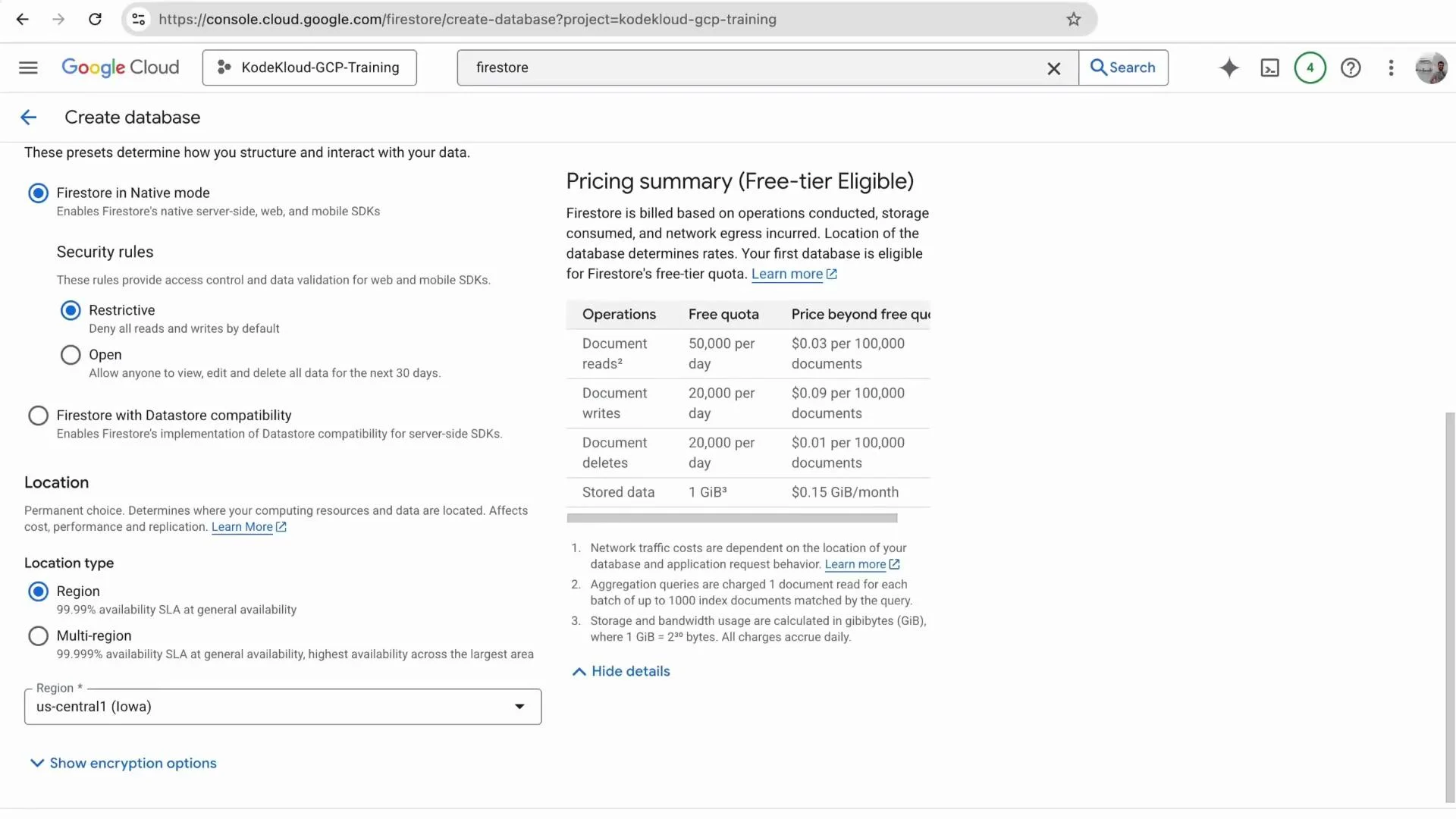 You can review the pricing summary on the right to estimate costs. Once the database is created, the Firestore console opens.
Quick recap:
* Firestore stores data as documents.
* Documents are grouped into collections.
* Firestore is schemaless: documents in the same collection can have different fields and types.
## Create a collection and add documents
To add a collection and initial documents from the console:
* Click "Start collection".
* Enter a collection ID, for example `users`.
* Accept the auto-generated document ID or provide a custom ID.
* Add fields such as `name` (string), `role` (string), and `age` (number).
* Save the document and repeat to add more.
Example `users` documents:
| Document (example) | name | role | age |
| ------------------ | ------- | ------ | --- |
| Document 1 | Alice | admin | 30 |
| Document 2 | Bob | Editor | 25 |
| Document 3 | Charlie | viewer | 35 |
When adding Bob as the second document, the console form looks like this:
You can review the pricing summary on the right to estimate costs. Once the database is created, the Firestore console opens.
Quick recap:
* Firestore stores data as documents.
* Documents are grouped into collections.
* Firestore is schemaless: documents in the same collection can have different fields and types.
## Create a collection and add documents
To add a collection and initial documents from the console:
* Click "Start collection".
* Enter a collection ID, for example `users`.
* Accept the auto-generated document ID or provide a custom ID.
* Add fields such as `name` (string), `role` (string), and `age` (number).
* Save the document and repeat to add more.
Example `users` documents:
| Document (example) | name | role | age |
| ------------------ | ------- | ------ | --- |
| Document 1 | Alice | admin | 30 |
| Document 2 | Bob | Editor | 25 |
| Document 3 | Charlie | viewer | 35 |
When adding Bob as the second document, the console form looks like this:
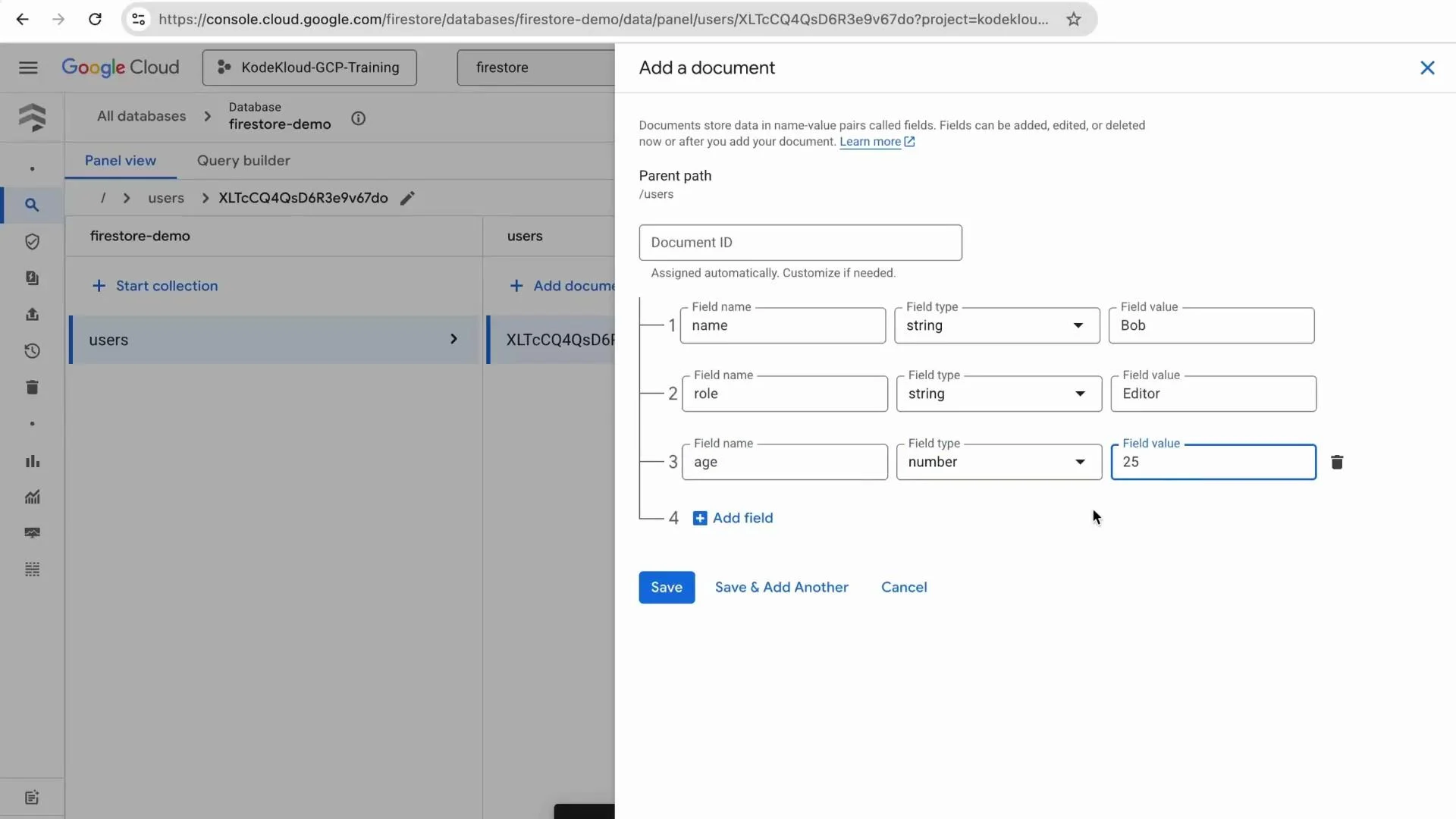 After saving, the collection and contained documents will be visible in the Firestore console.
## Inspect data and run queries with Query Builder
To explore data interactively, use the Firestore Query Builder:
1. Click "Query Builder" in the Firestore UI.
2. Choose the collection to query (`users`).
3. Add filters (WHERE clauses). Example: to find users aged 30 or older, add a filter on `age` with operator "greater than or equal to" and value `30`.
4. Run the query to view matching documents.
Example query result for `age >= 30` (as displayed by the console):
```text theme={null}
Document ID age name role
C3qDa11vso7IjQXTptoK 35 "Charlie" "viewer"
XLTcCQ4QsD6R3e9v67do 30 "Alice" "admin"
```
The Query Builder with the `age >= 30` filter looks like this:
After saving, the collection and contained documents will be visible in the Firestore console.
## Inspect data and run queries with Query Builder
To explore data interactively, use the Firestore Query Builder:
1. Click "Query Builder" in the Firestore UI.
2. Choose the collection to query (`users`).
3. Add filters (WHERE clauses). Example: to find users aged 30 or older, add a filter on `age` with operator "greater than or equal to" and value `30`.
4. Run the query to view matching documents.
Example query result for `age >= 30` (as displayed by the console):
```text theme={null}
Document ID age name role
C3qDa11vso7IjQXTptoK 35 "Charlie" "viewer"
XLTcCQ4QsD6R3e9v67do 30 "Alice" "admin"
```
The Query Builder with the `age >= 30` filter looks like this:
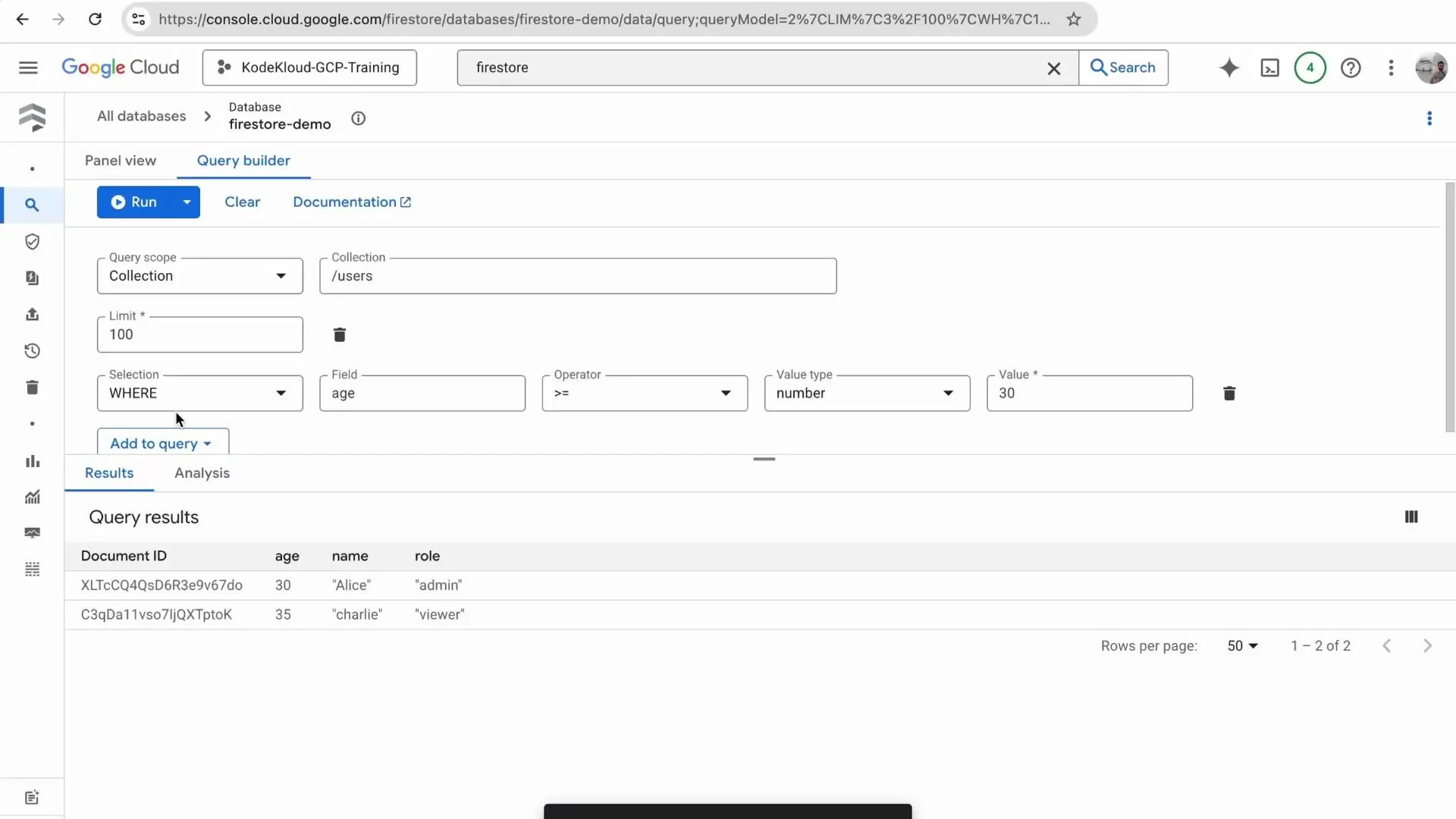 Tip: Use queries in the console to validate data quality and identify outliers before exporting for analytics.
## Exporting Firestore data for analytics
For analytics workflows (for example, loading into BigQuery), the recommended pattern is:
1. Export Firestore data to a Google Cloud Storage (GCS) location.
2. Transform or normalize exported files to enforce a consistent schema.
3. Load the normalized data into BigQuery.
Common automation uses Apache Airflow (or Cloud Composer). The Google provider for Airflow includes a `CloudFirestoreExportDatabaseOperator` to export Firestore to GCS. Example Airflow DAG task:
```python theme={null}
from airflow import DAG
from airflow.utils.dates import days_ago
from airflow.providers.google.cloud.operators.firestore import CloudFirestoreExportDatabaseOperator
with DAG("export_firestore_dag", start_date=days_ago(1), schedule_interval=None) as dag:
export_firestore = CloudFirestoreExportDatabaseOperator(
task_id="export_firestore",
project_id="my-gcp-project",
body={
"outputUriPrefix": "gs://my-bucket/firestore-exports",
"collectionIds": ["users"]
}
)
```
After the export completes, Firestore export files will be in GCS. Typical next steps:
* Normalize the records (add missing fields, ensure types are consistent).
* Load into BigQuery using a load job or an operator such as `BigQueryInsertJobOperator`.
Suggested loading approaches:
* Use BigQuery load jobs with an explicitly defined schema to prevent type-mismatch issues.
* Use Dataflow or a transformation job (Python/Beam) to clean and flatten complex/nested documents before loading.
When exporting Firestore for analytics, export to GCS first and apply schema normalization or transformations before loading into BigQuery. This reduces the chance of type mismatches and failed load jobs.
## Firestore basics quick reference
| Resource Type | Description | Example |
| ------------- | -------------------------------------------- | ------------------------------ |
| Document | A unit of storage holding fields (JSON-like) | `{"name": "Alice", "age": 30}` |
| Collection | Grouping of documents | `/users` |
| Query | Retrieve documents by filters | `age >= 30` |
## Summary
* Firestore is schemaless and stores JSON-like documents in collections.
* Use the Firestore console to create collections, add documents, and run queries with Query Builder to validate data.
* For analytics, export Firestore collections to GCS (manually or via Airflow/Cloud Composer), normalize/transform the exports, and then load into BigQuery.
That's it for this lesson — speak with you in the next lesson.
Tip: Use queries in the console to validate data quality and identify outliers before exporting for analytics.
## Exporting Firestore data for analytics
For analytics workflows (for example, loading into BigQuery), the recommended pattern is:
1. Export Firestore data to a Google Cloud Storage (GCS) location.
2. Transform or normalize exported files to enforce a consistent schema.
3. Load the normalized data into BigQuery.
Common automation uses Apache Airflow (or Cloud Composer). The Google provider for Airflow includes a `CloudFirestoreExportDatabaseOperator` to export Firestore to GCS. Example Airflow DAG task:
```python theme={null}
from airflow import DAG
from airflow.utils.dates import days_ago
from airflow.providers.google.cloud.operators.firestore import CloudFirestoreExportDatabaseOperator
with DAG("export_firestore_dag", start_date=days_ago(1), schedule_interval=None) as dag:
export_firestore = CloudFirestoreExportDatabaseOperator(
task_id="export_firestore",
project_id="my-gcp-project",
body={
"outputUriPrefix": "gs://my-bucket/firestore-exports",
"collectionIds": ["users"]
}
)
```
After the export completes, Firestore export files will be in GCS. Typical next steps:
* Normalize the records (add missing fields, ensure types are consistent).
* Load into BigQuery using a load job or an operator such as `BigQueryInsertJobOperator`.
Suggested loading approaches:
* Use BigQuery load jobs with an explicitly defined schema to prevent type-mismatch issues.
* Use Dataflow or a transformation job (Python/Beam) to clean and flatten complex/nested documents before loading.
When exporting Firestore for analytics, export to GCS first and apply schema normalization or transformations before loading into BigQuery. This reduces the chance of type mismatches and failed load jobs.
## Firestore basics quick reference
| Resource Type | Description | Example |
| ------------- | -------------------------------------------- | ------------------------------ |
| Document | A unit of storage holding fields (JSON-like) | `{"name": "Alice", "age": 30}` |
| Collection | Grouping of documents | `/users` |
| Query | Retrieve documents by filters | `age >= 30` |
## Summary
* Firestore is schemaless and stores JSON-like documents in collections.
* Use the Firestore console to create collections, add documents, and run queries with Query Builder to validate data.
* For analytics, export Firestore collections to GCS (manually or via Airflow/Cloud Composer), normalize/transform the exports, and then load into BigQuery.
That's it for this lesson — speak with you in the next lesson.