> ## Documentation Index
> Fetch the complete documentation index at: https://notes.kodekloud.com/llms.txt
> Use this file to discover all available pages before exploring further.
# Cloud Build serverless CICD platform
> Google Cloud Build serverless CI/CD service automating building testing and deploying artifacts via containerized build steps
Hey everyone — welcome back.
In this lesson we explore Cloud Build, Google Cloud’s serverless CI/CD platform. Cloud Build automates the process of turning source code into deployable artifacts (container images, binaries, or other packages) using a fully managed, serverless pipeline. That means no build servers to provision or maintain — you describe the steps and Google Cloud runs them.
Cloud Build is a fully managed CI/CD service: Google Cloud handles the infrastructure, and you only describe the pipeline steps.
Platform overview (text description):
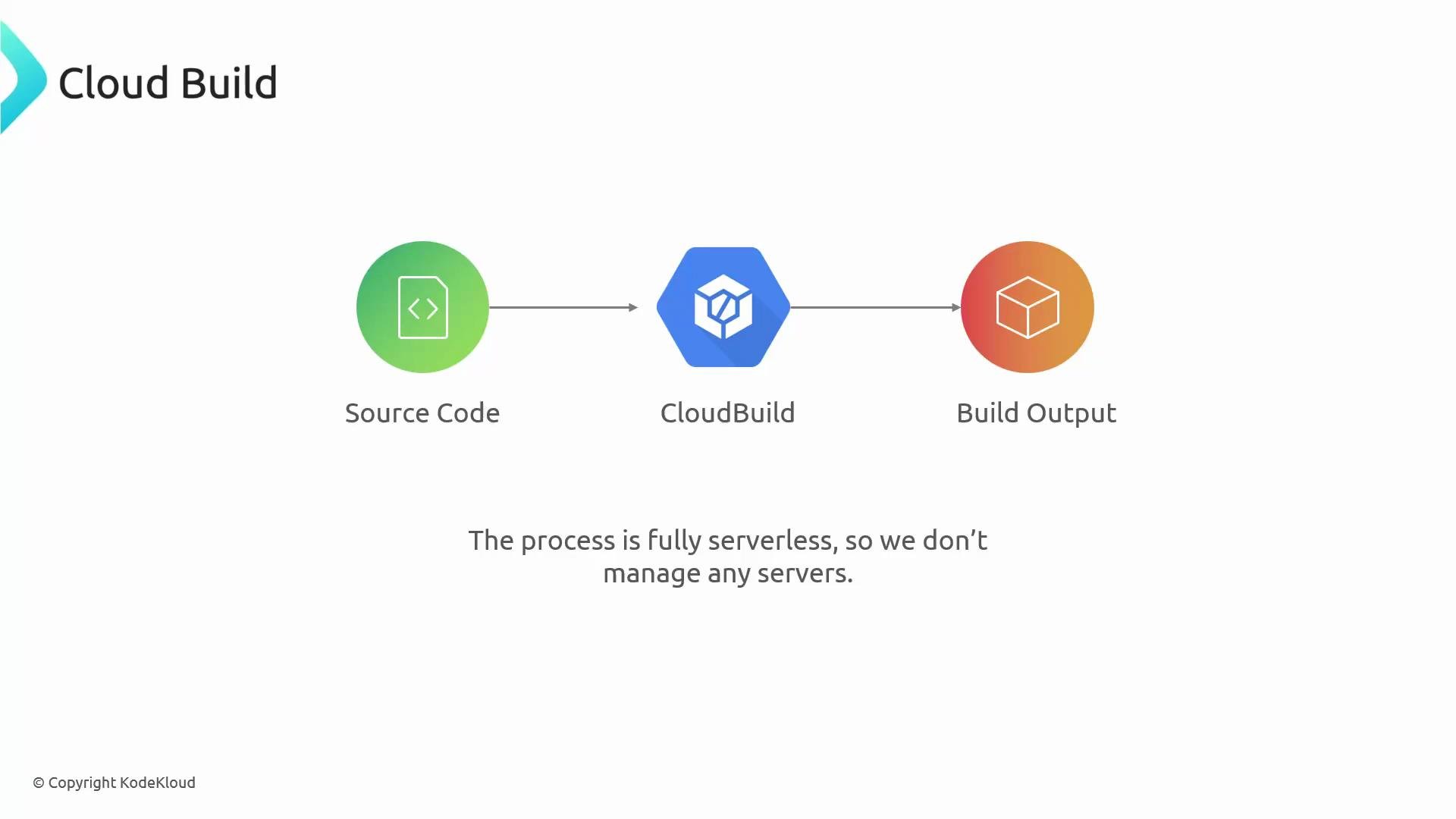 At a glance
* Cloud Build executes builds as an ordered sequence of steps.
* Each step runs in its own container image for isolation and reproducibility.
* The pipeline converts source into deployable artifacts (container images, archives, binaries).
* Pipelines are defined with configuration files (`cloudbuild.yaml` or JSON), letting you mix tools, languages, and commands.
Core capabilities
| Feature | What it provides |
| -------------------------------- | ------------------------------------------------------------------------------------------------- |
| Serverless, fully managed builds | No infrastructure to provision or scale; Google Cloud runs and scales build execution. |
| Container-native execution | Each build step runs inside a container image for consistent environments. |
| Flexible configuration | Define ordered steps in `cloudbuild.yaml` or a JSON equivalent. |
| Integrations & triggers | Connect to GitHub, GitLab, or Cloud Source Repositories; trigger builds on commits, PRs, or tags. |
| Artifact storage & registry | Push artifacts to Artifact Registry or Cloud Storage for later deployment. |
| Built-in testing support | Run unit/integration tests as build steps to validate changes early. |
Why use Cloud Build (benefits)
| Benefit | Notes |
| ---------------------- | ------------------------------------------------------------------ |
| Fast setup & execution | Start builds in seconds and pay only for build time. |
| Improved code quality | Automate builds and tests to catch problems earlier. |
| Secure-by-default | Steps run in isolated containers on Google-managed infrastructure. |
| Automatic scaling | Run many parallel jobs without managing runners or VMs. |
Now, the tradeoffs.
At a glance
* Cloud Build executes builds as an ordered sequence of steps.
* Each step runs in its own container image for isolation and reproducibility.
* The pipeline converts source into deployable artifacts (container images, archives, binaries).
* Pipelines are defined with configuration files (`cloudbuild.yaml` or JSON), letting you mix tools, languages, and commands.
Core capabilities
| Feature | What it provides |
| -------------------------------- | ------------------------------------------------------------------------------------------------- |
| Serverless, fully managed builds | No infrastructure to provision or scale; Google Cloud runs and scales build execution. |
| Container-native execution | Each build step runs inside a container image for consistent environments. |
| Flexible configuration | Define ordered steps in `cloudbuild.yaml` or a JSON equivalent. |
| Integrations & triggers | Connect to GitHub, GitLab, or Cloud Source Repositories; trigger builds on commits, PRs, or tags. |
| Artifact storage & registry | Push artifacts to Artifact Registry or Cloud Storage for later deployment. |
| Built-in testing support | Run unit/integration tests as build steps to validate changes early. |
Why use Cloud Build (benefits)
| Benefit | Notes |
| ---------------------- | ------------------------------------------------------------------ |
| Fast setup & execution | Start builds in seconds and pay only for build time. |
| Improved code quality | Automate builds and tests to catch problems earlier. |
| Secure-by-default | Steps run in isolated containers on Google-managed infrastructure. |
| Automatic scaling | Run many parallel jobs without managing runners or VMs. |
Now, the tradeoffs.
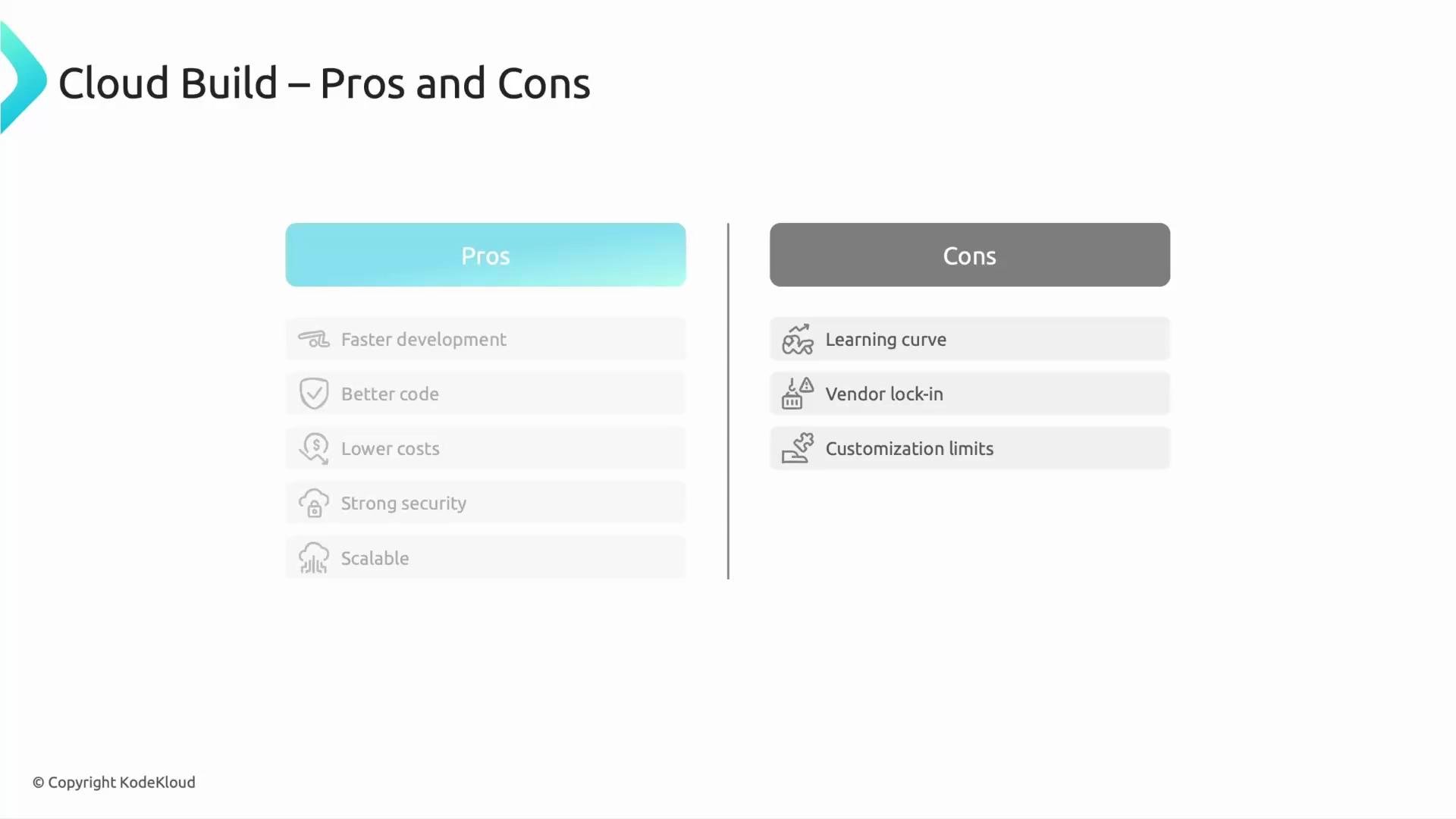 Pros and Cons
| Pros | Cons |
| ------------------------------------------------------- | ----------------------------------------------------------------------- |
| Fast to set up; minimal operational overhead. | Learning curve if migrating from systems like Jenkins. |
| Improves code quality via automated testing and builds. | Vendor lock-in risk when tightly coupled to Google Cloud services. |
| Cost-effective: billed per build minute. | Extremely custom or legacy build environments may be hard to reproduce. |
| Secure, isolated execution in containers. | Some customization limits compared to self-managed runners. |
If you rely on very specialized or legacy build environments, evaluate whether those requirements can be containerized before committing to a fully managed solution.
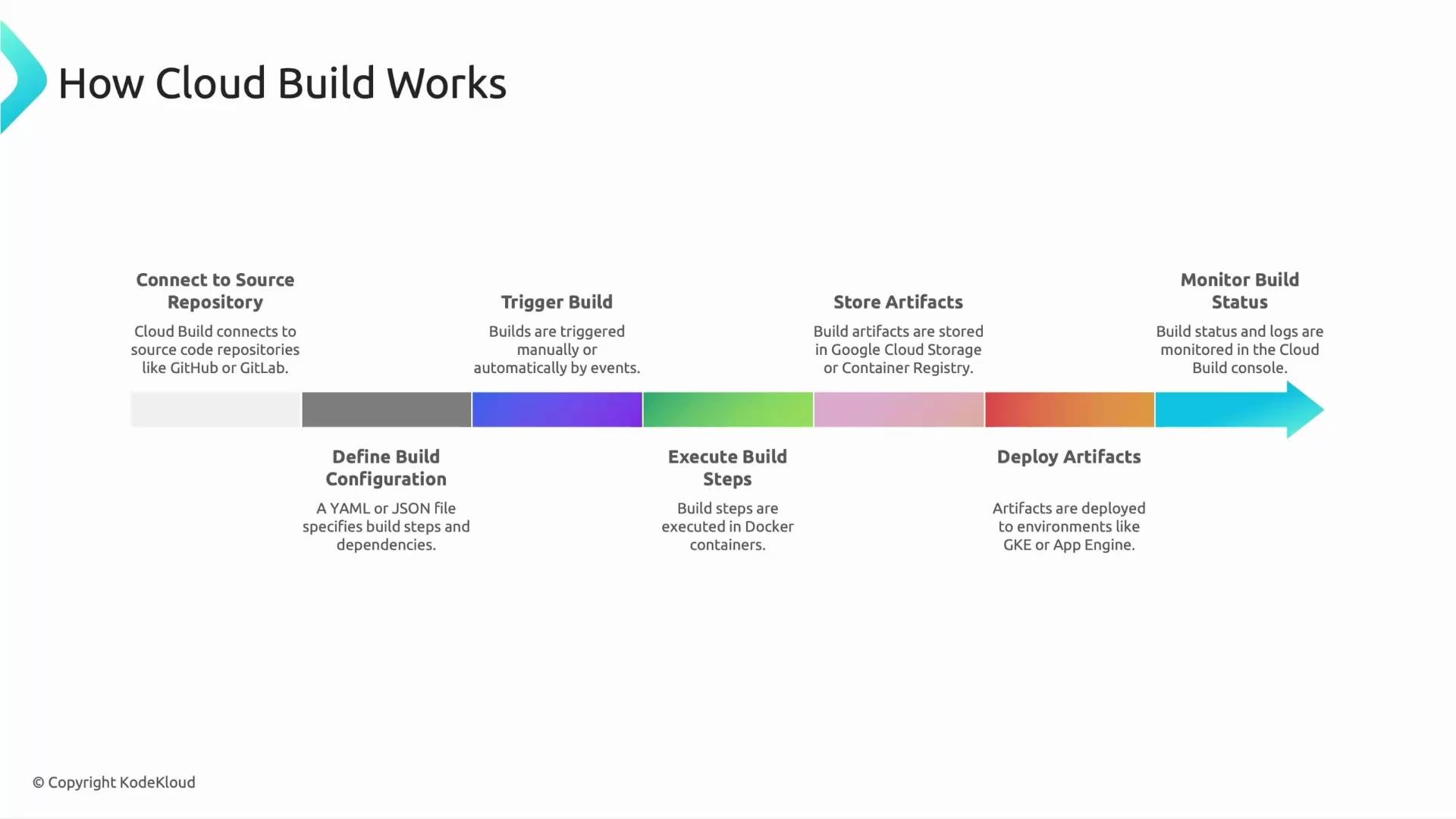
Typical Cloud Build pipeline flow
1. Connect the source repository (GitHub, GitLab, Cloud Source Repositories, etc.).
2. Define a build configuration file (`cloudbuild.yaml` or JSON) listing ordered build steps and images.
3. Create build triggers to run on commits, pull requests, or tags — or start builds manually.
4. Cloud Build runs each step inside the specified container image (examples: install deps, run tests, build image).
5. Store build outputs in Artifact Registry or Cloud Storage.
6. Deploy artifacts to targets such as GKE, Cloud Run, or App Engine.
7. Monitor build logs and status in the Cloud Console for troubleshooting and observability.
Pros and Cons
| Pros | Cons |
| ------------------------------------------------------- | ----------------------------------------------------------------------- |
| Fast to set up; minimal operational overhead. | Learning curve if migrating from systems like Jenkins. |
| Improves code quality via automated testing and builds. | Vendor lock-in risk when tightly coupled to Google Cloud services. |
| Cost-effective: billed per build minute. | Extremely custom or legacy build environments may be hard to reproduce. |
| Secure, isolated execution in containers. | Some customization limits compared to self-managed runners. |
If you rely on very specialized or legacy build environments, evaluate whether those requirements can be containerized before committing to a fully managed solution.
Typical Cloud Build pipeline flow
1. Connect the source repository (GitHub, GitLab, Cloud Source Repositories, etc.).
2. Define a build configuration file (`cloudbuild.yaml` or JSON) listing ordered build steps and images.
3. Create build triggers to run on commits, pull requests, or tags — or start builds manually.
4. Cloud Build runs each step inside the specified container image (examples: install deps, run tests, build image).
5. Store build outputs in Artifact Registry or Cloud Storage.
6. Deploy artifacts to targets such as GKE, Cloud Run, or App Engine.
7. Monitor build logs and status in the Cloud Console for troubleshooting and observability.
 Sample `cloudbuild.yaml` (minimal example)
This example shows a simple workflow: install dependencies, run tests, build a Docker image, and push it to Artifact Registry. Adjust images, steps, and substitutions for your project.
```yaml theme={null}
steps:
- name: 'gcr.io/cloud-builders/npm'
args: ['install']
- name: 'gcr.io/cloud-builders/npm'
args: ['test']
- name: 'gcr.io/cloud-builders/docker'
args:
[
'build',
'-t',
'LOCATION-docker.pkg.dev/PROJECT_ID/REPO/my-app:$SHORT_SHA',
'.'
]
- name: 'gcr.io/cloud-builders/docker'
args:
[
'push',
'LOCATION-docker.pkg.dev/PROJECT_ID/REPO/my-app:$SHORT_SHA'
]
images:
- 'LOCATION-docker.pkg.dev/PROJECT_ID/REPO/my-app:$SHORT_SHA'
```
Tips for authoring build configs
* Keep steps small and composable — each container should do one focused task.
* Use official builder images (`gcr.io/cloud-builders/*`) or your own images for reproducibility.
* Use substitutions (`_VAR`) and built-in variables (`$SHORT_SHA`, `$BRANCH_NAME`) to parameterize builds.
* Store secrets securely (Secret Manager + build substitutions) instead of embedding credentials in the config.
Monitoring and troubleshooting
* Use the Cloud Console’s Build History and Logs to inspect step output and timings.
* Enable build notifications (Pub/Sub, Slack, or email) for CI feedback.
* Leverage build artifacts and logs retention policies for auditability.
Links and references
* [Cloud Build documentation](https://cloud.google.com/build)
* [Artifact Registry documentation](https://cloud.google.com/artifact-registry)
* [Cloud Run documentation](https://cloud.google.com/run)
* [GKE documentation](https://cloud.google.com/kubernetes-engine)
That summarizes what Cloud Build is, how it works, and where it fits in a serverless CI/CD strategy. A deeper walkthrough covering advanced `cloudbuild.yaml` patterns, build triggers, and deployments is covered later in the course.
See you in the next lesson.
Sample `cloudbuild.yaml` (minimal example)
This example shows a simple workflow: install dependencies, run tests, build a Docker image, and push it to Artifact Registry. Adjust images, steps, and substitutions for your project.
```yaml theme={null}
steps:
- name: 'gcr.io/cloud-builders/npm'
args: ['install']
- name: 'gcr.io/cloud-builders/npm'
args: ['test']
- name: 'gcr.io/cloud-builders/docker'
args:
[
'build',
'-t',
'LOCATION-docker.pkg.dev/PROJECT_ID/REPO/my-app:$SHORT_SHA',
'.'
]
- name: 'gcr.io/cloud-builders/docker'
args:
[
'push',
'LOCATION-docker.pkg.dev/PROJECT_ID/REPO/my-app:$SHORT_SHA'
]
images:
- 'LOCATION-docker.pkg.dev/PROJECT_ID/REPO/my-app:$SHORT_SHA'
```
Tips for authoring build configs
* Keep steps small and composable — each container should do one focused task.
* Use official builder images (`gcr.io/cloud-builders/*`) or your own images for reproducibility.
* Use substitutions (`_VAR`) and built-in variables (`$SHORT_SHA`, `$BRANCH_NAME`) to parameterize builds.
* Store secrets securely (Secret Manager + build substitutions) instead of embedding credentials in the config.
Monitoring and troubleshooting
* Use the Cloud Console’s Build History and Logs to inspect step output and timings.
* Enable build notifications (Pub/Sub, Slack, or email) for CI feedback.
* Leverage build artifacts and logs retention policies for auditability.
Links and references
* [Cloud Build documentation](https://cloud.google.com/build)
* [Artifact Registry documentation](https://cloud.google.com/artifact-registry)
* [Cloud Run documentation](https://cloud.google.com/run)
* [GKE documentation](https://cloud.google.com/kubernetes-engine)
That summarizes what Cloud Build is, how it works, and where it fits in a serverless CI/CD strategy. A deeper walkthrough covering advanced `cloudbuild.yaml` patterns, build triggers, and deployments is covered later in the course.
See you in the next lesson.