> ## Documentation Index
> Fetch the complete documentation index at: https://notes.kodekloud.com/llms.txt
> Use this file to discover all available pages before exploring further.
# Google Cloud SDK Components gcloud CLI
> Guide to Google Cloud SDK and gcloud CLI covering components, authentication, configuration, example commands, and best practices for automation, security, and multi project workflows
Hello everyone — welcome back.
In this lesson/article we dive into the Google Cloud SDK and its command-line interface, the gcloud CLI. This guide covers the core SDK components you’ll use most often, how to configure gcloud for day-to-day workflows, and example commands to get started quickly.
Key topics:
* Google Cloud SDK components and when to use them
* gcloud authentication and configuration best practices
* Example commands for common tasks
* Tips for automation and security
Why use gcloud? The CLI gives speed, repeatability, and automation — ideal for DevOps, data engineering, CI/CD pipelines, and interactive administration.
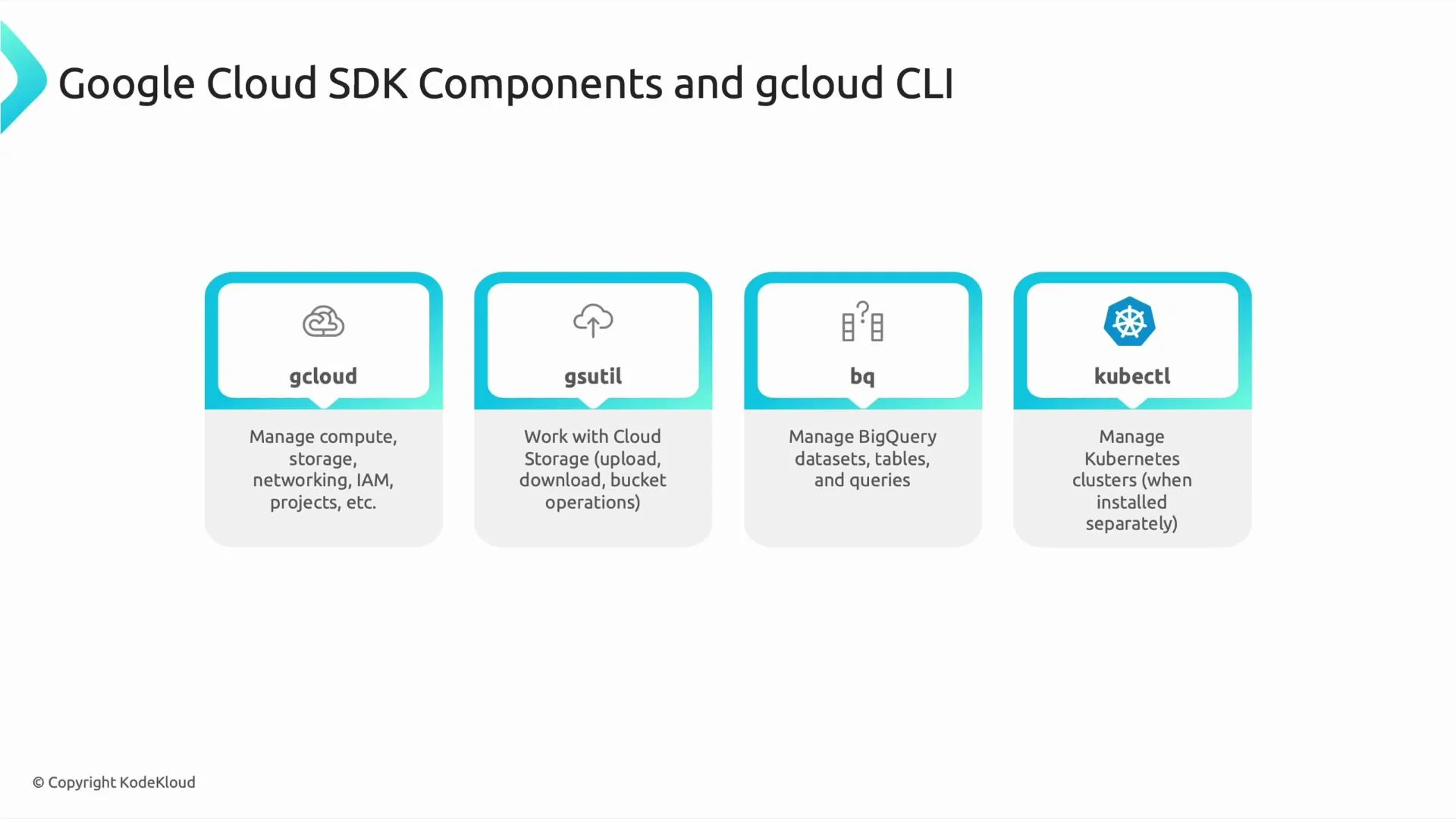
Components overview
| Component | Purpose | Example command |
| --------- | ----------------------------------------------------------------------------------------------------------------------: | -------------------------------------------------------------------------- |
| gcloud | Primary CLI for managing Compute, Storage, Networking, IAM, Projects and other GCP services | `gcloud compute instances create vm-1` |
| gsutil | Manage objects and buckets in Google Cloud Storage (GCS) — similar to AWS S3 tools | `gsutil cp file.txt gs://my-bucket/` |
| bq | BigQuery command-line tool for running queries and managing datasets | `bq query --use_legacy_sql=false 'SELECT COUNT(*) FROM mydataset.mytable'` |
| kubectl | Kubernetes CLI for managing clusters (including GKE) and workloads. Often installed via gcloud or an OS package manager | `kubectl get pods` |
 Core usage: authenticate and configure gcloud
Before running most gcloud commands you typically:
1. Authenticate your user or service account
2. Set the default project
3. Optionally set default compute region/zone
Authentication
* For interactive use, run:
```bash theme={null}
gcloud auth login
```
This opens a browser to sign in and stores credentials locally.
* For headless or scripted environments:
```bash theme={null}
gcloud auth login --no-launch-browser
```
* For service accounts (recommended for automation/CI):
```bash theme={null}
gcloud auth activate-service-account --key-file=KEY.json
```
* To obtain Application Default Credentials (for local code using Google client libraries):
```bash theme={null}
gcloud auth application-default login
```
Protect service account keys. Use Workload Identity (GKE) or short-lived credentials in CI when possible. Avoid committing `KEY.json` into source control.
Set the default project and region/zone
* Set your active project so you don’t need `--project` on every command:
```bash theme={null}
gcloud config set project PROJECT_ID
```
* Optionally set a default compute region or zone:
```bash theme={null}
gcloud config set compute/region us-central1
gcloud config set compute/zone us-central1-a
```
These configurations tell gcloud which account and project to use and provide sensible defaults for resource creation.
Example: authenticate and configure, then create resources
```bash theme={null}
# Authenticate and set defaults
gcloud auth login
gcloud config set project my-project-id
gcloud config set compute/region us-central1
# Create a VM (defaults used where applicable)
gcloud compute instances create vm-1
# Create a Cloud SQL instance (additional flags usually required in production)
gcloud sql instances create my-sql
```
Note: Some commands require explicit flags (e.g., `--zone`, `--machine-type`, `--tier`) if defaults are not set or if the action needs them.
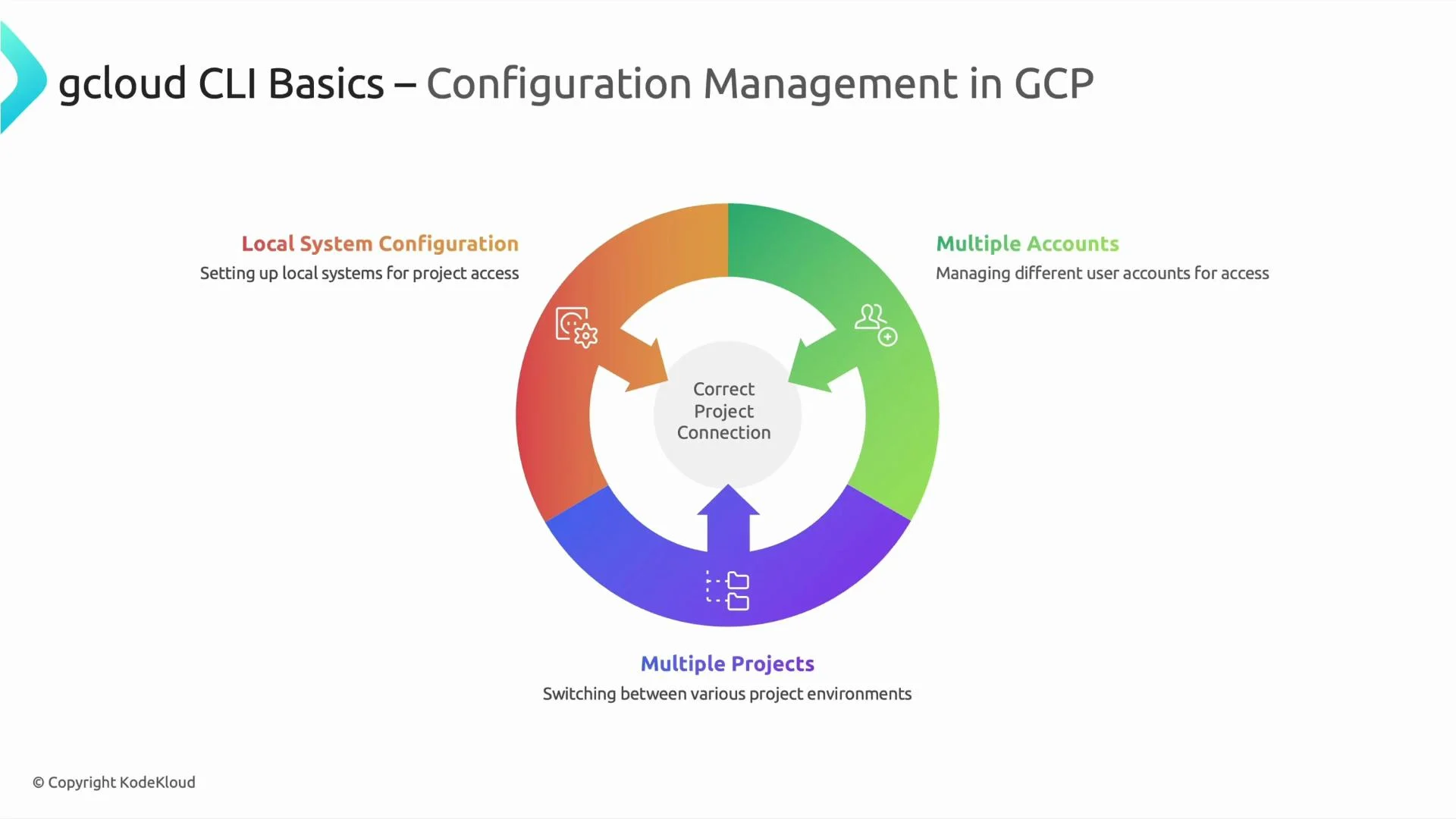
Configuration management and multi-project workflows
* Keep environments organized to avoid accidental deployments to the wrong project (dev, staging, prod).
* gcloud supports multiple named configurations that make switching contexts simple.
Useful configuration commands
| Command | Purpose |
| ------------------------------------------------- | -------------------------------------------------------------------------- |
| `gcloud auth list` | List authenticated accounts and show the active account |
| `gcloud config list` | Show current configuration values (project, region, zone, etc.) |
| `gcloud config configurations list` | List named configurations |
| `gcloud config configurations activate my-config` | Activate a named configuration replacing `my-config` with your config name |
| `gcloud config set project ` | Set the active project for the current configuration |
Use these commands to script environment setup or to switch contexts in interactive sessions.
Use the CLI for quick tasks, automation scripts, and CI/CD pipelines. For long-lived, reproducible infrastructure, combine gcloud with infrastructure-as-code tools like Terraform.
When to use gcloud vs. other tools
* Use gcloud for quick administration, ad-hoc scripting, or when you need direct control for a single project or operation.
* For repeatable, versioned infrastructure deployments across environments, prefer IaC tools (Terraform, Deployment Manager) and integrate gcloud commands into CI jobs when needed.
* For storage operations, use gsutil for bulk object transfers; for data warehouse operations, use `bq` for BigQuery tasks; for Kubernetes workloads, use `kubectl` or integrate with `gcloud container` commands for GKE.
Further reading and references
* gcloud CLI overview: [https://cloud.google.com/sdk/gcloud](https://cloud.google.com/sdk/gcloud)
* Authentication for gcloud: [https://cloud.google.com/sdk/docs/authorizing](https://cloud.google.com/sdk/docs/authorizing)
* Configurations guide: [https://cloud.google.com/sdk/docs/configurations](https://cloud.google.com/sdk/docs/configurations)
* gsutil documentation: [https://cloud.google.com/storage/docs/gsutil](https://cloud.google.com/storage/docs/gsutil)
* BigQuery bq tool: [https://cloud.google.com/bigquery/docs/bq-command-line-tool](https://cloud.google.com/bigquery/docs/bq-command-line-tool)
* kubectl reference: [https://kubernetes.io/docs/reference/kubectl/](https://kubernetes.io/docs/reference/kubectl/)
Core usage: authenticate and configure gcloud
Before running most gcloud commands you typically:
1. Authenticate your user or service account
2. Set the default project
3. Optionally set default compute region/zone
Authentication
* For interactive use, run:
```bash theme={null}
gcloud auth login
```
This opens a browser to sign in and stores credentials locally.
* For headless or scripted environments:
```bash theme={null}
gcloud auth login --no-launch-browser
```
* For service accounts (recommended for automation/CI):
```bash theme={null}
gcloud auth activate-service-account --key-file=KEY.json
```
* To obtain Application Default Credentials (for local code using Google client libraries):
```bash theme={null}
gcloud auth application-default login
```
Protect service account keys. Use Workload Identity (GKE) or short-lived credentials in CI when possible. Avoid committing `KEY.json` into source control.
Set the default project and region/zone
* Set your active project so you don’t need `--project` on every command:
```bash theme={null}
gcloud config set project PROJECT_ID
```
* Optionally set a default compute region or zone:
```bash theme={null}
gcloud config set compute/region us-central1
gcloud config set compute/zone us-central1-a
```
These configurations tell gcloud which account and project to use and provide sensible defaults for resource creation.
Example: authenticate and configure, then create resources
```bash theme={null}
# Authenticate and set defaults
gcloud auth login
gcloud config set project my-project-id
gcloud config set compute/region us-central1
# Create a VM (defaults used where applicable)
gcloud compute instances create vm-1
# Create a Cloud SQL instance (additional flags usually required in production)
gcloud sql instances create my-sql
```
Note: Some commands require explicit flags (e.g., `--zone`, `--machine-type`, `--tier`) if defaults are not set or if the action needs them.
Configuration management and multi-project workflows
* Keep environments organized to avoid accidental deployments to the wrong project (dev, staging, prod).
* gcloud supports multiple named configurations that make switching contexts simple.
Useful configuration commands
| Command | Purpose |
| ------------------------------------------------- | -------------------------------------------------------------------------- |
| `gcloud auth list` | List authenticated accounts and show the active account |
| `gcloud config list` | Show current configuration values (project, region, zone, etc.) |
| `gcloud config configurations list` | List named configurations |
| `gcloud config configurations activate my-config` | Activate a named configuration replacing `my-config` with your config name |
| `gcloud config set project ` | Set the active project for the current configuration |
Use these commands to script environment setup or to switch contexts in interactive sessions.
Use the CLI for quick tasks, automation scripts, and CI/CD pipelines. For long-lived, reproducible infrastructure, combine gcloud with infrastructure-as-code tools like Terraform.
When to use gcloud vs. other tools
* Use gcloud for quick administration, ad-hoc scripting, or when you need direct control for a single project or operation.
* For repeatable, versioned infrastructure deployments across environments, prefer IaC tools (Terraform, Deployment Manager) and integrate gcloud commands into CI jobs when needed.
* For storage operations, use gsutil for bulk object transfers; for data warehouse operations, use `bq` for BigQuery tasks; for Kubernetes workloads, use `kubectl` or integrate with `gcloud container` commands for GKE.
Further reading and references
* gcloud CLI overview: [https://cloud.google.com/sdk/gcloud](https://cloud.google.com/sdk/gcloud)
* Authentication for gcloud: [https://cloud.google.com/sdk/docs/authorizing](https://cloud.google.com/sdk/docs/authorizing)
* Configurations guide: [https://cloud.google.com/sdk/docs/configurations](https://cloud.google.com/sdk/docs/configurations)
* gsutil documentation: [https://cloud.google.com/storage/docs/gsutil](https://cloud.google.com/storage/docs/gsutil)
* BigQuery bq tool: [https://cloud.google.com/bigquery/docs/bq-command-line-tool](https://cloud.google.com/bigquery/docs/bq-command-line-tool)
* kubectl reference: [https://kubernetes.io/docs/reference/kubectl/](https://kubernetes.io/docs/reference/kubectl/)
 Try these commands in a hands-on session to reinforce learning. Thanks for reading.