> ## Documentation Index
> Fetch the complete documentation index at: https://notes.kodekloud.com/llms.txt
> Use this file to discover all available pages before exploring further.
# Demo GCP Console Overview
> Concise tour of Google Cloud Console for data engineers covering project selection, IDs, navigation, services, and built‑in AI assistants like Gemini
Hello and welcome back.
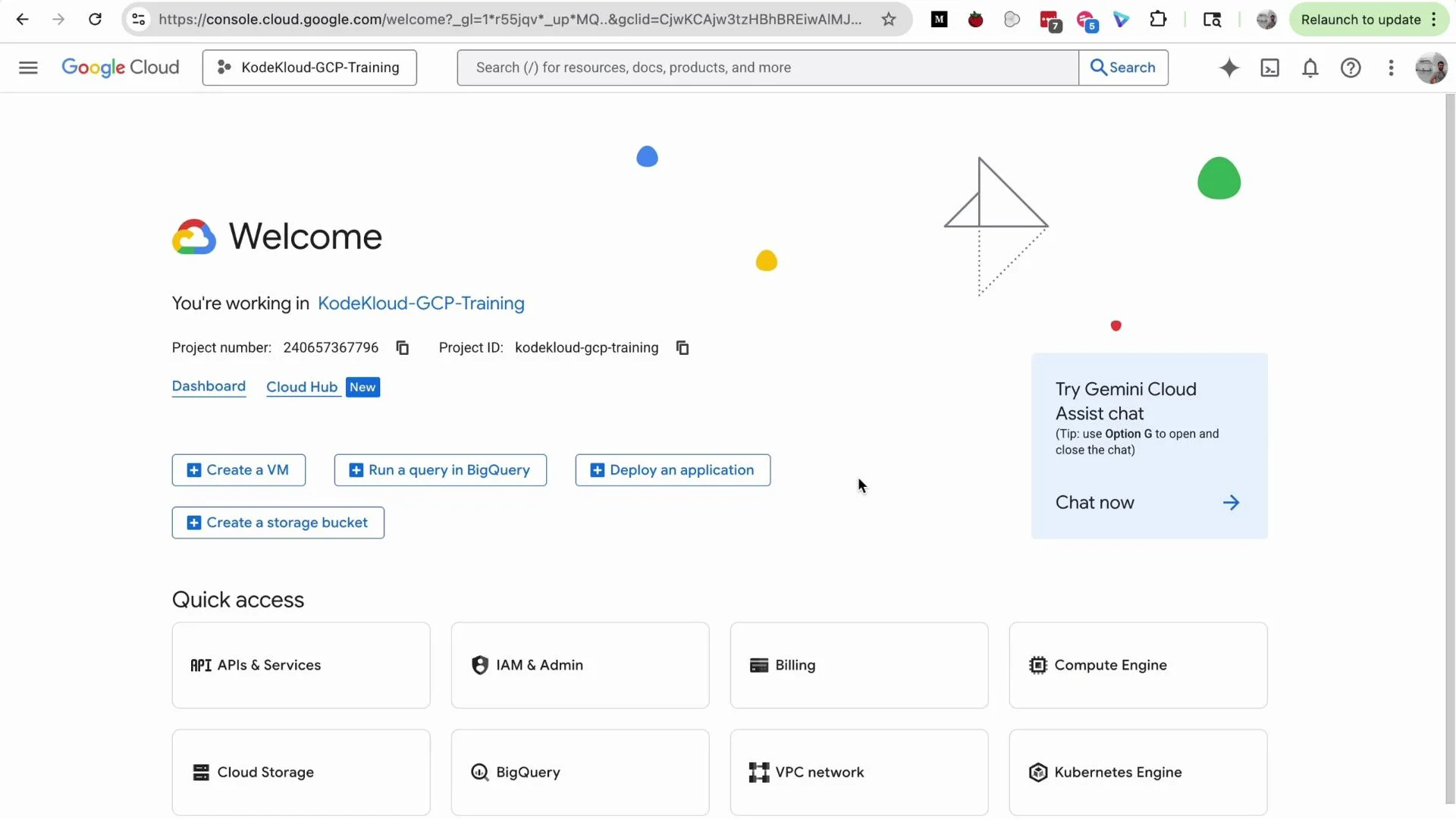
In this lesson you'll get a concise tour of the Google Cloud Console and the key terminology you will use as a GCP data engineer. We'll cover how to identify the active project, where to find the project ID, how projects are organized, and quick navigation tips to locate services and built‑in AI assistants.
 ## 1) Identify the active project
The project selector at the top of the Console shows which project is active. In the screenshot above the current project is **KodeKloud GCP Training**. Always verify the selected project before creating or modifying resources.
Click the project selector to open the "Select a project" dialog. In larger organizations you will typically see many projects, potentially arranged under an Organization and grouped into Folders.
* Click **All** to list every project you can access.
* Choose the correct project based on its name, ID, or purpose.
* Ensure you have the necessary IAM permissions for the project you select.
A project's human-readable name is for display only. For programmatic access (APIs, SDKs, `gcloud` CLI, BigQuery jobs, Terraform, etc.) always use the project ID, which is globally unique within GCP. See the [APIs documentation](https://cloud.google.com/apis) and [BigQuery docs](https://cloud.google.com/bigquery) for examples.
## 2) Project name vs project ID vs project number
| Property | Purpose | Example / Usage |
| -------------- | ---------------------------------------------------------: | -------------------------- |
| Project name | Friendly display name shown in Console | `KodeKloud GCP Training` |
| Project ID | Global, programmatic identifier used in code and API calls | `gcp-data-engineer-123456` |
| Project number | Numeric identifier used by some Google systems | `123456789012` |
Common commands and usage examples:
* Set active project for `gcloud`:
```bash theme={null}
gcloud config set project gcp-data-engineer-123456
```
* Specify a project when running a BigQuery command:
```bash theme={null}
bq --project_id=gcp-data-engineer-123456 query 'SELECT count(*) FROM `dataset.table`'
```
* Example Python client instantiation for BigQuery:
```python theme={null}
from google.cloud import bigquery
client = bigquery.Client(project="gcp-data-engineer-123456")
```
## 3) Creating and managing projects
To create a new project:
1. Click **New Project** from the project selector.
2. Enter a project name.
3. Select a parent Organization or Folder (if applicable).
4. Click **Create**.
Projects provide isolated workspaces for resources and billing. In enterprises, cloud administrators often manage project creation and apply organization policies.
## 4) Finding services and documentation
Use the top search bar to quickly locate services, documentation pages, and resource types. For example, type `VPC` to find the VPC service page and relevant docs. This integrated search returns both Console pages and links to official documentation.
If you prefer browsing, open the main navigation menu (the "hamburger" icon). Services are grouped by use case and include categories such as:
* Recently visited
* Solution-based groupings
* Cloud Overview and Cloud Hub
## 5) Built-in AI assistance
The Console integrates AI features, such as the Gemini Code Assist chat pane. Click the Gemini icon to open an assistant that can help with tasks like creating a VPC, listing steps for granting IAM roles, or generating example CLI commands. Close the pane when you finish to free screen space.
## 6) Organization-level view and Dashboard
From the navigation menu go to **Cloud Overview → Dashboard** to see an organization-level summary. What you see depends on your IAM role:
* Admins may view all projects under the Organization.
* Non-admins only see projects they have access to.
The Dashboard helps locate projects you manage and provides quick links to common admin and billing tasks.
## Quick reference: Console elements
| Console element | Where to find it | Tip |
| -------------------------- | -------------------------------: | ------------------------------------- |
| Project selector | Top bar | Verify before creating resources |
| Search bar | Top center | Find services, docs, or resources |
| Navigation menu | Left hamburger icon | Browse categories by use case |
| Cloud Overview / Dashboard | Navigation menu → Cloud Overview | Organization-level project visibility |
| Gemini AI assist | Icon on Console (chat pane) | Use for quick guidance and examples |
## Summary
This overview covered how to:
* Identify and select the active project
* Distinguish between project name, ID, and number
* Create new projects and understand their role in resource isolation
* Quickly find services using search or the navigation menu
* Use the Console's AI assistant and organization dashboard
Specific services and step-by-step workflows (e.g., creating VPCs, running BigQuery jobs, configuring IAM) are covered in the following lessons. See you in the next lesson.
## 1) Identify the active project
The project selector at the top of the Console shows which project is active. In the screenshot above the current project is **KodeKloud GCP Training**. Always verify the selected project before creating or modifying resources.
Click the project selector to open the "Select a project" dialog. In larger organizations you will typically see many projects, potentially arranged under an Organization and grouped into Folders.
* Click **All** to list every project you can access.
* Choose the correct project based on its name, ID, or purpose.
* Ensure you have the necessary IAM permissions for the project you select.
A project's human-readable name is for display only. For programmatic access (APIs, SDKs, `gcloud` CLI, BigQuery jobs, Terraform, etc.) always use the project ID, which is globally unique within GCP. See the [APIs documentation](https://cloud.google.com/apis) and [BigQuery docs](https://cloud.google.com/bigquery) for examples.
## 2) Project name vs project ID vs project number
| Property | Purpose | Example / Usage |
| -------------- | ---------------------------------------------------------: | -------------------------- |
| Project name | Friendly display name shown in Console | `KodeKloud GCP Training` |
| Project ID | Global, programmatic identifier used in code and API calls | `gcp-data-engineer-123456` |
| Project number | Numeric identifier used by some Google systems | `123456789012` |
Common commands and usage examples:
* Set active project for `gcloud`:
```bash theme={null}
gcloud config set project gcp-data-engineer-123456
```
* Specify a project when running a BigQuery command:
```bash theme={null}
bq --project_id=gcp-data-engineer-123456 query 'SELECT count(*) FROM `dataset.table`'
```
* Example Python client instantiation for BigQuery:
```python theme={null}
from google.cloud import bigquery
client = bigquery.Client(project="gcp-data-engineer-123456")
```
## 3) Creating and managing projects
To create a new project:
1. Click **New Project** from the project selector.
2. Enter a project name.
3. Select a parent Organization or Folder (if applicable).
4. Click **Create**.
Projects provide isolated workspaces for resources and billing. In enterprises, cloud administrators often manage project creation and apply organization policies.
## 4) Finding services and documentation
Use the top search bar to quickly locate services, documentation pages, and resource types. For example, type `VPC` to find the VPC service page and relevant docs. This integrated search returns both Console pages and links to official documentation.
If you prefer browsing, open the main navigation menu (the "hamburger" icon). Services are grouped by use case and include categories such as:
* Recently visited
* Solution-based groupings
* Cloud Overview and Cloud Hub
## 5) Built-in AI assistance
The Console integrates AI features, such as the Gemini Code Assist chat pane. Click the Gemini icon to open an assistant that can help with tasks like creating a VPC, listing steps for granting IAM roles, or generating example CLI commands. Close the pane when you finish to free screen space.
## 6) Organization-level view and Dashboard
From the navigation menu go to **Cloud Overview → Dashboard** to see an organization-level summary. What you see depends on your IAM role:
* Admins may view all projects under the Organization.
* Non-admins only see projects they have access to.
The Dashboard helps locate projects you manage and provides quick links to common admin and billing tasks.
## Quick reference: Console elements
| Console element | Where to find it | Tip |
| -------------------------- | -------------------------------: | ------------------------------------- |
| Project selector | Top bar | Verify before creating resources |
| Search bar | Top center | Find services, docs, or resources |
| Navigation menu | Left hamburger icon | Browse categories by use case |
| Cloud Overview / Dashboard | Navigation menu → Cloud Overview | Organization-level project visibility |
| Gemini AI assist | Icon on Console (chat pane) | Use for quick guidance and examples |
## Summary
This overview covered how to:
* Identify and select the active project
* Distinguish between project name, ID, and number
* Create new projects and understand their role in resource isolation
* Quickly find services using search or the navigation menu
* Use the Console's AI assistant and organization dashboard
Specific services and step-by-step workflows (e.g., creating VPCs, running BigQuery jobs, configuring IAM) are covered in the following lessons. See you in the next lesson.