> ## Documentation Index
> Fetch the complete documentation index at: https://notes.kodekloud.com/llms.txt
> Use this file to discover all available pages before exploring further.
# Demo Cloud IAM Roles and Permissions
> Guide to creating a custom Google Cloud IAM role, assigning it to a service account, generating JSON keys, and verifying Cloud Storage read permissions.
Hello and welcome back.
In this lesson we create a custom IAM role in Google Cloud, attach it to a service account, and verify the permissions. The primary steps are:
* Create a custom IAM role with specific Cloud Storage read permissions.
* Create a service account and attach the custom role.
* Generate and download a service account key (JSON) for external use.
* Verify access from Cloud Shell or a local client.
This guide demonstrates the Console workflow and provides equivalent `gcloud` commands so you can automate or repeat the steps. Replace `PROJECT_ID`, `ROLE_ID`, `SA_NAME`, `SA_EMAIL`, `BUCKET`, and `OBJECT` with your actual values.
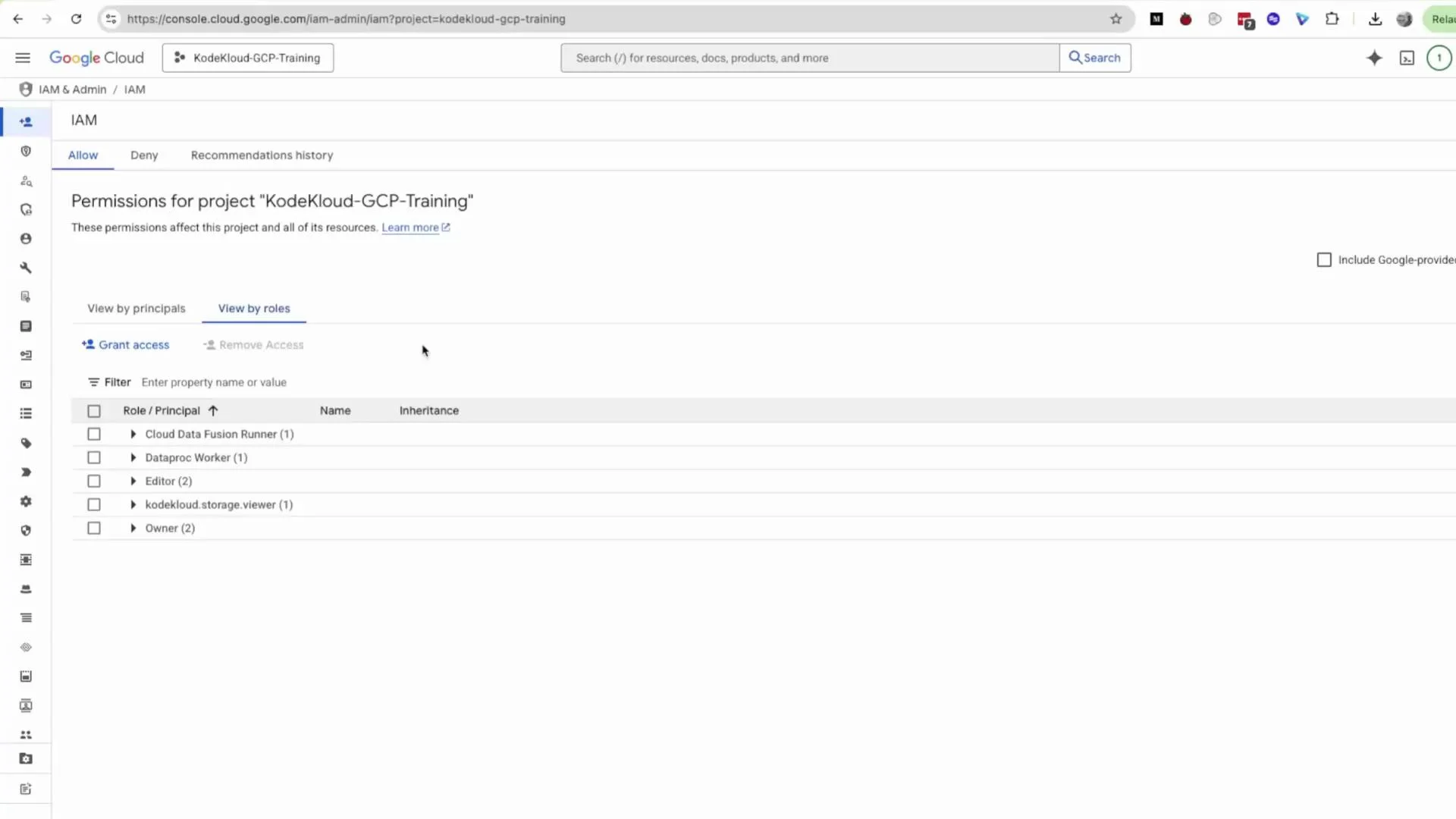
First, open the GCP Console and go to "IAM & Admin". You can reach it via the Quick access links or by searching the console search bar. Click the IAM entry to open the IAM page; this view shows principals and their assigned roles. Switch to the Roles tab to view custom and predefined roles.
 ## 1. Create a custom IAM role (Console)
* In the left-hand panel click **Roles**, then click **Create Role**.
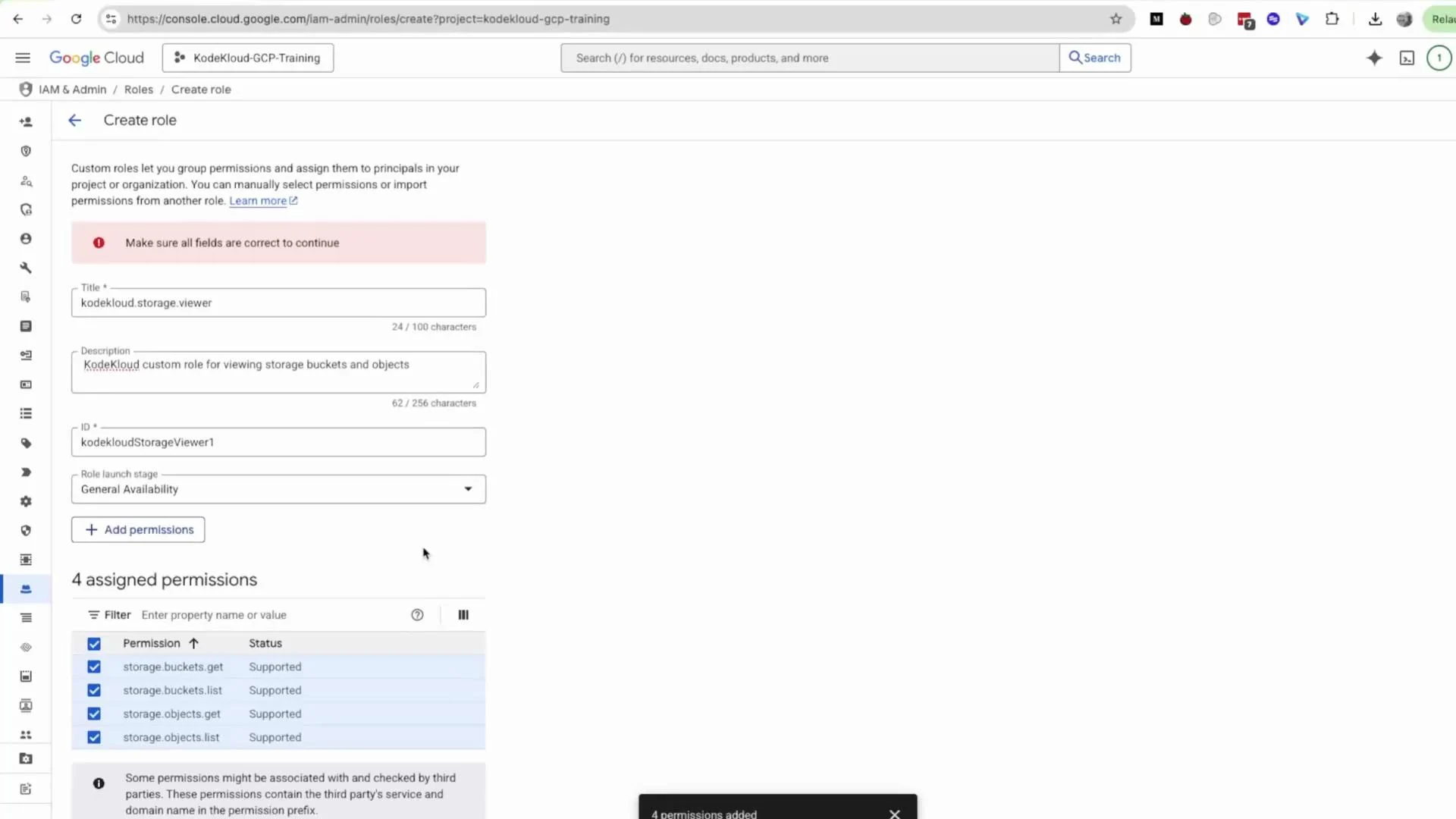
* Enter a descriptive **Title** (example: `KodeKloudStorageViewer`), **Description** (example: `KodeKloudCustomRole for viewing storage bucket and object`), and an **ID** (lowercase, URL-safe string such as `kodekloudstoragerviewer1`) — the console may suggest an ID automatically.
* Choose the stage (e.g., General Availability) and proceed to add permissions.
When building a read-only storage role, add only the permissions required. For this demo we add these four read permissions:
| Permission | Purpose |
| ---------------------- | ----------------------------- |
| `storage.buckets.list` | List buckets in a project |
| `storage.buckets.get` | Get bucket metadata |
| `storage.objects.list` | List objects in a bucket |
| `storage.objects.get` | Read object data and metadata |
Search for each permission in the permissions selector and click **Add** for each.
## 1. Create a custom IAM role (Console)
* In the left-hand panel click **Roles**, then click **Create Role**.
* Enter a descriptive **Title** (example: `KodeKloudStorageViewer`), **Description** (example: `KodeKloudCustomRole for viewing storage bucket and object`), and an **ID** (lowercase, URL-safe string such as `kodekloudstoragerviewer1`) — the console may suggest an ID automatically.
* Choose the stage (e.g., General Availability) and proceed to add permissions.
When building a read-only storage role, add only the permissions required. For this demo we add these four read permissions:
| Permission | Purpose |
| ---------------------- | ----------------------------- |
| `storage.buckets.list` | List buckets in a project |
| `storage.buckets.get` | Get bucket metadata |
| `storage.objects.list` | List objects in a bucket |
| `storage.objects.get` | Read object data and metadata |
Search for each permission in the permissions selector and click **Add** for each.
 Important: these four permissions are read-only — they do not allow uploading, modifying, or deleting buckets or objects. For write or delete capabilities add `storage.objects.create`, `storage.objects.delete`, or `storage.buckets.create` as needed, or use a predefined role such as Storage Object Viewer / Storage Object Admin.
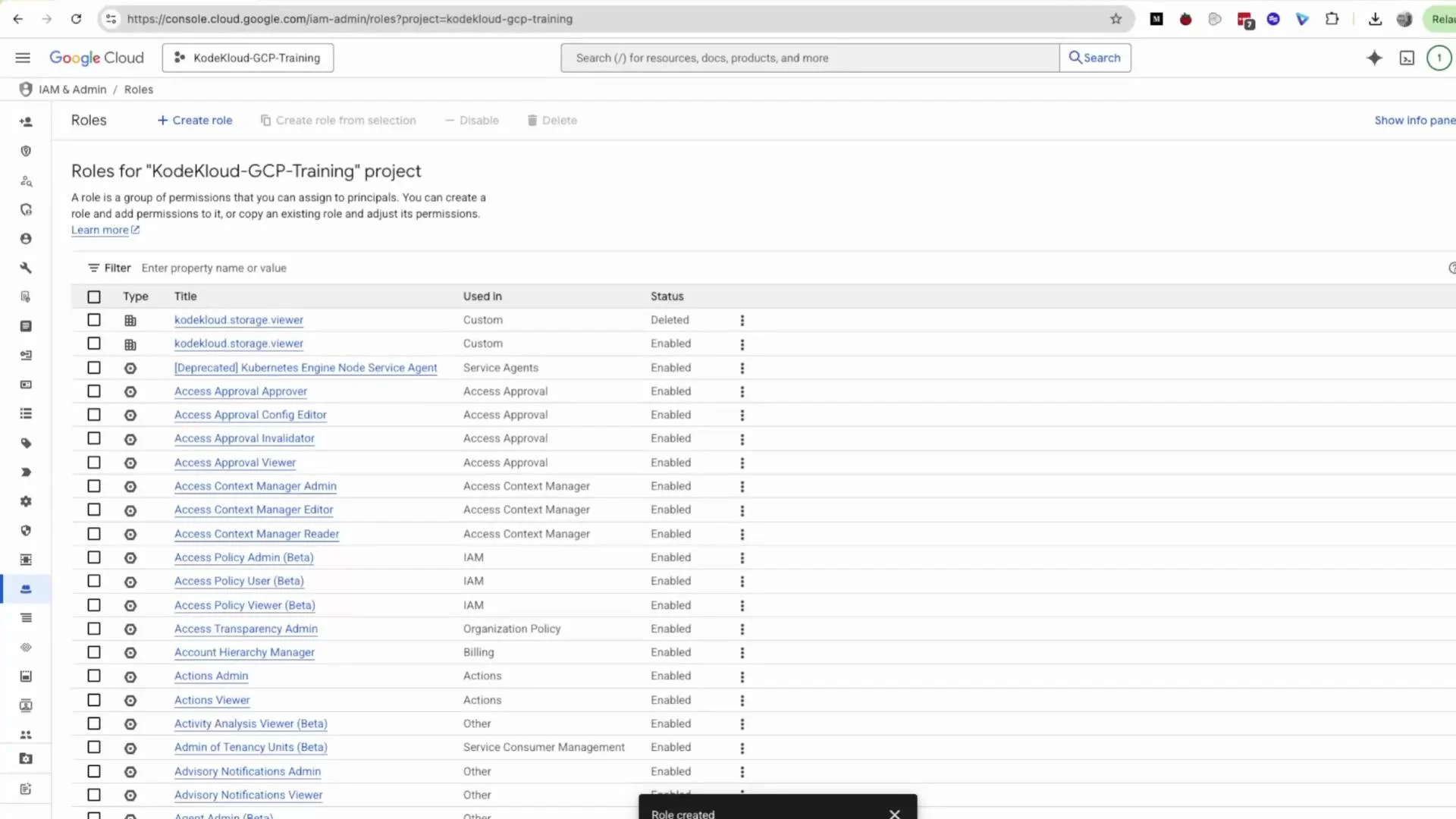
After adding permissions, click **Create**. If you previously created and deleted a similar role you may see multiple entries; ensure you pick the enabled role and use a unique ID when creating new roles.
Important: these four permissions are read-only — they do not allow uploading, modifying, or deleting buckets or objects. For write or delete capabilities add `storage.objects.create`, `storage.objects.delete`, or `storage.buckets.create` as needed, or use a predefined role such as Storage Object Viewer / Storage Object Admin.
After adding permissions, click **Create**. If you previously created and deleted a similar role you may see multiple entries; ensure you pick the enabled role and use a unique ID when creating new roles.
 Alternative: create the same custom role with `gcloud` (example)
```bash theme={null}
gcloud iam roles create kodekloudstoragerviewer1 \
--project=PROJECT_ID \
--title="KodeKloudStorageViewer" \
--description="KodeKloudCustomRole for viewing storage bucket and object" \
--permissions="storage.buckets.list,storage.buckets.get,storage.objects.list,storage.objects.get" \
--stage=GA
```
## 2. Attach the role to a user or service account
You can attach the custom role to a user via IAM -> Grant Access, or assign it to a service account. This demo creates a service account and assigns the custom role during creation.
* In the side panel select **Service Accounts** and click **Create Service Account**.
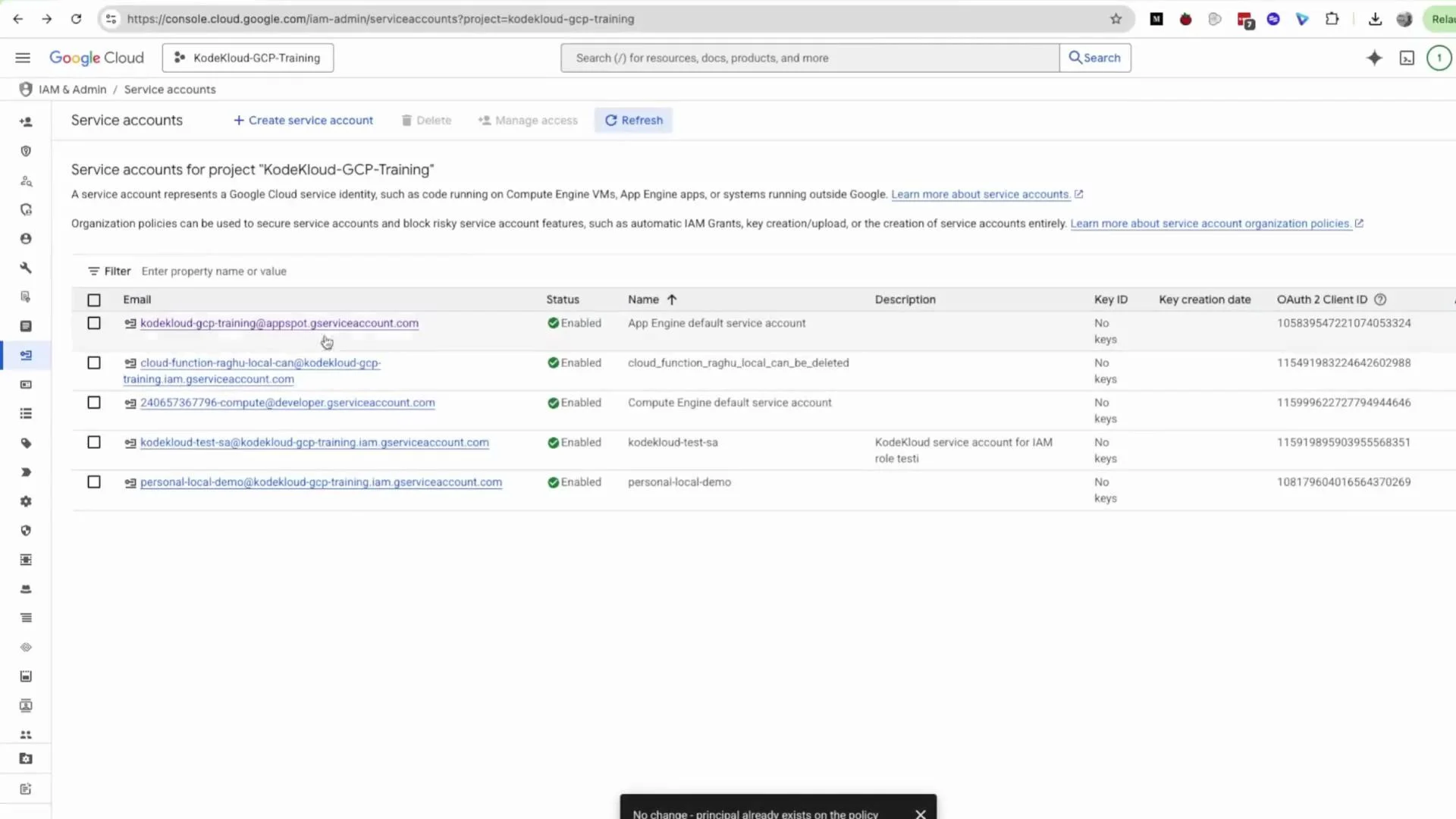
* Provide a **Name** (example: `kodekloud-test-sa`) — the Service account ID is auto-generated and editable — add a description, then click **Create and Continue**.
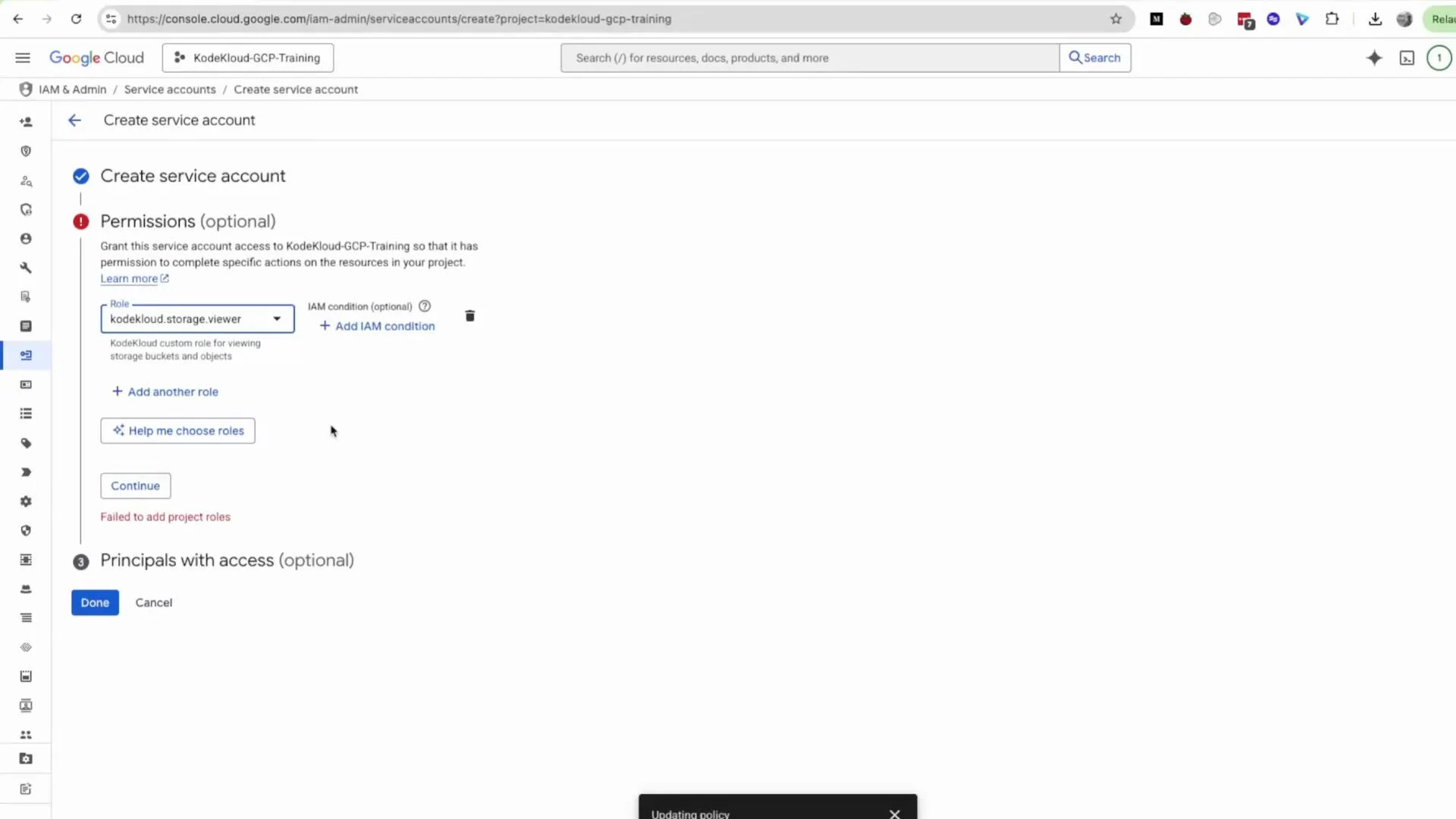
* On the Permissions step, search for your custom role (e.g., `kodekloud.storage.viewer` or your custom role ID) and assign it. If a role appears deleted or disabled you may get an error such as "Failed to add project roles" — choose the enabled version.
Alternative: create the same custom role with `gcloud` (example)
```bash theme={null}
gcloud iam roles create kodekloudstoragerviewer1 \
--project=PROJECT_ID \
--title="KodeKloudStorageViewer" \
--description="KodeKloudCustomRole for viewing storage bucket and object" \
--permissions="storage.buckets.list,storage.buckets.get,storage.objects.list,storage.objects.get" \
--stage=GA
```
## 2. Attach the role to a user or service account
You can attach the custom role to a user via IAM -> Grant Access, or assign it to a service account. This demo creates a service account and assigns the custom role during creation.
* In the side panel select **Service Accounts** and click **Create Service Account**.
* Provide a **Name** (example: `kodekloud-test-sa`) — the Service account ID is auto-generated and editable — add a description, then click **Create and Continue**.
* On the Permissions step, search for your custom role (e.g., `kodekloud.storage.viewer` or your custom role ID) and assign it. If a role appears deleted or disabled you may get an error such as "Failed to add project roles" — choose the enabled version.
 Finish creation and refresh the Service Accounts list — the new service account should now be visible.
 Equivalent `gcloud` commands to create the SA and bind the custom role:
```bash theme={null}
# Create a service account
gcloud iam service-accounts create kodekloud-test-sa \
--display-name="KodeKloud Test Service Account" \
--project=PROJECT_ID
# Grant the custom role to the service account
gcloud projects add-iam-policy-binding PROJECT_ID \
--member="serviceAccount:kodekloud-test-sa@PROJECT_ID.iam.gserviceaccount.com" \
--role="projects/PROJECT_ID/roles/kodekloudstoragerviewer1"
```
## 3. Create and download a service account key (JSON)
If you plan to use this service account from outside GCP (for local development, CI, or other systems), generate a key:
* Click the service account to open its details page.
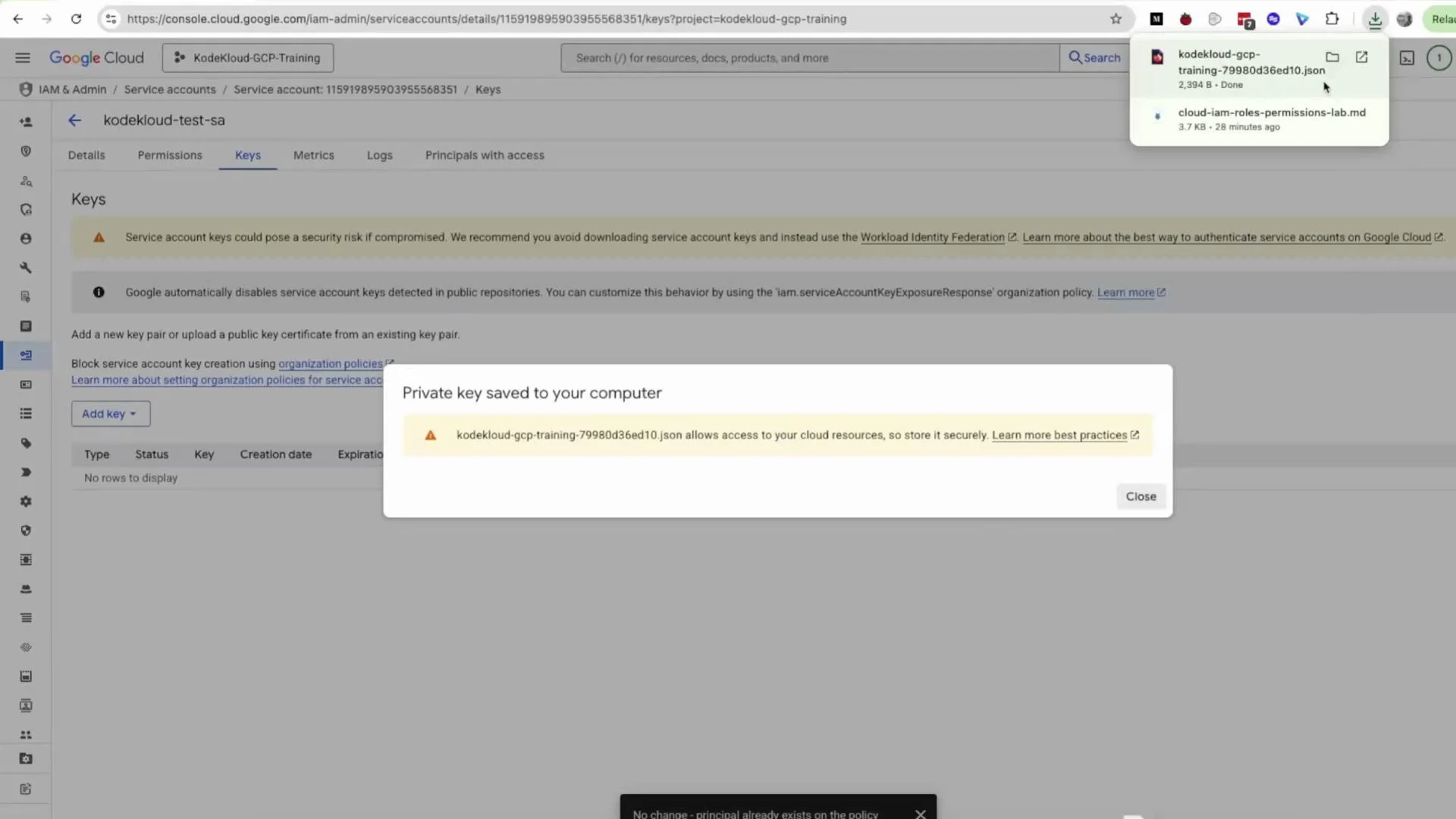
* Select the **Keys** tab, click **Add Key -> Create new key**, choose **JSON**, and click **Create**.
* The JSON key will be downloaded to your machine.
Equivalent `gcloud` commands to create the SA and bind the custom role:
```bash theme={null}
# Create a service account
gcloud iam service-accounts create kodekloud-test-sa \
--display-name="KodeKloud Test Service Account" \
--project=PROJECT_ID
# Grant the custom role to the service account
gcloud projects add-iam-policy-binding PROJECT_ID \
--member="serviceAccount:kodekloud-test-sa@PROJECT_ID.iam.gserviceaccount.com" \
--role="projects/PROJECT_ID/roles/kodekloudstoragerviewer1"
```
## 3. Create and download a service account key (JSON)
If you plan to use this service account from outside GCP (for local development, CI, or other systems), generate a key:
* Click the service account to open its details page.
* Select the **Keys** tab, click **Add Key -> Create new key**, choose **JSON**, and click **Create**.
* The JSON key will be downloaded to your machine.
 You can also create a key using `gcloud`:
```bash theme={null}
gcloud iam service-accounts keys create key.json \
--iam-account=kodekloud-test-sa@PROJECT_ID.iam.gserviceaccount.com \
--project=PROJECT_ID
```
Service account JSON keys are long-lived credentials that grant access to your project. Treat these files like secrets: store them securely, rotate them regularly, and avoid committing them to source control. When possible prefer Workload Identity (for GKE), Workload Identity Federation, or short-lived tokens instead of downloading keys.
## 4. Verify permissions (Cloud Shell or local client)
To authenticate using the downloaded JSON key:
```bash theme={null}
# Option A: Activate the service account for gcloud
gcloud auth activate-service-account --key-file=key.json
# Option B: Set GOOGLE_APPLICATION_CREDENTIALS for SDKs and client libraries
export GOOGLE_APPLICATION_CREDENTIALS="/path/to/key.json"
```
Test read-only access to Cloud Storage (examples):
```bash theme={null}
# List buckets (requires storage.buckets.list)
gsutil ls
# List objects in a bucket (requires storage.objects.list)
gsutil ls gs://BUCKET
# Read an object to stdout (requires storage.objects.get)
gsutil cat gs://BUCKET/OBJECT
```
If you attempt an action not covered by the custom role (for example, `gsutil cp` to upload or `gsutil rm` to delete), you'll receive an error indicating insufficient permissions. Use this to validate that the role is properly scoped as read-only.
## Wrap-up
You now have:
* A custom read-only Cloud Storage role,
* A service account with that role attached,
* A JSON key downloaded for external authentication,
* Commands to verify permissions locally or in Cloud Shell.
Next: test access in your application or CI environment using the JSON key or adopt Workload Identity / Workload Identity Federation for better security posture.
## Links and references
* [IAM roles and permissions overview (Google Cloud)](https://cloud.google.com/iam/docs/understanding-roles)
* [Creating and managing custom roles](https://cloud.google.com/iam/docs/creating-custom-roles)
* [Service accounts overview](https://cloud.google.com/iam/docs/service-accounts)
* [Best practices for service accounts and keys](https://cloud.google.com/iam/docs/best-practices-for-managing-service-account-keys)
* gsutil documentation: [https://cloud.google.com/storage/docs/gsutil](https://cloud.google.com/storage/docs/gsutil)
You can also create a key using `gcloud`:
```bash theme={null}
gcloud iam service-accounts keys create key.json \
--iam-account=kodekloud-test-sa@PROJECT_ID.iam.gserviceaccount.com \
--project=PROJECT_ID
```
Service account JSON keys are long-lived credentials that grant access to your project. Treat these files like secrets: store them securely, rotate them regularly, and avoid committing them to source control. When possible prefer Workload Identity (for GKE), Workload Identity Federation, or short-lived tokens instead of downloading keys.
## 4. Verify permissions (Cloud Shell or local client)
To authenticate using the downloaded JSON key:
```bash theme={null}
# Option A: Activate the service account for gcloud
gcloud auth activate-service-account --key-file=key.json
# Option B: Set GOOGLE_APPLICATION_CREDENTIALS for SDKs and client libraries
export GOOGLE_APPLICATION_CREDENTIALS="/path/to/key.json"
```
Test read-only access to Cloud Storage (examples):
```bash theme={null}
# List buckets (requires storage.buckets.list)
gsutil ls
# List objects in a bucket (requires storage.objects.list)
gsutil ls gs://BUCKET
# Read an object to stdout (requires storage.objects.get)
gsutil cat gs://BUCKET/OBJECT
```
If you attempt an action not covered by the custom role (for example, `gsutil cp` to upload or `gsutil rm` to delete), you'll receive an error indicating insufficient permissions. Use this to validate that the role is properly scoped as read-only.
## Wrap-up
You now have:
* A custom read-only Cloud Storage role,
* A service account with that role attached,
* A JSON key downloaded for external authentication,
* Commands to verify permissions locally or in Cloud Shell.
Next: test access in your application or CI environment using the JSON key or adopt Workload Identity / Workload Identity Federation for better security posture.
## Links and references
* [IAM roles and permissions overview (Google Cloud)](https://cloud.google.com/iam/docs/understanding-roles)
* [Creating and managing custom roles](https://cloud.google.com/iam/docs/creating-custom-roles)
* [Service accounts overview](https://cloud.google.com/iam/docs/service-accounts)
* [Best practices for service accounts and keys](https://cloud.google.com/iam/docs/best-practices-for-managing-service-account-keys)
* gsutil documentation: [https://cloud.google.com/storage/docs/gsutil](https://cloud.google.com/storage/docs/gsutil)