> ## Documentation Index
> Fetch the complete documentation index at: https://notes.kodekloud.com/llms.txt
> Use this file to discover all available pages before exploring further.
# Demo Work on Buildspecyaml file Part 01
> Guide to creating and committing a buildspec.yml that builds and tags Docker images with CodeBuild and pushes them to Amazon ECR, plus required environment variables and IAM permissions.
Welcome back. In this lesson you'll create and commit a `buildspec.yml` that builds a Docker image with CodeBuild and pushes it to Amazon ECR. We'll cover a recommended, minimal buildspec, explain the important lines, show how to commit the file from Cloud9, and how to verify the commit in CodeCommit.
Prerequisites
* An ECR repository already created in your AWS account.
* A Cloud9 environment with your source repository checked out.
* A CodeBuild project (or CodePipeline) that will use this `buildspec.yml`.
* The CodeBuild environment image must support Docker and have "Privileged" mode enabled (so Docker can run inside the build container).
* The CodeBuild service role must have permissions to interact with ECR.
Open your Cloud9 editor and the repository you want to build.
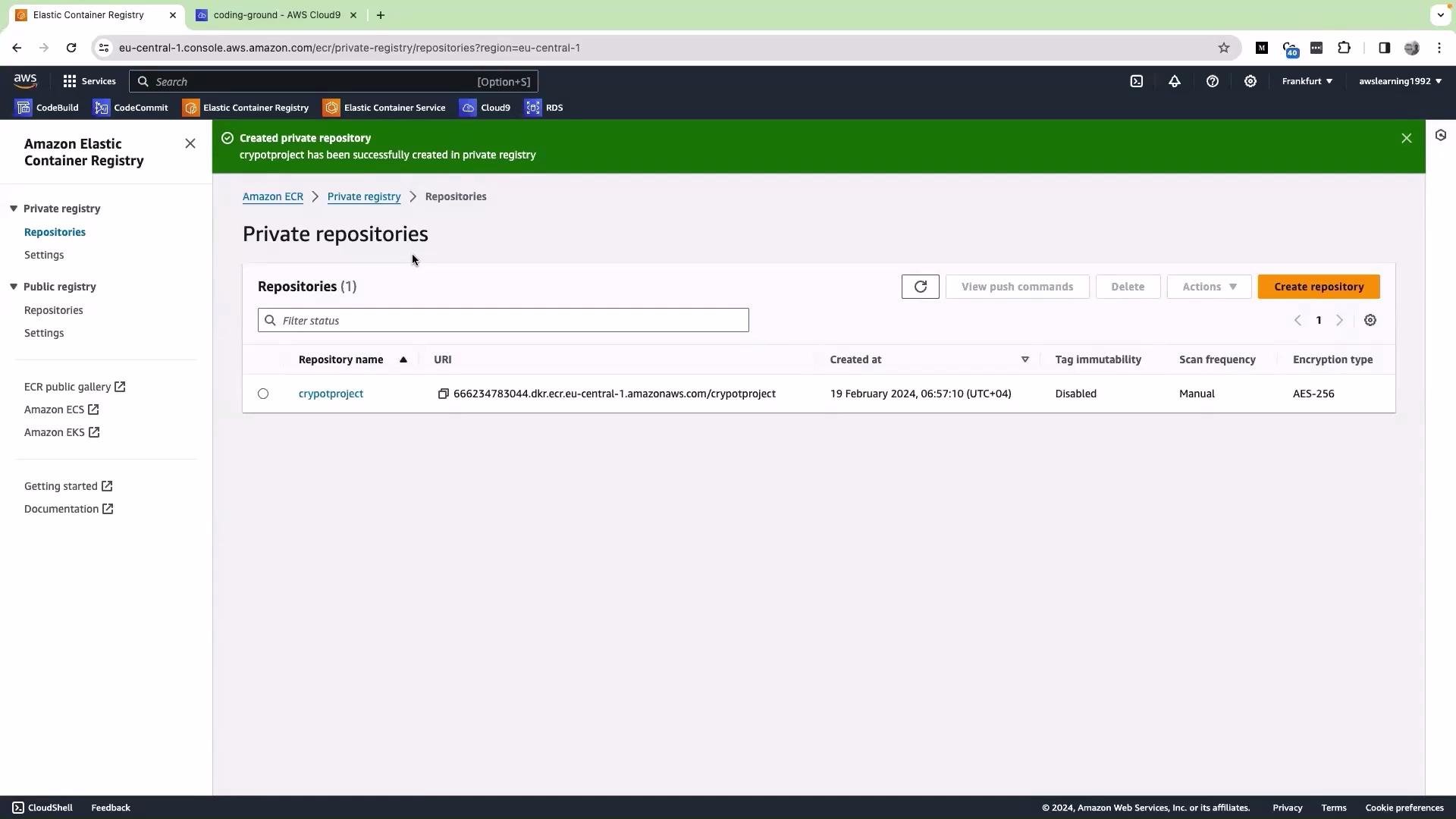 Create a new file named `buildspec.yml` in the repository and paste the following content. This buildspec:
* Logs in to ECR using the modern `get-login-password` method.
* Computes a short commit SHA to use as an image tag.
* Builds and tags the Docker image.
* Pushes both `latest` and the commit-tagged image to ECR.
```yaml theme={null}
version: 0.2
phases:
pre_build:
commands:
- echo Logging in to Amazon ECR...
- aws --version
# Login to ECR (replace or set AWS_ACCOUNT_ID and AWS_DEFAULT_REGION in project environment)
- aws ecr get-login-password --region $AWS_DEFAULT_REGION | docker login --username AWS --password-stdin $AWS_ACCOUNT_ID.dkr.ecr.$AWS_DEFAULT_REGION.amazonaws.com
- COMMIT_HASH=$(echo $CODEBUILD_RESOLVED_SOURCE_VERSION | cut -c 1-7)
- IMAGE_TAG=${COMMIT_HASH:-latest}
build:
commands:
- echo Build started on `date`
- echo Building the Docker image...
# REPOSITORY_URI should be set in the CodeBuild project environment, e.g. 123456789012.dkr.ecr.eu-central-1.amazonaws.com/cryptoproject
- docker build -t $REPOSITORY_URI:latest .
- docker tag $REPOSITORY_URI:latest $REPOSITORY_URI:$IMAGE_TAG
post_build:
commands:
- echo Build completed on `date`
- echo Pushing the Docker images...
- docker push $REPOSITORY_URI:latest
- docker push $REPOSITORY_URI:$IMAGE_TAG
```
Key lines explained
* `aws ecr get-login-password --region $AWS_DEFAULT_REGION | docker login --username AWS --password-stdin $AWS_ACCOUNT_ID.dkr.ecr.$AWS_DEFAULT_REGION.amazonaws.com`\
Uses the supported way to authenticate Docker to ECR. Do not use the deprecated `aws ecr get-login`.
* `COMMIT_HASH=$(echo $CODEBUILD_RESOLVED_SOURCE_VERSION | cut -c 1-7)`\
`CODEBUILD_RESOLVED_SOURCE_VERSION` is set by CodeBuild and typically contains the full commit SHA. The `cut` extracts a short 7-character tag.
* `REPOSITORY_URI`\
Should be provided as an environment variable in your CodeBuild project and typically looks like `123456789012.dkr.ecr.eu-central-1.amazonaws.com/cryptoproject`.
* Pushing both `latest` and the commit-tagged image gives you a stable `latest` for deployments and a traceable commit history in ECR.
Use `aws ecr get-login-password` with `docker login --password-stdin` because `aws ecr get-login` is deprecated and may not be available in newer AWS CLI versions.
Required environment variables and IAM permissions
| Item | Purpose | Example / Notes |
| ---------------------------- | ---------------------------------------------------------- | ----------------------------------------------------------------------------------------------------------------------------------------------------------- |
| `REPOSITORY_URI` | Target ECR repository (used by `docker tag`/`docker push`) | `123456789012.dkr.ecr.eu-central-1.amazonaws.com/cryptoproject` |
| `AWS_ACCOUNT_ID` | Used to construct the ECR login endpoint | `123456789012` |
| `AWS_DEFAULT_REGION` | Region for ECR operations | `eu-central-1` |
| CodeBuild privileged mode | Allows Docker daemon to run inside the build container | Enabled in CodeBuild project settings |
| IAM permissions (ECR) | Allow build role to push images | `ecr:GetAuthorizationToken`, `ecr:BatchCheckLayerAvailability`, `ecr:InitiateLayerUpload`, `ecr:UploadLayerPart`, `ecr:CompleteLayerUpload`, `ecr:PutImage` |
| Source & logging permissions | Allow access to source repo and CloudWatch logs | `codecommit:GetCommit`, `logs:CreateLogStream`, `logs:PutLogEvents`, etc. |
Ensure the CodeBuild project runs in "Privileged" mode (required for Docker-in-Docker) and that the CodeBuild service role includes the ECR-related permissions listed above. Without these, your build will fail when attempting to build or push images.
Commit and push `buildspec.yml` from Cloud9
1. Save the file (Ctrl+S or File → Save).
2. From the Cloud9 terminal run the following commands:
```bash theme={null}
# Navigate to your repo folder (if not already there)
cd ~/environment/aws-microservice-project
# Check status, add and commit
git status
git add .
git commit -m "Add buildspec.yml"
# Push to the remote repository
git push origin master
```
Sample console output (illustrative):
```bash theme={null}
ec2-user@ip-172-31-x:~/environment/aws-microservice-project (master) $ git status
On branch master
Your branch is up to date with 'origin/master'.
Changes to be committed:
(use "git restore --staged ..." to unstage)
new file: buildspec.yml
ec2-user@ip-172-31-x:~/environment/aws-microservice-project (master) $ git commit -m "Add buildspec.yml"
[master b12f6f2] Add buildspec.yml
1 file changed, 20 insertions(+)
create mode 100644 buildspec.yml
ec2-user@ip-172-31-x:~/environment/aws-microservice-project (master) $ git push origin master
Enumerating objects: 4, done.
Counting objects: 100% (4/4), done.
Compressing objects: 100% (3/3), done.
Writing objects: 100% (3/3), 75.00 KiB | 785.00 KiB/s, done.
Total 3 (delta 0), reused 0 (delta 0), pack-reused 0
To https://git-codecommit.eu-central-1.amazonaws.com/v1/repos/aws-microservice-project
863f04d..b12f6f2 master -> master
```
Verify the commit in CodeCommit
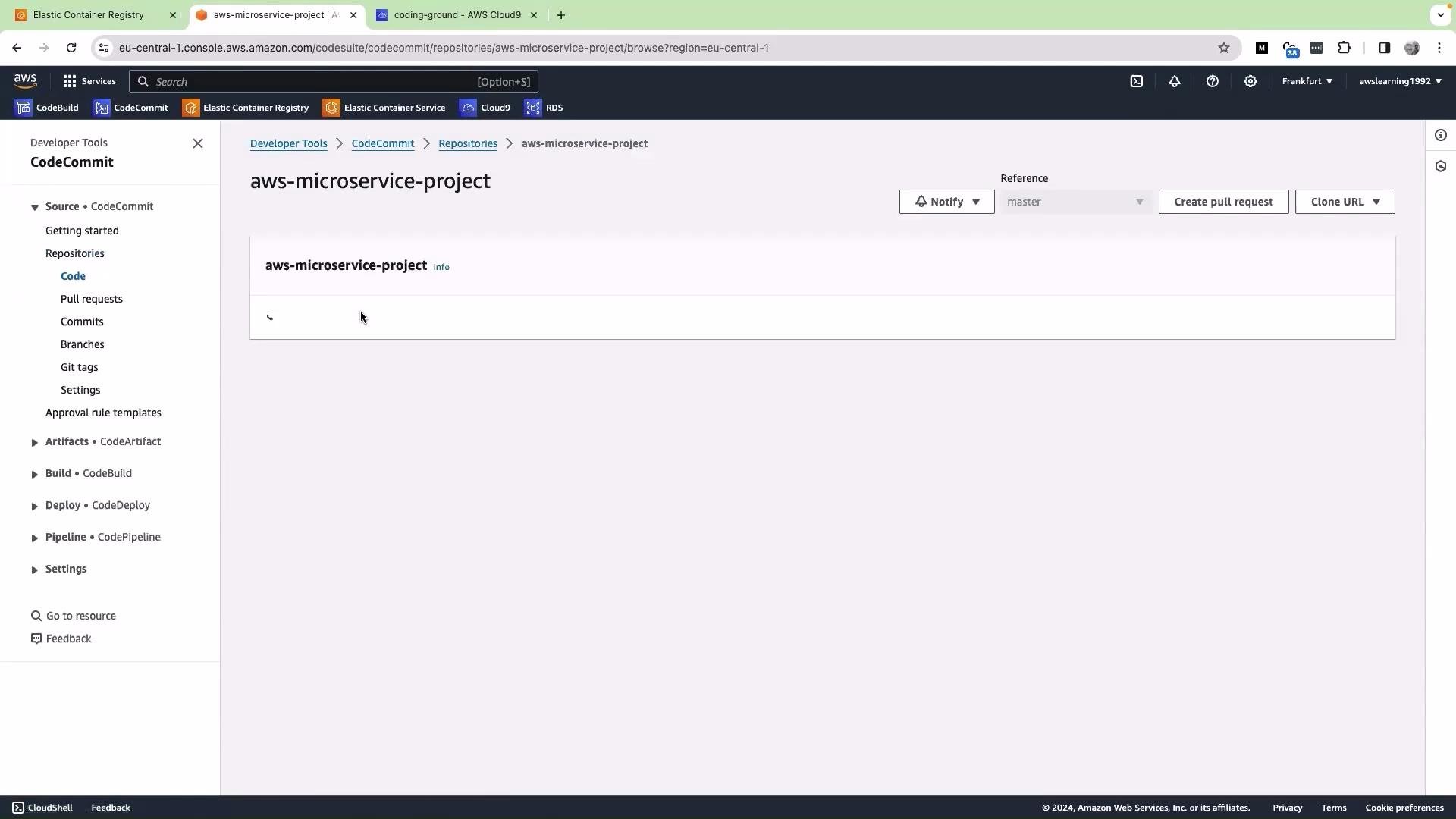
Open the CodeCommit repository in the AWS Console and confirm that `buildspec.yml` appears in the repository root.
Create a new file named `buildspec.yml` in the repository and paste the following content. This buildspec:
* Logs in to ECR using the modern `get-login-password` method.
* Computes a short commit SHA to use as an image tag.
* Builds and tags the Docker image.
* Pushes both `latest` and the commit-tagged image to ECR.
```yaml theme={null}
version: 0.2
phases:
pre_build:
commands:
- echo Logging in to Amazon ECR...
- aws --version
# Login to ECR (replace or set AWS_ACCOUNT_ID and AWS_DEFAULT_REGION in project environment)
- aws ecr get-login-password --region $AWS_DEFAULT_REGION | docker login --username AWS --password-stdin $AWS_ACCOUNT_ID.dkr.ecr.$AWS_DEFAULT_REGION.amazonaws.com
- COMMIT_HASH=$(echo $CODEBUILD_RESOLVED_SOURCE_VERSION | cut -c 1-7)
- IMAGE_TAG=${COMMIT_HASH:-latest}
build:
commands:
- echo Build started on `date`
- echo Building the Docker image...
# REPOSITORY_URI should be set in the CodeBuild project environment, e.g. 123456789012.dkr.ecr.eu-central-1.amazonaws.com/cryptoproject
- docker build -t $REPOSITORY_URI:latest .
- docker tag $REPOSITORY_URI:latest $REPOSITORY_URI:$IMAGE_TAG
post_build:
commands:
- echo Build completed on `date`
- echo Pushing the Docker images...
- docker push $REPOSITORY_URI:latest
- docker push $REPOSITORY_URI:$IMAGE_TAG
```
Key lines explained
* `aws ecr get-login-password --region $AWS_DEFAULT_REGION | docker login --username AWS --password-stdin $AWS_ACCOUNT_ID.dkr.ecr.$AWS_DEFAULT_REGION.amazonaws.com`\
Uses the supported way to authenticate Docker to ECR. Do not use the deprecated `aws ecr get-login`.
* `COMMIT_HASH=$(echo $CODEBUILD_RESOLVED_SOURCE_VERSION | cut -c 1-7)`\
`CODEBUILD_RESOLVED_SOURCE_VERSION` is set by CodeBuild and typically contains the full commit SHA. The `cut` extracts a short 7-character tag.
* `REPOSITORY_URI`\
Should be provided as an environment variable in your CodeBuild project and typically looks like `123456789012.dkr.ecr.eu-central-1.amazonaws.com/cryptoproject`.
* Pushing both `latest` and the commit-tagged image gives you a stable `latest` for deployments and a traceable commit history in ECR.
Use `aws ecr get-login-password` with `docker login --password-stdin` because `aws ecr get-login` is deprecated and may not be available in newer AWS CLI versions.
Required environment variables and IAM permissions
| Item | Purpose | Example / Notes |
| ---------------------------- | ---------------------------------------------------------- | ----------------------------------------------------------------------------------------------------------------------------------------------------------- |
| `REPOSITORY_URI` | Target ECR repository (used by `docker tag`/`docker push`) | `123456789012.dkr.ecr.eu-central-1.amazonaws.com/cryptoproject` |
| `AWS_ACCOUNT_ID` | Used to construct the ECR login endpoint | `123456789012` |
| `AWS_DEFAULT_REGION` | Region for ECR operations | `eu-central-1` |
| CodeBuild privileged mode | Allows Docker daemon to run inside the build container | Enabled in CodeBuild project settings |
| IAM permissions (ECR) | Allow build role to push images | `ecr:GetAuthorizationToken`, `ecr:BatchCheckLayerAvailability`, `ecr:InitiateLayerUpload`, `ecr:UploadLayerPart`, `ecr:CompleteLayerUpload`, `ecr:PutImage` |
| Source & logging permissions | Allow access to source repo and CloudWatch logs | `codecommit:GetCommit`, `logs:CreateLogStream`, `logs:PutLogEvents`, etc. |
Ensure the CodeBuild project runs in "Privileged" mode (required for Docker-in-Docker) and that the CodeBuild service role includes the ECR-related permissions listed above. Without these, your build will fail when attempting to build or push images.
Commit and push `buildspec.yml` from Cloud9
1. Save the file (Ctrl+S or File → Save).
2. From the Cloud9 terminal run the following commands:
```bash theme={null}
# Navigate to your repo folder (if not already there)
cd ~/environment/aws-microservice-project
# Check status, add and commit
git status
git add .
git commit -m "Add buildspec.yml"
# Push to the remote repository
git push origin master
```
Sample console output (illustrative):
```bash theme={null}
ec2-user@ip-172-31-x:~/environment/aws-microservice-project (master) $ git status
On branch master
Your branch is up to date with 'origin/master'.
Changes to be committed:
(use "git restore --staged ..." to unstage)
new file: buildspec.yml
ec2-user@ip-172-31-x:~/environment/aws-microservice-project (master) $ git commit -m "Add buildspec.yml"
[master b12f6f2] Add buildspec.yml
1 file changed, 20 insertions(+)
create mode 100644 buildspec.yml
ec2-user@ip-172-31-x:~/environment/aws-microservice-project (master) $ git push origin master
Enumerating objects: 4, done.
Counting objects: 100% (4/4), done.
Compressing objects: 100% (3/3), done.
Writing objects: 100% (3/3), 75.00 KiB | 785.00 KiB/s, done.
Total 3 (delta 0), reused 0 (delta 0), pack-reused 0
To https://git-codecommit.eu-central-1.amazonaws.com/v1/repos/aws-microservice-project
863f04d..b12f6f2 master -> master
```
Verify the commit in CodeCommit
Open the CodeCommit repository in the AWS Console and confirm that `buildspec.yml` appears in the repository root.
 Next steps
* Create or configure a CodeBuild project (or CodePipeline) that points to this repository and has the `REPOSITORY_URI`, `AWS_ACCOUNT_ID`, and `AWS_DEFAULT_REGION` environment variables set.
* Make sure the build environment supports Docker and has privileged mode enabled.
* After a push, CodeBuild will run the `buildspec.yml` steps, build the Docker image, and push it to ECR.
Links and references
* [Amazon ECR Documentation](https://docs.aws.amazon.com/AmazonECR/latest/userguide/what-is-ecr.html)
* [AWS CodeBuild User Guide](https://docs.aws.amazon.com/codebuild/latest/userguide/welcome.html)
* [AWS CLI - ecr get-login-password](https://docs.aws.amazon.com/cli/latest/reference/ecr/get-login-password.html)
* [AWS CodeCommit User Guide](https://docs.aws.amazon.com/codecommit/latest/userguide/welcome.html)
That’s it for this lesson.
Next steps
* Create or configure a CodeBuild project (or CodePipeline) that points to this repository and has the `REPOSITORY_URI`, `AWS_ACCOUNT_ID`, and `AWS_DEFAULT_REGION` environment variables set.
* Make sure the build environment supports Docker and has privileged mode enabled.
* After a push, CodeBuild will run the `buildspec.yml` steps, build the Docker image, and push it to ECR.
Links and references
* [Amazon ECR Documentation](https://docs.aws.amazon.com/AmazonECR/latest/userguide/what-is-ecr.html)
* [AWS CodeBuild User Guide](https://docs.aws.amazon.com/codebuild/latest/userguide/welcome.html)
* [AWS CLI - ecr get-login-password](https://docs.aws.amazon.com/cli/latest/reference/ecr/get-login-password.html)
* [AWS CodeCommit User Guide](https://docs.aws.amazon.com/codecommit/latest/userguide/welcome.html)
That’s it for this lesson.