> ## Documentation Index
> Fetch the complete documentation index at: https://notes.kodekloud.com/llms.txt
> Use this file to discover all available pages before exploring further.
# Setup CodeBuild to Push Docker Image to ECR
> Guide to configuring AWS CodeBuild to build Docker images from a repository and push them to Amazon ECR, including environment, IAM, buildspec and troubleshooting.
This step-by-step guide shows how to configure an AWS CodeBuild project that builds a Docker image from your repository and pushes it to Amazon ECR. Follow the sequence below in the AWS Console; screenshots show the key configuration steps.
1. Open the AWS Console and navigate to CodeBuild. If you already have projects they will be listed; otherwise create a new one.
2. Click **Create project**, and give it a descriptive name. Example: `AWS Microservices Project`.
3. Configure the project source. CodeBuild supports multiple source providers; in this walkthrough the source is hosted in AWS CodeCommit.
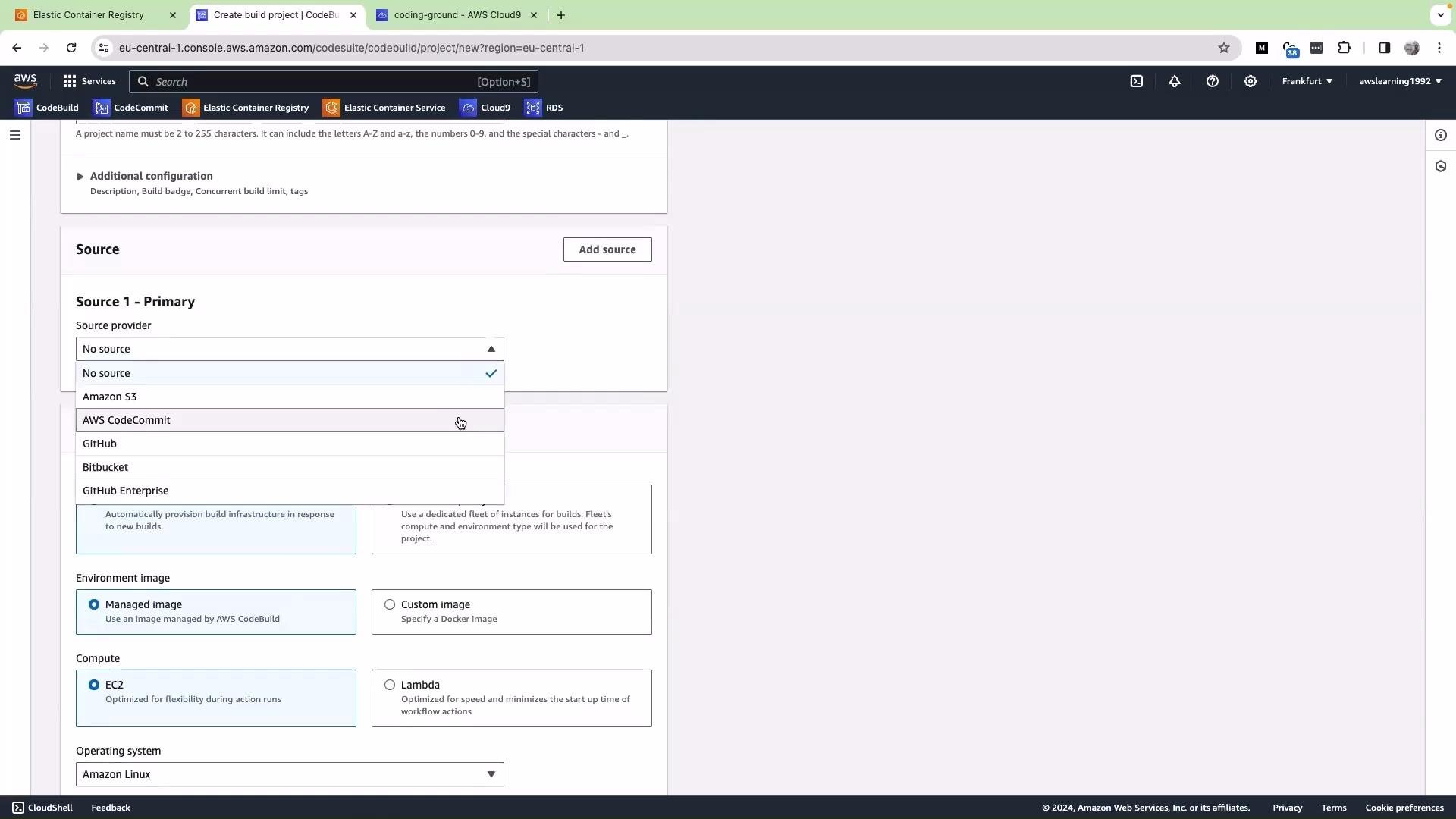 4. Select **AWS CodeCommit** as the source provider. Choose the repository (example: `AWS Microservice Project`) and the branch to build (example: `master`). This tells CodeBuild which repository and branch to clone for each build.
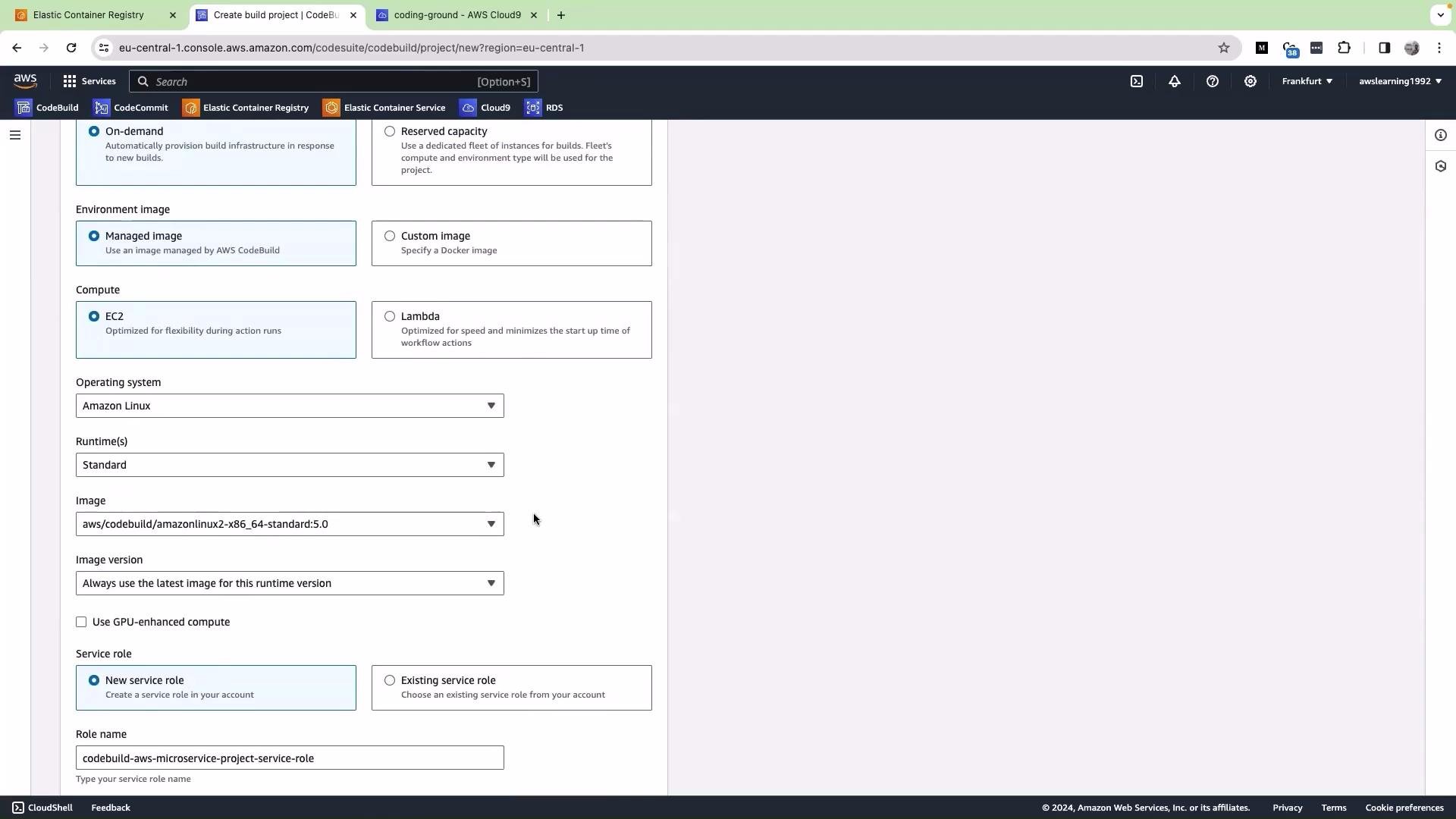
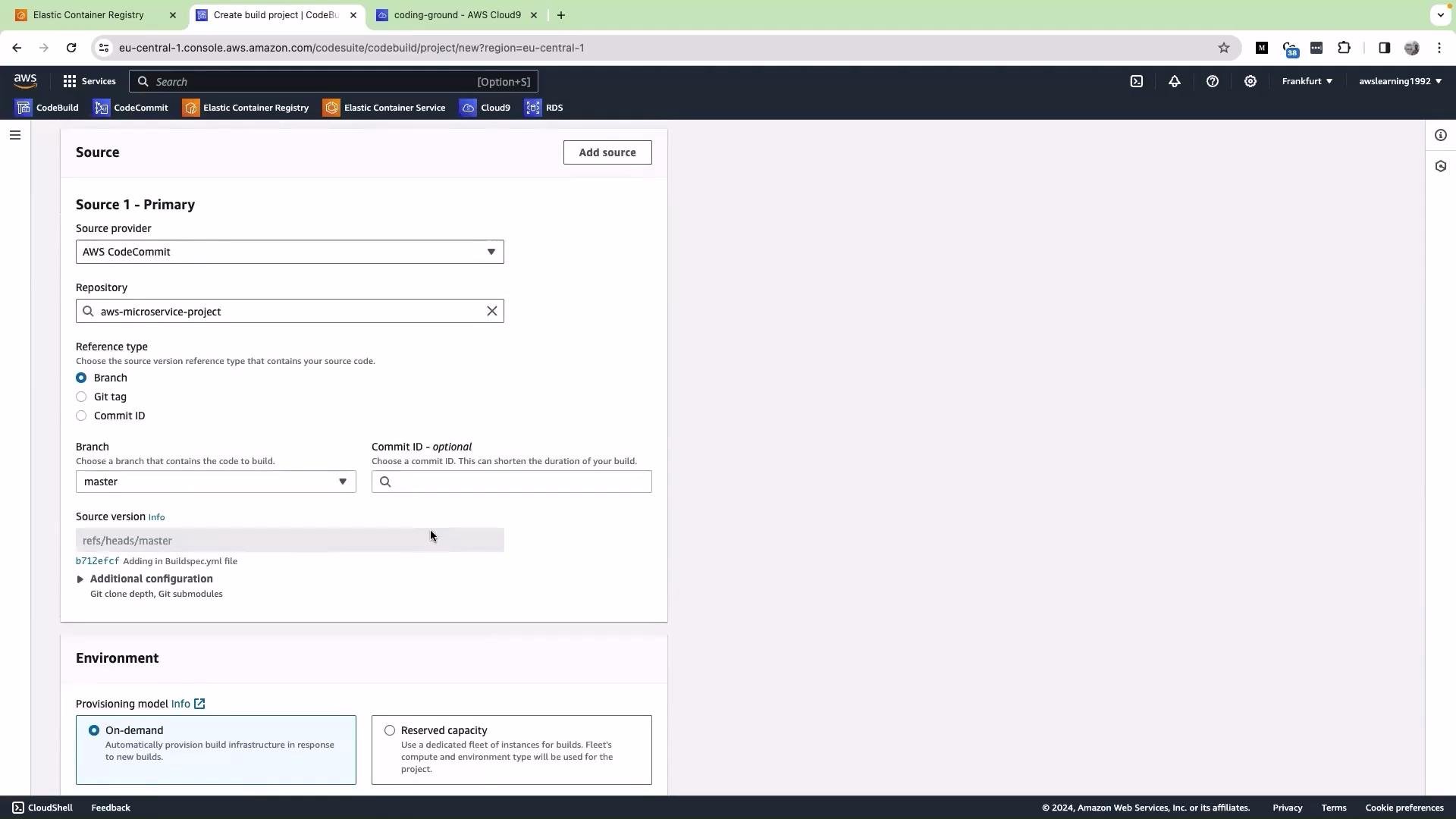 5. Scroll to the **Environment** section and choose an environment image that includes Docker and a modern AWS CLI (preferably AWS CLI v2). Typical defaults you can start with:
| Setting | Recommended option |
| -------------------- | ------------------------------------------ |
| Operating system | `Amazon Linux` (or `Ubuntu`) |
| Runtime | `standard` |
| Architecture / image | `x86_64 standard image` |
| Privileged mode | **Enable** (required for Docker-in-Docker) |
To build Docker images inside CodeBuild you must enable **Privileged** mode so the build can run Docker (Docker-in-Docker). Also ensure the selected environment image includes AWS CLI v2 because the example uses `aws ecr get-login-password`. If your image only has AWS CLI v1, either use `aws ecr get-login` or pick a different environment image.
6. Configure the service role. CodeBuild will create or let you choose an IAM role for the project. Grant the role only the permissions it needs. Typical required permissions:
| Permission area | Example IAM actions |
| ------------------------- | ----------------------------------------------------------------------------------------------------------------------------------------------------------- |
| ECR authentication & push | `ecr:GetAuthorizationToken`, `ecr:BatchCheckLayerAvailability`, `ecr:PutImage`, `ecr:InitiateLayerUpload`, `ecr:UploadLayerPart`, `ecr:CompleteLayerUpload` |
| Optional ECR management | `ecr:CreateRepository` (if you want builds to create repos automatically) |
| CodeCommit access | `codecommit:GitPull` (or relevant read actions) |
| Logging | `logs:CreateLogGroup`, `logs:CreateLogStream`, `logs:PutLogEvents` |
| S3 (if artifacts used) | `s3:PutObject`, `s3:GetObject` |
7. Keep CloudWatch Logs enabled during development. Logs are extremely useful for diagnosing build failures and verifying each build phase.
5. Scroll to the **Environment** section and choose an environment image that includes Docker and a modern AWS CLI (preferably AWS CLI v2). Typical defaults you can start with:
| Setting | Recommended option |
| -------------------- | ------------------------------------------ |
| Operating system | `Amazon Linux` (or `Ubuntu`) |
| Runtime | `standard` |
| Architecture / image | `x86_64 standard image` |
| Privileged mode | **Enable** (required for Docker-in-Docker) |
To build Docker images inside CodeBuild you must enable **Privileged** mode so the build can run Docker (Docker-in-Docker). Also ensure the selected environment image includes AWS CLI v2 because the example uses `aws ecr get-login-password`. If your image only has AWS CLI v1, either use `aws ecr get-login` or pick a different environment image.
6. Configure the service role. CodeBuild will create or let you choose an IAM role for the project. Grant the role only the permissions it needs. Typical required permissions:
| Permission area | Example IAM actions |
| ------------------------- | ----------------------------------------------------------------------------------------------------------------------------------------------------------- |
| ECR authentication & push | `ecr:GetAuthorizationToken`, `ecr:BatchCheckLayerAvailability`, `ecr:PutImage`, `ecr:InitiateLayerUpload`, `ecr:UploadLayerPart`, `ecr:CompleteLayerUpload` |
| Optional ECR management | `ecr:CreateRepository` (if you want builds to create repos automatically) |
| CodeCommit access | `codecommit:GitPull` (or relevant read actions) |
| Logging | `logs:CreateLogGroup`, `logs:CreateLogStream`, `logs:PutLogEvents` |
| S3 (if artifacts used) | `s3:PutObject`, `s3:GetObject` |
7. Keep CloudWatch Logs enabled during development. Logs are extremely useful for diagnosing build failures and verifying each build phase.
 8. When you click **Create project**, CodeBuild will look for a build specification file. By default it expects `buildspec.yml` in the repository root. If this file is missing or misnamed the project will fail at build time.
* The buildspec filename must be exactly `buildspec.yml` (not `.yaml` and check case sensitivity).
* You can also paste a buildspec directly in the console under the Buildspec section, but versioning the file in your repo is recommended.
9. Start a build by clicking **Start build**. CodeBuild will:
* Clone the configured repository and checkout the target branch.
* Look for `buildspec.yml` in the repository root.
* Execute lifecycle phases defined in `buildspec.yml` (pre\_build, build, post\_build).
* Emit logs to the CodeBuild console and CloudWatch Logs.
8. When you click **Create project**, CodeBuild will look for a build specification file. By default it expects `buildspec.yml` in the repository root. If this file is missing or misnamed the project will fail at build time.
* The buildspec filename must be exactly `buildspec.yml` (not `.yaml` and check case sensitivity).
* You can also paste a buildspec directly in the console under the Buildspec section, but versioning the file in your repo is recommended.
9. Start a build by clicking **Start build**. CodeBuild will:
* Clone the configured repository and checkout the target branch.
* Look for `buildspec.yml` in the repository root.
* Execute lifecycle phases defined in `buildspec.yml` (pre\_build, build, post\_build).
* Emit logs to the CodeBuild console and CloudWatch Logs.
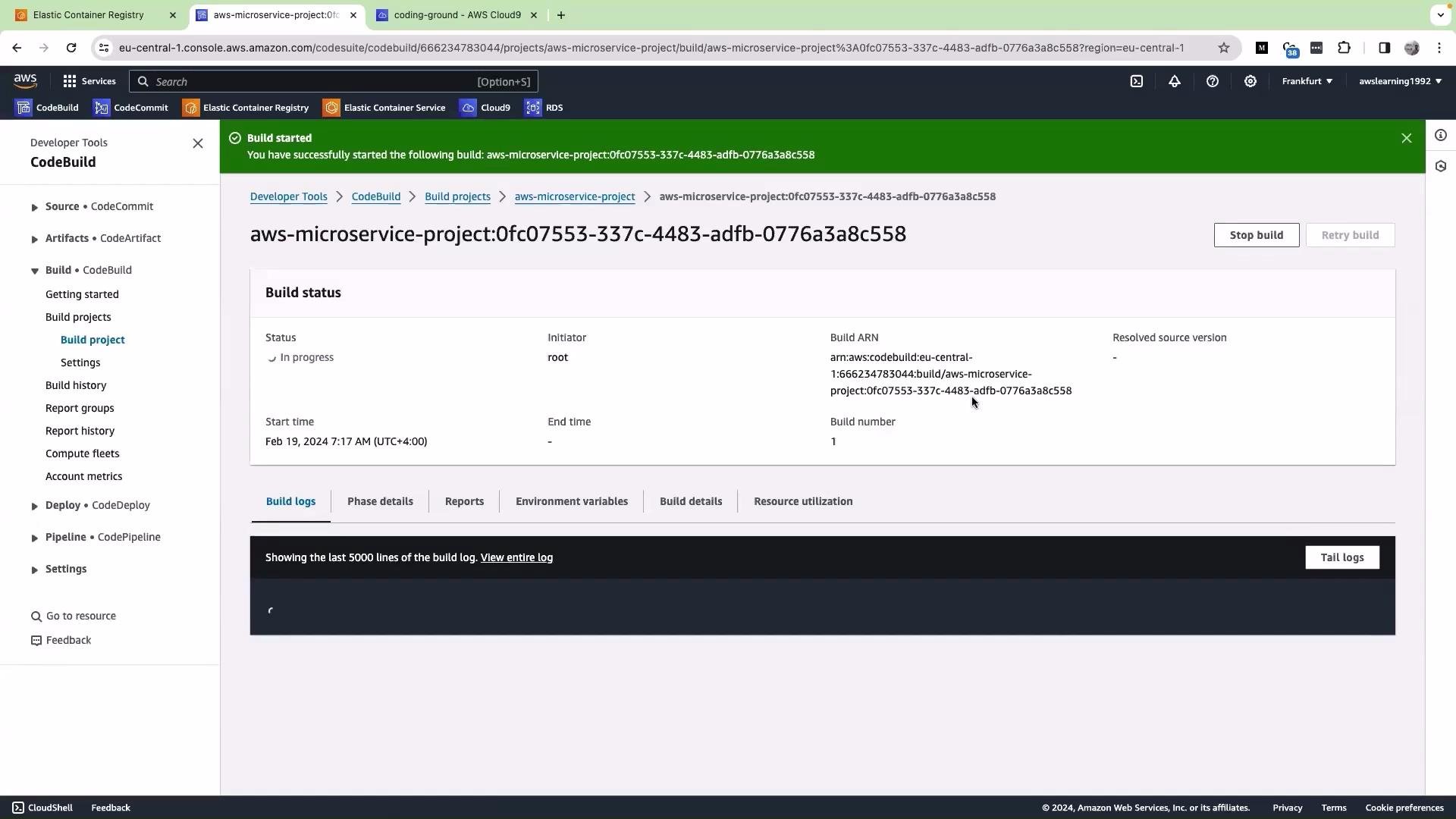 10. Inspect the build logs in the CodeBuild console (or CloudWatch) to verify each phase. The first logs show cloning; subsequent logs show commands executed in `buildspec.yml` such as ECR authentication, Docker build, tag, and push operations.
Example buildspec.yml for building and pushing a Docker image to ECR
* Assumes the following environment variables are set in the CodeBuild project configuration (or are derivable via IAM role / metadata):
* `AWS_ACCOUNT_ID`
* `AWS_DEFAULT_REGION`
* `IMAGE_REPO_NAME`
```yaml theme={null}
version: 0.2
phases:
pre_build:
commands:
- echo Logging in to Amazon ECR...
- aws --version
- aws ecr get-login-password --region $AWS_DEFAULT_REGION | docker login --username AWS --password-stdin $AWS_ACCOUNT_ID.dkr.ecr.$AWS_DEFAULT_REGION.amazonaws.com
- REPOSITORY_URI=$AWS_ACCOUNT_ID.dkr.ecr.$AWS_DEFAULT_REGION.amazonaws.com/$IMAGE_REPO_NAME
- IMAGE_TAG=$(echo $CODEBUILD_RESOLVED_SOURCE_VERSION | cut -c 1-7)
build:
commands:
- echo Build started on `date`
- docker build -t $IMAGE_REPO_NAME:$IMAGE_TAG .
- docker tag $IMAGE_REPO_NAME:$IMAGE_TAG $REPOSITORY_URI:$IMAGE_TAG
post_build:
commands:
- echo Pushing the Docker image to ECR...
- docker push $REPOSITORY_URI:$IMAGE_TAG
- echo "Image pushed: $REPOSITORY_URI:$IMAGE_TAG"
artifacts:
files: []
```
Troubleshooting checklist and tips:
* Confirm `buildspec.yml` is present in the repository root and named exactly `buildspec.yml`.
* Verify the environment image includes Docker and AWS CLI v2, or adjust ECR login commands accordingly.
* Ensure the CodeBuild service role has ECR push and CodeCommit read permissions and can write CloudWatch logs.
* If you want the build to create the repository automatically, add `ecr:CreateRepository` to the role or create the repository manually beforehand.
* On failure, review the CodeBuild console logs and CloudWatch Logs to identify the failing phase and command.
After the build completes, check the ECR console for the new image tag and review build logs to confirm successful authentication, Docker build, tag, and push steps.
Further reading and references:
* [AWS CodeBuild Documentation](https://docs.aws.amazon.com/codebuild/latest/userguide/welcome.html)
* [Amazon ECR Documentation](https://docs.aws.amazon.com/AmazonECR/latest/userguide/what-is-ecr.html)
* [Docker Official Documentation](https://docs.docker.com/)
10. Inspect the build logs in the CodeBuild console (or CloudWatch) to verify each phase. The first logs show cloning; subsequent logs show commands executed in `buildspec.yml` such as ECR authentication, Docker build, tag, and push operations.
Example buildspec.yml for building and pushing a Docker image to ECR
* Assumes the following environment variables are set in the CodeBuild project configuration (or are derivable via IAM role / metadata):
* `AWS_ACCOUNT_ID`
* `AWS_DEFAULT_REGION`
* `IMAGE_REPO_NAME`
```yaml theme={null}
version: 0.2
phases:
pre_build:
commands:
- echo Logging in to Amazon ECR...
- aws --version
- aws ecr get-login-password --region $AWS_DEFAULT_REGION | docker login --username AWS --password-stdin $AWS_ACCOUNT_ID.dkr.ecr.$AWS_DEFAULT_REGION.amazonaws.com
- REPOSITORY_URI=$AWS_ACCOUNT_ID.dkr.ecr.$AWS_DEFAULT_REGION.amazonaws.com/$IMAGE_REPO_NAME
- IMAGE_TAG=$(echo $CODEBUILD_RESOLVED_SOURCE_VERSION | cut -c 1-7)
build:
commands:
- echo Build started on `date`
- docker build -t $IMAGE_REPO_NAME:$IMAGE_TAG .
- docker tag $IMAGE_REPO_NAME:$IMAGE_TAG $REPOSITORY_URI:$IMAGE_TAG
post_build:
commands:
- echo Pushing the Docker image to ECR...
- docker push $REPOSITORY_URI:$IMAGE_TAG
- echo "Image pushed: $REPOSITORY_URI:$IMAGE_TAG"
artifacts:
files: []
```
Troubleshooting checklist and tips:
* Confirm `buildspec.yml` is present in the repository root and named exactly `buildspec.yml`.
* Verify the environment image includes Docker and AWS CLI v2, or adjust ECR login commands accordingly.
* Ensure the CodeBuild service role has ECR push and CodeCommit read permissions and can write CloudWatch logs.
* If you want the build to create the repository automatically, add `ecr:CreateRepository` to the role or create the repository manually beforehand.
* On failure, review the CodeBuild console logs and CloudWatch Logs to identify the failing phase and command.
After the build completes, check the ECR console for the new image tag and review build logs to confirm successful authentication, Docker build, tag, and push steps.
Further reading and references:
* [AWS CodeBuild Documentation](https://docs.aws.amazon.com/codebuild/latest/userguide/welcome.html)
* [Amazon ECR Documentation](https://docs.aws.amazon.com/AmazonECR/latest/userguide/what-is-ecr.html)
* [Docker Official Documentation](https://docs.docker.com/)