> ## Documentation Index
> Fetch the complete documentation index at: https://notes.kodekloud.com/llms.txt
> Use this file to discover all available pages before exploring further.
# Setup ECR
> Guides creating and using an AWS Elastic Container Registry repository and steps to authenticate, tag, and push Docker images from local machines or CI pipelines.
Welcome — in this lesson we create an Amazon ECR (Elastic Container Registry) repository and review how to prepare images for pushing from your local machine or a CI pipeline.
Before you begin, sign in to the AWS Management Console and confirm you are operating in the correct AWS region used by this lesson: `eu-central-1` (Frankfurt).
In the Console search bar, type "ECR" and select Elastic Container Registry. ECR provides Docker-compatible container image repositories hosted in AWS (similar to Docker Hub, but managed inside your AWS account).
1. Click Get started.
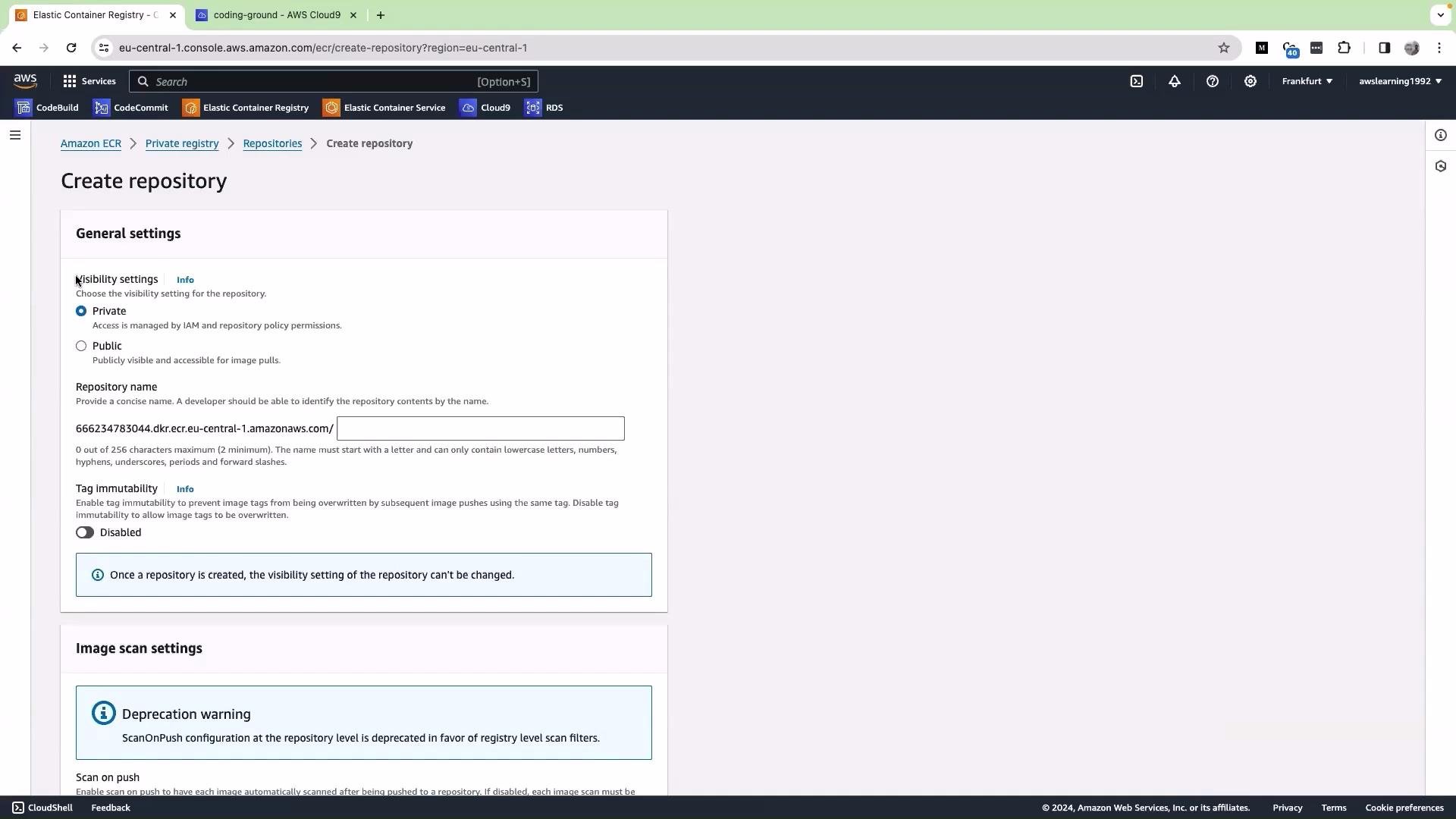
2. Choose the repository visibility. Most organization images should be kept private — leave the default Private repository.
3. Give the repository a name. In this lesson we use `cryptoproject`.
4. Leave the remaining settings at their defaults. (Enabling "Scan on push" is recommended for production images; see the warning below.)
5. Click Create repository.
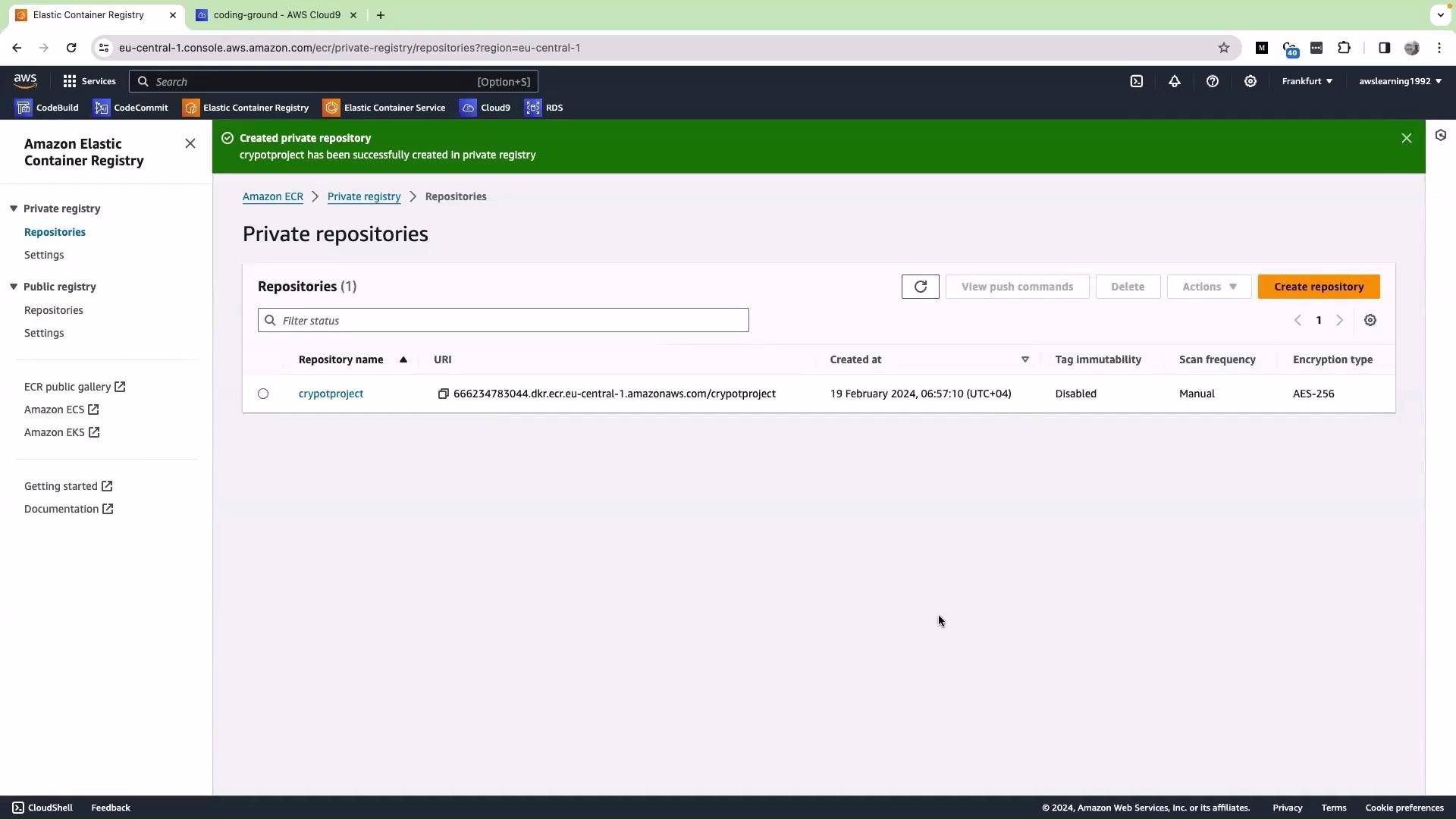
 Once the repository is created it appears in your account and will store all images for this application. Locate the repository URI in the repository details — this fully qualified endpoint is used to tag and push images. Example format:
`.dkr.ecr..amazonaws.com/`
For example: `012345678901.dkr.ecr.eu-central-1.amazonaws.com/cryptoproject`
Once the repository is created it appears in your account and will store all images for this application. Locate the repository URI in the repository details — this fully qualified endpoint is used to tag and push images. Example format:
`.dkr.ecr..amazonaws.com/`
For example: `012345678901.dkr.ecr.eu-central-1.amazonaws.com/cryptoproject`
 Commands to authenticate Docker to ECR, tag a local image, and push it to your ECR repository. Replace the placeholders with values from your account:
```bash theme={null}
# Authenticate Docker to ECR for the configured AWS CLI profile/region
aws ecr get-login-password --region eu-central-1 \
| docker login --username AWS --password-stdin 012345678901.dkr.ecr.eu-central-1.amazonaws.com
# Tag a local image with the repository URI
docker tag my-local-image:latest 012345678901.dkr.ecr.eu-central-1.amazonaws.com/cryptoproject:latest
# Push the tagged image to ECR
docker push 012345678901.dkr.ecr.eu-central-1.amazonaws.com/cryptoproject:latest
```
For easier reuse in scripts and CI, replace the account and region with variables (example):
```bash theme={null}
ACCOUNT_ID=012345678901
REGION=eu-central-1
REPO=cryptoproject
aws ecr get-login-password --region $REGION \
| docker login --username AWS --password-stdin $ACCOUNT_ID.dkr.ecr.$REGION.amazonaws.com
docker tag my-local-image:latest $ACCOUNT_ID.dkr.ecr.$REGION.amazonaws.com/$REPO:latest
docker push $ACCOUNT_ID.dkr.ecr.$REGION.amazonaws.com/$REPO:latest
```
Ensure your AWS CLI is configured with credentials that have the required ECR permissions. Typical actions needed when pushing images include: `ecr:GetAuthorizationToken`, `ecr:BatchCheckLayerAvailability`, `ecr:InitiateLayerUpload`, `ecr:UploadLayerPart`, `ecr:CompleteLayerUpload`, and `ecr:PutImage`. Also verify your CLI region matches the repository's region.
Permissions summary
| Permission | Purpose |
| --------------------------------- | -------------------------------------------------------- |
| `ecr:GetAuthorizationToken` | Retrieve Docker authentication token for ECR |
| `ecr:BatchCheckLayerAvailability` | Check which image layers already exist in the repository |
| `ecr:InitiateLayerUpload` | Start uploading a layer |
| `ecr:UploadLayerPart` | Upload a chunk of a layer |
| `ecr:CompleteLayerUpload` | Finalize layer upload |
| `ecr:PutImage` | Push image manifest to the repository |
For production images, enable "Scan on push" to automatically scan images for vulnerabilities. Also follow the principle of least privilege for credentials used by CI systems; prefer short-lived credentials or IAM roles where possible.
Next steps
* Build your Docker image locally (for example, `docker build -t my-local-image .`) and then follow the tag/push steps above.
* Or automate image builds and pushes from your CI pipeline (examples: AWS CodePipeline, GitHub Actions, GitLab CI). Configure the CI runner with appropriate IAM permissions or use an IAM role attached to the build environment.
Links and references
* AWS ECR documentation: [https://docs.aws.amazon.com/ecr/](https://docs.aws.amazon.com/ecr/)
* AWS CLI Command Reference — `get-login-password`: [https://docs.aws.amazon.com/cli/latest/reference/ecr/get-login-password.html](https://docs.aws.amazon.com/cli/latest/reference/ecr/get-login-password.html)
* Docker Hub: [https://hub.docker.com/](https://hub.docker.com/)
Commands to authenticate Docker to ECR, tag a local image, and push it to your ECR repository. Replace the placeholders with values from your account:
```bash theme={null}
# Authenticate Docker to ECR for the configured AWS CLI profile/region
aws ecr get-login-password --region eu-central-1 \
| docker login --username AWS --password-stdin 012345678901.dkr.ecr.eu-central-1.amazonaws.com
# Tag a local image with the repository URI
docker tag my-local-image:latest 012345678901.dkr.ecr.eu-central-1.amazonaws.com/cryptoproject:latest
# Push the tagged image to ECR
docker push 012345678901.dkr.ecr.eu-central-1.amazonaws.com/cryptoproject:latest
```
For easier reuse in scripts and CI, replace the account and region with variables (example):
```bash theme={null}
ACCOUNT_ID=012345678901
REGION=eu-central-1
REPO=cryptoproject
aws ecr get-login-password --region $REGION \
| docker login --username AWS --password-stdin $ACCOUNT_ID.dkr.ecr.$REGION.amazonaws.com
docker tag my-local-image:latest $ACCOUNT_ID.dkr.ecr.$REGION.amazonaws.com/$REPO:latest
docker push $ACCOUNT_ID.dkr.ecr.$REGION.amazonaws.com/$REPO:latest
```
Ensure your AWS CLI is configured with credentials that have the required ECR permissions. Typical actions needed when pushing images include: `ecr:GetAuthorizationToken`, `ecr:BatchCheckLayerAvailability`, `ecr:InitiateLayerUpload`, `ecr:UploadLayerPart`, `ecr:CompleteLayerUpload`, and `ecr:PutImage`. Also verify your CLI region matches the repository's region.
Permissions summary
| Permission | Purpose |
| --------------------------------- | -------------------------------------------------------- |
| `ecr:GetAuthorizationToken` | Retrieve Docker authentication token for ECR |
| `ecr:BatchCheckLayerAvailability` | Check which image layers already exist in the repository |
| `ecr:InitiateLayerUpload` | Start uploading a layer |
| `ecr:UploadLayerPart` | Upload a chunk of a layer |
| `ecr:CompleteLayerUpload` | Finalize layer upload |
| `ecr:PutImage` | Push image manifest to the repository |
For production images, enable "Scan on push" to automatically scan images for vulnerabilities. Also follow the principle of least privilege for credentials used by CI systems; prefer short-lived credentials or IAM roles where possible.
Next steps
* Build your Docker image locally (for example, `docker build -t my-local-image .`) and then follow the tag/push steps above.
* Or automate image builds and pushes from your CI pipeline (examples: AWS CodePipeline, GitHub Actions, GitLab CI). Configure the CI runner with appropriate IAM permissions or use an IAM role attached to the build environment.
Links and references
* AWS ECR documentation: [https://docs.aws.amazon.com/ecr/](https://docs.aws.amazon.com/ecr/)
* AWS CLI Command Reference — `get-login-password`: [https://docs.aws.amazon.com/cli/latest/reference/ecr/get-login-password.html](https://docs.aws.amazon.com/cli/latest/reference/ecr/get-login-password.html)
* Docker Hub: [https://hub.docker.com/](https://hub.docker.com/)