> ## Documentation Index
> Fetch the complete documentation index at: https://notes.kodekloud.com/llms.txt
> Use this file to discover all available pages before exploring further.
# Test docker image in ECR locally Cloud9
> Verifying and running a Docker image from Amazon ECR locally in AWS Cloud9, covering authentication, pulling, running the container, port mapping, and app validation.
Welcome back. In this lesson we'll verify that the Docker image pushed to Amazon ECR runs correctly from an AWS Cloud9 environment. You'll see the typical build spec we used, how to authenticate Docker with ECR, pull the image, run it locally, and validate the app is reachable.
## Build spec (for reference)
This is the CodeBuild buildspec that builds, tags, and pushes the image to ECR:
```yaml theme={null}
version: 0.2
phases:
build:
commands:
- echo Logging in to Amazon ECR ...
- aws ecr get-login-password --region $AWS_DEFAULT_REGION | docker login --username AWS --password-stdin 666234783044.dkr.ecr.eu-central-1.amazonaws.com
- echo Build started on `date`
- echo Building the Docker image...
- docker build -t $REPOSITORY_URI:latest .
- docker tag $REPOSITORY_URI:latest $REPOSITORY_URI:$IMAGE_TAG
post_build:
commands:
- echo Build started on `date`
- echo Pushing the Docker image...
- docker push $REPOSITORY_URI:$IMAGE_TAG
```
## After committing changes
Here is the local git output after pushing changes to CodeCommit:
```bash theme={null}
ec2-user@environment/aws-microservice-project (master) $ git push origin master
Enumerating objects: 4, done.
Counting objects: 100% (4/4), done.
Compressing objects: 100% (3/3), done.
Writing objects: 100% (3/3), 73 bytes, done.
Total 3 (delta 0), reused 0 (delta 0), pack-reused 0
remote: Validating objects: 100%
To https://git-codecommit.eu-central-1.amazonaws.com/vl/repos/aws-microservice-project
863fda1..b17fe2f master -> master
ec2-user@environment/aws-microservice-project (master) $
```
## Common error when pulling without authentication
If you try to `docker pull` a private ECR image without logging in, Docker returns a no credentials error:
```bash theme={null}
ec2-user:~environment/aws-microservice-project (master) $ docker pull 666234783044.dkr.ecr.eu-central-1.amazonaws.com/cryptoproject:latest
Error response from daemon: "https://666234783044.dkr.ecr.eu-central-1.amazonaws.com/v2/cryptoproject/manifests/latest": no basic auth credentials
ec2-user:~environment/aws-microservice-project (master) $
```
Docker must be authenticated against ECR before pulling private images. Use the `aws ecr get-login-password` command and pipe it into `docker login`. Be sure to use the correct region (for example, `eu-central-1`) or export an environment variable such as `AWS_DEFAULT_REGION` beforehand.
## Authenticate, pull, and run (commands)
Example explicit login (eu-central-1) and pull:
```bash theme={null}
aws ecr get-login-password --region eu-central-1 | docker login --username AWS --password-stdin 666234783044.dkr.ecr.eu-central-1.amazonaws.com
docker pull 666234783044.dkr.ecr.eu-central-1.amazonaws.com/cryptoproject:latest
```
Combined sequence (login then pull):
```bash theme={null}
aws ecr get-login-password --region eu-central-1 | docker login --username AWS --password-stdin 666234783044.dkr.ecr.eu-central-1.amazonaws.com
docker pull 666234783044.dkr.ecr.eu-central-1.amazonaws.com/cryptoproject:latest
```
Quick reference of the essential commands:
| Action | Command |
| ------------------------ | -------------------------------------------------------------------------------------------------------------------------------------------------- |
| Authenticate to ECR | `aws ecr get-login-password --region eu-central-1 \| docker login --username AWS --password-stdin 666234783044.dkr.ecr.eu-central-1.amazonaws.com` |
| Pull image | `docker pull 666234783044.dkr.ecr.eu-central-1.amazonaws.com/cryptoproject:latest` |
| Run container (map port) | `docker run -p 5000:5000 666234783044.dkr.ecr.eu-central-1.amazonaws.com/cryptoproject:latest` |
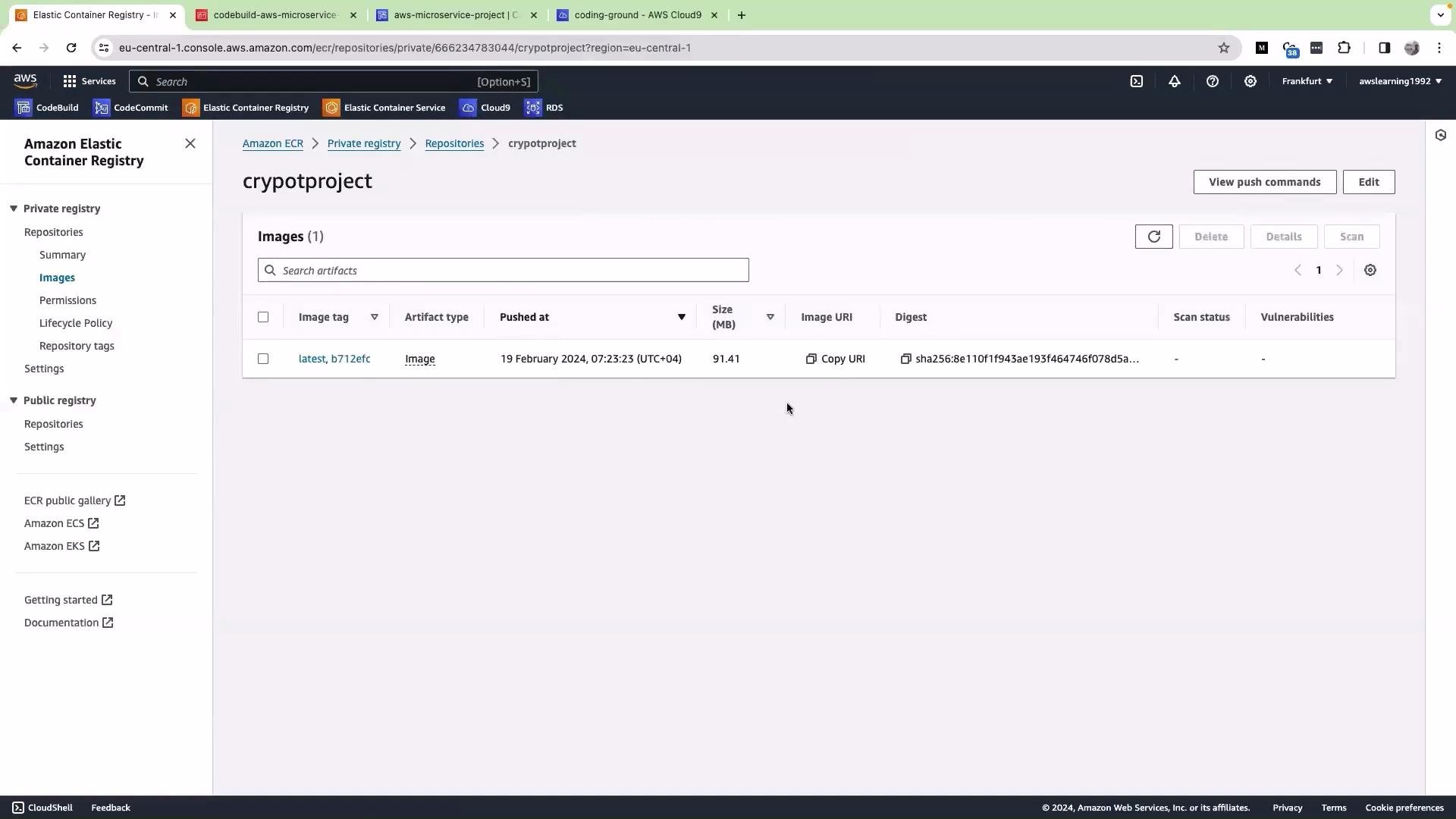 ## Run the container in Cloud9 and validate
Start the container and map the app port (the app listens on port 5000):
```bash theme={null}
docker run -p 5000:5000 666234783044.dkr.ecr.eu-central-1.amazonaws.com/cryptoproject:latest
```
To confirm the app is reachable from your browser:
1. In the AWS Console navigate to EC2 and select the instance that hosts your Cloud9 environment (or the EC2 instance you're using).
2. Copy the instance Public IP address.
3. Ensure the instance Security Group allows inbound TCP on port 5000 from your source IP (or use the Cloud9 preview feature).
4. Open your browser and visit `http://:5000` (replace `` with the copied address).
The application UI should appear. Example credentials used in this demo:
* Username: `admin`
* Password: `password123`
Test core flows such as Login, Order Now, and submitting an order to ensure the image behaves the same as the locally built container.
Tip: If you prefer an environment variable for the region, export it first:
```bash theme={null}
export AWS_DEFAULT_REGION=eu-central-1
```
Then authenticate with:
```bash theme={null}
aws ecr get-login-password --region $AWS_DEFAULT_REGION | docker login --username AWS --password-stdin 666234783044.dkr.ecr.eu-central-1.amazonaws.com
```
Security reminder: Avoid opening port 5000 to the public internet in production. Limit access via the EC2 Security Group to trusted IPs or use an SSH tunnel / VPN. Exposing management interfaces publicly can lead to unauthorized access.
## What this enables
With the image in ECR and the CodeBuild pipeline in place, commits to CodeCommit can trigger rebuilds and pushes to ECR automatically. Once images are in ECR you can choose deployment targets such as Amazon ECS, Amazon EKS, AWS Lambda (container images), or plain EC2 instances.
That's it for this lesson — see you in the next one.
## References
* [Amazon ECR documentation](https://docs.aws.amazon.com/AmazonECR/latest/userguide/what-is-ecr.html)
## Run the container in Cloud9 and validate
Start the container and map the app port (the app listens on port 5000):
```bash theme={null}
docker run -p 5000:5000 666234783044.dkr.ecr.eu-central-1.amazonaws.com/cryptoproject:latest
```
To confirm the app is reachable from your browser:
1. In the AWS Console navigate to EC2 and select the instance that hosts your Cloud9 environment (or the EC2 instance you're using).
2. Copy the instance Public IP address.
3. Ensure the instance Security Group allows inbound TCP on port 5000 from your source IP (or use the Cloud9 preview feature).
4. Open your browser and visit `http://:5000` (replace `` with the copied address).
The application UI should appear. Example credentials used in this demo:
* Username: `admin`
* Password: `password123`
Test core flows such as Login, Order Now, and submitting an order to ensure the image behaves the same as the locally built container.
Tip: If you prefer an environment variable for the region, export it first:
```bash theme={null}
export AWS_DEFAULT_REGION=eu-central-1
```
Then authenticate with:
```bash theme={null}
aws ecr get-login-password --region $AWS_DEFAULT_REGION | docker login --username AWS --password-stdin 666234783044.dkr.ecr.eu-central-1.amazonaws.com
```
Security reminder: Avoid opening port 5000 to the public internet in production. Limit access via the EC2 Security Group to trusted IPs or use an SSH tunnel / VPN. Exposing management interfaces publicly can lead to unauthorized access.
## What this enables
With the image in ECR and the CodeBuild pipeline in place, commits to CodeCommit can trigger rebuilds and pushes to ECR automatically. Once images are in ECR you can choose deployment targets such as Amazon ECS, Amazon EKS, AWS Lambda (container images), or plain EC2 instances.
That's it for this lesson — see you in the next one.
## References
* [Amazon ECR documentation](https://docs.aws.amazon.com/AmazonECR/latest/userguide/what-is-ecr.html)