> ## Documentation Index
> Fetch the complete documentation index at: https://notes.kodekloud.com/llms.txt
> Use this file to discover all available pages before exploring further.
# Deploy a new task and service using CodePipeline
> Guide to add an ECS Deploy stage in CodePipeline, update buildspec to produce imagedefinitions.json, and automate rolling deployments via CodeBuild, ECR, and ECS.
Welcome back. In this guide we'll extend the pipeline we built earlier by adding a Deploy stage to automatically push new images to an ECS service. The flow covered here: update the pipeline, ensure CodeBuild produces the required artifact, and confirm ECS performs a rolling deployment.
## 1) Add a Deploy stage in CodePipeline
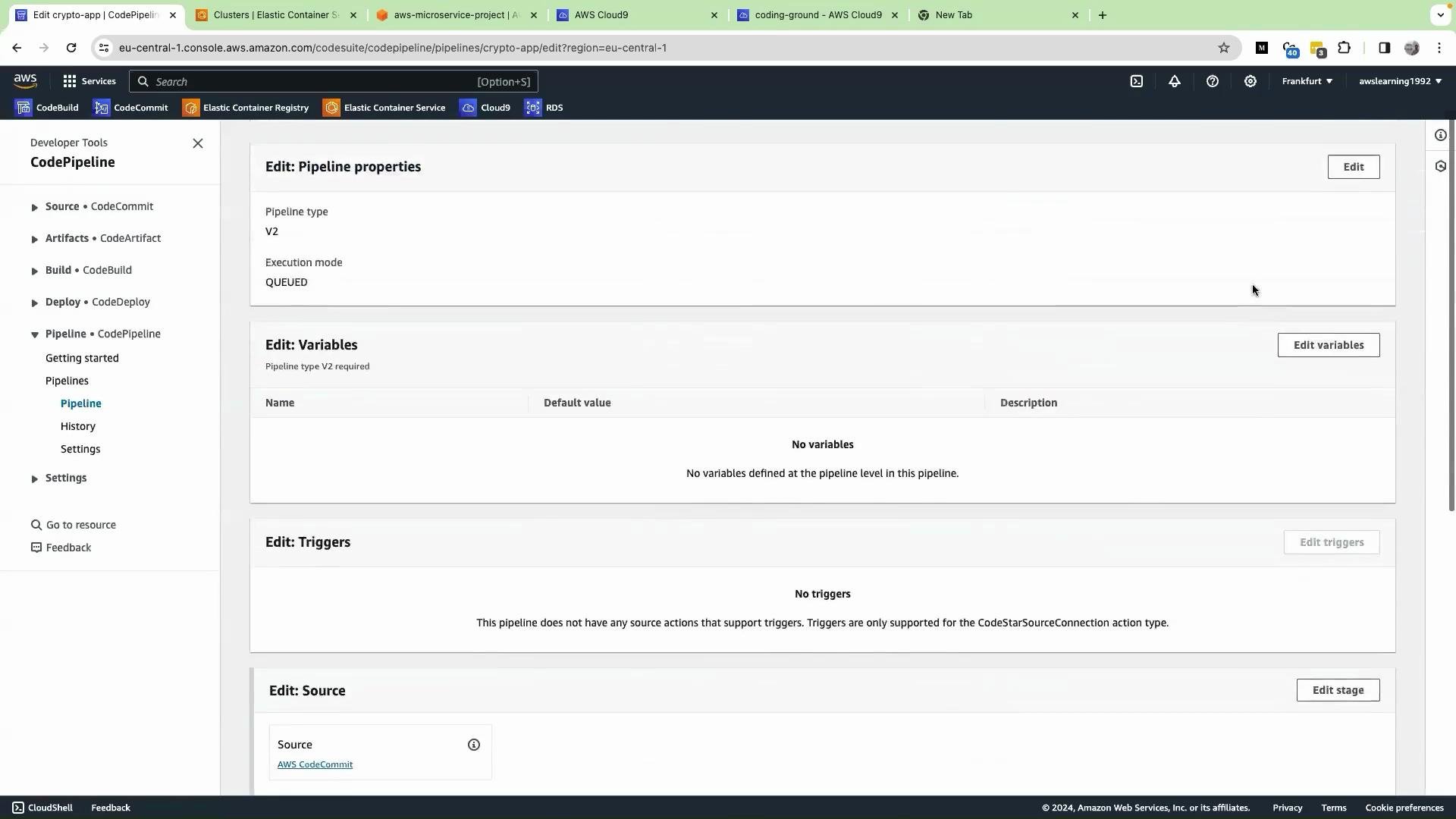
Edit the pipeline in the CodePipeline console and add a new stage after Build:
* Click Add stage and name it **Deploy**.
* Inside the Deploy stage, click Add action group and provide an action name (for example, `Deploy`).
* For Provider select **Amazon ECS** — do not select the ECR Blue/Green option because this tutorial uses rolling deployments (ECS rolling updates).
* For Input artifacts, pick the artifact produced by the Build stage.
* Choose the Production cluster and the ECS service to deploy.
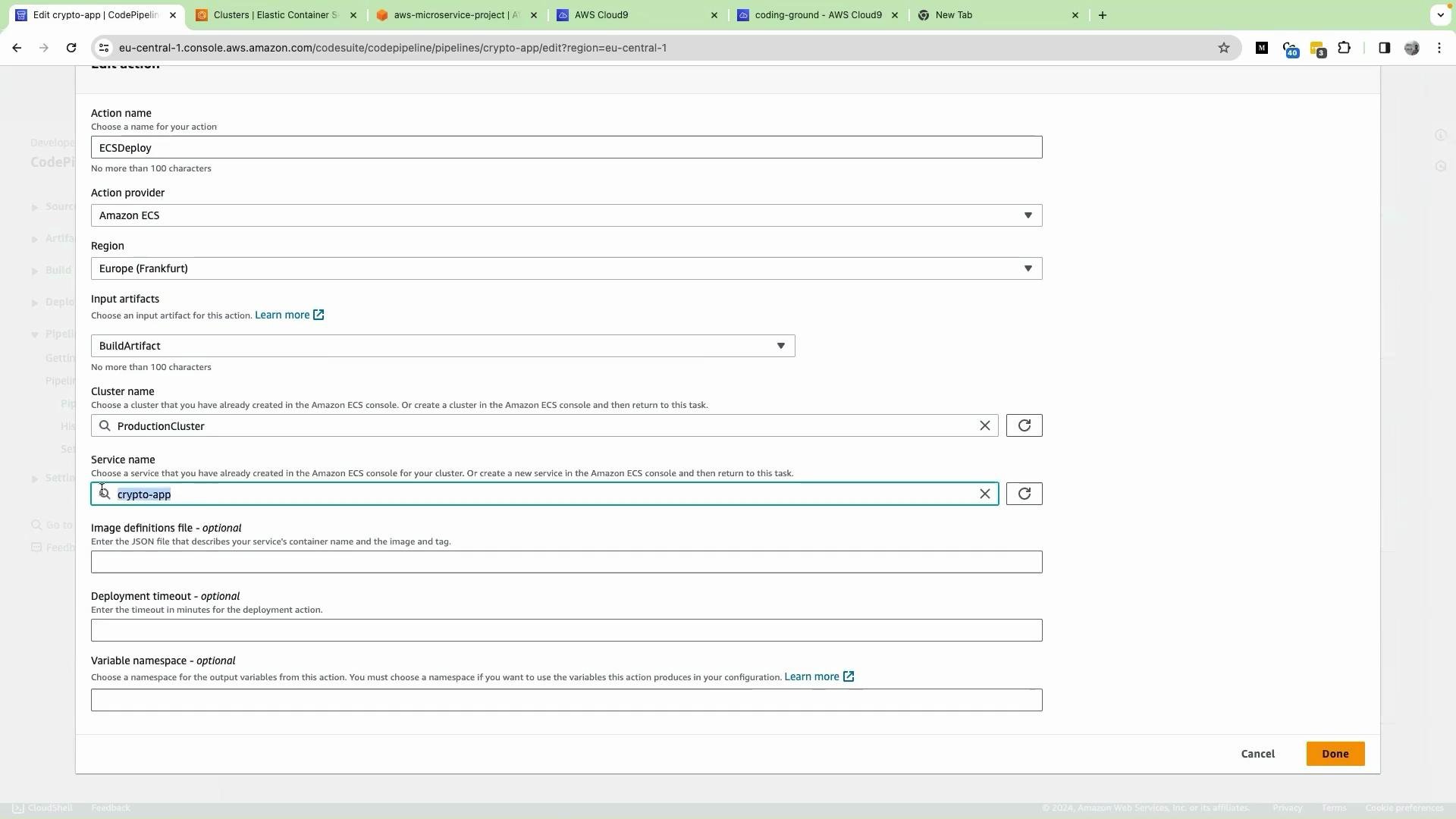 When selecting the provider, pick **Amazon ECS** (rolling deployments). Choosing ECR Blue/Green will switch CodePipeline to a different deployment model that requires a different setup.
In the action configuration, set the Image Definitions filename to `imagedefinitions.json`. Click Done and then Save the pipeline.
When selecting the provider, pick **Amazon ECS** (rolling deployments). Choosing ECR Blue/Green will switch CodePipeline to a different deployment model that requires a different setup.
In the action configuration, set the Image Definitions filename to `imagedefinitions.json`. Click Done and then Save the pipeline.
 ## 2) Update the buildspec so CodeBuild produces the required artifact
CodePipeline’s ECS deploy action consumes an artifact named `imagedefinitions.json`. Update the `buildspec.yml` in your Cloud9 (or local) editor to:
* authenticate to ECR,
* build and push the image (tagged by commit hash),
* write the `imagedefinitions.json` artifact,
* replace a placeholder in the ECS task definition, and
* register an updated task definition (optional but useful).
Use this concise buildspec:
```yaml theme={null}
# buildspec.yml
version: 0.2
phases:
pre_build:
commands:
- echo "Starting pre_build..."
- export REPOSITORY_URI=666234738044.dkr.ecr.eu-central-1.amazonaws.com/cryptoproject
- export REGISTRY=$(echo $REPOSITORY_URI | cut -d'/' -f1)
- aws --version
- echo "Logging in to Amazon ECR..."
- $(aws ecr get-login-password --region $AWS_DEFAULT_REGION | docker login --username AWS --password-stdin $REGISTRY)
- export COMMIT_HASH=$(echo $CODEBUILD_RESOLVED_SOURCE_VERSION | cut -c 1-7)
- export IMAGE_TAG=${COMMIT_HASH:-latest}
- export CONTAINER_NAME="kodekloud-crypto-coin"
build:
commands:
- echo "Build started on $(date)"
- docker build -t $REPOSITORY_URI:$IMAGE_TAG .
- docker push $REPOSITORY_URI:$IMAGE_TAG
- docker tag $REPOSITORY_URI:$IMAGE_TAG $REPOSITORY_URI:latest
- docker push $REPOSITORY_URI:latest
- echo "Build finished on $(date)"
post_build:
commands:
- echo "Writing image definitions file..."
- printf '[{"name":"%s","imageUri":"%s"}]' "$CONTAINER_NAME" "$REPOSITORY_URI:$IMAGE_TAG" > imagedefinitions.json
- sed -i "s|REPOSITORY_URI_PLACEHOLDER|$REPOSITORY_URI:${IMAGE_TAG}|g" task-definition.json
- aws ecs register-task-definition --cli-input-json file://task-definition.json
artifacts:
files:
- imagedefinitions.json
```
The ECS deploy action expects `imagedefinitions.json` to be an array of objects with `name` (container name) and `imageUri` (image URI including the tag). Example: `[{"name":"your-container-name","imageUri":"/:"}]`.
## 3) Commit, push, and validate the pipeline run
After editing your app (for example, changing the login page text), commit and push the changes to trigger the pipeline:
```bash theme={null}
git add .
git commit -m "CodePipeline deployment change"
git push origin master
```
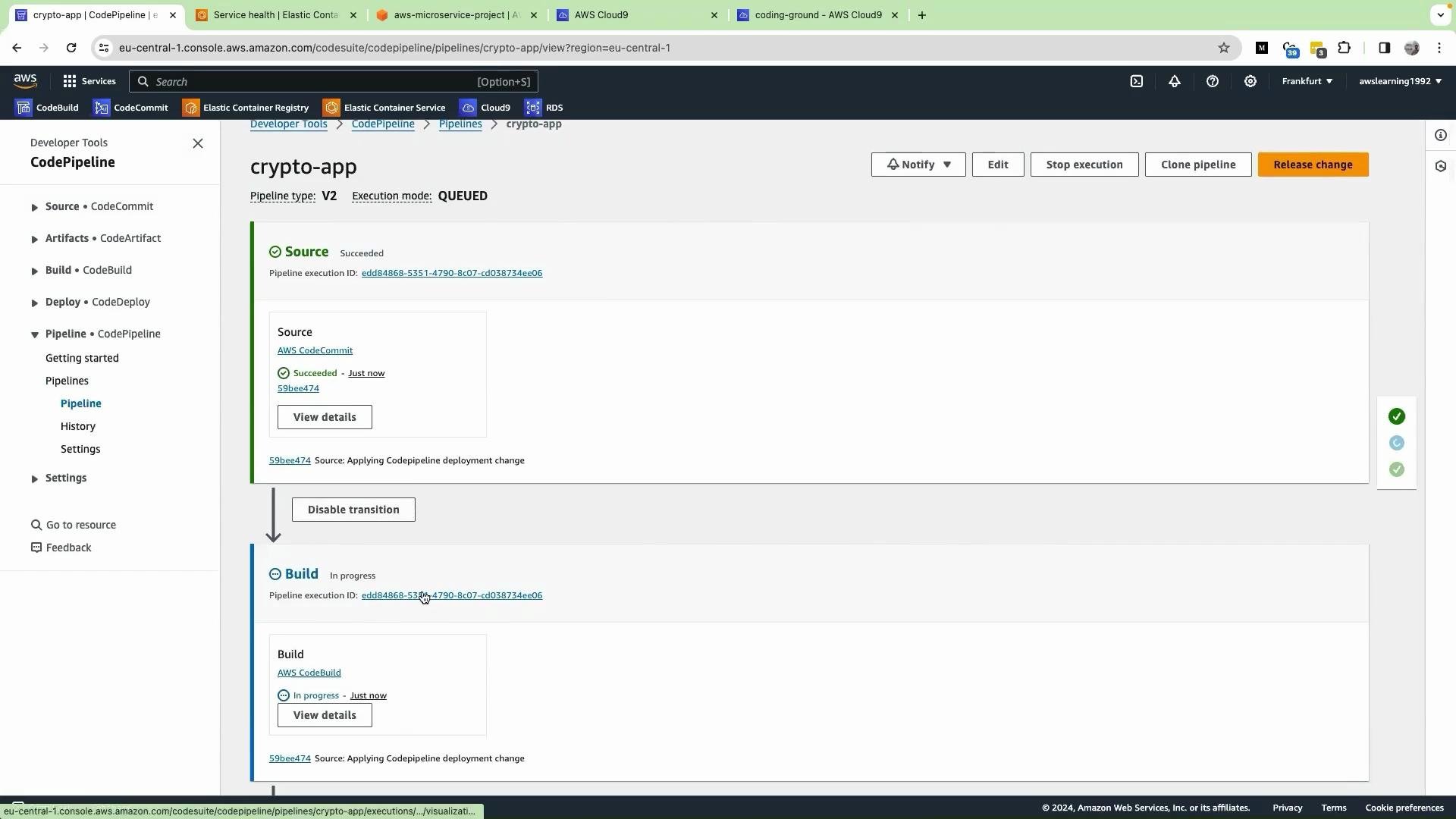
CodePipeline will automatically start a new execution and progress through Source → Build → Deploy.
## 2) Update the buildspec so CodeBuild produces the required artifact
CodePipeline’s ECS deploy action consumes an artifact named `imagedefinitions.json`. Update the `buildspec.yml` in your Cloud9 (or local) editor to:
* authenticate to ECR,
* build and push the image (tagged by commit hash),
* write the `imagedefinitions.json` artifact,
* replace a placeholder in the ECS task definition, and
* register an updated task definition (optional but useful).
Use this concise buildspec:
```yaml theme={null}
# buildspec.yml
version: 0.2
phases:
pre_build:
commands:
- echo "Starting pre_build..."
- export REPOSITORY_URI=666234738044.dkr.ecr.eu-central-1.amazonaws.com/cryptoproject
- export REGISTRY=$(echo $REPOSITORY_URI | cut -d'/' -f1)
- aws --version
- echo "Logging in to Amazon ECR..."
- $(aws ecr get-login-password --region $AWS_DEFAULT_REGION | docker login --username AWS --password-stdin $REGISTRY)
- export COMMIT_HASH=$(echo $CODEBUILD_RESOLVED_SOURCE_VERSION | cut -c 1-7)
- export IMAGE_TAG=${COMMIT_HASH:-latest}
- export CONTAINER_NAME="kodekloud-crypto-coin"
build:
commands:
- echo "Build started on $(date)"
- docker build -t $REPOSITORY_URI:$IMAGE_TAG .
- docker push $REPOSITORY_URI:$IMAGE_TAG
- docker tag $REPOSITORY_URI:$IMAGE_TAG $REPOSITORY_URI:latest
- docker push $REPOSITORY_URI:latest
- echo "Build finished on $(date)"
post_build:
commands:
- echo "Writing image definitions file..."
- printf '[{"name":"%s","imageUri":"%s"}]' "$CONTAINER_NAME" "$REPOSITORY_URI:$IMAGE_TAG" > imagedefinitions.json
- sed -i "s|REPOSITORY_URI_PLACEHOLDER|$REPOSITORY_URI:${IMAGE_TAG}|g" task-definition.json
- aws ecs register-task-definition --cli-input-json file://task-definition.json
artifacts:
files:
- imagedefinitions.json
```
The ECS deploy action expects `imagedefinitions.json` to be an array of objects with `name` (container name) and `imageUri` (image URI including the tag). Example: `[{"name":"your-container-name","imageUri":"/:"}]`.
## 3) Commit, push, and validate the pipeline run
After editing your app (for example, changing the login page text), commit and push the changes to trigger the pipeline:
```bash theme={null}
git add .
git commit -m "CodePipeline deployment change"
git push origin master
```
CodePipeline will automatically start a new execution and progress through Source → Build → Deploy.
 ### What to look for in CodeBuild logs
In the Build stage logs you should see entries that indicate the `imagedefinitions.json` file is created and the task definition is registered, similar to:
```text theme={null}
[Container] 2024/03/24 13:46:02.036 Running command echo 'Writing image definitions file...'
[Container] 2024/03/24 13:46:02.036 Running command printf '[{"name":"kodekloud-crypto-coin","imageUri":"%s"}]' $REPOSITORY_URI:$IMAGE_TAG > imagedefinitions.json
[Container] 2024/03/24 13:46:02.043 Running command sed -i "s|REPOSITORY_URI_PLACEHOLDER|${REPOSITORY_URI}:${IMAGE_TAG}|g" task-definition.json
[Container] 2024/03/24 13:46:02.052 Running command aws ecs register-task-definition --cli-input-json file://task-definition.json
```
## 4) Observe ECS deployment and health
Once the Deploy stage starts, ECS will create a new deployment and start tasks using the pushed image. Monitor the ECS console for task activity, health checks, and load balancer status.
### What to look for in CodeBuild logs
In the Build stage logs you should see entries that indicate the `imagedefinitions.json` file is created and the task definition is registered, similar to:
```text theme={null}
[Container] 2024/03/24 13:46:02.036 Running command echo 'Writing image definitions file...'
[Container] 2024/03/24 13:46:02.036 Running command printf '[{"name":"kodekloud-crypto-coin","imageUri":"%s"}]' $REPOSITORY_URI:$IMAGE_TAG > imagedefinitions.json
[Container] 2024/03/24 13:46:02.043 Running command sed -i "s|REPOSITORY_URI_PLACEHOLDER|${REPOSITORY_URI}:${IMAGE_TAG}|g" task-definition.json
[Container] 2024/03/24 13:46:02.052 Running command aws ecs register-task-definition --cli-input-json file://task-definition.json
```
## 4) Observe ECS deployment and health
Once the Deploy stage starts, ECS will create a new deployment and start tasks using the pushed image. Monitor the ECS console for task activity, health checks, and load balancer status.
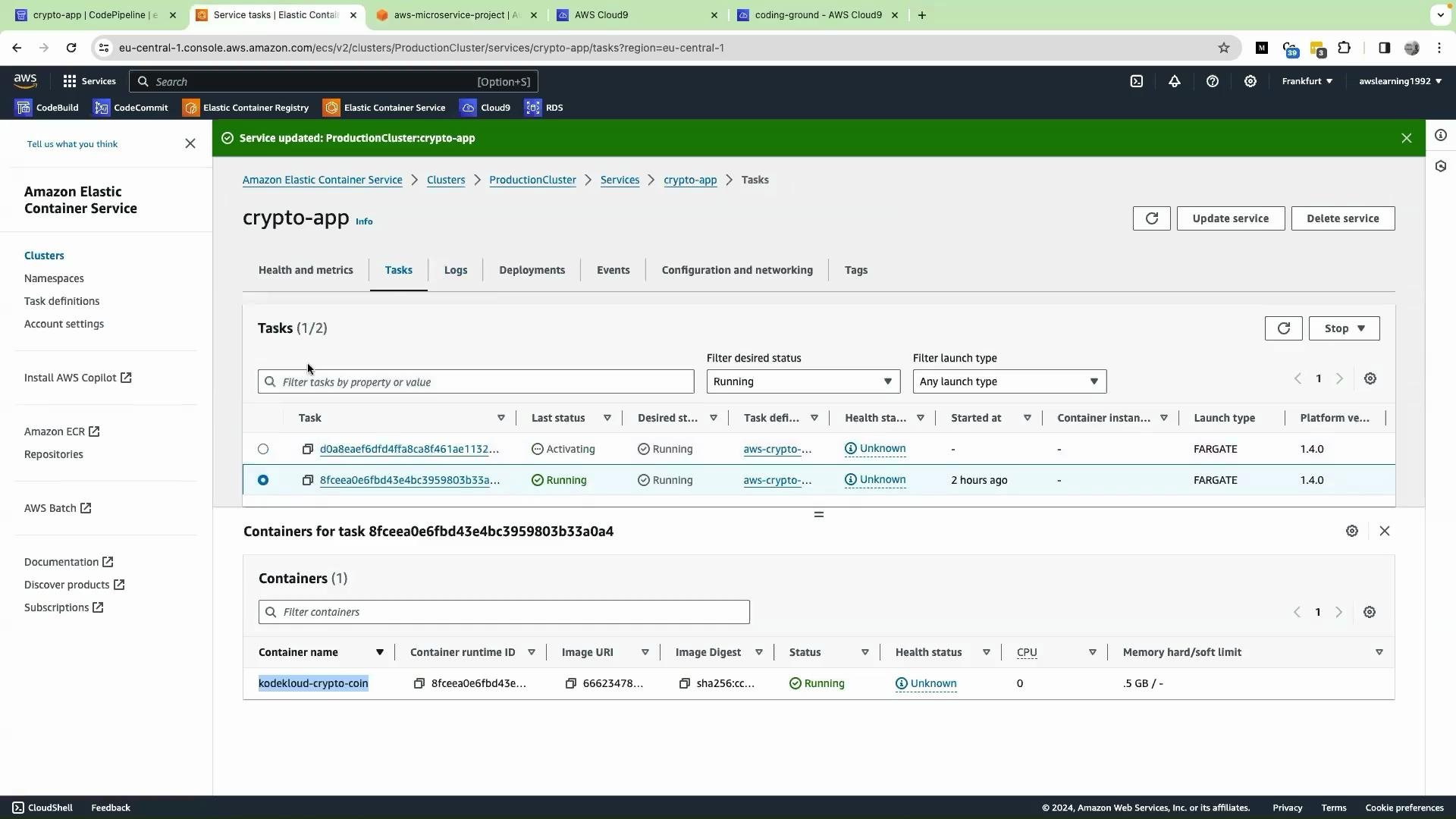
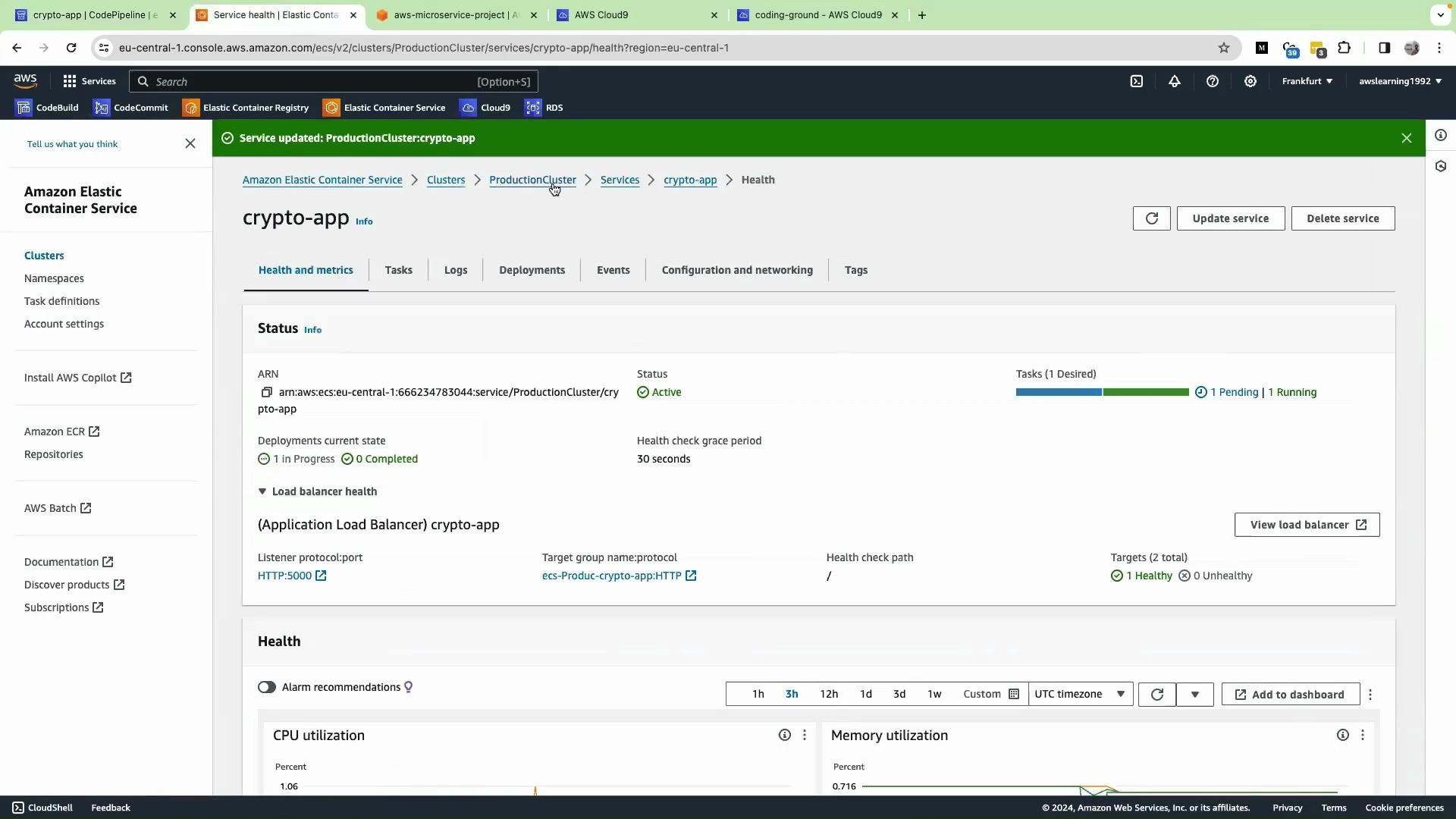
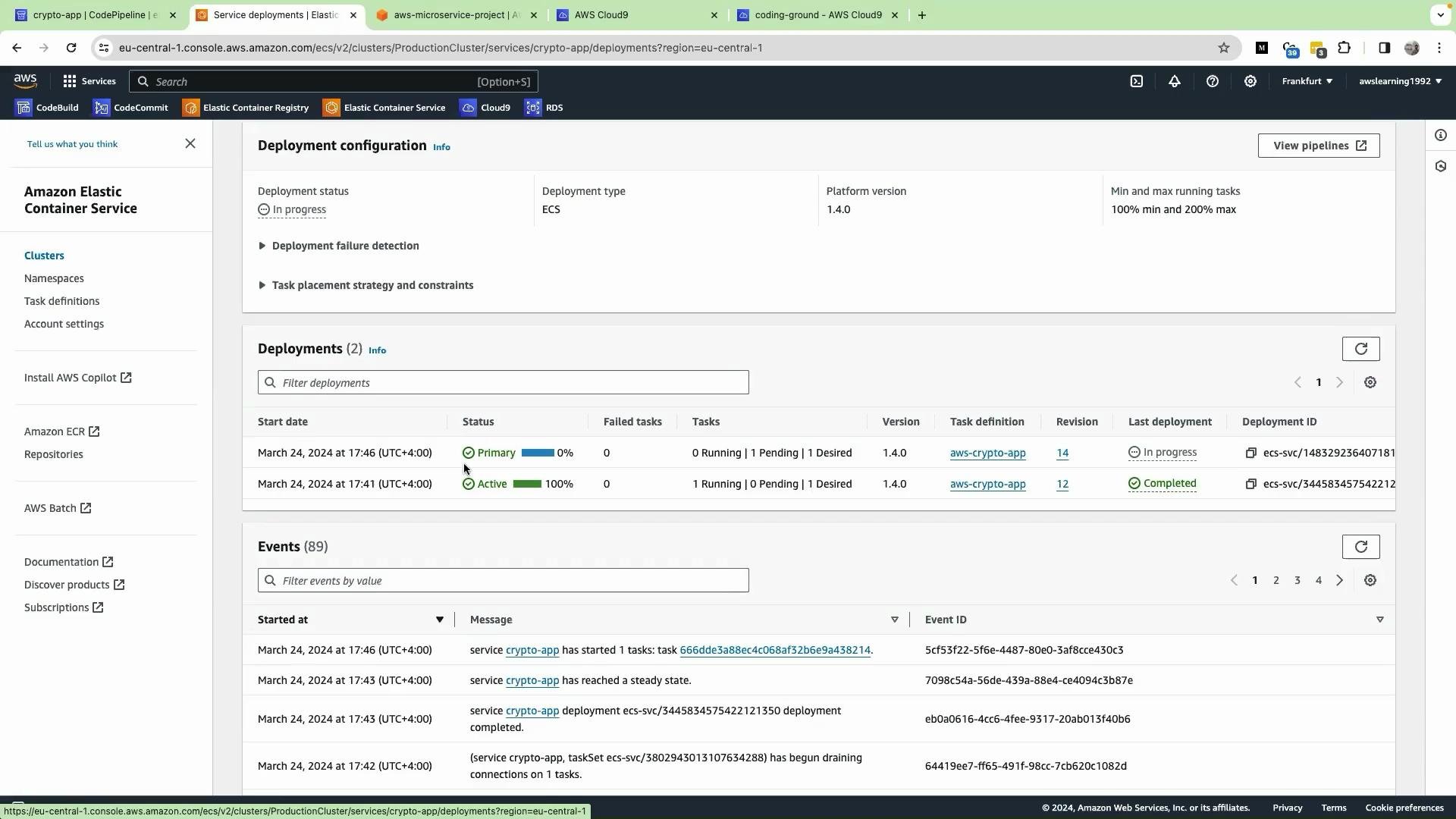 Open the Tasks view to confirm new tasks are launching and old ones are draining. ECS’s rolling update strategy will replace tasks gradually and — if configured — automatically roll back failed deployments. After deployment completes, retrieve the load balancer DNS and verify the app (for example, confirm the updated login text).
## 5) Inspect the imagedefinitions.json artifact and commits
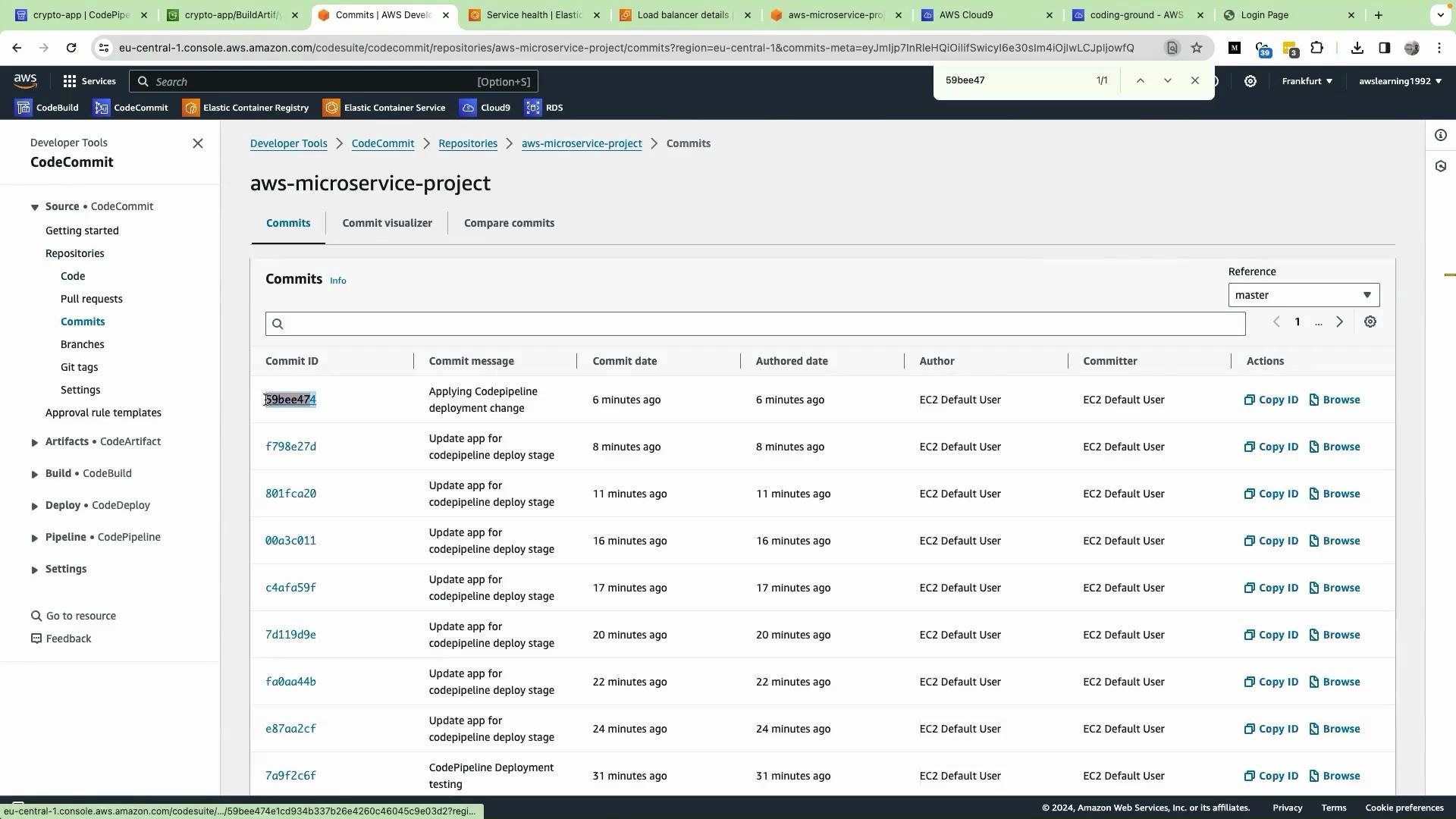
The `imagedefinitions.json` produced by the Build stage is stored in the CodePipeline artifact S3 bucket. You can download the artifact from the pipeline’s artifacts to inspect it. The file contains entries with container names and the image URIs (including commit tag). Example:
```json theme={null}
[
{
"name": "kodekloud-crypto-coin",
"imageUri": "666234738044.dkr.ecr.eu-central-1.amazonaws.com/cryptoproject:59bee47"
}
]
```
Validate the commit hash in CodeCommit by viewing the repository’s commits:
Open the Tasks view to confirm new tasks are launching and old ones are draining. ECS’s rolling update strategy will replace tasks gradually and — if configured — automatically roll back failed deployments. After deployment completes, retrieve the load balancer DNS and verify the app (for example, confirm the updated login text).
## 5) Inspect the imagedefinitions.json artifact and commits
The `imagedefinitions.json` produced by the Build stage is stored in the CodePipeline artifact S3 bucket. You can download the artifact from the pipeline’s artifacts to inspect it. The file contains entries with container names and the image URIs (including commit tag). Example:
```json theme={null}
[
{
"name": "kodekloud-crypto-coin",
"imageUri": "666234738044.dkr.ecr.eu-central-1.amazonaws.com/cryptoproject:59bee47"
}
]
```
Validate the commit hash in CodeCommit by viewing the repository’s commits:
 ## Quick reference
| Item | Purpose | Example / Note |
| ---------------------------------------- | ------------------------------------------------------------ | ------------------------------------------------------------------------------- |
| Artifact consumed by ECS deploy | Informs CodePipeline/ECS which container to update | `imagedefinitions.json` |
| `imagedefinitions.json` format | Array of container objects | `[{"name":"kodekloud-crypto-coin","imageUri":"/:"}]` |
| Task definition registration | Optional step in buildspec to register a new task definition | `aws ecs register-task-definition --cli-input-json file://task-definition.json` |
| Recommended provider for rolling updates | Use Amazon ECS provider in CodePipeline | Do not use ECR Blue/Green unless you intend that model |
## Summary
* Add a Deploy stage in CodePipeline and select **Amazon ECS** as the provider.
* Update `buildspec.yml` so CodeBuild builds/pushes the image and emits `imagedefinitions.json`.
* Commit and push changes to your source repository to trigger an automated pipeline run.
* Inspect CodeBuild logs, the `imagedefinitions.json` artifact in S3, and ECS console to confirm rolling deployment.
* The full flow is automated: push → build → deploy, with ECS managing rolling updates and optional rollback.
Further reading and references:
* [AWS CodePipeline Documentation](https://docs.aws.amazon.com/codepipeline/latest/userguide/welcome.html)
* [Amazon ECS Deploy Action in CodePipeline](https://docs.aws.amazon.com/codepipeline/latest/userguide/action-reference-ECS.html)
* [AWS CodeBuild Buildspec Reference](https://docs.aws.amazon.com/codebuild/latest/userguide/build-spec-ref.html)
Congratulations — you now have an end-to-end automated deployment pipeline for your crypto-app using CodeCommit, CodeBuild, CodePipeline, ECR, and ECS.
## Quick reference
| Item | Purpose | Example / Note |
| ---------------------------------------- | ------------------------------------------------------------ | ------------------------------------------------------------------------------- |
| Artifact consumed by ECS deploy | Informs CodePipeline/ECS which container to update | `imagedefinitions.json` |
| `imagedefinitions.json` format | Array of container objects | `[{"name":"kodekloud-crypto-coin","imageUri":"/:"}]` |
| Task definition registration | Optional step in buildspec to register a new task definition | `aws ecs register-task-definition --cli-input-json file://task-definition.json` |
| Recommended provider for rolling updates | Use Amazon ECS provider in CodePipeline | Do not use ECR Blue/Green unless you intend that model |
## Summary
* Add a Deploy stage in CodePipeline and select **Amazon ECS** as the provider.
* Update `buildspec.yml` so CodeBuild builds/pushes the image and emits `imagedefinitions.json`.
* Commit and push changes to your source repository to trigger an automated pipeline run.
* Inspect CodeBuild logs, the `imagedefinitions.json` artifact in S3, and ECS console to confirm rolling deployment.
* The full flow is automated: push → build → deploy, with ECS managing rolling updates and optional rollback.
Further reading and references:
* [AWS CodePipeline Documentation](https://docs.aws.amazon.com/codepipeline/latest/userguide/welcome.html)
* [Amazon ECS Deploy Action in CodePipeline](https://docs.aws.amazon.com/codepipeline/latest/userguide/action-reference-ECS.html)
* [AWS CodeBuild Buildspec Reference](https://docs.aws.amazon.com/codebuild/latest/userguide/build-spec-ref.html)
Congratulations — you now have an end-to-end automated deployment pipeline for your crypto-app using CodeCommit, CodeBuild, CodePipeline, ECR, and ECS.