> ## Documentation Index
> Fetch the complete documentation index at: https://notes.kodekloud.com/llms.txt
> Use this file to discover all available pages before exploring further.
# Demo Using Consul Template to monitor Changes to Consul KV
> Step-by-step guide to pull dynamic configuration from Consul K/V store using Consul Template.
***
title: "Using Consul Template to Monitor Changes in Consul K/V"
description: "Step-by-step guide to pull dynamic configuration from Consul K/V store using Consul Template."
------------------------------------------------------------------------------------------------------------
In this tutorial, you'll learn how to leverage Consul Template to dynamically fetch configuration values from a Consul K/V store and generate application configuration files automatically. This approach ensures your application configs stay in sync with the latest Consul K/V entries.
## 1. Populate Consul K/V Store
First, add the required key-value pairs for our eCommerce application. You can verify these entries in Consul UI or via CLI.
| Key | Value | Description |
| ----------------------------- | ------------ | --------------------------------- |
| apps/eCommerce/version | 4.5 | Current application version |
| apps/eCommerce/environment | production | Deployment environment |
| apps/eCommerce/database\_host | customer\_db | Hostname of the customer database |
| apps/eCommerce/database | billing | Database name for billing service |
Run the following commands:
```bash theme={null}
consul kv put apps/eCommerce/version 4.5
consul kv put apps/eCommerce/environment production
consul kv put apps/eCommerce/database_host customer_db
consul kv put apps/eCommerce/database billing
```
## 2. Download and Install Consul Template
Head over to the [Consul Template releases](https://releases.hashicorp.com/consul-template/) page and copy the link for your platform.
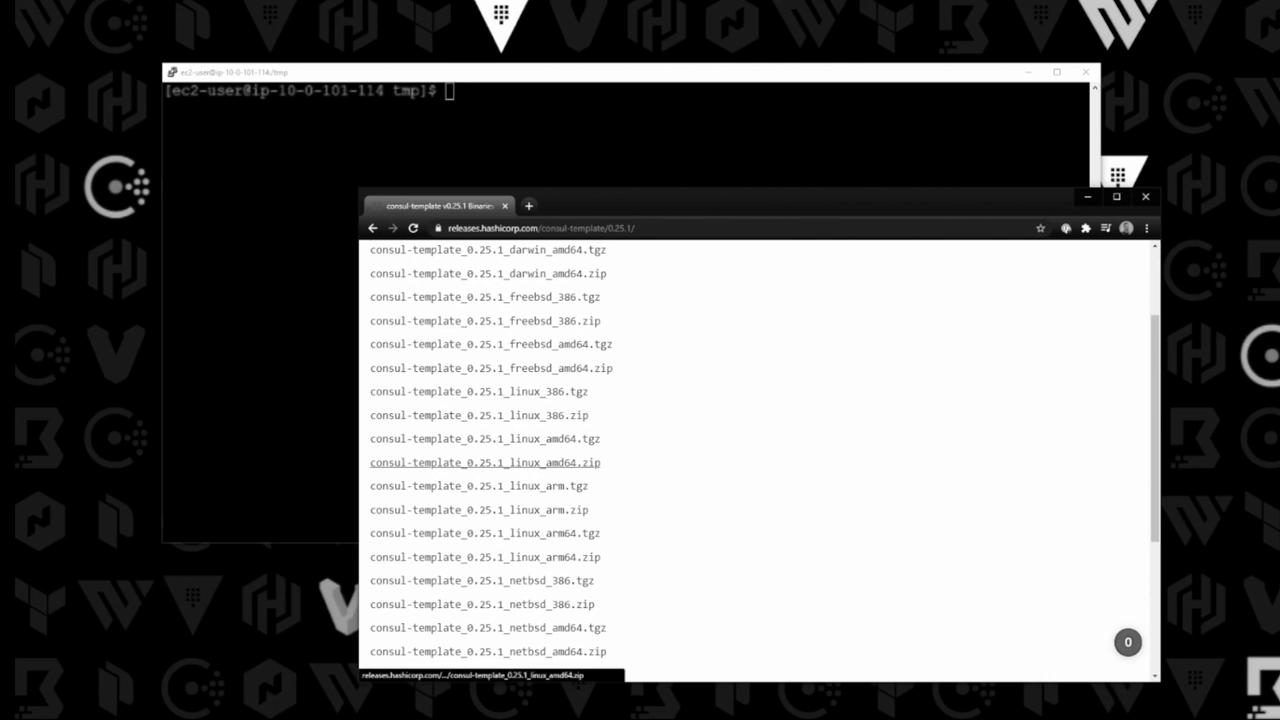
Make sure to choose the correct architecture (e.g., linux\_amd64) from the release page.
Install and verify:
```bash theme={null}
curl -sLo /tmp/consul-template.zip \
https://releases.hashicorp.com/consul-template/0.25.1/consul-template_0.25.1_linux_amd64.zip
unzip /tmp/consul-template.zip -d /tmp
sudo mv /tmp/consul-template /usr/local/bin/
consul-template -v
# Expected output: consul-template v0.25.1
```
## 3. Create a Template File
Define your template with placeholders that map to the Consul K/V keys:
```bash theme={null}
cat << 'EOF' > config.json.tmpl
{
"environment": "{{ key "apps/eCommerce/environment" }}",
"version": "{{ key "apps/eCommerce/version" }}",
"database_host": "{{ key "apps/eCommerce/database_host" }}",
"database_name": "{{ key "apps/eCommerce/database" }}"
}
EOF
```
Each `{{ key "..." }}` snippet instructs Consul Template to fetch the corresponding value at render time.
## 4. Render the Template
Use the `-once` flag for a single render, or run without it to watch for changes:
```bash theme={null}
consul-template -template "config.json.tmpl:config.json" -once
```
Using `-once` renders the file a single time and then exits. Remove `-once` to keep watching for updates.
Verify the output:
```bash theme={null}
ls
cat config.json
```
```json theme={null}
{
"environment": "production",
"version": "4.5",
"database_host": "customer_db",
"database_name": "billing"
}
```
## 5. Next Steps
In production, run Consul Template as a service or sidecar to continuously monitor your K/V store. This ensures that any update in Consul is immediately reflected in your application’s configuration.
***
## Links and References
* [Consul Template Documentation](https://www.consul.io/docs/agent/templates)
* [Consul K/V Store Overview](https://www.consul.io/docs/agent/kv)
* [HashiCorp Consul Template Releases](https://releases.hashicorp.com/consul-template/)