> ## Documentation Index
> Fetch the complete documentation index at: https://notes.kodekloud.com/llms.txt
> Use this file to discover all available pages before exploring further.
# Using Consul Watch to Monitor Changes
> This article explains how to use Consul Watch to monitor changes in the Key/Value store and trigger actions based on updates.
When your configuration lives in Consul’s Key/Value store, you need an automated way to detect updates and react. Consul Watch is a built-in feature that continuously observes changes—whether in KV entries, service registration, node health, or custom events—and triggers handlers when updates occur.
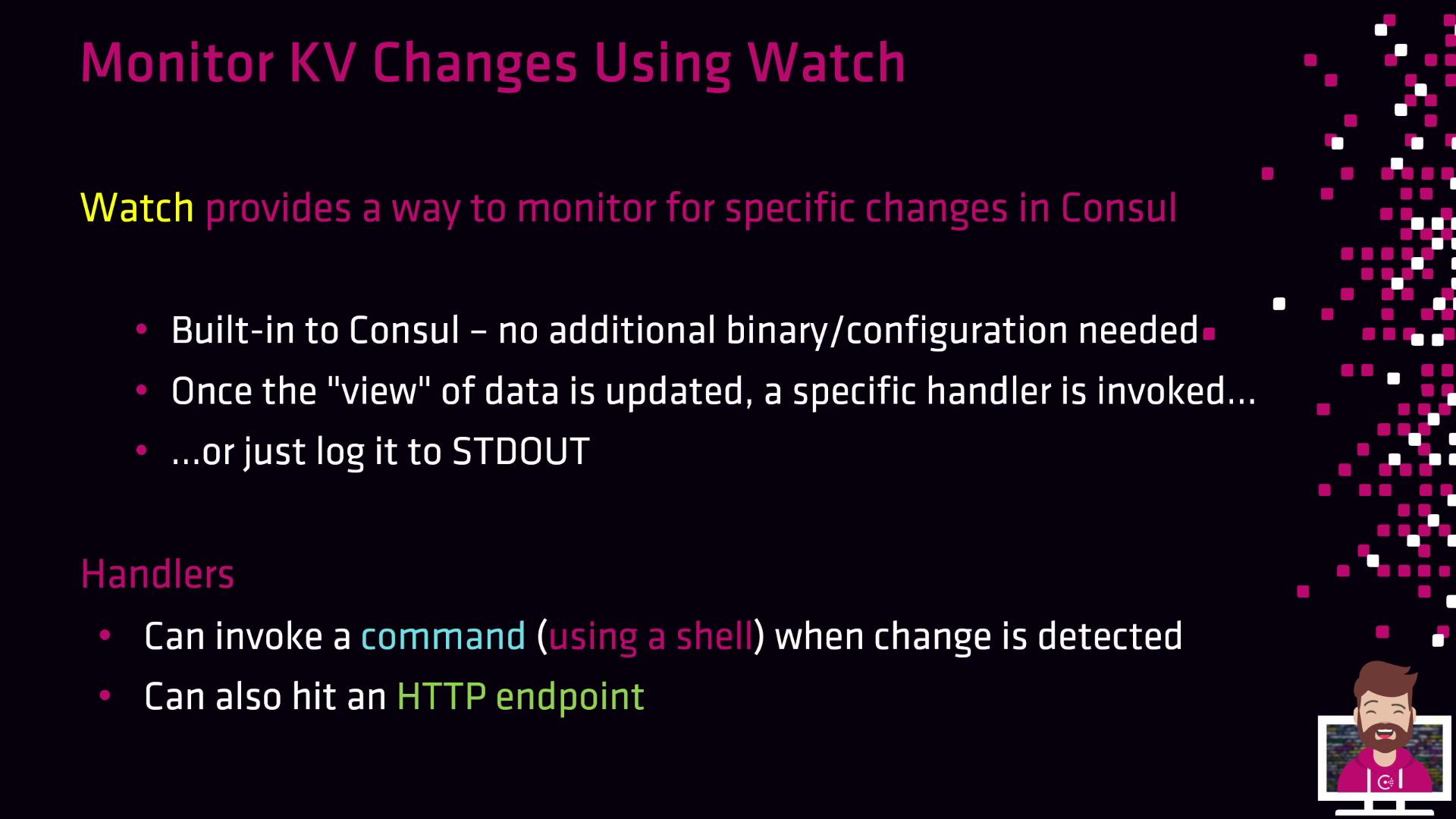
Consul Watch runs entirely inside the agent—no extra binaries or plugins required. When a watched resource changes, you can:
* Log the event for downstream processing by log-collection tools.
* Execute a shell command or custom script via the `script` handler.
* Send an HTTP request to an API, webhook, or service endpoint via the `http` handler.
Ensure your handler scripts have executable permissions (e.g., `chmod +x /path/to/script.sh`), and verify that the Consul agent user can invoke them.
Next, let’s review the watch types available out of the box.
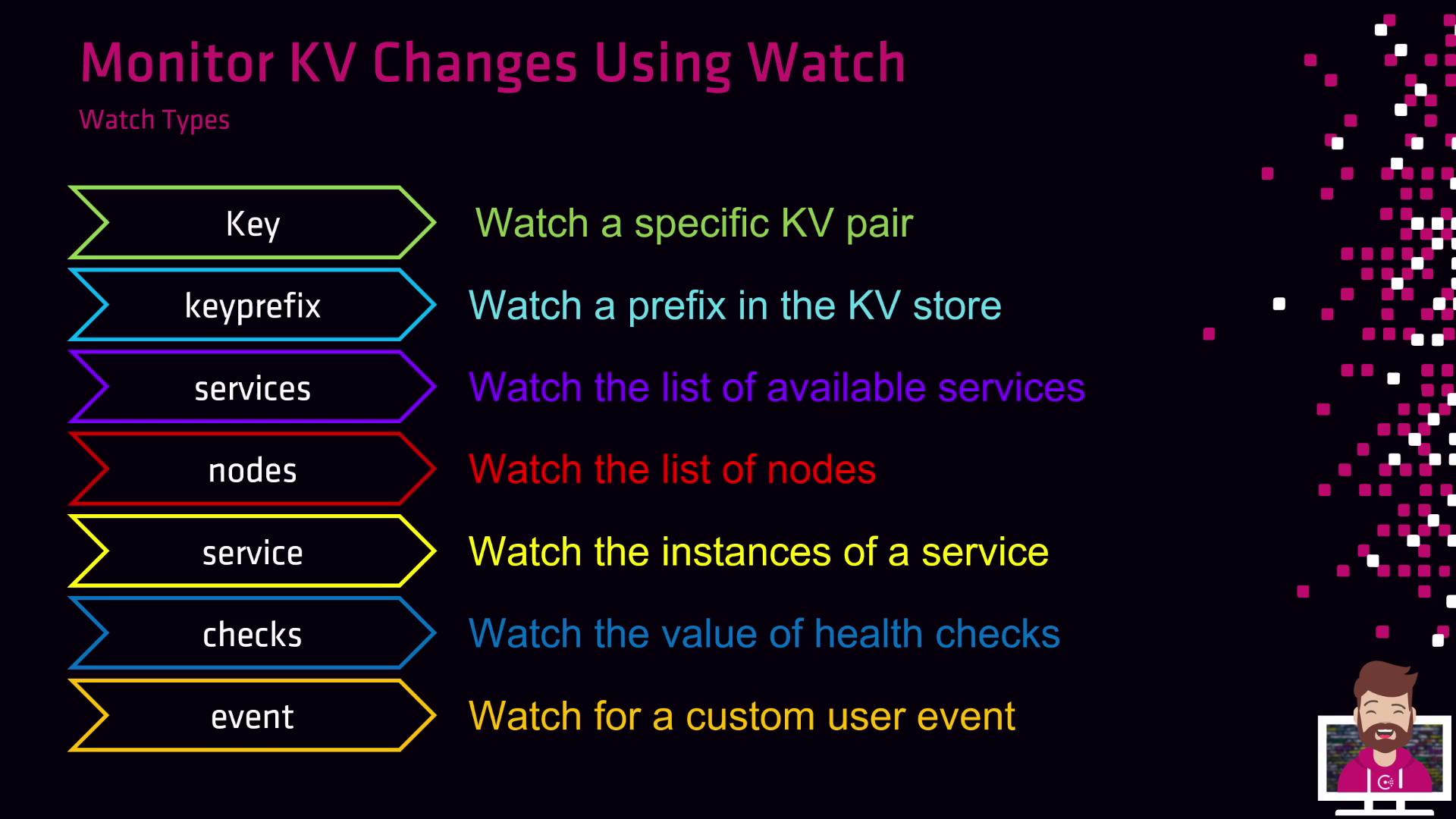
| Watch Type | Description |
| ---------- | --------------------------------------- |
| key | Watch a single key-value entry |
| keyprefix | Watch all keys under a specified prefix |
| services | Monitor the list of registered services |
| nodes | Monitor the list of cluster nodes |
| service | Monitor instances of a specific service |
| checks | Monitor the state of health checks |
| event | Watch for custom user-triggered events |
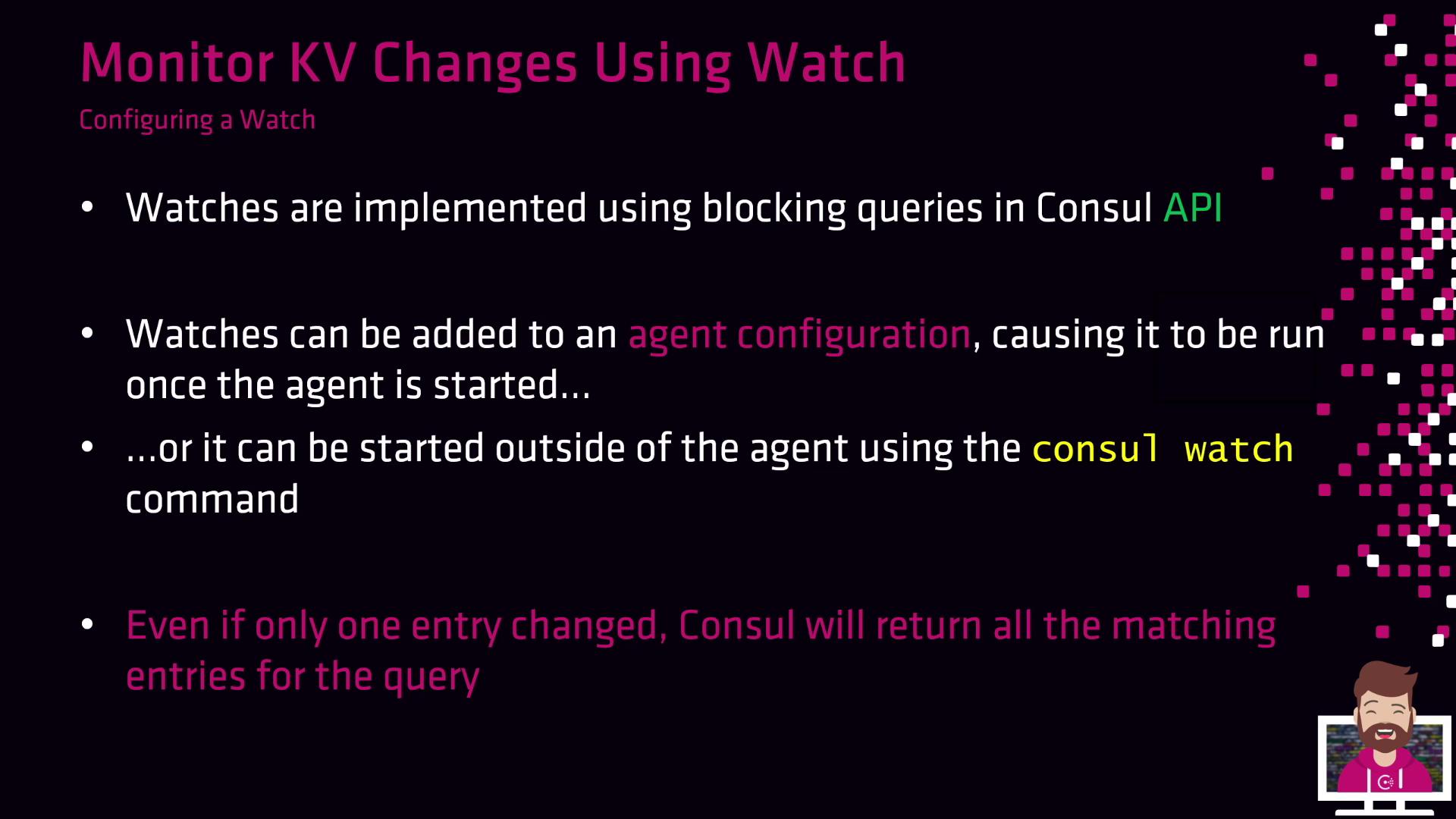
Under the hood, Consul Watch leverages the [blocking query](https://www.consul.io/docs/agent/concepts/blocking) feature of the HTTP API. You can configure and run watches in two ways:
1. In the agent’s JSON configuration file
2. With the `consul watch` CLI command
## 1. Configure a Watch in the Agent Configuration
Edit your Consul agent’s JSON config (e.g., `/etc/consul.d/agent.json`) and add a `watches` block:
```json theme={null}
{
"watches": [
{
"type": "key",
"key": "prod/database/mysql",
"handler_type": "script",
"args": ["/usr/bin/update_database_creds.sh"]
}
]
}
```
After saving, restart or reload the Consul agent:
```bash theme={null}
consul reload
```
## 2. Start a Watch from the Command Line
You can also spin up a watch on the fly without touching config files:
```bash theme={null}
consul watch -type=key \
-key=prod/database/mysql \
/usr/bin/update_database_creds.sh
```
Now, whenever the `prod/database/mysql` KV entry changes, Consul Watch executes your script—automatically rolling out updated credentials to your application.
## Related Resources
* [Consul Watches Documentation](https://www.consul.io/docs/agent/watches)
* [Consul Agent Configuration](https://www.consul.io/docs/configuration/agent)
* [Blocking Queries Overview](https://www.consul.io/docs/agent/concepts/blocking)