> ## Documentation Index
> Fetch the complete documentation index at: https://notes.kodekloud.com/llms.txt
> Use this file to discover all available pages before exploring further.
# Start the Consul Process
> This guide explains how to install and start the Consul process on your machine or server.
This guide walks you through the essential workflow for getting Consul up and running on your machine or server. You’ll learn how to:
1. Download and install the Consul CLI
2. Create configuration files
3. Launch the Consul agent (service or manual)
4. Run Consul in development mode
***
## 1. Download and Install Consul
Visit the Consul releases page to download the appropriate binaries for your operating system:
[Consul Releases](https://releases.hashicorp.com/consul)
If you have a Consul Enterprise license, be sure to select the enterprise package instead of the open-source edition.
1. Unzip the downloaded archive.
2. Move the `consul` binary into your `$PATH`. For example, on Linux:
```bash theme={null}
sudo mv consul /usr/local/bin/
```
3. Verify the installation:
```bash theme={null}
consul version
```
***
## 2. Create Consul Configuration
Consul supports HCL files and CLI flags. You can use a single file or a directory of files.
### Single File vs. Configuration Directory
| Method | Command | Description |
| -------------------- | --------------------------------------- | -------------------------------------- |
| Single file | `-config-file=/etc/consul.d/config.hcl` | Load one HCL file |
| Configuration folder | `-config-dir=/etc/consul.d/` | Load all `.hcl` files in the directory |
Example directory structure when using a folder:
```text theme={null}
/etc/consul.d
├── config.hcl
├── metadata.hcl
└── service.hcl
```
Mixing CLI flags and configuration files can lead to unexpected overrides. Prefer HCL files for production setups.
***
## 3. Start the Consul Agent
In production environments, run Consul under a service manager (e.g., systemd on Linux). Create a unit file like this:
```ini theme={null}
[Unit]
Description=Consul Agent
After=network.target
[Service]
ExecStart=/usr/local/bin/consul agent -config-dir=/etc/consul.d/
Restart=on-failure
[Install]
WantedBy=multi-user.target
```
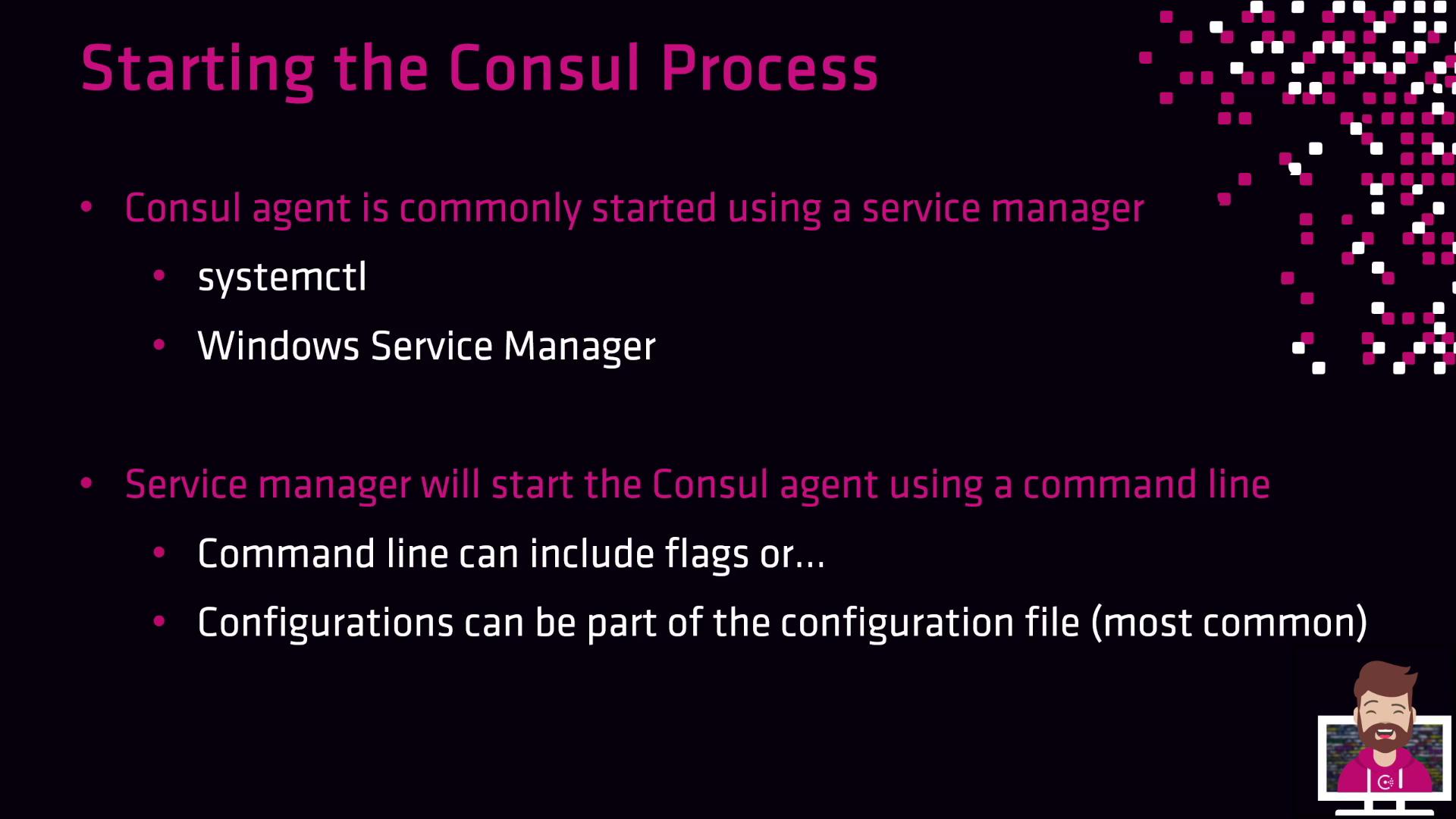
Alternatively, launch the agent manually with custom flags:
```bash theme={null}
consul agent \
-datacenter="aws" \
-bind="10.0.10.42" \
-data-dir="/opt/consul" \
-encrypt="" \
-retry-join="10.0.10.64,10.4.23.98"
```
| Flag | Description | Example |
| ------------- | -------------------------- | ----------------------- |
| `-datacenter` | Name of your datacenter | `aws` |
| `-bind` | Address for RPC and gossip | `10.0.10.42` |
| `-data-dir` | Path to store Consul data | `/opt/consul` |
| `-encrypt` | Gossip encryption key | `` |
| `-retry-join` | Peers for initial join | `10.0.10.64,10.4.23.98` |
***
## 4. Development Mode
For quick testing or demos, start Consul in development mode. **This is not recommended for production.**
```bash theme={null}
consul agent -dev
```
* Runs entirely in memory (no disk persistence)
* Enables Connect (service mesh) on port `8502`
* Suitable for single-node experiments
To stop the dev agent, press `Ctrl+C`.
***
Now you have the basics: installing Consul, writing configurations, and starting the agent in both production and development modes. Next up: service registration and health checks.
***
## Links and References
* [Consul Documentation](https://www.consul.io/docs)
* [HashiCorp Releases](https://releases.hashicorp.com/)
* [Kubernetes Basics](https://kubernetes.io/docs/concepts/overview/what-is-kubernetes/)