> ## Documentation Index
> Fetch the complete documentation index at: https://notes.kodekloud.com/llms.txt
> Use this file to discover all available pages before exploring further.
# Demo Service Mesh
> This guide details deploying a sample application on a HashiCorp Consul Service Mesh, securing communication between microservices with sidecar proxies and managing traffic.
In this guide, we’ll deploy a sample application on a HashiCorp Consul Service Mesh. You’ll use Consul Connect to secure communication between two microservices—**dashboard** and **counting**—each with its own sidecar proxy. Finally, you’ll control traffic using Consul **intentions**.
Based on the [HashiCorp Learn tutorial on Consul Service Mesh](https://learn.hashicorp.com/tutorials/consul/service-mesh), we assume you have a Consul cluster with two server nodes and two web servers. We’ll:
1. Enable Consul Connect for TLS encryption
2. Register counting and dashboard services
3. Launch services with sidecar proxies
4. Verify mutual TLS traffic
5. Manage service intentions

## 1. Enable Consul Connect
First, activate Consul Connect on each server node so sidecar proxies can establish mutual TLS.
– Consul 1.7+ installed\
– Systemd or another init system\
– Network connectivity between nodes
Edit `/etc/consul.d/config.hcl` on **consul-node-a**:
```hcl theme={null}
# /etc/consul.d/config.hcl
log_level = "INFO"
node_name = "consul-node-a"
server = true
ui = true
leave_on_terminate = true
data_dir = "/etc/consul.d/data"
datacenter = "us-east-1"
client_addr = "0.0.0.0"
bind_addr = "10.0.101.110"
advertise_addr = "10.0.101.110"
retry_join = ["10.0.101.248"]
bootstrap_expect = 2
enable_syslog = true
connect {
enabled = true
performance {
raft_multiplier = 1
}
}
```
Save and restart Consul:
```bash theme={null}
sudo systemctl restart consul
```
Repeat on **consul-node-b**, adjusting `node_name`, `bind_addr`, `advertise_addr`, and `retry_join`. When both nodes are up, verify membership:
```bash theme={null}
consul members
```

## 2. Register and Configure Services
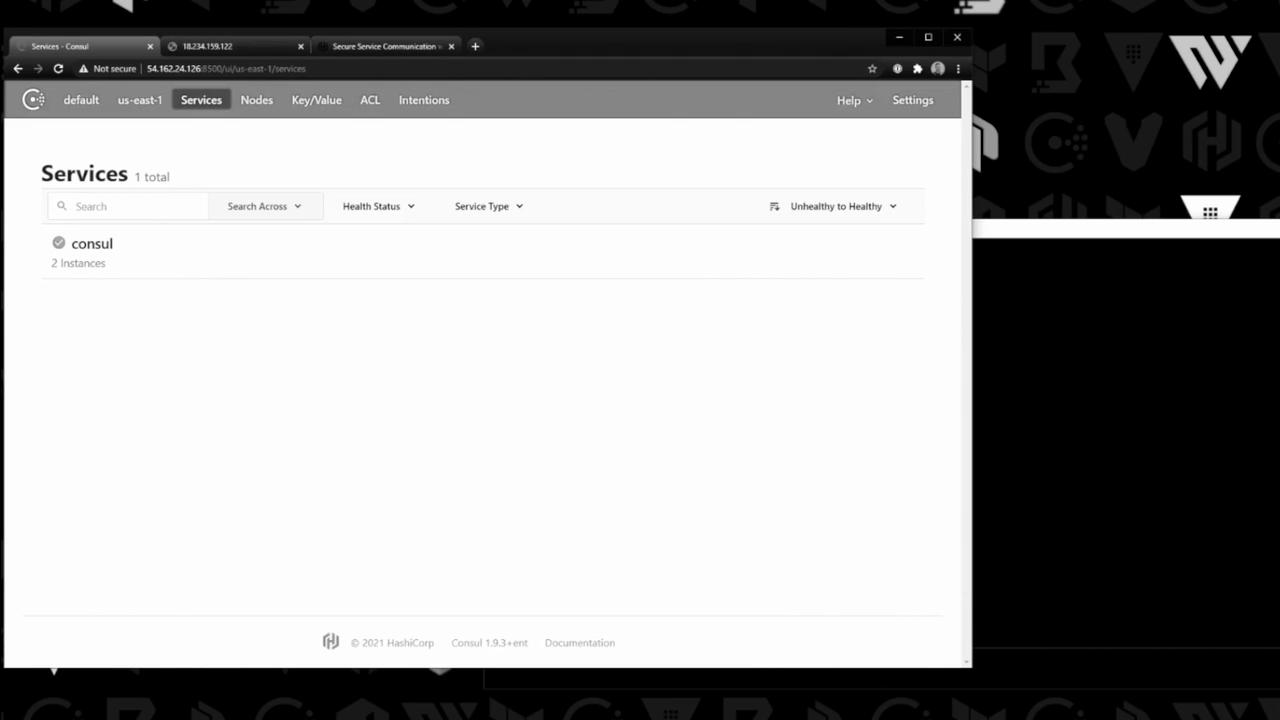
Now register the two application services on separate web servers:
| Service | Node | Port | Definition File |
| --------- | --------- | ---- | --------------- |
| counting | counting | 9003 | counting.hcl |
| dashboard | dashboard | 9002 | dashboard.hcl |
### 2.1 Counting Service
On the **counting** server, create `counting.hcl`:
```hcl theme={null}
# counting.hcl
node_name = "counting"
service {
name = "counting"
id = "counting-1"
port = 9003
connect {
sidecar_service {}
}
check {
id = "counting-check"
http = "http://localhost:9003/health"
method = "GET"
interval = "1s"
timeout = "1s"
}
}
```
Register it:
```bash theme={null}
consul services register counting.hcl
```
### 2.2 Dashboard Service
On the **dashboard** server, create `dashboard.hcl`:
```hcl theme={null}
# dashboard.hcl
node_name = "dashboard"
service {
name = "dashboard"
port = 9002
connect {
sidecar_service {
proxy {
upstreams = [
{
destination_name = "counting"
local_bind_port = 5000
}
]
}
}
}
check {
id = "dashboard-check"
http = "http://localhost:9002/health"
method = "GET"
interval = "15s"
timeout = "1s"
}
}
```
Register it:
```bash theme={null}
consul services register dashboard.hcl
```
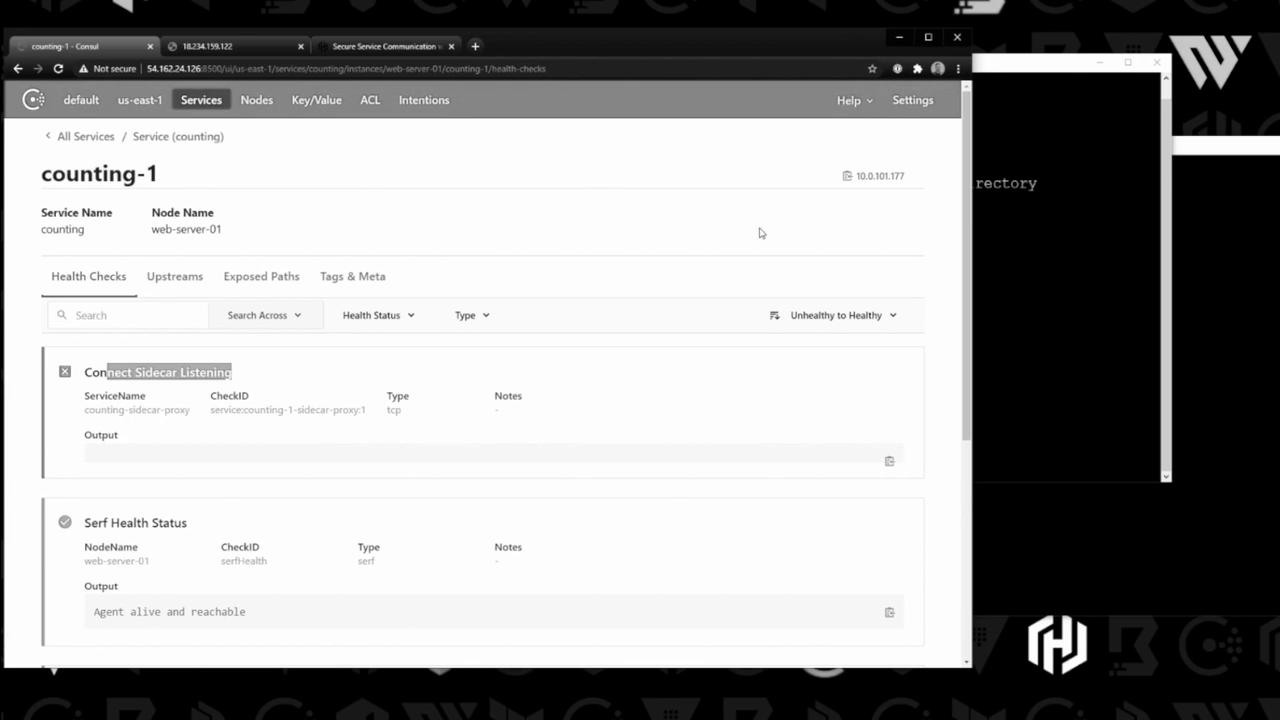
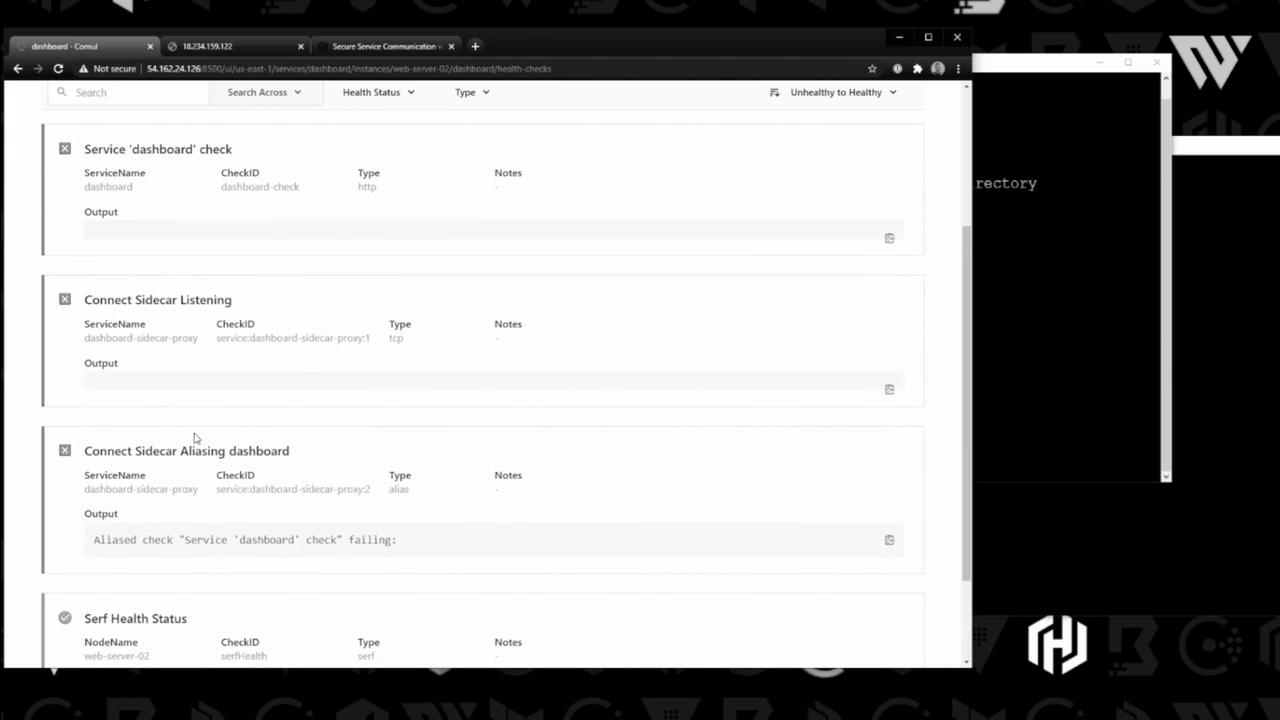
Services are registered immediately but not yet running—health checks will show “critical” until the application and proxy start.
## 3. Start Services and Sidecar Proxies
Launch each application and its sidecar proxy so traffic is routed via Consul Connect.
### 3.1 Counting Service & Proxy
On the **counting** server:
```bash theme={null}
export PORT=9003
./counting-service &
# Start Consul sidecar proxy for counting
consul connect proxy --sidecar-for counting-1 > counting-proxy.log &
```
Check the status in Consul’s UI:
### 3.2 Dashboard Service & Proxy
On the **dashboard** server:
```bash theme={null}
export PORT=9002
export COUNTING_SERVICE_URL="http://localhost:5000"
./dashboard-service &
# Start Consul sidecar proxy for dashboard
consul connect proxy --sidecar-for dashboard > dashboard-proxy.log &
```
Now both sidecars are active and enforce mTLS.
## 4. Verify Connectivity
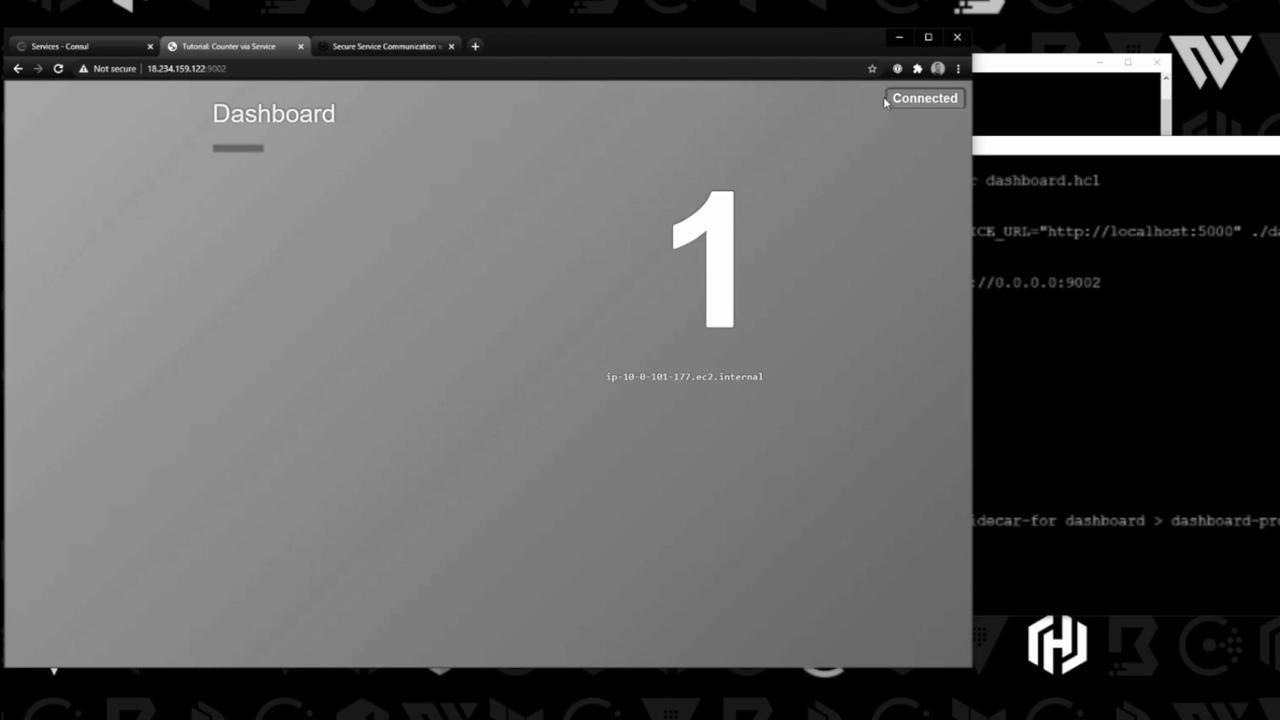
Open your browser to `http://:9002` and refresh the page. You should see the counter increment via the proxy:
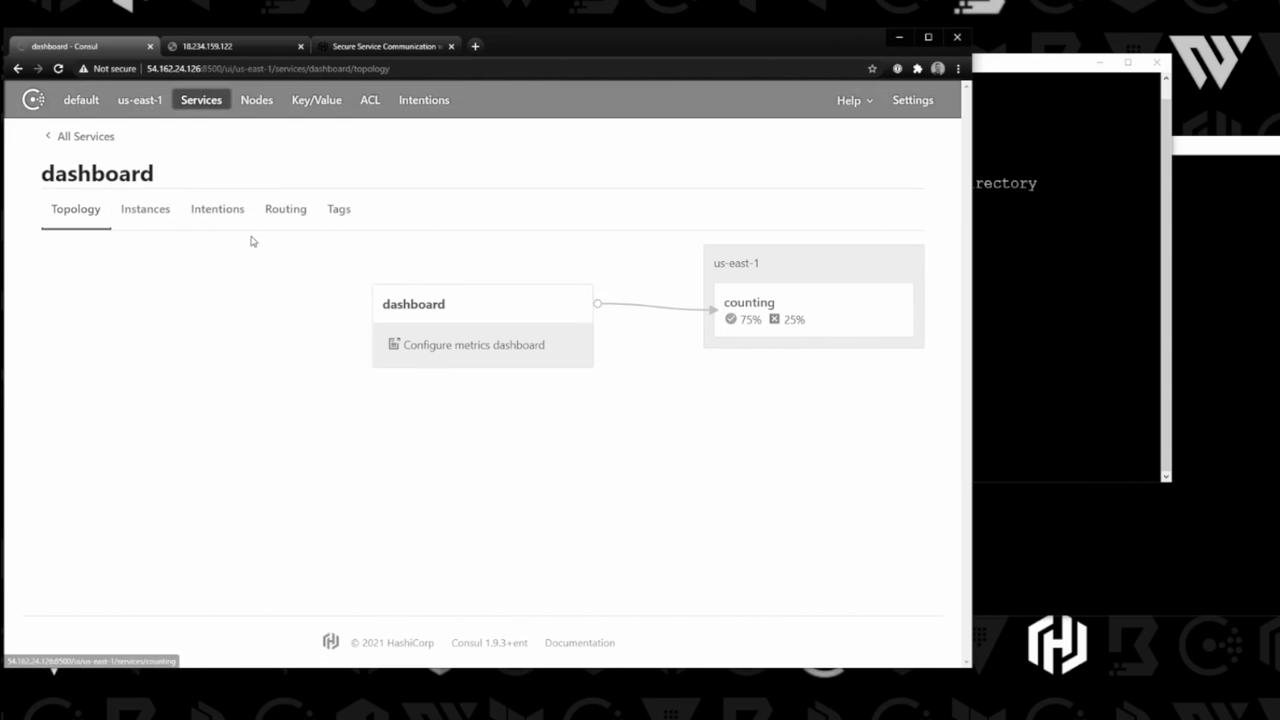
In the Consul UI you’ll also see the service topology and traffic distribution:
Monitor overall health checks:
## 5. Manage Intentions
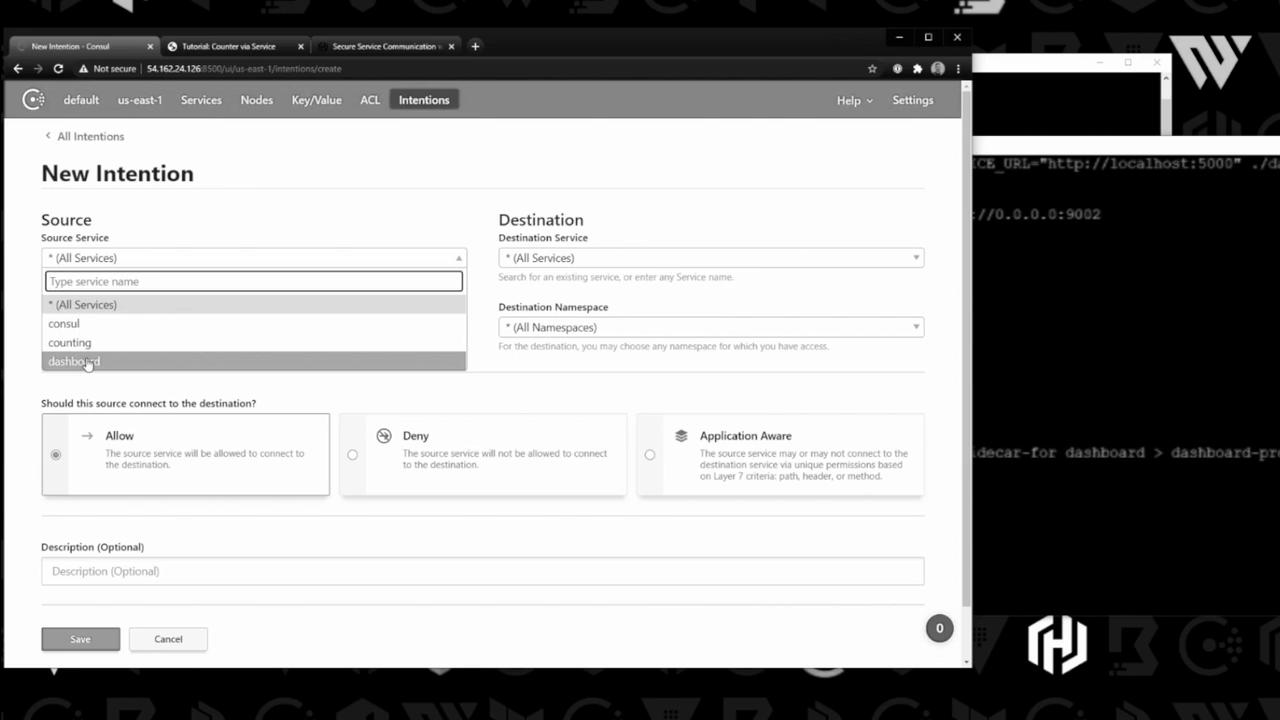
By default, Consul permits all service-to-service calls. Use **intentions** to enforce allow/deny policies.
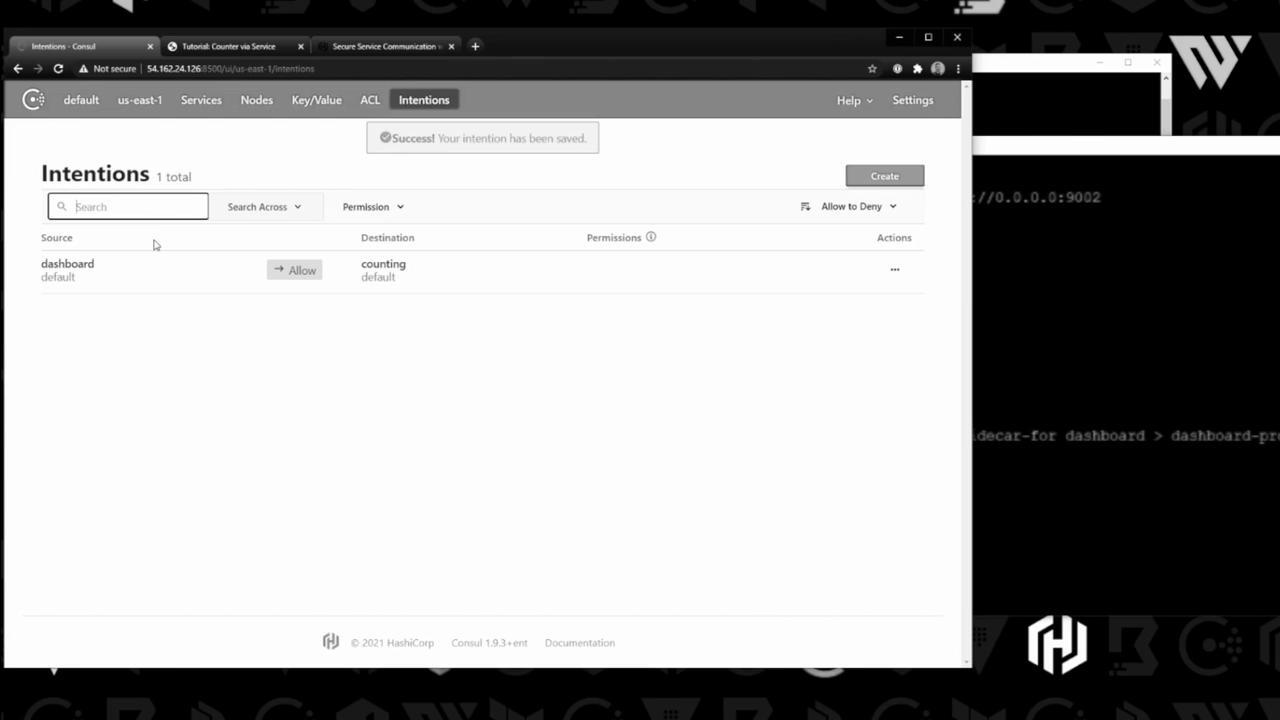
Create a new intention to allow **dashboard → counting**:
Once saved, you’ll see it in the UI:
To test a deny rule, switch the intention to **Deny**:
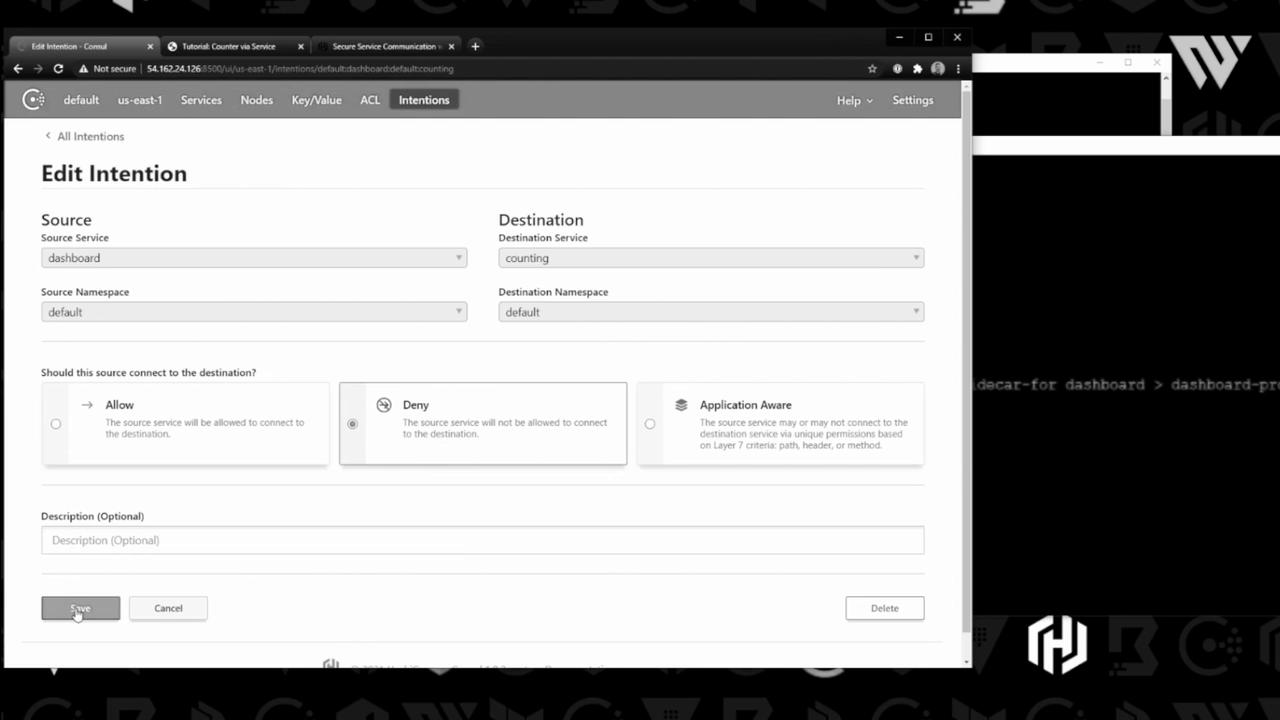
Save and refresh the dashboard—updates stop, confirming the proxy enforces your policy. Revert to **Allow** to resume traffic.
## Conclusion
You’ve successfully:
* Enabled **Consul Connect** for mutual TLS service mesh
* Registered services with sidecar proxies
* Started applications and proxies
* Verified secure communication
* Managed traffic via **intentions**
Consul’s service mesh lets you implement fine-grained security and traffic policies without modifying application code. Happy networking!
***
## Links and References
* [Consul Connect Documentation](https://www.consul.io/docs/connect)
* [Intentions in Consul](https://www.consul.io/docs/connect/intentions)
* [HashiCorp Learn: Service Mesh Tutorial](https://learn.hashicorp.com/tutorials/consul/service-mesh)
* [Consul CLI Reference](https://www.consul.io/docs/commands)