> ## Documentation Index
> Fetch the complete documentation index at: https://notes.kodekloud.com/llms.txt
> Use this file to discover all available pages before exploring further.
# Demo Creating a Workspace
> Guide to creating and configuring an HCP Terraform workspace, migrating local Terraform runs, managing settings, variables, execution modes, and integrating VCS or CLI workflows
Welcome back. In this lesson we'll create an HCP Terraform workspace and configure its core settings so you can migrate a local Terraform run into HCP Terraform.
Prerequisite: you should be logged into HCP Terraform with Workspaces selected in the left navigation. To begin, click New and choose Workspace.
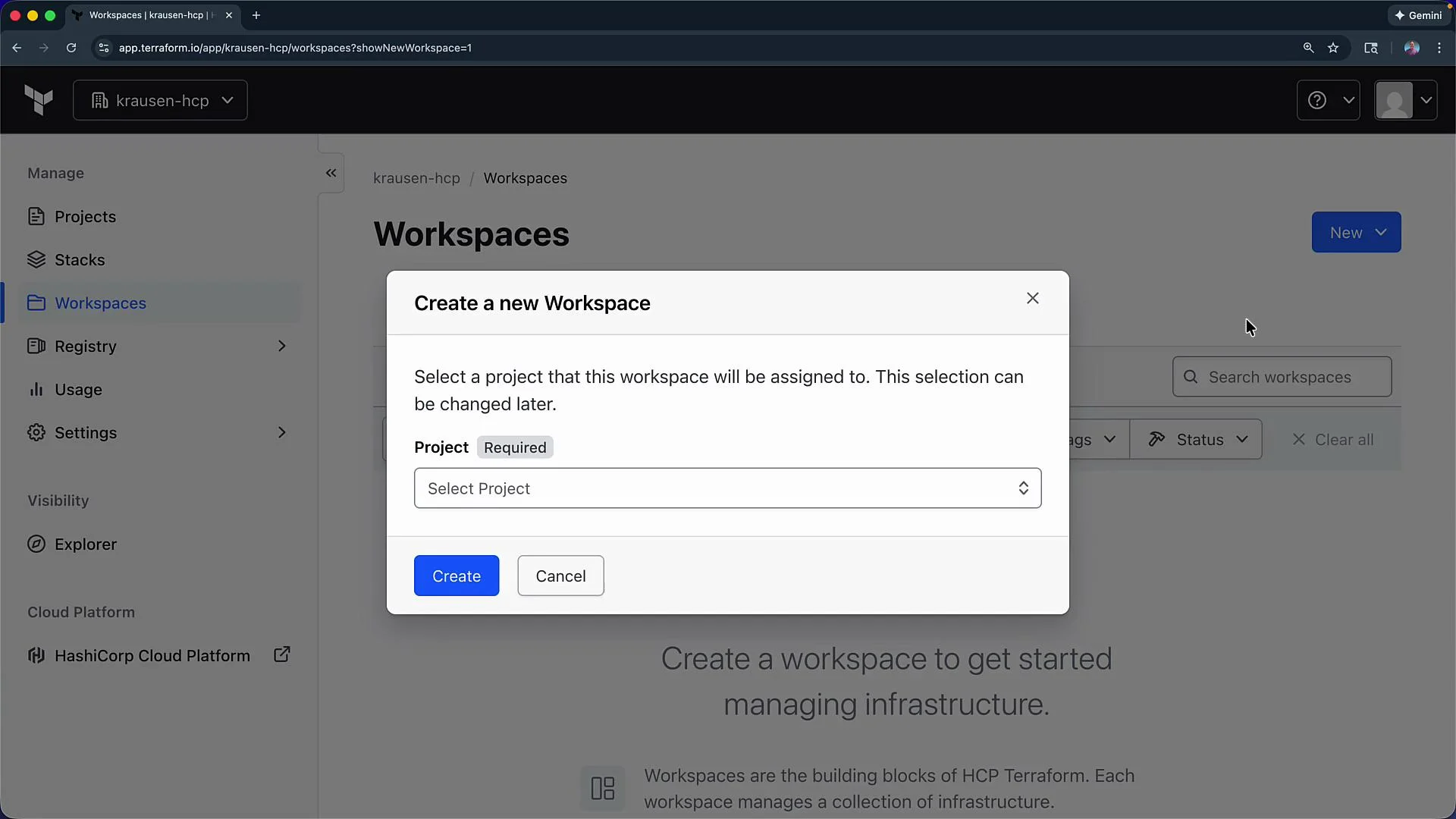 1. Select the Default Project (a project is required) and click Create. Projects are an organizational construct and are useful for grouping related workspaces.
Next you will choose the workspace workflow. For this demo we’ll use a CLI-driven workflow so you can migrate an existing local Terraform configuration into HCP Terraform. You can change this to a VCS-driven workflow later if desired.
1. Select the Default Project (a project is required) and click Create. Projects are an organizational construct and are useful for grouping related workspaces.
Next you will choose the workspace workflow. For this demo we’ll use a CLI-driven workflow so you can migrate an existing local Terraform configuration into HCP Terraform. You can change this to a VCS-driven workflow later if desired.
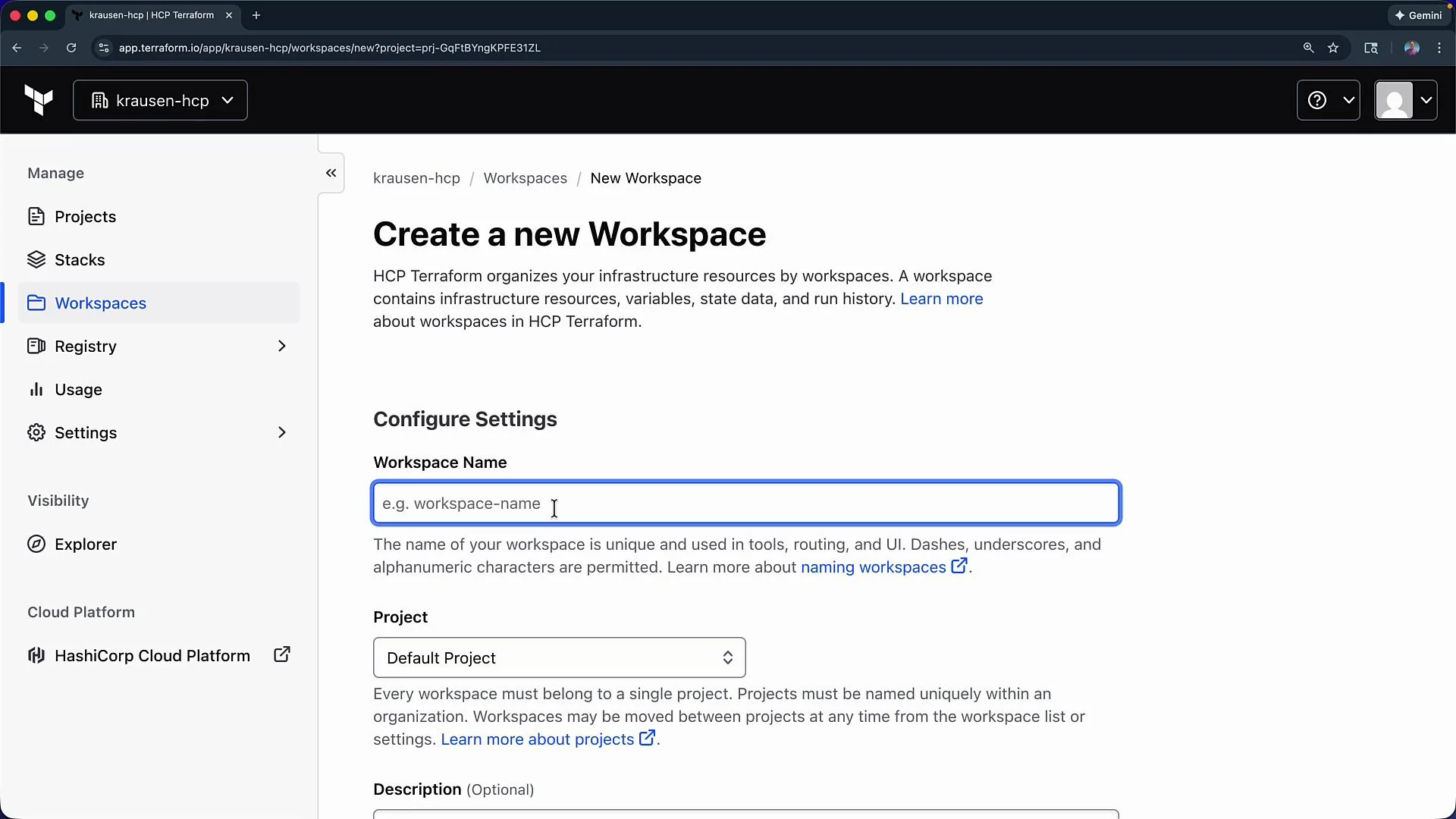
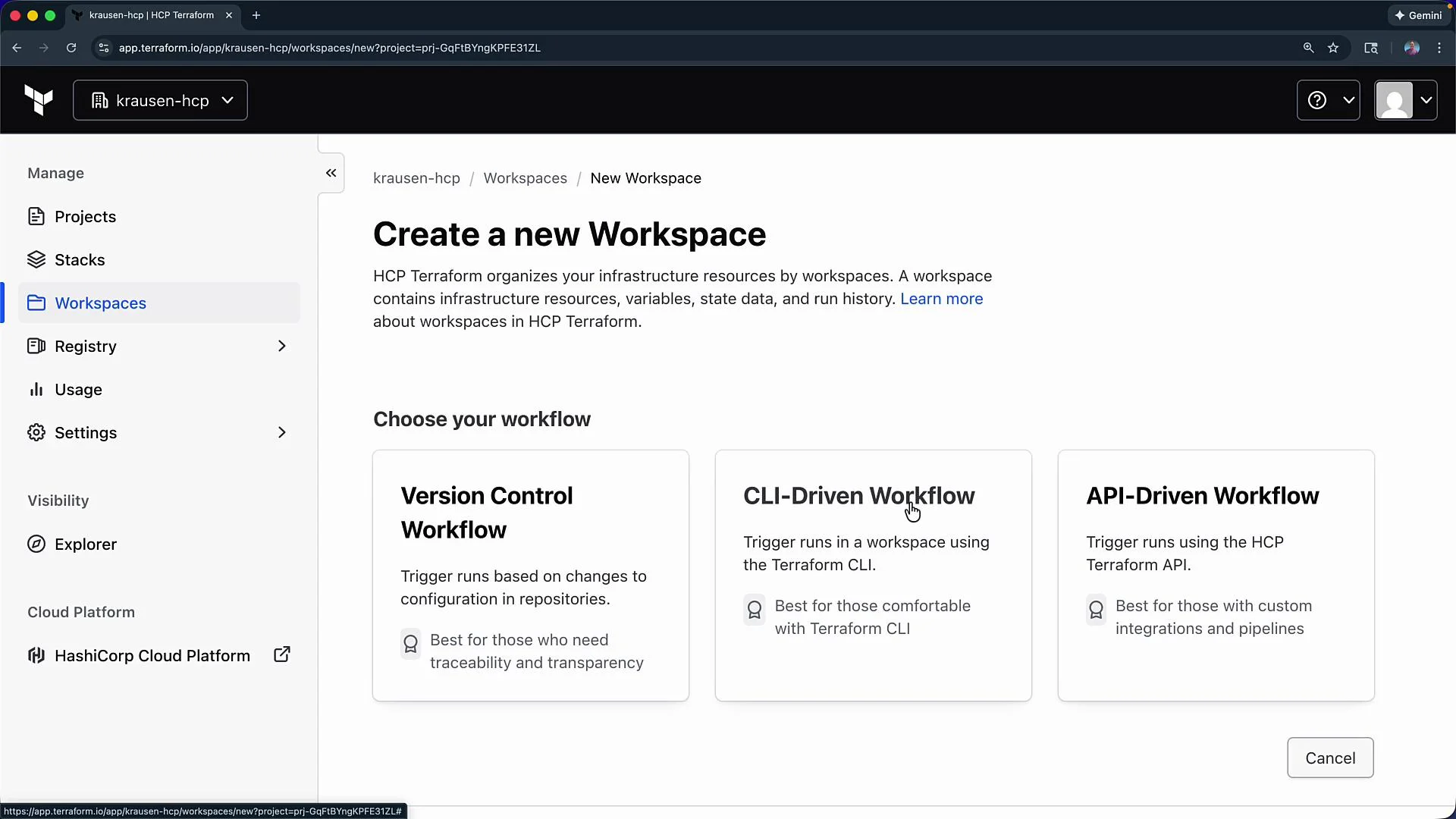 2. Choose CLI-driven, give the workspace a name (we use `hcp-demo` in this example), confirm the Default Project, optionally add a description, and click Create.
 Workspace overview and important details
* After creation you’ll see the workspace name and ID at the top. The ID is useful when integrating external systems or APIs.
* You can lock the workspace, view the initial resource count (starts at zero), and see the Terraform version HCP will use to run plans and applies. You can change the version in the workspace settings.
* The right-hand summary displays execution mode (Remote, Local, Agent), auto-apply, allowed run sources (API/UI/VCS), and the current status (for example, “waiting for configuration” when nothing is connected).
Below the header you’ll also find example HCL to use in a local Terraform configuration when migrating to this workspace. Copy this cloud block into your local `terraform` configuration to point it at the new HCP workspace:
```hcl theme={null}
terraform {
cloud {
organization = "krausen-hcp"
workspaces {
name = "hcp-demo"
}
}
}
```
Use this cloud block when migrating your local configuration and state into HCP Terraform.
Workspace overview and important details
* After creation you’ll see the workspace name and ID at the top. The ID is useful when integrating external systems or APIs.
* You can lock the workspace, view the initial resource count (starts at zero), and see the Terraform version HCP will use to run plans and applies. You can change the version in the workspace settings.
* The right-hand summary displays execution mode (Remote, Local, Agent), auto-apply, allowed run sources (API/UI/VCS), and the current status (for example, “waiting for configuration” when nothing is connected).
Below the header you’ll also find example HCL to use in a local Terraform configuration when migrating to this workspace. Copy this cloud block into your local `terraform` configuration to point it at the new HCP workspace:
```hcl theme={null}
terraform {
cloud {
organization = "krausen-hcp"
workspaces {
name = "hcp-demo"
}
}
}
```
Use this cloud block when migrating your local configuration and state into HCP Terraform.
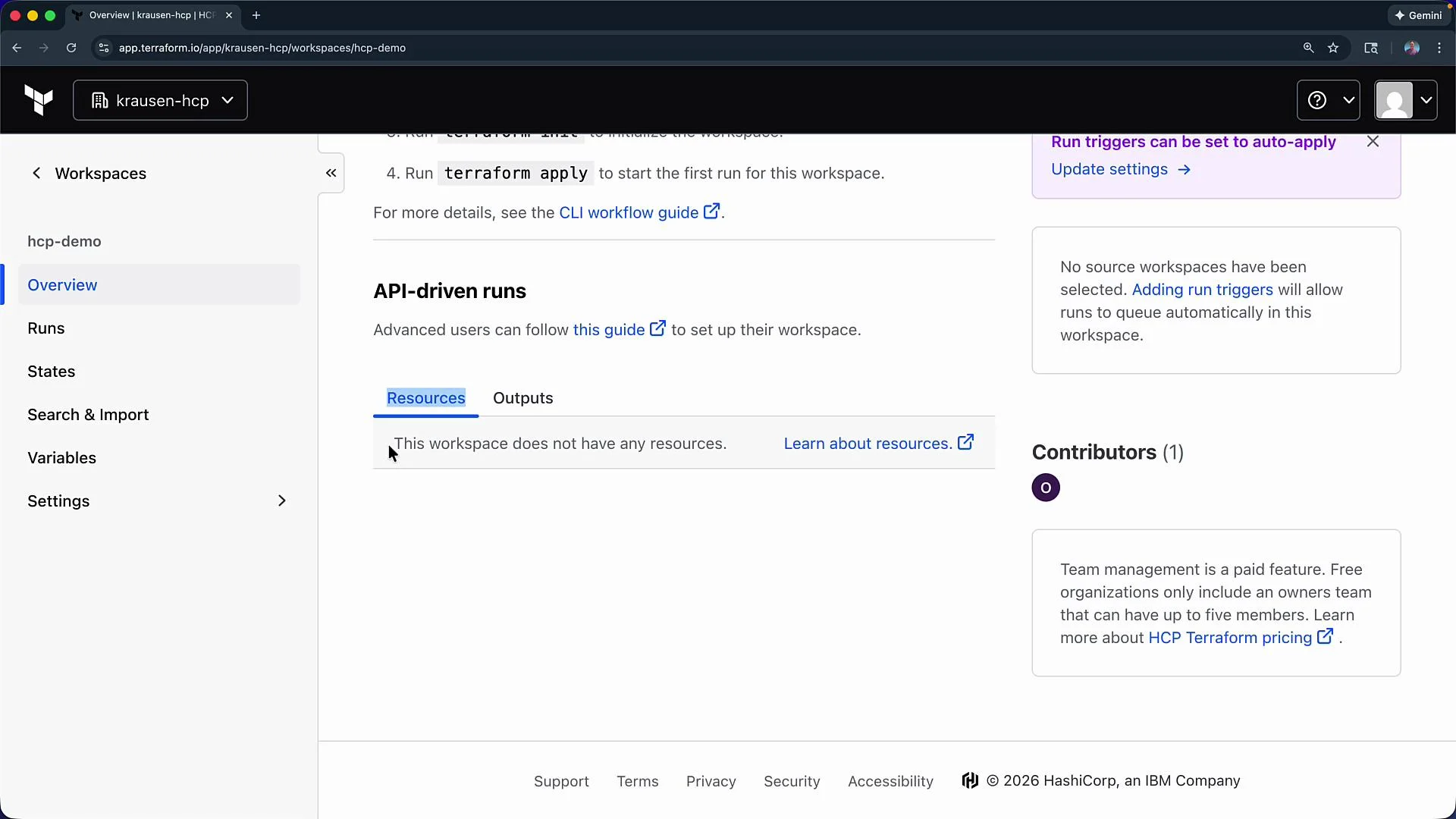 Callouts & resource licensing
HCP Terraform measures licensing by "resources under management" (RUM). On the free tier you can manage up to 500 resources across your workspace(s). A "resource" is any Terraform-managed object (for example, VPC, subnet, instance, DNS record). Plan workspaces accordingly to avoid exceeding your RUM limits.
State, runs, and navigation
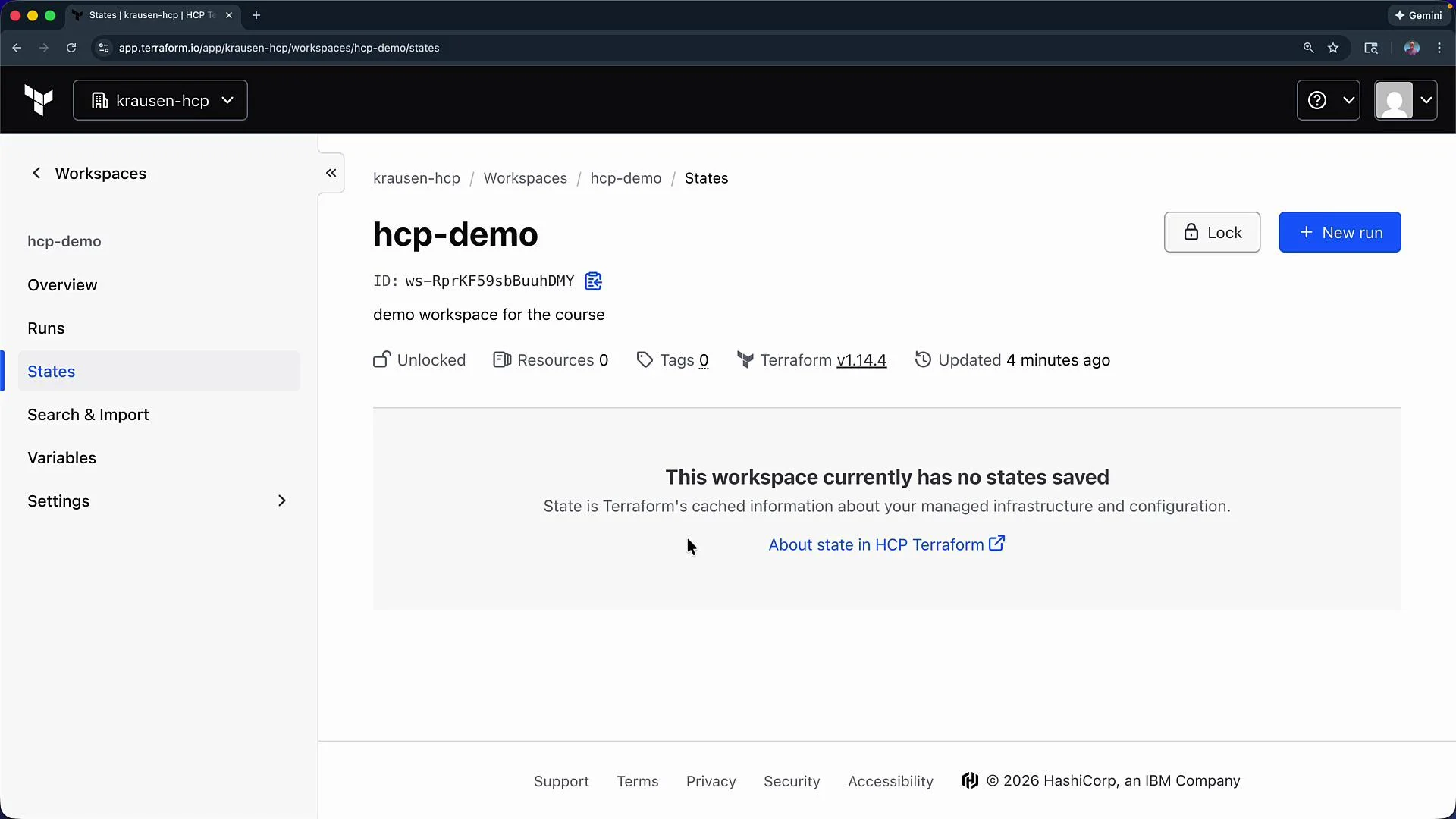
* Use the left navigation to open Runs (view queued and past runs), State (saved state files), and other workspace features such as Search and Import.
* Click State after performing runs to view the saved state files and version history.
Callouts & resource licensing
HCP Terraform measures licensing by "resources under management" (RUM). On the free tier you can manage up to 500 resources across your workspace(s). A "resource" is any Terraform-managed object (for example, VPC, subnet, instance, DNS record). Plan workspaces accordingly to avoid exceeding your RUM limits.
State, runs, and navigation
* Use the left navigation to open Runs (view queued and past runs), State (saved state files), and other workspace features such as Search and Import.
* Click State after performing runs to view the saved state files and version history.
 Variables and secrets
* Each workspace can have Terraform input variables and environment variables configured via the Variables section.
* Click Add Variable, choose the variable type (Terraform or Environment), enter a key and value, and mark it Sensitive if it should be encrypted and masked.
Variables and secrets
* Each workspace can have Terraform input variables and environment variables configured via the Variables section.
* Click Add Variable, choose the variable type (Terraform or Environment), enter a key and value, and mark it Sensitive if it should be encrypted and masked.
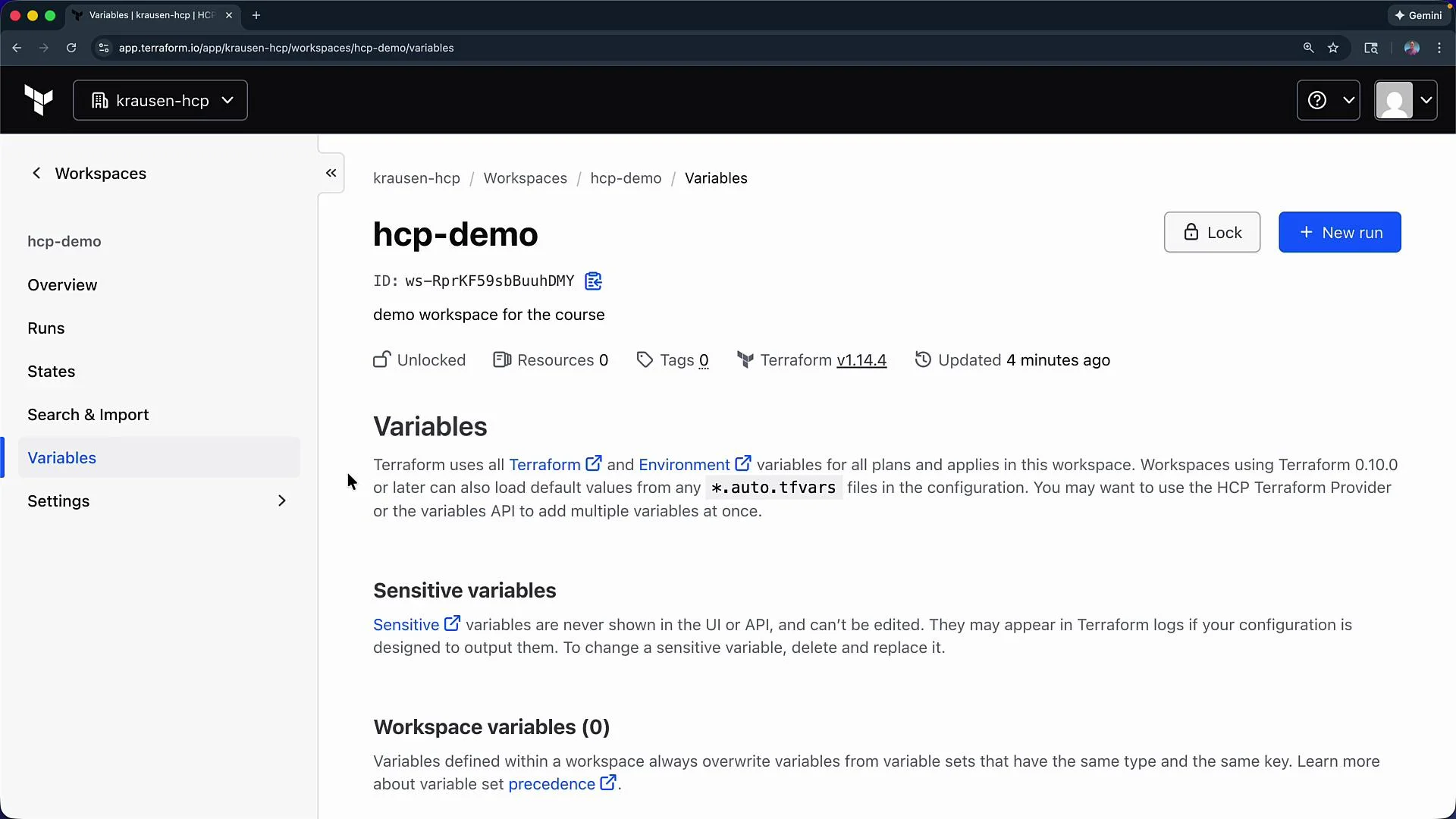 Sensitive variables are encrypted and cannot be read back after creation. You can update (overwrite) a sensitive value, but you cannot retrieve the original value from the UI—store your secrets securely elsewhere if you need a retrievable copy.
Workspace settings — execution & versioning
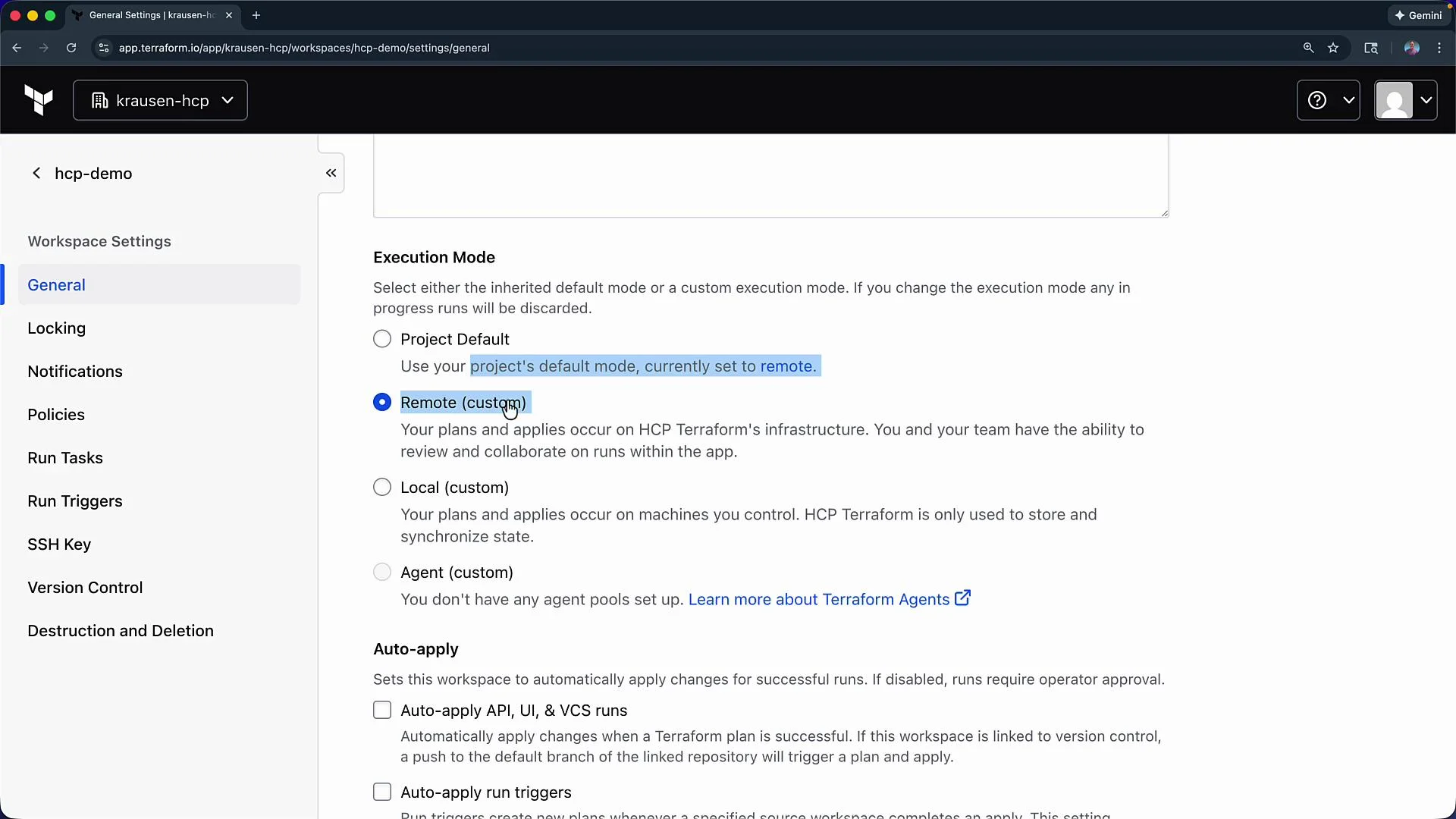
* Execution mode options: Project Default, Remote, Local, Agent. For this demo choose Remote execution so HCP executes plans and applies.
* Toggle Auto-apply if you want applies to run automatically after a successful plan.
* You can set the Terraform working directory, configure remote state sharing, and choose which run sources are allowed.
* Be sure to align the workspace Terraform version with your local environment (for example, select `1.1.2` if that’s what you use locally) and click Save settings.
Sensitive variables are encrypted and cannot be read back after creation. You can update (overwrite) a sensitive value, but you cannot retrieve the original value from the UI—store your secrets securely elsewhere if you need a retrievable copy.
Workspace settings — execution & versioning
* Execution mode options: Project Default, Remote, Local, Agent. For this demo choose Remote execution so HCP executes plans and applies.
* Toggle Auto-apply if you want applies to run automatically after a successful plan.
* You can set the Terraform working directory, configure remote state sharing, and choose which run sources are allowed.
* Be sure to align the workspace Terraform version with your local environment (for example, select `1.1.2` if that’s what you use locally) and click Save settings.
 Quick reference: Workspace controls and integrations
| Feature | Purpose | Example / Note |
| -------------------- | ----------------------------------------------- | ---------------------------------------------------------------------------------------- |
| Execution Mode | Where runs execute | `Remote` executes on HCP workers; `Local` uses local machine; `Agent` uses private agent |
| Auto-apply | Auto-apply changes after successful plan | Enable to skip manual apply step |
| Variables | Provide inputs and environment values | Add `AWS_SECRET_ACCESS_KEY` as an environment variable and mark `Sensitive` |
| VCS Connection | Connect workspace to a repo for VCS-driven runs | Use for continuous runs on commits |
| Run Tasks & Triggers | Integrate checks and downstream runs | Add pre/post-run checks or downstream workspace triggers |
| Destroy / Delete | Workspace-level cleanup | Use HCP controls or run `terraform plan -destroy` locally |
Destroying infrastructure
If you need to destroy resources managed by your local configuration before disconnecting the workspace, run the standard Terraform destroy flow locally:
```bash theme={null}
terraform plan -destroy -out=destroy.tfplan
terraform apply destroy.tfplan
```
Alternatively, HCP Terraform provides workspace-level options to queue a destroy or delete a workspace from the UI.
Next steps
* Connect your local code by adding the `cloud` block shown above, then run `terraform init` and `terraform plan` to migrate state.
* Consider connecting a VCS provider to enable version-control-driven runs if you want CI-driven automation.
Links and references
* HCP Terraform documentation: [https://www.hashicorp.com/products/terraform](https://www.hashicorp.com/products/terraform)
* Terraform Cloud & HCP documentation: [https://www.terraform.io/docs/cloud/index.html](https://www.terraform.io/docs/cloud/index.html)
* Terraform CLI: [https://www.terraform.io/docs/cli/index.html](https://www.terraform.io/docs/cli/index.html)
That’s it — you’ve created the `hcp-demo` workspace and reviewed the main settings. You can now connect configuration, add variables, and migrate your local Terraform state into this workspace.
Quick reference: Workspace controls and integrations
| Feature | Purpose | Example / Note |
| -------------------- | ----------------------------------------------- | ---------------------------------------------------------------------------------------- |
| Execution Mode | Where runs execute | `Remote` executes on HCP workers; `Local` uses local machine; `Agent` uses private agent |
| Auto-apply | Auto-apply changes after successful plan | Enable to skip manual apply step |
| Variables | Provide inputs and environment values | Add `AWS_SECRET_ACCESS_KEY` as an environment variable and mark `Sensitive` |
| VCS Connection | Connect workspace to a repo for VCS-driven runs | Use for continuous runs on commits |
| Run Tasks & Triggers | Integrate checks and downstream runs | Add pre/post-run checks or downstream workspace triggers |
| Destroy / Delete | Workspace-level cleanup | Use HCP controls or run `terraform plan -destroy` locally |
Destroying infrastructure
If you need to destroy resources managed by your local configuration before disconnecting the workspace, run the standard Terraform destroy flow locally:
```bash theme={null}
terraform plan -destroy -out=destroy.tfplan
terraform apply destroy.tfplan
```
Alternatively, HCP Terraform provides workspace-level options to queue a destroy or delete a workspace from the UI.
Next steps
* Connect your local code by adding the `cloud` block shown above, then run `terraform init` and `terraform plan` to migrate state.
* Consider connecting a VCS provider to enable version-control-driven runs if you want CI-driven automation.
Links and references
* HCP Terraform documentation: [https://www.hashicorp.com/products/terraform](https://www.hashicorp.com/products/terraform)
* Terraform Cloud & HCP documentation: [https://www.terraform.io/docs/cloud/index.html](https://www.terraform.io/docs/cloud/index.html)
* Terraform CLI: [https://www.terraform.io/docs/cli/index.html](https://www.terraform.io/docs/cli/index.html)
That’s it — you’ve created the `hcp-demo` workspace and reviewed the main settings. You can now connect configuration, add variables, and migrate your local Terraform state into this workspace.