> ## Documentation Index
> Fetch the complete documentation index at: https://notes.kodekloud.com/llms.txt
> Use this file to discover all available pages before exploring further.
# Demo Migrating State to HCP Terraform
> Guide to migrating local Terraform configuration and terraform.tfstate into an HCP Terraform workspace, enabling remote execution, authentication, and workspace credential setup.
This guide walks through migrating a local Terraform configuration and its `terraform.tfstate` into an HCP (HashiCorp Cloud Platform) Terraform workspace named `hcp-demo` (Terraform version 1.2.2 configured for the workspace). You'll initialize locally, apply to create resources, add the HCP cloud backend, authenticate with HCP, migrate the state, and run remote plans/applies.
## Prerequisites
* Terraform CLI installed (>= 1.2.2).
* An HCP Terraform organization and workspace (`hcp-demo`) already created.
* AWS account credentials for creating VPC/subnets.
* Browser access to complete `terraform login`.
Useful references:
* Terraform Cloud / HCP documentation: [https://www.terraform.io/cloud](https://www.terraform.io/cloud)
* Terraform CLI documentation (init/login): [https://www.terraform.io/cli](https://www.terraform.io/cli)
## Project layout
| File | Purpose |
| -------------- | --------------------------------------------- |
| `main.tf` | Core resources (VPC and subnets) |
| `providers.tf` | Provider configuration and Terraform settings |
| `variables.tf` | Variable declarations with defaults |
Example resources from `main.tf` (simple VPC and two subnets):
```hcl theme={null}
resource "aws_vpc" "main" {
cidr_block = var.vpc_cidr
enable_dns_support = true
enable_dns_hostnames = true
tags = {
Name = "dev-main-vpc"
}
}
resource "aws_subnet" "private" {
vpc_id = aws_vpc.main.id
cidr_block = var.private_subnet_cidr
availability_zone = var.private_subnet_az
tags = {
Name = "main-subnet"
}
}
resource "aws_subnet" "public" {
vpc_id = aws_vpc.main.id
cidr_block = var.public_subnet_cidr
availability_zone = var.public_subnet_az
tags = {
Name = "public-subnet"
}
}
```
## Original provider configuration
Before adding the HCP cloud block, `providers.tf` looks like:
```hcl theme={null}
terraform {
required_providers {
aws = {
source = "hashicorp/aws"
version = "~> 6.31.0"
}
}
required_version = ">= 1.2.2"
}
provider "aws" {
region = "us-east-2"
}
```
## 1) Initialize locally
* Ensure AWS credentials are present in your environment (for example, `AWS_ACCESS_KEY_ID` and `AWS_SECRET_ACCESS_KEY` exported locally).
* Run `terraform init` to download providers and initialize the working directory:
```bash theme={null}
$ terraform init
Initializing provider plugins...
- Finding hashicorp/aws versions matching "~> 6.31.0"...
- Installing hashicorp/aws v6.31.0...
Terraform has been successfully initialized!
You may now begin working with Terraform. Try running "terraform plan" to see any changes that are required for your infrastructure.
```
## 2) Plan and apply locally
* `terraform plan` should show three resources to add.
* Apply with `terraform apply --auto-approve` to create the resources locally.
Example apply output:
```bash theme={null}
$ terraform apply --auto-approve
aws_subnet.public: Creation complete after 11s [id=subnet-042bc17e0105dbd91]
Apply complete! Resources: 3 added, 0 changed, 0 destroyed.
```
After this step your local directory contains `terraform.tfstate` managing the three resources. Next you will configure the HCP workspace as the remote backend and migrate that state.
Before migrating state, consider creating a backup of your local `terraform.tfstate`. While the migration process copies your current state snapshot into the workspace by default, keeping a local backup can help you recover if anything unexpected occurs.
## 3) Add the HCP cloud block to your configuration
Update `providers.tf` (or another file) to include the `cloud` block inside the `terraform` block so Terraform targets the HCP workspace:
```hcl theme={null}
terraform {
required_providers {
aws = {
source = "hashicorp/aws"
version = "~> 6.31.0"
}
}
required_version = ">= 1.2.2"
cloud {
organization = "krausen-hcp"
workspaces {
name = "hcp-demo"
}
}
}
provider "aws" {
region = "us-east-2"
}
```
Format files if needed:
```bash theme={null}
$ terraform fmt
main.tf
providers.tf
```
## 4) Authenticate to HCP Terraform
Run `terraform login` to generate and store an API token for `app.terraform.io` (HCP Terraform). The command will open a browser flow to create a token which you paste back into the CLI prompt.
```bash theme={null}
$ terraform login
Generate a token using your browser, and copy-paste it into this prompt.
Terraform will store the token in plain text in the following file
/Users/bk/.terraform.d/credentials.tfrc.json
Token for app.terraform.io:
Enter a value:
```
After successful login, Terraform CLI can interact with your HCP organization and workspaces.
## 5) Re-initialize to connect to HCP and migrate state
Run `terraform init` again. With the `cloud` backend configured, Terraform will prompt to migrate your local state to the HCP workspace.
```bash theme={null}
$ terraform init
Initializing HCP Terraform...
Do you wish to proceed?
Answer "yes" to copy the latest state snapshot to the configured HCP Terraform workspace.
As part of migrating to HCP Terraform, Terraform can optionally copy your current workspace state to the configured HCP Terraform workspace.
Answer "yes" to copy the latest state snapshot to the configured HCP Terraform workspace.
Answer "no" to ignore the existing state and just activate the configured HCP Terraform workspace with its existing state, if any.
Should Terraform migrate your existing state?
```
* Type `yes` to copy the current local state into the HCP workspace. Terraform completes initialization and activates the workspace with your migrated state.
## 6) Remote runs and the HCP UI
Once the workspace is activated, `terraform plan` and `terraform apply` will execute remotely in HCP Terraform. The CLI streams logs while the plan/apply runs on HCP workers. You can also open the workspace Runs in the HCP UI to view details.
Example of starting a remote plan:
```plaintext theme={null}
$ terraform plan
Running plan in HCP Terraform. Output will stream here. Pressing Ctrl-C will stop streaming the logs, but will not stop the plan running remotely.
Preparing the remote plan...
To view this run in a browser, visit: https://app.terraform.io/app/krausen-hcp/hcp-demo/runs/run-4pXWLN3DxkM685TH
Waiting for the plan to start...
```
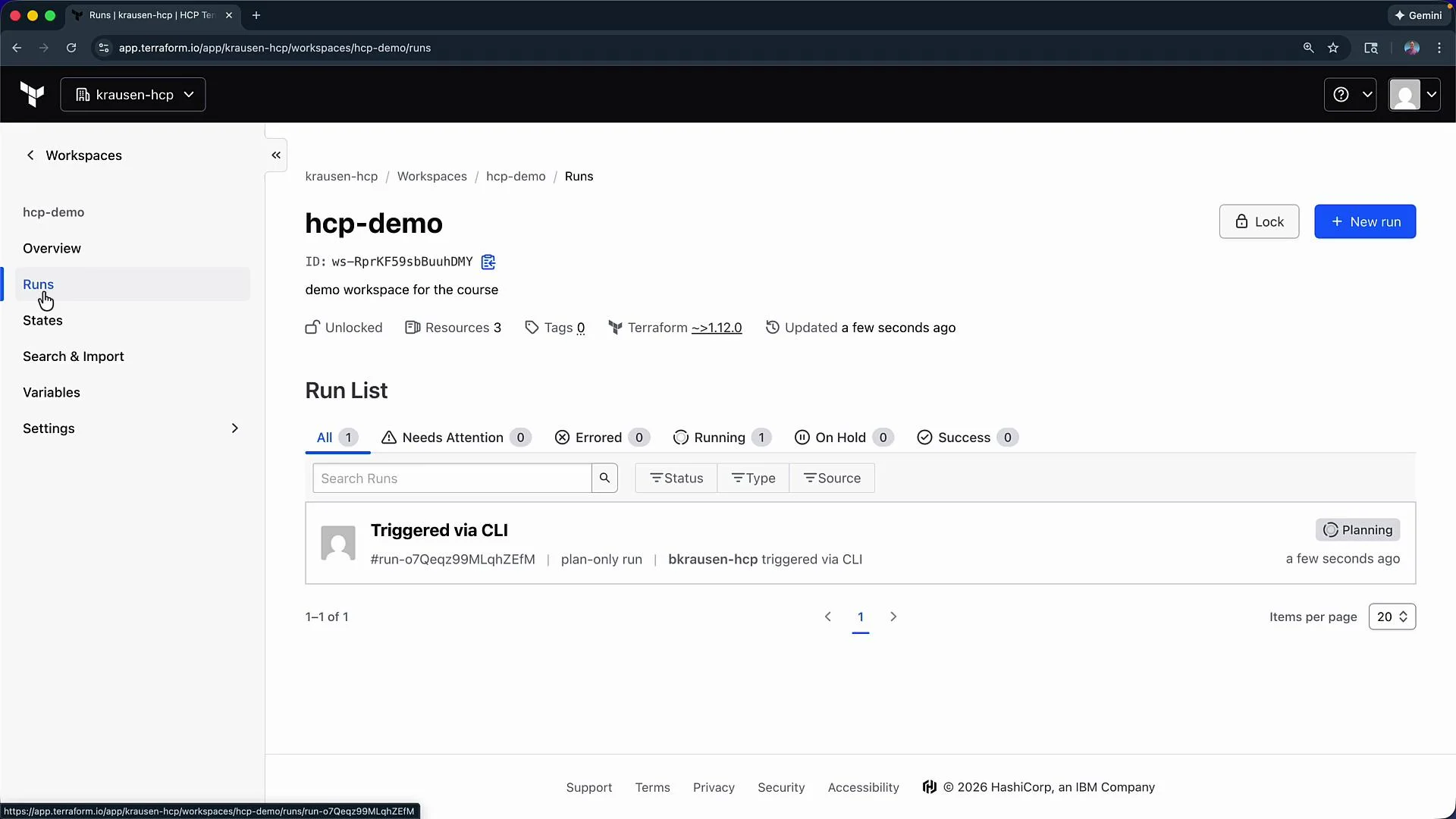
A run triggered via CLI will appear in the workspace Run List in the HCP UI (status: Planning):
 When using remote execution, the Terraform process runs on HCP Terraform’s workers and cannot access environment variables on your local machine. Configure workspace environment variables (or another credential method) in the HCP workspace so remote runs can authenticate to your cloud provider.
## 7) Add AWS credentials to workspace variables
In the HCP UI, go to your workspace → Variables and add the following environment variables (mark them as sensitive):
| Variable name | Notes |
| ----------------------- | ---------------------------------------------------- |
| `AWS_ACCESS_KEY_ID` | Mark as sensitive |
| `AWS_SECRET_ACCESS_KEY` | Mark as sensitive |
| `AWS_SESSION_TOKEN` | Mark as sensitive (only if using STS session tokens) |
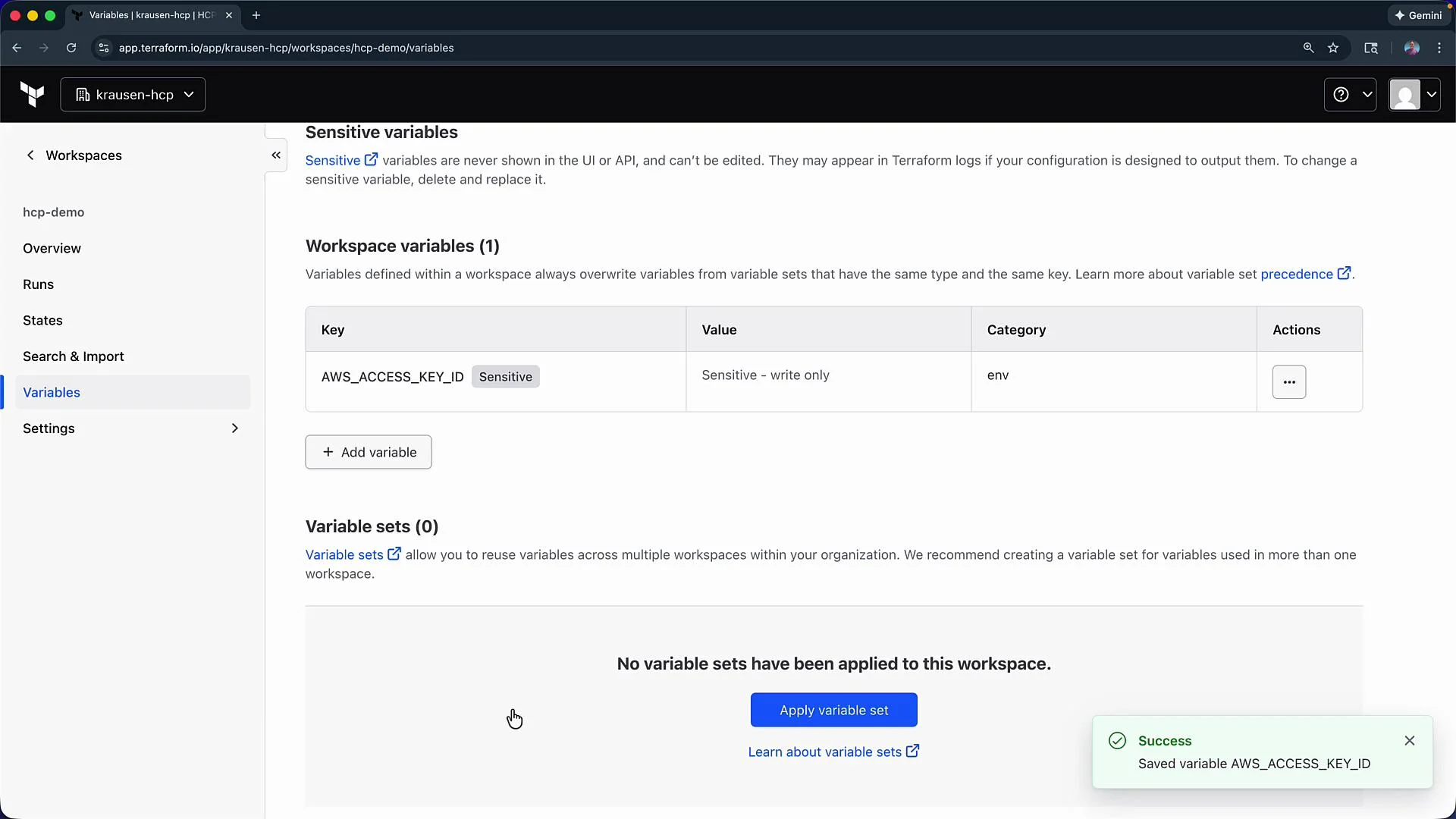
After saving a variable you should see confirmation that it was saved (sensitive flag enabled):
When using remote execution, the Terraform process runs on HCP Terraform’s workers and cannot access environment variables on your local machine. Configure workspace environment variables (or another credential method) in the HCP workspace so remote runs can authenticate to your cloud provider.
## 7) Add AWS credentials to workspace variables
In the HCP UI, go to your workspace → Variables and add the following environment variables (mark them as sensitive):
| Variable name | Notes |
| ----------------------- | ---------------------------------------------------- |
| `AWS_ACCESS_KEY_ID` | Mark as sensitive |
| `AWS_SECRET_ACCESS_KEY` | Mark as sensitive |
| `AWS_SESSION_TOKEN` | Mark as sensitive (only if using STS session tokens) |
After saving a variable you should see confirmation that it was saved (sensitive flag enabled):
 ## 8) Re-run plan/apply via CLI (remote execution)
With workspace variables in place, run `terraform plan`. The plan runs remotely and streams output to your terminal:
```plaintext theme={null}
$ terraform plan
Preparing the remote plan...
To view this run in a browser, visit:
https://app.terraform.io/app/krausen-hcp/hcp-demo/runs/run-nP3LsVir5p5uCLto
Waiting for the plan to start...
Terraform v1.2.2
on linux_amd64
Initializing plugins and modules...
```
## 9) Make and apply a change
Example: add an `Environment` tag to the VPC resource in `main.tf`:
```hcl theme={null}
resource "aws_vpc" "main" {
cidr_block = var.vpc_cidr
enable_dns_support = true
enable_dns_hostnames = true
tags = {
Name = "dev-main-vpc"
Environment = "development"
}
}
```
Run `terraform plan` (remote). The plan will show an in-place update to the VPC tags:
```plaintext theme={null}
$ terraform plan
Terraform will perform the following actions:
# aws_vpc.main will be updated in-place
~ resource "aws_vpc" "main" {
id = "vpc-0078106452f9f1bed"
tags = {
+ "Environment" = "development"
"Name" = "dev-main-vpc"
}
}
Plan: 0 to add, 1 to change, 0 to destroy.
```
Apply the change:
```bash theme={null}
$ terraform apply --auto-approve
```
The remote apply triggers a run in the HCP workspace that performs both the plan and the apply steps. Each run can be reviewed in the workspace Runs page, including plan output and apply results.
## Workspace overview and resource list
In the HCP Terraform workspace Overview you can inspect:
* Latest run and detailed logs
* Resource counts and the list of managed resources (for this example: `aws_vpc.main`, `aws_subnet.private`, `aws_subnet.public`)
* Provider and module versions used by the workspace
## Conclusion
You have migrated a local Terraform configuration and the local `terraform.tfstate` into an HCP Terraform workspace (`hcp-demo`). Remote execution is now enabled: plans and applies run on HCP workers and stream their output to your CLI, with provider credentials provided via workspace variables. This setup centralizes state and execution to HCP while preserving your existing configuration and resource graph.
## 8) Re-run plan/apply via CLI (remote execution)
With workspace variables in place, run `terraform plan`. The plan runs remotely and streams output to your terminal:
```plaintext theme={null}
$ terraform plan
Preparing the remote plan...
To view this run in a browser, visit:
https://app.terraform.io/app/krausen-hcp/hcp-demo/runs/run-nP3LsVir5p5uCLto
Waiting for the plan to start...
Terraform v1.2.2
on linux_amd64
Initializing plugins and modules...
```
## 9) Make and apply a change
Example: add an `Environment` tag to the VPC resource in `main.tf`:
```hcl theme={null}
resource "aws_vpc" "main" {
cidr_block = var.vpc_cidr
enable_dns_support = true
enable_dns_hostnames = true
tags = {
Name = "dev-main-vpc"
Environment = "development"
}
}
```
Run `terraform plan` (remote). The plan will show an in-place update to the VPC tags:
```plaintext theme={null}
$ terraform plan
Terraform will perform the following actions:
# aws_vpc.main will be updated in-place
~ resource "aws_vpc" "main" {
id = "vpc-0078106452f9f1bed"
tags = {
+ "Environment" = "development"
"Name" = "dev-main-vpc"
}
}
Plan: 0 to add, 1 to change, 0 to destroy.
```
Apply the change:
```bash theme={null}
$ terraform apply --auto-approve
```
The remote apply triggers a run in the HCP workspace that performs both the plan and the apply steps. Each run can be reviewed in the workspace Runs page, including plan output and apply results.
## Workspace overview and resource list
In the HCP Terraform workspace Overview you can inspect:
* Latest run and detailed logs
* Resource counts and the list of managed resources (for this example: `aws_vpc.main`, `aws_subnet.private`, `aws_subnet.public`)
* Provider and module versions used by the workspace
## Conclusion
You have migrated a local Terraform configuration and the local `terraform.tfstate` into an HCP Terraform workspace (`hcp-demo`). Remote execution is now enabled: plans and applies run on HCP workers and stream their output to your CLI, with provider credentials provided via workspace variables. This setup centralizes state and execution to HCP while preserving your existing configuration and resource graph.