> ## Documentation Index
> Fetch the complete documentation index at: https://notes.kodekloud.com/llms.txt
> Use this file to discover all available pages before exploring further.
# Demo Setting Up Your HCP Terraform Account
> Guide to creating and configuring an HCP Terraform account, verifying email, setting up an organization, security settings, API tokens, and connecting workspaces and VCS for remote runs.
Welcome — this guide walks through signing up for an HCP Terraform account, verifying your email, and configuring the initial organization and security settings. Follow the numbered steps to get your organization ready for workspaces, VCS integration, and remote runs.
## 1) Create your HCP Terraform account
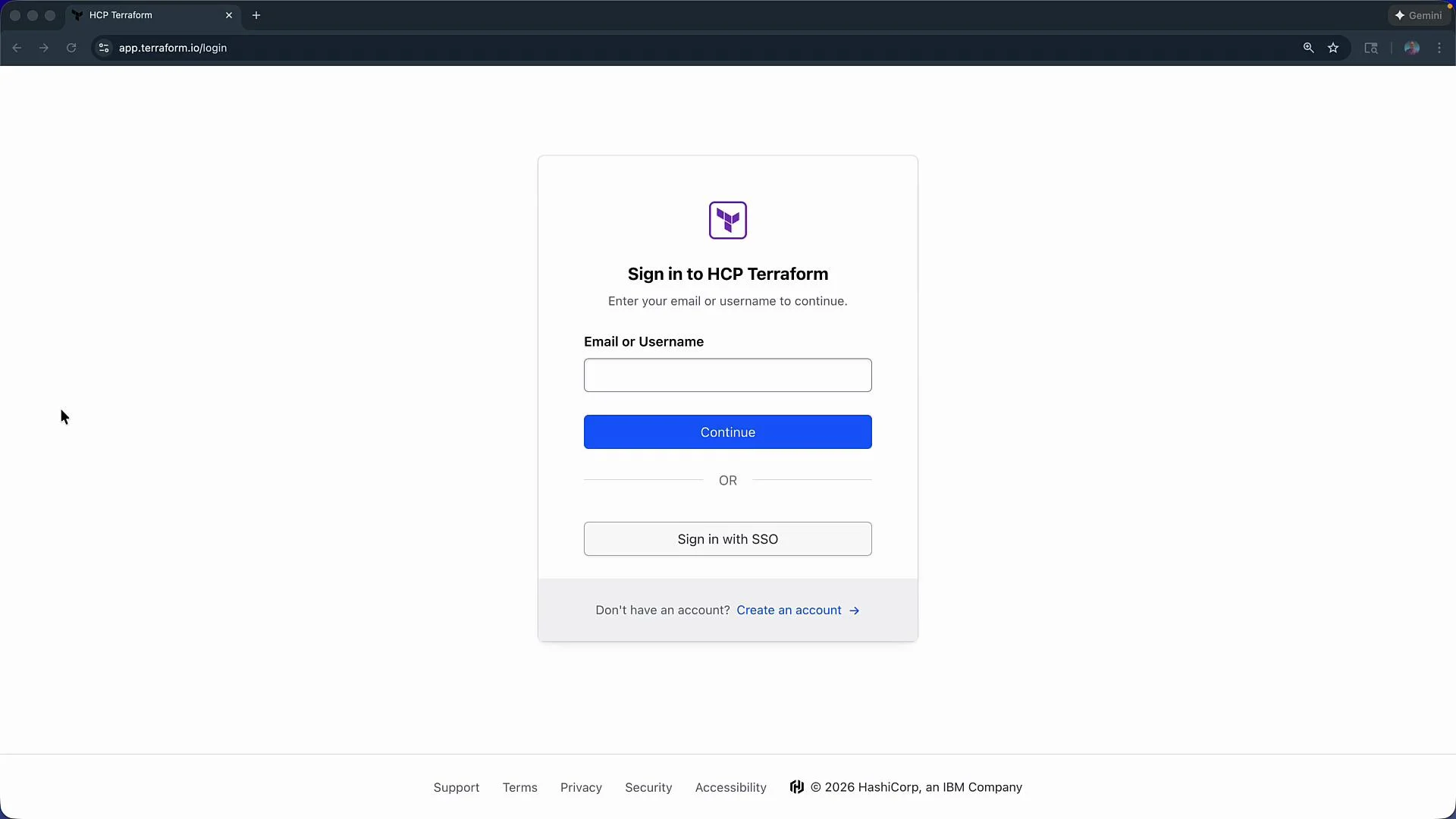
1. Open `app.terraform.io` in your browser.
2. Click **Create account** and complete the form with a username, email, and a secure password.
3. Agree to the Terms of Service and Privacy Policy, then submit to create the account.
 ## 2) Confirm your email address
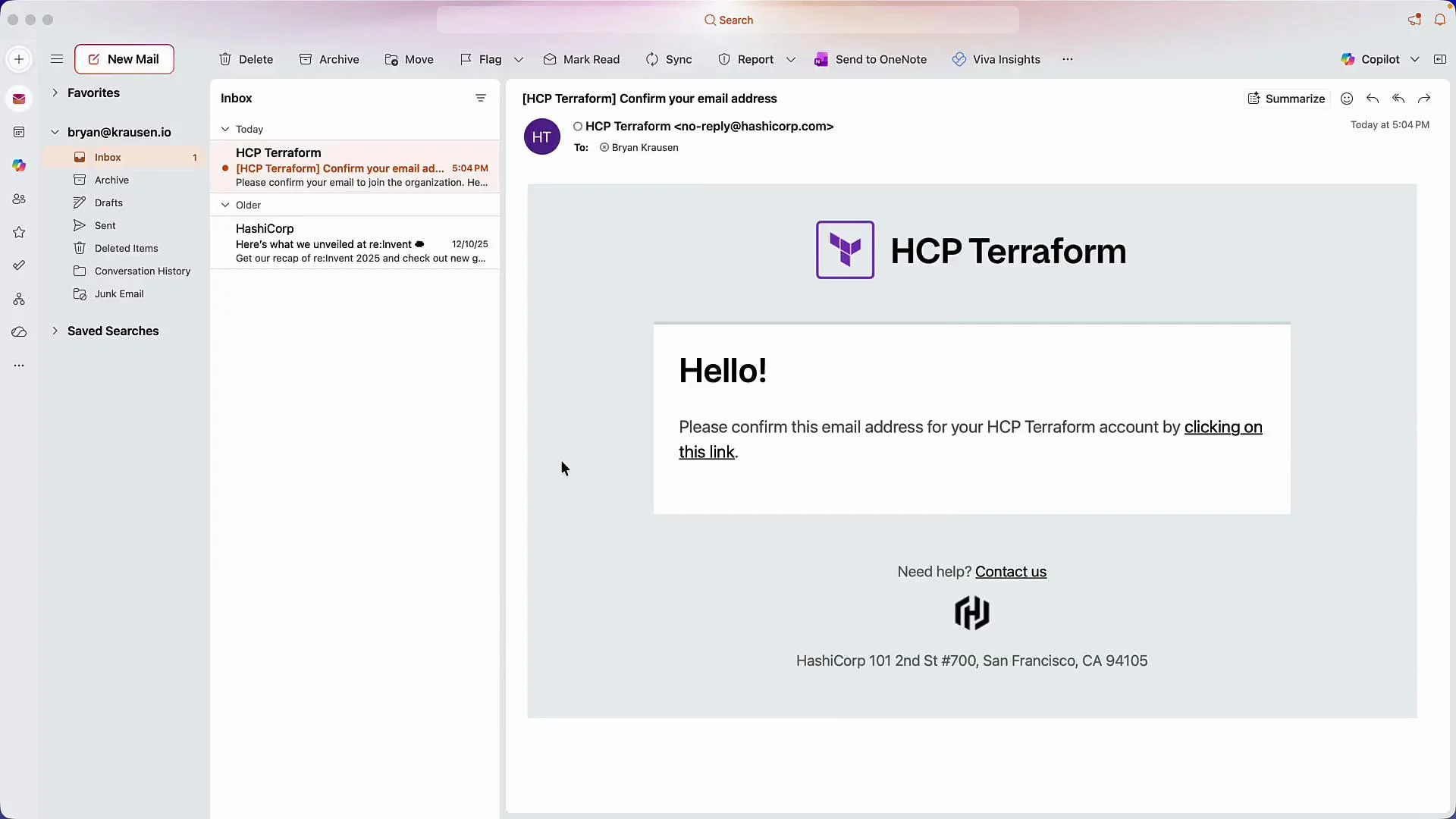
After creating the account you’ll receive a confirmation email. Open your inbox and click the confirmation link sent from HCP Terraform to verify your email address.
## 2) Confirm your email address
After creating the account you’ll receive a confirmation email. Open your inbox and click the confirmation link sent from HCP Terraform to verify your email address.
 ## 3) Complete your account profile
Once verified, finish the account setup in the profile area. Typical profile tasks include:
* Uploading an avatar
* Viewing active sessions
* Changing your password
* Enabling two-factor authentication (2FA)
* Generating personal user tokens for CLI/API access
Personal tokens (user tokens) are created from Account Settings and are useful for `terraform login` and API automation.
## 4) Create an organization
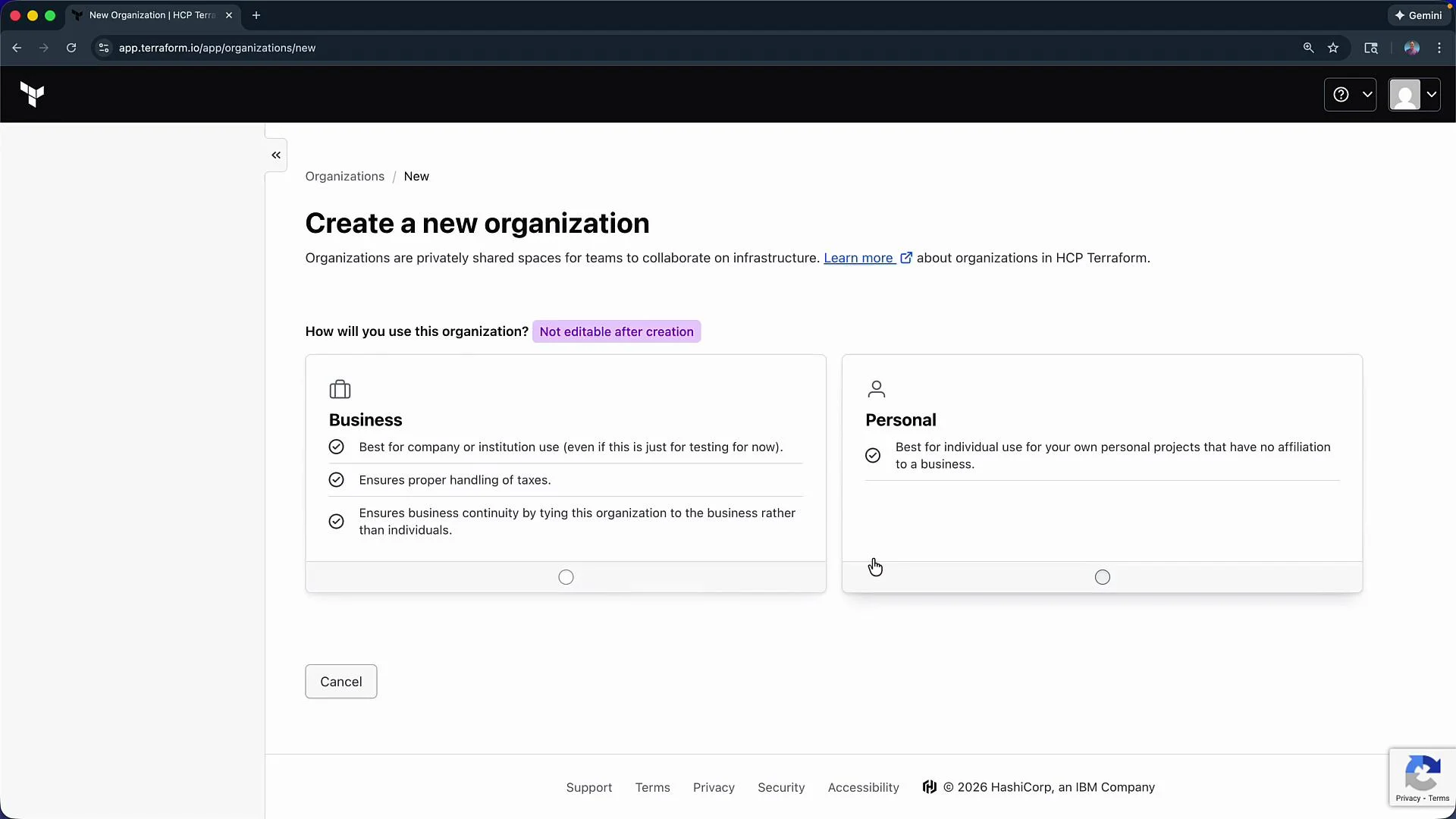
From the top-left, click **HCP Terraform** to return to the main console and create a new organization.
* Choose a type: **Personal** or **Business** (the demo uses Personal).
* Enter an organization name (for example, `Krausen HCP`).
* Confirm the organization email and click **Create organization**.
## 3) Complete your account profile
Once verified, finish the account setup in the profile area. Typical profile tasks include:
* Uploading an avatar
* Viewing active sessions
* Changing your password
* Enabling two-factor authentication (2FA)
* Generating personal user tokens for CLI/API access
Personal tokens (user tokens) are created from Account Settings and are useful for `terraform login` and API automation.
## 4) Create an organization
From the top-left, click **HCP Terraform** to return to the main console and create a new organization.
* Choose a type: **Personal** or **Business** (the demo uses Personal).
* Enter an organization name (for example, `Krausen HCP`).
* Confirm the organization email and click **Create organization**.
 ## 5) Organization dashboard — overview
After creating your organization you’ll land on the organization dashboard. The left-hand navigation contains the main features you’ll use:
* Projects, Stacks, and Workspaces
* Private Registry
* Settings (organization configuration)
* Explorer
* Plans and billing
Open **Settings** to view and configure organization-wide details such as the Organization ID, execution defaults, integrations, and more.
## Organization settings at a glance
| Setting area | Purpose | Example / Notes |
| --------------------- | -------------------------------------------------------- | ------------------------------------------------- |
| Organization ID | Useful for support requests and API usage | Use when opening a support ticket |
| Execution mode | Set default run execution: `remote`, `local`, or `agent` | Change per-organization or override per-workspace |
| Stacks / Pre-releases | Opt into Terraform alpha/beta releases | Use with caution in non-production environments |
| Teams & Users | Manage access and roles for organization members | Create admin/dev teams |
| Variable sets | Share variables across multiple workspaces | Useful for common credentials or configuration |
| Plans & billing | View current plan or upgrade from free to paid | Click **Edit** to change plan |
## 6) API tokens and security
Within **Settings > Security** you’ll find API Tokens for both organization-level and user-level access. Organization tokens are created from the Tokens page and can be used for automation, CI/CD, or integrations.
## 5) Organization dashboard — overview
After creating your organization you’ll land on the organization dashboard. The left-hand navigation contains the main features you’ll use:
* Projects, Stacks, and Workspaces
* Private Registry
* Settings (organization configuration)
* Explorer
* Plans and billing
Open **Settings** to view and configure organization-wide details such as the Organization ID, execution defaults, integrations, and more.
## Organization settings at a glance
| Setting area | Purpose | Example / Notes |
| --------------------- | -------------------------------------------------------- | ------------------------------------------------- |
| Organization ID | Useful for support requests and API usage | Use when opening a support ticket |
| Execution mode | Set default run execution: `remote`, `local`, or `agent` | Change per-organization or override per-workspace |
| Stacks / Pre-releases | Opt into Terraform alpha/beta releases | Use with caution in non-production environments |
| Teams & Users | Manage access and roles for organization members | Create admin/dev teams |
| Variable sets | Share variables across multiple workspaces | Useful for common credentials or configuration |
| Plans & billing | View current plan or upgrade from free to paid | Click **Edit** to change plan |
## 6) API tokens and security
Within **Settings > Security** you’ll find API Tokens for both organization-level and user-level access. Organization tokens are created from the Tokens page and can be used for automation, CI/CD, or integrations.
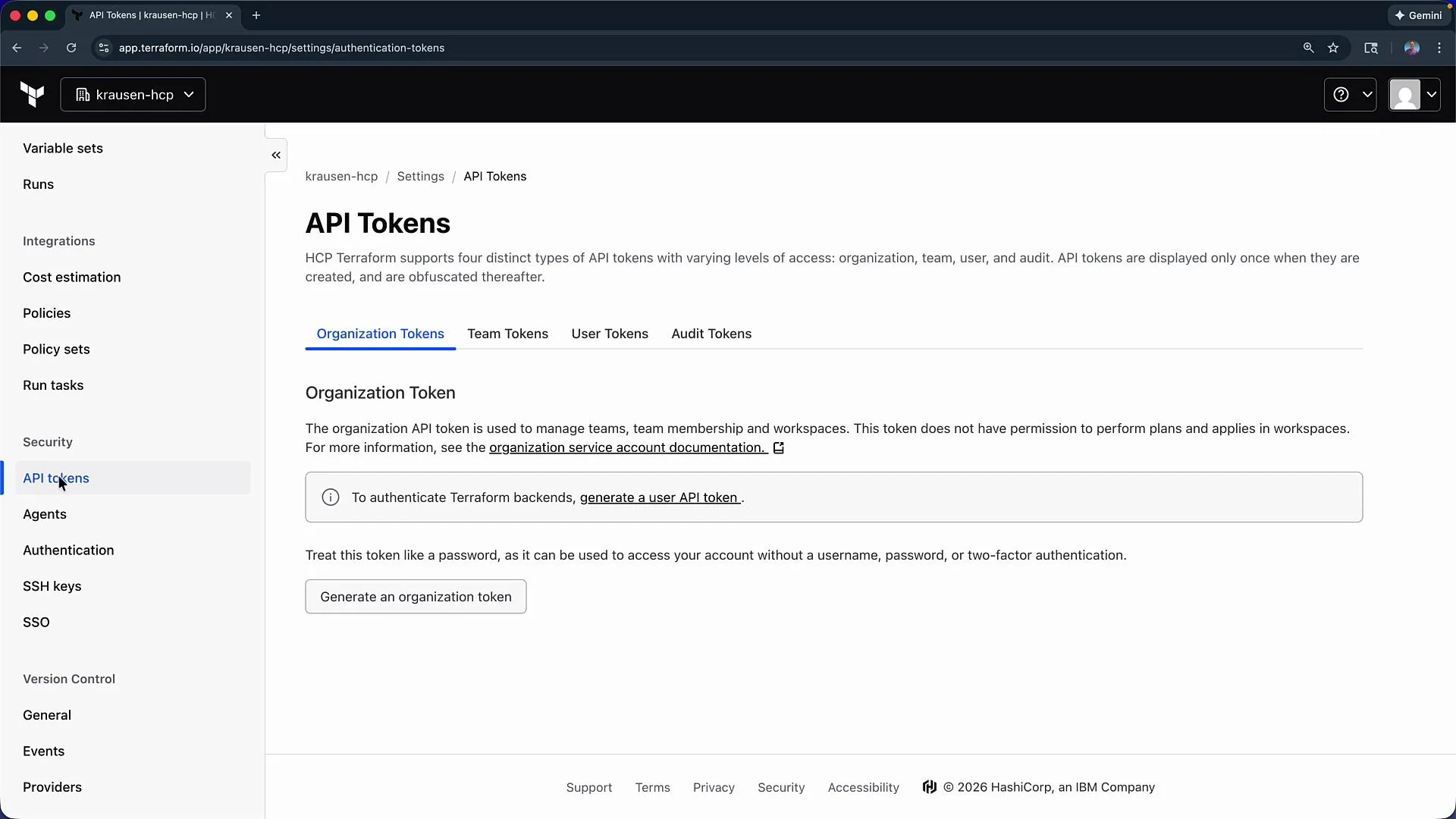 Keep API tokens secure. Treat organization and user tokens like secrets — store them in a secure secret manager and rotate them periodically.
## 7) Additional organization-level options
* Agent pools — configure and manage agents for agent-based execution.
* Authentication — enforce 2FA, add SSH keys, and configure single sign-on (SSO).
* VCS providers — connect GitHub, GitLab, Bitbucket, etc., for workspace repository linkage (you can also connect at the workspace level).
* Events & Providers — review logged events and provider configurations.
## Next steps
To continue your HCP Terraform setup:
1. Create one or more Workspaces in your organization.
2. Connect a Workspace to a VCS repository (the demo uses GitHub) or upload configuration directly.
3. Run a plan and apply from the workspace or use the CLI with `terraform login` and an appropriate token.
## Links and references
* [Terraform Cloud / Terraform Enterprise documentation](https://www.terraform.io/docs/cloud)
* [VCS providers and workspace setup](https://www.terraform.io/docs/cloud/workspaces/version-control)
* [Managing API tokens](https://www.terraform.io/docs/cloud/users-teams-organizations/api-tokens)
Keep API tokens secure. Treat organization and user tokens like secrets — store them in a secure secret manager and rotate them periodically.
## 7) Additional organization-level options
* Agent pools — configure and manage agents for agent-based execution.
* Authentication — enforce 2FA, add SSH keys, and configure single sign-on (SSO).
* VCS providers — connect GitHub, GitLab, Bitbucket, etc., for workspace repository linkage (you can also connect at the workspace level).
* Events & Providers — review logged events and provider configurations.
## Next steps
To continue your HCP Terraform setup:
1. Create one or more Workspaces in your organization.
2. Connect a Workspace to a VCS repository (the demo uses GitHub) or upload configuration directly.
3. Run a plan and apply from the workspace or use the CLI with `terraform login` and an appropriate token.
## Links and references
* [Terraform Cloud / Terraform Enterprise documentation](https://www.terraform.io/docs/cloud)
* [VCS providers and workspace setup](https://www.terraform.io/docs/cloud/workspaces/version-control)
* [Managing API tokens](https://www.terraform.io/docs/cloud/users-teams-organizations/api-tokens)