> ## Documentation Index
> Fetch the complete documentation index at: https://notes.kodekloud.com/llms.txt
> Use this file to discover all available pages before exploring further.
# Demo Working with Projects
> Guide to creating and managing Projects in Terraform Cloud, configuring defaults and team access, moving workspaces into projects, verifying assignments, and safely deleting projects
Welcome — in this lesson you'll learn how to create and manage Projects in Terraform Cloud (HCP Terraform). Follow this guide to create a project, review and configure project settings, and move existing workspaces into a project. These steps help you organize workspaces, enforce defaults (like execution mode and variable sets), and manage access via teams.
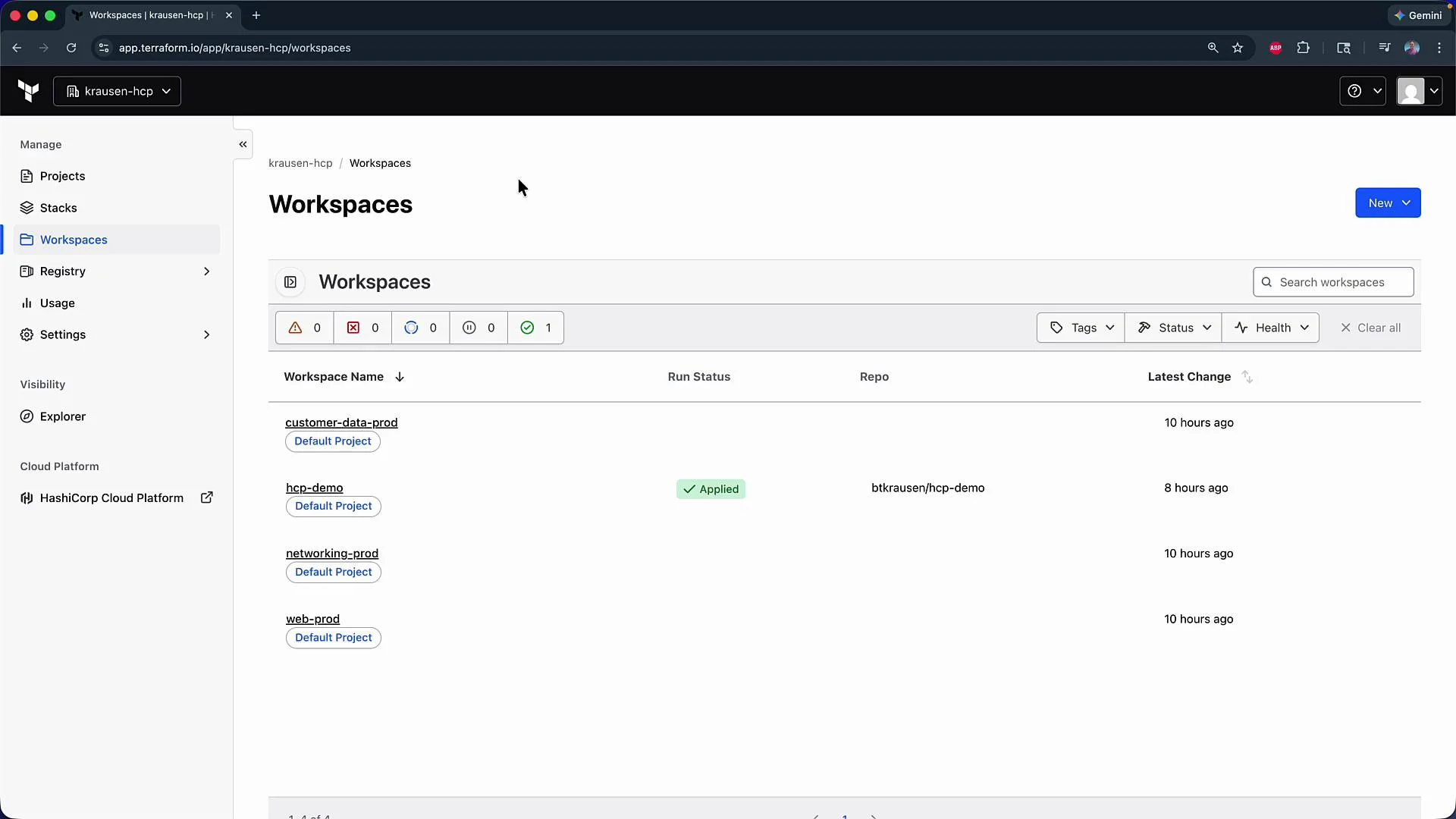
You can see I'm in HCP Terraform and looking at the workspaces in the `cloudsand-hcp` organization.
 What you'll learn
* How to create a Project in Terraform Cloud.
* How to configure project-wide defaults and team access.
* How to move existing workspaces into a Project.
* How to verify and delete a Project safely.
## Create a new project
1. In the Terraform Cloud UI, click **Projects** (top-left).
2. You will see the default project (often with no description) and any workspaces already assigned to it.
3. Click **New Project**, provide a name such as `HCP demo`, add an optional description (e.g., "This is a demo"), and click **Create**.
After creating the project you'll arrive at the Project page where you can see:
* Project name and project ID.
* Assigned teams, workspaces, and tags (initially empty).
* A **Create a Workspace** button to create workspaces scoped to this project.
## Project settings
From the Project page click **Settings** to manage project-wide defaults and access controls.
What you'll learn
* How to create a Project in Terraform Cloud.
* How to configure project-wide defaults and team access.
* How to move existing workspaces into a Project.
* How to verify and delete a Project safely.
## Create a new project
1. In the Terraform Cloud UI, click **Projects** (top-left).
2. You will see the default project (often with no description) and any workspaces already assigned to it.
3. Click **New Project**, provide a name such as `HCP demo`, add an optional description (e.g., "This is a demo"), and click **Create**.
After creating the project you'll arrive at the Project page where you can see:
* Project name and project ID.
* Assigned teams, workspaces, and tags (initially empty).
* A **Create a Workspace** button to create workspaces scoped to this project.
## Project settings
From the Project page click **Settings** to manage project-wide defaults and access controls.
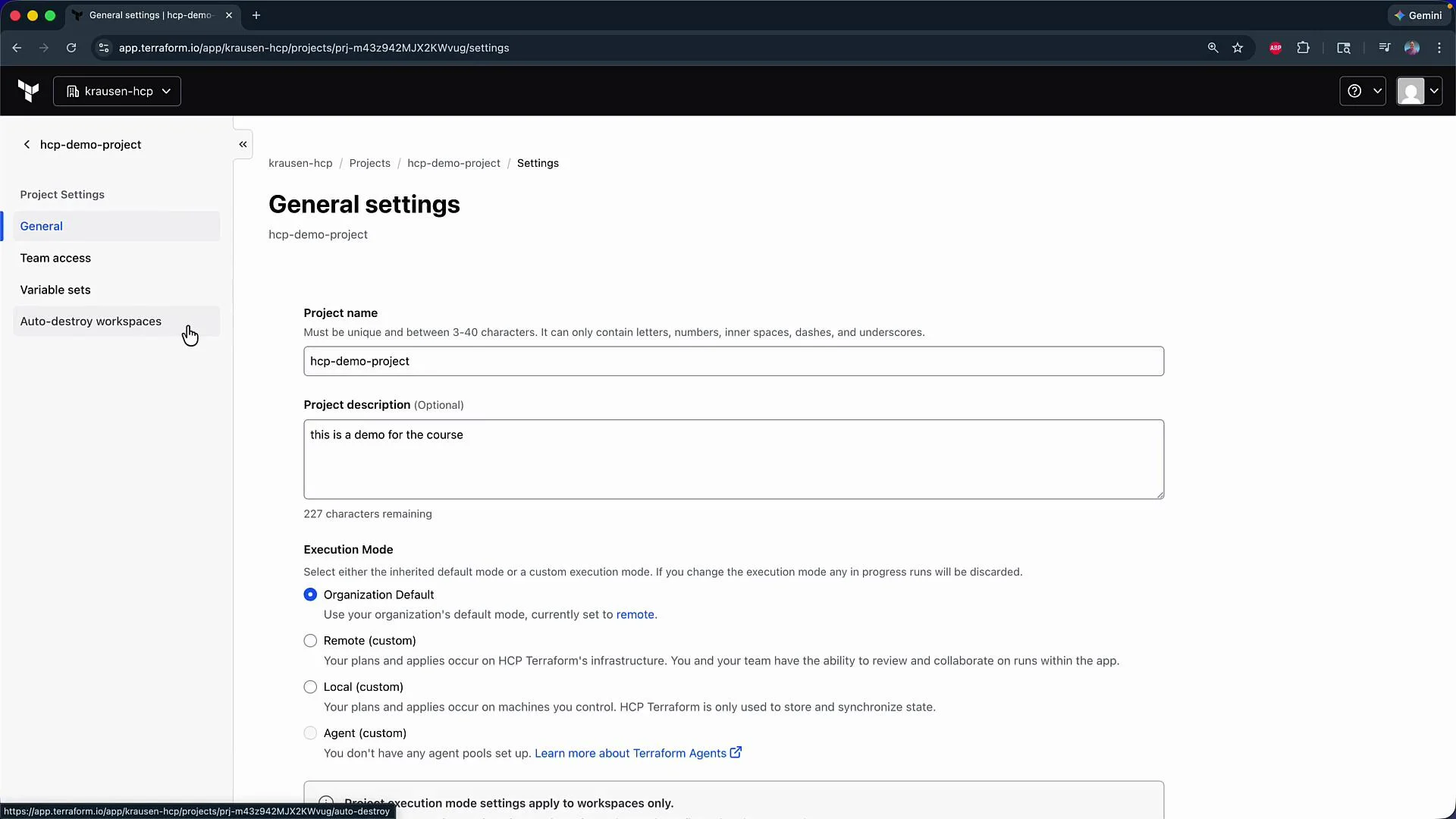 Key settings you can configure:
| Setting | Purpose | Notes |
| ---------------------- | -------------------------------------------------------------------------------------------------------------- | --------------------------------------------------------------------------- |
| Default execution mode | Set the execution mode for new workspaces in the project (Organization Default, `Remote`, `Local`, or `Agent`) | Can be overridden per-workspace if needed |
| Project metadata | Name and Description | Helps with discoverability and auditing |
| Team access | Which teams have access to the project | Apply least privilege for production projects |
| Variable sets | Apply organization-level variable sets to all project workspaces | Useful for shared secrets or common settings |
| Auto-destroy behavior | Patterns for short-lived/demo workspaces (via automation) | Implement using scheduled API runs, CI/CD, or ephemeral workspace workflows |
Auto-destroy can help manage cost and cleanup by automatically destroying infrastructure after a set lifetime. Because Terraform Cloud does not provide a single universal scheduled auto-destroy toggle for all workspace types, implement this via automation (API, scheduled runs) or ephemeral workspace workflows and make sure it aligns with your environment and access controls.
## Move existing workspaces into a Project
You can move workspaces into a project either from the Organization Workspaces list or from inside a workspace.
Method 1 — From the Organization Workspaces view:
* Go to **Organization → Workspaces**.
* For a workspace, click the ellipsis (three dots) on the right and choose **Change Project**.
* Select the target project (for example, `HCP demo`) and click **Move**.
Method 2 — From inside a workspace:
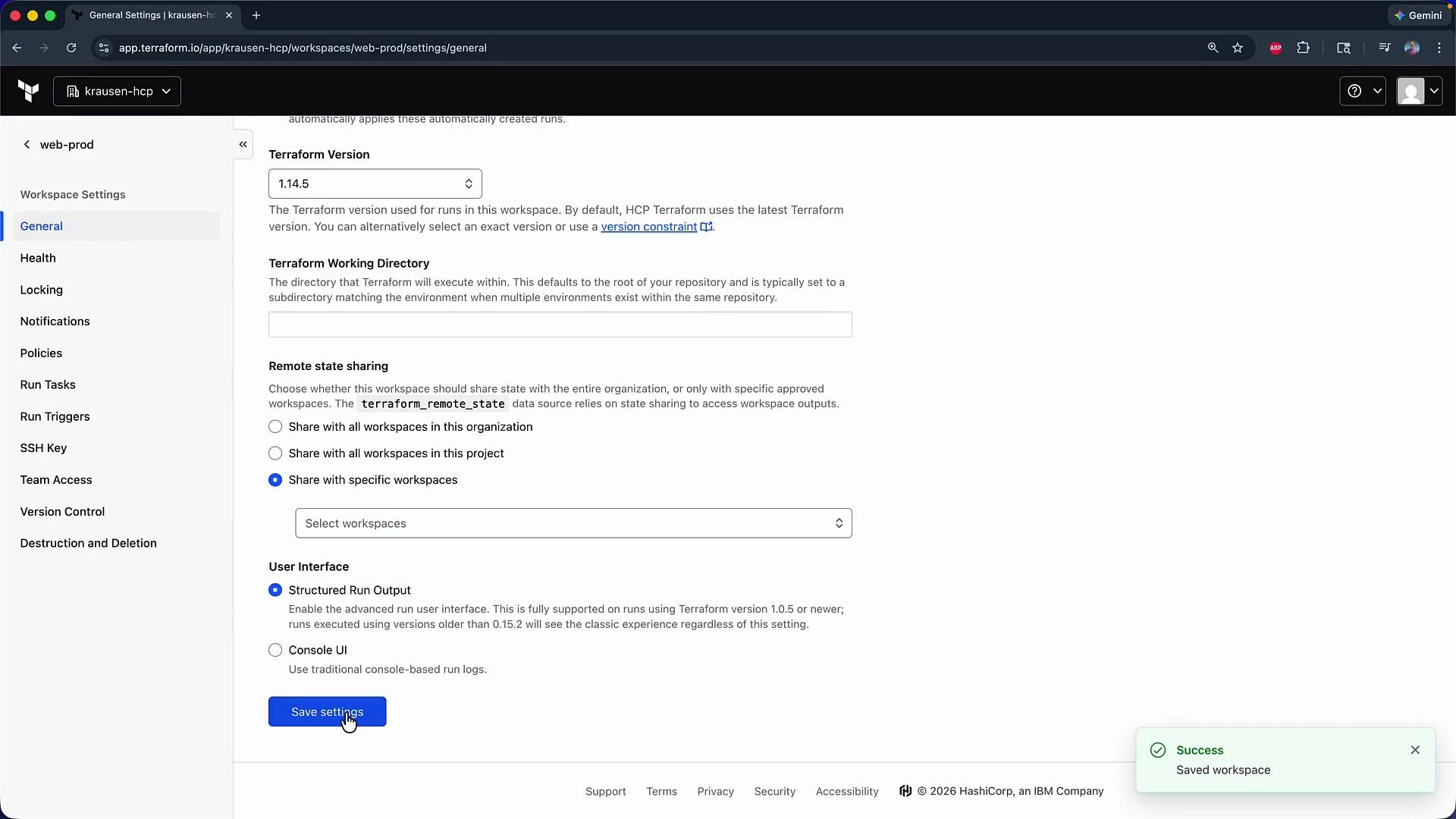
* Open the workspace (e.g., `web-prod`), then go to **Settings → General**.
* Update the workspace configuration and set the `project` association in your workflow or in the Terraform configuration that targets Terraform Cloud.
Example workspace Terraform CLI configuration that targets Terraform Cloud:
```hcl theme={null}
terraform {
cloud {
organization = "krausen-hcp"
workspaces {
name = "web-prod"
}
}
}
```
After saving these settings the workspace will be associated with the selected Project.
Key settings you can configure:
| Setting | Purpose | Notes |
| ---------------------- | -------------------------------------------------------------------------------------------------------------- | --------------------------------------------------------------------------- |
| Default execution mode | Set the execution mode for new workspaces in the project (Organization Default, `Remote`, `Local`, or `Agent`) | Can be overridden per-workspace if needed |
| Project metadata | Name and Description | Helps with discoverability and auditing |
| Team access | Which teams have access to the project | Apply least privilege for production projects |
| Variable sets | Apply organization-level variable sets to all project workspaces | Useful for shared secrets or common settings |
| Auto-destroy behavior | Patterns for short-lived/demo workspaces (via automation) | Implement using scheduled API runs, CI/CD, or ephemeral workspace workflows |
Auto-destroy can help manage cost and cleanup by automatically destroying infrastructure after a set lifetime. Because Terraform Cloud does not provide a single universal scheduled auto-destroy toggle for all workspace types, implement this via automation (API, scheduled runs) or ephemeral workspace workflows and make sure it aligns with your environment and access controls.
## Move existing workspaces into a Project
You can move workspaces into a project either from the Organization Workspaces list or from inside a workspace.
Method 1 — From the Organization Workspaces view:
* Go to **Organization → Workspaces**.
* For a workspace, click the ellipsis (three dots) on the right and choose **Change Project**.
* Select the target project (for example, `HCP demo`) and click **Move**.
Method 2 — From inside a workspace:
* Open the workspace (e.g., `web-prod`), then go to **Settings → General**.
* Update the workspace configuration and set the `project` association in your workflow or in the Terraform configuration that targets Terraform Cloud.
Example workspace Terraform CLI configuration that targets Terraform Cloud:
```hcl theme={null}
terraform {
cloud {
organization = "krausen-hcp"
workspaces {
name = "web-prod"
}
}
}
```
After saving these settings the workspace will be associated with the selected Project.
 ## Verify workspaces assigned to a Project
1. Go to **Projects → select your project** (for example, `HCP demo`).
2. In the Project page, check the **Workspaces** section to see all assigned workspaces (e.g., `web-prod`, `networking-prod`).
## Delete a Project
To delete a Project:
* Open **Project → Settings → General** and scroll to the bottom to delete the project.
* The UI will block deletion if the project contains workspaces; you must first move or delete those workspaces.
You cannot delete a project that still contains workspaces. Remove or reassign those workspaces before attempting to delete the project.
## Summary
* Projects in Terraform Cloud let you group workspaces and apply organization-wide defaults (execution mode, variable sets) and team access.
* Create a new Project and either create new workspaces inside it or move existing workspaces into it from the Workspaces list or workspace settings.
* For temporary/demo environments, implement auto-destroy via automation or ephemeral workspace workflows to control costs and resource cleanup.
* A Project must be emptied of workspaces before it can be deleted.
## Links and references
* [Terraform Cloud documentation](https://www.hashicorp.com/products/terraform)
* [Terraform Cloud workspaces and organizations](https://www.terraform.io/cloud)
## Verify workspaces assigned to a Project
1. Go to **Projects → select your project** (for example, `HCP demo`).
2. In the Project page, check the **Workspaces** section to see all assigned workspaces (e.g., `web-prod`, `networking-prod`).
## Delete a Project
To delete a Project:
* Open **Project → Settings → General** and scroll to the bottom to delete the project.
* The UI will block deletion if the project contains workspaces; you must first move or delete those workspaces.
You cannot delete a project that still contains workspaces. Remove or reassign those workspaces before attempting to delete the project.
## Summary
* Projects in Terraform Cloud let you group workspaces and apply organization-wide defaults (execution mode, variable sets) and team access.
* Create a new Project and either create new workspaces inside it or move existing workspaces into it from the Workspaces list or workspace settings.
* For temporary/demo environments, implement auto-destroy via automation or ephemeral workspace workflows to control costs and resource cleanup.
* A Project must be emptied of workspaces before it can be deleted.
## Links and references
* [Terraform Cloud documentation](https://www.hashicorp.com/products/terraform)
* [Terraform Cloud workspaces and organizations](https://www.terraform.io/cloud)