> ## Documentation Index
> Fetch the complete documentation index at: https://notes.kodekloud.com/llms.txt
> Use this file to discover all available pages before exploring further.
# Getting Connected and Authenticated with HCP Terraform
> How to configure Terraform cloud block and authenticate with terraform login or TF_TOKEN to connect local Terraform to HCP, plus token types and security practices
In the previous lesson we introduced HCP Terraform and why teams adopt it. If you followed along, you already created a free HCP Terraform account. Now you need to connect your local Terraform CLI to that account and authenticate so Terraform can perform remote operations (remote state, runs, workspaces) against HCP Terraform.
Goals
* Tell Terraform where to connect (configure the `cloud` block).
* Prove your identity to HCP Terraform with an API token (via `terraform login` for interactive use or an environment variable for CI/CD automation).
Overview
Your local workflow likely runs `terraform plan` and `terraform apply` locally. HCP Terraform runs in the cloud. To move operations into HCP Terraform you must:
1. Configure the `terraform` settings block with a `cloud` block that points to your organization and workspace.
2. Authenticate your CLI so HCP Terraform trusts your requests.
Step 1 — Configure the cloud block
Add a `terraform` settings block to your configuration that includes a `cloud` block. This instructs Terraform to use HCP Terraform (Terraform Cloud / HCP) instead of performing purely local operations.
Example HCL (targeting a specific workspace by name):
```hcl theme={null}
terraform {
cloud {
organization = "my-org"
hostname = "app.terraform.io"
workspaces {
name = "networking-development"
}
}
}
```
Key details
* `organization` must exactly match the organization name in your HCP Terraform account.
* `hostname` defaults to `app.terraform.io` and is optional unless you use a custom hostname (for example, Terraform Enterprise).
* Use `workspaces.name` to target a single workspace, or `workspaces.prefix` to target workspaces sharing a name prefix. If multiple workspaces match a prefix, Terraform may prompt you to choose one at runtime.
* The `cloud` block replaces the legacy `backend "remote"` configuration.
You cannot mix the `cloud` block and a `backend` block in the same configuration. They are mutually exclusive — choose one or the other.
Step 2 — Authenticate (interactive)
Once your configuration points at HCP Terraform, authenticate so the CLI can prove your identity.
Interactive authentication (recommended for local development)
Run:
```bash theme={null}
terraform login
```
Behavior:
* Terraform opens a browser to HCP Terraform to create an API token.
* If login succeeds, Terraform stores the token on disk for subsequent commands (for example `terraform init`, `terraform plan`, `terraform apply`).
Example interactive prompt:
```bash theme={null}
$ terraform login
Terraform will request an API token for app.terraform.io using your browser.
If login is successful, Terraform will store the token in plain text in the following file for use by subsequent commands:
/Users/bk/.terraform.d/credentials.tfrc.json
Do you want to proceed?
Only 'yes' will be accepted to confirm.
Enter a value:
```
After you confirm, the browser window opens to HCP Terraform to generate the token. Give the token a description (for example "Terraform login") and an expiration. Copy the token immediately — HCP Terraform shows it exactly once.
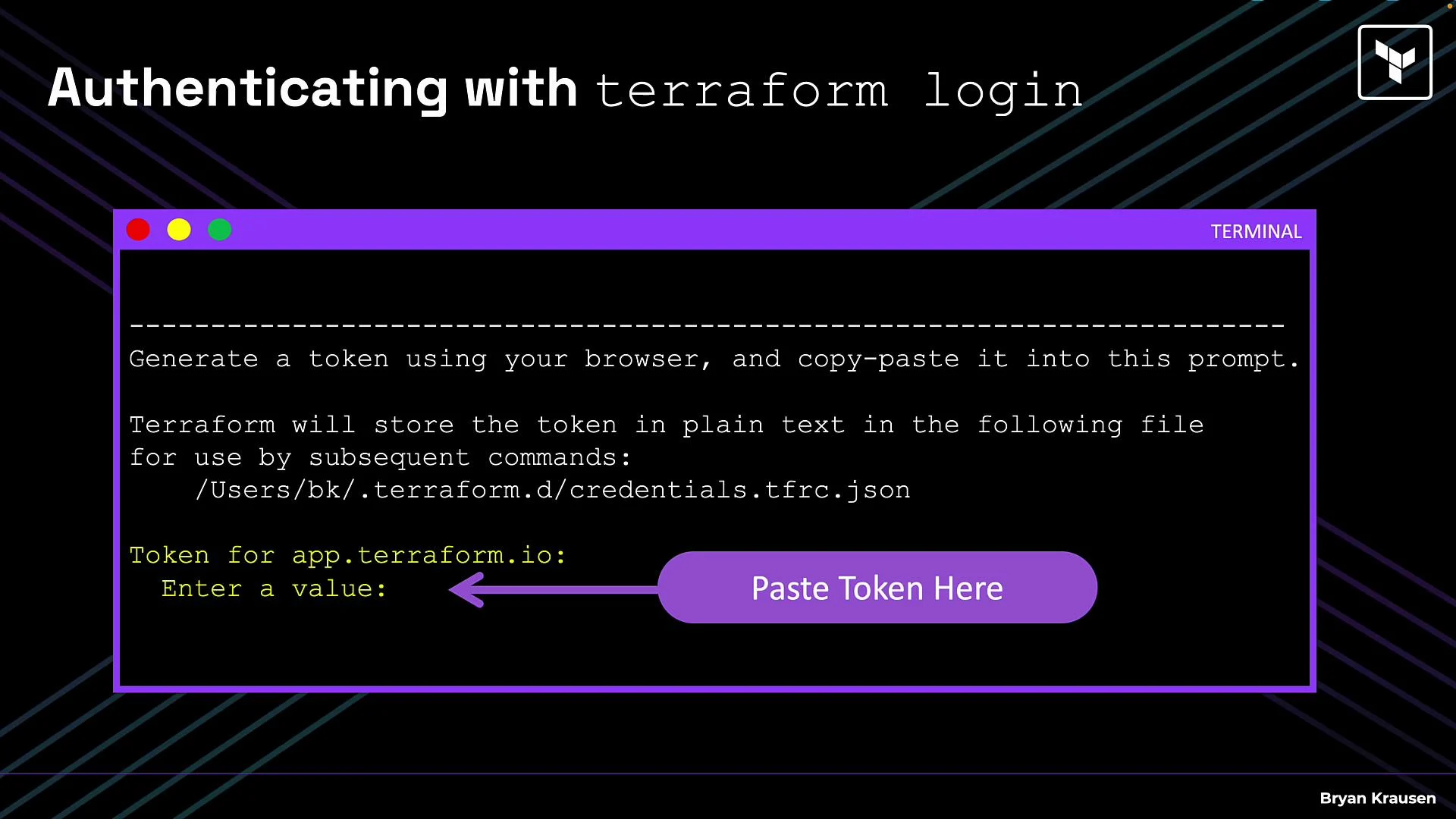 Back in the terminal, paste the token at the prompt. Terraform stores it under your home directory, typically:
```text theme={null}
/Users/bk/.terraform.d/credentials.tfrc.json
```
The credentials file is a JSON structure similar to:
```json theme={null}
{
"credentials": {
"app.terraform.io": {
"token": "FCApkzYtVEW0xg.atlasv1.XXXXXXXXXXXXXXXXXXXXXXXXX"
}
}
}
```
This file is stored in plain text. Ensure its filesystem permissions are restricted so unauthorized users cannot read the token.
Once stored, Terraform commands automatically use the token to authenticate with HCP Terraform.
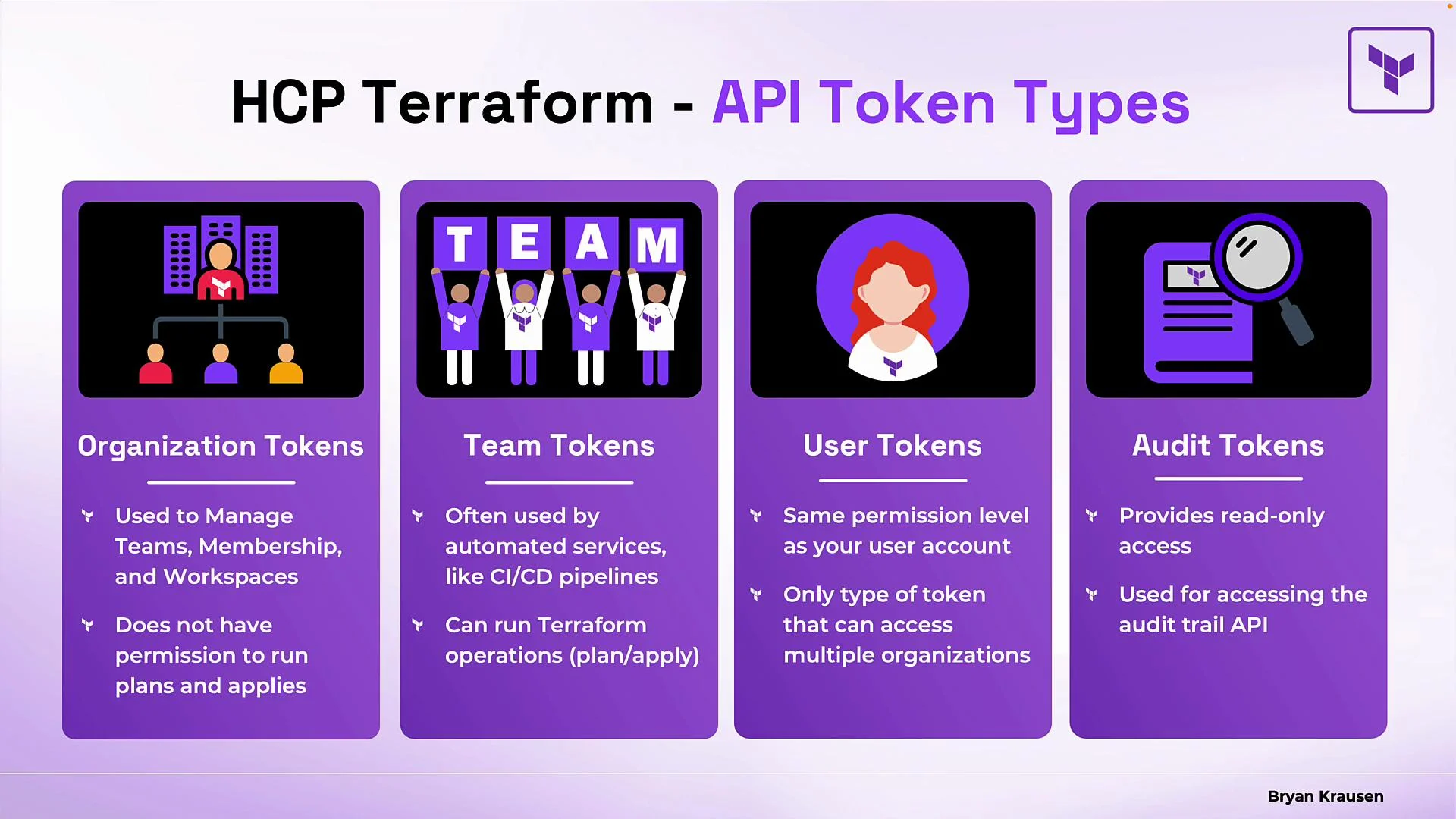
Token types overview
HCP Terraform supports several token types with different scopes and use cases. The table below summarizes the most common token types and typical usage. For more detail see the official Terraform Cloud/HCP documentation.
| Token type | Purpose / typical use | Notes |
| ------------------ | ----------------------------------------------------------- | -------------------------------------------------------------------------------------- |
| Organization token | Admin-level management of teams, membership, and workspaces | Intended for organization administration — not for routine plan/apply operations |
| Team token | CI/CD and automation (e.g., Jenkins, GitHub Actions) | Commonly granted to automation workflows to run plans and applies |
| User token | `terraform login` creates this token for interactive users | Carries the user’s permissions and can access multiple organizations a user belongs to |
| Audit token | Read-only access to audit trail APIs | Intended for compliance and monitoring; cannot run Terraform operations |
Back in the terminal, paste the token at the prompt. Terraform stores it under your home directory, typically:
```text theme={null}
/Users/bk/.terraform.d/credentials.tfrc.json
```
The credentials file is a JSON structure similar to:
```json theme={null}
{
"credentials": {
"app.terraform.io": {
"token": "FCApkzYtVEW0xg.atlasv1.XXXXXXXXXXXXXXXXXXXXXXXXX"
}
}
}
```
This file is stored in plain text. Ensure its filesystem permissions are restricted so unauthorized users cannot read the token.
Once stored, Terraform commands automatically use the token to authenticate with HCP Terraform.
Token types overview
HCP Terraform supports several token types with different scopes and use cases. The table below summarizes the most common token types and typical usage. For more detail see the official Terraform Cloud/HCP documentation.
| Token type | Purpose / typical use | Notes |
| ------------------ | ----------------------------------------------------------- | -------------------------------------------------------------------------------------- |
| Organization token | Admin-level management of teams, membership, and workspaces | Intended for organization administration — not for routine plan/apply operations |
| Team token | CI/CD and automation (e.g., Jenkins, GitHub Actions) | Commonly granted to automation workflows to run plans and applies |
| User token | `terraform login` creates this token for interactive users | Carries the user’s permissions and can access multiple organizations a user belongs to |
| Audit token | Read-only access to audit trail APIs | Intended for compliance and monitoring; cannot run Terraform operations |
 Non-interactive authentication (CI/CD and automation)
In CI/CD or headless environments use the environment variable method. Set `TF_TOKEN_app_terraform_io` to a valid API token before running Terraform commands.
Shell example:
```bash theme={null}
export TF_TOKEN_app_terraform_io="FCApkzYtVEW0xg.atlasv1.XXXXXXXXXXXXXXXXXXXXXXXXX"
terraform init
terraform plan
```
Best practices for automation
* Store the token as a secret in your CI provider (GitHub Secrets, GitLab CI variables, Jenkins credentials, etc.).
* Use a team token or a service account with scoped permissions instead of a personal user token where appropriate.
* Rotate tokens periodically and set expirations when supported.
Wrap-up
* Add a `cloud` block to your Terraform configuration to point at your HCP Terraform organization and workspace.
* Authenticate with `terraform login` for interactive use, or set `TF_TOKEN_app_terraform_io` in CI/CD for non-interactive automation.
* Keep credentials secure and choose the appropriate token type (organization, team, user, audit) for your use case.
Links and references
* [Terraform Cloud and HCP documentation](https://www.terraform.io/cloud)
* [Terraform CLI: login command reference](https://www.terraform.io/cli/commands/login)
Non-interactive authentication (CI/CD and automation)
In CI/CD or headless environments use the environment variable method. Set `TF_TOKEN_app_terraform_io` to a valid API token before running Terraform commands.
Shell example:
```bash theme={null}
export TF_TOKEN_app_terraform_io="FCApkzYtVEW0xg.atlasv1.XXXXXXXXXXXXXXXXXXXXXXXXX"
terraform init
terraform plan
```
Best practices for automation
* Store the token as a secret in your CI provider (GitHub Secrets, GitLab CI variables, Jenkins credentials, etc.).
* Use a team token or a service account with scoped permissions instead of a personal user token where appropriate.
* Rotate tokens periodically and set expirations when supported.
Wrap-up
* Add a `cloud` block to your Terraform configuration to point at your HCP Terraform organization and workspace.
* Authenticate with `terraform login` for interactive use, or set `TF_TOKEN_app_terraform_io` in CI/CD for non-interactive automation.
* Keep credentials secure and choose the appropriate token type (organization, team, user, audit) for your use case.
Links and references
* [Terraform Cloud and HCP documentation](https://www.terraform.io/cloud)
* [Terraform CLI: login command reference](https://www.terraform.io/cli/commands/login)