> ## Documentation Index
> Fetch the complete documentation index at: https://notes.kodekloud.com/llms.txt
> Use this file to discover all available pages before exploring further.
# Validating Your Configuration
> Explains Terraform's four validation mechanisms, when they run, and examples to enforce input rules, preconditions, postconditions, and non-blocking checks to prevent deployment errors.
Terraform validation helps you catch configuration and business-rule problems before they reach production. In this guide you’ll learn the four validation mechanisms Terraform provides, when each runs during the lifecycle, and practical examples to enforce safe infrastructure changes.
Imagine deploying on a Friday afternoon. A teammate runs `terraform apply` and the plan looks fine, but an EC2 instance fails to boot because an ARM AMI was paired with an x86\_64 instance type. The HCL was syntactically valid, yet incompatible. Validation catches these semantic problems earlier so you avoid cascading failures and costly troubleshooting.
Terraform offers four validation layers:
* Variable validation
* Preconditions
* Postconditions
* Checks
Think of these as defensive layers that run at different points during planning and apply. Understanding each stage helps you apply the right guardrail for your team and automation workflow (also useful when preparing for the Terraform Associate certification).
So here’s where each validation fits into the workflow:
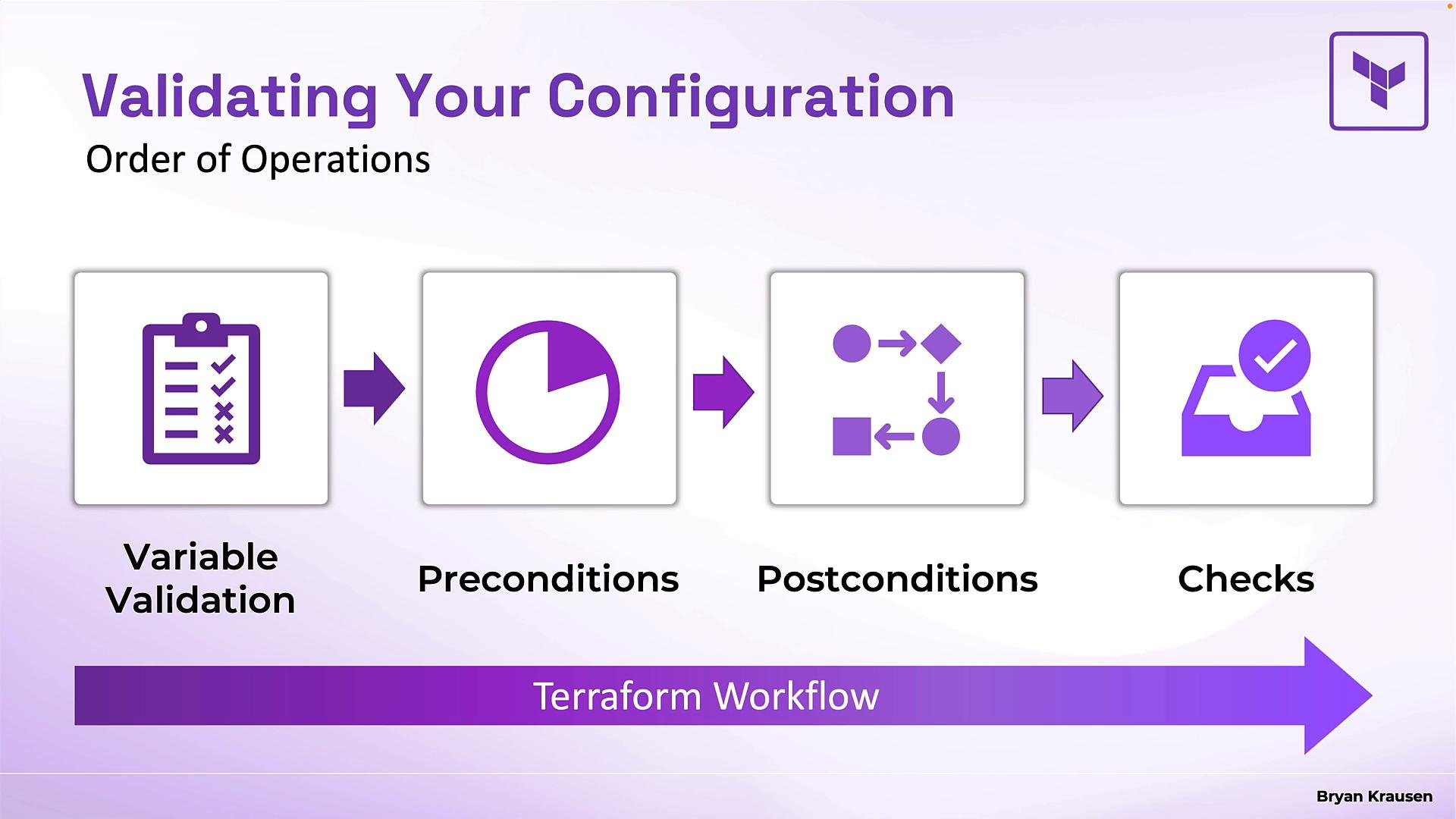 * Variable validation: runs immediately when Terraform creates a plan (before contacting providers). If it fails, Terraform stops.
* Preconditions: evaluated when Terraform generates the plan but before it creates any resources.
* Postconditions: evaluated after a resource has been created or updated (to verify the result).
* Checks: run as the final step of a plan or apply. They produce warnings rather than errors and do not block the operation.
Variable validation
Variable validation validates inputs at plan time and prevents bad inputs from progressing to provider APIs. Use it to enforce naming conventions, region allowlists, numeric ranges, and other input-level business rules.
Template for variable validation:
```hcl theme={null}
variable "example" {
type = string
validation {
condition =
error_message = "A helpful error message describing the rule and remediation steps."
}
}
```
Notes:
* `condition` must evaluate to `true` or `false`.
* `error_message` displays when `condition` is `false`.
* Validation runs before contacting providers, giving fast and user-friendly feedback.
Examples
1. Allowed Azure regions (allowlist)
```hcl theme={null}
variable "location" {
type = string
description = "Azure region where resources will be deployed"
validation {
condition = contains([
"eastus",
"westus2",
"centralus"
], var.location)
error_message = "Location must be one of the approved US regions: eastus, westus2, or centralus."
}
}
```
This prevents accidental deployments to disallowed regions such as `westeurope` or `southeastasia`.
2. Numeric validation with business rules
```hcl theme={null}
variable "cpu_count" {
type = number
description = "Number of virtual CPUs for the VM"
validation {
condition = var.cpu_count >= 2 && var.cpu_count <= 16 && var.cpu_count % 2 == 0
error_message = "CPU count must be an even number between 2 and 16. Single-CPU VMs are not supported in production."
}
}
```
3. Multiple validation rules on one variable
You can combine rules inside a single `validation` block or use multiple `validation` blocks (if your Terraform version supports stacking). Each rule is evaluated independently.
```hcl theme={null}
variable "instance_type" {
type = string
description = "EC2 instance type for the application server"
validation {
condition = contains([
"t3.micro", "t3.small", "t3.medium",
"t3.large", "t3.xlarge", "t3.2xlarge",
"m5.large", "m5.xlarge", "m5.2xlarge",
"c5.large", "c5.xlarge", "c5.2xlarge"
], var.instance_type)
error_message = "Instance type must be an approved type from the t3, m5, or c5 families. Graviton instances require architecture approval."
}
validation {
condition = (
var.instance_type == "t3.micro" ||
var.instance_type == "t3.small" ||
!startswith(var.instance_type, "t3")
)
error_message = "t3.micro and t3.small are only allowed for development. Use t3.medium or larger for staging and production."
}
validation {
condition = !can(regex("\\.(24|32)xlarge$", var.instance_type))
error_message = "Extra-large instances (24xlarge and above) require infrastructure team approval. Please submit a request ticket."
}
}
```
Preconditions and postconditions
Preconditions and postconditions attach to resources inside a resource's `lifecycle` block. Use preconditions to verify assumptions before creating/updating a resource, and postconditions to assert that the resource ended up in the expected state after creation or update. Both use the same structure: a `condition` and an `error_message`.
Precondition template:
```hcl theme={null}
resource "azurerm_app_service" "example" {
# resource configuration ...
lifecycle {
precondition {
condition =
error_message = "Precondition failed: explain what the expectation is and how to fix it."
}
}
}
```
Postcondition example:
```hcl theme={null}
resource "google_compute_instance" "web_server" {
name = var.instance_name
machine_type = var.machine_type
zone = var.zone
boot_disk {
initialize_params {
image = var.boot_image
}
}
lifecycle {
postcondition {
condition = self.network_interface[0].access_config[0].nat_ip != ""
error_message = "The instance must have a public IP address assigned. Check your network configuration."
}
}
}
```
Key points:
* `precondition` runs after planning but before any create/update actions. If it fails, Terraform aborts the apply.
* `postcondition` runs after the resource has been created or updated. Use `self` to reference the resource's attributes. If it fails, Terraform aborts and shows the error.
* Use these to guard incompatible actions (precondition) or to assert that provisioning achieved the expected runtime state (postcondition).
Checks (check blocks)
Check blocks are top-level blocks executed as the final step of a plan or apply. They can reference resources, data sources, variables, and outputs. Unlike variable validation, preconditions, and postconditions, check block assertions produce warnings rather than errors — they do not block the operation.
* Variable validation: runs immediately when Terraform creates a plan (before contacting providers). If it fails, Terraform stops.
* Preconditions: evaluated when Terraform generates the plan but before it creates any resources.
* Postconditions: evaluated after a resource has been created or updated (to verify the result).
* Checks: run as the final step of a plan or apply. They produce warnings rather than errors and do not block the operation.
Variable validation
Variable validation validates inputs at plan time and prevents bad inputs from progressing to provider APIs. Use it to enforce naming conventions, region allowlists, numeric ranges, and other input-level business rules.
Template for variable validation:
```hcl theme={null}
variable "example" {
type = string
validation {
condition =
error_message = "A helpful error message describing the rule and remediation steps."
}
}
```
Notes:
* `condition` must evaluate to `true` or `false`.
* `error_message` displays when `condition` is `false`.
* Validation runs before contacting providers, giving fast and user-friendly feedback.
Examples
1. Allowed Azure regions (allowlist)
```hcl theme={null}
variable "location" {
type = string
description = "Azure region where resources will be deployed"
validation {
condition = contains([
"eastus",
"westus2",
"centralus"
], var.location)
error_message = "Location must be one of the approved US regions: eastus, westus2, or centralus."
}
}
```
This prevents accidental deployments to disallowed regions such as `westeurope` or `southeastasia`.
2. Numeric validation with business rules
```hcl theme={null}
variable "cpu_count" {
type = number
description = "Number of virtual CPUs for the VM"
validation {
condition = var.cpu_count >= 2 && var.cpu_count <= 16 && var.cpu_count % 2 == 0
error_message = "CPU count must be an even number between 2 and 16. Single-CPU VMs are not supported in production."
}
}
```
3. Multiple validation rules on one variable
You can combine rules inside a single `validation` block or use multiple `validation` blocks (if your Terraform version supports stacking). Each rule is evaluated independently.
```hcl theme={null}
variable "instance_type" {
type = string
description = "EC2 instance type for the application server"
validation {
condition = contains([
"t3.micro", "t3.small", "t3.medium",
"t3.large", "t3.xlarge", "t3.2xlarge",
"m5.large", "m5.xlarge", "m5.2xlarge",
"c5.large", "c5.xlarge", "c5.2xlarge"
], var.instance_type)
error_message = "Instance type must be an approved type from the t3, m5, or c5 families. Graviton instances require architecture approval."
}
validation {
condition = (
var.instance_type == "t3.micro" ||
var.instance_type == "t3.small" ||
!startswith(var.instance_type, "t3")
)
error_message = "t3.micro and t3.small are only allowed for development. Use t3.medium or larger for staging and production."
}
validation {
condition = !can(regex("\\.(24|32)xlarge$", var.instance_type))
error_message = "Extra-large instances (24xlarge and above) require infrastructure team approval. Please submit a request ticket."
}
}
```
Preconditions and postconditions
Preconditions and postconditions attach to resources inside a resource's `lifecycle` block. Use preconditions to verify assumptions before creating/updating a resource, and postconditions to assert that the resource ended up in the expected state after creation or update. Both use the same structure: a `condition` and an `error_message`.
Precondition template:
```hcl theme={null}
resource "azurerm_app_service" "example" {
# resource configuration ...
lifecycle {
precondition {
condition =
error_message = "Precondition failed: explain what the expectation is and how to fix it."
}
}
}
```
Postcondition example:
```hcl theme={null}
resource "google_compute_instance" "web_server" {
name = var.instance_name
machine_type = var.machine_type
zone = var.zone
boot_disk {
initialize_params {
image = var.boot_image
}
}
lifecycle {
postcondition {
condition = self.network_interface[0].access_config[0].nat_ip != ""
error_message = "The instance must have a public IP address assigned. Check your network configuration."
}
}
}
```
Key points:
* `precondition` runs after planning but before any create/update actions. If it fails, Terraform aborts the apply.
* `postcondition` runs after the resource has been created or updated. Use `self` to reference the resource's attributes. If it fails, Terraform aborts and shows the error.
* Use these to guard incompatible actions (precondition) or to assert that provisioning achieved the expected runtime state (postcondition).
Checks (check blocks)
Check blocks are top-level blocks executed as the final step of a plan or apply. They can reference resources, data sources, variables, and outputs. Unlike variable validation, preconditions, and postconditions, check block assertions produce warnings rather than errors — they do not block the operation.
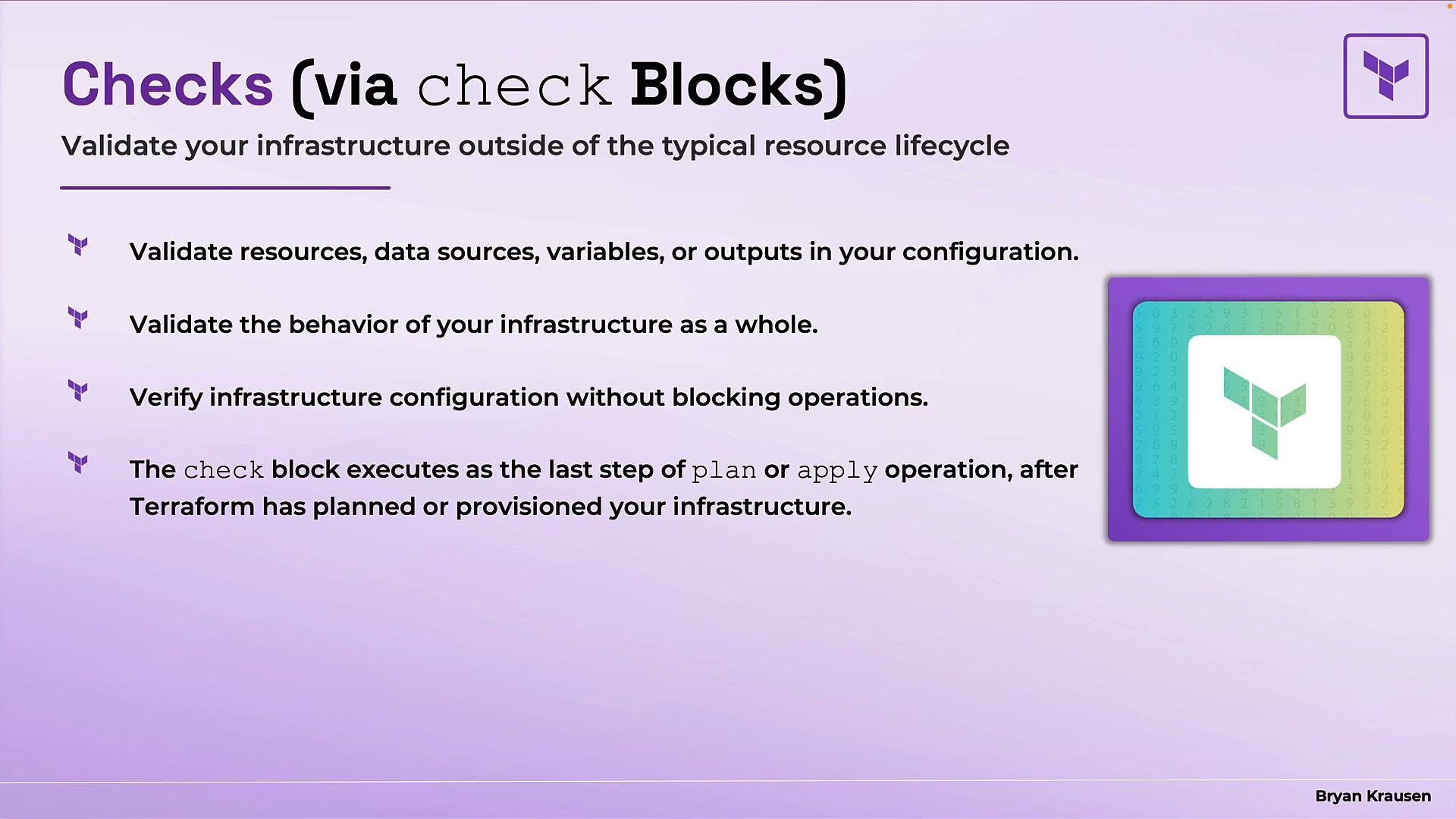 Example check block monitoring a website health endpoint:
```hcl theme={null}
check "web_health" {
data "http" "web_health_endpoint" {
url = "https://my-awesome.website.com/health"
}
assert {
condition = data.http.web_health_endpoint.status_code == 200
error_message = "Web health endpoint returned ${data.http.web_health_endpoint.status_code}. Expected 200."
}
}
```
Notes:
* If the assertion fails, Terraform emits a warning with the `error_message`, but the deployment continues.
* Check blocks are ideal for non-blocking verification such as endpoint health, certificate expiry, or runtime checks.
* On HCP Terraform, check blocks can run continuously to monitor infrastructure health over time.
Choosing the right validation
Use the mechanism that matches when and how you want to block or warn:
| Validation Type | When it runs | Blocks apply? | Typical use cases |
| - | - | - | - |
| Variable validation | During `terraform plan` before contacting providers | Yes | Validate user inputs, formats, allowlists (`region`, `instance_type`) |
| Precondition | After planning but before creating/updating a resource | Yes | Prevent incompatible operations (e.g., architecture vs. AMI mismatch) |
| Postcondition | After resource creation/update | Yes | Verify provisioning result (e.g., public IP assigned, service reachable) |
| Check block | As the final step of plan/apply (warnings only) | No — emits warnings | Non-blocking runtime checks: health endpoints, cert expiry, observability checks |
Example check block monitoring a website health endpoint:
```hcl theme={null}
check "web_health" {
data "http" "web_health_endpoint" {
url = "https://my-awesome.website.com/health"
}
assert {
condition = data.http.web_health_endpoint.status_code == 200
error_message = "Web health endpoint returned ${data.http.web_health_endpoint.status_code}. Expected 200."
}
}
```
Notes:
* If the assertion fails, Terraform emits a warning with the `error_message`, but the deployment continues.
* Check blocks are ideal for non-blocking verification such as endpoint health, certificate expiry, or runtime checks.
* On HCP Terraform, check blocks can run continuously to monitor infrastructure health over time.
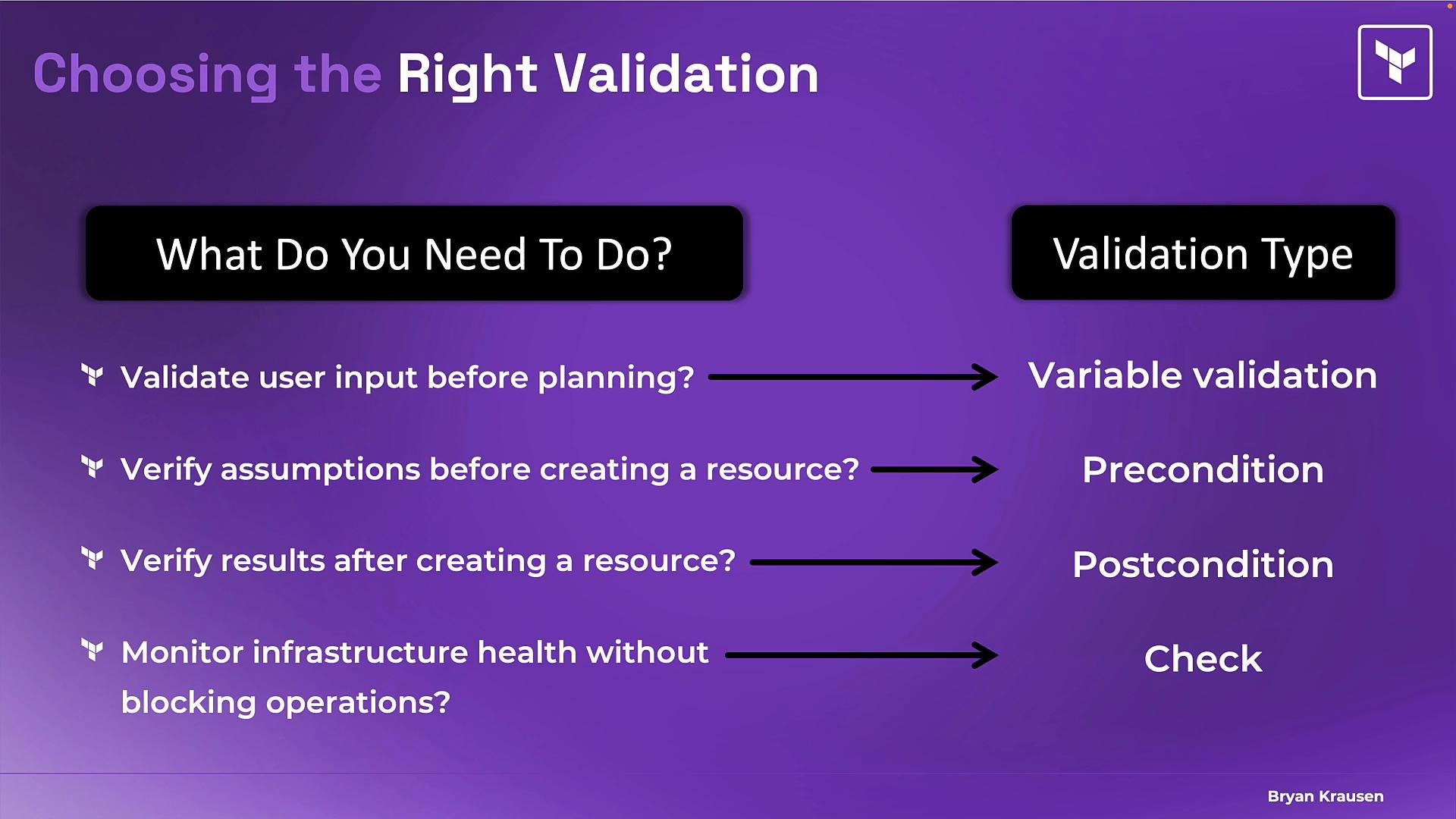
Choosing the right validation
Use the mechanism that matches when and how you want to block or warn:
| Validation Type | When it runs | Blocks apply? | Typical use cases |
| - | - | - | - |
| Variable validation | During `terraform plan` before contacting providers | Yes | Validate user inputs, formats, allowlists (`region`, `instance_type`) |
| Precondition | After planning but before creating/updating a resource | Yes | Prevent incompatible operations (e.g., architecture vs. AMI mismatch) |
| Postcondition | After resource creation/update | Yes | Verify provisioning result (e.g., public IP assigned, service reachable) |
| Check block | As the final step of plan/apply (warnings only) | No — emits warnings | Non-blocking runtime checks: health endpoints, cert expiry, observability checks |
 Summary
* Variable validation runs first during planning and prevents bad inputs from progressing.
* Preconditions run after planning but before resource creation; they block incompatible attempts.
* Postconditions run after resource creation/update to assert the desired state; they block when assertions fail.
* Check blocks run last and emit warnings; they are useful for non-blocking, ongoing checks.
Remember the sequence: variable validation → preconditions → postconditions → checks. Choosing the right validation type ensures you catch the right problems at the right time.
Links and references
* Terraform official docs — Validation: [https://www.terraform.io/docs](https://www.terraform.io/docs)
* Terraform resource lifecycle: [https://www.terraform.io/docs/language/resources/sensitive-data.html](https://www.terraform.io/docs/language/resources/sensitive-data.html) (see lifecycle hooks)
* HashiCorp Learn — Terraform Associate certification prep: [https://learn.hashicorp.com/terraform](https://learn.hashicorp.com/terraform)
This documentation is built and hosted on [Mintlify](https://mintlify.com), a developer documentation platform.
Summary
* Variable validation runs first during planning and prevents bad inputs from progressing.
* Preconditions run after planning but before resource creation; they block incompatible attempts.
* Postconditions run after resource creation/update to assert the desired state; they block when assertions fail.
* Check blocks run last and emit warnings; they are useful for non-blocking, ongoing checks.
Remember the sequence: variable validation → preconditions → postconditions → checks. Choosing the right validation type ensures you catch the right problems at the right time.
Links and references
* Terraform official docs — Validation: [https://www.terraform.io/docs](https://www.terraform.io/docs)
* Terraform resource lifecycle: [https://www.terraform.io/docs/language/resources/sensitive-data.html](https://www.terraform.io/docs/language/resources/sensitive-data.html) (see lifecycle hooks)
* HashiCorp Learn — Terraform Associate certification prep: [https://learn.hashicorp.com/terraform](https://learn.hashicorp.com/terraform)
This documentation is built and hosted on [Mintlify](https://mintlify.com), a developer documentation platform.