> ## Documentation Index
> Fetch the complete documentation index at: https://notes.kodekloud.com/llms.txt
> Use this file to discover all available pages before exploring further.
# Install Terraform on MacOS and Linux
> Installing Terraform on macOS and Linux using Homebrew, package managers, manual binaries, and automated scripts, with troubleshooting and exam version guidance
In this lesson/article you will learn how to install Terraform on macOS and Linux. Recommended installation options covered here:
* macOS — Homebrew (recommended)
* Manual install — download a specific Terraform binary
* Linux — Debian/Ubuntu (apt)
* Linux — RHEL/CentOS/Amazon Linux (yum/dnf)
* Automation-friendly installs using `releases.hashicorp.com`
If you are preparing for the [HashiCorp Certified: Terraform Associate 004](https://learn.kodekloud.com/user/courses/hashicorp-certified-terraform-associate-certification) exam, practice with Terraform 1.2 since the exam content focuses on that version. You do not always need the latest version for learning or exam prep.
Quick comparison of installation methods:
| Method | Best for | Notes / Link |
| ---------------------------------- | --------------------------------------- | ---------------------------------------------------------------------- |
| Homebrew (macOS) | macOS users who want a packaged install | Uses HashiCorp Homebrew tap |
| Manual (ZIP) | Pinning an exact Terraform version | Use `releases.hashicorp.com` or HashiCorp downloads page |
| apt (Debian/Ubuntu) | APT-based Linux distributions | Adds HashiCorp apt repository and GPG key |
| yum/dnf (RHEL/CentOS/Amazon Linux) | RPM-based Linux distributions | Add HashiCorp RPM repo and install with `yum` or `dnf` |
| Automated scripts / CI | Non-interactive installs | Download specific zip from `releases.hashicorp.com` and install binary |
## 1) macOS — Homebrew (recommended)
If you use macOS and have Homebrew installed, use the HashiCorp Homebrew tap for the simplest install:
```bash theme={null}
brew tap hashicorp/tap
brew install hashicorp/tap/terraform
```
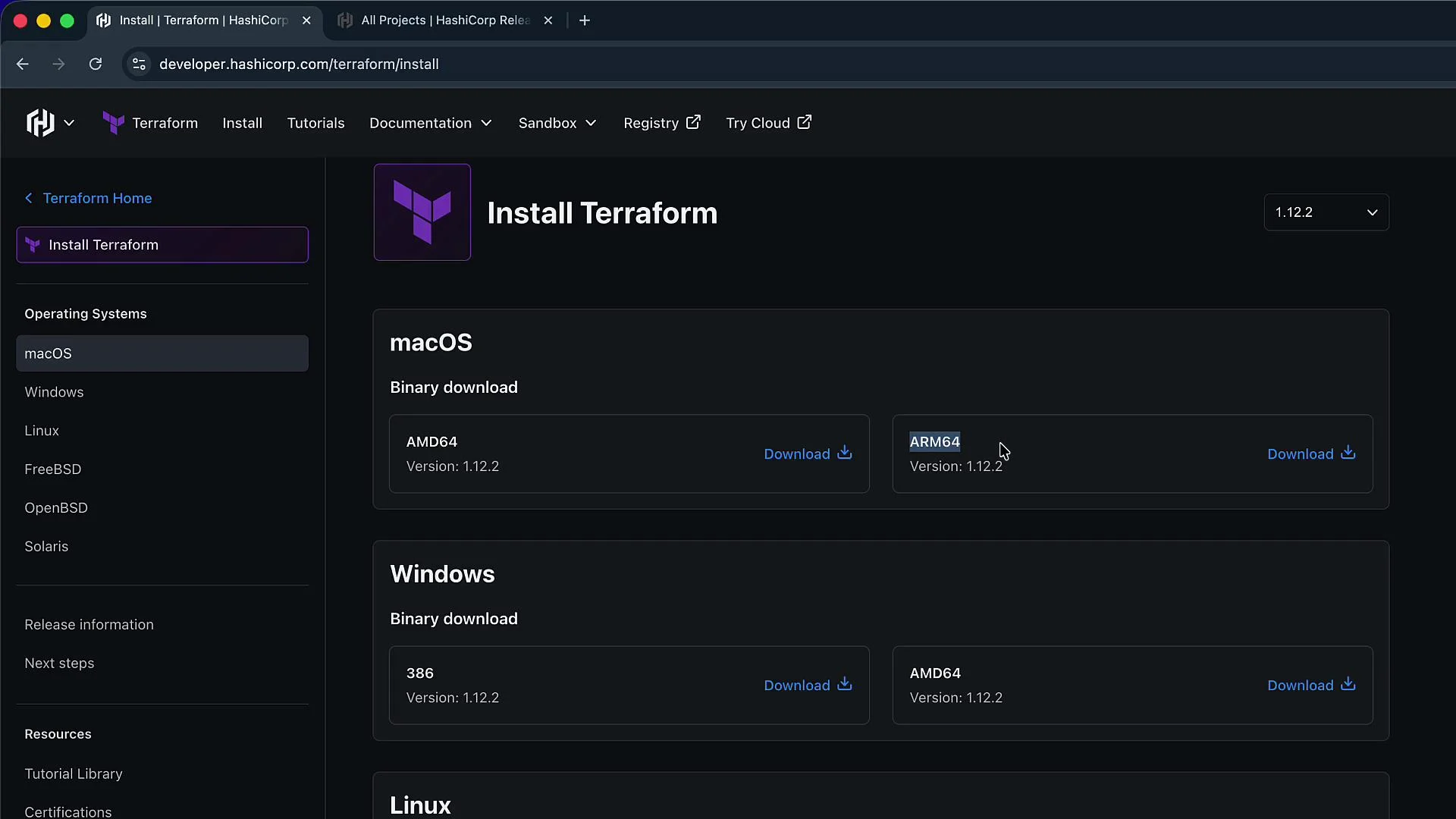
This installs the latest Terraform from the tap. If you require a specific version (for example, Terraform 1.2.x) for exam practice, use the manual download instructions below to get the exact binary for your CPU/OS (darwin\_amd64 or darwin\_arm64).
 Notes for Homebrew + Apple Silicon:
* Homebrew installs to `/opt/homebrew/bin` on Apple Silicon and to `/usr/local/bin` on Intel macOS. Ensure the Homebrew `bin` path is in your `PATH`.
## 2) Download a specific Terraform version (manual install)
To pin a precise release (recommended for predictable exam/CI environments), download the platform-specific ZIP for the release you need from:
* HashiCorp downloads page: [https://developer.hashicorp.com/terraform/downloads](https://developer.hashicorp.com/terraform/downloads)
* Releases mirror: [https://releases.hashicorp.com/terraform](https://releases.hashicorp.com/terraform)
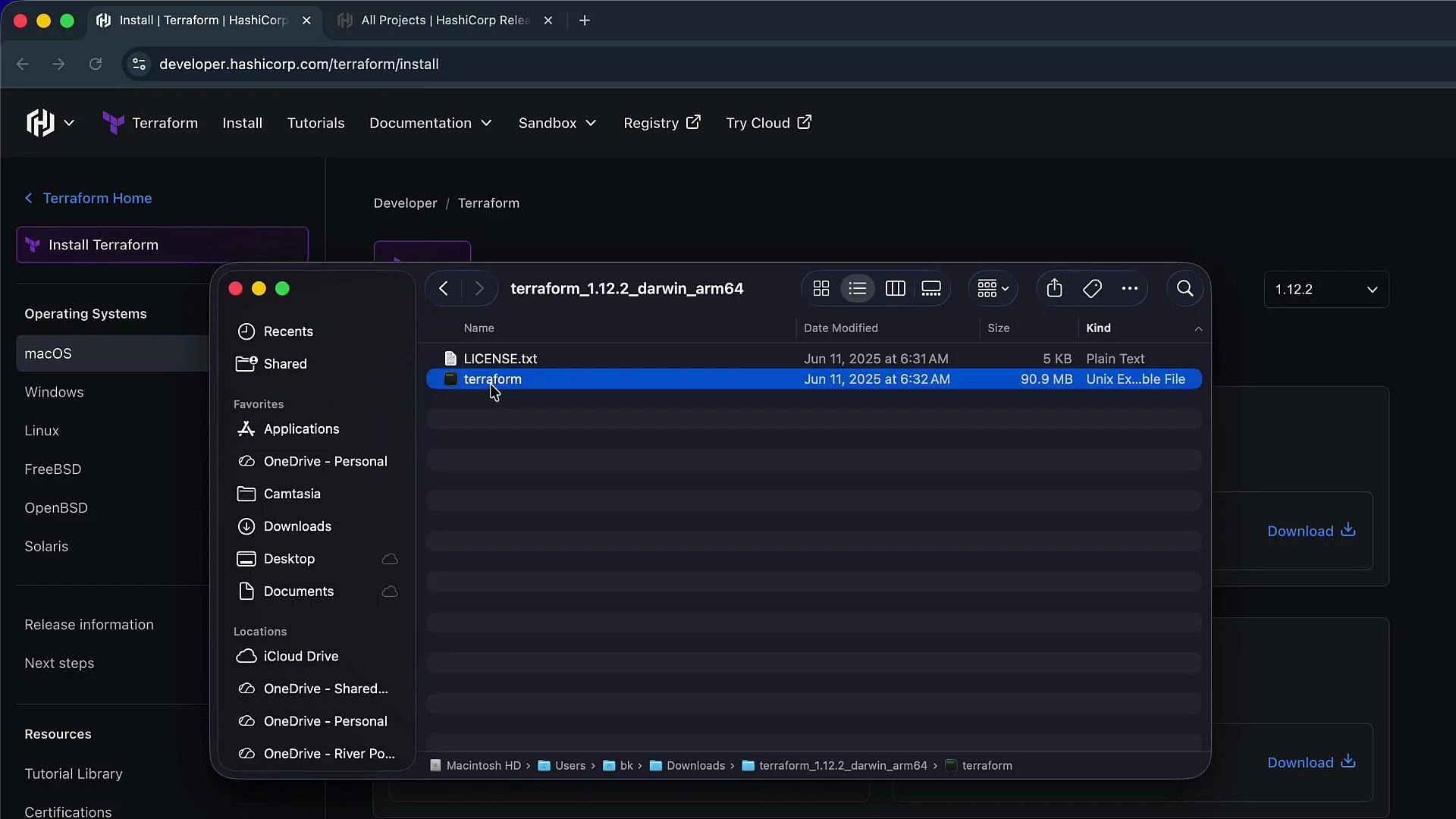
After downloading the ZIP (it contains a single `terraform` executable):
1. Unzip the archive.
2. Move the `terraform` binary into a directory that appears in your `PATH` (example: `/usr/local/bin` or `/opt/homebrew/bin`).
3. Make it executable (`chmod +x` if necessary).
4. Verify the installation.
Example commands (macOS or Linux):
```bash theme={null}
# From your Downloads folder (adjust paths as needed)
cd ~/Downloads
unzip terraform_1.2.2_darwin_arm64.zip
# Move the binary to a directory in your PATH (use sudo if required)
sudo mv terraform /usr/local/bin/terraform
sudo chmod +x /usr/local/bin/terraform
# Verify installation
terraform version
which terraform
echo $PATH
```
When selecting the correct ZIP on the downloads page, pick the build that matches your CPU and OS: `darwin_amd64`, `darwin_arm64`, `linux_amd64`, `linux_arm64`, etc.
Notes for Homebrew + Apple Silicon:
* Homebrew installs to `/opt/homebrew/bin` on Apple Silicon and to `/usr/local/bin` on Intel macOS. Ensure the Homebrew `bin` path is in your `PATH`.
## 2) Download a specific Terraform version (manual install)
To pin a precise release (recommended for predictable exam/CI environments), download the platform-specific ZIP for the release you need from:
* HashiCorp downloads page: [https://developer.hashicorp.com/terraform/downloads](https://developer.hashicorp.com/terraform/downloads)
* Releases mirror: [https://releases.hashicorp.com/terraform](https://releases.hashicorp.com/terraform)
After downloading the ZIP (it contains a single `terraform` executable):
1. Unzip the archive.
2. Move the `terraform` binary into a directory that appears in your `PATH` (example: `/usr/local/bin` or `/opt/homebrew/bin`).
3. Make it executable (`chmod +x` if necessary).
4. Verify the installation.
Example commands (macOS or Linux):
```bash theme={null}
# From your Downloads folder (adjust paths as needed)
cd ~/Downloads
unzip terraform_1.2.2_darwin_arm64.zip
# Move the binary to a directory in your PATH (use sudo if required)
sudo mv terraform /usr/local/bin/terraform
sudo chmod +x /usr/local/bin/terraform
# Verify installation
terraform version
which terraform
echo $PATH
```
When selecting the correct ZIP on the downloads page, pick the build that matches your CPU and OS: `darwin_amd64`, `darwin_arm64`, `linux_amd64`, `linux_arm64`, etc.
 Expected example output after a correct manual install:
```bash theme={null}
$ terraform version
Terraform v1.2.2
on darwin_arm64
$ which terraform
/usr/local/bin/terraform
```
If `terraform` is not found after copying the binary, confirm the target directory is in your `PATH` (`echo $PATH`) and that the binary is executable (`chmod +x terraform`). Use `which terraform` to locate the active binary. When in doubt, remove older copies or adjust your `PATH` to prioritize the intended installation.
## 3) Linux — Debian / Ubuntu (apt)
HashiCorp maintains an apt repository for Debian/Ubuntu. To add the GPG key, register the repository, and install Terraform:
```bash theme={null}
# Add HashiCorp GPG key to a keyring
wget -O- https://apt.releases.hashicorp.com/gpg | gpg --dearmor | sudo tee /usr/share/keyrings/hashicorp-archive-keyring.gpg >/dev/null
# Add the repository (replace $(lsb_release -cs) with your distro codename if needed)
echo "deb [signed-by=/usr/share/keyrings/hashicorp-archive-keyring.gpg] https://apt.releases.hashicorp.com $(lsb_release -cs) main" | sudo tee /etc/apt/sources.list.d/hashicorp.list
# Update and install terraform
sudo apt update && sudo apt install -y terraform
```
This installs the latest Terraform available in the HashiCorp apt repository. If you need a specific release version not available in the repo, use the manual ZIP install (see section 2).
## 4) Linux — RHEL / CentOS / Amazon Linux (yum / dnf)
For RPM-based distributions, enable the HashiCorp RPM repository and install via `yum` or `dnf`:
```bash theme={null}
# Add repo and install terraform
sudo yum install -y yum-utils
sudo yum-config-manager --add-repo https://rpm.releases.hashicorp.com/AmazonLinux/hashicorp.repo
sudo yum install -y terraform
```
If your distro uses `dnf`, replace `yum` with `dnf`. This approach installs the latest package available in HashiCorp's RPM repository.
## 5) Using releases.hashicorp.com for automation
For scripted installs in CI/CD or automated provisioning, prefer the releases listing to fetch exact ZIP URLs directly (no interactive UI). Example release listing for a version like 1.2.2:
```text theme={null}
terraform_1.2.2_SHA256SUMS
terraform_1.2.2_darwin_amd64.zip
terraform_1.2.2_darwin_arm64.zip
terraform_1.2.2_linux_386.zip
terraform_1.2.2_linux_amd64.zip
terraform_1.2.2_linux_arm.zip
terraform_1.2.2_linux_arm64.zip
...
```
Script approach (example pattern):
1. Download the chosen ZIP from `https://releases.hashicorp.com/terraform//terraform__.zip`
2. Unzip, move binary into a `PATH` directory, and set executable permissions.
This approach ensures reproducible installs across build agents and containers.
## Quick troubleshooting
* `command not found` after copying the binary:
* Confirm the install directory is in your `PATH` (`echo $PATH`).
* Confirm the binary is executable: `chmod +x /path/to/terraform`.
* Multiple Terraform versions:
* `which terraform` shows which binary will be executed. Remove or reorder binaries to control which version is active.
* Permission errors:
* Use `sudo` when moving or writing to system `bin` directories, or install to a user-writable directory and add it to your `PATH`.
Useful links and references:
* HashiCorp Terraform downloads: [https://developer.hashicorp.com/terraform/downloads](https://developer.hashicorp.com/terraform/downloads)
* Releases mirror: [https://releases.hashicorp.com/terraform](https://releases.hashicorp.com/terraform)
* Terraform documentation: [https://developer.hashicorp.com/terraform/docs](https://developer.hashicorp.com/terraform/docs)
Go get Terraform downloaded — for the [HashiCorp Certified: Terraform Associate 004](https://learn.kodekloud.com/user/courses/hashicorp-certified-terraform-associate-certification) exam, download and use 1.2.x if you want to practice on the same major/minor release used by the exam.
In the next lesson/article I'll show you...
Expected example output after a correct manual install:
```bash theme={null}
$ terraform version
Terraform v1.2.2
on darwin_arm64
$ which terraform
/usr/local/bin/terraform
```
If `terraform` is not found after copying the binary, confirm the target directory is in your `PATH` (`echo $PATH`) and that the binary is executable (`chmod +x terraform`). Use `which terraform` to locate the active binary. When in doubt, remove older copies or adjust your `PATH` to prioritize the intended installation.
## 3) Linux — Debian / Ubuntu (apt)
HashiCorp maintains an apt repository for Debian/Ubuntu. To add the GPG key, register the repository, and install Terraform:
```bash theme={null}
# Add HashiCorp GPG key to a keyring
wget -O- https://apt.releases.hashicorp.com/gpg | gpg --dearmor | sudo tee /usr/share/keyrings/hashicorp-archive-keyring.gpg >/dev/null
# Add the repository (replace $(lsb_release -cs) with your distro codename if needed)
echo "deb [signed-by=/usr/share/keyrings/hashicorp-archive-keyring.gpg] https://apt.releases.hashicorp.com $(lsb_release -cs) main" | sudo tee /etc/apt/sources.list.d/hashicorp.list
# Update and install terraform
sudo apt update && sudo apt install -y terraform
```
This installs the latest Terraform available in the HashiCorp apt repository. If you need a specific release version not available in the repo, use the manual ZIP install (see section 2).
## 4) Linux — RHEL / CentOS / Amazon Linux (yum / dnf)
For RPM-based distributions, enable the HashiCorp RPM repository and install via `yum` or `dnf`:
```bash theme={null}
# Add repo and install terraform
sudo yum install -y yum-utils
sudo yum-config-manager --add-repo https://rpm.releases.hashicorp.com/AmazonLinux/hashicorp.repo
sudo yum install -y terraform
```
If your distro uses `dnf`, replace `yum` with `dnf`. This approach installs the latest package available in HashiCorp's RPM repository.
## 5) Using releases.hashicorp.com for automation
For scripted installs in CI/CD or automated provisioning, prefer the releases listing to fetch exact ZIP URLs directly (no interactive UI). Example release listing for a version like 1.2.2:
```text theme={null}
terraform_1.2.2_SHA256SUMS
terraform_1.2.2_darwin_amd64.zip
terraform_1.2.2_darwin_arm64.zip
terraform_1.2.2_linux_386.zip
terraform_1.2.2_linux_amd64.zip
terraform_1.2.2_linux_arm.zip
terraform_1.2.2_linux_arm64.zip
...
```
Script approach (example pattern):
1. Download the chosen ZIP from `https://releases.hashicorp.com/terraform//terraform__.zip`
2. Unzip, move binary into a `PATH` directory, and set executable permissions.
This approach ensures reproducible installs across build agents and containers.
## Quick troubleshooting
* `command not found` after copying the binary:
* Confirm the install directory is in your `PATH` (`echo $PATH`).
* Confirm the binary is executable: `chmod +x /path/to/terraform`.
* Multiple Terraform versions:
* `which terraform` shows which binary will be executed. Remove or reorder binaries to control which version is active.
* Permission errors:
* Use `sudo` when moving or writing to system `bin` directories, or install to a user-writable directory and add it to your `PATH`.
Useful links and references:
* HashiCorp Terraform downloads: [https://developer.hashicorp.com/terraform/downloads](https://developer.hashicorp.com/terraform/downloads)
* Releases mirror: [https://releases.hashicorp.com/terraform](https://releases.hashicorp.com/terraform)
* Terraform documentation: [https://developer.hashicorp.com/terraform/docs](https://developer.hashicorp.com/terraform/docs)
Go get Terraform downloaded — for the [HashiCorp Certified: Terraform Associate 004](https://learn.kodekloud.com/user/courses/hashicorp-certified-terraform-associate-certification) exam, download and use 1.2.x if you want to practice on the same major/minor release used by the exam.
In the next lesson/article I'll show you...