> ## Documentation Index
> Fetch the complete documentation index at: https://notes.kodekloud.com/llms.txt
> Use this file to discover all available pages before exploring further.
# Install Terraform on Microsoft Windows
> Instructions to install and verify Terraform on Windows, covering manual binary placement in PATH and package manager options WinGet and Chocolatey with examples and troubleshooting tips
This guide shows how to install Terraform on a Windows machine. It covers the manual binary method and two package-manager approaches (WinGet and Chocolatey). Links and examples for other platforms (macOS/Homebrew and Debian/apt) are included for context but are not required on Windows.
Why this matters: installing Terraform correctly ensures the `terraform` CLI is available from any command prompt or PowerShell session and lets you manage infrastructure with consistent tooling.
## Other-platform examples (for context)
* Homebrew (macOS) example:
```bash theme={null}
brew tap hashicorp/tap
brew install hashicorp/tap/terraform
```
* Debian/Ubuntu (apt) example:
```bash theme={null}
wget -O - https://apt.releases.hashicorp.com/gpg | sudo gpg --dearmor -o /usr/share/keyrings/hashicorp-archive-keyring.gpg
echo "deb [arch=$(dpkg --print-architecture) signed-by=/usr/share/keyrings/hashicorp-archive-keyring.gpg] https://apt.releases.hashicorp.com $(lsb_release -cs) main" | sudo tee /etc/apt/sources.list.d/hashicorp.list
sudo apt update && sudo apt install terraform
```
## Manual Windows download and installation
1. Visit the Terraform install page: [https://developer.hashicorp.com/terraform/install](https://developer.hashicorp.com/terraform/install) and download the Windows AMD64 binary (`terraform.exe`).
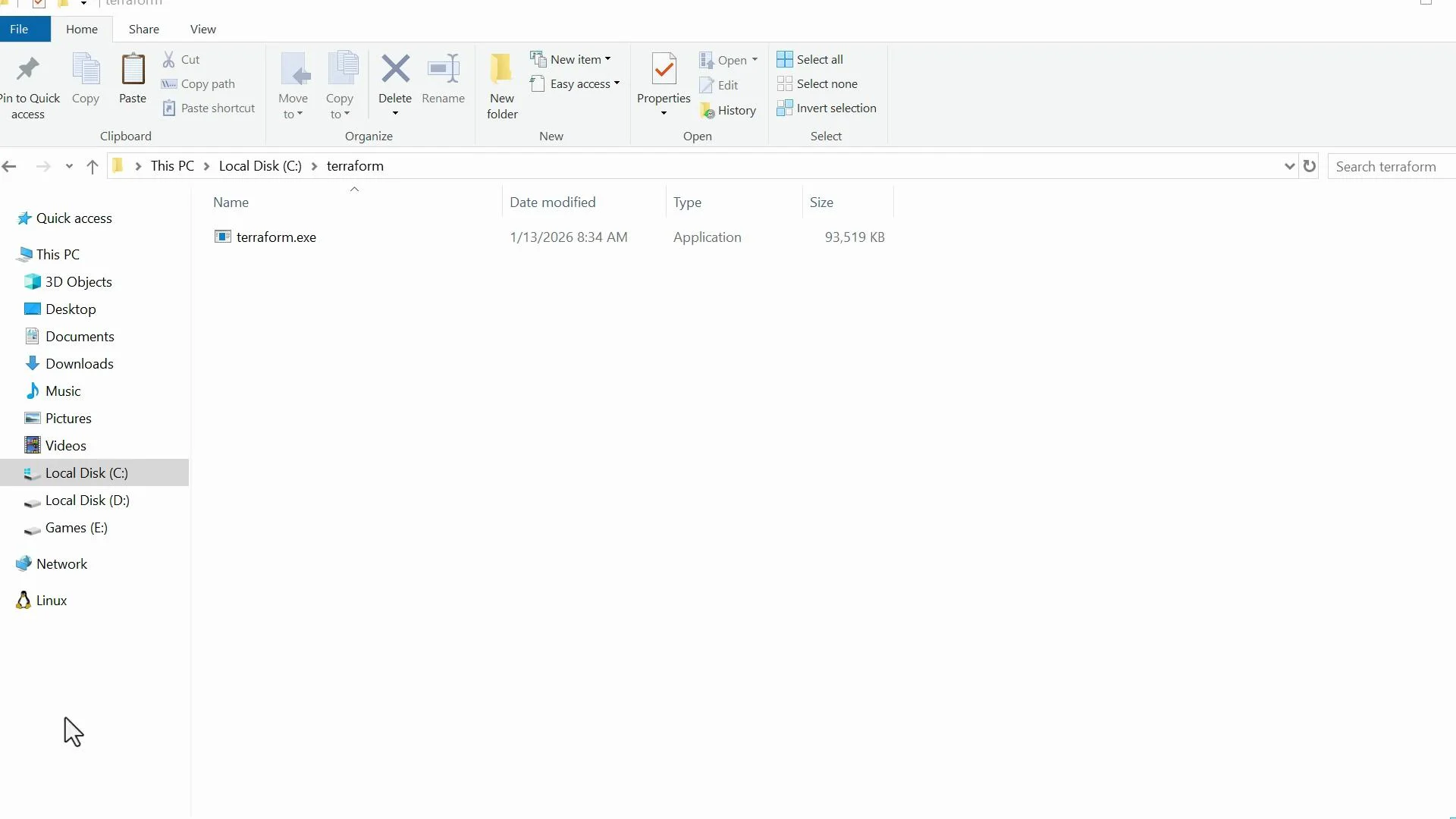
2. Move the downloaded `terraform.exe` to a permanent folder, for example `C:\Terraform`.
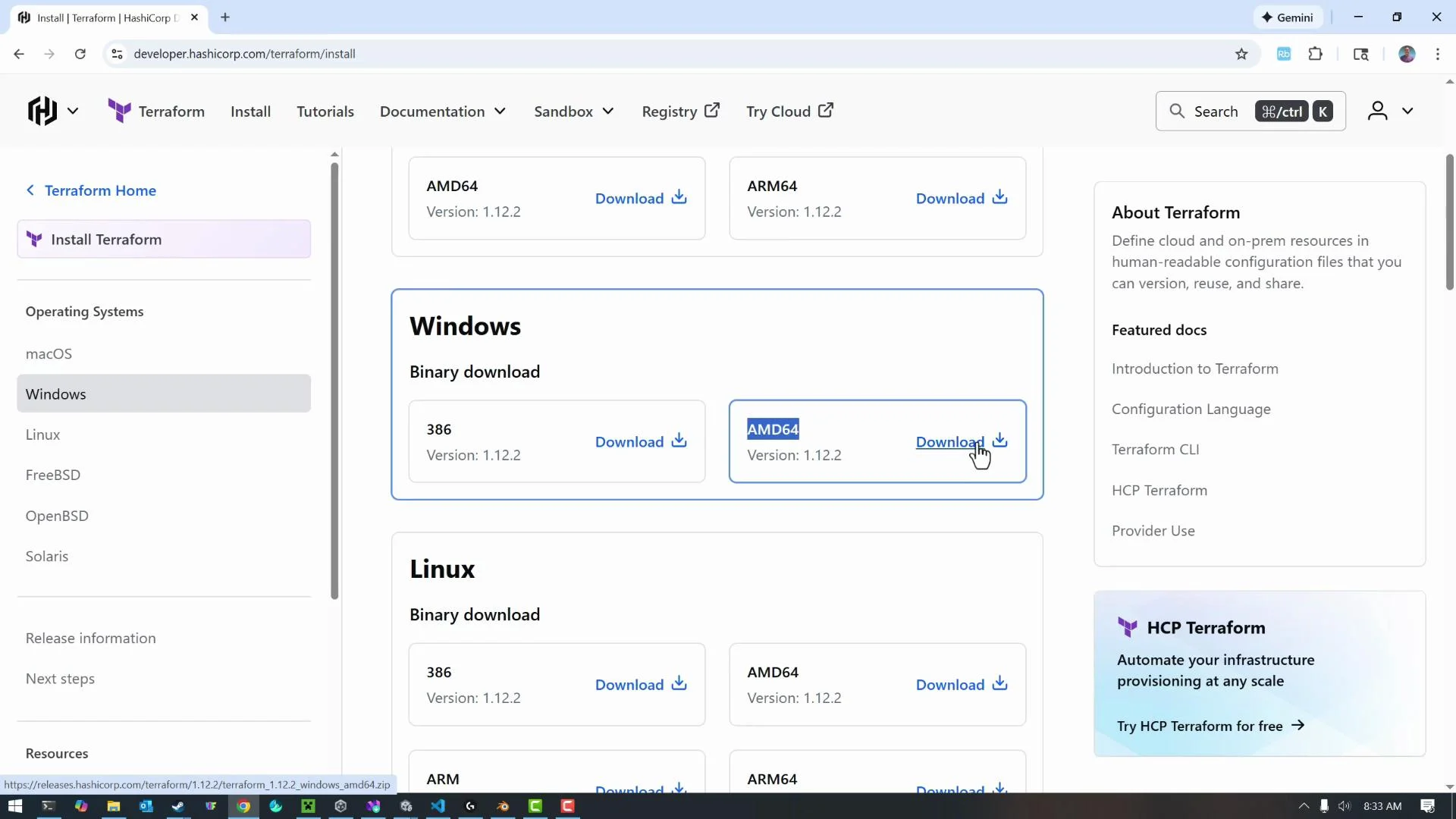 ## Add the folder to the system PATH
Make the `terraform.exe` executable available from any shell by adding its folder to `PATH`:
* Right-click Start → System → Advanced system settings → Environment Variables.
* Under System variables, select `Path` → Edit → New and add `C:\Terraform`.
* Click OK to close all dialogs.
When editing system environment variables, be careful not to modify or delete other existing `Path` entries. Incorrect changes can affect other programs.
## Add the folder to the system PATH
Make the `terraform.exe` executable available from any shell by adding its folder to `PATH`:
* Right-click Start → System → Advanced system settings → Environment Variables.
* Under System variables, select `Path` → Edit → New and add `C:\Terraform`.
* Click OK to close all dialogs.
When editing system environment variables, be careful not to modify or delete other existing `Path` entries. Incorrect changes can affect other programs.
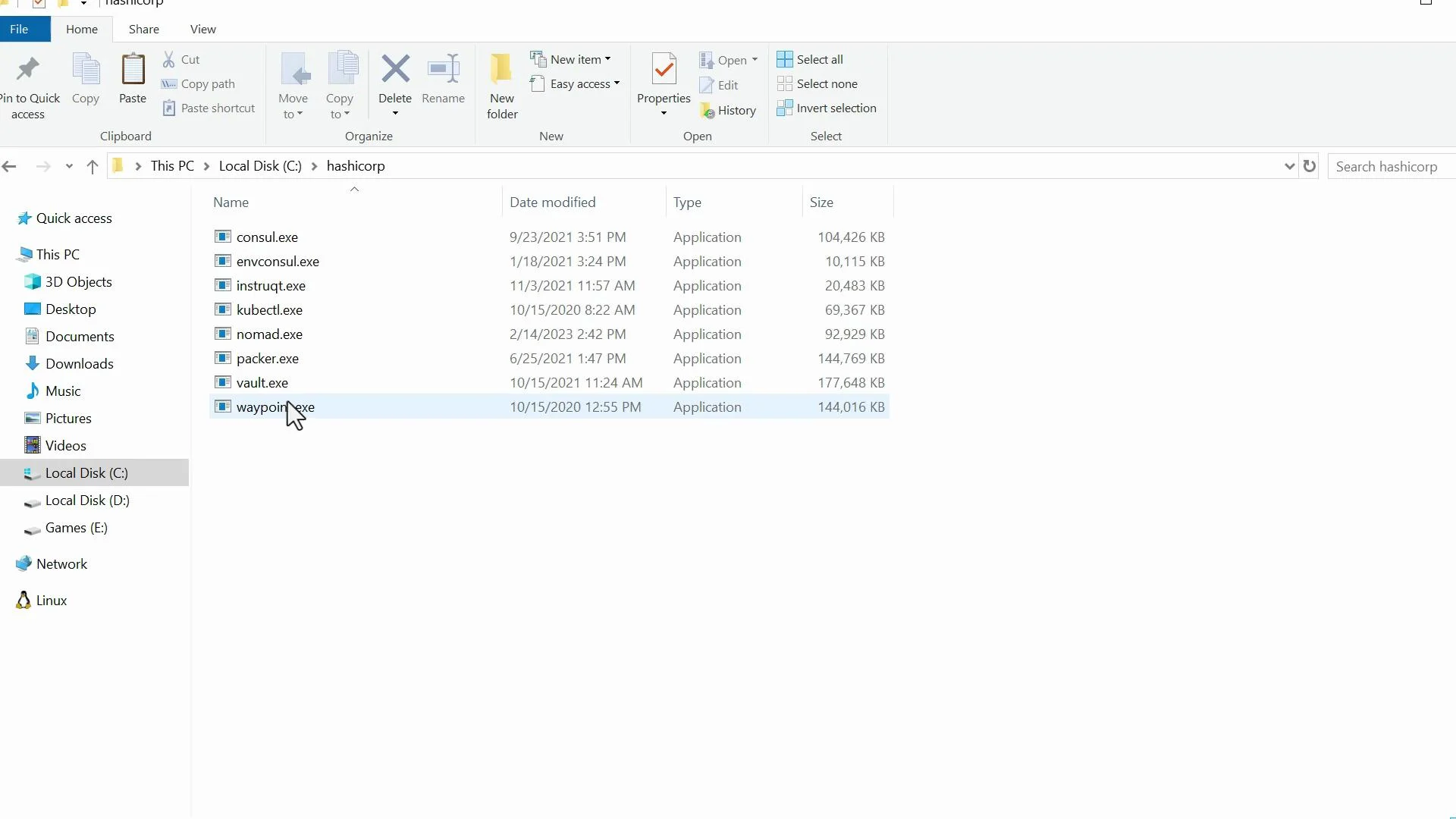
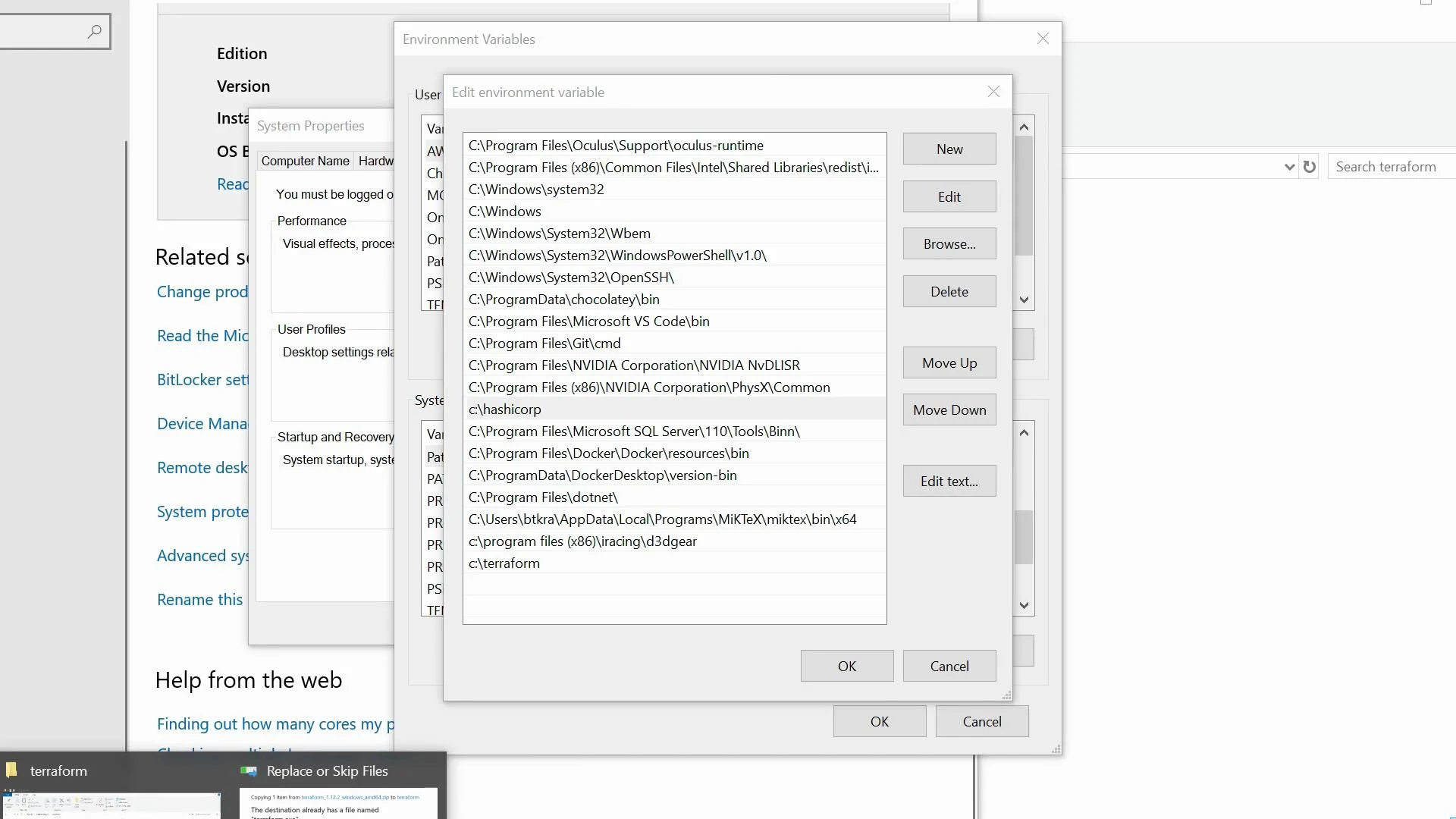 If you keep several HashiCorp tools together, you might prefer a folder like `C:\HashiCorp` containing multiple executables (for example `consul.exe`, `vault.exe`, etc.). The key is that the folder containing `terraform.exe` is included in `PATH`.
 After adding the folder to `PATH` and reopening PowerShell, confirm the binary is in place (example view in File Explorer):
 ## Verify the manual installation
Open a new PowerShell window and run:
```powershell theme={null}
PS C:\Users\btkra> terraform version
Terraform v1.12.2
on windows_amd64
Your version of Terraform is out of date! The latest version
is 1.14.3. You can update by downloading from https://developer.hashicorp.com/terraform/install
PS C:\Users\btkra>
```
If `terraform.exe` is removed from the folder on `PATH`, the `terraform` command will no longer be recognized.
## Install using WinGet (recommended for modern Windows)
WinGet provides a simple one-line installation and straightforward uninstallation.
Install Terraform:
```powershell theme={null}
winget install --id HashiCorp.Terraform
```
After installation, you may need to close and reopen PowerShell to pick up PATH changes. Then verify:
```powershell theme={null}
PS C:\Users\btkra> terraform version
Terraform v1.12.12
on windows_amd64
...
PS C:\Users\btkra>
```
Uninstall with WinGet:
```powershell theme={null}
winget uninstall --id HashiCorp.Terraform -e
```
After uninstalling, running `terraform version` will return an error like:
```powershell theme={null}
PS C:\Users\btkra> terraform version
terraform : The term 'terraform' is not recognized as the name of a cmdlet,
function, script file, or operable program. Check the spelling of the name, or
if a path was included, verify that the path is correct and try again.
```
## Chocolatey alternative
If you use Chocolatey, install Terraform with:
```powershell theme={null}
choco install terraform -y --version=1.12.2
```
Omit `--version` to install the latest available package, or change it to pin a specific version.
## Quick reference: installation methods
| Method | Command | Notes |
| ----------------------- | ------------------------------------------------------------------- | ------------------------------------------------------- |
| Manual binary | Download `terraform.exe` from HashiCorp and place in `C:\Terraform` | Add `C:\Terraform` to system `Path` |
| WinGet (recommended) | `winget install --id HashiCorp.Terraform` | Simple install/uninstall; may require restarting shells |
| Chocolatey | `choco install terraform -y` | Useful if you already manage packages with Chocolatey |
| macOS (context) | `brew tap hashicorp/tap && brew install hashicorp/tap/terraform` | Homebrew example (not for Windows) |
| Debian/Ubuntu (context) | See apt example above | apt example (not for Windows) |
After changing the system `PATH` or installing via a package manager, restart any open PowerShell or command prompt windows so they pick up the updated `PATH`.
## Summary
* Manual method: download `terraform.exe`, put it in `C:\Terraform`, and add that folder to `PATH`.
* Recommended: use `winget install --id HashiCorp.Terraform` for a one-line install and easier uninstallation.
* Verify your install with `terraform version`.
* Optionally use Chocolatey if it fits your workflow.
## Links and references
* HashiCorp Terraform installation: [https://developer.hashicorp.com/terraform/install](https://developer.hashicorp.com/terraform/install)
* Visual Studio Code (recommended editor for Terraform): [https://code.visualstudio.com/Download](https://code.visualstudio.com/Download)
* WinGet documentation: [https://learn.microsoft.com/windows/package-manager/winget/](https://learn.microsoft.com/windows/package-manager/winget/)
* Chocolatey: [https://chocolatey.org/](https://chocolatey.org/)
## Verify the manual installation
Open a new PowerShell window and run:
```powershell theme={null}
PS C:\Users\btkra> terraform version
Terraform v1.12.2
on windows_amd64
Your version of Terraform is out of date! The latest version
is 1.14.3. You can update by downloading from https://developer.hashicorp.com/terraform/install
PS C:\Users\btkra>
```
If `terraform.exe` is removed from the folder on `PATH`, the `terraform` command will no longer be recognized.
## Install using WinGet (recommended for modern Windows)
WinGet provides a simple one-line installation and straightforward uninstallation.
Install Terraform:
```powershell theme={null}
winget install --id HashiCorp.Terraform
```
After installation, you may need to close and reopen PowerShell to pick up PATH changes. Then verify:
```powershell theme={null}
PS C:\Users\btkra> terraform version
Terraform v1.12.12
on windows_amd64
...
PS C:\Users\btkra>
```
Uninstall with WinGet:
```powershell theme={null}
winget uninstall --id HashiCorp.Terraform -e
```
After uninstalling, running `terraform version` will return an error like:
```powershell theme={null}
PS C:\Users\btkra> terraform version
terraform : The term 'terraform' is not recognized as the name of a cmdlet,
function, script file, or operable program. Check the spelling of the name, or
if a path was included, verify that the path is correct and try again.
```
## Chocolatey alternative
If you use Chocolatey, install Terraform with:
```powershell theme={null}
choco install terraform -y --version=1.12.2
```
Omit `--version` to install the latest available package, or change it to pin a specific version.
## Quick reference: installation methods
| Method | Command | Notes |
| ----------------------- | ------------------------------------------------------------------- | ------------------------------------------------------- |
| Manual binary | Download `terraform.exe` from HashiCorp and place in `C:\Terraform` | Add `C:\Terraform` to system `Path` |
| WinGet (recommended) | `winget install --id HashiCorp.Terraform` | Simple install/uninstall; may require restarting shells |
| Chocolatey | `choco install terraform -y` | Useful if you already manage packages with Chocolatey |
| macOS (context) | `brew tap hashicorp/tap && brew install hashicorp/tap/terraform` | Homebrew example (not for Windows) |
| Debian/Ubuntu (context) | See apt example above | apt example (not for Windows) |
After changing the system `PATH` or installing via a package manager, restart any open PowerShell or command prompt windows so they pick up the updated `PATH`.
## Summary
* Manual method: download `terraform.exe`, put it in `C:\Terraform`, and add that folder to `PATH`.
* Recommended: use `winget install --id HashiCorp.Terraform` for a one-line install and easier uninstallation.
* Verify your install with `terraform version`.
* Optionally use Chocolatey if it fits your workflow.
## Links and references
* HashiCorp Terraform installation: [https://developer.hashicorp.com/terraform/install](https://developer.hashicorp.com/terraform/install)
* Visual Studio Code (recommended editor for Terraform): [https://code.visualstudio.com/Download](https://code.visualstudio.com/Download)
* WinGet documentation: [https://learn.microsoft.com/windows/package-manager/winget/](https://learn.microsoft.com/windows/package-manager/winget/)
* Chocolatey: [https://chocolatey.org/](https://chocolatey.org/)