> ## Documentation Index
> Fetch the complete documentation index at: https://notes.kodekloud.com/llms.txt
> Use this file to discover all available pages before exploring further.
# Installing Microsoft Visual Studio Code IDE
> Guide to downloading, installing, and configuring Visual Studio Code, opening workspaces, using the integrated terminal and source control, and installing recommended extensions for Terraform development.
Welcome — this guide walks you through downloading, installing, and getting started with Microsoft Visual Studio Code on your local machine. It also covers opening a workspace, useful extensions for Terraform development, and using the integrated terminal and source control features.
Download and install
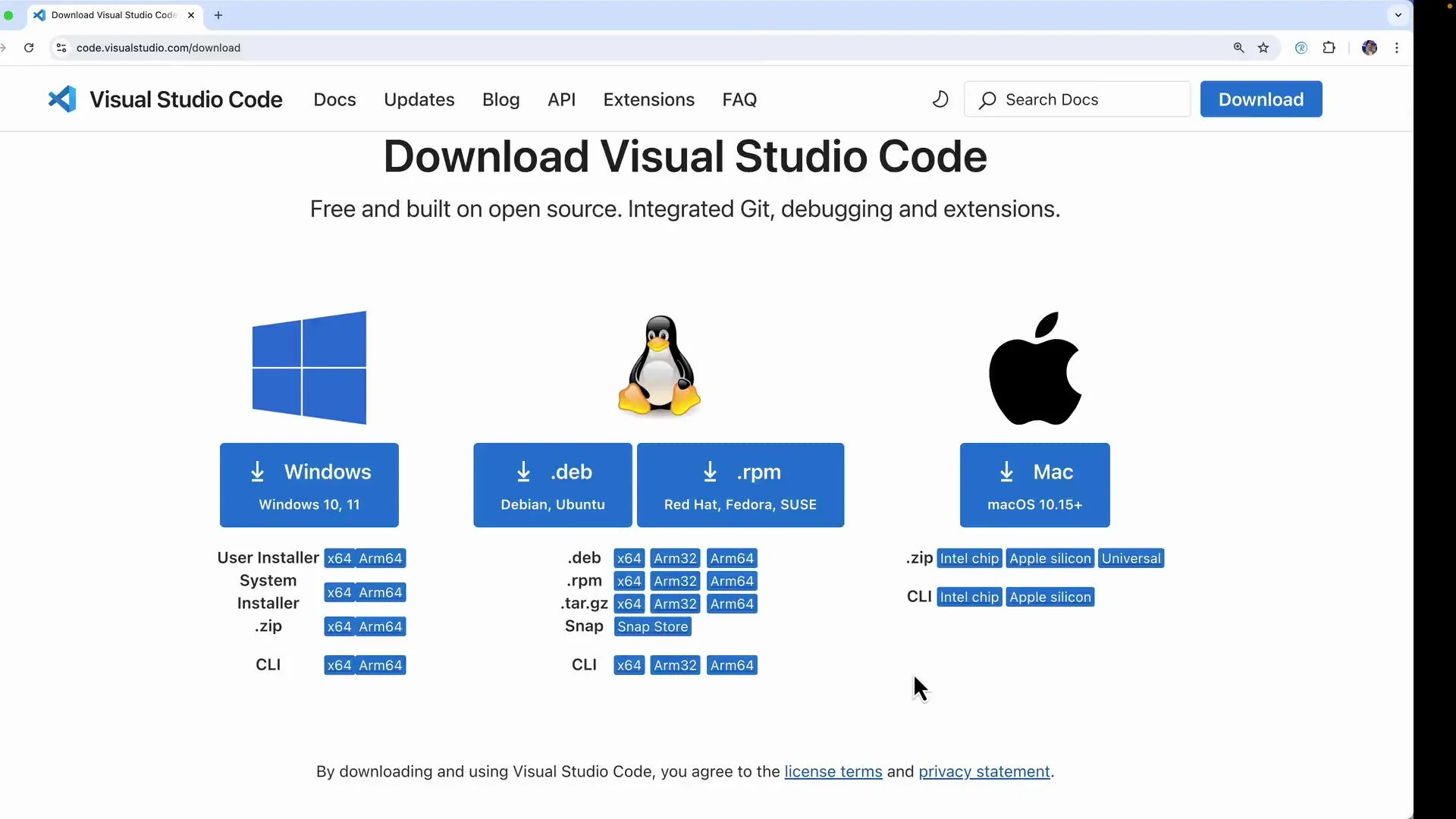
* Visit the official download page: [https://code.visualstudio.com/download](https://code.visualstudio.com/download) and select the installer for your operating system (Windows, macOS, or Linux).
* Choose the correct build for your machine (for example, Apple Silicon vs Intel on macOS), download the installer, and run it.
Choose the installer that matches both your OS and CPU architecture (Intel vs Apple Silicon on macOS) to avoid runtime issues or performance penalties.
 Opening a folder / workspace
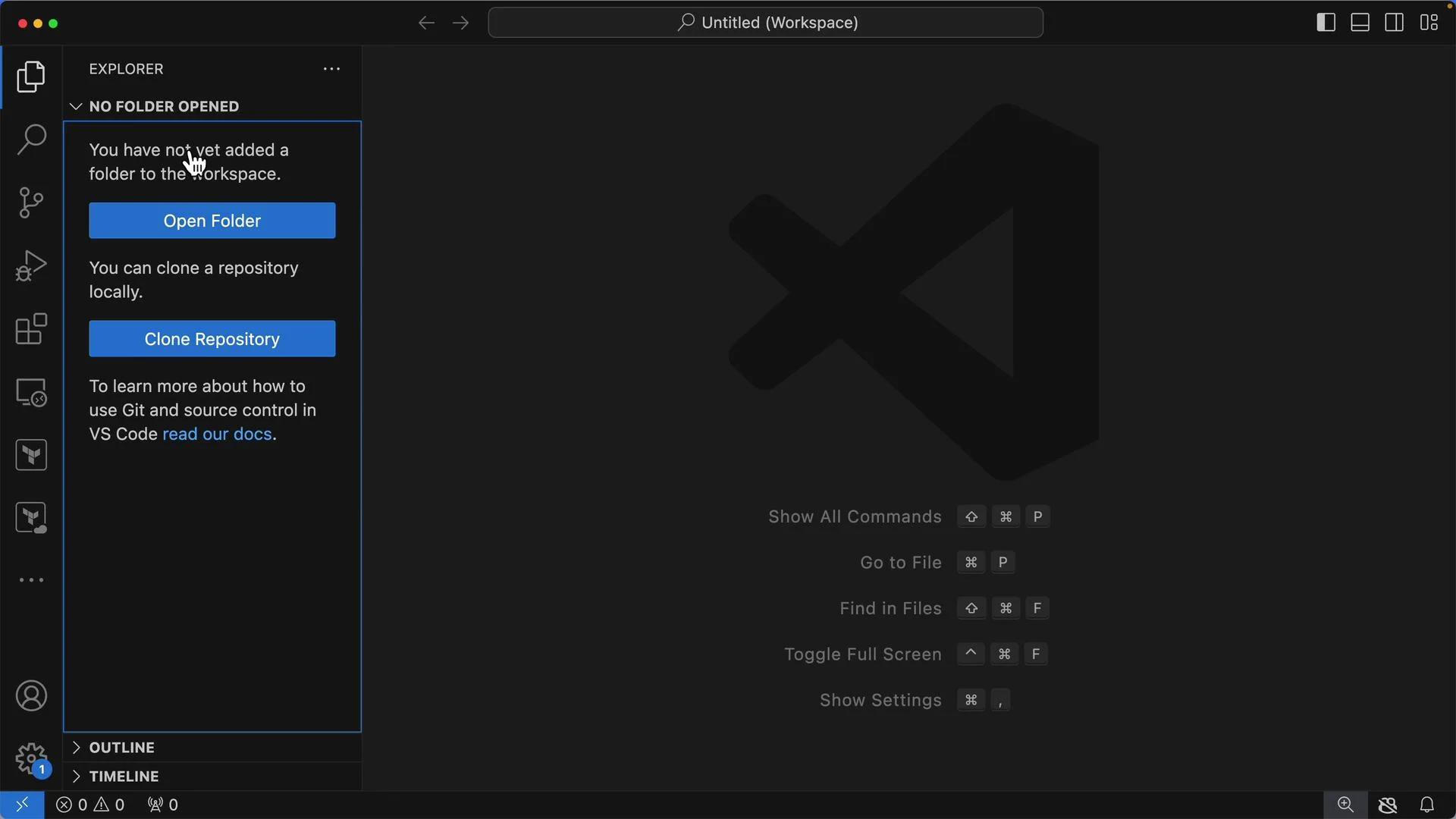
* After installation, launch VS Code.
* Open your project folder using File > Open Folder (or use the Explorer icon in the Activity Bar). You can add multiple folders to a single workspace if you need to work across repositories or projects.
* The Explorer will display the files and folders in the workspace and allow you to right‑click to open an integrated terminal at any folder path.
Opening a folder / workspace
* After installation, launch VS Code.
* Open your project folder using File > Open Folder (or use the Explorer icon in the Activity Bar). You can add multiple folders to a single workspace if you need to work across repositories or projects.
* The Explorer will display the files and folders in the workspace and allow you to right‑click to open an integrated terminal at any folder path.
 Example project files
* Once a folder is opened, VS Code lists files in the Explorer. Below is a common Terraform `main.tf` example you might find in a demo project. It demonstrates VPC and subnet resources and how tags are used.
```hcl theme={null}
resource "aws_vpc" "production" {
cidr_block = "10.0.0.0/16"
tags = {
Name = "production"
}
}
resource "aws_vpc" "dev" {
cidr_block = "10.10.0.0/16"
tags = {
Name = "dev"
}
}
resource "aws_subnet" "workloads" {
vpc_id = aws_vpc.production.id
cidr_block = "10.0.1.0/24"
tags = {
Name = "workloads"
}
}
```
Provider configuration
* Your project will typically declare required providers. Here is an example `terraform` block that pins the AWS provider:
```hcl theme={null}
terraform {
required_providers {
aws = {
source = "hashicorp/aws"
version = "5.62.0"
}
}
}
```
Explorer, Search, and Source Control
* Use the Explorer to browse files and the magnifying glass (Search) to find text across all workspace files.
* Use Outline or Go to Symbol (Ctrl/Cmd+Shift+O) to jump to functions and resource blocks quickly.
* The Source Control view provides an integrated Git experience: stage changes, commit, create branches, and push/pull to remote repositories directly from VS Code when the folder is a Git repo.
Extensions — recommended for Terraform workflows
* Click the Extensions icon to browse and install extensions from the Marketplace. Extensions enhance syntax highlighting, formatting, linting, container tooling, and AI-assisted coding.
* Popular extensions for Terraform and cloud development:
| Extension | Purpose | Marketplace / Notes |
| ------------------------- | -----------------------------------------------------: | --------------------------------------------------------------------------------- |
| CodeSnap | Capture attractive screenshots of code snippets | Useful for documentation and presentations. |
| Docker | Build, run, and debug containerized apps | Integrates with Docker Engine and Docker Compose. |
| GitHub Copilot | AI-assisted code suggestions | Installable from the Extensions view; requires GitHub account/subscription. |
| HashiCorp Terraform / HCL | Syntax highlighting, formatting, linting for Terraform | Improves HCL editing and integrates with language server features. |
| Python / Kubernetes | Language support and cluster tools | Install based on your stack (e.g., Python for scripts, Kubernetes for manifests). |
* As you add extensions, new Activity Bar icons or commands may appear (e.g., Terraform actions, Remote Explorer for dev containers, or Terraform Cloud integrations).
Integrated terminal
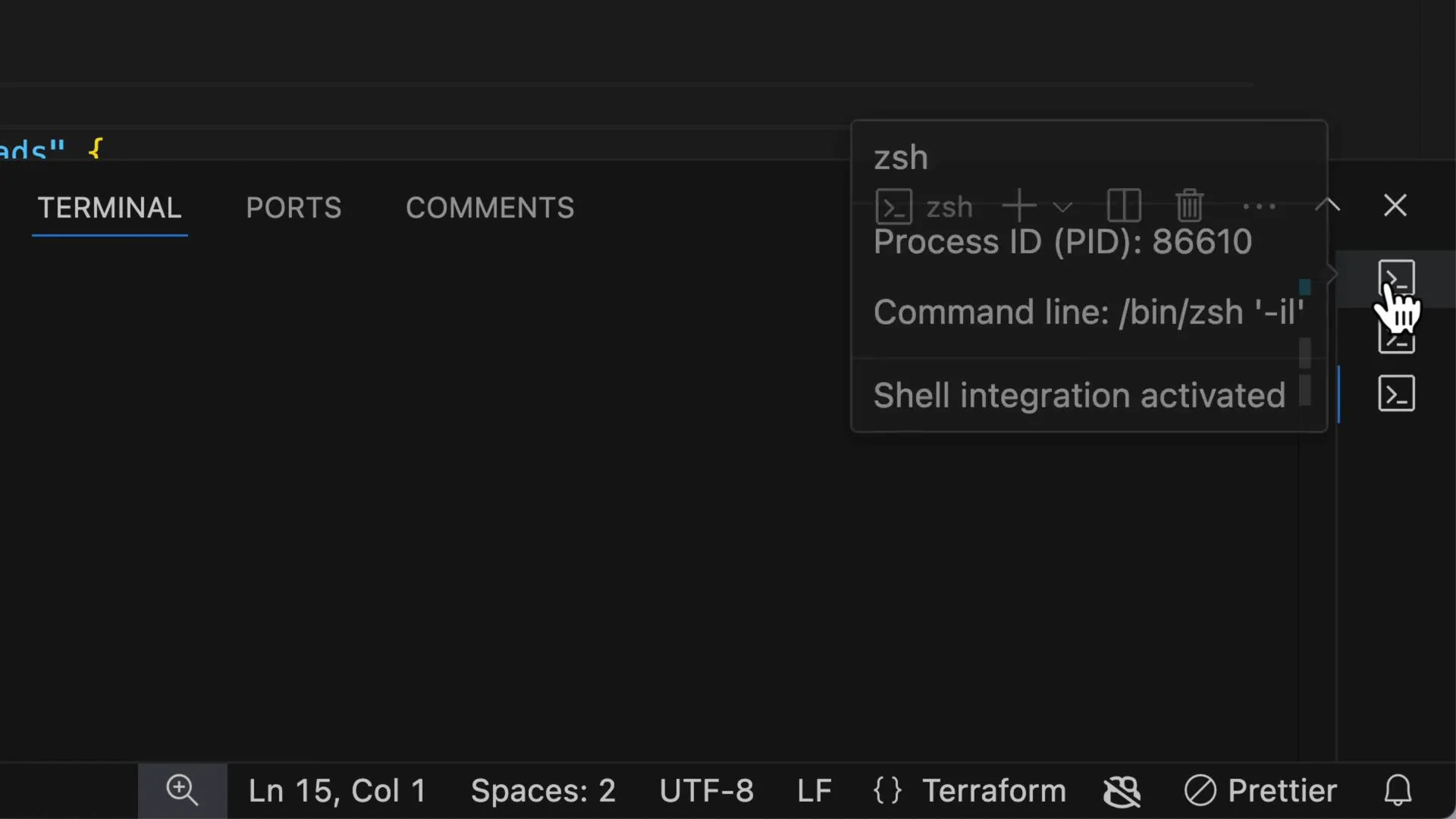
* VS Code includes an integrated terminal scoped to your workspace. To open a terminal at a specific folder, right-click that folder in Explorer and choose "Open in Integrated Terminal", or use the Terminal menu.
* The terminal runs your default shell (zsh, bash, PowerShell), supports multiple terminals, and persists your working directory so CLI tools (Terraform, git, npm, etc.) run in the workspace context.
Example project files
* Once a folder is opened, VS Code lists files in the Explorer. Below is a common Terraform `main.tf` example you might find in a demo project. It demonstrates VPC and subnet resources and how tags are used.
```hcl theme={null}
resource "aws_vpc" "production" {
cidr_block = "10.0.0.0/16"
tags = {
Name = "production"
}
}
resource "aws_vpc" "dev" {
cidr_block = "10.10.0.0/16"
tags = {
Name = "dev"
}
}
resource "aws_subnet" "workloads" {
vpc_id = aws_vpc.production.id
cidr_block = "10.0.1.0/24"
tags = {
Name = "workloads"
}
}
```
Provider configuration
* Your project will typically declare required providers. Here is an example `terraform` block that pins the AWS provider:
```hcl theme={null}
terraform {
required_providers {
aws = {
source = "hashicorp/aws"
version = "5.62.0"
}
}
}
```
Explorer, Search, and Source Control
* Use the Explorer to browse files and the magnifying glass (Search) to find text across all workspace files.
* Use Outline or Go to Symbol (Ctrl/Cmd+Shift+O) to jump to functions and resource blocks quickly.
* The Source Control view provides an integrated Git experience: stage changes, commit, create branches, and push/pull to remote repositories directly from VS Code when the folder is a Git repo.
Extensions — recommended for Terraform workflows
* Click the Extensions icon to browse and install extensions from the Marketplace. Extensions enhance syntax highlighting, formatting, linting, container tooling, and AI-assisted coding.
* Popular extensions for Terraform and cloud development:
| Extension | Purpose | Marketplace / Notes |
| ------------------------- | -----------------------------------------------------: | --------------------------------------------------------------------------------- |
| CodeSnap | Capture attractive screenshots of code snippets | Useful for documentation and presentations. |
| Docker | Build, run, and debug containerized apps | Integrates with Docker Engine and Docker Compose. |
| GitHub Copilot | AI-assisted code suggestions | Installable from the Extensions view; requires GitHub account/subscription. |
| HashiCorp Terraform / HCL | Syntax highlighting, formatting, linting for Terraform | Improves HCL editing and integrates with language server features. |
| Python / Kubernetes | Language support and cluster tools | Install based on your stack (e.g., Python for scripts, Kubernetes for manifests). |
* As you add extensions, new Activity Bar icons or commands may appear (e.g., Terraform actions, Remote Explorer for dev containers, or Terraform Cloud integrations).
Integrated terminal
* VS Code includes an integrated terminal scoped to your workspace. To open a terminal at a specific folder, right-click that folder in Explorer and choose "Open in Integrated Terminal", or use the Terminal menu.
* The terminal runs your default shell (zsh, bash, PowerShell), supports multiple terminals, and persists your working directory so CLI tools (Terraform, git, npm, etc.) run in the workspace context.
 Example: checking the current directory in the integrated terminal
```bash theme={null}
bk~$ pwd
/Users/bk/Terraform/demo
bk~$
```
This confirms the integrated terminal is running in the same folder opened by Explorer, so Terraform commands and version control operations affect the correct project directory.
Tips and troubleshooting
If an extension or language feature doesn’t behave as expected, try reloading the window (Cmd/Ctrl+Shift+P → "Developer: Reload Window") or reinstalling the extension. For Terraform-specific issues, ensure your Terraform binary is installed and on your PATH.
Next steps and references
* Install the full set of extensions you need for the course (including GitHub Copilot if available for your account).
* Confirm Terraform is installed locally and accessible from the integrated terminal.
* Continue to the next lesson where we’ll use VS Code and the integrated terminal to run Terraform commands and explore state and plans.
Useful links and references
* Visual Studio Code download: [https://code.visualstudio.com/download](https://code.visualstudio.com/download)
* Terraform documentation: [https://www.terraform.io/docs](https://www.terraform.io/docs)
* HashiCorp AWS provider: [https://registry.terraform.io/providers/hashicorp/aws/latest](https://registry.terraform.io/providers/hashicorp/aws/latest)
* VS Code Marketplace: [https://marketplace.visualstudio.com/vscode](https://marketplace.visualstudio.com/vscode)
Happy coding — get VS Code installed, configure the extensions you need, and proceed to the next lesson.
Example: checking the current directory in the integrated terminal
```bash theme={null}
bk~$ pwd
/Users/bk/Terraform/demo
bk~$
```
This confirms the integrated terminal is running in the same folder opened by Explorer, so Terraform commands and version control operations affect the correct project directory.
Tips and troubleshooting
If an extension or language feature doesn’t behave as expected, try reloading the window (Cmd/Ctrl+Shift+P → "Developer: Reload Window") or reinstalling the extension. For Terraform-specific issues, ensure your Terraform binary is installed and on your PATH.
Next steps and references
* Install the full set of extensions you need for the course (including GitHub Copilot if available for your account).
* Confirm Terraform is installed locally and accessible from the integrated terminal.
* Continue to the next lesson where we’ll use VS Code and the integrated terminal to run Terraform commands and explore state and plans.
Useful links and references
* Visual Studio Code download: [https://code.visualstudio.com/download](https://code.visualstudio.com/download)
* Terraform documentation: [https://www.terraform.io/docs](https://www.terraform.io/docs)
* HashiCorp AWS provider: [https://registry.terraform.io/providers/hashicorp/aws/latest](https://registry.terraform.io/providers/hashicorp/aws/latest)
* VS Code Marketplace: [https://marketplace.visualstudio.com/vscode](https://marketplace.visualstudio.com/vscode)
Happy coding — get VS Code installed, configure the extensions you need, and proceed to the next lesson.