> ## Documentation Index
> Fetch the complete documentation index at: https://notes.kodekloud.com/llms.txt
> Use this file to discover all available pages before exploring further.
# Setting Up AWS Credentials for Terraform
> Guide to creating an AWS IAM user, generating access keys, and configuring credentials for Terraform with example configuration and security best practices.
This guide walks through creating an IAM user in the AWS Management Console, generating programmatic credentials, and configuring those credentials so Terraform can authenticate to your AWS account.
Prerequisites:
* An AWS account and a user with permission to create IAM users and access keys.
* Terraform installed locally.
* (Optional) AWS CLI installed for managed credential storage.
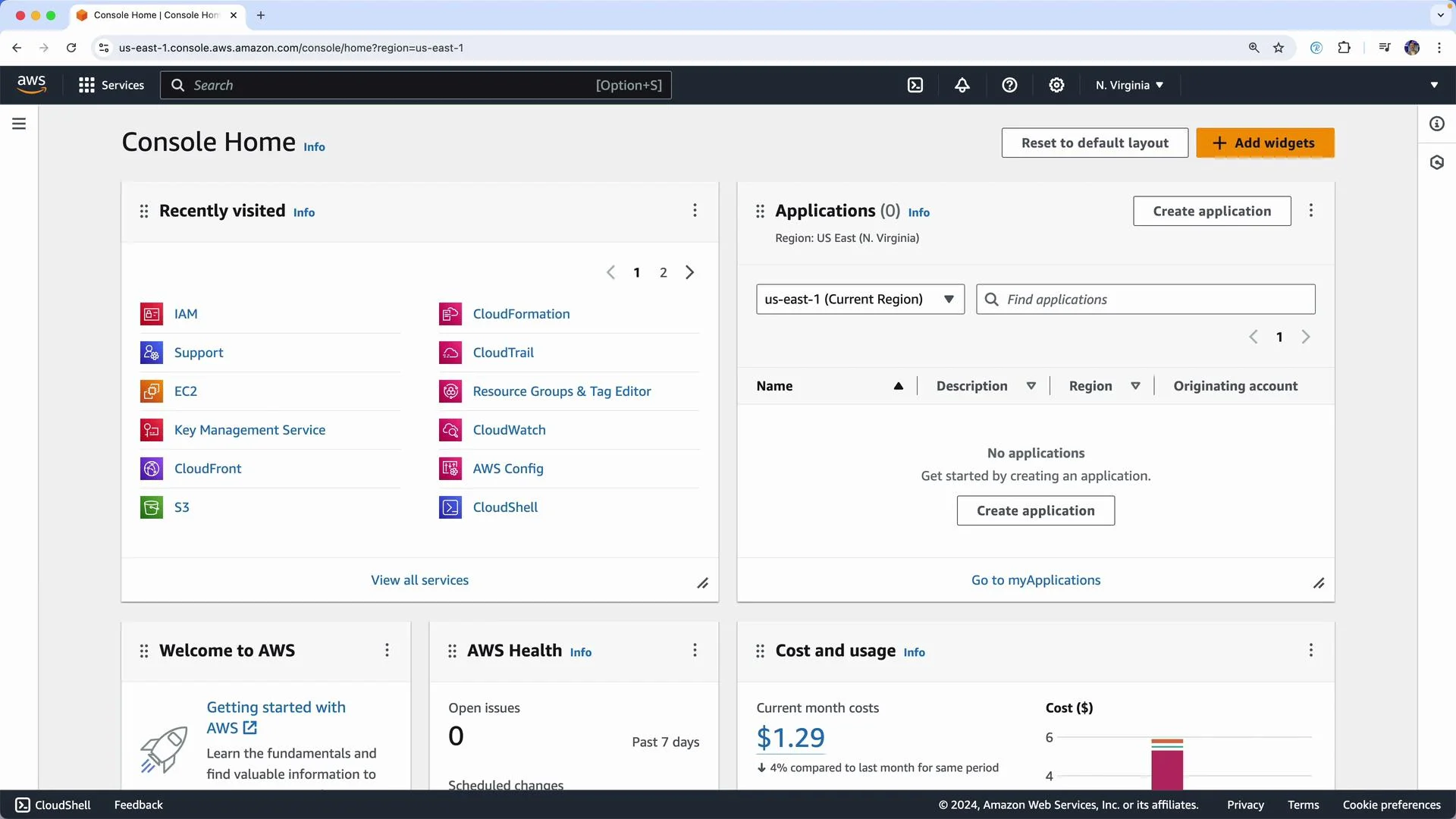
1. Open the AWS Management Console
 2. Navigate to IAM
Open IAM from Recently visited services or type “IAM” in the top search box and open the IAM console.
2. Navigate to IAM
Open IAM from Recently visited services or type “IAM” in the top search box and open the IAM console.
 3. Create a new IAM user for Terraform
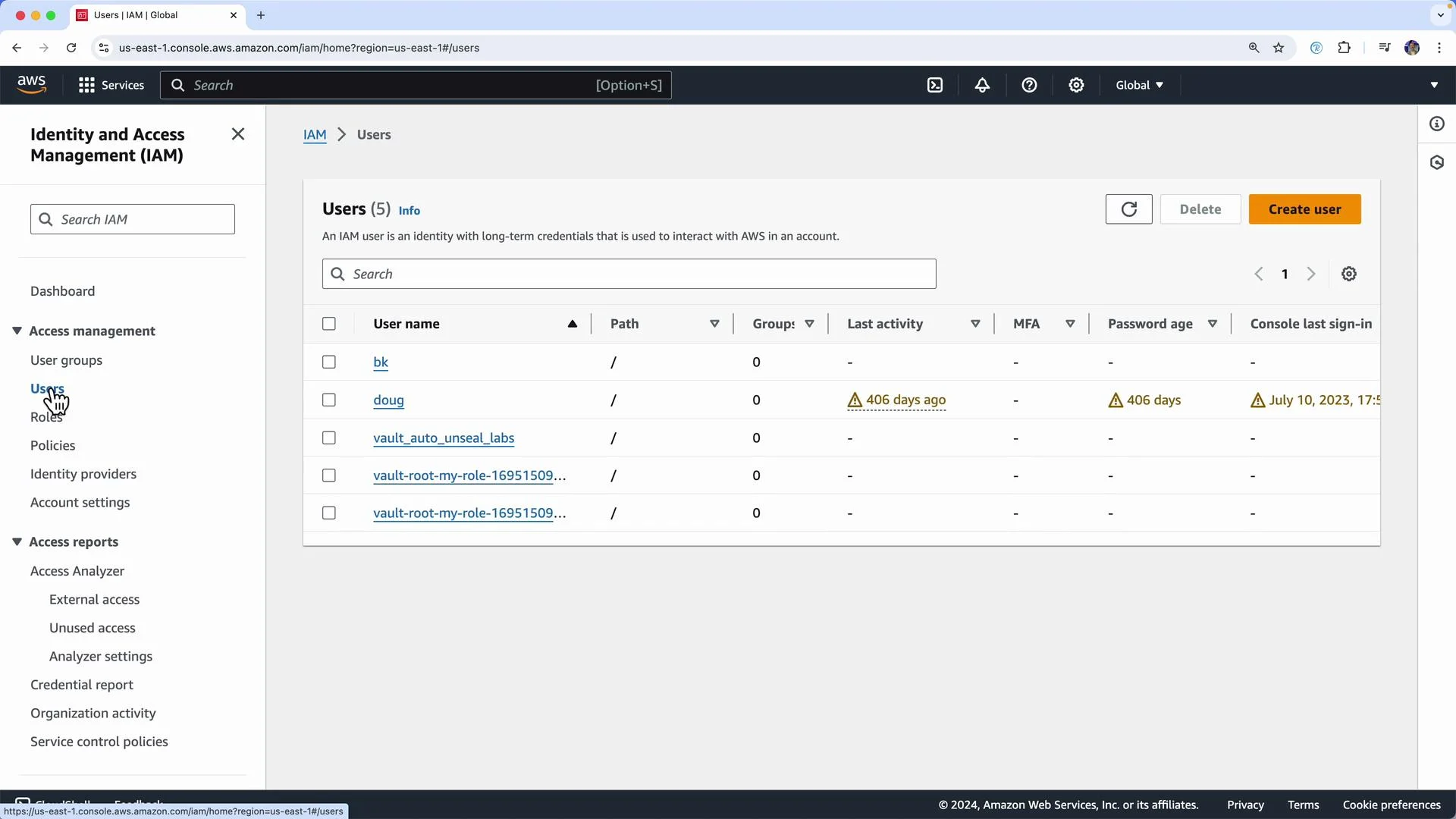
* Click “Users” in the left navigation, then “Create user”.
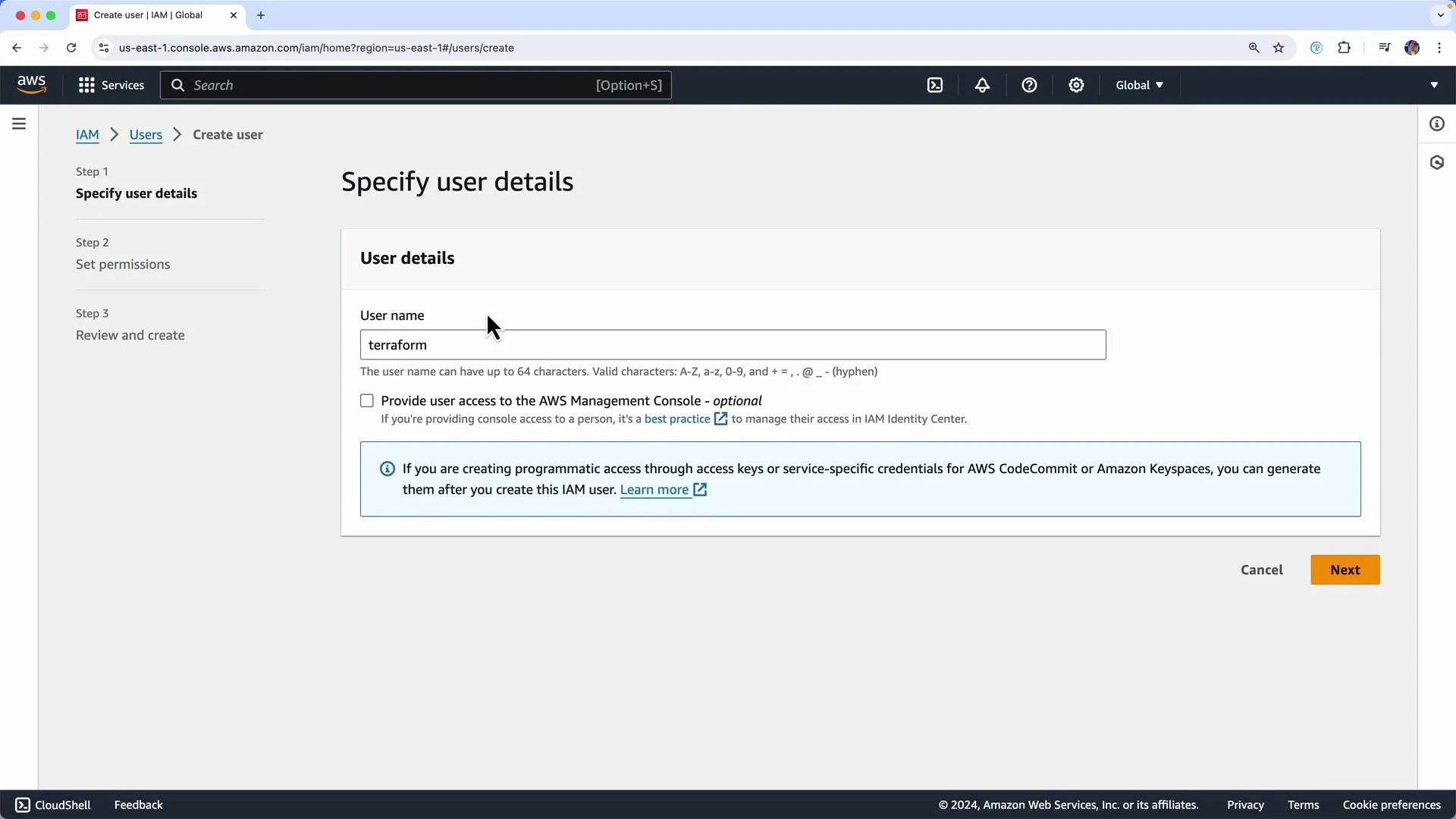
* Give the user a name (for example, `terraform`) — you can choose any naming convention you prefer.
* Enable programmatic access so AWS generates an access key ID and secret access key for the user.
3. Create a new IAM user for Terraform
* Click “Users” in the left navigation, then “Create user”.
* Give the user a name (for example, `terraform`) — you can choose any naming convention you prefer.
* Enable programmatic access so AWS generates an access key ID and secret access key for the user.
 4. Attach permissions (least privilege recommended)
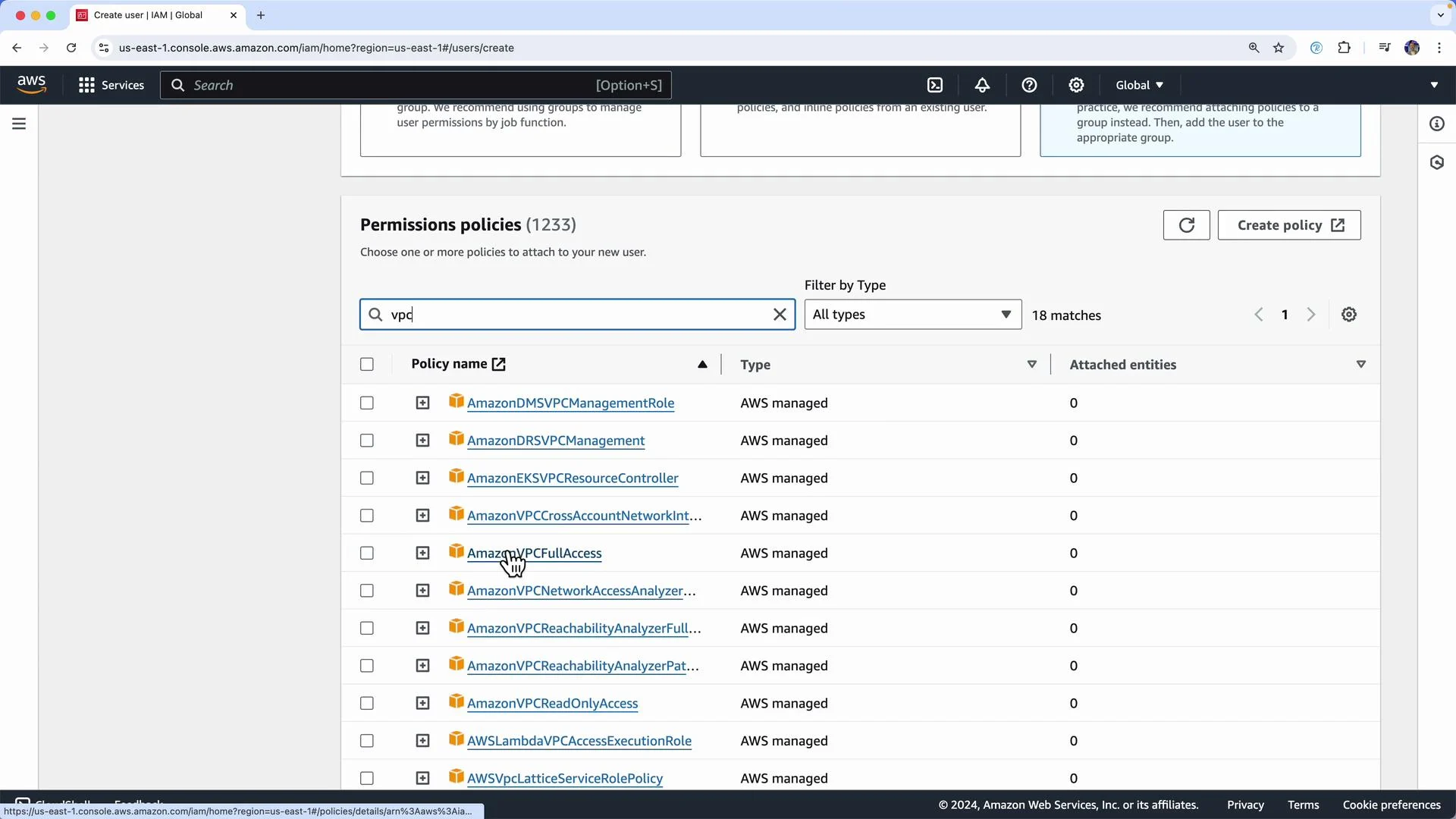
You can attach policies directly to the user on the permissions step. For the purposes of provisioning VPC resources (which typically do not incur charges), attach a managed policy that grants VPC permissions.
4. Attach permissions (least privilege recommended)
You can attach policies directly to the user on the permissions step. For the purposes of provisioning VPC resources (which typically do not incur charges), attach a managed policy that grants VPC permissions.
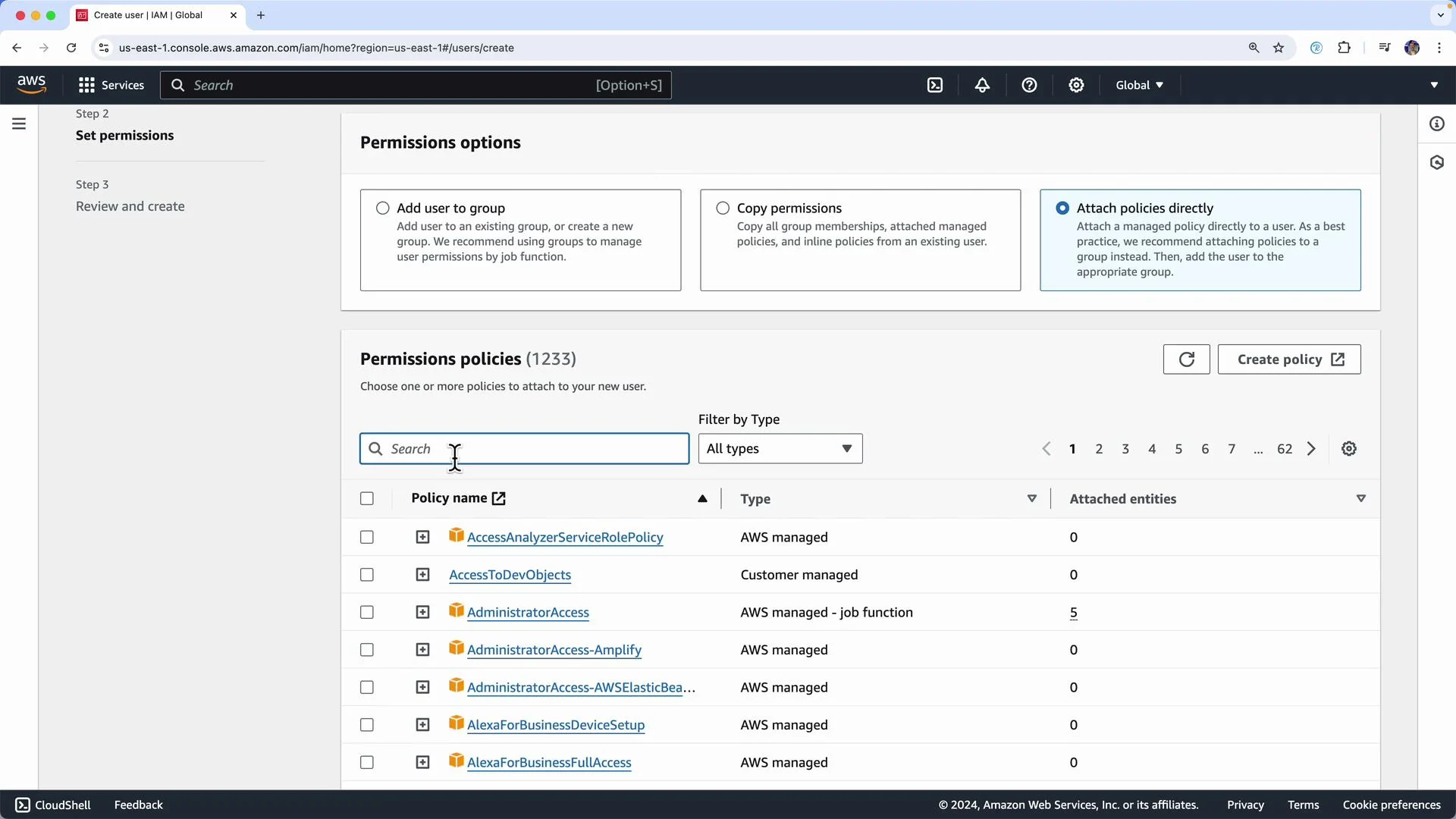 Search for “VPC” and choose **AmazonVPCFullAccess** (or attach `AdministratorAccess` only if you truly need full administrative scope). Limiting permissions to what Terraform requires is a best practice.
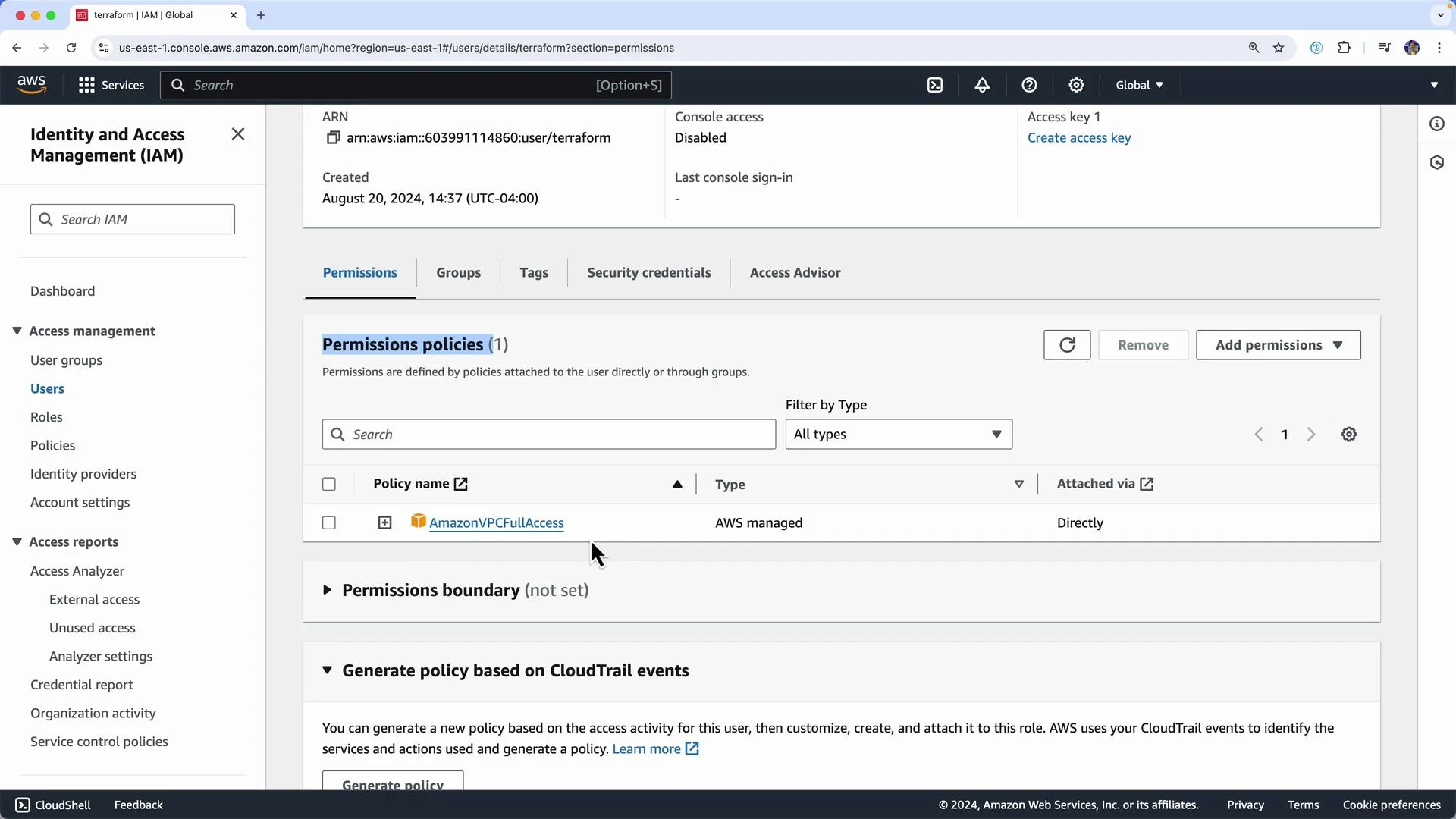
 After creating the user, verify the policy is attached on the user’s permissions page.
 5. Create an access key for programmatic access
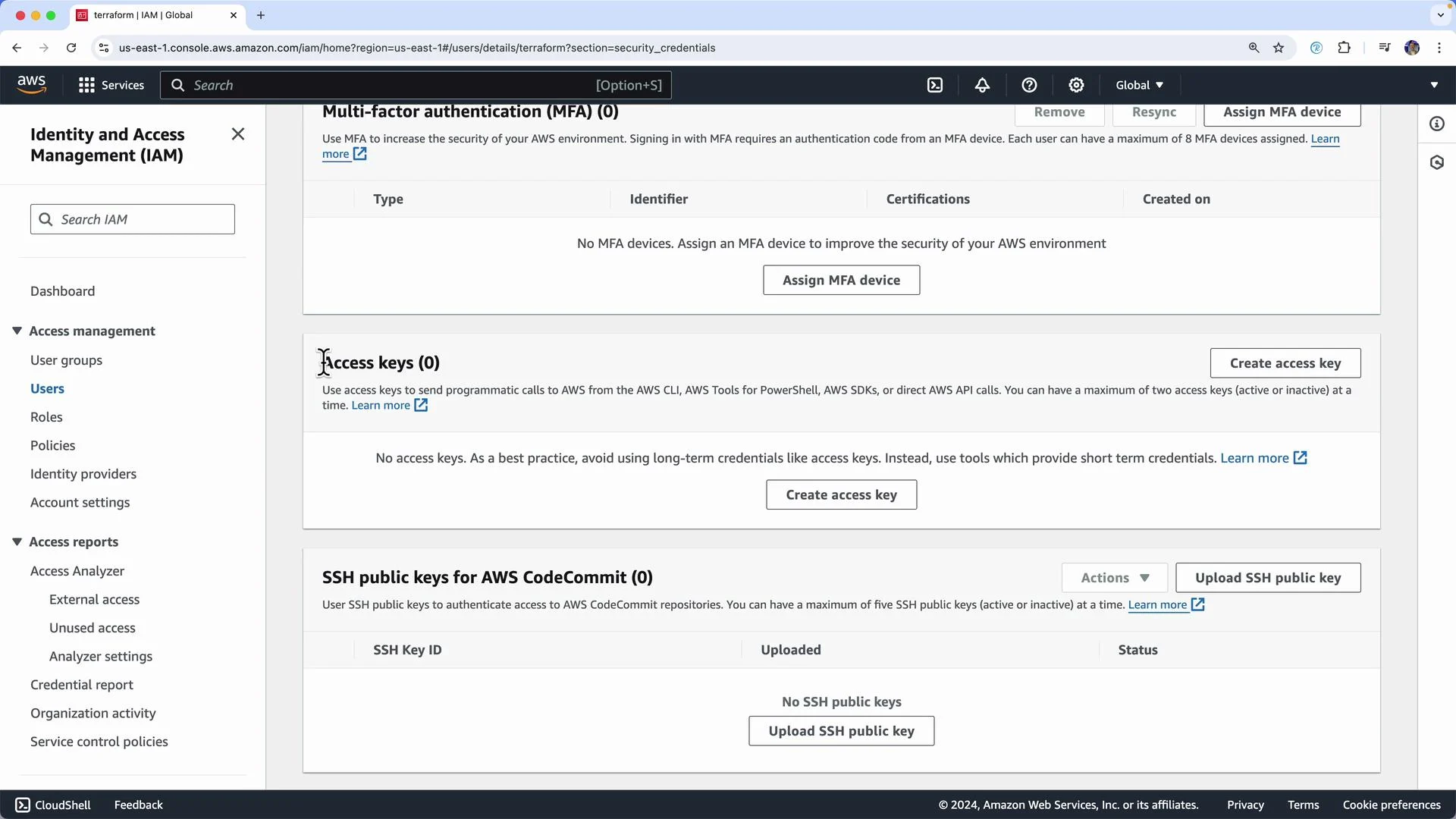
Open the user’s “Security credentials” tab and create a new access key. You will receive an Access Key ID and a Secret Access Key. Copy and store them immediately — the Secret Access Key is shown only once.
5. Create an access key for programmatic access
Open the user’s “Security credentials” tab and create a new access key. You will receive an Access Key ID and a Secret Access Key. Copy and store them immediately — the Secret Access Key is shown only once.
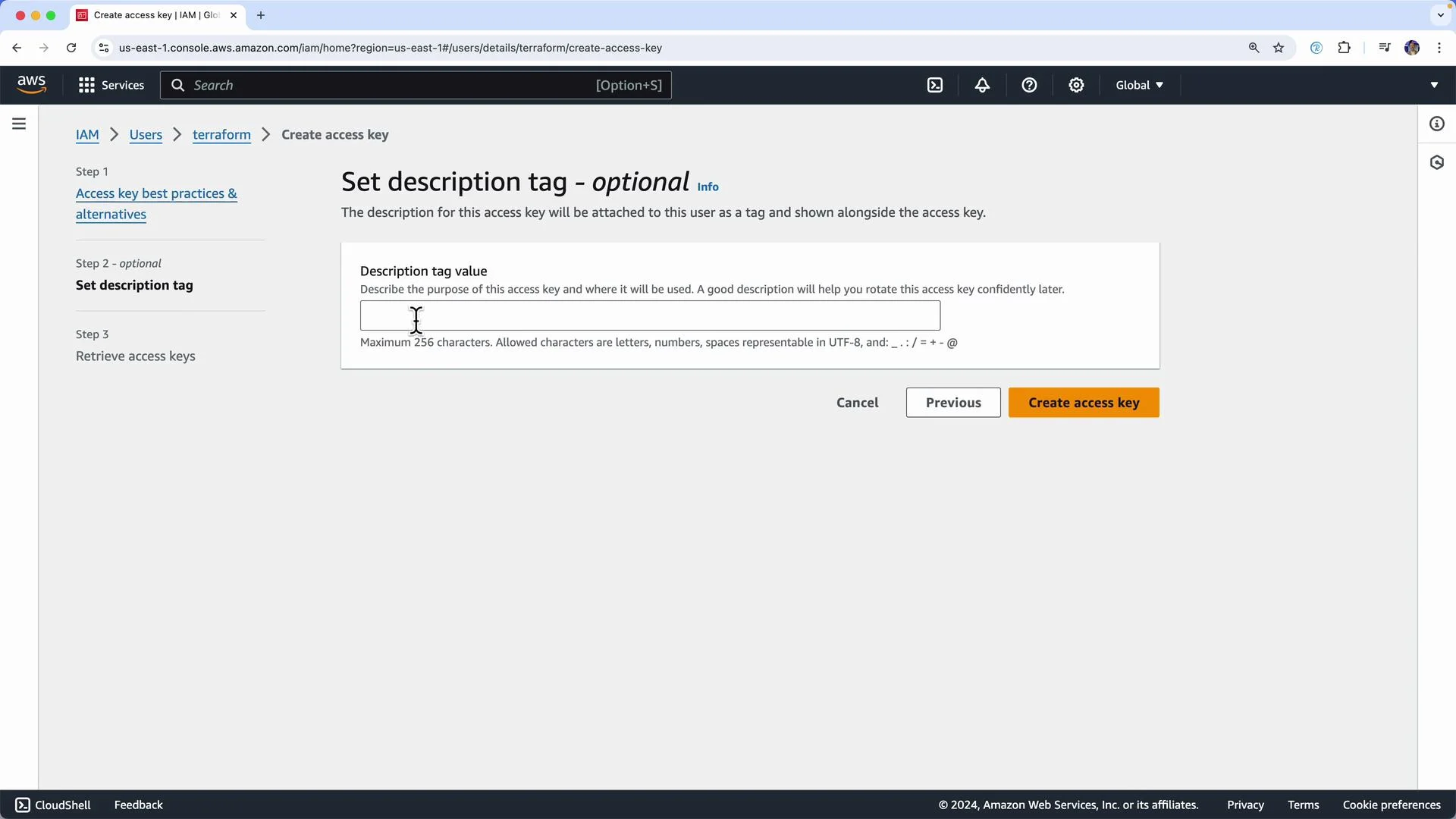
 You may add a description or tags for the access key during creation.
 6. Example Terraform configuration
If you don’t yet have any .tf files, save a minimal example (for instance `main.tf`) in your working directory before running `terraform plan`:
```hcl theme={null}
provider "aws" {}
resource "aws_vpc" "production" {
cidr_block = "10.0.0.0/16"
tags = {
Name = "production"
}
}
resource "aws_vpc" "dev" {
cidr_block = "10.10.0.0/16"
tags = {
Name = "dev"
}
}
resource "aws_subnet" "workloads" {
vpc_id = aws_vpc.production.id
cidr_block = "10.1.0.0/24"
tags = {
Name = "workloads"
}
}
```
By default the empty `provider "aws" {}` block lets Terraform pick up credentials and the region from environment variables or the AWS shared credentials file. To set a region explicitly, add `region = "us-east-1"` inside the provider block (or configure `required_providers` if your Terraform workflow requires it).
7. Configure AWS credentials for Terraform
You can provide the Access Key ID and Secret Access Key to Terraform in multiple ways. Below are common approaches:
| Platform / Method | Command / File | Notes |
| ---------------------------------------- | --------------------------------------------------------------------------------------------------------------------------------------------------------: | ------------------------------------------------------------------------------------------------------------------ |
| macOS / Linux (bash, zsh) — session-only | `bash export AWS_ACCESS_KEY_ID="AKIAEXAMPLEACCESSKEY" export AWS_SECRET_ACCESS_KEY="examplesecretKEY+chars" export AWS_DEFAULT_REGION="us-east-1" ` | Exports apply only to the current shell session. Persist in `~/.bashrc` or `~/.zshrc` if needed (beware security). |
| Windows PowerShell — session-only | `powershell $Env:AWS_ACCESS_KEY_ID = "AKIAEXAMPLEACCESSKEY" $Env:AWS_SECRET_ACCESS_KEY = "examplesecretKEY+chars" $Env:AWS_DEFAULT_REGION = "us-east-1" ` | Session-only — values disappear when the shell closes. |
| AWS CLI (recommended for persistence) | Run `aws configure` and follow prompts (stores credentials in `~/.aws/credentials`) | Cross-platform managed file — safer than repeatedly exporting keys in shells. See AWS CLI docs below. |
If you use the AWS CLI, run:
* `aws configure` — then enter Access Key ID, Secret Access Key, default region, and output format when prompted.
8. Verify Terraform and credentials
With credentials set and your `.tf` files in the working directory, run Terraform commands:
* `terraform init` to initialize providers.
* `terraform plan` to see what Terraform intends to create.
If you run `terraform plan` with no configuration files you will see the familiar message:
```bash theme={null}
$ terraform plan
Error: No configuration files
Plan requires configuration to be present. Planning without a configuration would mark everything for destruction, which is normally not what is desired. If you would like to destroy everything, run plan with the -destroy option. Otherwise, create a Terraform configuration file (.tf file) and try again.
```
Security best practices
* Use the principle of least privilege when attaching IAM policies.
* Prefer short-lived credentials or managed profiles when possible.
* Rotate or delete access keys when they are no longer required.
After you finish using these credentials, delete the access key in the IAM console (or rotate it). Treat access keys like passwords and follow the principle of least privilege.
Links and references
* [AWS IAM documentation](https://docs.aws.amazon.com/iam/)
* [AWS CLI configure quickstart](https://docs.aws.amazon.com/cli/latest/userguide/cli-configure-quickstart.html)
* [Terraform AWS Provider documentation](https://registry.terraform.io/providers/hashicorp/aws/latest/docs)
This completes the setup for creating an IAM user and configuring AWS credentials for Terraform. Use `export` on macOS/Linux, `$Env:` for Windows PowerShell, or the AWS CLI `aws configure` command for persistent credentials.
6. Example Terraform configuration
If you don’t yet have any .tf files, save a minimal example (for instance `main.tf`) in your working directory before running `terraform plan`:
```hcl theme={null}
provider "aws" {}
resource "aws_vpc" "production" {
cidr_block = "10.0.0.0/16"
tags = {
Name = "production"
}
}
resource "aws_vpc" "dev" {
cidr_block = "10.10.0.0/16"
tags = {
Name = "dev"
}
}
resource "aws_subnet" "workloads" {
vpc_id = aws_vpc.production.id
cidr_block = "10.1.0.0/24"
tags = {
Name = "workloads"
}
}
```
By default the empty `provider "aws" {}` block lets Terraform pick up credentials and the region from environment variables or the AWS shared credentials file. To set a region explicitly, add `region = "us-east-1"` inside the provider block (or configure `required_providers` if your Terraform workflow requires it).
7. Configure AWS credentials for Terraform
You can provide the Access Key ID and Secret Access Key to Terraform in multiple ways. Below are common approaches:
| Platform / Method | Command / File | Notes |
| ---------------------------------------- | --------------------------------------------------------------------------------------------------------------------------------------------------------: | ------------------------------------------------------------------------------------------------------------------ |
| macOS / Linux (bash, zsh) — session-only | `bash export AWS_ACCESS_KEY_ID="AKIAEXAMPLEACCESSKEY" export AWS_SECRET_ACCESS_KEY="examplesecretKEY+chars" export AWS_DEFAULT_REGION="us-east-1" ` | Exports apply only to the current shell session. Persist in `~/.bashrc` or `~/.zshrc` if needed (beware security). |
| Windows PowerShell — session-only | `powershell $Env:AWS_ACCESS_KEY_ID = "AKIAEXAMPLEACCESSKEY" $Env:AWS_SECRET_ACCESS_KEY = "examplesecretKEY+chars" $Env:AWS_DEFAULT_REGION = "us-east-1" ` | Session-only — values disappear when the shell closes. |
| AWS CLI (recommended for persistence) | Run `aws configure` and follow prompts (stores credentials in `~/.aws/credentials`) | Cross-platform managed file — safer than repeatedly exporting keys in shells. See AWS CLI docs below. |
If you use the AWS CLI, run:
* `aws configure` — then enter Access Key ID, Secret Access Key, default region, and output format when prompted.
8. Verify Terraform and credentials
With credentials set and your `.tf` files in the working directory, run Terraform commands:
* `terraform init` to initialize providers.
* `terraform plan` to see what Terraform intends to create.
If you run `terraform plan` with no configuration files you will see the familiar message:
```bash theme={null}
$ terraform plan
Error: No configuration files
Plan requires configuration to be present. Planning without a configuration would mark everything for destruction, which is normally not what is desired. If you would like to destroy everything, run plan with the -destroy option. Otherwise, create a Terraform configuration file (.tf file) and try again.
```
Security best practices
* Use the principle of least privilege when attaching IAM policies.
* Prefer short-lived credentials or managed profiles when possible.
* Rotate or delete access keys when they are no longer required.
After you finish using these credentials, delete the access key in the IAM console (or rotate it). Treat access keys like passwords and follow the principle of least privilege.
Links and references
* [AWS IAM documentation](https://docs.aws.amazon.com/iam/)
* [AWS CLI configure quickstart](https://docs.aws.amazon.com/cli/latest/userguide/cli-configure-quickstart.html)
* [Terraform AWS Provider documentation](https://registry.terraform.io/providers/hashicorp/aws/latest/docs)
This completes the setup for creating an IAM user and configuring AWS credentials for Terraform. Use `export` on macOS/Linux, `$Env:` for Windows PowerShell, or the AWS CLI `aws configure` command for persistent credentials.