> ## Documentation Index
> Fetch the complete documentation index at: https://notes.kodekloud.com/llms.txt
> Use this file to discover all available pages before exploring further.
# Setting Up GitHub Credentials for Terraform
> Guide to creating and configuring a GitHub fine-grained personal access token and GITHUB_TOKEN environment variable so Terraform can authenticate and manage repositories with proper permissions.
This guide shows how to create a GitHub personal access token (PAT) that Terraform can use to authenticate with your GitHub account. Terraform uses this token to manage repositories, branches, and repository settings via the GitHub provider.
* Related: [Create a personal access token (GitHub)](https://docs.github.com/en/authentication/keeping-your-account-and-data-secure/creating-a-personal-access-token)
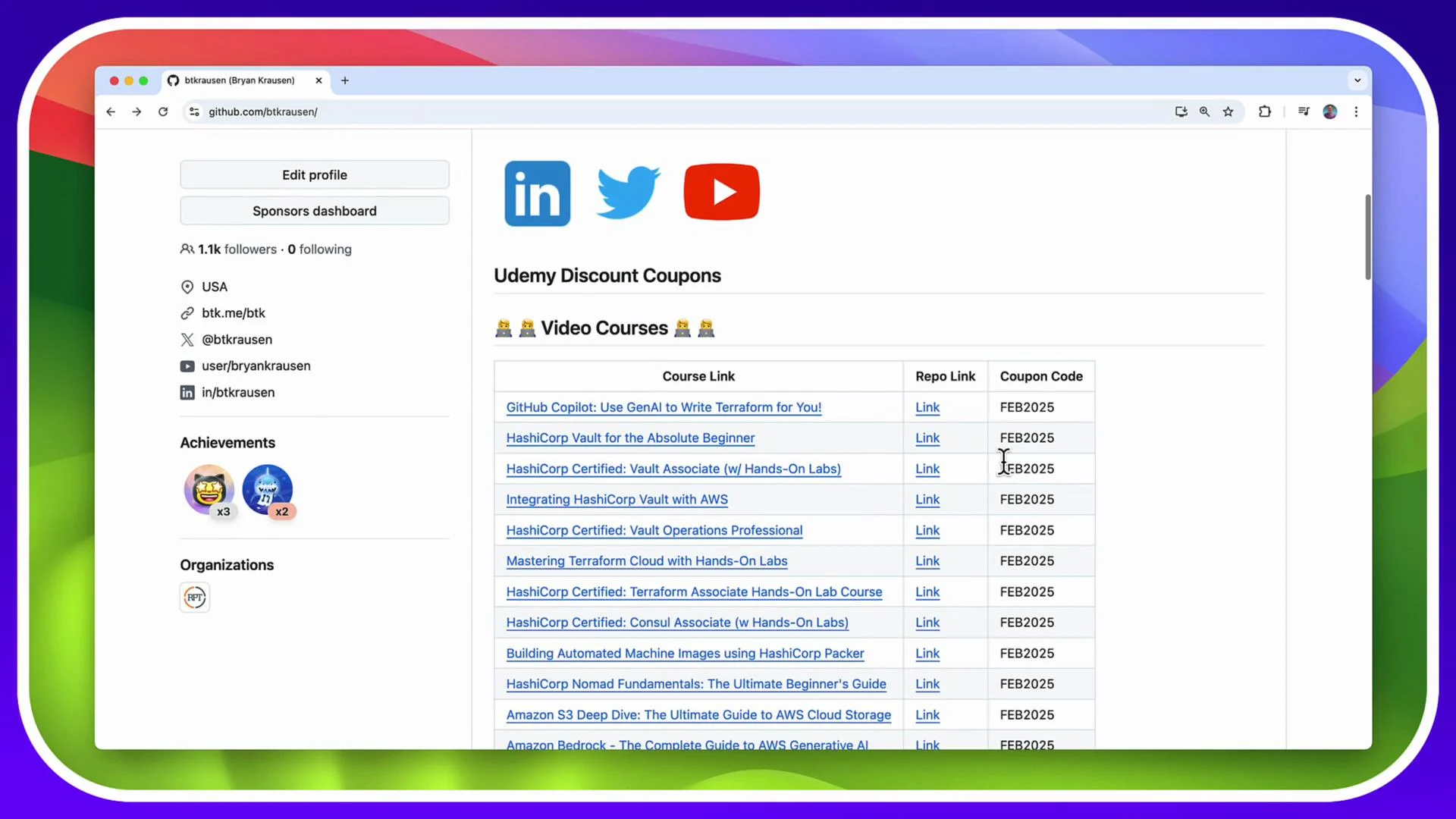
On my GitHub profile page (where I keep links, achievements, and course coupons), you can see an example of a typical profile layout:
 ## Steps to create a fine-grained personal access token
1. In the top-right of GitHub, click your profile image and choose **Settings**.
2. In the Settings sidebar, scroll down and click **Developer settings**.
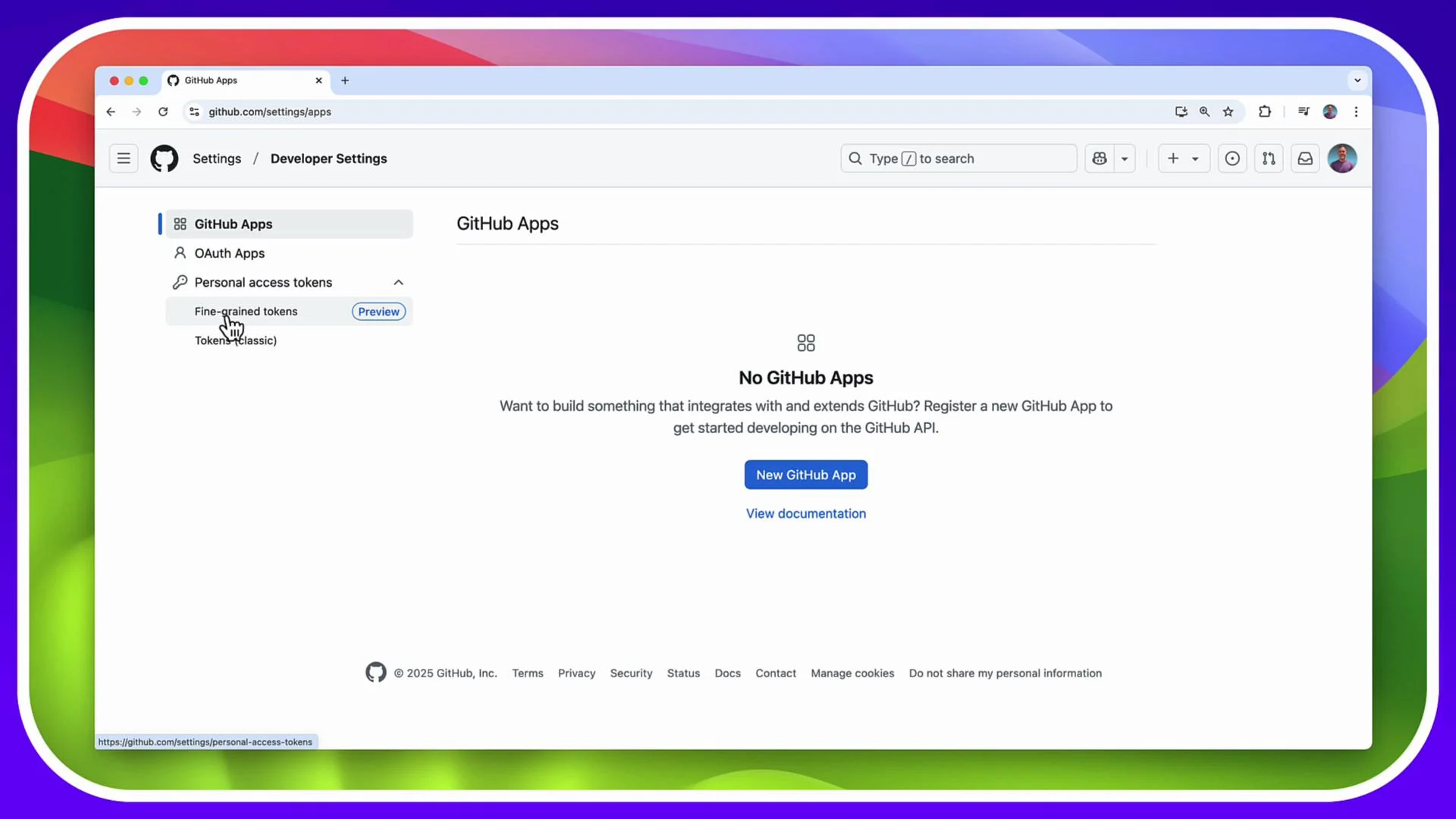
3. Under Developer settings, select **Personal access tokens** → **Fine-grained tokens**.
If you have no registered developer apps, the Developer settings page looks like this:
## Steps to create a fine-grained personal access token
1. In the top-right of GitHub, click your profile image and choose **Settings**.
2. In the Settings sidebar, scroll down and click **Developer settings**.
3. Under Developer settings, select **Personal access tokens** → **Fine-grained tokens**.
If you have no registered developer apps, the Developer settings page looks like this:
 Click **Create a new token** (fine-grained). On the token creation form, set the following values:
* Name: a descriptive label (for example, `Terraform training`).
* Resource owner: your account (or the organization you manage).
* Expiration: choose an appropriate duration (for short labs use 7 days; for automation choose longer but rotate regularly).
* Repository access: choose the repositories this token may access (for hands-on labs you can select `All repositories`).
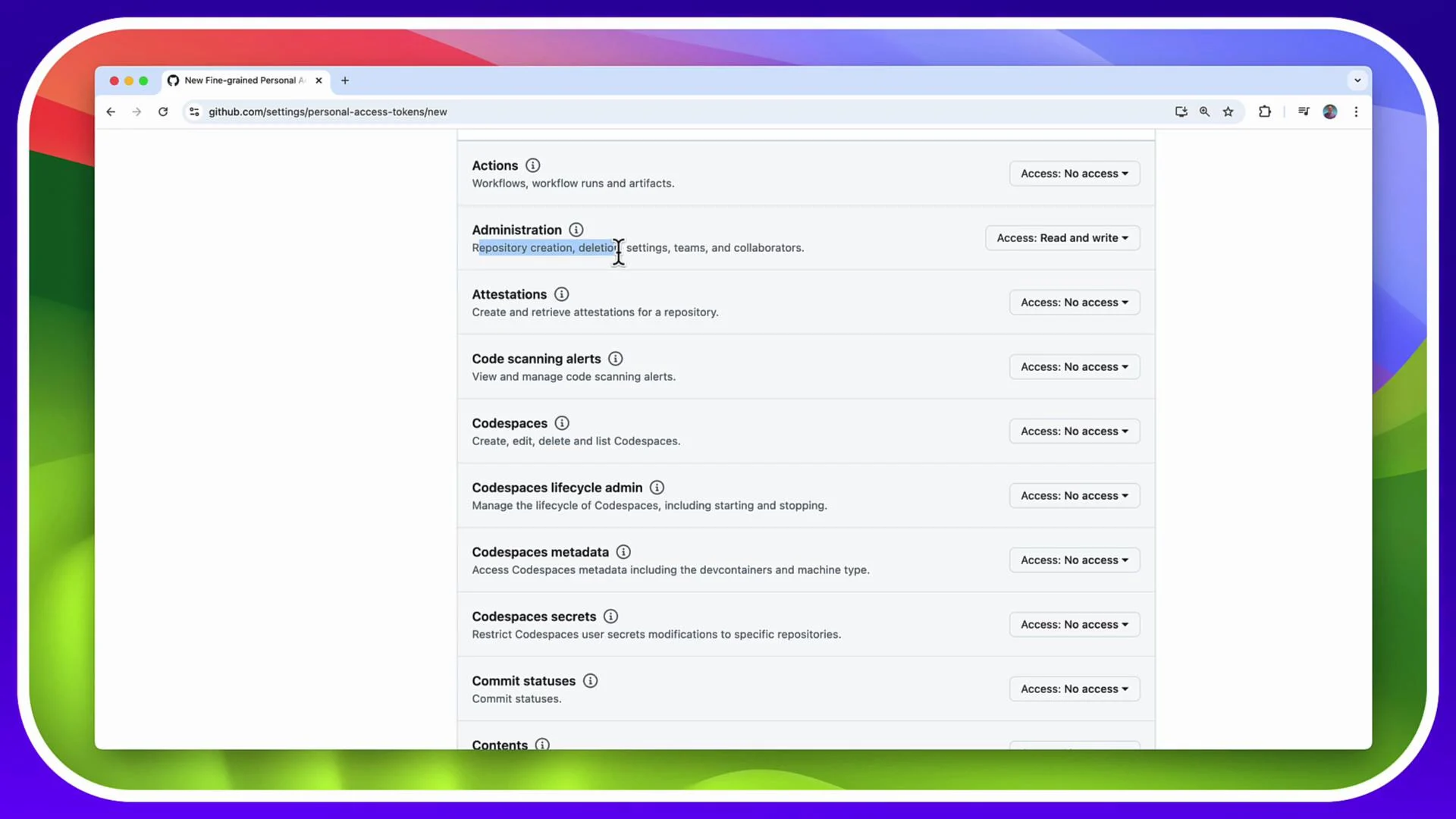
* Repository permissions: grant the minimum permissions Terraform needs. At minimum, enable:
* `Administration` = Read & write (for creating/deleting repositories and changing settings)
* `Contents` = Read & write (for modifying files in repositories)
The fine-grained token creation screen (showing permission selections) is similar to this:
Click **Create a new token** (fine-grained). On the token creation form, set the following values:
* Name: a descriptive label (for example, `Terraform training`).
* Resource owner: your account (or the organization you manage).
* Expiration: choose an appropriate duration (for short labs use 7 days; for automation choose longer but rotate regularly).
* Repository access: choose the repositories this token may access (for hands-on labs you can select `All repositories`).
* Repository permissions: grant the minimum permissions Terraform needs. At minimum, enable:
* `Administration` = Read & write (for creating/deleting repositories and changing settings)
* `Contents` = Read & write (for modifying files in repositories)
The fine-grained token creation screen (showing permission selections) is similar to this:
 When the permission overview confirms you’ve selected the required scopes, click **Generate token**. GitHub will display the token one time only.
Copy the token immediately after generation — GitHub will not show it again after you leave this page.
## Recommended repository permissions for common Terraform tasks
| Permission area | Required setting for Terraform | Why it’s needed |
| ------------------------- | -----------------------------: | ---------------------------------------------------------------------- |
| Repository Administration | `Read & write` | Create/delete repositories, update settings (visibility, topics, etc.) |
| Repository Contents | `Read & write` | Create or modify files (README, CI config, Terraform templates) |
Grant only the permissions you need and restrict repository access where practical.
## Add the token to your environment
Set the token as the `GITHUB_TOKEN` environment variable so Terraform’s GitHub provider can authenticate automatically.
* macOS / Linux (temporary for current shell session):
```bash theme={null}
export GITHUB_TOKEN="github_pat_"
```
* Windows PowerShell (temporary for current session):
```powershell theme={null}
$Env:GITHUB_TOKEN = 'github_pat_'
```
* Windows PowerShell (persist across future sessions using setx):
```powershell theme={null}
setx GITHUB_TOKEN "github_pat_"
```
Replace `github_pat_` with the token value you copied from GitHub.
Fine-grained tokens can expire or be revoked. If the token expires, generate a new one and update your environment variable. Keep tokens secret — do not commit them to source control or reveal them in logs.
## How Terraform uses the token
Once `GITHUB_TOKEN` is set, the Terraform GitHub provider will read it automatically. You do not need to hard-code the token in your Terraform configuration.
Example provider block (no token value shown — provider uses the environment variable):
```hcl theme={null}
provider "github" {
# Optional: specify organization or other settings here
# organization = "my-org"
}
```
Provider documentation: [https://registry.terraform.io/providers/integrations/github/latest/docs](https://registry.terraform.io/providers/integrations/github/latest/docs)
## Troubleshooting & best practices
* If Terraform reports authentication errors, verify `GITHUB_TOKEN` is exported in the same shell/session running Terraform.
* If permission errors occur, confirm the token’s repository permissions and repository access settings.
* For CI systems, store the token in the CI secret store and inject it as `GITHUB_TOKEN` at runtime.
* Rotate tokens regularly and use short expirations for temporary training or lab environments.
## Links and references
* [GitHub: Create a personal access token](https://docs.github.com/en/authentication/keeping-your-account-and-data-secure/creating-a-personal-access-token)
* [Terraform GitHub provider documentation](https://registry.terraform.io/providers/integrations/github/latest/docs)
* [GitHub fine-grained personal access tokens overview](https://docs.github.com/en/authentication/keeping-your-account-and-data-secure/creating-a-personal-access-token)
When the permission overview confirms you’ve selected the required scopes, click **Generate token**. GitHub will display the token one time only.
Copy the token immediately after generation — GitHub will not show it again after you leave this page.
## Recommended repository permissions for common Terraform tasks
| Permission area | Required setting for Terraform | Why it’s needed |
| ------------------------- | -----------------------------: | ---------------------------------------------------------------------- |
| Repository Administration | `Read & write` | Create/delete repositories, update settings (visibility, topics, etc.) |
| Repository Contents | `Read & write` | Create or modify files (README, CI config, Terraform templates) |
Grant only the permissions you need and restrict repository access where practical.
## Add the token to your environment
Set the token as the `GITHUB_TOKEN` environment variable so Terraform’s GitHub provider can authenticate automatically.
* macOS / Linux (temporary for current shell session):
```bash theme={null}
export GITHUB_TOKEN="github_pat_"
```
* Windows PowerShell (temporary for current session):
```powershell theme={null}
$Env:GITHUB_TOKEN = 'github_pat_'
```
* Windows PowerShell (persist across future sessions using setx):
```powershell theme={null}
setx GITHUB_TOKEN "github_pat_"
```
Replace `github_pat_` with the token value you copied from GitHub.
Fine-grained tokens can expire or be revoked. If the token expires, generate a new one and update your environment variable. Keep tokens secret — do not commit them to source control or reveal them in logs.
## How Terraform uses the token
Once `GITHUB_TOKEN` is set, the Terraform GitHub provider will read it automatically. You do not need to hard-code the token in your Terraform configuration.
Example provider block (no token value shown — provider uses the environment variable):
```hcl theme={null}
provider "github" {
# Optional: specify organization or other settings here
# organization = "my-org"
}
```
Provider documentation: [https://registry.terraform.io/providers/integrations/github/latest/docs](https://registry.terraform.io/providers/integrations/github/latest/docs)
## Troubleshooting & best practices
* If Terraform reports authentication errors, verify `GITHUB_TOKEN` is exported in the same shell/session running Terraform.
* If permission errors occur, confirm the token’s repository permissions and repository access settings.
* For CI systems, store the token in the CI secret store and inject it as `GITHUB_TOKEN` at runtime.
* Rotate tokens regularly and use short expirations for temporary training or lab environments.
## Links and references
* [GitHub: Create a personal access token](https://docs.github.com/en/authentication/keeping-your-account-and-data-secure/creating-a-personal-access-token)
* [Terraform GitHub provider documentation](https://registry.terraform.io/providers/integrations/github/latest/docs)
* [GitHub fine-grained personal access tokens overview](https://docs.github.com/en/authentication/keeping-your-account-and-data-secure/creating-a-personal-access-token)