> ## Documentation Index
> Fetch the complete documentation index at: https://notes.kodekloud.com/llms.txt
> Use this file to discover all available pages before exploring further.
# Demo Terraform CLI
> Walks through an end-to-end Terraform CLI workflow using the random provider, covering create, format, init, plan, apply, inspect state and destroy resources.
This lesson walks through common Terraform CLI commands using a minimal configuration and the `random` provider. You’ll learn the typical Terraform local workflow: create a configuration, format it, initialize providers, plan changes, apply them, inspect state, and destroy resources. These same CLI steps apply when working with real cloud providers, though provider-specific behavior and execution times will differ.
Setup: open an empty directory in [VS Code](https://code.visualstudio.com/) and create a file named `main.tf`.
## 1) Check Terraform version
Confirm the installed Terraform version before you begin.
```bash theme={null}
$ terraform version
Terraform v1.10.5
on darwin_arm64
```
## 2) Create a minimal configuration
Add the [random provider](https://registry.terraform.io/providers/hashicorp/random/latest), a `random_pet` resource, and an output to `main.tf`. The `random` provider generates values locally and does not call external APIs.
main.tf:
```hcl theme={null}
provider "random" {}
resource "random_pet" "name" {
length = 2
}
output "random_pet_name" {
value = random_pet.name.id
}
```
## 3) Format the configuration
Use `terraform fmt` to format all HCL files in the working directory.
```bash theme={null}
$ terraform fmt
```
## 4) Initialize the working directory
`terraform init` initializes the working directory, downloads provider plugins, and configures the backend (if one is configured).
```bash theme={null}
$ terraform init
Initializing the backend...
Initializing provider plugins...
- Finding latest version of hashicorp/random...
- Installing hashicorp/random v3.6.3...
Terraform has been successfully initialized!
```
After `init`, Terraform creates a `.terraform` directory with installed provider plugins. The binary layout may vary by Terraform version and OS.
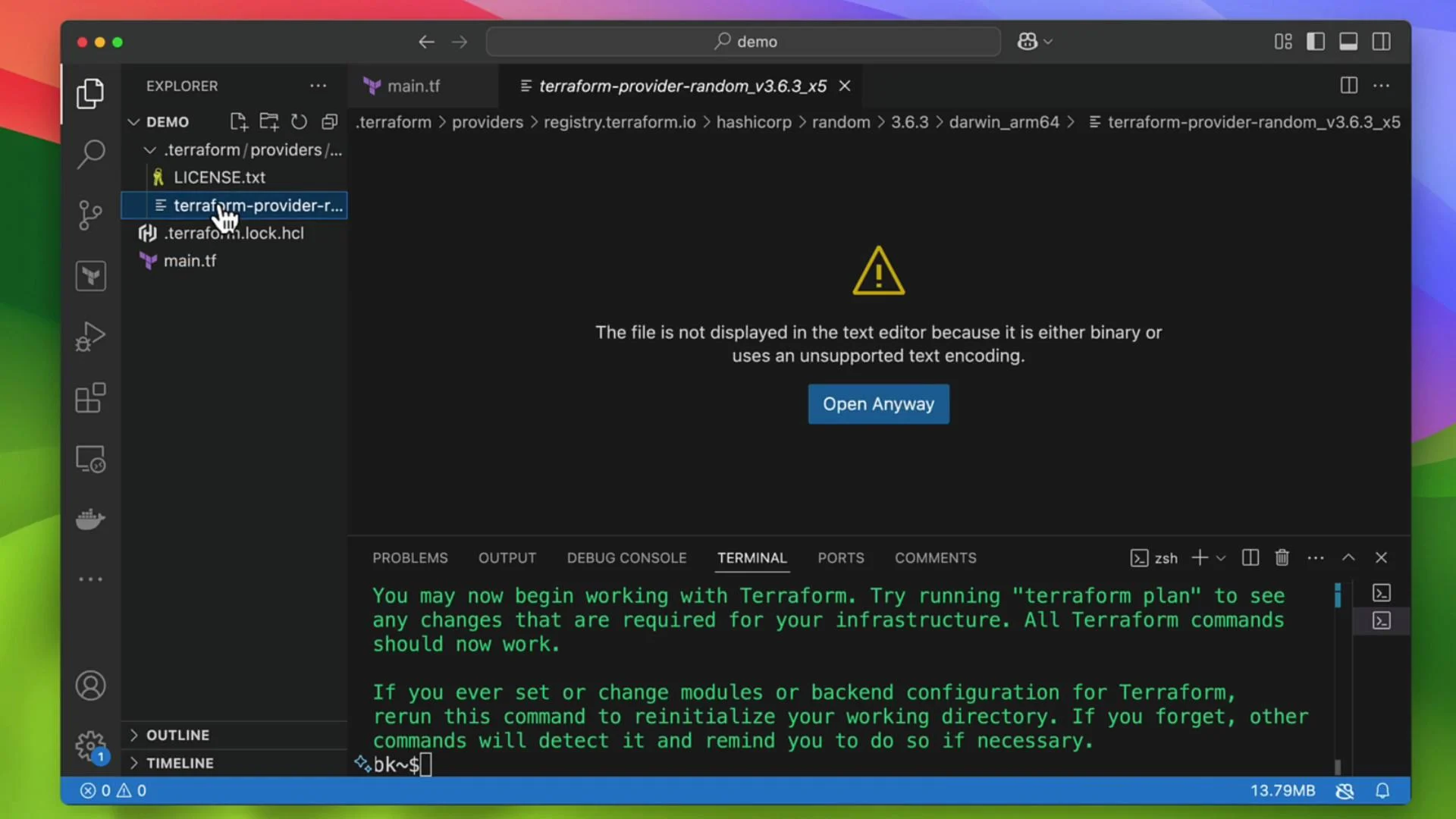 The `.terraform` directory and provider plugin binaries are local artifacts for this working directory. They are safe to ignore in version control (add them to `.gitignore`).
## 5) Validate the configuration
`terraform validate` checks HCL syntax and basic semantics.
Valid example:
```bash theme={null}
$ terraform validate
Success! The configuration is valid.
```
Common validation error — undeclared reference:
```hcl theme={null}
# problematic output
output "random_pet_name" {
value = random_pet.id
}
```
Validation error message:
```bash theme={null}
$ terraform validate
Error: Reference to undeclared resource
on main.tf line 8, in output "random_pet_name":
value = random_pet.id
A managed resource "random_pet" "id" has not been declared in the root module.
```
Fix by referencing the declared instance label:
```hcl theme={null}
output "random_pet_name" {
value = random_pet.name.id
}
```
## 6) Create an execution plan
Use `terraform plan` to preview changes without applying them.
```bash theme={null}
$ terraform plan
Terraform used the selected providers to generate the following execution plan.
Resource actions are indicated with the following symbols:
+ create
Terraform will perform the following actions:
# random_pet.name will be created
+ resource "random_pet" "name" {
+ id = (known after apply)
+ length = 2
+ separator = "-"
}
Plan: 1 to add, 0 to change, 0 to destroy.
Changes to Outputs:
+ random_pet_name = (known after apply)
```
Save a plan to a file with `-out` so you can apply exactly that plan later:
```bash theme={null}
$ terraform plan -out=bryan
Plan: 1 to add, 0 to change, 0 to destroy.
Saved the plan to: bryan
To perform exactly these actions, run the following command to apply:
terraform apply "bryan"
```
## 7) Apply the configuration
`terraform apply` runs a planning step and then prompts to confirm the changes. Add `-auto-approve` to skip interactive confirmation (use carefully in automation).
Interactive apply:
```bash theme={null}
$ terraform apply
# Terraform will prompt "Do you want to perform these actions?" — type "yes" to proceed.
```
Non-interactive apply:
```bash theme={null}
$ terraform apply -auto-approve
```
Example apply output:
```plaintext theme={null}
random_pet.name: Creating...
random_pet.name: Creation complete after 0s [id=better-caribou]
Apply complete! Resources: 1 added, 0 changed, 0 destroyed.
Outputs:
random_pet_name = "better-caribou"
```
## 8) Update configuration: replacement vs. in-place update
Changing certain attributes may force a resource replacement depending on the provider and resource type. For example, changing `length`:
```hcl theme={null}
resource "random_pet" "name" {
length = 3
}
```
`terraform plan` may show a replacement:
```plaintext theme={null}
Terraform will perform the following actions:
# random_pet.name must be replaced
-/+ resource "random_pet" "name" {
id = "better-caribou" -> (known after apply)
length = 2 -> 3 # forces replacement
# (1 unchanged attribute hidden)
}
Plan: 1 to add, 0 to change, 1 to destroy.
Changes to Outputs:
~ random_pet_name = "better-caribou" -> (known after apply)
```
Apply the replacement (example with auto-approve):
```bash theme={null}
$ terraform apply -auto-approve
```
Sample replacement output:
```plaintext theme={null}
random_pet.name: Destroying... [id=better-caribou]
random_pet.name: Destruction complete after 0s
random_pet.name: Creating...
random_pet.name: Creation complete after 0s [id=painfully-rich-mongrel]
Apply complete! Resources: 1 added, 0 changed, 1 destroyed.
Outputs:
random_pet_name = "painfully-rich-mongrel"
```
Note: whether an attribute change forces replacement depends on the provider and resource.
## 9) Inspect the state
Terraform stores a state file (by default `terraform.tfstate`) that records managed resources and outputs.
Example state fragment:
```json theme={null}
{
"version": 4,
"terraform_version": "1.10.5",
"serial": 5,
"lineage": "8072588f-d48c-1b42-13df2b07cae7",
"outputs": {
"random_pet_name": {
"value": "painfully-rich-mongrel",
"type": "string"
}
}
}
```
List resources tracked in state:
```bash theme={null}
$ terraform state list
random_pet.name
```
## 10) Manage multiple resources
Every resource instance requires a unique label:
```hcl theme={null}
resource "random_pet" "bryans_pet" {
length = 3
}
resource "random_pet" "name" {
length = 3
}
```
After `terraform apply`:
```bash theme={null}
$ terraform state list
random_pet.bryans_pet
random_pet.name
```
## 11) Destroy resources
`terraform destroy` plans and prompts to destroy all managed resources in the configuration.
Interactive:
```bash theme={null}
$ terraform destroy
# Terraform will prompt: "Do you really want to destroy all resources? ... Only 'yes' will be accepted to confirm."
```
Non-interactive:
```bash theme={null}
$ terraform destroy --auto-approve
```
Example destroy output:
```plaintext theme={null}
random_pet.name: Destroying... [id=heavily-happy-narwhal]
random_pet.name: Destruction complete after 0s
Destroy complete! Resources: 1 destroyed.
```
Common typo to avoid: `terraform destory` (incorrect). Use `terraform destroy`.
Be careful with `-auto-approve` or `--auto-approve` flags on `apply` and `destroy`. They bypass interactive confirmation and can cause destructive changes if used accidentally.
## Quick reference — common Terraform CLI commands
| Command | Purpose | Example / Notes |
| ------------------------------ | ------------------------------------------------- | --------------------------------------------------------- |
| `terraform version` | Show Terraform version | `terraform version` |
| `terraform fmt` | Format HCL files | `terraform fmt` |
| `terraform init` | Initialize working directory & download providers | `terraform init` |
| `terraform validate` | Validate configuration syntax and semantics | `terraform validate` |
| `terraform plan` | Preview changes | `terraform plan` |
| `terraform plan -out=FILENAME` | Save a plan to a file to apply later | `terraform plan -out=bryan` |
| `terraform apply` | Apply changes (prompts for confirmation) | `terraform apply` or `terraform apply -auto-approve` |
| `terraform state list` | List resources tracked in state | `terraform state list` |
| `terraform destroy` | Destroy all managed resources | `terraform destroy` or `terraform destroy --auto-approve` |
## Summary
This lesson demonstrated a simple end-to-end Terraform workflow with the `random` provider: create a configuration, format and validate it, initialize providers, plan and apply changes, inspect state, and destroy resources. The same CLI workflow applies to cloud providers; expect provider-specific behavior and longer apply/destroy durations when interacting with remote APIs.
## Links and references
* [Terraform CLI documentation](https://www.terraform.io/docs/cli/index.html)
* [random provider — HashiCorp Registry](https://registry.terraform.io/providers/hashicorp/random/latest)
* [Visual Studio Code](https://code.visualstudio.com/)
The `.terraform` directory and provider plugin binaries are local artifacts for this working directory. They are safe to ignore in version control (add them to `.gitignore`).
## 5) Validate the configuration
`terraform validate` checks HCL syntax and basic semantics.
Valid example:
```bash theme={null}
$ terraform validate
Success! The configuration is valid.
```
Common validation error — undeclared reference:
```hcl theme={null}
# problematic output
output "random_pet_name" {
value = random_pet.id
}
```
Validation error message:
```bash theme={null}
$ terraform validate
Error: Reference to undeclared resource
on main.tf line 8, in output "random_pet_name":
value = random_pet.id
A managed resource "random_pet" "id" has not been declared in the root module.
```
Fix by referencing the declared instance label:
```hcl theme={null}
output "random_pet_name" {
value = random_pet.name.id
}
```
## 6) Create an execution plan
Use `terraform plan` to preview changes without applying them.
```bash theme={null}
$ terraform plan
Terraform used the selected providers to generate the following execution plan.
Resource actions are indicated with the following symbols:
+ create
Terraform will perform the following actions:
# random_pet.name will be created
+ resource "random_pet" "name" {
+ id = (known after apply)
+ length = 2
+ separator = "-"
}
Plan: 1 to add, 0 to change, 0 to destroy.
Changes to Outputs:
+ random_pet_name = (known after apply)
```
Save a plan to a file with `-out` so you can apply exactly that plan later:
```bash theme={null}
$ terraform plan -out=bryan
Plan: 1 to add, 0 to change, 0 to destroy.
Saved the plan to: bryan
To perform exactly these actions, run the following command to apply:
terraform apply "bryan"
```
## 7) Apply the configuration
`terraform apply` runs a planning step and then prompts to confirm the changes. Add `-auto-approve` to skip interactive confirmation (use carefully in automation).
Interactive apply:
```bash theme={null}
$ terraform apply
# Terraform will prompt "Do you want to perform these actions?" — type "yes" to proceed.
```
Non-interactive apply:
```bash theme={null}
$ terraform apply -auto-approve
```
Example apply output:
```plaintext theme={null}
random_pet.name: Creating...
random_pet.name: Creation complete after 0s [id=better-caribou]
Apply complete! Resources: 1 added, 0 changed, 0 destroyed.
Outputs:
random_pet_name = "better-caribou"
```
## 8) Update configuration: replacement vs. in-place update
Changing certain attributes may force a resource replacement depending on the provider and resource type. For example, changing `length`:
```hcl theme={null}
resource "random_pet" "name" {
length = 3
}
```
`terraform plan` may show a replacement:
```plaintext theme={null}
Terraform will perform the following actions:
# random_pet.name must be replaced
-/+ resource "random_pet" "name" {
id = "better-caribou" -> (known after apply)
length = 2 -> 3 # forces replacement
# (1 unchanged attribute hidden)
}
Plan: 1 to add, 0 to change, 1 to destroy.
Changes to Outputs:
~ random_pet_name = "better-caribou" -> (known after apply)
```
Apply the replacement (example with auto-approve):
```bash theme={null}
$ terraform apply -auto-approve
```
Sample replacement output:
```plaintext theme={null}
random_pet.name: Destroying... [id=better-caribou]
random_pet.name: Destruction complete after 0s
random_pet.name: Creating...
random_pet.name: Creation complete after 0s [id=painfully-rich-mongrel]
Apply complete! Resources: 1 added, 0 changed, 1 destroyed.
Outputs:
random_pet_name = "painfully-rich-mongrel"
```
Note: whether an attribute change forces replacement depends on the provider and resource.
## 9) Inspect the state
Terraform stores a state file (by default `terraform.tfstate`) that records managed resources and outputs.
Example state fragment:
```json theme={null}
{
"version": 4,
"terraform_version": "1.10.5",
"serial": 5,
"lineage": "8072588f-d48c-1b42-13df2b07cae7",
"outputs": {
"random_pet_name": {
"value": "painfully-rich-mongrel",
"type": "string"
}
}
}
```
List resources tracked in state:
```bash theme={null}
$ terraform state list
random_pet.name
```
## 10) Manage multiple resources
Every resource instance requires a unique label:
```hcl theme={null}
resource "random_pet" "bryans_pet" {
length = 3
}
resource "random_pet" "name" {
length = 3
}
```
After `terraform apply`:
```bash theme={null}
$ terraform state list
random_pet.bryans_pet
random_pet.name
```
## 11) Destroy resources
`terraform destroy` plans and prompts to destroy all managed resources in the configuration.
Interactive:
```bash theme={null}
$ terraform destroy
# Terraform will prompt: "Do you really want to destroy all resources? ... Only 'yes' will be accepted to confirm."
```
Non-interactive:
```bash theme={null}
$ terraform destroy --auto-approve
```
Example destroy output:
```plaintext theme={null}
random_pet.name: Destroying... [id=heavily-happy-narwhal]
random_pet.name: Destruction complete after 0s
Destroy complete! Resources: 1 destroyed.
```
Common typo to avoid: `terraform destory` (incorrect). Use `terraform destroy`.
Be careful with `-auto-approve` or `--auto-approve` flags on `apply` and `destroy`. They bypass interactive confirmation and can cause destructive changes if used accidentally.
## Quick reference — common Terraform CLI commands
| Command | Purpose | Example / Notes |
| ------------------------------ | ------------------------------------------------- | --------------------------------------------------------- |
| `terraform version` | Show Terraform version | `terraform version` |
| `terraform fmt` | Format HCL files | `terraform fmt` |
| `terraform init` | Initialize working directory & download providers | `terraform init` |
| `terraform validate` | Validate configuration syntax and semantics | `terraform validate` |
| `terraform plan` | Preview changes | `terraform plan` |
| `terraform plan -out=FILENAME` | Save a plan to a file to apply later | `terraform plan -out=bryan` |
| `terraform apply` | Apply changes (prompts for confirmation) | `terraform apply` or `terraform apply -auto-approve` |
| `terraform state list` | List resources tracked in state | `terraform state list` |
| `terraform destroy` | Destroy all managed resources | `terraform destroy` or `terraform destroy --auto-approve` |
## Summary
This lesson demonstrated a simple end-to-end Terraform workflow with the `random` provider: create a configuration, format and validate it, initialize providers, plan and apply changes, inspect state, and destroy resources. The same CLI workflow applies to cloud providers; expect provider-specific behavior and longer apply/destroy durations when interacting with remote APIs.
## Links and references
* [Terraform CLI documentation](https://www.terraform.io/docs/cli/index.html)
* [random provider — HashiCorp Registry](https://registry.terraform.io/providers/hashicorp/random/latest)
* [Visual Studio Code](https://code.visualstudio.com/)