> ## Documentation Index
> Fetch the complete documentation index at: https://notes.kodekloud.com/llms.txt
> Use this file to discover all available pages before exploring further.
# Demo Using Modules from the Terraform Registry
> Guide on using Terraform Registry modules to provision an AWS VPC and security group, exporting and passing module outputs between modules.
Welcome — in this hands-on lesson you'll learn how to consume reusable modules from the [Terraform Registry](https://registry.terraform.io). We'll:
* Provision an AWS VPC using the community module `terraform-aws-modules/vpc/aws`.
* Export the VPC ID from that module to the root module.
* Pass the VPC ID into a security group module (`terraform-aws-modules/security-group/aws`) so the security group is created in the same VPC.
* Do all of this without writing any low-level `aws_*` resource blocks in the root module.
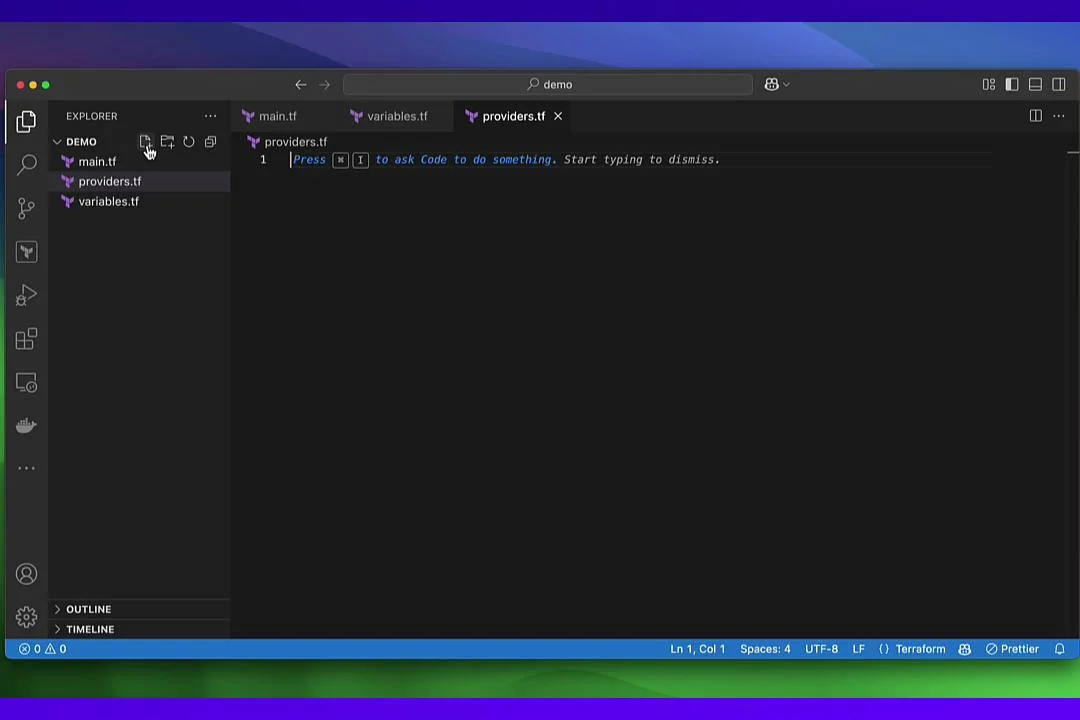
Project layout — create these files in a new directory:
| File | Purpose |
| -------------- | -------------------------------------------------------------------- |
| `main.tf` | Module blocks that call registry modules (VPC, security group) |
| `variables.tf` | Root-module variable declarations and defaults |
| `providers.tf` | Provider configuration (AWS provider, required provider constraints) |
| `outputs.tf` | Root-module outputs that expose child-module outputs |
 ## Browse the Terraform Registry
The Terraform Registry hosts both providers and modules. Modules are reusable collections of Terraform configuration (typically `main.tf`, `variables.tf`, and `outputs.tf`) published by the community or organizations. Search the Registry for provider-specific modules (AWS, Azure, GCP, etc.) and review each module’s README to find inputs, outputs, and usage examples.
Below is an example page showing many AWS community modules (EKS, Lambda, KMS, and more).
## Browse the Terraform Registry
The Terraform Registry hosts both providers and modules. Modules are reusable collections of Terraform configuration (typically `main.tf`, `variables.tf`, and `outputs.tf`) published by the community or organizations. Search the Registry for provider-specific modules (AWS, Azure, GCP, etc.) and review each module’s README to find inputs, outputs, and usage examples.
Below is an example page showing many AWS community modules (EKS, Lambda, KMS, and more).
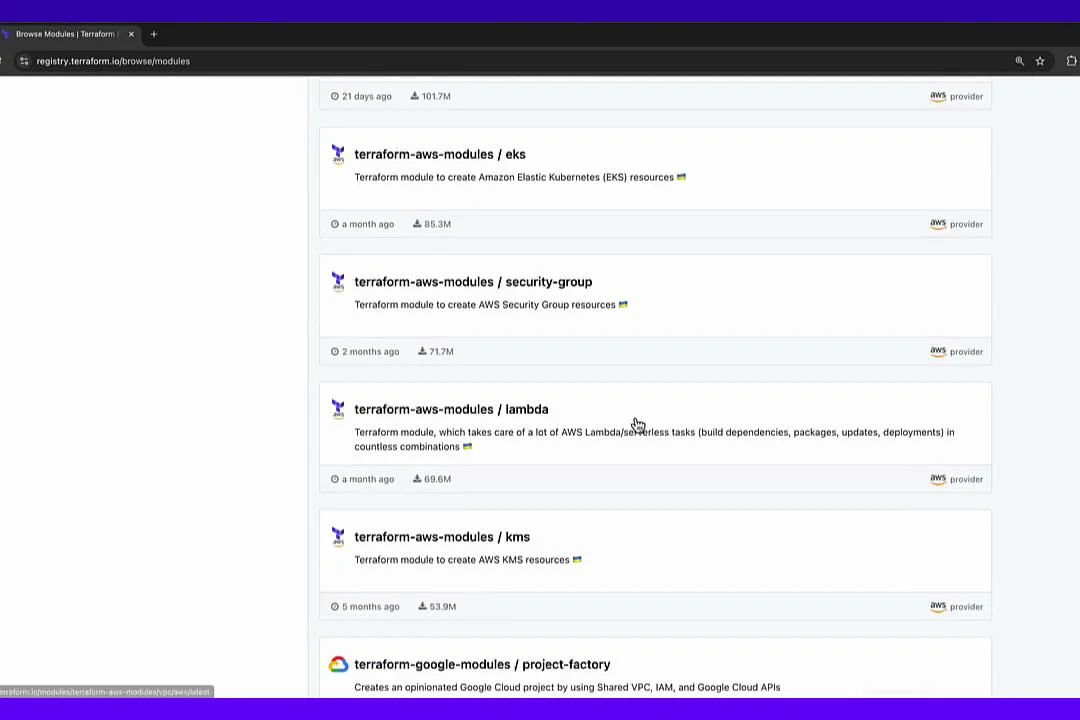 For this demo we’ll use the popular module: `terraform-aws-modules/vpc/aws`. It exposes many optional inputs and useful outputs.
## Inspect the VPC module README, inputs, and outputs
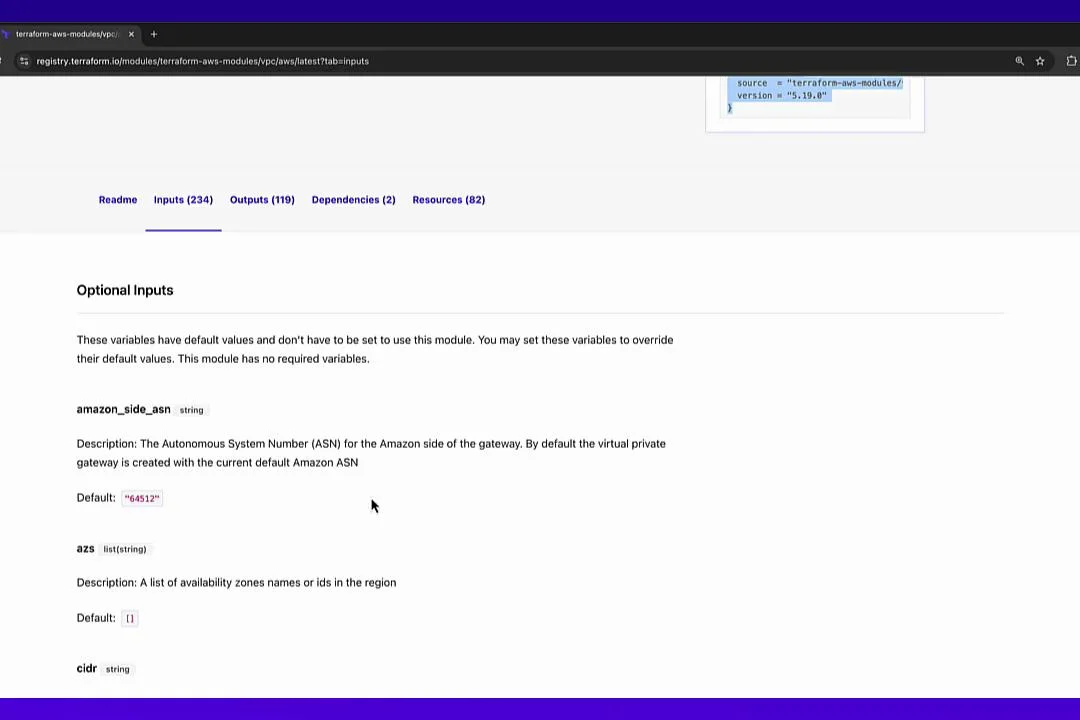
Registry modules usually document their inputs (variables) and outputs clearly in the README. Many inputs are optional and provide sensible defaults — you only need to override the values you want to change.
For this demo we’ll use the popular module: `terraform-aws-modules/vpc/aws`. It exposes many optional inputs and useful outputs.
## Inspect the VPC module README, inputs, and outputs
Registry modules usually document their inputs (variables) and outputs clearly in the README. Many inputs are optional and provide sensible defaults — you only need to override the values you want to change.
 ## Define variables (variables.tf)
Create `variables.tf` and declare the root-module variables you’ll pass into the VPC module. In this example we provide a CIDR block and a VPC name, both with defaults.
```hcl theme={null}
# variables.tf
variable "cidr_block" {
type = string
description = "The IPv4 CIDR block for the VPC"
default = "192.168.0.0/16"
}
variable "vpc_name" {
type = string
description = "Name tag for the VPC"
default = "my-terraform-vpc"
}
```
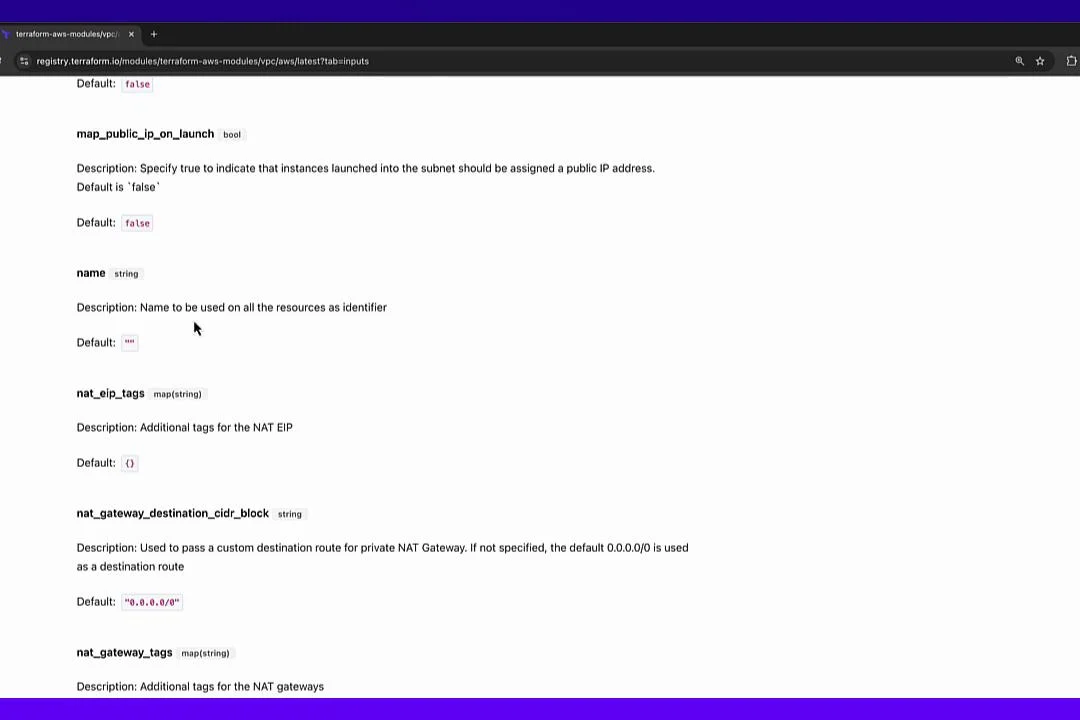
Note: The VPC module’s default CIDR is `10.0.0.0/16`; changing `cidr_block` to `192.168.0.0/16` demonstrates overriding a module default.
For more inputs including tags, route tables, and subnet options see the module inputs:
## Define variables (variables.tf)
Create `variables.tf` and declare the root-module variables you’ll pass into the VPC module. In this example we provide a CIDR block and a VPC name, both with defaults.
```hcl theme={null}
# variables.tf
variable "cidr_block" {
type = string
description = "The IPv4 CIDR block for the VPC"
default = "192.168.0.0/16"
}
variable "vpc_name" {
type = string
description = "Name tag for the VPC"
default = "my-terraform-vpc"
}
```
Note: The VPC module’s default CIDR is `10.0.0.0/16`; changing `cidr_block` to `192.168.0.0/16` demonstrates overriding a module default.
For more inputs including tags, route tables, and subnet options see the module inputs:
 ## Add the VPC module (main.tf)
Add a module block in `main.tf` that references the Registry source and wires the root variables into the module inputs:
```hcl theme={null}
# main.tf
module "vpc" {
source = "terraform-aws-modules/vpc/aws"
version = "5.19.0"
name = var.vpc_name
cidr = var.cidr_block
}
```
## Provider configuration (providers.tf)
Declare the required provider constraint and configure the AWS provider. Credentials are supplied via environment variables or other supported credential providers.
```hcl theme={null}
# providers.tf
terraform {
required_providers {
aws = {
source = "hashicorp/aws"
version = "5.89.0"
}
}
}
provider "aws" {
region = "us-east-1"
# Credentials: use environment variables (AWS_ACCESS_KEY_ID and AWS_SECRET_ACCESS_KEY)
}
```
Ensure your AWS credentials are available before running Terraform commands. You can export `AWS_ACCESS_KEY_ID`, `AWS_SECRET_ACCESS_KEY`, and optionally `AWS_SESSION_TOKEN`, or use the AWS CLI credential store.
## Initialize the working directory
Open a terminal, confirm your credentials, then run:
```bash theme={null}
terraform init
```
This downloads providers and any referenced modules. Example important output:
```bash theme={null}
Downloading registry.terraform.io/terraform-aws-modules/vpc/aws 5.19.0 for vpc...
- vpc in .terraform/modules/vpc
Initializing provider plugins...
- Finding hashicorp/aws versions matching "5.89.0"
- Installing hashicorp/aws v5.89.0...
- Installed hashicorp/aws v5.89.0 (signed by HashiCorp)
Terraform has created a lockfile .terraform.lock.hcl to record the provider selections it made above.
```
After init, Terraform will have downloaded the VPC module into `.terraform/modules/vpc` and installed the AWS provider plugin.
Run [`terraform init`](https://developer.hashicorp.com/terraform/cli/commands/init) after adding or changing module sources so Terraform can download required modules and providers.
## Plan and apply the VPC
Plan to preview the resources the module will create. Depending on inputs and defaults the VPC module may create a VPC, route tables, a default security group, network ACLs, and subnets.
```bash theme={null}
terraform plan
# Example summary:
# Plan: 4 to add, 0 to change, 0 to destroy.
```
Apply the plan:
```bash theme={null}
terraform apply
# Confirm with 'yes' when prompted
```
Example (truncated) apply output:
```plaintext theme={null}
module.vpc.aws_default_route_table.default[0]: Creation complete [id=rtb-xxxxxxxx]
module.vpc.aws_default_network_acl.this[0]: Creation complete [id=acl-xxxxxxxx]
module.vpc.aws_default_security_group.this[0]: Creation complete [id=sg-xxxxxxxx]
Apply complete! Resources: 4 added, 0 changed, 0 destroyed.
```
Inspect the state:
```bash theme={null}
terraform state list
# module.vpc.aws_default_network_acl.this[0]
# module.vpc.aws_default_route_table.default[0]
# module.vpc.aws_default_security_group.this[0]
# module.vpc.aws_vpc.this[0]
```
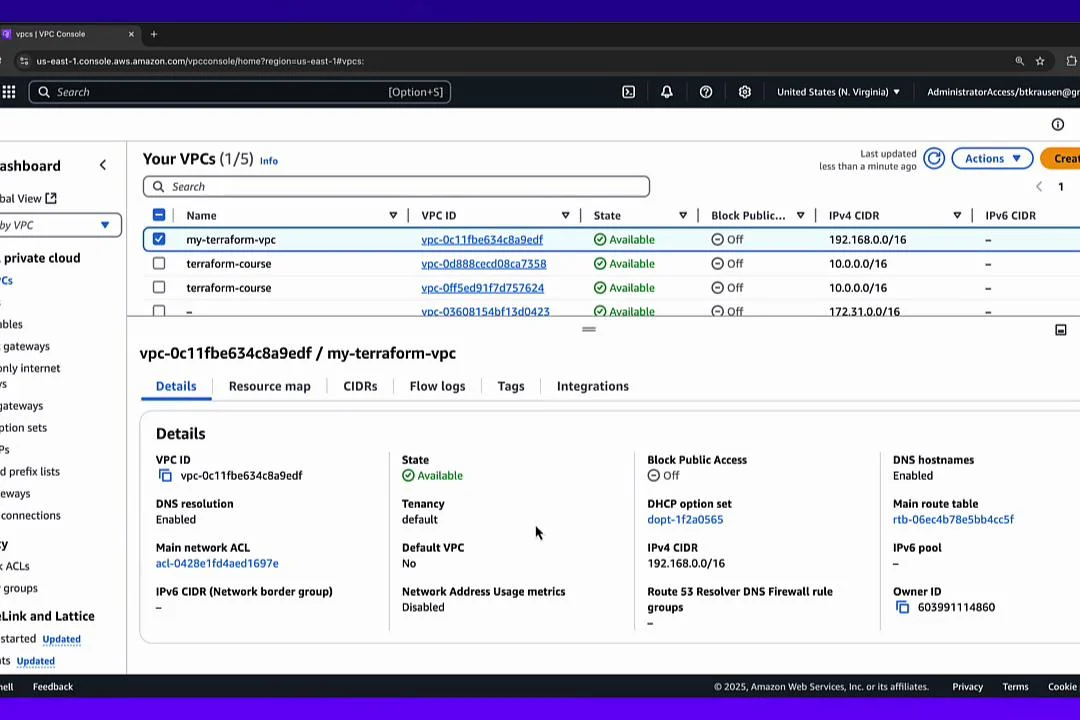
Confirm in the AWS Console (VPCs) that the VPC exists and the CIDR matches the value you provided (`192.168.0.0/16` in this example): [https://console.aws.amazon.com/vpc/home](https://console.aws.amazon.com/vpc/home)
## Add the VPC module (main.tf)
Add a module block in `main.tf` that references the Registry source and wires the root variables into the module inputs:
```hcl theme={null}
# main.tf
module "vpc" {
source = "terraform-aws-modules/vpc/aws"
version = "5.19.0"
name = var.vpc_name
cidr = var.cidr_block
}
```
## Provider configuration (providers.tf)
Declare the required provider constraint and configure the AWS provider. Credentials are supplied via environment variables or other supported credential providers.
```hcl theme={null}
# providers.tf
terraform {
required_providers {
aws = {
source = "hashicorp/aws"
version = "5.89.0"
}
}
}
provider "aws" {
region = "us-east-1"
# Credentials: use environment variables (AWS_ACCESS_KEY_ID and AWS_SECRET_ACCESS_KEY)
}
```
Ensure your AWS credentials are available before running Terraform commands. You can export `AWS_ACCESS_KEY_ID`, `AWS_SECRET_ACCESS_KEY`, and optionally `AWS_SESSION_TOKEN`, or use the AWS CLI credential store.
## Initialize the working directory
Open a terminal, confirm your credentials, then run:
```bash theme={null}
terraform init
```
This downloads providers and any referenced modules. Example important output:
```bash theme={null}
Downloading registry.terraform.io/terraform-aws-modules/vpc/aws 5.19.0 for vpc...
- vpc in .terraform/modules/vpc
Initializing provider plugins...
- Finding hashicorp/aws versions matching "5.89.0"
- Installing hashicorp/aws v5.89.0...
- Installed hashicorp/aws v5.89.0 (signed by HashiCorp)
Terraform has created a lockfile .terraform.lock.hcl to record the provider selections it made above.
```
After init, Terraform will have downloaded the VPC module into `.terraform/modules/vpc` and installed the AWS provider plugin.
Run [`terraform init`](https://developer.hashicorp.com/terraform/cli/commands/init) after adding or changing module sources so Terraform can download required modules and providers.
## Plan and apply the VPC
Plan to preview the resources the module will create. Depending on inputs and defaults the VPC module may create a VPC, route tables, a default security group, network ACLs, and subnets.
```bash theme={null}
terraform plan
# Example summary:
# Plan: 4 to add, 0 to change, 0 to destroy.
```
Apply the plan:
```bash theme={null}
terraform apply
# Confirm with 'yes' when prompted
```
Example (truncated) apply output:
```plaintext theme={null}
module.vpc.aws_default_route_table.default[0]: Creation complete [id=rtb-xxxxxxxx]
module.vpc.aws_default_network_acl.this[0]: Creation complete [id=acl-xxxxxxxx]
module.vpc.aws_default_security_group.this[0]: Creation complete [id=sg-xxxxxxxx]
Apply complete! Resources: 4 added, 0 changed, 0 destroyed.
```
Inspect the state:
```bash theme={null}
terraform state list
# module.vpc.aws_default_network_acl.this[0]
# module.vpc.aws_default_route_table.default[0]
# module.vpc.aws_default_security_group.this[0]
# module.vpc.aws_vpc.this[0]
```
Confirm in the AWS Console (VPCs) that the VPC exists and the CIDR matches the value you provided (`192.168.0.0/16` in this example): [https://console.aws.amazon.com/vpc/home](https://console.aws.amazon.com/vpc/home)
 ## Export the VPC ID from the module (outputs.tf)
To use the VPC ID elsewhere, expose the module output at the root level by adding an output:
```hcl theme={null}
# outputs.tf
output "vpc_id" {
value = module.vpc.vpc_id
description = "The ID of the VPC created by the vpc module"
}
```
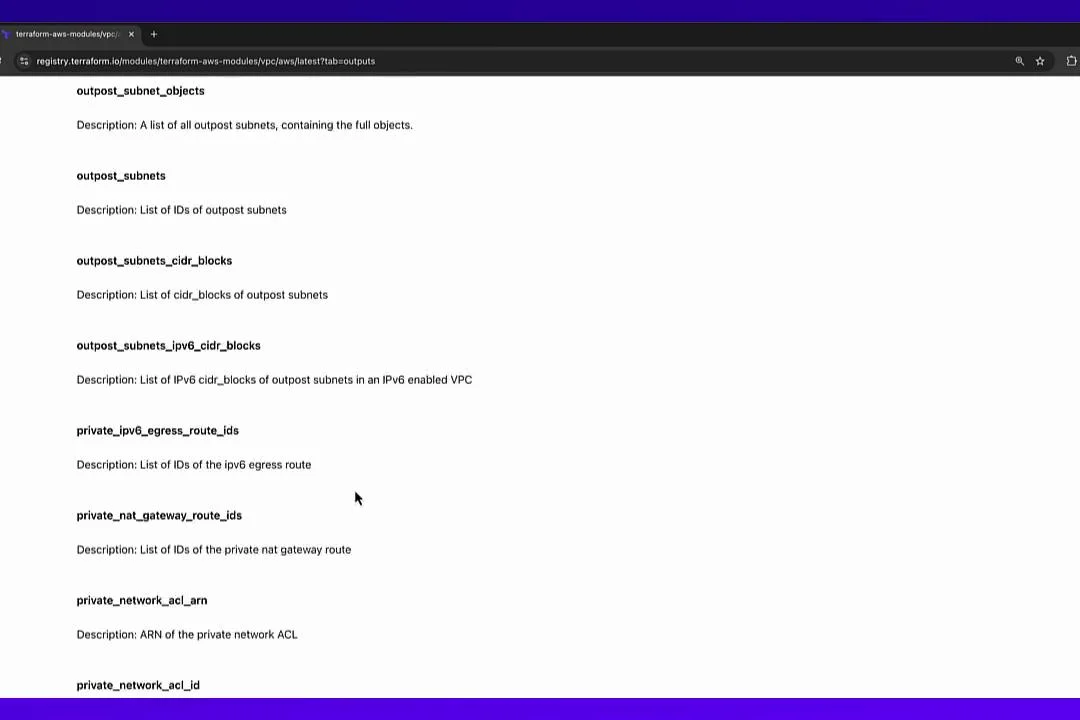
The VPC module documents its outputs on the Registry; copy the exact output name (here `vpc_id`) from the module page.
## Export the VPC ID from the module (outputs.tf)
To use the VPC ID elsewhere, expose the module output at the root level by adding an output:
```hcl theme={null}
# outputs.tf
output "vpc_id" {
value = module.vpc.vpc_id
description = "The ID of the VPC created by the vpc module"
}
```
The VPC module documents its outputs on the Registry; copy the exact output name (here `vpc_id`) from the module page.
 Apply again (adding an output does not create AWS resources):
```bash theme={null}
terraform apply
# Confirm with 'yes'
```
Example outputs:
```plaintext theme={null}
Apply complete! Resources: 0 added, 0 changed, 0 destroyed.
Outputs:
vpc_id = "vpc-0c11fbe634c8a9edf"
```
## Use the VPC ID input for another module (security group)
Now consume that exported VPC ID in a security group module (`terraform-aws-modules/security-group/aws`). The security group module expects `vpc_id` among its inputs.
Append the following to `main.tf`:
```hcl theme={null}
module "security_group" {
source = "terraform-aws-modules/security-group/aws"
version = "5.3.0"
vpc_id = module.vpc.vpc_id
name = "my-cool-security-group"
}
```
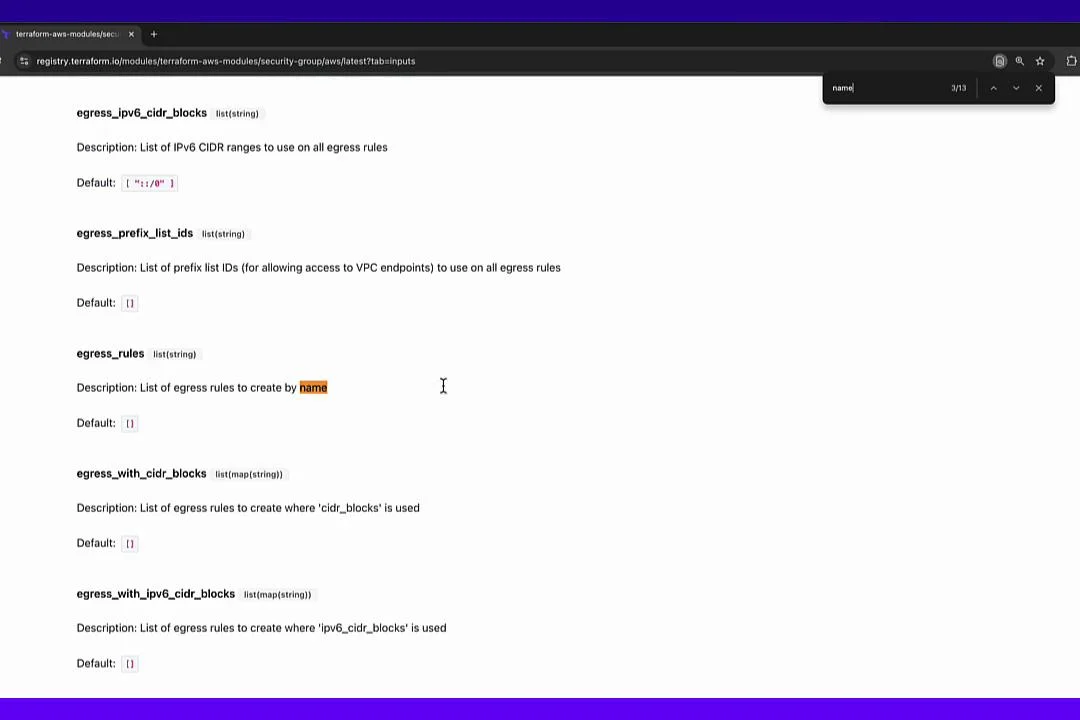
This module supports many ingress/egress inputs such as `egress_rules`, `egress_ipv6_cidr_blocks`, `ingress_rules`, etc. We only pass the required `vpc_id` and a `name` in this example.
Apply again (adding an output does not create AWS resources):
```bash theme={null}
terraform apply
# Confirm with 'yes'
```
Example outputs:
```plaintext theme={null}
Apply complete! Resources: 0 added, 0 changed, 0 destroyed.
Outputs:
vpc_id = "vpc-0c11fbe634c8a9edf"
```
## Use the VPC ID input for another module (security group)
Now consume that exported VPC ID in a security group module (`terraform-aws-modules/security-group/aws`). The security group module expects `vpc_id` among its inputs.
Append the following to `main.tf`:
```hcl theme={null}
module "security_group" {
source = "terraform-aws-modules/security-group/aws"
version = "5.3.0"
vpc_id = module.vpc.vpc_id
name = "my-cool-security-group"
}
```
This module supports many ingress/egress inputs such as `egress_rules`, `egress_ipv6_cidr_blocks`, `ingress_rules`, etc. We only pass the required `vpc_id` and a `name` in this example.
 Because this is a new external module, re-run:
```bash theme={null}
terraform init
```
Then:
```bash theme={null}
terraform plan
terraform apply
# Confirm with 'yes'
```
Example apply output:
```plaintext theme={null}
module.security_group.aws_security_group.this_name_prefix[0]: Creation complete after 2s [id=sg-078db811ad40027cd]
Apply complete! Resources: 1 added, 0 changed, 0 destroyed.
```
Verify in the AWS Console under EC2 → Security Groups that `my-cool-security-group` exists and is attached to the same VPC.
## Export the security group ID (append to outputs.tf)
To expose the created security group ID from the module, add an output in `outputs.tf`:
```hcl theme={null}
# outputs.tf (append)
output "sg_id" {
value = module.security_group.security_group_id
description = "The ID of the security group created by the security group module"
}
```
Apply one more time (outputs only):
```bash theme={null}
terraform apply
# Confirm with 'yes'
```
Example resulting outputs:
```plaintext theme={null}
Apply complete! Resources: 0 added, 0 changed, 0 destroyed.
Outputs:
sg_id = "sg-078db811ad40027cd"
vpc_id = "vpc-0c11fbe634c8a9edf"
```
## Quick command reference
| Command | Purpose |
| ---------------------- | --------------------------------------------------------------- |
| `terraform init` | Download providers and modules referenced by your configuration |
| `terraform plan` | Preview changes Terraform will make |
| `terraform apply` | Apply the planned changes to create/update resources |
| `terraform state list` | Inspect tracked resources in the state file |
## Summary
* The Terraform Registry hosts thousands of reusable modules. Inspect module READMEs for inputs and outputs before consumption.
* Call child modules in the root module with `module "" { source = "..." }` and pass values via module inputs.
* Modules can export outputs you reference as `module..`; those values can be passed into other modules.
* Always run `terraform init` whenever you add or change external module sources so Terraform downloads the modules and providers.
Use Registry modules to compose infrastructure quickly—delegate resource details to tested modules and wire them together with clear inputs and outputs.
## Links and references
* Terraform Registry — [https://registry.terraform.io](https://registry.terraform.io)
* terraform-aws-modules/vpc/aws — [https://registry.terraform.io/modules/terraform-aws-modules/vpc/aws/latest](https://registry.terraform.io/modules/terraform-aws-modules/vpc/aws/latest)
* terraform-aws-modules/security-group/aws — [https://registry.terraform.io/modules/terraform-aws-modules/security-group/aws/latest](https://registry.terraform.io/modules/terraform-aws-modules/security-group/aws/latest)
* AWS provider documentation — [https://registry.terraform.io/providers/hashicorp/aws/latest](https://registry.terraform.io/providers/hashicorp/aws/latest)
Because this is a new external module, re-run:
```bash theme={null}
terraform init
```
Then:
```bash theme={null}
terraform plan
terraform apply
# Confirm with 'yes'
```
Example apply output:
```plaintext theme={null}
module.security_group.aws_security_group.this_name_prefix[0]: Creation complete after 2s [id=sg-078db811ad40027cd]
Apply complete! Resources: 1 added, 0 changed, 0 destroyed.
```
Verify in the AWS Console under EC2 → Security Groups that `my-cool-security-group` exists and is attached to the same VPC.
## Export the security group ID (append to outputs.tf)
To expose the created security group ID from the module, add an output in `outputs.tf`:
```hcl theme={null}
# outputs.tf (append)
output "sg_id" {
value = module.security_group.security_group_id
description = "The ID of the security group created by the security group module"
}
```
Apply one more time (outputs only):
```bash theme={null}
terraform apply
# Confirm with 'yes'
```
Example resulting outputs:
```plaintext theme={null}
Apply complete! Resources: 0 added, 0 changed, 0 destroyed.
Outputs:
sg_id = "sg-078db811ad40027cd"
vpc_id = "vpc-0c11fbe634c8a9edf"
```
## Quick command reference
| Command | Purpose |
| ---------------------- | --------------------------------------------------------------- |
| `terraform init` | Download providers and modules referenced by your configuration |
| `terraform plan` | Preview changes Terraform will make |
| `terraform apply` | Apply the planned changes to create/update resources |
| `terraform state list` | Inspect tracked resources in the state file |
## Summary
* The Terraform Registry hosts thousands of reusable modules. Inspect module READMEs for inputs and outputs before consumption.
* Call child modules in the root module with `module "" { source = "..." }` and pass values via module inputs.
* Modules can export outputs you reference as `module..`; those values can be passed into other modules.
* Always run `terraform init` whenever you add or change external module sources so Terraform downloads the modules and providers.
Use Registry modules to compose infrastructure quickly—delegate resource details to tested modules and wire them together with clear inputs and outputs.
## Links and references
* Terraform Registry — [https://registry.terraform.io](https://registry.terraform.io)
* terraform-aws-modules/vpc/aws — [https://registry.terraform.io/modules/terraform-aws-modules/vpc/aws/latest](https://registry.terraform.io/modules/terraform-aws-modules/vpc/aws/latest)
* terraform-aws-modules/security-group/aws — [https://registry.terraform.io/modules/terraform-aws-modules/security-group/aws/latest](https://registry.terraform.io/modules/terraform-aws-modules/security-group/aws/latest)
* AWS provider documentation — [https://registry.terraform.io/providers/hashicorp/aws/latest](https://registry.terraform.io/providers/hashicorp/aws/latest)