> ## Documentation Index
> Fetch the complete documentation index at: https://notes.kodekloud.com/llms.txt
> Use this file to discover all available pages before exploring further.
# Terraform Apply
> Describes terraform apply execution, state locking, incremental updates, lack of automatic rollback, operation modes and best practices for safely applying infrastructure changes.
Now that you’ve written your Terraform configs, initialized the working directory, and reviewed the plan, the final step is `terraform apply`.
Apply is the execution phase: Terraform reconciles your configuration with real-world infrastructure by calling provider APIs to create, modify, or destroy resources. Everything up to this point has been preparation and preview; apply is where infrastructure-as-code becomes actual infrastructure.
In this article you'll learn:
* What `terraform apply` does under the hood
* Key operational behaviors to expect during apply
* Common ways to run apply (interactive, saved plan, automation)
* Practical best practices to use apply safely
## What terraform apply actually does
* Runs a planning step that compares the recorded state with the desired configuration and produces a proposed set of changes.
* By default, displays that plan and prompts you to confirm before making changes (you must type `yes` to proceed).
* Executes the proposed changes by calling provider APIs and updates state as resources are created/updated/destroyed.
## Key operational behaviors during apply
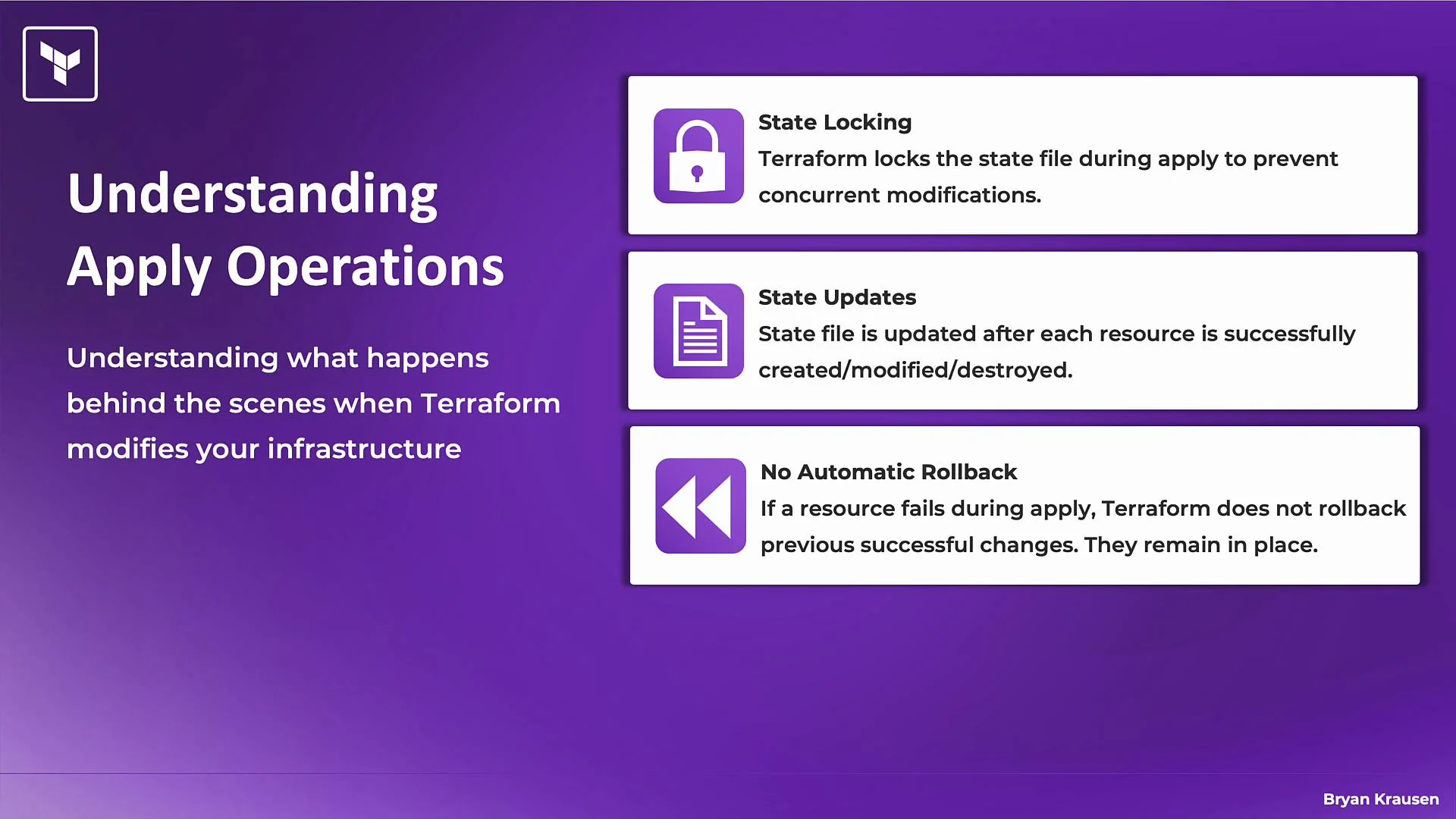
* State locking: Terraform attempts to acquire a lock on state before applying changes when the backend supports locking (for example, [Terraform Cloud](https://www.terraform.io/cloud) or AWS S3 with a DynamoDB lock). This prevents concurrent modifications and reduces the risk of state corruption. Note: the local backend has limited locking semantics and some backends do not support locks.
* Incremental state updates: State is written incrementally as each resource operation succeeds rather than only at the end. If an apply fails partway through, the state reflects the resources already processed.
* No automatic rollback: Terraform does not automatically undo resources that were successfully created if a later resource fails. After a failed apply you must fix the cause and re-run apply (Terraform will continue from the current state), or manually destroy partial resources if appropriate.
* Dependency graph: Terraform respects resource dependencies and processes resources in the correct order. Independent resources may be handled in parallel when the provider supports it.
 ## How to run terraform apply
| Mode | Command / Workflow | When to use |
| ---------------------------- | ------------------------------------------------------------------------------- | -------------------------------------------------------------------------------- |
| Interactive default | `terraform apply` | Manual changes when you want to review the final plan before execution. |
| Saved plan file | `terraform plan -out=myplan.tfplan` then `terraform apply myplan.tfplan` | CI pipelines or when you want to review and store the exact plan to apply later. |
| Non-interactive / automation | `terraform apply -auto-approve` or `terraform apply -input=false -auto-approve` | Automation and CI/CD where human interaction is not possible (use with caution). |
Details and examples:
Default interactive apply
```bash theme={null}
terraform apply
```
This runs an implicit plan (refreshing state as needed), prints the proposed changes, and waits for you to confirm by typing `yes`. It’s the safest manual workflow.
Apply a saved plan file
1. Create and save a plan:
```bash theme={null}
terraform plan -out=myplan.tfplan
```
2. Apply the saved plan:
```bash theme={null}
terraform apply myplan.tfplan
```
Applying a saved plan skips the planning step and applies exactly what was saved. Note: applying a previously saved plan does not refresh real-world state before execution — if the infrastructure changed since the plan was created, the apply may fail.
Non-interactive / automation flags
* Skip the confirmation prompt:
```bash theme={null}
terraform apply -auto-approve
```
* For CI/CD pipelines (disable prompts and auto-approve):
```bash theme={null}
terraform apply -input=false -auto-approve
```
Use these flags only in automated contexts. `-auto-approve` removes the safeguard of human confirmation; `-input=false` prevents Terraform from prompting for input.
When running Terraform in CI, generate and save the plan (`terraform plan -out=myplan.tfplan`) and then apply that exact plan file in the pipeline so the applied changes match what you reviewed.
Avoid `-auto-approve` for manual or production changes. Skipping confirmation increases the risk of unintended destruction or replacement of resources.
## Best practices before and during apply
* Always run and review `terraform plan` separately, especially for production or complex changes. Carefully check for unexpected replacements or deletions.
* Ensure you are in the correct working directory, using the intended backend and workspace before applying.
* Test changes in development or staging environments before applying to production.
* Be patient for long-running resources (databases, complex networking). Terraform waits for provider operations to complete; slow progress typically means the cloud provider is still provisioning.
* After a successful apply, verify resources were created/updated as intended and commit configuration changes to version control with clear messages that reflect the infrastructure changes.
* Use access controls and code review workflows for changes that modify critical infrastructure.
## Summary
`terraform apply` is the execution step that converts configuration into real infrastructure. It uses state locking (when supported), updates state incrementally, honors dependency ordering, and does not automatically roll back failed operations. Prefer interactive planning and careful review for manual changes; in automation use saved plans and non-interactive flags with appropriate safeguards.
## Links and references
* [Terraform documentation — Apply](https://developer.hashicorp.com/terraform/cli/commands/apply)
* [Terraform Cloud](https://www.terraform.io/cloud)
* [AWS S3](https://aws.amazon.com/s3) and [DynamoDB](https://aws.amazon.com/dynamodb) (for S3-backed state locking patterns)
## How to run terraform apply
| Mode | Command / Workflow | When to use |
| ---------------------------- | ------------------------------------------------------------------------------- | -------------------------------------------------------------------------------- |
| Interactive default | `terraform apply` | Manual changes when you want to review the final plan before execution. |
| Saved plan file | `terraform plan -out=myplan.tfplan` then `terraform apply myplan.tfplan` | CI pipelines or when you want to review and store the exact plan to apply later. |
| Non-interactive / automation | `terraform apply -auto-approve` or `terraform apply -input=false -auto-approve` | Automation and CI/CD where human interaction is not possible (use with caution). |
Details and examples:
Default interactive apply
```bash theme={null}
terraform apply
```
This runs an implicit plan (refreshing state as needed), prints the proposed changes, and waits for you to confirm by typing `yes`. It’s the safest manual workflow.
Apply a saved plan file
1. Create and save a plan:
```bash theme={null}
terraform plan -out=myplan.tfplan
```
2. Apply the saved plan:
```bash theme={null}
terraform apply myplan.tfplan
```
Applying a saved plan skips the planning step and applies exactly what was saved. Note: applying a previously saved plan does not refresh real-world state before execution — if the infrastructure changed since the plan was created, the apply may fail.
Non-interactive / automation flags
* Skip the confirmation prompt:
```bash theme={null}
terraform apply -auto-approve
```
* For CI/CD pipelines (disable prompts and auto-approve):
```bash theme={null}
terraform apply -input=false -auto-approve
```
Use these flags only in automated contexts. `-auto-approve` removes the safeguard of human confirmation; `-input=false` prevents Terraform from prompting for input.
When running Terraform in CI, generate and save the plan (`terraform plan -out=myplan.tfplan`) and then apply that exact plan file in the pipeline so the applied changes match what you reviewed.
Avoid `-auto-approve` for manual or production changes. Skipping confirmation increases the risk of unintended destruction or replacement of resources.
## Best practices before and during apply
* Always run and review `terraform plan` separately, especially for production or complex changes. Carefully check for unexpected replacements or deletions.
* Ensure you are in the correct working directory, using the intended backend and workspace before applying.
* Test changes in development or staging environments before applying to production.
* Be patient for long-running resources (databases, complex networking). Terraform waits for provider operations to complete; slow progress typically means the cloud provider is still provisioning.
* After a successful apply, verify resources were created/updated as intended and commit configuration changes to version control with clear messages that reflect the infrastructure changes.
* Use access controls and code review workflows for changes that modify critical infrastructure.
## Summary
`terraform apply` is the execution step that converts configuration into real infrastructure. It uses state locking (when supported), updates state incrementally, honors dependency ordering, and does not automatically roll back failed operations. Prefer interactive planning and careful review for manual changes; in automation use saved plans and non-interactive flags with appropriate safeguards.
## Links and references
* [Terraform documentation — Apply](https://developer.hashicorp.com/terraform/cli/commands/apply)
* [Terraform Cloud](https://www.terraform.io/cloud)
* [AWS S3](https://aws.amazon.com/s3) and [DynamoDB](https://aws.amazon.com/dynamodb) (for S3-backed state locking patterns)