> ## Documentation Index
> Fetch the complete documentation index at: https://notes.kodekloud.com/llms.txt
> Use this file to discover all available pages before exploring further.
# Terraform Plan
> Guide explaining Terraform plan command which generates a dry-run execution plan showing resource changes, refresh behavior, symbols, saving plans, and best practices to review before applying
Before running the plan stage, ensure your configuration files are written in HCL and your working directory is initialized (providers downloaded and configured). This guide explains `terraform plan`, which acts as a safety net: it shows exactly what Terraform intends to do before making any real changes. That helps prevent surprises like accidentally deleting resources.
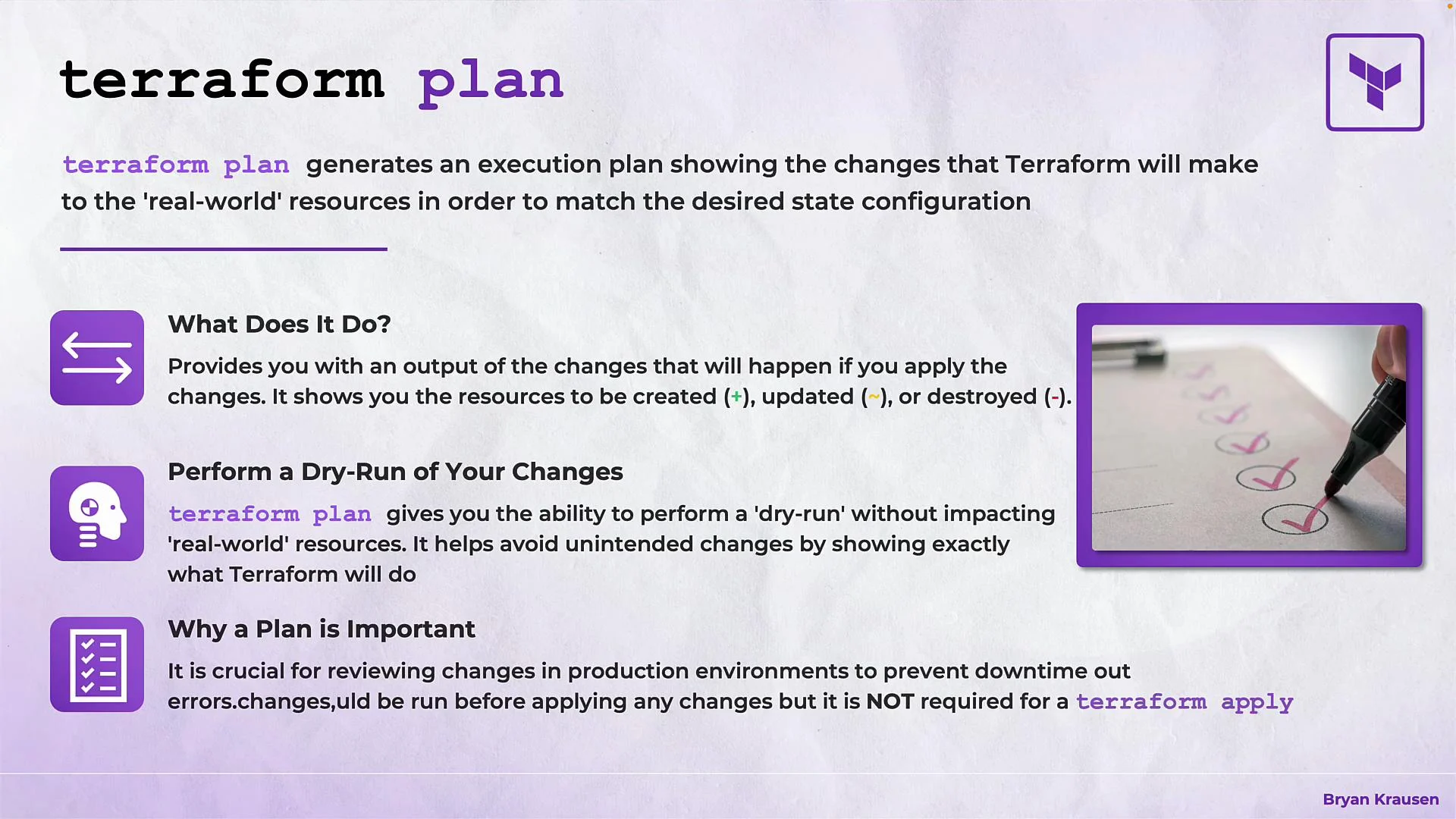
Terraform plan generates an execution plan that lists the actions Terraform will take to bring real-world resources in line with your configuration. This is a dry run — nothing is created, modified, or destroyed during planning.
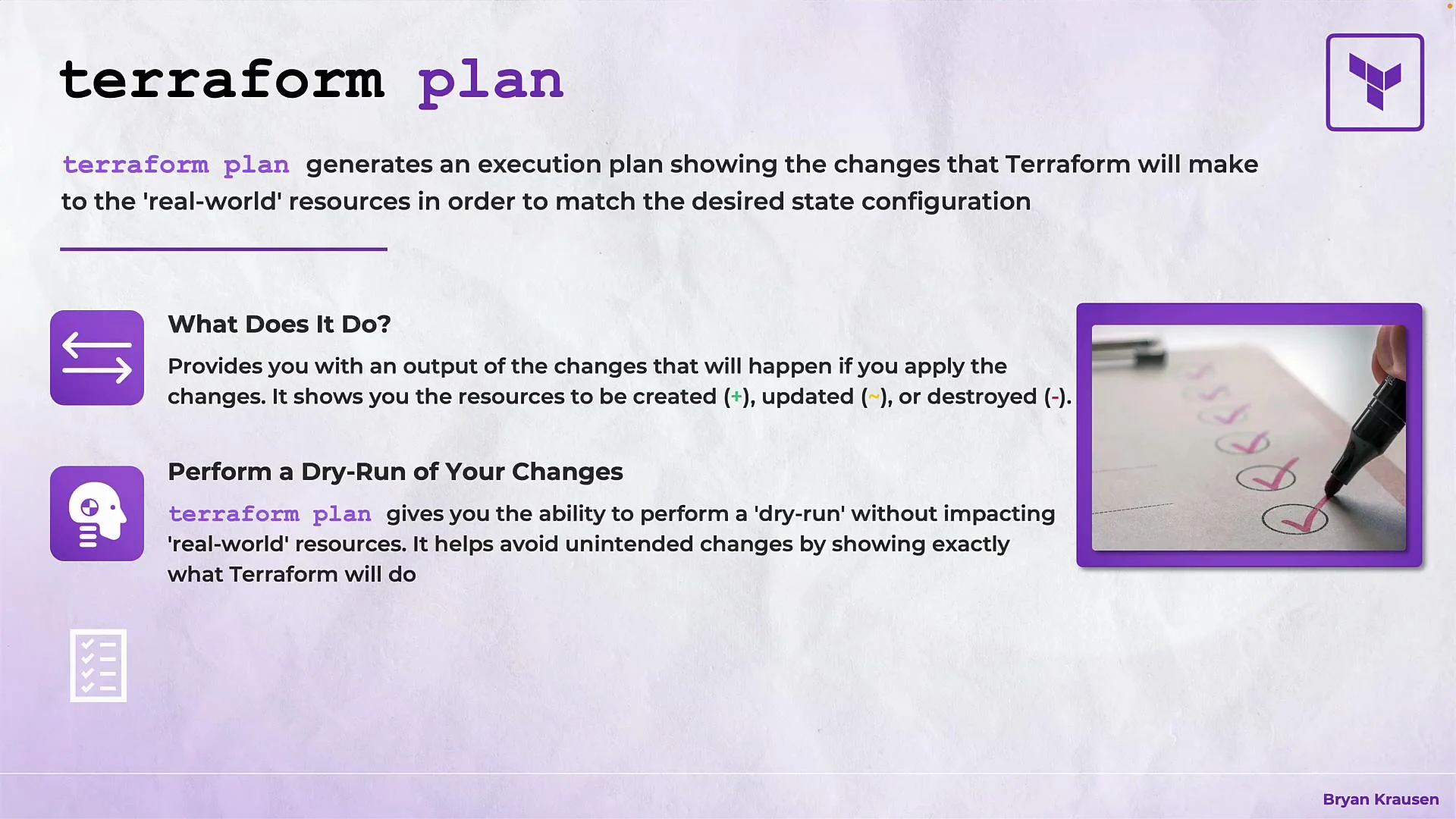 Think of `terraform plan` like looking at a map before a drive: you can review the route, spot potential issues, and choose whether to proceed. If the plan shows something unexpected, update your configuration before applying changes.
Always run `terraform plan` to review changes before `terraform apply`. It's a best practice for any environment, and essential in production.
What happens when you run `terraform plan`:
* Terraform refreshes state (by default) by querying provider APIs to get the current real-world resource state.
* Terraform compares the refreshed state with your configuration and state file, then generates an execution plan that lists resource actions.
* The plan shows resource actions with symbols indicating the intended change.
Example `terraform plan` output (representative):
```bash theme={null}
$ terraform plan
vault_generic_secret.example_secret: Refreshing state... [id=secret/example]
random_pet.example: Refreshing state... [id=smashing-mutt]
vault_generic_secret.example_kv: Refreshing state... [id=secret/example1]
Terraform used the selected providers to generate the following execution plan.
Resource actions are indicated with the following symbols:
+ create
~ update in-place
- destroy
-/+ destroy and then create replacement
Terraform will perform the following actions:
# random_pet.additional_pet will be created
+ resource "random_pet" "additional_pet" {
+ id = (known after apply)
+ length = 3
+ separator = "-"
}
# random_pet.example must be replaced
-/+ resource "random_pet" "example" {
~ id = "smashing-mutt" -> (known after apply)
~ length = 2 -> 3 # forces replacement
# (1 unchanged attribute hidden)
}
# vault_generic_secret.example_kv will be updated in-place
~ resource "vault_generic_secret" "example_kv" {
~ data_json = (sensitive value)
id = "secret/example1"
# (4 unchanged attributes hidden)
}
# vault_generic_secret.example_secret will be destroyed
# (because vault_generic_secret.example_secret is not in configuration)
- resource "vault_generic_secret" "example_secret" {
- data = (sensitive value) -> null
- data_json = (sensitive value) -> null
- delete_all_versions = false -> null
- disable_read = false -> null
- id = "secret/example" -> null
- path = "secret/example" -> null
}
Plan: 2 to add, 1 to change, 2 to destroy.
```
Legend: what the resource action symbols mean
| Symbol | Meaning | Notes |
| ------ | ----------------------------------- | ----------------------------------------------------------------------------------------- |
| `+` | Create | Attributes that are not known until apply are shown as `(known after apply)` |
| `~` | Update in-place | The provider supports changing the resource without destroying it |
| `-` | Destroy | Resource will be removed because it is no longer in configuration |
| `-/+` | Destroy and then create replacement | Change cannot be done in-place; the plan will show which attribute `# forces replacement` |
In the example above:
* `random_pet.additional_pet` is marked `+` (a new resource).
* `random_pet.example` is marked `-/+` because changing `length` from `2` to `3` forces replacement; Terraform annotates the attribute with `# forces replacement`.
* `vault_generic_secret.example_kv` is updated in-place; sensitive values are shown as `(sensitive value)` to avoid leaking secrets.
* `vault_generic_secret.example_secret` is scheduled for destruction since it was removed from the configuration; its attributes are shown as being removed (set to `null`).
Think of `terraform plan` like looking at a map before a drive: you can review the route, spot potential issues, and choose whether to proceed. If the plan shows something unexpected, update your configuration before applying changes.
Always run `terraform plan` to review changes before `terraform apply`. It's a best practice for any environment, and essential in production.
What happens when you run `terraform plan`:
* Terraform refreshes state (by default) by querying provider APIs to get the current real-world resource state.
* Terraform compares the refreshed state with your configuration and state file, then generates an execution plan that lists resource actions.
* The plan shows resource actions with symbols indicating the intended change.
Example `terraform plan` output (representative):
```bash theme={null}
$ terraform plan
vault_generic_secret.example_secret: Refreshing state... [id=secret/example]
random_pet.example: Refreshing state... [id=smashing-mutt]
vault_generic_secret.example_kv: Refreshing state... [id=secret/example1]
Terraform used the selected providers to generate the following execution plan.
Resource actions are indicated with the following symbols:
+ create
~ update in-place
- destroy
-/+ destroy and then create replacement
Terraform will perform the following actions:
# random_pet.additional_pet will be created
+ resource "random_pet" "additional_pet" {
+ id = (known after apply)
+ length = 3
+ separator = "-"
}
# random_pet.example must be replaced
-/+ resource "random_pet" "example" {
~ id = "smashing-mutt" -> (known after apply)
~ length = 2 -> 3 # forces replacement
# (1 unchanged attribute hidden)
}
# vault_generic_secret.example_kv will be updated in-place
~ resource "vault_generic_secret" "example_kv" {
~ data_json = (sensitive value)
id = "secret/example1"
# (4 unchanged attributes hidden)
}
# vault_generic_secret.example_secret will be destroyed
# (because vault_generic_secret.example_secret is not in configuration)
- resource "vault_generic_secret" "example_secret" {
- data = (sensitive value) -> null
- data_json = (sensitive value) -> null
- delete_all_versions = false -> null
- disable_read = false -> null
- id = "secret/example" -> null
- path = "secret/example" -> null
}
Plan: 2 to add, 1 to change, 2 to destroy.
```
Legend: what the resource action symbols mean
| Symbol | Meaning | Notes |
| ------ | ----------------------------------- | ----------------------------------------------------------------------------------------- |
| `+` | Create | Attributes that are not known until apply are shown as `(known after apply)` |
| `~` | Update in-place | The provider supports changing the resource without destroying it |
| `-` | Destroy | Resource will be removed because it is no longer in configuration |
| `-/+` | Destroy and then create replacement | Change cannot be done in-place; the plan will show which attribute `# forces replacement` |
In the example above:
* `random_pet.additional_pet` is marked `+` (a new resource).
* `random_pet.example` is marked `-/+` because changing `length` from `2` to `3` forces replacement; Terraform annotates the attribute with `# forces replacement`.
* `vault_generic_secret.example_kv` is updated in-place; sensitive values are shown as `(sensitive value)` to avoid leaking secrets.
* `vault_generic_secret.example_secret` is scheduled for destruction since it was removed from the configuration; its attributes are shown as being removed (set to `null`).
 Provider refresh details
* By default, `terraform plan` refreshes state from providers to ensure the plan reflects the current world. This makes the plan accurate for most use cases.
* If you need to avoid provider queries (for example, to reduce API calls during ad-hoc checks), you can pass `-refresh=false`, but this may cause the plan to be based on stale information.
Using `-refresh=false` can produce misleading plans because Terraform will not reconcile state with the provider. Use it cautiously and avoid it in production workflows where accuracy matters.
Saving plans and reproducible execution
Saving a plan to a file is useful for reviews, approvals, and CI/CD workflows. A saved plan captures the exact actions Terraform will take; applying the saved plan later executes those actions without recalculating them.
Quick commands
| Command | Purpose | Example |
| ---------------------------- | ------------------------------------- | ----------------------------------- |
| `terraform plan` | Preview changes | `terraform plan` |
| `terraform plan -out=` | Save a plan to a file for later apply | `terraform plan -out=myplan.tfplan` |
| `terraform apply ` | Apply a saved plan file (no re-plan) | `terraform apply myplan.tfplan` |
Example workflow
```bash theme={null}
$ terraform plan -out=myplan.tfplan
$ terraform apply myplan.tfplan
```
When you run `terraform apply myplan.tfplan`, Terraform skips the planning phase and executes the saved plan exactly as recorded. This ensures determinism and is ideal for audit trails and automated approvals.
Summary and best practices
* Treat `terraform plan` as a dry-run: it refreshes state, calculates the delta, and displays actions with clear symbols.
* Always review the plan before applying, especially in production environments.
* Use `terraform plan -out=FILE` to produce a saved, deterministic plan that can be reviewed and applied later.
* Be mindful of sensitive values: Terraform hides them in plan output.
* Pay attention to `-/+` replacement annotations so you understand when resources will be destroyed and recreated.
Links and references
* [Terraform CLI docs](https://www.terraform.io/cli)
* [Terraform State](https://www.terraform.io/language/state)
Provider refresh details
* By default, `terraform plan` refreshes state from providers to ensure the plan reflects the current world. This makes the plan accurate for most use cases.
* If you need to avoid provider queries (for example, to reduce API calls during ad-hoc checks), you can pass `-refresh=false`, but this may cause the plan to be based on stale information.
Using `-refresh=false` can produce misleading plans because Terraform will not reconcile state with the provider. Use it cautiously and avoid it in production workflows where accuracy matters.
Saving plans and reproducible execution
Saving a plan to a file is useful for reviews, approvals, and CI/CD workflows. A saved plan captures the exact actions Terraform will take; applying the saved plan later executes those actions without recalculating them.
Quick commands
| Command | Purpose | Example |
| ---------------------------- | ------------------------------------- | ----------------------------------- |
| `terraform plan` | Preview changes | `terraform plan` |
| `terraform plan -out=` | Save a plan to a file for later apply | `terraform plan -out=myplan.tfplan` |
| `terraform apply ` | Apply a saved plan file (no re-plan) | `terraform apply myplan.tfplan` |
Example workflow
```bash theme={null}
$ terraform plan -out=myplan.tfplan
$ terraform apply myplan.tfplan
```
When you run `terraform apply myplan.tfplan`, Terraform skips the planning phase and executes the saved plan exactly as recorded. This ensures determinism and is ideal for audit trails and automated approvals.
Summary and best practices
* Treat `terraform plan` as a dry-run: it refreshes state, calculates the delta, and displays actions with clear symbols.
* Always review the plan before applying, especially in production environments.
* Use `terraform plan -out=FILE` to produce a saved, deterministic plan that can be reviewed and applied later.
* Be mindful of sensitive values: Terraform hides them in plan output.
* Pay attention to `-/+` replacement annotations so you understand when resources will be destroyed and recreated.
Links and references
* [Terraform CLI docs](https://www.terraform.io/cli)
* [Terraform State](https://www.terraform.io/language/state)