> ## Documentation Index
> Fetch the complete documentation index at: https://notes.kodekloud.com/llms.txt
> Use this file to discover all available pages before exploring further.
# Demo Detecting State Drift with Refresh Only Mode
> Shows how to detect and handle Terraform state drift using refresh-only plans, choose to enforce configuration or accept provider changes, and update code to keep resources in sync.
In this lesson we show how to detect and handle state drift with the Terraform CLI. You'll learn how to:
* Detect provider-side changes (drift) using `terraform plan -refresh-only`
* Choose whether to enforce configuration or accept external changes into state
* Update Terraform configuration to keep code and real-world resources in sync
## Example Terraform configuration
Below is a minimal Terraform configuration that creates an AWS VPC, a subnet, and an EC2 instance used as a web server:
```hcl theme={null}
resource "aws_vpc" "main" {
cidr_block = var.vpc_cidr
enable_dns_support = true
enable_dns_hostnames = true
tags = {
Name = "dev-main-vpc"
Environment = "development"
}
}
resource "aws_subnet" "private" {
vpc_id = aws_vpc.main.id
}
resource "aws_instance" "web" {
ami = var.ami_id
instance_type = var.instance_type
subnet_id = aws_subnet.private.id
tags = {
Name = "web-server"
Environment = "development"
}
}
```
This snippet omits the `cidr_block` on `aws_subnet` for brevity. In production, `aws_subnet` requires a valid `cidr_block` and usually an `availability_zone`. Always specify those values in real deployments.
Apply the configuration to create the resources:
```bash theme={null}
terraform apply -auto-approve
```
Example (summarized) apply output:
```plaintext theme={null}
Plan: 4 to add, 0 to change, 0 to destroy.
aws_vpc.main: Creating...
...
aws_subnet.public: Creation complete after 11s [id=subnet-09d564c1e1609a06f]
aws_instance.web: Creation complete after 13s [id=i-0c4192b0347156b5c]
Apply complete! Resources: 4 added, 0 changed, 0 destroyed.
```
Confirm the instance in the AWS Console — tags should match the configuration (Name = web-server, Environment = development).
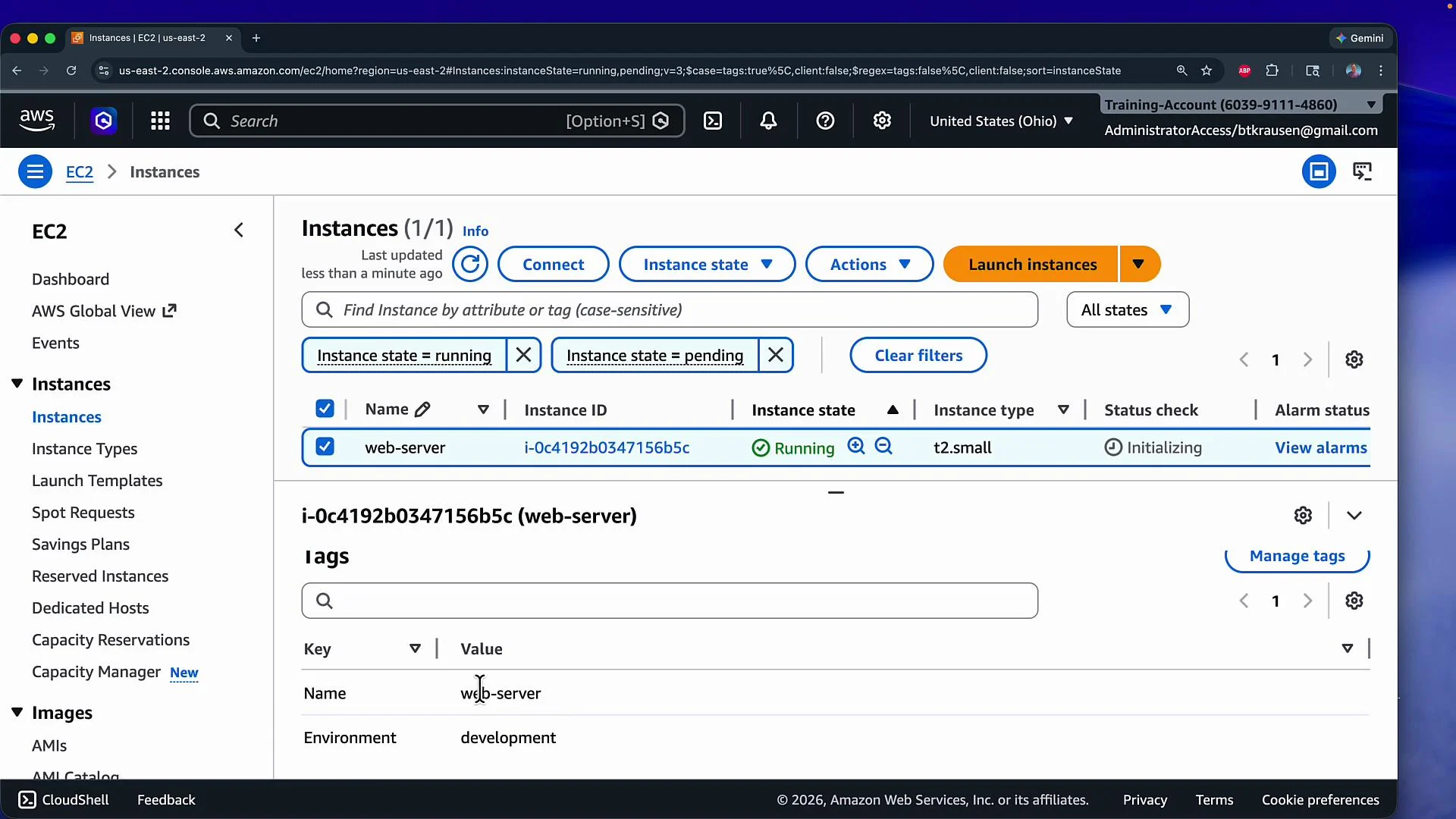 Everything matches the Terraform configuration at this point.
## Simulate an out-of-band change
Sometimes changes are made directly in the cloud provider (manually or by another team). For this demo:
1. Stop the EC2 instance in the AWS Console.
2. Change its instance type from `t2.small` to `t3.small`.
3. Add a new tag: `Team = dev-app-01`.
4. Start the instance again.
Screenshots of those steps:
Everything matches the Terraform configuration at this point.
## Simulate an out-of-band change
Sometimes changes are made directly in the cloud provider (manually or by another team). For this demo:
1. Stop the EC2 instance in the AWS Console.
2. Change its instance type from `t2.small` to `t3.small`.
3. Add a new tag: `Team = dev-app-01`.
4. Start the instance again.
Screenshots of those steps:
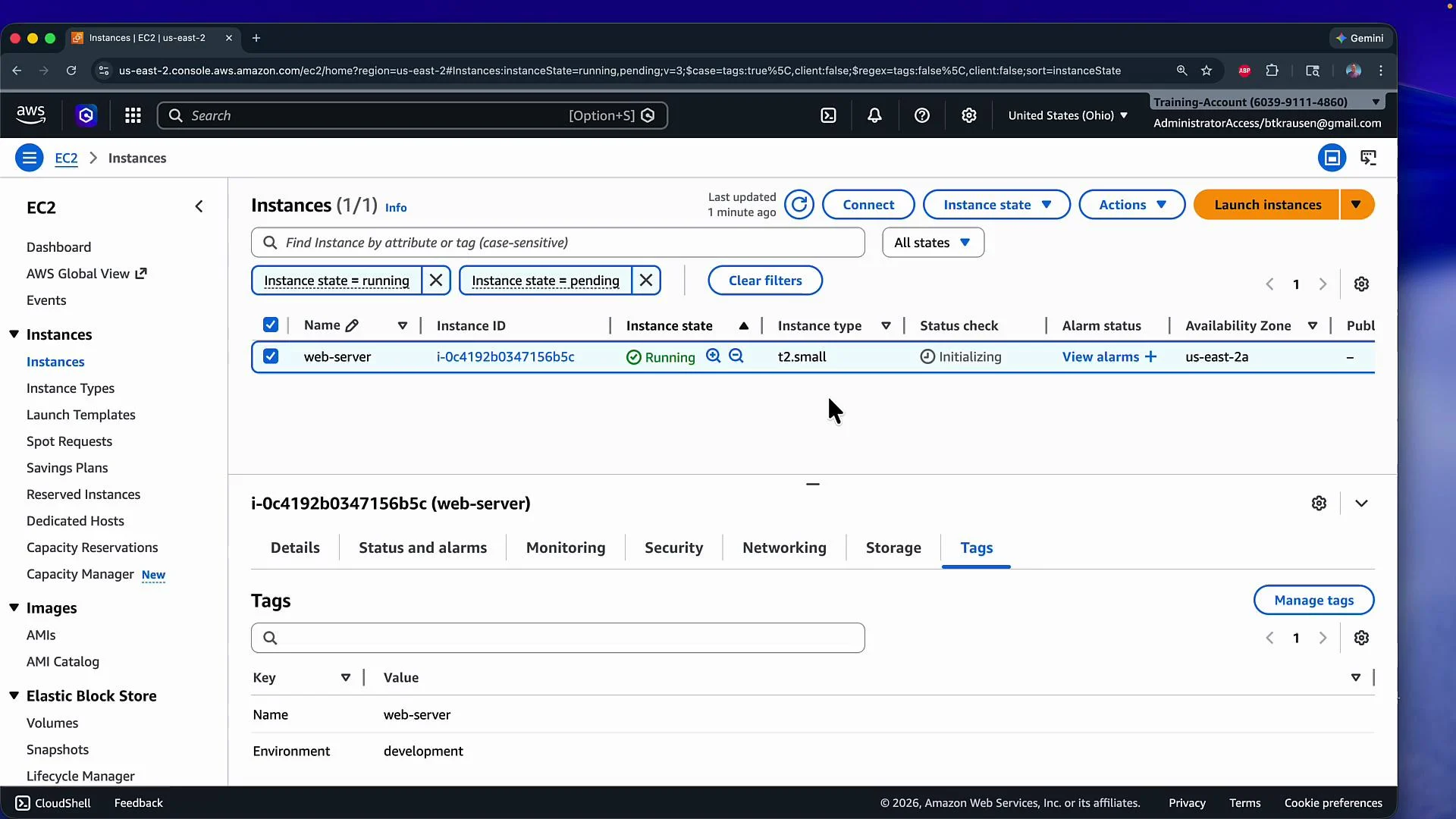 Stop the instance to perform instance-type modifications.
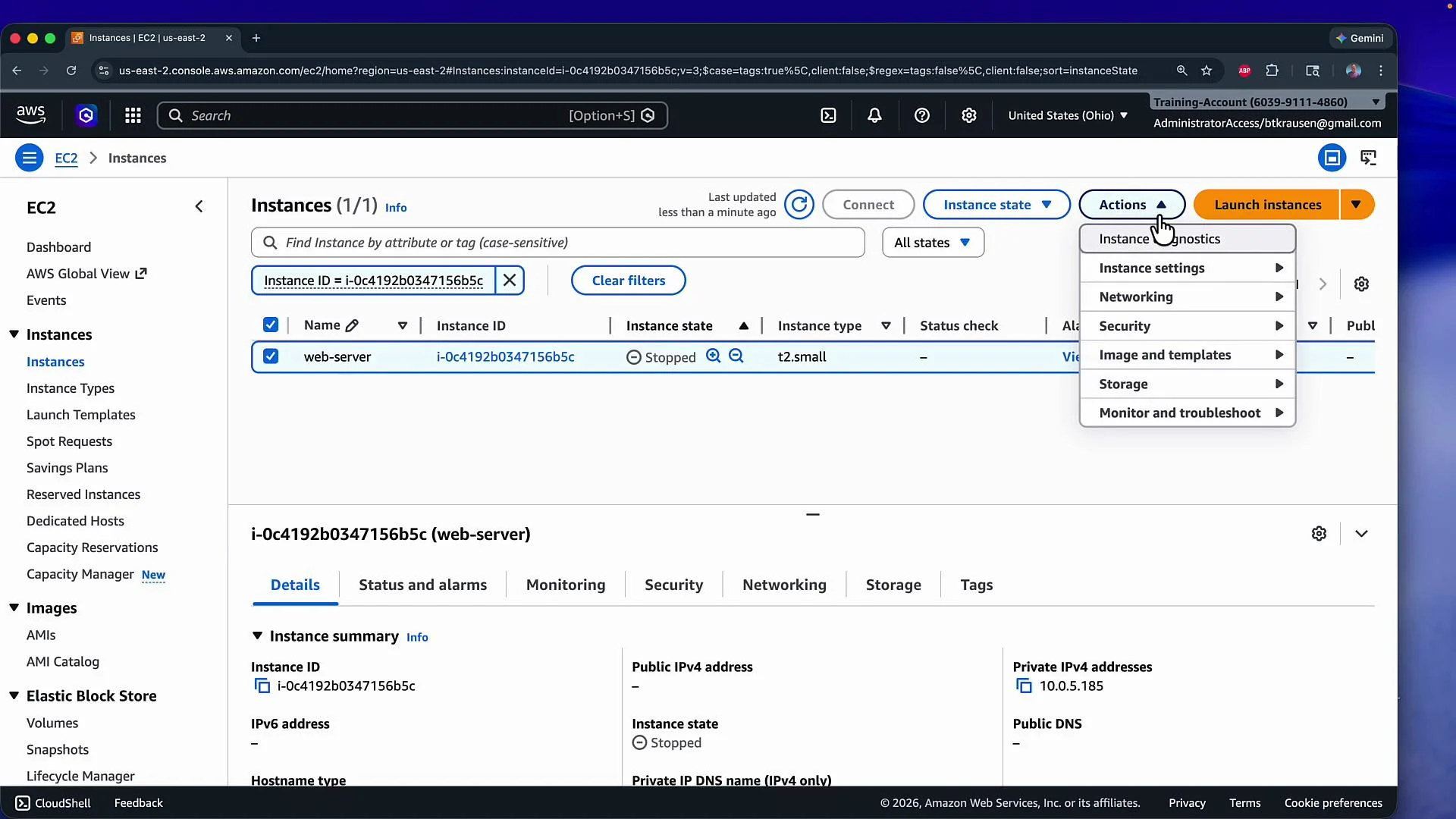 Select the new instance type (`t3.small`) and save.
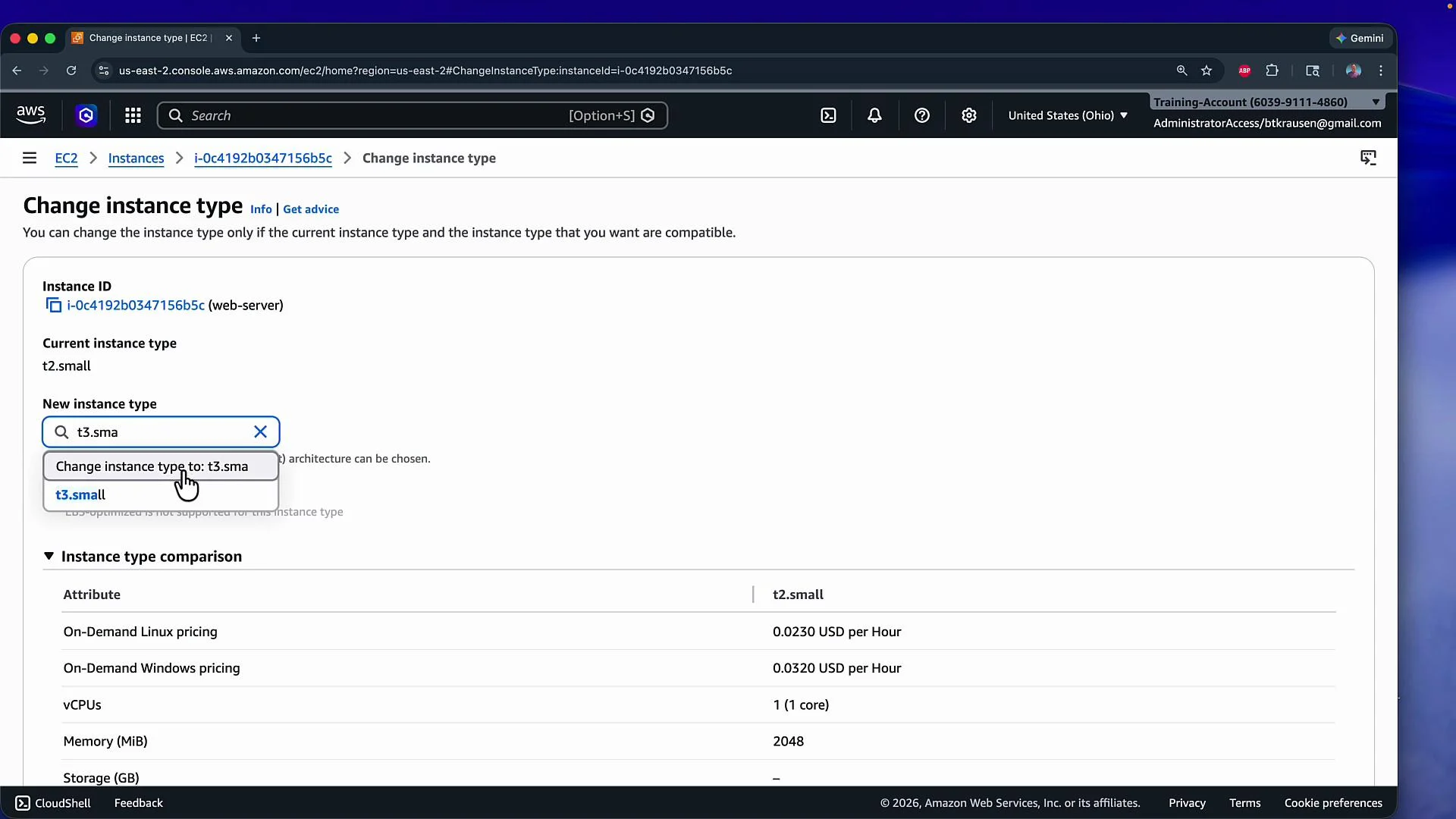 After you restart the instance, the provider now reflects state that differs from your Terraform configuration.
## Detecting drift with Terraform
To detect changes made outside of Terraform, run a refresh-only plan. This command refreshes resource attributes from the provider and reports differences between the refreshed state and the configuration without proposing changes to infrastructure:
```bash theme={null}
terraform plan -refresh-only
```
Example summarized output after running `-refresh-only`:
```plaintext theme={null}
Note: Objects have changed outside of Terraform
Terraform detected the following changes made outside of Terraform since the last "terraform apply" which may have affected this plan:
# aws_instance.web has changed
~ resource "aws_instance" "web" {
~ ebs_optimized = false -> true
~ id = "i-0c4192b0347156b5c"
~ instance_type = "t2.small" -> "t3.small"
~ tags = {
"Environment" = "development"
"Name" = "web-server"
+ "Team" = "dev-app-01"
}
}
```
Key observations:
* `instance_type` changed from `t2.small` to `t3.small`.
* A new tag `Team = dev-app-01` appears.
* Some attributes (e.g., `ebs_optimized`, CPU/thread counts) can change when switching instance families — these are provider-driven differences.
## Two ways to resolve detected drift
You have two primary options after detecting drift. The best choice depends on whether you want configuration to be the source of truth or whether you want to accept the out-of-band changes.
| Option | Action | Command | Outcome |
| -------------------------------------- | --------------------------------------------------------------------------------------------- | ------------------------------- | -------------------------------------------------------------------------------------------- |
| Revert provider to match configuration | Make real infrastructure match Terraform code (configuration is source of truth) | `terraform apply` | Terraform will modify resources to match your configuration (may restart/replace resources). |
| Accept provider changes into state | Update Terraform state to reflect current provider attributes without changing infrastructure | `terraform apply -refresh-only` | Terraform updates the state file only; no provider-side changes are made. |
1. Revert manual changes to match Terraform (enforce code)
* Run a regular apply to make real resources match your configuration:
```bash theme={null}
terraform apply
```
Terraform will show and apply a plan that changes the EC2 instance back to the configured `instance_type` and removes tags not present in your code.
2. Accept manual changes into Terraform state (no infra changes)
* Use the apply refresh-only option to update state to match the provider:
```bash theme={null}
terraform apply -refresh-only
```
Terraform will refresh resource attributes and prompt to update the state. Confirm with `yes` to accept.
After you restart the instance, the provider now reflects state that differs from your Terraform configuration.
## Detecting drift with Terraform
To detect changes made outside of Terraform, run a refresh-only plan. This command refreshes resource attributes from the provider and reports differences between the refreshed state and the configuration without proposing changes to infrastructure:
```bash theme={null}
terraform plan -refresh-only
```
Example summarized output after running `-refresh-only`:
```plaintext theme={null}
Note: Objects have changed outside of Terraform
Terraform detected the following changes made outside of Terraform since the last "terraform apply" which may have affected this plan:
# aws_instance.web has changed
~ resource "aws_instance" "web" {
~ ebs_optimized = false -> true
~ id = "i-0c4192b0347156b5c"
~ instance_type = "t2.small" -> "t3.small"
~ tags = {
"Environment" = "development"
"Name" = "web-server"
+ "Team" = "dev-app-01"
}
}
```
Key observations:
* `instance_type` changed from `t2.small` to `t3.small`.
* A new tag `Team = dev-app-01` appears.
* Some attributes (e.g., `ebs_optimized`, CPU/thread counts) can change when switching instance families — these are provider-driven differences.
## Two ways to resolve detected drift
You have two primary options after detecting drift. The best choice depends on whether you want configuration to be the source of truth or whether you want to accept the out-of-band changes.
| Option | Action | Command | Outcome |
| -------------------------------------- | --------------------------------------------------------------------------------------------- | ------------------------------- | -------------------------------------------------------------------------------------------- |
| Revert provider to match configuration | Make real infrastructure match Terraform code (configuration is source of truth) | `terraform apply` | Terraform will modify resources to match your configuration (may restart/replace resources). |
| Accept provider changes into state | Update Terraform state to reflect current provider attributes without changing infrastructure | `terraform apply -refresh-only` | Terraform updates the state file only; no provider-side changes are made. |
1. Revert manual changes to match Terraform (enforce code)
* Run a regular apply to make real resources match your configuration:
```bash theme={null}
terraform apply
```
Terraform will show and apply a plan that changes the EC2 instance back to the configured `instance_type` and removes tags not present in your code.
2. Accept manual changes into Terraform state (no infra changes)
* Use the apply refresh-only option to update state to match the provider:
```bash theme={null}
terraform apply -refresh-only
```
Terraform will refresh resource attributes and prompt to update the state. Confirm with `yes` to accept.
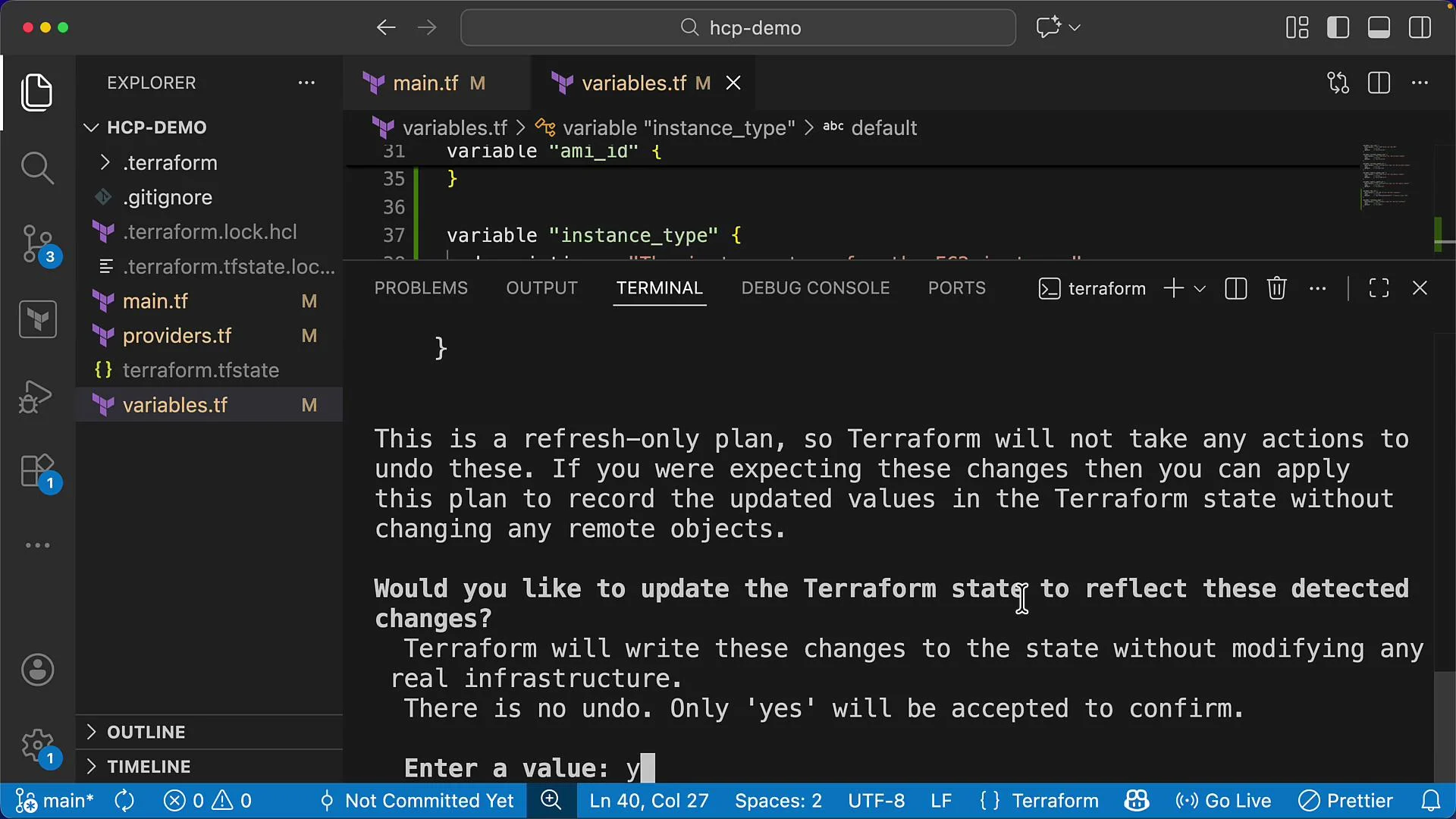 After accepting the refresh-only apply, Terraform updates the state file without adding/changing/destroying resources:
```plaintext theme={null}
Apply complete! Resources: 0 added, 0 changed, 0 destroyed.
```
Example excerpt from the refreshed state (JSON) showing the updated instance type and tags:
```json theme={null}
{
"resources": [
{
"instances": [
{
"id": "i-0c4192b0347156b5c",
"instance_state": "running",
"instance_type": "t3.small",
"tags": {
"Environment": "development",
"Name": "web-server",
"Team": "dev-app-01"
},
"tags_all": {
"Environment": "development",
"Name": "web-server",
"Team": "dev-app-01"
}
}
]
}
]
}
```
## Keep configuration and state in sync
If you accepted the provider-side changes into state and want those changes to persist, update your Terraform configuration accordingly:
* Update the `instance_type` variable default:
```hcl theme={null}
variable "instance_type" {
description = "The instance type for the EC2 instance"
type = string
default = "t3.small"
}
```
* Add the new `Team` tag to the resource's `tags` block:
```hcl theme={null}
resource "aws_instance" "web" {
ami = var.ami_id
instance_type = var.instance_type
subnet_id = aws_subnet.private.id
tags = {
Name = "web-server"
Environment = "development"
Team = "dev-app-01"
}
}
```
Then format and apply your updated configuration:
```bash theme={null}
terraform fmt
terraform apply
```
If your configuration, state, and provider are aligned, Terraform reports no changes:
```plaintext theme={null}
No changes. Your infrastructure matches the configuration
Apply complete! Resources: 0 added, 0 changed, 0 destroyed.
```
Use `terraform plan -refresh-only` to detect drift. To accept external changes into state without modifying resources, use `terraform apply -refresh-only`. To make real infrastructure match your code (configuration as source of truth), run a normal `terraform apply`.
## Links and references
* [Terraform CLI documentation](https://developer.hashicorp.com/terraform/cli)
* [Terraform state guide](https://developer.hashicorp.com/terraform/language/state)
* [AWS EC2 documentation](https://docs.aws.amazon.com/ec2/)
After accepting the refresh-only apply, Terraform updates the state file without adding/changing/destroying resources:
```plaintext theme={null}
Apply complete! Resources: 0 added, 0 changed, 0 destroyed.
```
Example excerpt from the refreshed state (JSON) showing the updated instance type and tags:
```json theme={null}
{
"resources": [
{
"instances": [
{
"id": "i-0c4192b0347156b5c",
"instance_state": "running",
"instance_type": "t3.small",
"tags": {
"Environment": "development",
"Name": "web-server",
"Team": "dev-app-01"
},
"tags_all": {
"Environment": "development",
"Name": "web-server",
"Team": "dev-app-01"
}
}
]
}
]
}
```
## Keep configuration and state in sync
If you accepted the provider-side changes into state and want those changes to persist, update your Terraform configuration accordingly:
* Update the `instance_type` variable default:
```hcl theme={null}
variable "instance_type" {
description = "The instance type for the EC2 instance"
type = string
default = "t3.small"
}
```
* Add the new `Team` tag to the resource's `tags` block:
```hcl theme={null}
resource "aws_instance" "web" {
ami = var.ami_id
instance_type = var.instance_type
subnet_id = aws_subnet.private.id
tags = {
Name = "web-server"
Environment = "development"
Team = "dev-app-01"
}
}
```
Then format and apply your updated configuration:
```bash theme={null}
terraform fmt
terraform apply
```
If your configuration, state, and provider are aligned, Terraform reports no changes:
```plaintext theme={null}
No changes. Your infrastructure matches the configuration
Apply complete! Resources: 0 added, 0 changed, 0 destroyed.
```
Use `terraform plan -refresh-only` to detect drift. To accept external changes into state without modifying resources, use `terraform apply -refresh-only`. To make real infrastructure match your code (configuration as source of truth), run a normal `terraform apply`.
## Links and references
* [Terraform CLI documentation](https://developer.hashicorp.com/terraform/cli)
* [Terraform state guide](https://developer.hashicorp.com/terraform/language/state)
* [AWS EC2 documentation](https://docs.aws.amazon.com/ec2/)