> ## Documentation Index
> Fetch the complete documentation index at: https://notes.kodekloud.com/llms.txt
> Use this file to discover all available pages before exploring further.
# Demo Migrate Your State to a Remote State Configuration
> Guide to migrating Terraform state between local files and an S3 remote backend, including configuration, migration commands, and optional DynamoDB state locking
This guide shows how to migrate an existing local Terraform state to a remote backend (Amazon S3 in this example) and how to move it back to local when needed. The steps below assume you already have a working Terraform configuration and are currently using a local `terraform.tfstate` file.
## Example resources
Here is a minimal Terraform configuration that creates a VPC and a subnet. This is the kind of configuration whose state you might be managing locally:
```hcl theme={null}
resource "aws_vpc" "main" {
cidr_block = var.vpc_cidr
enable_dns_support = true
enable_dns_hostnames = true
tags = {
Name = "dev-main-vpc"
Environment = "development"
}
}
resource "aws_subnet" "private" {
vpc_id = aws_vpc.main.id
}
```
## Configure the S3 backend
To switch to an S3 remote backend, add a `terraform` block to your configuration (for example in `backend.tf` or `main.tf`) that references the S3 backend and the target bucket/key:
```hcl theme={null}
terraform {
backend "s3" {
bucket = "krausen-terraform-state-bucket"
key = "prd/terraform.tfstate"
region = "us-east-2"
dynamodb_table = "terraform-locks"
}
}
```
* `bucket` — the S3 bucket to store the state file
* `key` — path/object name inside the bucket (e.g. `prd/terraform.tfstate`)
* `region` — AWS region containing the bucket
* `dynamodb_table` — optional DynamoDB table name to enable state locking
For more details, see the Terraform backend documentation: [Backends](https://developer.hashicorp.com/terraform/language/settings/backends) and the S3 backend guide: [S3 Backend](https://developer.hashicorp.com/terraform/language/settings/backends/s3).
To enable safe concurrent operations, create a DynamoDB table and reference it via `dynamodb_table`. This ensures Terraform can lock state while applying changes to prevent concurrent modifications.
## Migrate local state to S3
1. Save the backend configuration in your repo (for example `backend.tf`).
2. Initialize the working directory and migrate the state with the `-migrate-state` flag:
```bash theme={null}
terraform init -migrate-state
```
Terraform will detect a pre-existing local state and prompt whether to copy it to the newly configured backend. The prompt looks like:
```bash theme={null}
Initializing the backend...
Do you want to copy existing state to the new backend?
Pre-existing state was found while migrating the previous "local" backend to the newly configured "s3" backend. No existing state was found in the newly configured "s3" backend. Do you want to copy this state to the new "s3" backend? Enter "yes" to copy and "no" to start with an empty state.
Enter a value:
```
Type `yes` to copy your current (local) state to the S3 backend so Terraform continues managing the same resources remotely. Type `no` to start with an empty state in the remote backend.
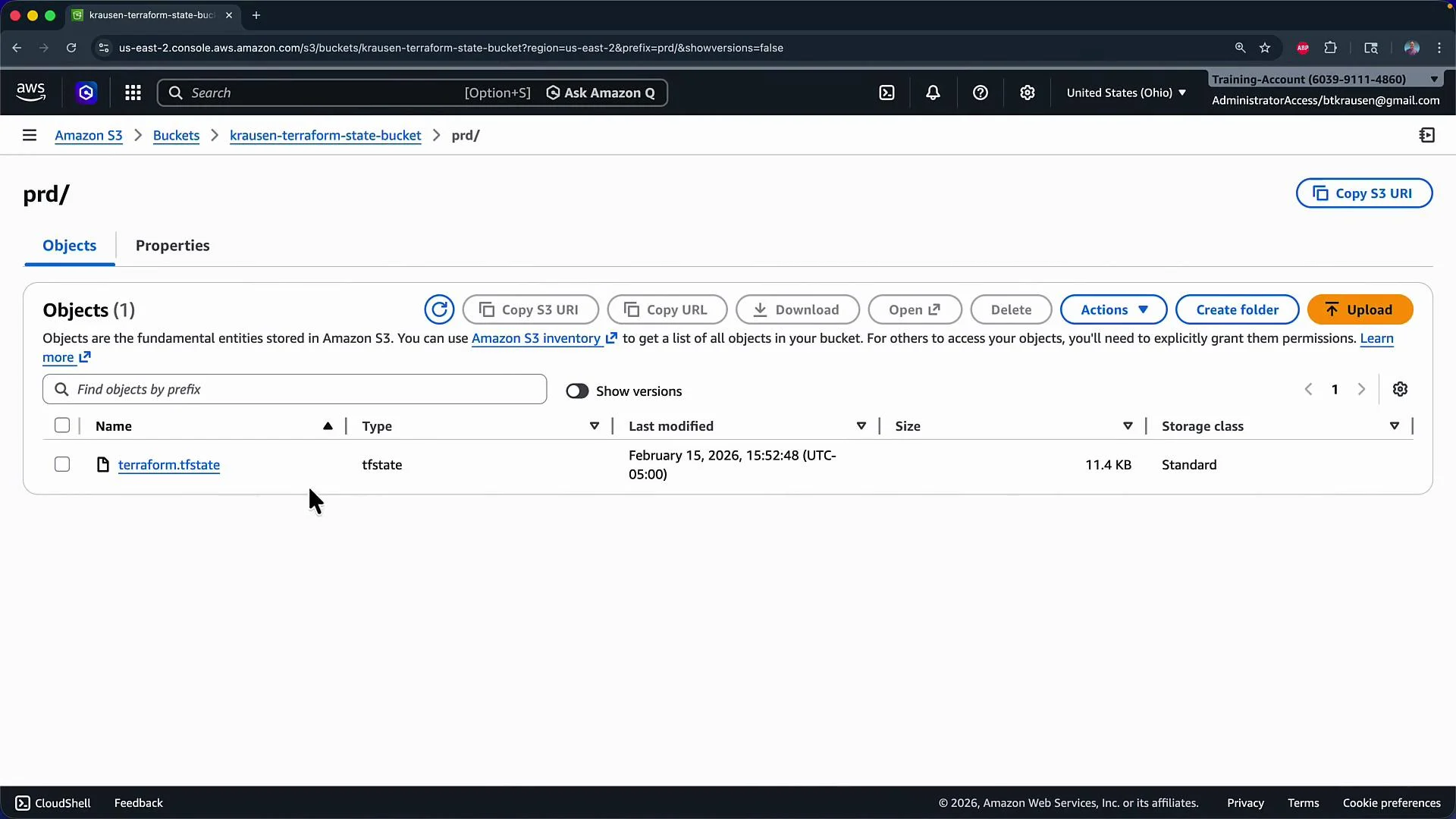
After you answer `yes`, Terraform will configure the backend and upload the state file to the specified S3 bucket and key. You can verify the state object appears in the S3 console at `bucket` → `key`.
For example, after a successful migration you will see the `prd/terraform.tfstate` object in the S3 bucket:
 ## Move state back to local
If you later decide to revert to a local backend:
1. Remove or comment out the S3 backend block from your Terraform configuration. For example:
```hcl theme={null}
// terraform {
// // backend "s3" {
// // bucket = "krausen-terraform-state-bucket"
// // key = "prd/terraform.tfstate"
// // region = "us-east-2"
// // dynamodb_table = "terraform-locks"
// // }
// }
```
2. Re-run initialization with migration enabled:
```bash theme={null}
terraform init -migrate-state
```
3. When prompted, answer `yes` to copy the state from S3 back to your local `terraform.tfstate`. Terraform will migrate the remote state back into the local backend and populate the local state file.
## Example of a migrated state file (top)
A minimal example of the top of a migrated state file looks like this:
```json theme={null}
{
"version": 4,
"terraform_version": "0.12.2",
"serial": 1,
"lineage": "d010f298-6128-653c-2eca-d54d0e33594d",
"outputs": {},
"resources": []
}
```
## Quick reference
| Action | Command / file | Notes |
| -------------------------- | -------------------------------------------------------- | -------------------------------------------------------------------- |
| Add S3 backend | Add `terraform { backend "s3" { ... } }` to `backend.tf` | Configure `bucket`, `key`, `region`, and optionally `dynamodb_table` |
| Initialize & migrate to S3 | `terraform init -migrate-state` | Answer `yes` to copy local state to S3 |
| Remove S3 backend | Comment/remove `terraform { backend "s3" { ... } }` | Prepare to migrate state back to local |
| Migrate back to local | `terraform init -migrate-state` | Answer `yes` to copy S3 state to local `terraform.tfstate` |
## Links and references
* [Terraform Backends](https://developer.hashicorp.com/terraform/language/settings/backends)
* [Terraform S3 Backend](https://developer.hashicorp.com/terraform/language/settings/backends/s3)
* [State Locking](https://developer.hashicorp.com/terraform/language/state/locking)
* [Amazon DynamoDB](https://docs.aws.amazon.com/amazondynamodb/latest/developerguide/Introduction.html)
That's it — migrating between local and remote backends is straightforward: add or remove the backend configuration and use `terraform init -migrate-state` to copy the state to the target backend.
## Move state back to local
If you later decide to revert to a local backend:
1. Remove or comment out the S3 backend block from your Terraform configuration. For example:
```hcl theme={null}
// terraform {
// // backend "s3" {
// // bucket = "krausen-terraform-state-bucket"
// // key = "prd/terraform.tfstate"
// // region = "us-east-2"
// // dynamodb_table = "terraform-locks"
// // }
// }
```
2. Re-run initialization with migration enabled:
```bash theme={null}
terraform init -migrate-state
```
3. When prompted, answer `yes` to copy the state from S3 back to your local `terraform.tfstate`. Terraform will migrate the remote state back into the local backend and populate the local state file.
## Example of a migrated state file (top)
A minimal example of the top of a migrated state file looks like this:
```json theme={null}
{
"version": 4,
"terraform_version": "0.12.2",
"serial": 1,
"lineage": "d010f298-6128-653c-2eca-d54d0e33594d",
"outputs": {},
"resources": []
}
```
## Quick reference
| Action | Command / file | Notes |
| -------------------------- | -------------------------------------------------------- | -------------------------------------------------------------------- |
| Add S3 backend | Add `terraform { backend "s3" { ... } }` to `backend.tf` | Configure `bucket`, `key`, `region`, and optionally `dynamodb_table` |
| Initialize & migrate to S3 | `terraform init -migrate-state` | Answer `yes` to copy local state to S3 |
| Remove S3 backend | Comment/remove `terraform { backend "s3" { ... } }` | Prepare to migrate state back to local |
| Migrate back to local | `terraform init -migrate-state` | Answer `yes` to copy S3 state to local `terraform.tfstate` |
## Links and references
* [Terraform Backends](https://developer.hashicorp.com/terraform/language/settings/backends)
* [Terraform S3 Backend](https://developer.hashicorp.com/terraform/language/settings/backends/s3)
* [State Locking](https://developer.hashicorp.com/terraform/language/state/locking)
* [Amazon DynamoDB](https://docs.aws.amazon.com/amazondynamodb/latest/developerguide/Introduction.html)
That's it — migrating between local and remote backends is straightforward: add or remove the backend configuration and use `terraform init -migrate-state` to copy the state to the target backend.