> ## Documentation Index
> Fetch the complete documentation index at: https://notes.kodekloud.com/llms.txt
> Use this file to discover all available pages before exploring further.
# Demo Remote State Configuration
> Guide to configuring Terraform remote state using AWS S3 backend with optional DynamoDB locking and KMS encryption, including bucket setup, backend configuration, initialization, and verification.
This lesson shows how to configure Terraform to store its state remotely in Amazon S3, with optional state locking via DynamoDB and server-side encryption using AWS KMS. Below is a minimal example Terraform configuration that creates a VPC and a subnet — the infrastructure we will manage while keeping state in a remote backend.
```hcl theme={null}
resource "aws_vpc" "main" {
cidr_block = var.vpc_cidr
enable_dns_support = true
enable_dns_hostnames = true
tags = {
Name = "dev-main-vpc"
Environment = "development"
}
}
resource "aws_subnet" "private" {
vpc_id = aws_vpc.main.id
}
```
Why use a remote backend?
* Centralized state for collaboration and CI/CD.
* Durable storage with S3 versioning for rollbacks.
* Optional DynamoDB locking to prevent concurrent updates.
* Server-side encryption and KMS allow fine-grained key management and auditing.
Prerequisites
* An AWS account with permissions to create S3 buckets, DynamoDB tables, and KMS keys (or reuse existing keys).
* Terraform installed locally.
* AWS credentials configured (environment variables, AWS CLI profile, or assume-role).
Create the S3 bucket
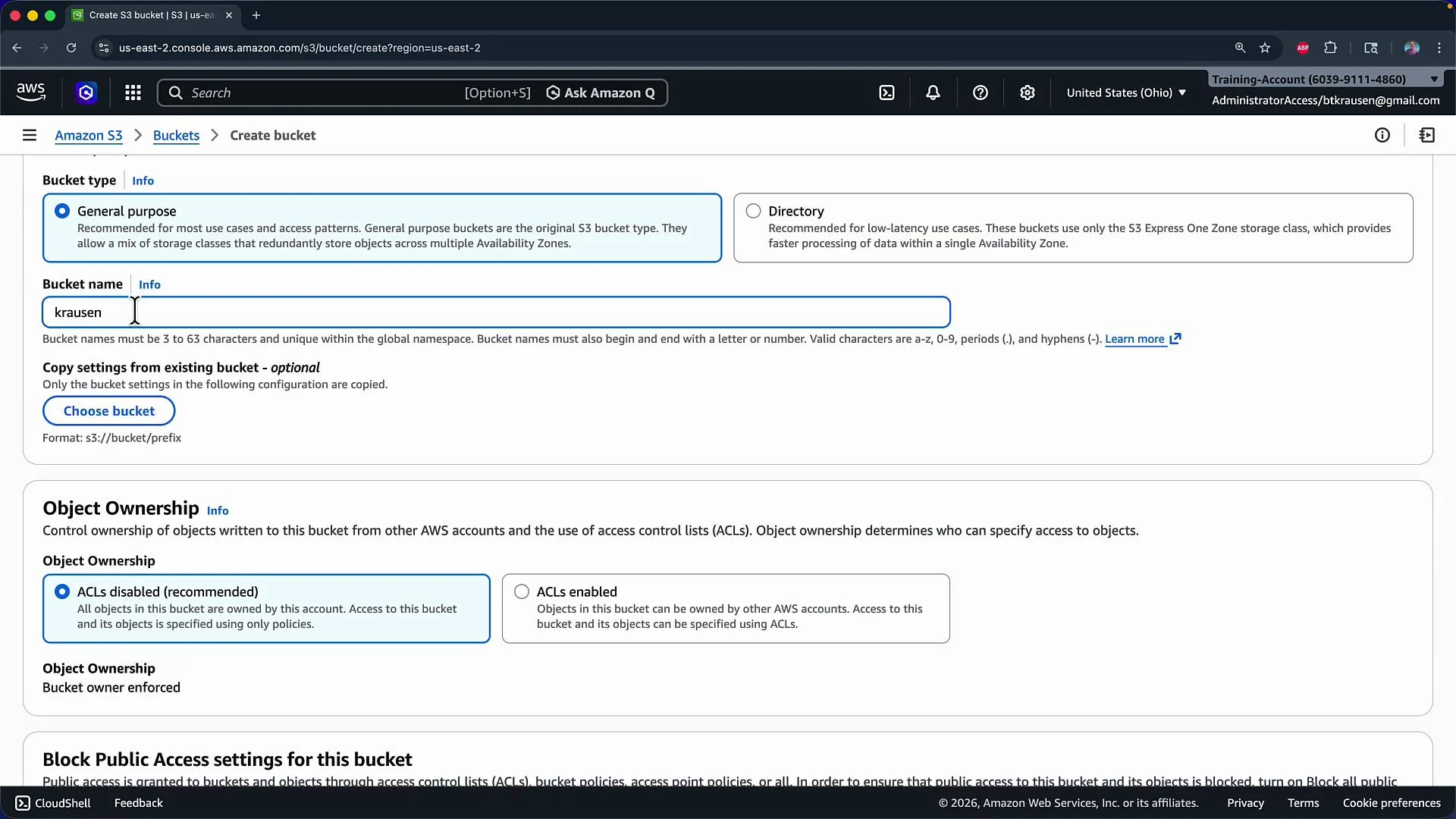
1. Create an S3 bucket to hold Terraform state. Choose a globally unique bucket name and the same AWS region you plan to use for Terraform operations (this example uses `us-east-2`).
2. Keep Block Public Access enabled (recommended).
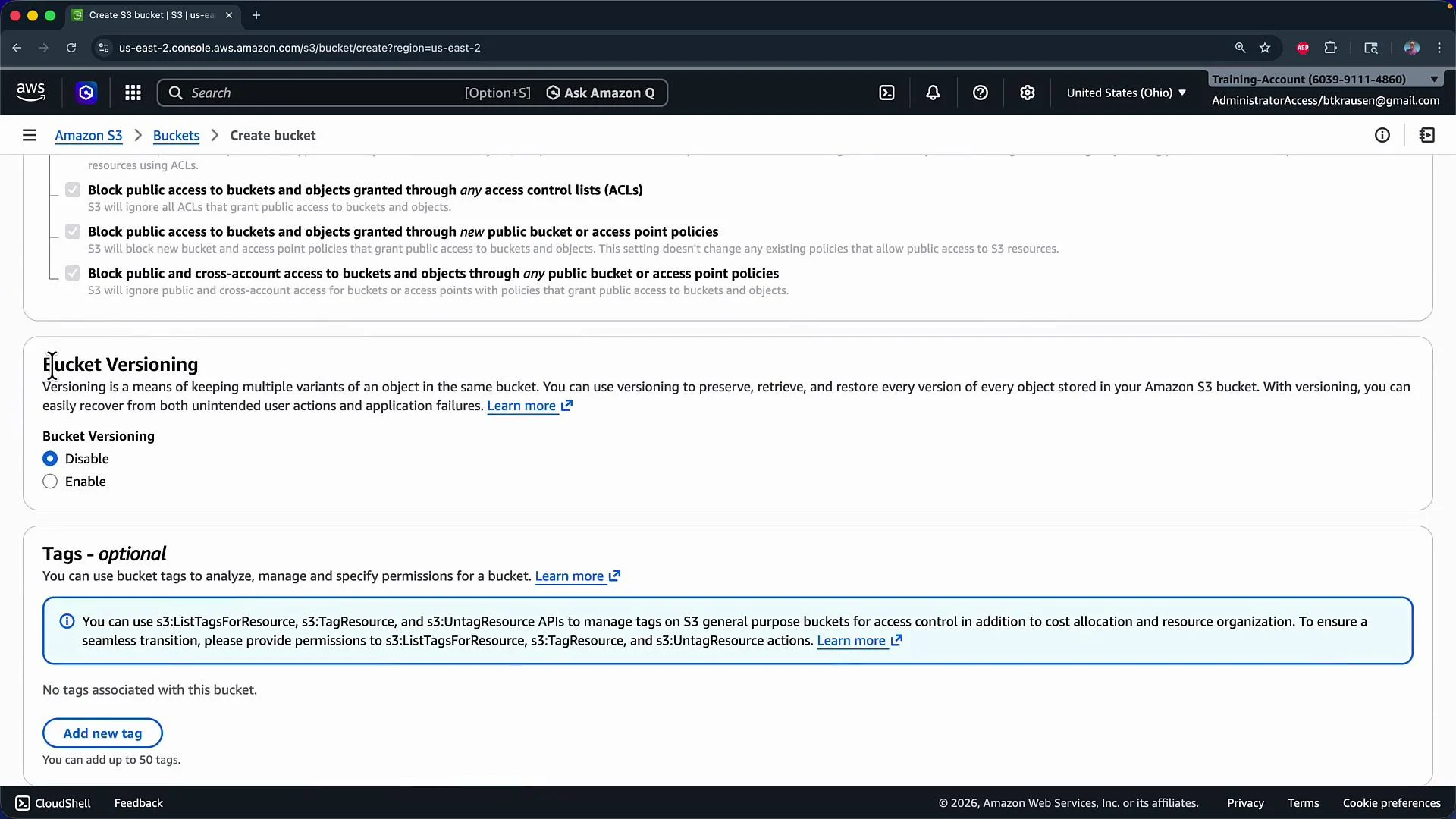
3. Enable bucket versioning so each apply creates a new state file version you can restore if needed.
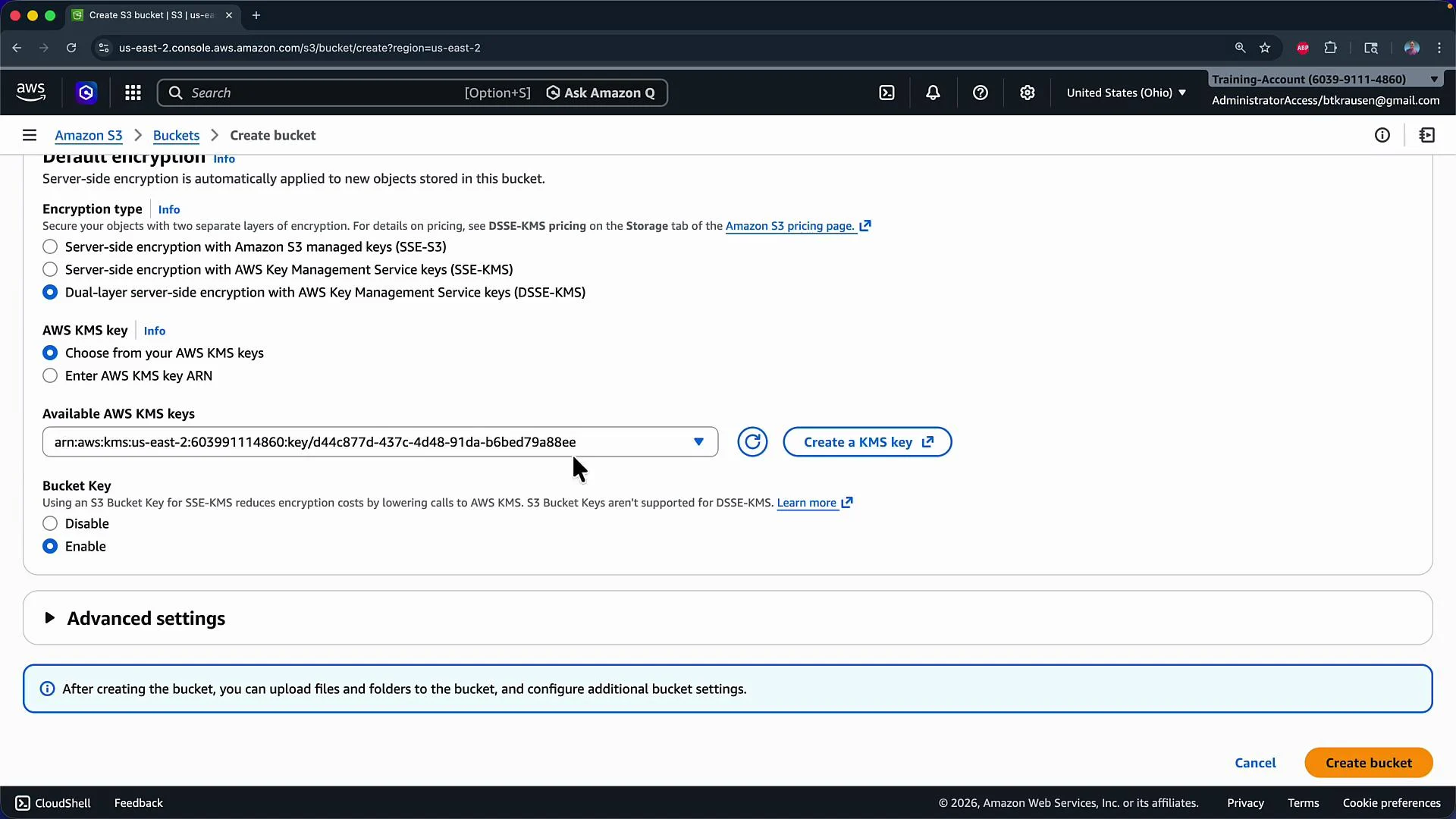
4. Configure default server-side encryption using an AWS KMS key for stronger control and auditing.
 Enable versioning during bucket creation (the console may show versioning as "Disabled" by default — turn it on).
 Choose and attach a KMS key for default encryption on the bucket (or create a new key during setup).
 Backend (S3 + DynamoDB) configuration
Create a Terraform file to hold the backend block (commonly named `backend.tf` or included in `terraform.tf`). The backend block tells Terraform where to persist state. Below is an example that uses an S3 bucket, enables encryption, and references a DynamoDB table for state locking.
```hcl theme={null}
terraform {
backend "s3" {
bucket = "krausen-terraform-state-bucket"
key = "prd/terraform.tfstate"
region = "us-east-2"
dynamodb_table = "terraform-state-lock"
encrypt = true
}
}
```
Important:
* Create the DynamoDB table `terraform-state-lock` ahead of time with a primary key named `LockID` (String). This table is used for state locking and preventing concurrent `apply` operations.
* If you omit `dynamodb_table`, Terraform will still store state in S3 but you lose server-side locking guarantees.
Quick reference: required AWS resources
| Resource | Purpose | Example / Notes |
| -------------- | ----------------------------- | -------------------------------------------------------------------------- |
| S3 Bucket | Store terraform state objects | `krausen-terraform-state-bucket` (enable versioning & block public access) |
| DynamoDB Table | State locking | Table name: `terraform-state-lock`, primary key: `LockID` (String) |
| KMS Key | Server-side encryption for S3 | Use an existing key or create a new one and set as bucket default |
Make sure your AWS credentials are available to Terraform before running `terraform init`. You can authenticate using environment variables (`AWS_ACCESS_KEY_ID`, `AWS_SECRET_ACCESS_KEY`), AWS CLI profiles, or by assuming an IAM role. Choose the method best suited to your environment.
Initialize the backend
Run `terraform init`. Terraform will detect the backend configuration, prompt you as necessary to migrate local state (if present), and download provider plugins.
Example output:
```bash theme={null}
$ terraform init
Initializing the backend...
Successfully configured the backend "s3"! Terraform will automatically use this backend unless the backend configuration changes.
Initializing provider plugins...
- Finding hashicorp/aws versions matching "~> 6.31.0"...
- Installing hashicorp/aws v6.31.0...
- Installed hashicorp/aws v6.31.0 (signed by HashiCorp)
Terraform has created a lock file .terraform.lock.hcl to record the provider selections it made above. Include this file in version control so Terraform can guarantee the same selections by default.
```
Format and apply
* Optionally run `terraform fmt` to ensure consistent formatting:
```bash theme={null}
$ terraform fmt
```
* Apply the configuration (this example assumes the `prd` key in S3):
```bash theme={null}
$ terraform apply -auto-approve
```
Example truncated apply output:
```plaintext theme={null}
Plan: 4 to add, 0 to change, 0 to destroy.
aws_vpc.main: Creating...
aws_vpc.main: Creation complete after 11s [id=vpc-033b39f7810fce419]
aws_subnet.private: Creation complete after 1s [id=subnet-0d0fdf0bdf3680113]
Apply complete! Resources: 4 added, 0 changed, 0 destroyed.
```
Verify remote state storage
After a successful apply you will not see a `terraform.tfstate` file locally — Terraform stores and manages state in the configured backend. Browse the S3 bucket and the specified prefix (e.g., `prd/`) to confirm the `terraform.tfstate` object exists. With bucket versioning enabled you can inspect and restore earlier state versions if required.
Final recommended backend block (for reference)
```hcl theme={null}
terraform {
backend "s3" {
bucket = "krausen-terraform-state-bucket"
key = "prd/terraform.tfstate"
region = "us-east-2"
dynamodb_table = "terraform-state-lock"
encrypt = true
}
}
```
Links and references
* Terraform Backends documentation: [https://developer.hashicorp.com/terraform/language/settings/backends](https://developer.hashicorp.com/terraform/language/settings/backends)
* AWS S3: [https://aws.amazon.com/s3/](https://aws.amazon.com/s3/)
* AWS DynamoDB: [https://aws.amazon.com/dynamodb/](https://aws.amazon.com/dynamodb/)
* AWS KMS: [https://aws.amazon.com/kms/](https://aws.amazon.com/kms/)
Backend (S3 + DynamoDB) configuration
Create a Terraform file to hold the backend block (commonly named `backend.tf` or included in `terraform.tf`). The backend block tells Terraform where to persist state. Below is an example that uses an S3 bucket, enables encryption, and references a DynamoDB table for state locking.
```hcl theme={null}
terraform {
backend "s3" {
bucket = "krausen-terraform-state-bucket"
key = "prd/terraform.tfstate"
region = "us-east-2"
dynamodb_table = "terraform-state-lock"
encrypt = true
}
}
```
Important:
* Create the DynamoDB table `terraform-state-lock` ahead of time with a primary key named `LockID` (String). This table is used for state locking and preventing concurrent `apply` operations.
* If you omit `dynamodb_table`, Terraform will still store state in S3 but you lose server-side locking guarantees.
Quick reference: required AWS resources
| Resource | Purpose | Example / Notes |
| -------------- | ----------------------------- | -------------------------------------------------------------------------- |
| S3 Bucket | Store terraform state objects | `krausen-terraform-state-bucket` (enable versioning & block public access) |
| DynamoDB Table | State locking | Table name: `terraform-state-lock`, primary key: `LockID` (String) |
| KMS Key | Server-side encryption for S3 | Use an existing key or create a new one and set as bucket default |
Make sure your AWS credentials are available to Terraform before running `terraform init`. You can authenticate using environment variables (`AWS_ACCESS_KEY_ID`, `AWS_SECRET_ACCESS_KEY`), AWS CLI profiles, or by assuming an IAM role. Choose the method best suited to your environment.
Initialize the backend
Run `terraform init`. Terraform will detect the backend configuration, prompt you as necessary to migrate local state (if present), and download provider plugins.
Example output:
```bash theme={null}
$ terraform init
Initializing the backend...
Successfully configured the backend "s3"! Terraform will automatically use this backend unless the backend configuration changes.
Initializing provider plugins...
- Finding hashicorp/aws versions matching "~> 6.31.0"...
- Installing hashicorp/aws v6.31.0...
- Installed hashicorp/aws v6.31.0 (signed by HashiCorp)
Terraform has created a lock file .terraform.lock.hcl to record the provider selections it made above. Include this file in version control so Terraform can guarantee the same selections by default.
```
Format and apply
* Optionally run `terraform fmt` to ensure consistent formatting:
```bash theme={null}
$ terraform fmt
```
* Apply the configuration (this example assumes the `prd` key in S3):
```bash theme={null}
$ terraform apply -auto-approve
```
Example truncated apply output:
```plaintext theme={null}
Plan: 4 to add, 0 to change, 0 to destroy.
aws_vpc.main: Creating...
aws_vpc.main: Creation complete after 11s [id=vpc-033b39f7810fce419]
aws_subnet.private: Creation complete after 1s [id=subnet-0d0fdf0bdf3680113]
Apply complete! Resources: 4 added, 0 changed, 0 destroyed.
```
Verify remote state storage
After a successful apply you will not see a `terraform.tfstate` file locally — Terraform stores and manages state in the configured backend. Browse the S3 bucket and the specified prefix (e.g., `prd/`) to confirm the `terraform.tfstate` object exists. With bucket versioning enabled you can inspect and restore earlier state versions if required.
Final recommended backend block (for reference)
```hcl theme={null}
terraform {
backend "s3" {
bucket = "krausen-terraform-state-bucket"
key = "prd/terraform.tfstate"
region = "us-east-2"
dynamodb_table = "terraform-state-lock"
encrypt = true
}
}
```
Links and references
* Terraform Backends documentation: [https://developer.hashicorp.com/terraform/language/settings/backends](https://developer.hashicorp.com/terraform/language/settings/backends)
* AWS S3: [https://aws.amazon.com/s3/](https://aws.amazon.com/s3/)
* AWS DynamoDB: [https://aws.amazon.com/dynamodb/](https://aws.amazon.com/dynamodb/)
* AWS KMS: [https://aws.amazon.com/kms/](https://aws.amazon.com/kms/)