> ## Documentation Index
> Fetch the complete documentation index at: https://notes.kodekloud.com/llms.txt
> Use this file to discover all available pages before exploring further.
# Managing Multiple Environments with Workspaces
> Explains Terraform workspaces for managing multiple environment states from one configuration, showing commands, storage behavior, differences with Terraform Cloud workspaces, and best practices.
In this lesson we'll explore Terraform workspaces — a native feature for managing multiple environments (for example: development, QA, and production) from a single Terraform configuration directory.
Problem: you want to deploy the same Terraform code (main.tf, providers.tf, etc.) to multiple environments without duplicating files and while keeping each environment's state isolated. The naive approach — copying the configuration into `dev/`, `qa/`, and `prod/` folders — quickly becomes hard to maintain and error-prone.
Solution: Terraform workspaces let you keep one set of configuration files and create multiple named workspaces. Each workspace maintains its own state, so you can manage separate environments without duplicating code.
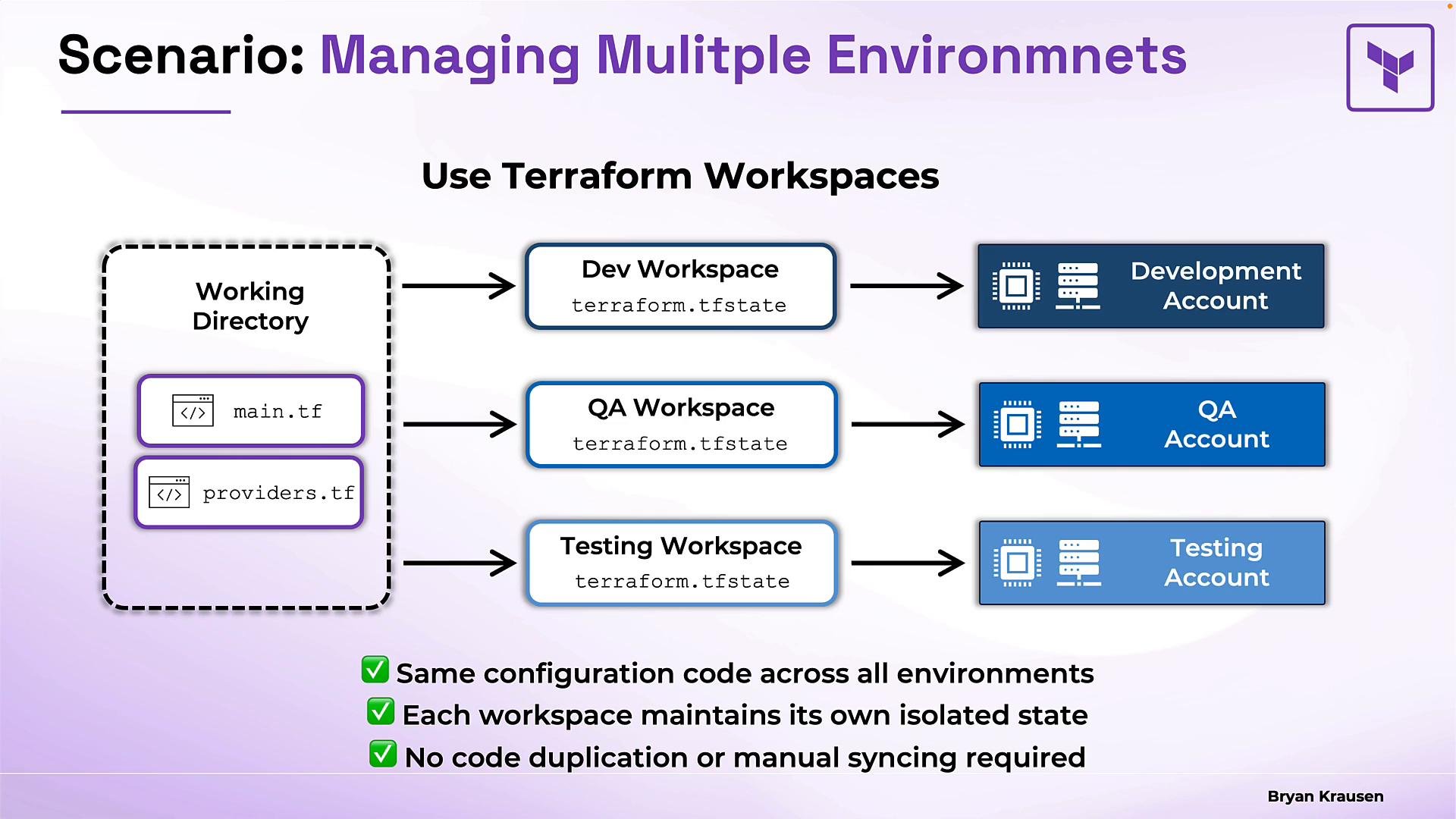 This approach eliminates code duplication and ensures that state for each environment is kept separate.
What is a workspace?
* A workspace is a named container for a separate instance of your Terraform state.
* Each workspace stores its own state; when you switch to a workspace, Terraform reads and writes that workspace’s state.
* Every Terraform project begins in the `default` workspace (created automatically when you run `terraform init`).
When people say “import a resource into your workspace” or refer to “your workspace”, they mean the currently selected workspace in the working directory — i.e., the state Terraform is using right now. Switching workspaces changes which state file is read/written while keeping the same configuration files.
If you switch to a newly created workspace with no deployed resources, state inspection commands will show there is no state yet:
```bash theme={null}
$ terraform state list
No state file was found!
```
Important distinction: workspaces isolate state, not configuration. Workspaces do not automatically change providers, credentials, or regions. If you need different accounts or regions per environment, combine workspaces with variables, provider aliasing, or different backend configurations. Otherwise you risk creating multiple environment resources in the same cloud account.
How Terraform stores workspace state on disk (local backend)
When using the local backend:
* The `default` workspace state is stored as `terraform.tfstate` in the project root.
* Additional workspaces are stored under `terraform.tfstate.d/`, with one subdirectory per workspace containing a `terraform.tfstate` file.
Note: If you use a remote backend (S3, AzureRM, GCS, or Terraform Cloud/Enterprise), workspace state management and naming are handled by the backend and will not necessarily appear under `terraform.tfstate.d/` locally.
This approach eliminates code duplication and ensures that state for each environment is kept separate.
What is a workspace?
* A workspace is a named container for a separate instance of your Terraform state.
* Each workspace stores its own state; when you switch to a workspace, Terraform reads and writes that workspace’s state.
* Every Terraform project begins in the `default` workspace (created automatically when you run `terraform init`).
When people say “import a resource into your workspace” or refer to “your workspace”, they mean the currently selected workspace in the working directory — i.e., the state Terraform is using right now. Switching workspaces changes which state file is read/written while keeping the same configuration files.
If you switch to a newly created workspace with no deployed resources, state inspection commands will show there is no state yet:
```bash theme={null}
$ terraform state list
No state file was found!
```
Important distinction: workspaces isolate state, not configuration. Workspaces do not automatically change providers, credentials, or regions. If you need different accounts or regions per environment, combine workspaces with variables, provider aliasing, or different backend configurations. Otherwise you risk creating multiple environment resources in the same cloud account.
How Terraform stores workspace state on disk (local backend)
When using the local backend:
* The `default` workspace state is stored as `terraform.tfstate` in the project root.
* Additional workspaces are stored under `terraform.tfstate.d/`, with one subdirectory per workspace containing a `terraform.tfstate` file.
Note: If you use a remote backend (S3, AzureRM, GCS, or Terraform Cloud/Enterprise), workspace state management and naming are handled by the backend and will not necessarily appear under `terraform.tfstate.d/` locally.
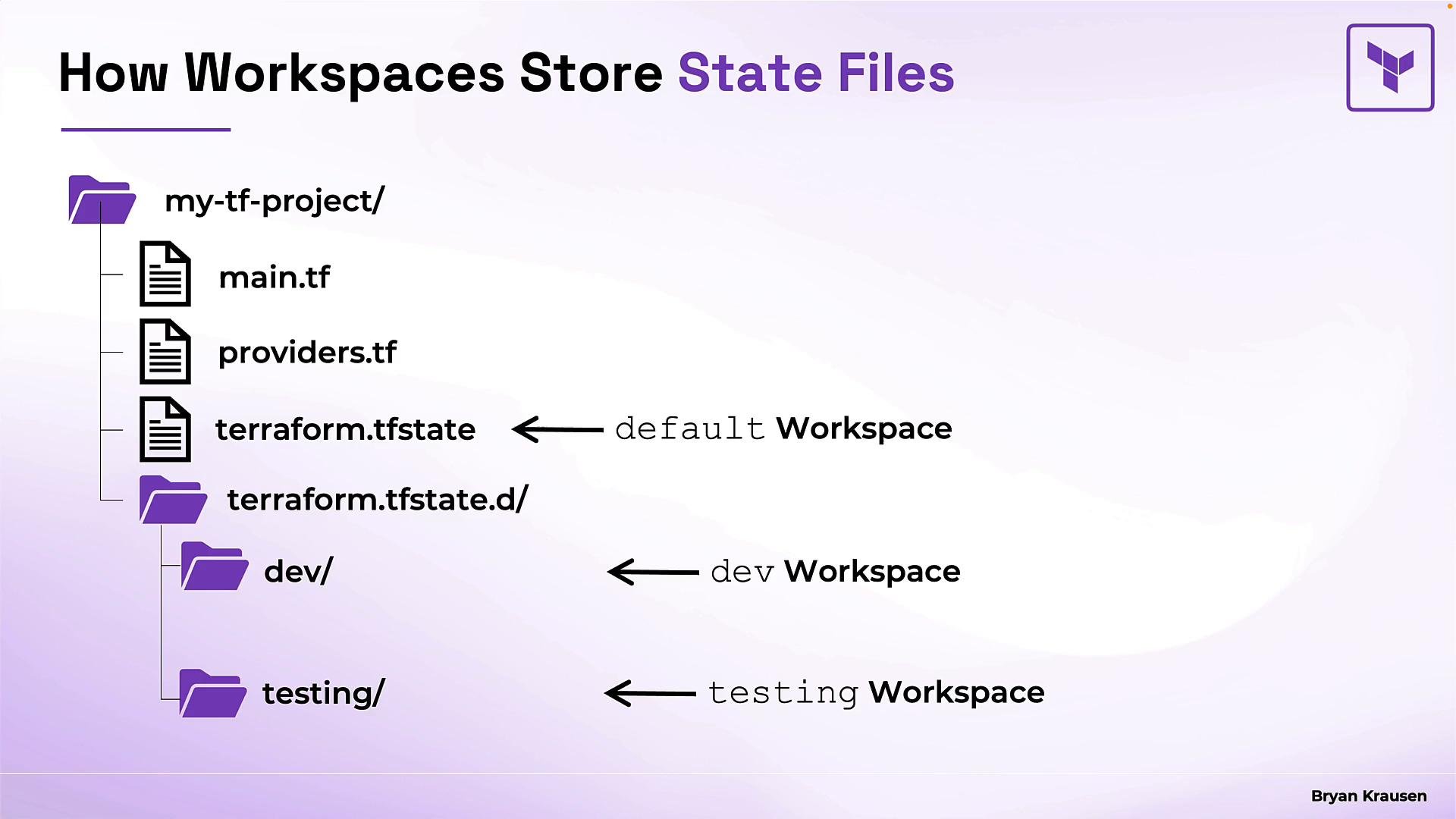 Example filesystem layout (local backend):
```text theme={null}
my-tf-project/
main.tf
providers.tf
terraform.tfstate # default workspace state
terraform.tfstate.d/
dev/
terraform.tfstate # dev workspace state
testing/
terraform.tfstate # testing workspace state
```
Terraform automatically reads/writes the appropriate state file for whichever workspace is selected.
Common workspace CLI commands
Use `terraform workspace` subcommands to manage CLI workspaces. The table below summarizes the most common operations.
| Command | Description | Example output / usage |
| - | - | - |
| `terraform workspace list` | List all workspaces in the current working directory | `terraform workspace list` |
| `terraform workspace new ` | Create a new workspace and switch to it | `terraform workspace new dev` |
| `terraform workspace select ` | Switch to an existing workspace | `terraform workspace select dev` |
| `terraform workspace show` | Show the currently selected workspace | `terraform workspace show` |
| `terraform workspace delete ` | Delete a workspace (cannot delete `default` or the active workspace) | `terraform workspace delete dev` |
Example session:
```bash theme={null}
$ terraform workspace list
default
dev
prod
* qa
test
$ terraform workspace new dev
Created and switched to workspace "dev"!
```
Notes on deletion:
* You cannot delete the `default` workspace.
* You cannot delete the workspace you're currently using; switch to another workspace first (for example `default`).
You cannot delete the workspace you are currently using. Switch to another workspace (for example `default`) before attempting to delete a workspace.
CLI workspaces vs HCP/Enterprise workspaces
The word “workspace” is used for two different concepts in the Terraform ecosystem. They are not interchangeable:
| Workspace type | Managed where | Key characteristics |
| - | - | - |
| CLI workspace | Local CLI (`terraform workspace ...`) | Named state instances within a working directory. Manages isolated state files (local backend) or backend-specific workspace state (remote backends). |
| HCP / Terraform Enterprise workspace | HashiCorp Cloud Platform / Terraform Enterprise UI or API | Cloud-hosted environment with configuration, variables, VCS connections, run history, and access controls. Each HCP workspace is a full run environment and state store. See [Terraform Cloud / Enterprise](https://learn.kodekloud.com/user/courses/hashicorp-terraform-cloud). |
When you see `workspace`, check context: is it a CLI workspace (managed with `terraform workspace ...`) or an HCP/Terraform Enterprise workspace (a cloud-hosted workspace with VCS integration, runs, variables, and team controls)? They solve different problems.
Best practices and gotchas
* Use workspaces for simple environment separation where state isolation is sufficient and configuration remains the same.
* For different cloud accounts, regions, or provider credentials per environment, combine workspaces with provider aliasing, environment-specific variables, or a different backend configuration — otherwise you might unintentionally create resources in the same account.
* Consider using a remote backend (S3, GCS, Azure Blob, or Terraform Cloud) for team collaboration and centralized state storage.
* Treat workspaces as state isolation only — not a replacement for full environment separation if your environments need differing configurations or access controls.
Resources and further reading
* Official Terraform CLI docs: [https://www.terraform.io/cli/commands/workspace](https://www.terraform.io/cli/commands/workspace)
* Terraform Cloud / Enterprise: [https://learn.kodekloud.com/user/courses/hashicorp-terraform-cloud](https://learn.kodekloud.com/user/courses/hashicorp-terraform-cloud)
Summary
* Terraform workspaces let you manage multiple environments (each with its own isolated state) from a single configuration directory, removing the need for duplicate configuration files.
* Every project starts in the `default` workspace; additional workspaces store state under `terraform.tfstate.d/` when using the local backend (remote backends vary).
* Manage workspaces with `terraform workspace list`, `new`, `select`, `show`, and `delete`.
* Remember the distinction between CLI workspaces and HCP/Terraform Enterprise workspaces — they are different tools for different use cases.
This documentation is built and hosted on [Mintlify](https://mintlify.com), a developer documentation platform.
Example filesystem layout (local backend):
```text theme={null}
my-tf-project/
main.tf
providers.tf
terraform.tfstate # default workspace state
terraform.tfstate.d/
dev/
terraform.tfstate # dev workspace state
testing/
terraform.tfstate # testing workspace state
```
Terraform automatically reads/writes the appropriate state file for whichever workspace is selected.
Common workspace CLI commands
Use `terraform workspace` subcommands to manage CLI workspaces. The table below summarizes the most common operations.
| Command | Description | Example output / usage |
| - | - | - |
| `terraform workspace list` | List all workspaces in the current working directory | `terraform workspace list` |
| `terraform workspace new ` | Create a new workspace and switch to it | `terraform workspace new dev` |
| `terraform workspace select ` | Switch to an existing workspace | `terraform workspace select dev` |
| `terraform workspace show` | Show the currently selected workspace | `terraform workspace show` |
| `terraform workspace delete ` | Delete a workspace (cannot delete `default` or the active workspace) | `terraform workspace delete dev` |
Example session:
```bash theme={null}
$ terraform workspace list
default
dev
prod
* qa
test
$ terraform workspace new dev
Created and switched to workspace "dev"!
```
Notes on deletion:
* You cannot delete the `default` workspace.
* You cannot delete the workspace you're currently using; switch to another workspace first (for example `default`).
You cannot delete the workspace you are currently using. Switch to another workspace (for example `default`) before attempting to delete a workspace.
CLI workspaces vs HCP/Enterprise workspaces
The word “workspace” is used for two different concepts in the Terraform ecosystem. They are not interchangeable:
| Workspace type | Managed where | Key characteristics |
| - | - | - |
| CLI workspace | Local CLI (`terraform workspace ...`) | Named state instances within a working directory. Manages isolated state files (local backend) or backend-specific workspace state (remote backends). |
| HCP / Terraform Enterprise workspace | HashiCorp Cloud Platform / Terraform Enterprise UI or API | Cloud-hosted environment with configuration, variables, VCS connections, run history, and access controls. Each HCP workspace is a full run environment and state store. See [Terraform Cloud / Enterprise](https://learn.kodekloud.com/user/courses/hashicorp-terraform-cloud). |
When you see `workspace`, check context: is it a CLI workspace (managed with `terraform workspace ...`) or an HCP/Terraform Enterprise workspace (a cloud-hosted workspace with VCS integration, runs, variables, and team controls)? They solve different problems.
Best practices and gotchas
* Use workspaces for simple environment separation where state isolation is sufficient and configuration remains the same.
* For different cloud accounts, regions, or provider credentials per environment, combine workspaces with provider aliasing, environment-specific variables, or a different backend configuration — otherwise you might unintentionally create resources in the same account.
* Consider using a remote backend (S3, GCS, Azure Blob, or Terraform Cloud) for team collaboration and centralized state storage.
* Treat workspaces as state isolation only — not a replacement for full environment separation if your environments need differing configurations or access controls.
Resources and further reading
* Official Terraform CLI docs: [https://www.terraform.io/cli/commands/workspace](https://www.terraform.io/cli/commands/workspace)
* Terraform Cloud / Enterprise: [https://learn.kodekloud.com/user/courses/hashicorp-terraform-cloud](https://learn.kodekloud.com/user/courses/hashicorp-terraform-cloud)
Summary
* Terraform workspaces let you manage multiple environments (each with its own isolated state) from a single configuration directory, removing the need for duplicate configuration files.
* Every project starts in the `default` workspace; additional workspaces store state under `terraform.tfstate.d/` when using the local backend (remote backends vary).
* Manage workspaces with `terraform workspace list`, `new`, `select`, `show`, and `delete`.
* Remember the distinction between CLI workspaces and HCP/Terraform Enterprise workspaces — they are different tools for different use cases.
This documentation is built and hosted on [Mintlify](https://mintlify.com), a developer documentation platform.