> ## Documentation Index
> Fetch the complete documentation index at: https://notes.kodekloud.com/llms.txt
> Use this file to discover all available pages before exploring further.
# Remote State Configuration
> Explains configuring Terraform remote state backends, S3 and Azure examples, state locking, security best practices, and when to use remote versus local state for teams and production
Now that we understand where state can be stored, let's walk through how to configure remote state in Terraform and why it matters for teams and production environments.
Remote state configuration lives inside a top-level `terraform` block using a `backend` configuration. This structure is the same regardless of backend choice. (Note: if you are using [HCP Terraform](https://developer.hashicorp.com/terraform/cloud) you will use a `cloud` block instead of a `backend` block; all other backends use `backend`.)
Key components
* Backend type: where the state is stored (for example: `s3`, `azurerm`, `gcs`, etc.).
* Backend configuration: provider-specific settings that tell Terraform how to access the backend (bucket/container names, region, authentication).
* State locking: optional but strongly recommended to prevent concurrent operations and state corruption.
Generic backend declaration
```hcl theme={null}
terraform {
backend "type" {
# Backend-specific configuration
}
}
```
Important notes
* Backend configuration must be placed in the top-level `terraform` block — not inside a `provider` block.
* After adding or changing backend configuration run `terraform init` so Terraform can reinitialize the backend and, if necessary, migrate existing state to the configured remote location. See the [Terraform init docs](https://developer.hashicorp.com/terraform/cli/commands/init).
Tip: pass sensitive backend values at runtime or via files instead of hard-coding them inside the configuration:
* `terraform init -backend-config="bucket=prd-terraform-state"`
* Or use `-backend-config=path/to/backend.hcl` to keep secrets out of VCS.
S3 backend (Amazon S3)
One of the most common remote state configurations is S3. For remote state stored in S3 you typically specify the S3 bucket, the path/key inside the bucket for the state file, and the region. Locking is commonly implemented using a DynamoDB table.
```hcl theme={null}
terraform {
backend "s3" {
bucket = "prd-terraform-state"
key = "prod/terraform.tfstate"
region = "us-east-1"
encrypt = true
dynamodb_table = "terraform-state-locks"
}
}
```
Fields explained:
* `bucket`: the S3 bucket where Terraform stores the state file. Create this beforehand or manage it outside the same Terraform run.
* `key`: path/file name inside the bucket for your state (e.g., `prod/terraform.tfstate` helps organize multiple environments).
* `region`: AWS region for the bucket.
* `encrypt`: enable server-side encryption for the state object.
* `dynamodb_table`: used to enable state locking with S3 by pointing to a DynamoDB table. Check the official docs for supported locking behavior for your Terraform and provider versions: [https://developer.hashicorp.com/terraform/language/settings/backends/s3](https://developer.hashicorp.com/terraform/language/settings/backends/s3)
Azure Blob Storage backend (azurerm)
Azure backends follow the same pattern but use Azure-specific configuration fields. Authentication typically relies on Azure AD credentials or managed identities — avoid hard-coded secrets.
```hcl theme={null}
terraform {
backend "azurerm" {
resource_group_name = "rg-terraform-backend"
storage_account_name = "prodterraform"
container_name = "tfstate"
key = "prod.terraform.tfstate"
}
}
```
Fields explained:
* `storage_account_name`: the Azure Storage account containing the blob container.
* `container_name`: the blob container (similar in concept to an S3 bucket).
* `key`: the blob name/file used to store the state.
* Authentication: prefer managed identities, environment variables, or service principals passed securely (not hard-coded credentials inside the backend block).
Do not hard-code authentication credentials in backend configuration. Use managed identities, environment variables, or other secure auth mechanisms in production.
Always run `terraform init` after changing backend configuration. Terraform will prompt to migrate state if needed — do not skip this step when moving state between backends.
Why remote state matters (and when to use it)
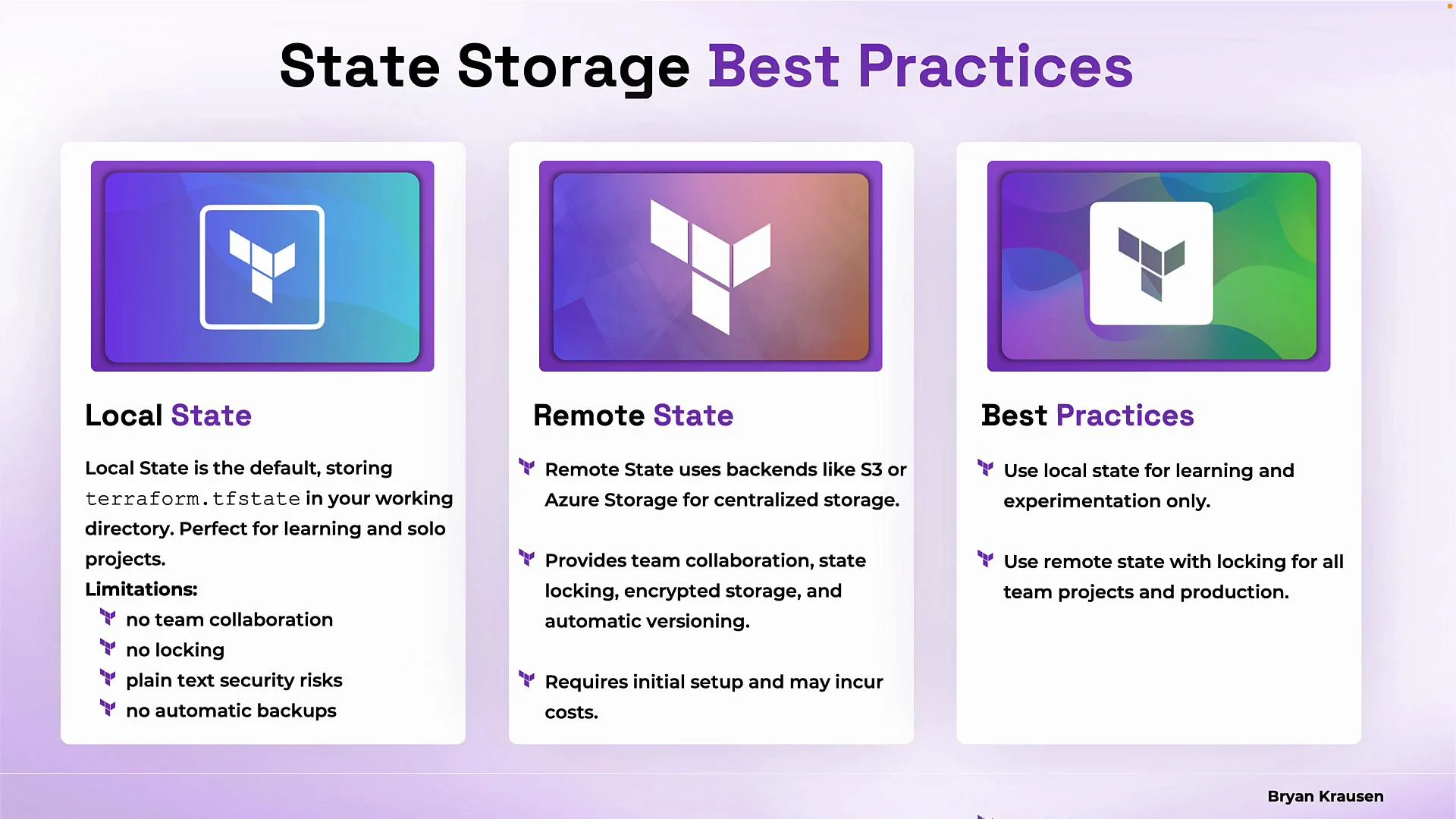
Local state (Terraform’s default) stores the state file in the working directory and is fine for learning, experiments, or solo projects. But local state has limitations for team or production use:
* No easy team collaboration (single-user file on a machine)
* No automatic state locking
* Plain-text state file stored locally (security risk)
* No centralized backups/versioning across a team
Remote state resolves these issues:
* Centralized shared storage (single source of truth)
* State locking to prevent concurrent changes
* Better access control and security posture
* Automated versioning/backups depending on backend features
Quick comparison
| Use case | Local state | Remote state |
| --------------------------- | -------------------- | ------------------------------------------------- |
| Solo experiments / learning | ✅ Simple, zero setup | ⚠️ Overkill |
| Team collaboration | ❌ Not recommended | ✅ Single source of truth |
| State locking | ❌ No | ✅ DynamoDB / backend-provided |
| Secure access & auditing | ❌ Limited | ✅ IAM, RBAC, logging |
| Backups & versioning | ❌ Manual | ✅ Backend features (S3 versioning, Azure storage) |
Best practices
* Use local state only for learning and experimentation.
* Use remote state with locking for team projects and production.
* Keep backend configuration in the top-level `terraform` block.
* Run `terraform init` after adding or modifying backends to initialize and migrate state if necessary. See [terraform init](https://developer.hashicorp.com/terraform/cli/commands/init).
* Avoid hard-coding credentials; prefer managed identities, service principals via environment variables, or other secure methods.
* Use separate state files (different `key` / path) per environment (prod, staging, dev) to avoid accidental cross-environment changes.
 When to recommend local vs remote
* Learning, demos, or lone tinkering: local state is sufficient.
* Any professional, team, or production scenario: use remote state with locking and secure authentication.
Links and references
* Terraform init docs: [https://developer.hashicorp.com/terraform/cli/commands/init](https://developer.hashicorp.com/terraform/cli/commands/init)
* S3 backend docs: [https://developer.hashicorp.com/terraform/language/settings/backends/s3](https://developer.hashicorp.com/terraform/language/settings/backends/s3)
* Azure backend docs: [https://developer.hashicorp.com/terraform/language/settings/backends/azurerm](https://developer.hashicorp.com/terraform/language/settings/backends/azurerm)
* HCP Terraform Cloud: [https://developer.hashicorp.com/terraform/cloud](https://developer.hashicorp.com/terraform/cloud)
When to recommend local vs remote
* Learning, demos, or lone tinkering: local state is sufficient.
* Any professional, team, or production scenario: use remote state with locking and secure authentication.
Links and references
* Terraform init docs: [https://developer.hashicorp.com/terraform/cli/commands/init](https://developer.hashicorp.com/terraform/cli/commands/init)
* S3 backend docs: [https://developer.hashicorp.com/terraform/language/settings/backends/s3](https://developer.hashicorp.com/terraform/language/settings/backends/s3)
* Azure backend docs: [https://developer.hashicorp.com/terraform/language/settings/backends/azurerm](https://developer.hashicorp.com/terraform/language/settings/backends/azurerm)
* HCP Terraform Cloud: [https://developer.hashicorp.com/terraform/cloud](https://developer.hashicorp.com/terraform/cloud)