> ## Documentation Index
> Fetch the complete documentation index at: https://notes.kodekloud.com/llms.txt
> Use this file to discover all available pages before exploring further.
# Where Can I Store My Terraform State
> Explains Terraform state storage options, recommending remote backends with locking like S3 DynamoDB, Azure Blob, GCS or Terraform Cloud for team collaboration and safe state management
By default, Terraform stores its state locally in a file named `terraform.tfstate` inside the working directory that contains your Terraform configuration files. That state file records Terraform’s current view of the resources it manages and is essential for planning and applying changes.
Terraform also needs to prevent concurrent writes to the state file while operations that modify state are running. Whether locking is available depends on the backend you select:
* The local backend (default) does not provide state locking.
* Many remote backends provide locking (or can be combined with a locking mechanism) to prevent concurrent modifications.
In a team or CI environment, choose a backend that supports locking so multiple users or systems don’t overwrite each other’s changes — the process that obtains the lock proceeds while others wait.
Here is an abbreviated example excerpt you might find inside a `terraform.tfstate` file:
```json theme={null}
{
"module": "module.nomad-client[\"nomad-client-3\"]",
"mode": "managed",
"type": "aws_instance",
"name": "this",
"provider": "provider[\"registry.terraform.io/hashicorp/aws\"]",
"instances": [
{
"index_key": 0,
"schema_version": 1,
"attributes": {
"ami": "ami-03a6eaae9938c858c",
"arn": "arn:aws:ec2:us-east-1:634211456147:instance/i-0eb4591447d4fdf7c",
"associate_public_ip_address": true,
"availability_zone": "us-east-1c",
"capacity_reservation_specification": [
{
"capacity_reservation_preference": "open",
"capacity_reservation_target": []
}
],
"cpu_core_count": 1,
"cpu_options": {}
}
}
]
}
```
Remote state storage is recommended — and often required — when collaborating. A remote backend lets multiple users and CI systems share the same state safely and enables features such as state locking, versioning, and access controls.
Common remote backends and their typical uses:
| Backend | Locking | Typical use case |
| - | -: | - |
| `s3` (Amazon S3) + DynamoDB | Yes (with DynamoDB locks) | Popular for AWS-centric teams; S3 stores state, DynamoDB handles locks. |
| `azurerm` (Azure Blob Storage) | Yes | Good for Azure-first teams; supports locking via storage lease semantics. |
| `gcs` (Google Cloud Storage) | Yes | Used for Google Cloud projects; supports concurrent-safe uploads/locking. |
| `remote` / Terraform Cloud | Yes (built-in) | Managed service with built-in locking, versioning, and team controls. |
Minimal example: backend configuration for an S3 remote backend (place in a `backend` block inside `terraform` configuration):
```hcl theme={null}
terraform {
backend "s3" {
bucket = "my-terraform-state-bucket"
key = "envs/prod/terraform.tfstate"
region = "us-east-1"
dynamodb_table = "terraform-locks" # enables locking
encrypt = true
}
}
```
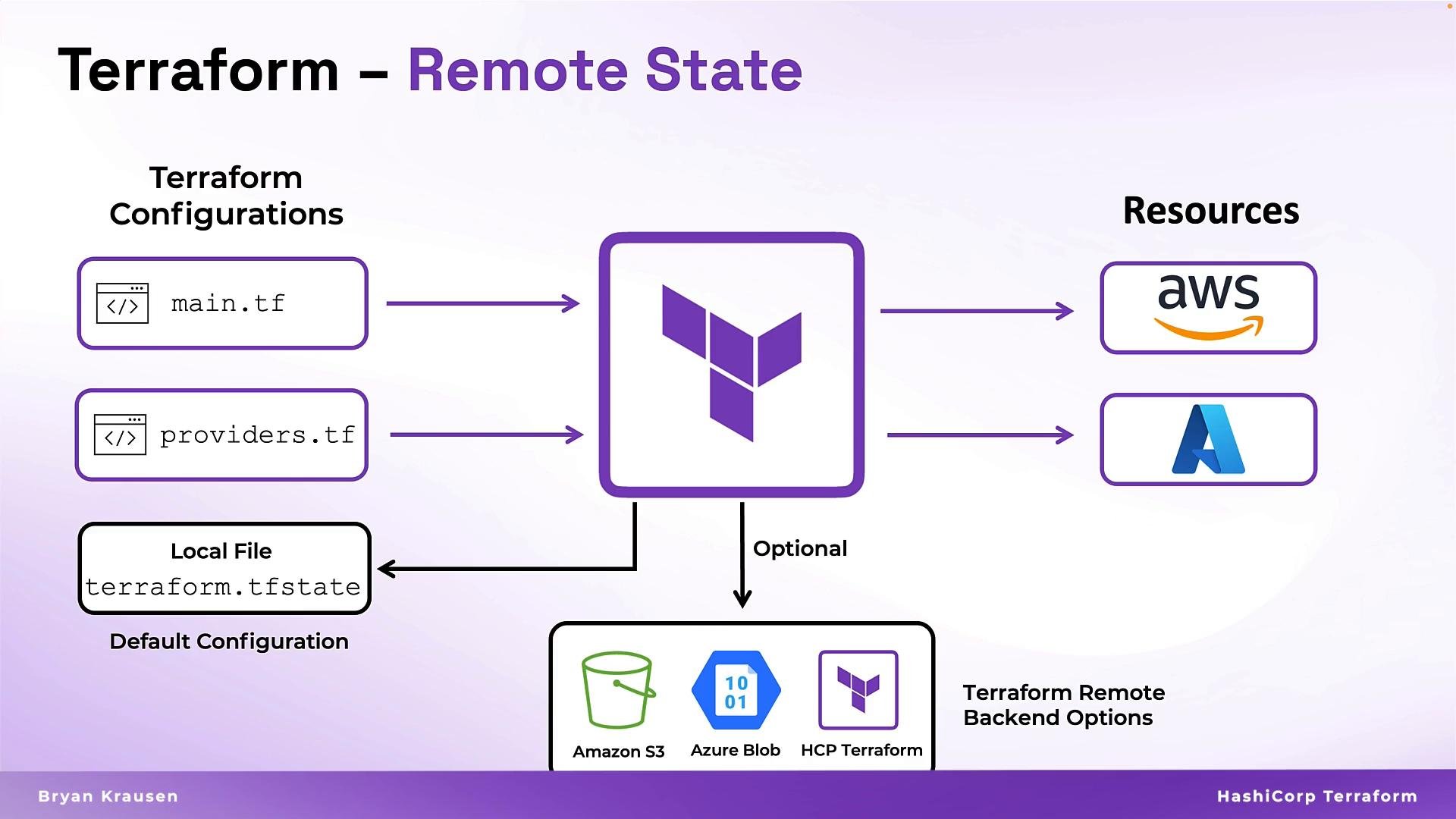 Note that when you move from working locally to collaborating with others, you should configure a remote backend that supports locking and state management. If you work alone on a machine, the default local `terraform.tfstate` file is acceptable for quick experiments.
Use a remote backend with locking (for example, S3 + DynamoDB or Terraform Cloud) when multiple people or automated systems will run Terraform against the same state to avoid conflicts and corruption.
If you’re ready to adopt a remote backend, next steps typically include:
* Choosing a backend that fits your cloud and team needs (see table above).
* Creating the remote storage resource (e.g., S3 bucket, Azure storage account, GCS bucket).
* Optionally creating a locking resource (e.g., DynamoDB table for S3).
* Configuring the `terraform` block with the appropriate `backend` stanza.
* Migrating existing local state to the remote backend with `terraform init` and the migration prompts, or using `terraform state` commands when necessary.
Links and references
* [Terraform backends documentation](https://www.terraform.io/language/settings/backends)
* [Amazon S3 backend (Terraform)](https://registry.terraform.io/providers/hashicorp/aws/latest/docs/resources/s3_bucket)
* [Terraform Cloud and Remote Backend](https://www.terraform.io/cloud)
* [Migrating state](https://www.terraform.io/cli/state/remote)
This documentation is built and hosted on [Mintlify](https://mintlify.com), a developer documentation platform.
Note that when you move from working locally to collaborating with others, you should configure a remote backend that supports locking and state management. If you work alone on a machine, the default local `terraform.tfstate` file is acceptable for quick experiments.
Use a remote backend with locking (for example, S3 + DynamoDB or Terraform Cloud) when multiple people or automated systems will run Terraform against the same state to avoid conflicts and corruption.
If you’re ready to adopt a remote backend, next steps typically include:
* Choosing a backend that fits your cloud and team needs (see table above).
* Creating the remote storage resource (e.g., S3 bucket, Azure storage account, GCS bucket).
* Optionally creating a locking resource (e.g., DynamoDB table for S3).
* Configuring the `terraform` block with the appropriate `backend` stanza.
* Migrating existing local state to the remote backend with `terraform init` and the migration prompts, or using `terraform state` commands when necessary.
Links and references
* [Terraform backends documentation](https://www.terraform.io/language/settings/backends)
* [Amazon S3 backend (Terraform)](https://registry.terraform.io/providers/hashicorp/aws/latest/docs/resources/s3_bucket)
* [Terraform Cloud and Remote Backend](https://www.terraform.io/cloud)
* [Migrating state](https://www.terraform.io/cli/state/remote)
This documentation is built and hosted on [Mintlify](https://mintlify.com), a developer documentation platform.