> ## Documentation Index
> Fetch the complete documentation index at: https://notes.kodekloud.com/llms.txt
> Use this file to discover all available pages before exploring further.
# Demo Configuring Auth Methods using the UI
> Learn to configure authentication methods in HashiCorp Vault using its web UI through a step-by-step guide.
In this step-by-step guide, you’ll learn how to configure authentication methods in HashiCorp Vault via its web UI. We’ll cover:
| Step | Action | Description |
| ---- | --------------------------- | -------------------------------------------------- |
| 1 | Logging in with Okta | Authenticate using your Okta credentials |
| 2 | Enabling a new auth method | Mount the userpass plugin with customized settings |
| 3 | Creating a user | Add credentials and assign policies |
| 4 | Testing login via the CLI | Verify access by obtaining a Vault token |
| 5 | Disabling & editing methods | Manage or remove existing auth mounts |
***
## 1. Logging in with Okta
1. Open the Vault UI and select **Okta** as the authentication method.
2. Enter your **Username** and **Password**, then click **Sign In**.
3. Optionally, choose to save your credentials for future sessions.
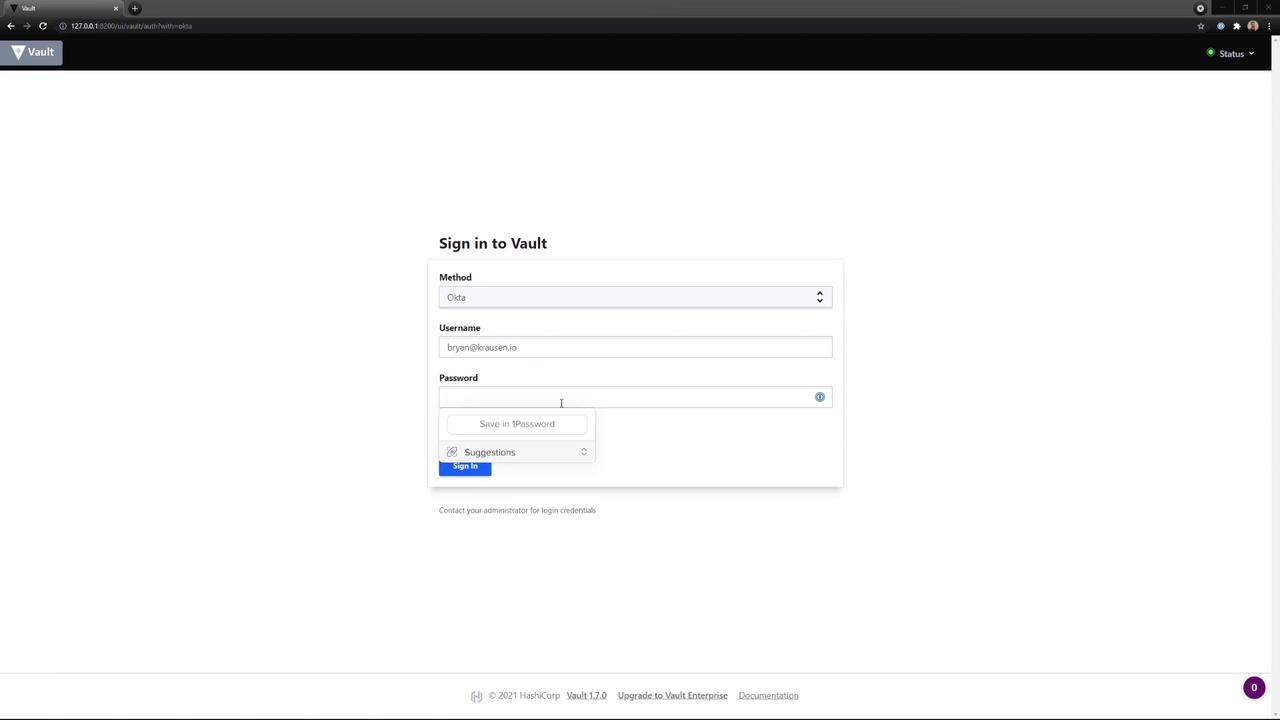
After successful authentication, you’ll be redirected to the Vault dashboard.
***
## 2. Enabling a New Auth Method
Navigate to **Access → Auth Methods**, then click **Enable new method**. You’ll see categories for Generic, Cloud, and Infra authentication plugins:
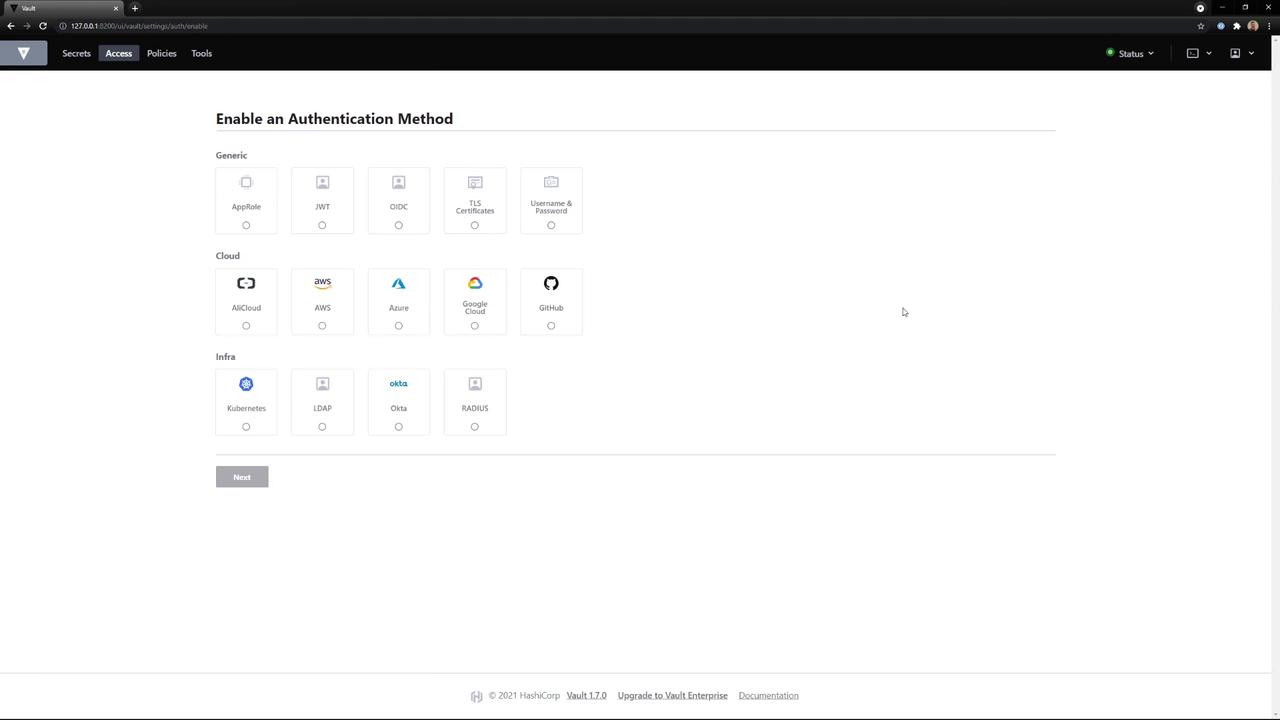
Select **Username & Password** (userpass) and click **Next**. Configure the mount options:
* **Path**: `vault`
* **Default TTL**: `30m`
* **Max TTL**: `24h`
* **Token Type**: `service` (default)
* **Description**: *My cool new Auth Method*
Default TTL controls how long issued tokens remain valid before renewal.
If you have Vault Enterprise, you can also enable **Seal Wrap** for enhanced security. When ready, click **Enable method**:
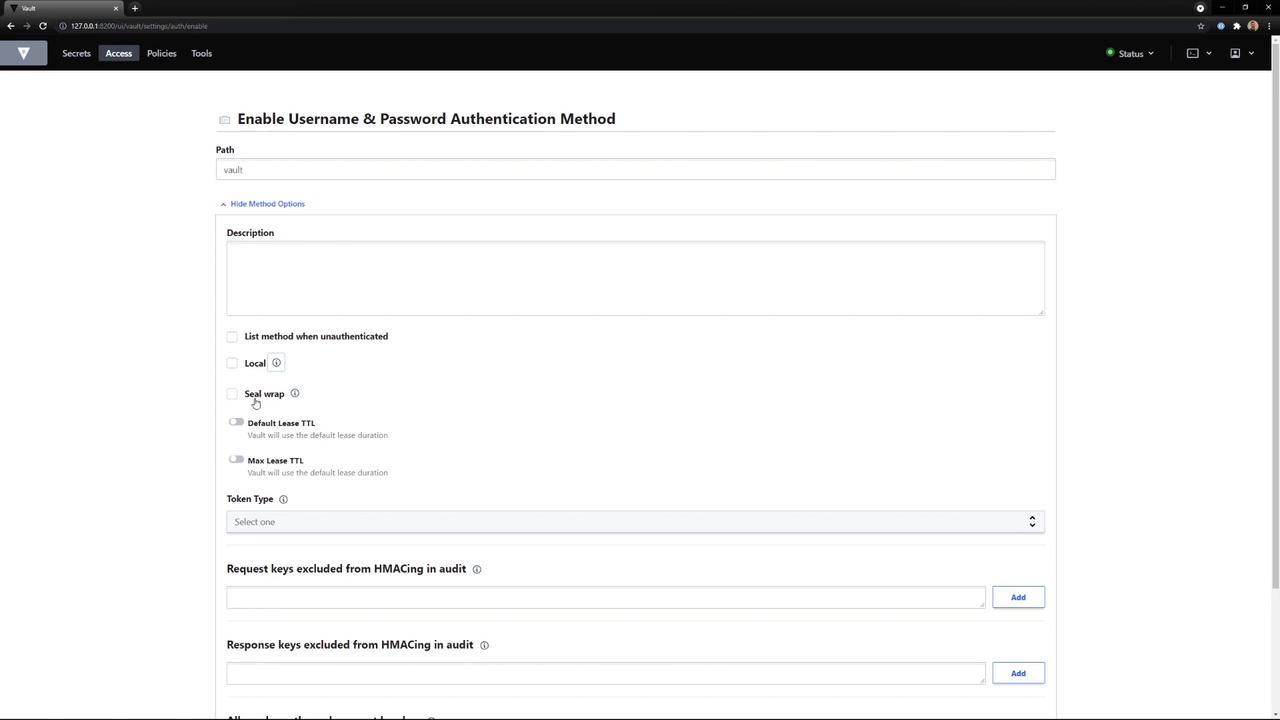
Your new userpass method is now mounted at `vault/`.
***
## 3. Creating a User via the UI
1. Go back to **Access → Auth Methods** and click on the **vault** mount (userpass).
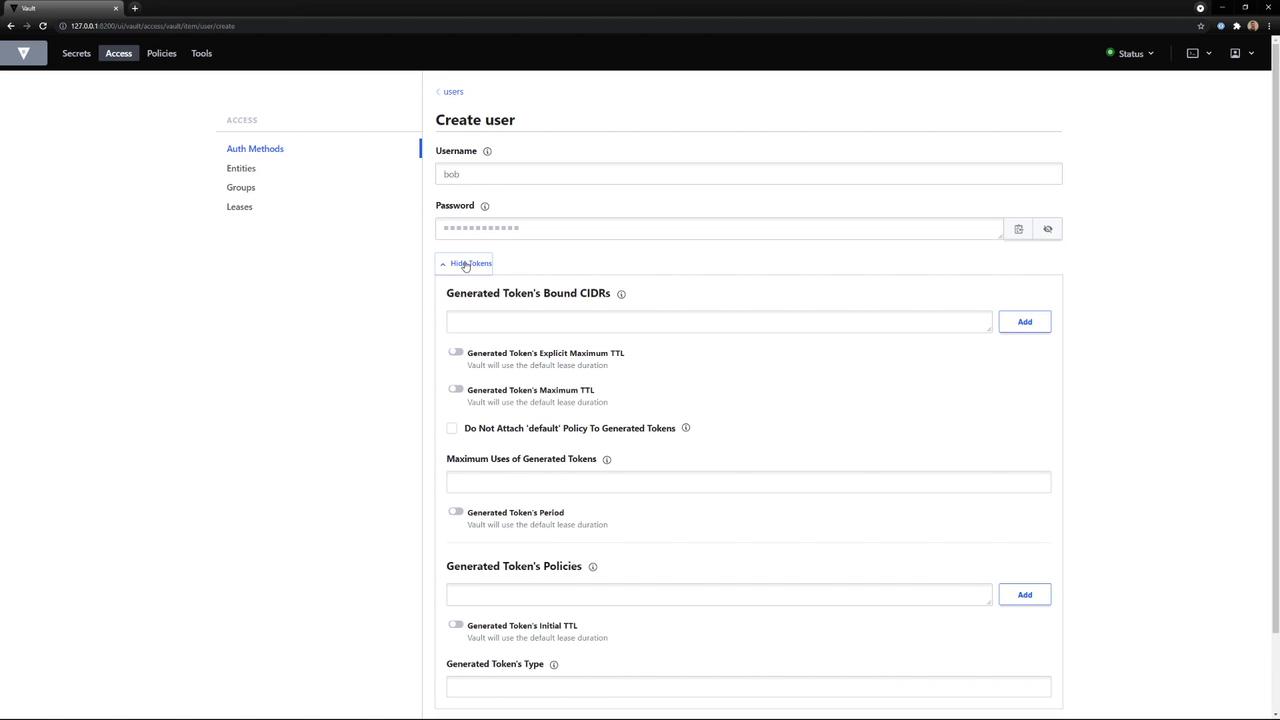
2. Select **Create User**.
3. Fill out the form:
* **Username**: `bob`
* **Password**: `Bob is cool`
* **Policies**: `bryan`, `default`
4. Click **Save**. The user `bob` is now created and associated with the specified policies.
***
## 4. Testing Login via the CLI
Set your Vault server address and an existing admin token (Okta):
```bash theme={null}
export VAULT_ADDR="https://your-vault-address:8200"
export VAULT_TOKEN="s.TEKrNn3Cv53pZdbPh8xg4TPu"
```
Then log in as `bob`:
```bash theme={null}
vault login -method=userpass username=bob password='Bob is cool'
```
If you encounter a permissions error, verify that policies and mount path are correct:
```plaintext theme={null}
Error logging in: error validating credentials: permission denied
```
On success, Vault returns a new client token.
***
## 5. Disabling and Editing Auth Methods
To manage existing mounts:
* **Disable**: Click the three-dot menu next to the method and choose **Disable**, then confirm deletion of all related data.
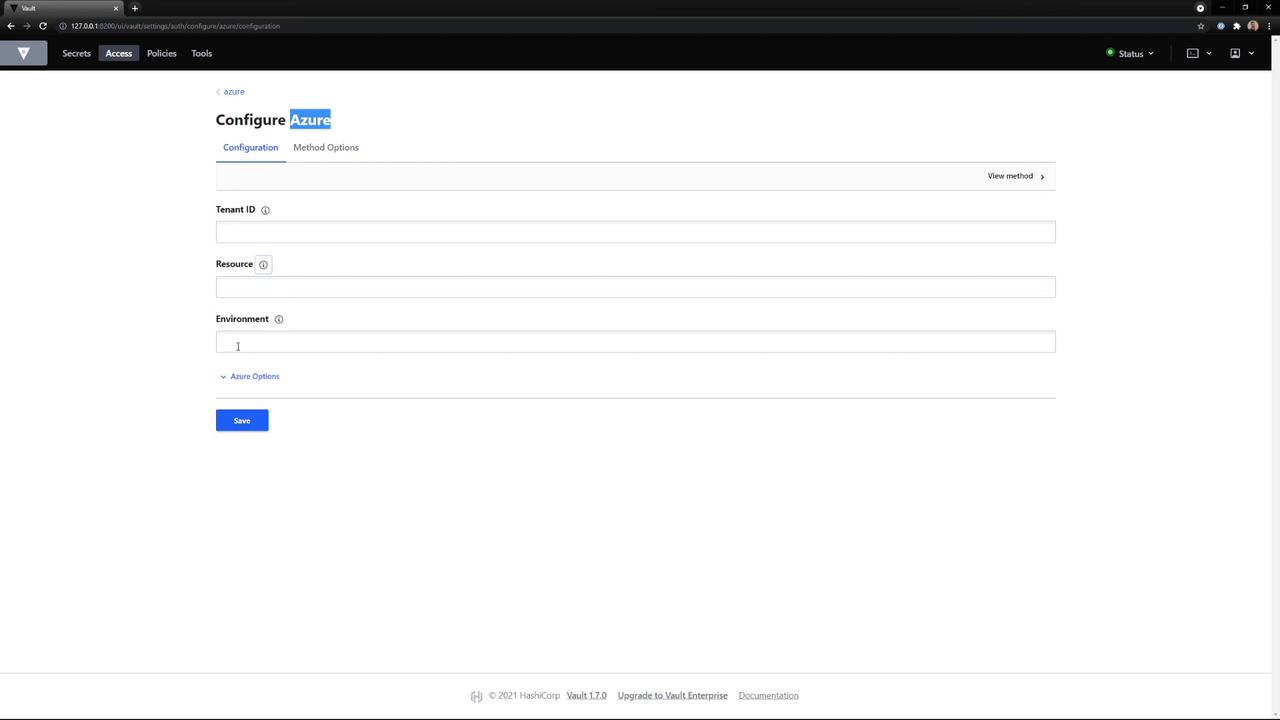
* **Edit**: Select **View/Edit** beside a method to update its configuration.
For example, updating Azure auth settings lets you change Tenant ID, Resource, and Environment:
Disabling an auth method permanently removes its data. Make sure you’ve migrated or no longer need it before confirmation.
***
Configuring Vault auth methods via the UI simplifies access control management. You can rapidly enable plugins, define policies, onboard users, test logins, and remove methods without leaving your browser.
## Links and References
* [HashiCorp Vault Authentication](https://www.vaultproject.io/docs/auth)
* [Vault UI Overview](https://www.vaultproject.io/docs/upgrading/ui)
* [Okta Auth Method](https://www.vaultproject.io/docs/auth/okta)