> ## Documentation Index
> Fetch the complete documentation index at: https://notes.kodekloud.com/llms.txt
> Use this file to discover all available pages before exploring further.
# Demo Okta Auth Method
> This tutorial explains how to configure HashiCorp Vault to authenticate users through Okta, including creating tokens and mapping users to policies.
In this tutorial, you’ll configure HashiCorp Vault to authenticate users through Okta. You will:
1. Create an Okta API token
2. Enable and verify the Okta auth method in Vault
3. Configure Vault with your Okta organization details
4. Map Okta users (and groups) to Vault policies
5. Sign in to Vault via Okta (CLI and UI)
By the end, Vault will trust Okta as an identity provider, enforcing your Vault policies based on Okta users and groups.
***
## 1. Create an Okta API Token
1. Log in to the [Okta Admin Console](https://developer.okta.com/docs/guides/create-an-api-token/overview/).
2. Go to **Security** → **API** → **Tokens**.
3. Click **Create Token**, give it a descriptive name (for example, `Vault-Integration`), and copy the generated token.
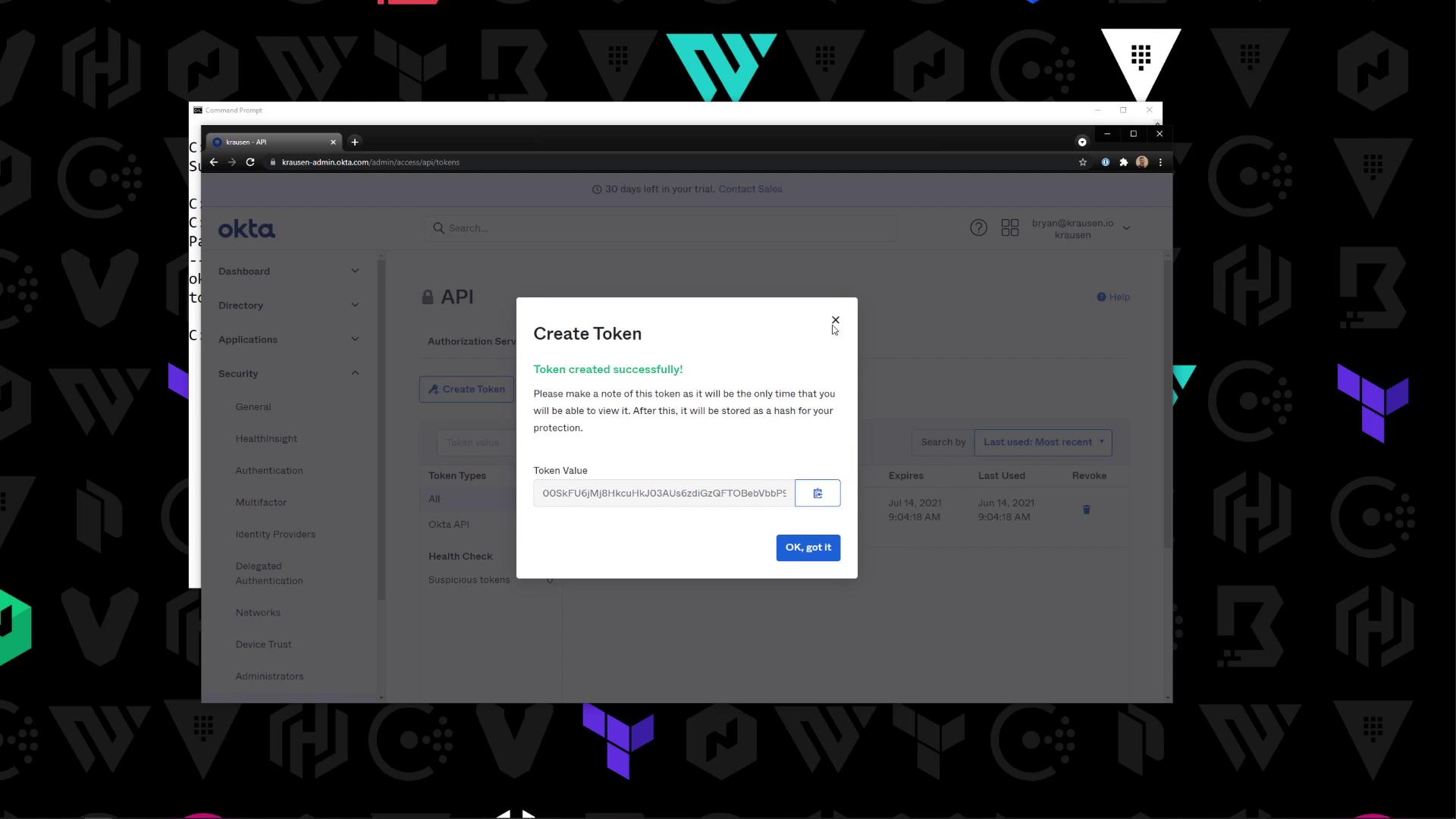
Treat your Okta API token like a password. Store it securely (for example, in Vault’s [Cubbyhole](https://www.vaultproject.io/docs/secrets/cubbyhole) or an environment variable).
***
## 2. Enable the Okta Auth Method in Vault
On your Vault server (shown here running in **dev** mode), enable the Okta auth backend:
```shell theme={null}
vault auth enable okta
vault auth list
```
| Path | Type | Description |
| ------ | ----- | ----------------------- |
| okta/ | okta | Okta authentication |
| token/ | token | Built-in token provider |
Sample output:
```text theme={null}
Path Type Accessor
---- ---- --------
okta/ okta auth_okta_90844582
token/ token auth_token_0ba527c3
```
***
## 3. Configure the Okta Auth Method
Provide Vault with your Okta **base URL**, **organization name**, and the **API token** you created:
```shell theme={null}
vault write auth/okta/config \
base_url="okta.com" \
org_name="your-org-name" \
api_token="00SkFU6jMj8HkcuH03AUs6zdiGzQFTOBebVbbP9K"
```
Verify the settings:
```shell theme={null}
vault read auth/okta/config
```
Expected response:
```text theme={null}
Key Value
--- -----
base_url okta.com
org_name your-org-name
organization your-org-name
bypass_okta_mfa false
token_policies []
...
```
If your organization requires multi-factor authentication, set `bypass_okta_mfa` to `false` (default) to enforce it.
***
## 4. Map an Okta User to a Vault Policy
Assign an Okta user (for example, **[bryan@krausen.io](mailto:bryan@krausen.io)**) to a Vault policy (e.g., `bryan`):
```shell theme={null}
vault write auth/okta/users/bryan@krausen.io policies=bryan
```
Output:
```text theme={null}
Success! Data written to: auth/okta/users/bryan@krausen.io
```
| Resource Type | Example Command |
| ------------- | ---------------------------------------------------------------- |
| Map User | `vault write auth/okta/users/jane@domain.com policies=developer` |
| Map Group | `vault write auth/okta/groups/engineering policies=eng-team` |
***
## 5. Sign in to Vault via Okta
### CLI Authentication
```shell theme={null}
vault login -method=okta username="bryan@krausen.io"
```
You will be prompted for your Okta password and any additional MFA factors.
### UI Authentication
1. Open the Vault UI and select **Okta** as the login method.
2. Enter your Okta **username** and **password**, then click **Sign in**.
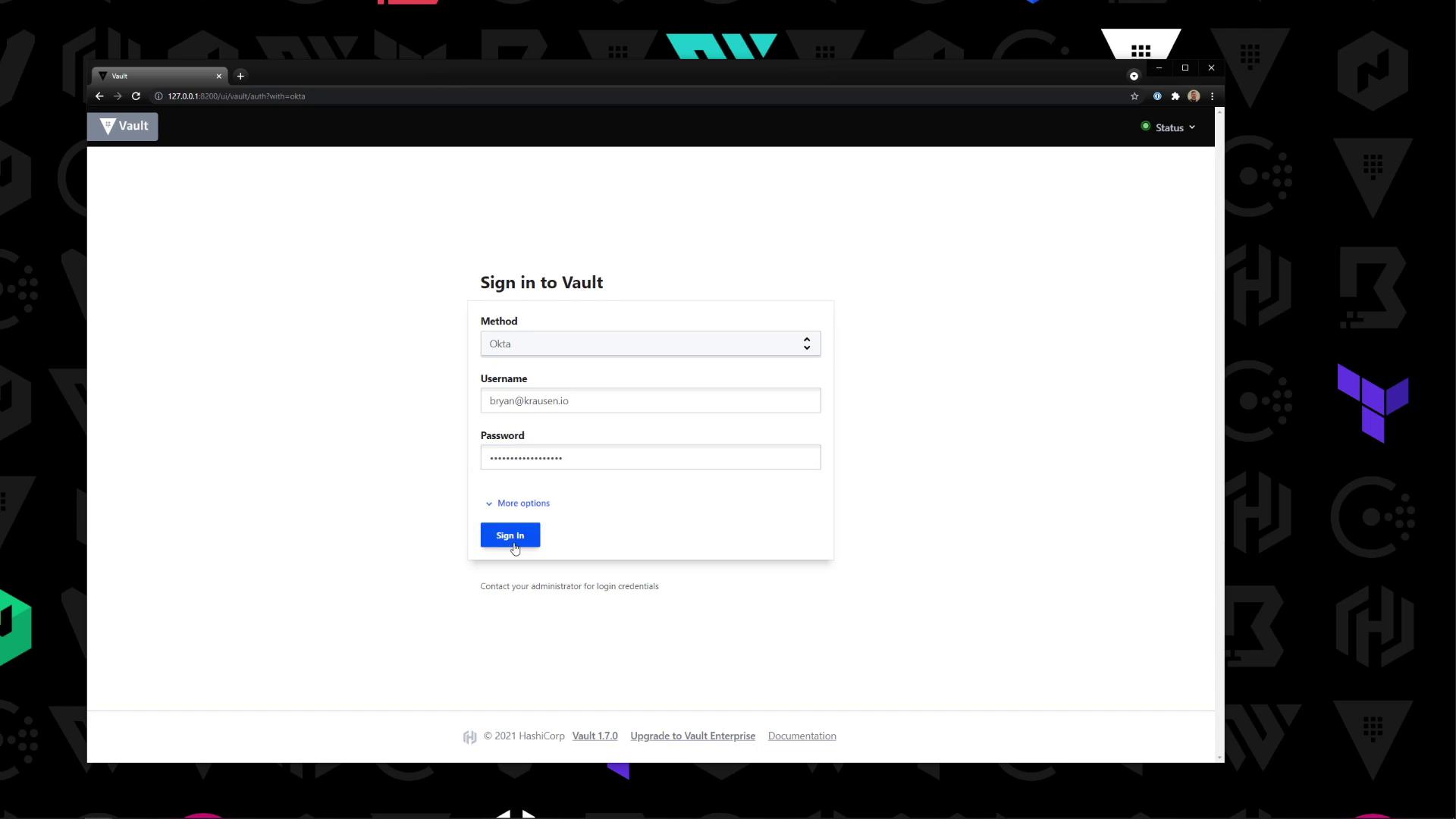
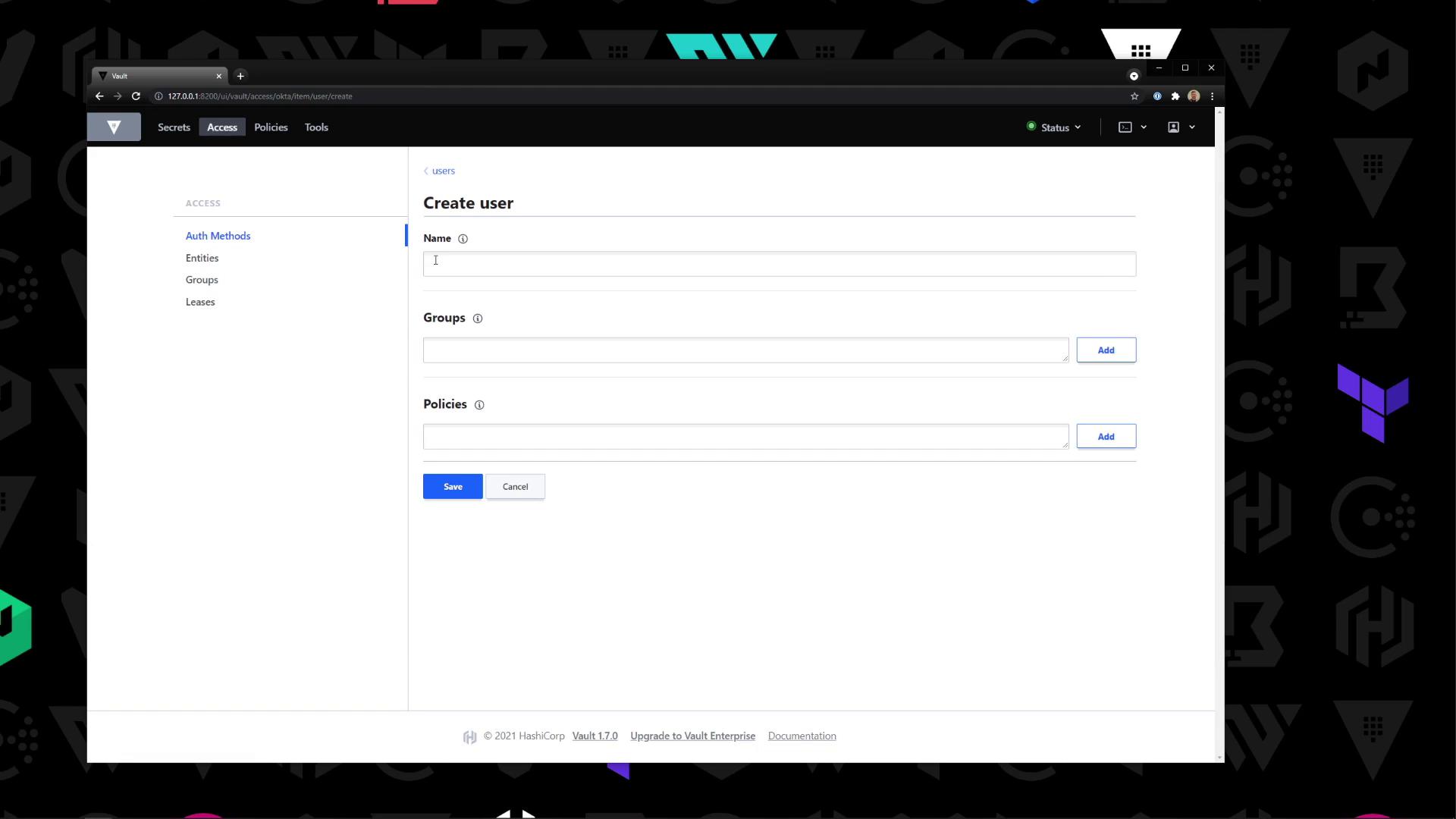
After signing in, view mapped users under **Access** → **Okta** → **Users**. You can also add or edit users:
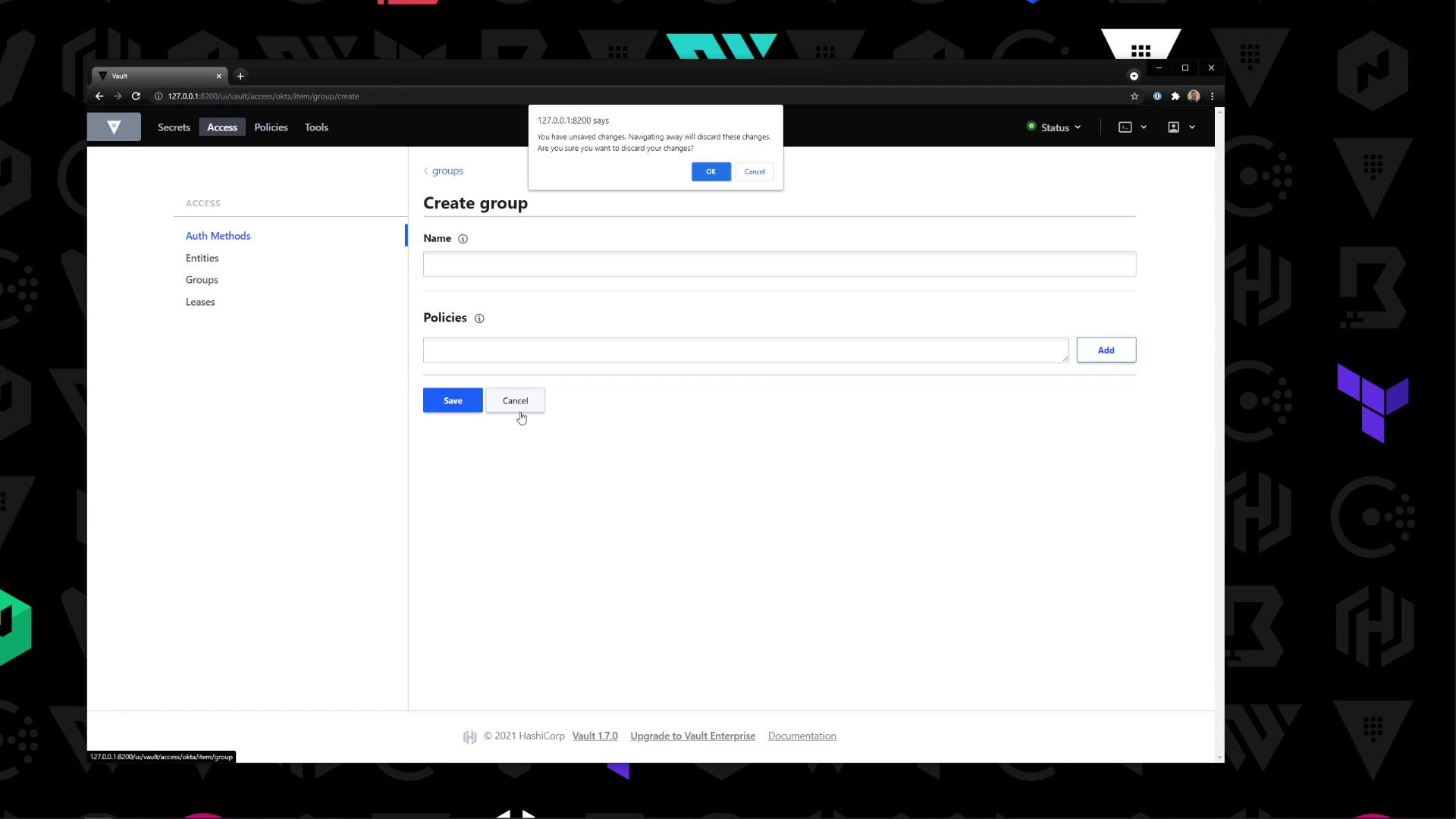
To map Okta groups in Vault, navigate to **Access** → **Okta** → **Groups**, specify the group name and Vault policies, then save:
***
With these steps complete, Vault is now integrated with Okta for user and group authentication. Policies defined in Vault will be enforced based on your Okta identities.
## Links and References
* [Vault Okta Auth Method](https://www.vaultproject.io/docs/auth/okta)
* [Okta API Token Guide](https://developer.okta.com/docs/guides/create-an-api-token/overview/)
* [Vault Authentication Methods](https://www.vaultproject.io/docs/auth)
* [Best Practices for Secrets Management](https://www.vaultproject.io/docs/best-practices/)