> ## Documentation Index
> Fetch the complete documentation index at: https://notes.kodekloud.com/llms.txt
> Use this file to discover all available pages before exploring further.
# Demo AWS Secrets Engine Assumed Role
> This guide explains configuring HashiCorp Vault’s AWS Secrets Engine for obtaining temporary cross-account AWS credentials using the assumed_role credential type.
In this guide, you will learn how to configure HashiCorp Vault’s AWS Secrets Engine using the `assumed_role` credential type to obtain temporary, cross-account AWS credentials. Vault runs in Account A (ID ending in **6147**) and will assume a role in Account B (ID ending in **2126**) to generate scoped credentials.
## Table of Contents
1. [Verify Vault Cluster Health](#1-verify-vault-cluster-health)
2. [Prepare Target AWS Account (Account B)](#2-prepare-target-aws-account-account-b)\
2.1 [Inspect Existing Role (Optional)](#21-inspect-existing-role-optional)\
2.2 [Create a Customer-Managed Policy](#22-create-a-customer-managed-policy)\
2.3 [Create a Role Trusted by Vault’s Account](#23-create-a-role-trusted-by-vaults-account)
3. [Enable & Configure AWS Secrets Engine](#3-enable--configure-aws-secrets-engine)
4. [Define Vault Role for Cross-Account Access](#4-define-vault-role-for-cross-account-access)
5. [Generate & Use Temporary Credentials](#5-generate--use-temporary-credentials)
6. [Flowchart](#6-flowchart)
7. [Conclusion](#7-conclusion)
8. [References](#8-references)
***
## 1. Verify Vault Cluster Health
First, ensure your Vault cluster in Account A is initialized, unsealed, and active.
```bash theme={null}
vault status
```
Expected output:
```text theme={null}
Key Value
Initialized true
Sealed false
Version 1.6.0+ent
Storage Type raft
HA Enabled true
```
### IAM Role Permissions for Vault EC2 Nodes
Attach a policy to your Vault EC2 instances that permits required AWS API actions:
| Sid | Effect | Action | Resource |
| ------------------------------------------- | ------ | --------------------------------------------------------------------------------------------- | ------------------------------------------------------------------ |
| PermitEC2ApiAccessForCloudAutoJoin | Allow | `ec2:DescribeInstances` | `*` |
| PermitRoute53AccessForLetsEncryptValidation | Allow | `route53:GetChange`, `route53:ListHostedZones` | `*` |
| PermitActionsForCloudWatchLogs | Allow | `logs:CreateLogGroup`, `logs:CreateLogStream`, `logs:PutLogEvents`, `logs:DescribeLogStreams` | `arn:aws:logs:us-east-1:634211456147:log-group:vault_audit_logs:*` |
```json theme={null}
{
"Statement": [
{
"Sid": "PermitEC2ApiAccessForCloudAutoJoin",
"Effect": "Allow",
"Action": ["ec2:DescribeInstances"],
"Resource": "*"
},
{
"Sid": "PermitRoute53AccessForLetsEncryptValidation",
"Effect": "Allow",
"Action": ["route53:GetChange", "route53:ListHostedZones"],
"Resource": "*"
},
{
"Sid": "PermitActionsForCloudWatchLogs",
"Effect": "Allow",
"Action": [
"logs:CreateLogGroup",
"logs:CreateLogStream",
"logs:PutLogEvents",
"logs:DescribeLogStreams"
],
"Resource": "arn:aws:logs:us-east-1:634211456147:log-group:vault_audit_logs:*"
}
]
}
```
***
## 2. Prepare Target AWS Account (Account B)
In Account B, you will create an IAM policy and role that Vault in Account A can assume.
### 2.1 Inspect Existing Role (Optional)
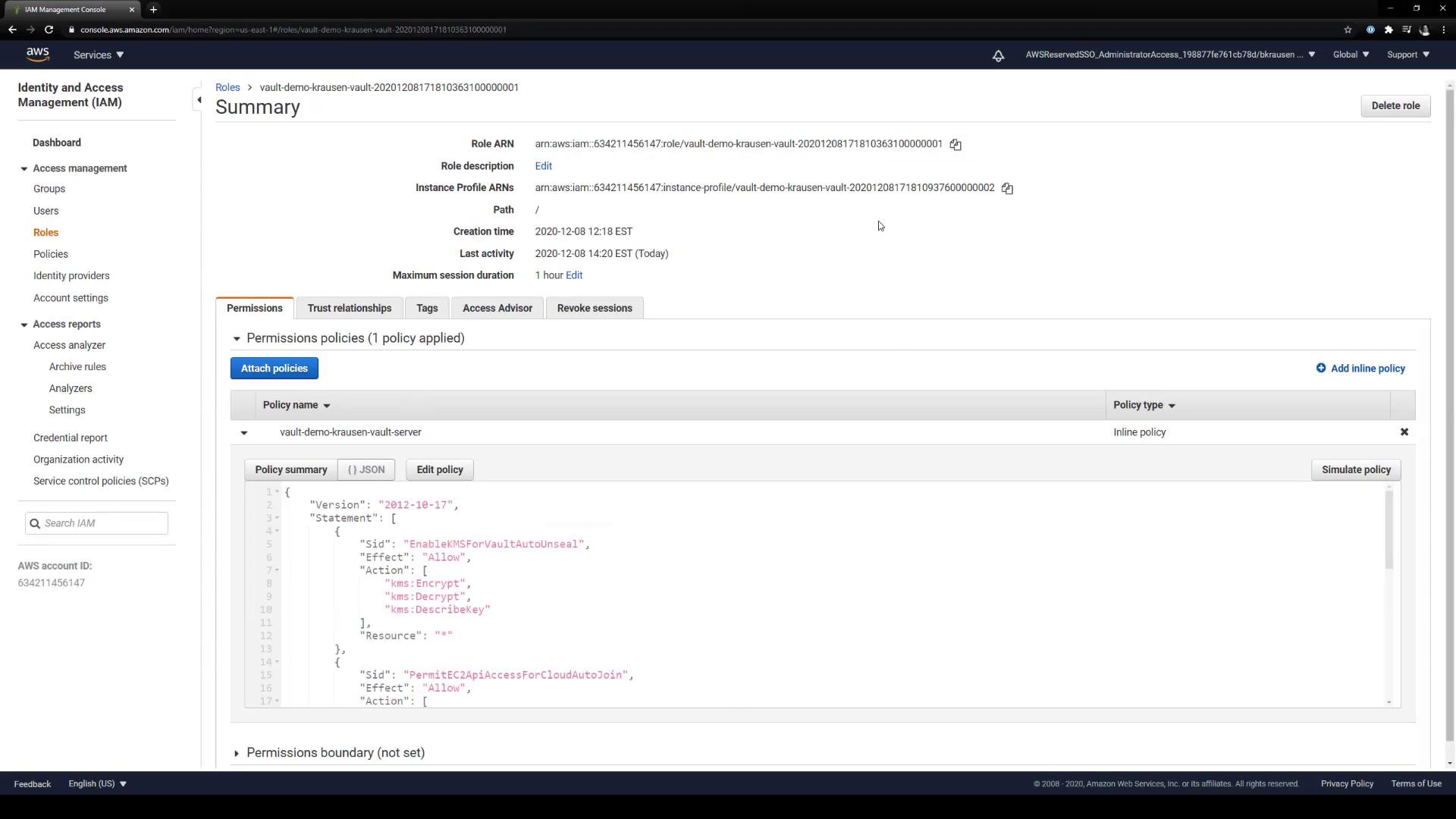
### 2.2 Create a Customer-Managed Policy
Navigate to **IAM > Policies > Create policy** in the AWS Console and add S3 access permissions:
```json theme={null}
{
"Version": "2012-10-17",
"Statement": [
{
"Effect": "Allow",
"Action": [
"s3:GetObject",
"s3:ListBucketVersions",
"s3:ListBucket",
"s3:GetObjectVersion"
],
"Resource": [
"arn:aws:s3:::bryankrausen/*",
"arn:aws:s3:::bryankrausen"
]
},
{
"Effect": "Allow",
"Action": ["s3:ListAllMyBuckets", "s3:ListBucket"],
"Resource": "*"
}
]
}
```
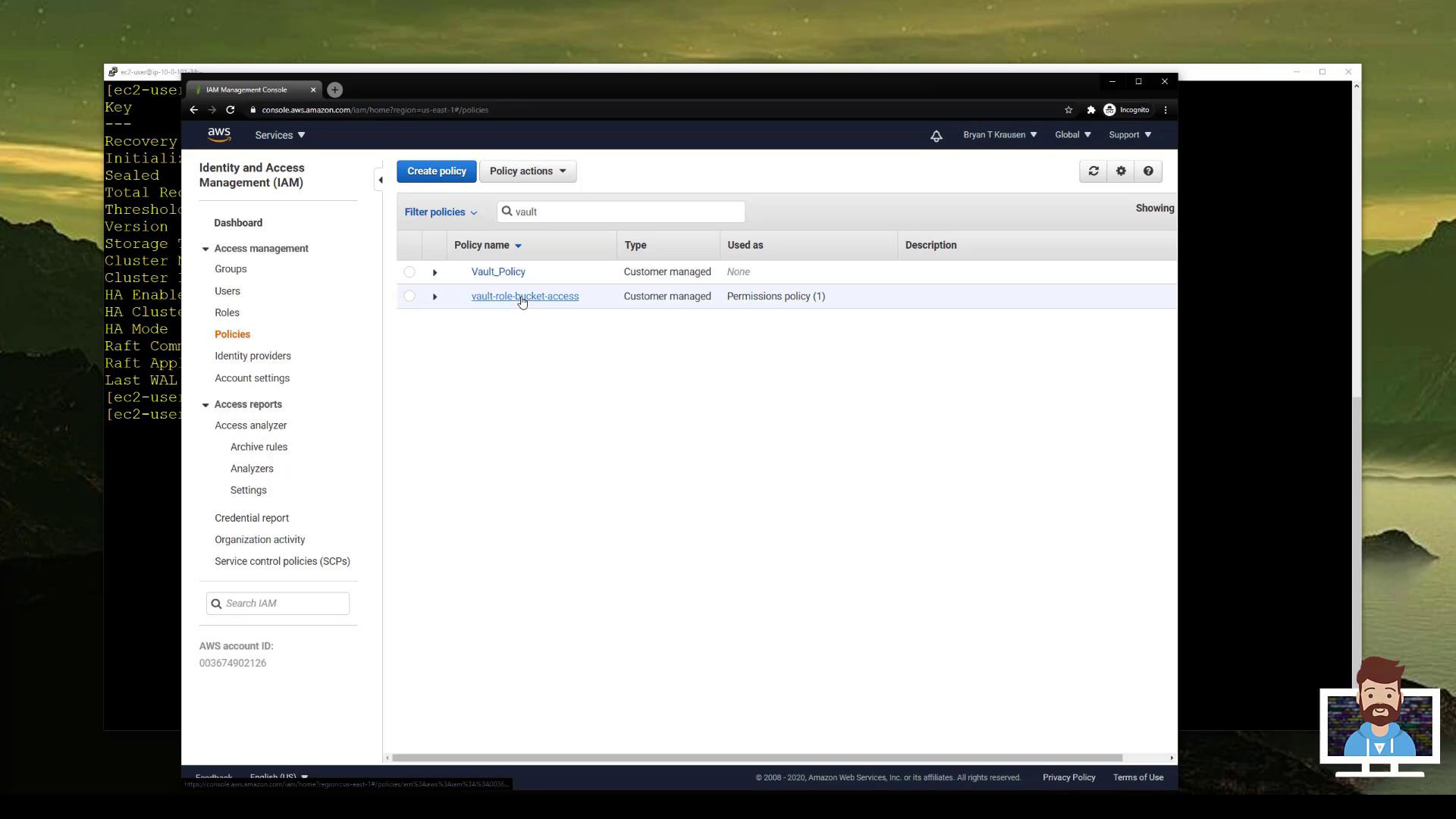
### 2.3 Create a Role Trusted by Vault’s Account
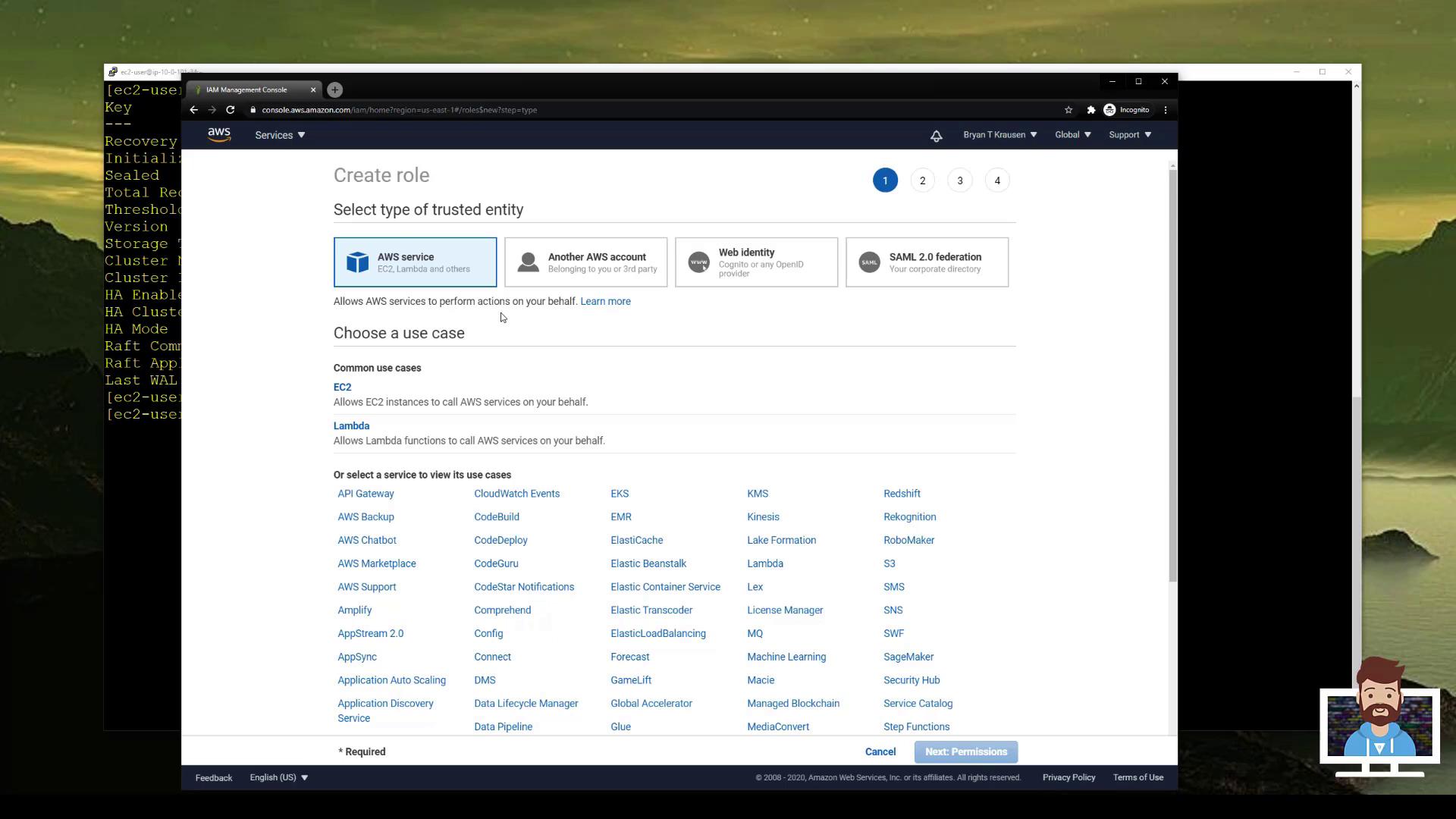
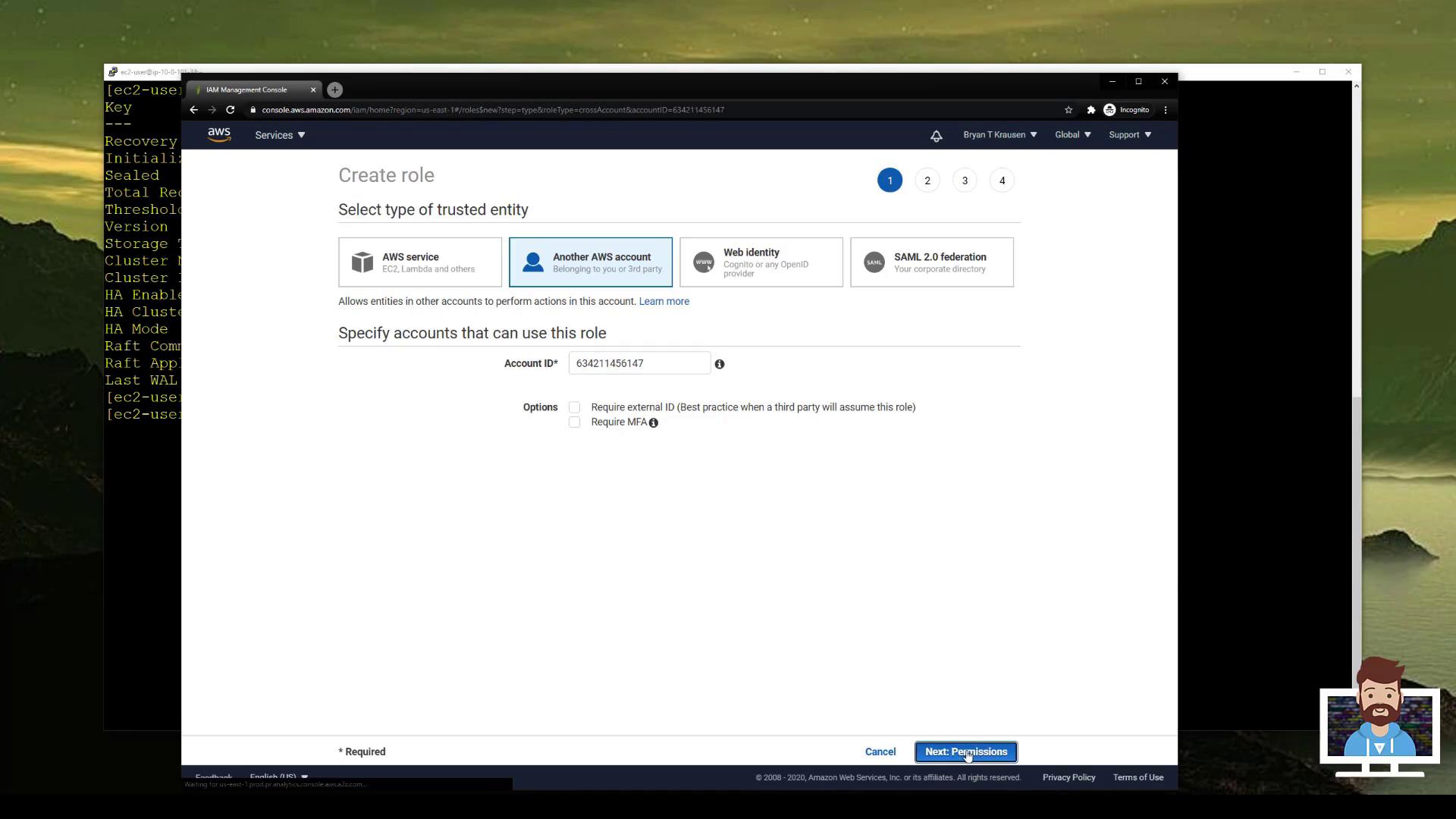
1. Go to **IAM > Roles > Create role**.
2. Select **Another AWS account** as the trusted entity and enter Vault’s Account ID (`...6147`).
3. Attach the policy you just created (e.g., **vault-role-bucket-access**).
4. Name the role `vault-role-bucket-access` and complete creation.
***
## 3. Enable & Configure AWS Secrets Engine
Back in Account A, enable and configure Vault’s AWS Secrets Engine.
```bash theme={null}
vault secrets enable aws
```
```text theme={null}
Success! Enabled the aws secrets engine at: aws/
```
Next, update the IAM role policy attached to your Vault servers to permit assuming the new cross-account role:
```json theme={null}
{
"Sid": "PermitAccessToCrossAccountRole",
"Effect": "Allow",
"Action": "sts:AssumeRole",
"Resource": [
"arn:aws:iam::083674922126:role/vault-role-bucket-access"
]
}
```
Apply your changes (for example, via Terraform):
```bash theme={null}
terraform apply
```
```text theme={null}
Apply complete! Resources: 0 added, 1 changed, 0 destroyed.
```
To support multiple target roles or accounts, add additional role ARNs to the `Resource` array in the `PermitAccessToCrossAccountRole` statement.
***
## 4. Define Vault Role for Cross-Account Access
Create a Vault role that references the IAM role in Account B:
```bash theme={null}
vault write aws/roles/s3_access \
role_arns=arn:aws:iam::083674922126:role/vault-role-bucket-access \
credential_type=assumed_role
```
```text theme={null}
Success! Data written to: aws/roles/s3_access
```
***
## 5. Generate & Use Temporary Credentials
1. **Generate** STS credentials with a 1-hour TTL:
```bash theme={null}
vault write aws/sts/s3_access ttl=1h
```
```text theme={null}
Key Value
lease_id aws/sts/s3_access/abcdef123456
lease_duration 1h
access_key ASIAQBWYRKXZMN3NMZ
secret_key /gqnjob/P9E/Kg+Wi2nGKAJ6M79iYlMszAUg2
security_token FQoGZXIvYXdzEJr//////////wEaDM...
```
2. **Export** credentials to your shell:
Linux/macOS:
```bash theme={null}
export AWS_ACCESS_KEY_ID=ASIAQBWYRKXZMN3NMZ
export AWS_SECRET_ACCESS_KEY=/gqnjob/P9E/Kg+Wi2nGKAJ6M79iYlMszAUg2
export AWS_SESSION_TOKEN=FQoGZXIvYXdzEJr//////////wEaDM...
```
Windows PowerShell:
```powershell theme={null}
SET AWS_ACCESS_KEY_ID=ASIAQBWYRKXZMN3NMZ
SET AWS_SECRET_ACCESS_KEY=/gqnjob/P9E/Kg+Wi2nGKAJ6M79iYlMszAUg2
SET AWS_SESSION_TOKEN=FQoGZXIvYXdzEJr//////////wEaDM...
```
3. **Use** the temporary credentials:
```bash theme={null}
aws s3 ls
```
```text theme={null}
2021-08-01 12:00:00 bryankrausen
2021-07-30 09:15:12 krausen-cloudtrail
2021-07-25 17:45:08 vault-advanced
```
***
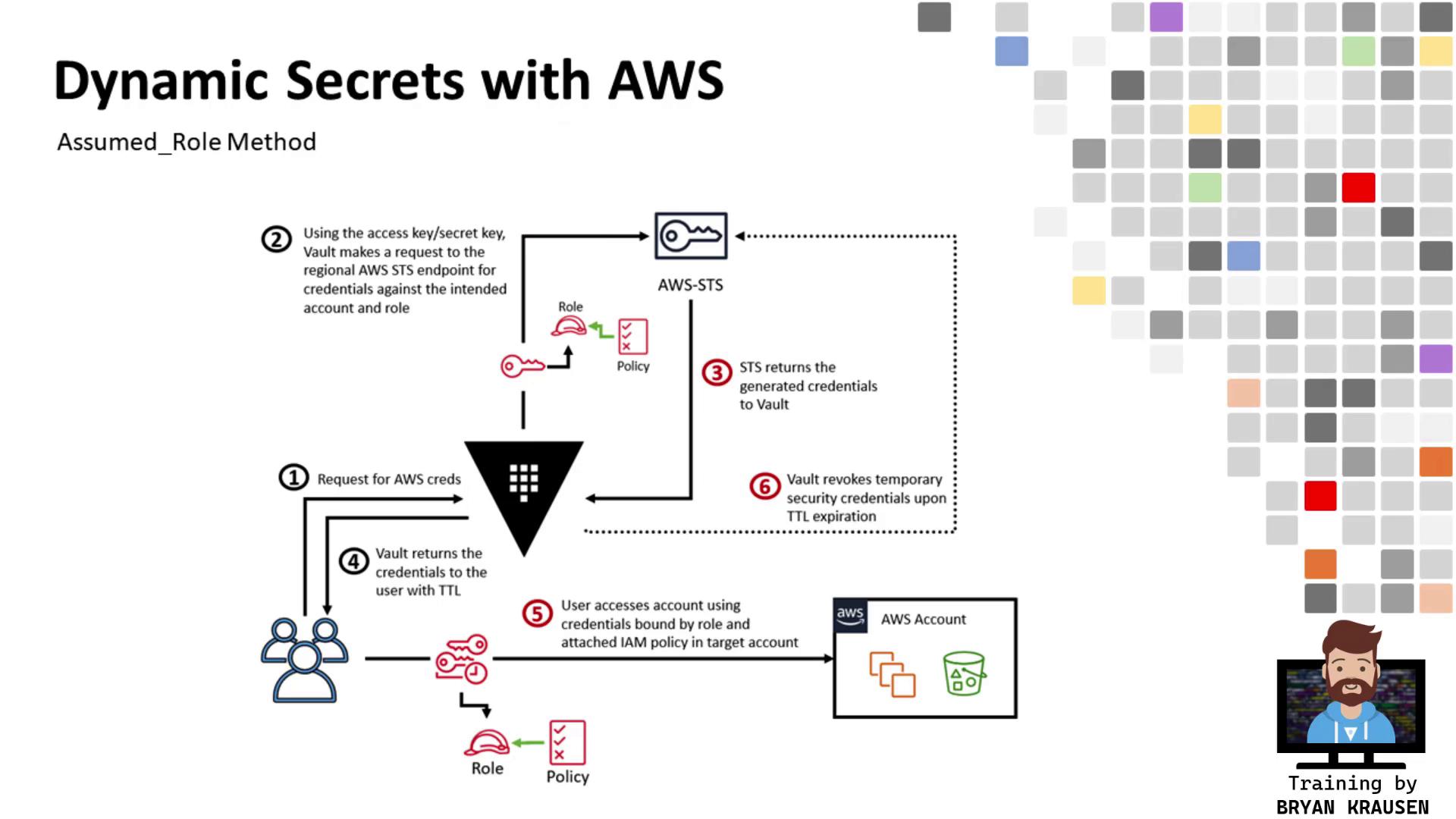
## 6. Flowchart
***
## 7. Conclusion
You have successfully configured Vault’s AWS Secrets Engine to assume a role in a separate AWS account, generate temporary credentials scoped to that role’s permissions, and consume those credentials to perform cross-account operations. This architecture is highly scalable—simply extend the IAM policy and add Vault roles for additional accounts or use cases.
***
## 8. References
* [Vault AWS Secrets Engine](https://www.vaultproject.io/docs/secrets/aws)
* [AWS Security Token Service (STS)](https://docs.aws.amazon.com/STS/latest/APIReference/)
* [Terraform AWS Provider](https://registry.terraform.io/providers/hashicorp/aws/latest/docs)