> ## Documentation Index
> Fetch the complete documentation index at: https://notes.kodekloud.com/llms.txt
> Use this file to discover all available pages before exploring further.
# Demo Database Secrets Engine
> This tutorial explains setting up HashiCorp Vault’s Database Secrets Engine for generating dynamic MySQL credentials on AWS RDS.
In this tutorial, you'll learn how to set up HashiCorp Vault’s Database Secrets Engine to generate dynamic MySQL credentials for an AWS RDS instance. Dynamic secrets improve security by issuing short-lived, on-demand database users.
## 1. Enable the Database Secrets Engine
Enable the Database Secrets Engine at the path `mysql`:
```bash theme={null}
vault secrets enable -path=mysql database
```
You should see:
```text theme={null}
Success! Enabled the database secrets engine at: mysql/
```
Verify the mount:
```bash theme={null}
vault secrets list
```
Expected output:
```text theme={null}
Path Type Accessor Description
----------- --------- --------------- -----------------------------
aws/ aws aws_698889cf n/a
cubbyhole/ cubbyhole cubbyhole_... per-token private secret storage
identity/ identity identity_... identity store
mysql/ database database_... n/a
sys/ system system_... system endpoints used for control, policy and debugging
```
If you choose a custom mount path, update all subsequent commands (`mysql/` → `/`).
## 2. Configure the MySQL Database Connection
Tell Vault how to connect to your RDS MySQL instance by specifying:
* **plugin\_name**: Database plugin (e.g., `mysql-rds-database-plugin`)
* **connection\_url**: Go template with `{{username}}` and `{{password}}`
* **allowed\_roles**: Roles permitted to use this connection
* **username/password**: Vault credentials with admin privileges
Vault supports multiple MySQL plugins. For AWS RDS use `mysql-rds-database-plugin`.
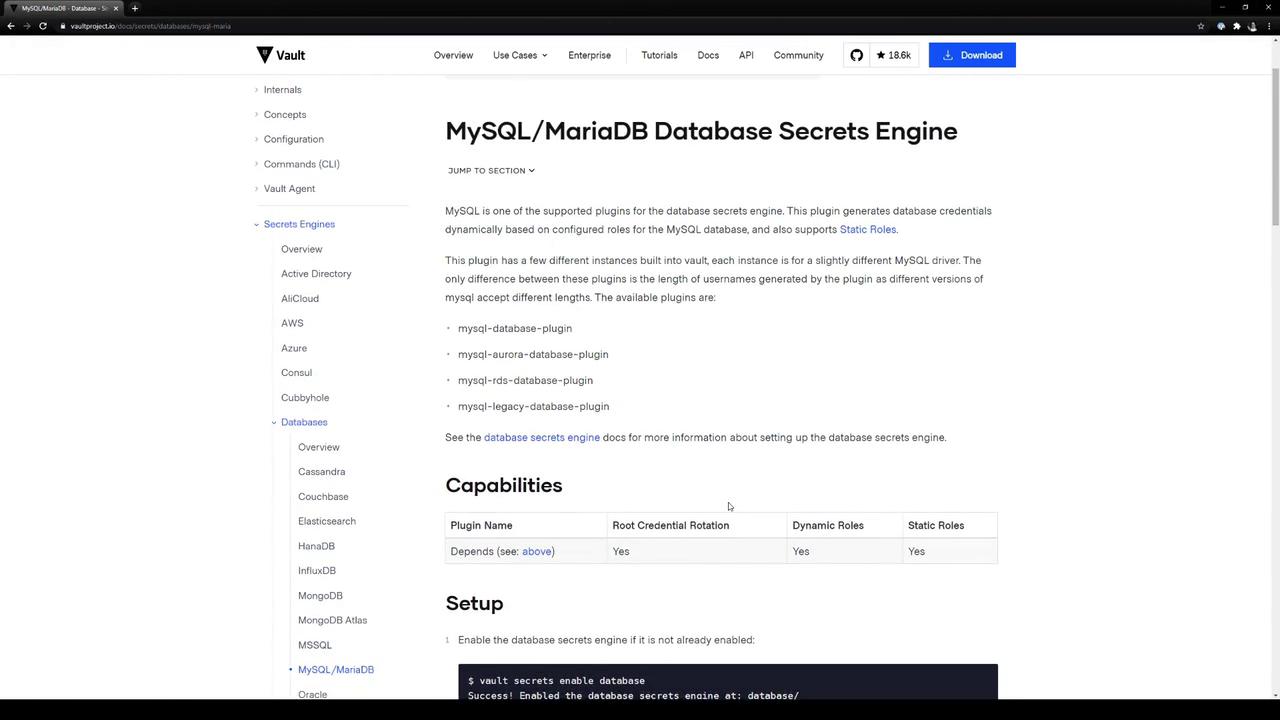
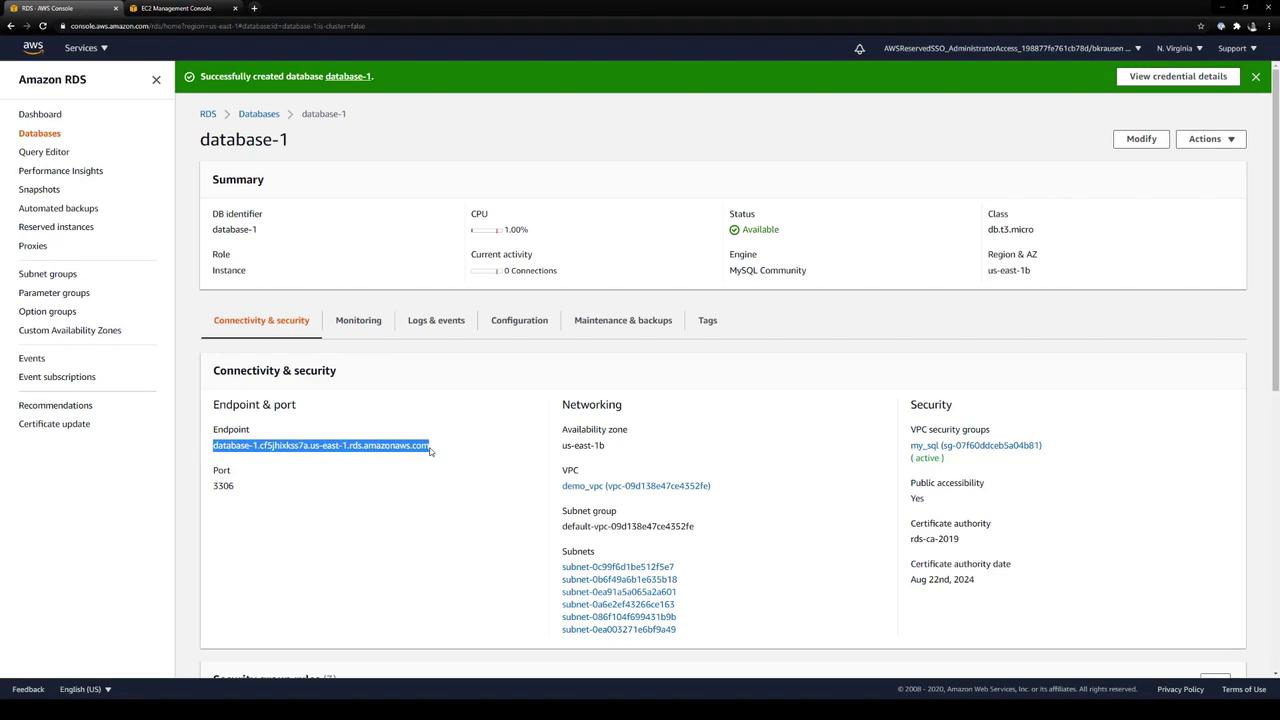
Assuming your RDS endpoint is `database-1.cf5jhixkss7a.us-east-1.rds.amazonaws.com:3306`, configure Vault:
```bash theme={null}
vault write mysql/config/mysql-database \
plugin_name="mysql-rds-database-plugin" \
connection_url="{{username}}:{{password}}@tcp(database-1.cf5jhixkss7a.us-east-1.rds.amazonaws.com:3306)/" \
allowed_roles="advanced" \
username="admin" \
password="vaultadvanced"
```
Vault will immediately validate this connection.
### Verify RDS Endpoint in AWS Console
In the AWS RDS console, confirm your instance endpoint (and port 3306):
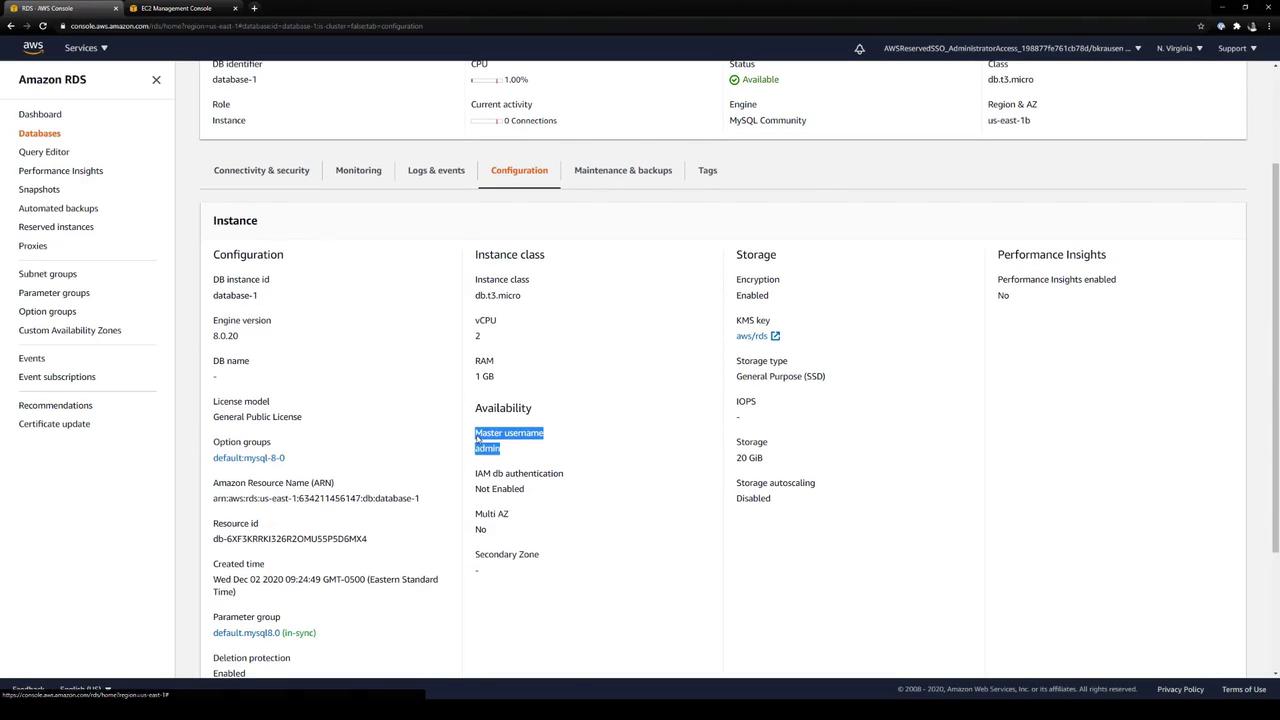
The master username (`admin`) and other configuration details are under **Configuration**:
## 3. Create a Role for Dynamic Credentials
Define a Vault role called `advanced`. This role tells Vault how to provision database users:
```bash theme={null}
vault write mysql/roles/advanced \
db_name="mysql-database" \
creation_statements="
CREATE USER '{{name}}'@'%' IDENTIFIED BY '{{password}}';
GRANT SELECT ON *.* TO '{{name}}'@'%';
" \
default_ttl="1h" \
max_ttl="24h"
```
| Parameter | Description |
| --------------------------- | --------------------------------------------------- |
| **db\_name** | Must match the connection name (`mysql-database`) |
| **creation\_statements** | SQL commands Vault runs to provision a dynamic user |
| **default\_ttl / max\_ttl** | Lease durations for the generated credentials |
Adjust the SQL in `creation_statements` to grant required permissions (e.g., `INSERT`, `UPDATE`, etc.).
Inspect the role:
```bash theme={null}
vault read mysql/roles/advanced
```
Expected output:
```text theme={null}
Key Value
--- -----
creation_statements [CREATE USER '{{name}}'@'%' IDENTIFIED BY '{{password}}';GRANT SELECT ON *.* TO '{{name}}'@'%';]
db_name mysql-database
default_ttl 1h
max_ttl 24h
renew_statements []
revoke_statements []
rollback_statements []
```
View the database connection configuration:
```bash theme={null}
vault read mysql/config/mysql-database
```
Vault hides admin credentials:
```text theme={null}
Key Value
--- -----
allowed_roles [advanced]
connection_details database-1.cf5jhixkss7a.us-east-1.rds.amazonaws.com:3306/ username:admin
plugin_name mysql-rds-database-plugin
root_credentials_rotate_statements []
```
## 4. Rotate the Root Credentials (Optional)
To rotate the stored admin credentials for `mysql-database`:
```bash theme={null}
vault write -force mysql/rotate-root/mysql-database
```
Vault will contact RDS and update the `admin` password in Vault.
## 5. Generate Dynamic Credentials
Request credentials for the `advanced` role:
```bash theme={null}
vault read mysql/creds/advanced
```
Example response:
```text theme={null}
Key Value
--- -----
lease_id mysql/creds/advanced/FTkH1Q2Gfr7h4gTGOYxjPyPZ
lease_duration 1h
lease_renewable true
username v_root.adva_mO16
password iYrDsp3r3LsmK3EcRBar
```
Every call issues a unique user/password pair with its own lease.
## 6. Revoke Leases
Revoke a specific lease:
```bash theme={null}
vault lease revoke mysql/creds/advanced/aQqKo3VHQyCdfmj5hmqI2Red
```
Or revoke all leases under the `advanced` prefix:
```bash theme={null}
vault lease revoke -prefix mysql/creds/advanced
```
Revoked credentials immediately lose access to the database.
## Summary
1. Enabled Vault’s Database Secrets Engine at `mysql/`.
2. Configured a connection to an AWS RDS MySQL instance.
3. Created a Vault role (`advanced`) to provision dynamic users.
4. Optionally rotated the stored admin credentials.
5. Generated and revoked short-lived MySQL credentials.
Vault’s Database Secrets Engine ensures on-demand, rolling credentials for stronger security.
## Links and References
* [Vault Database Secrets Engine](https://www.vaultproject.io/docs/secrets/databases)
* [AWS RDS Documentation](https://docs.aws.amazon.com/rds/index.html)
* [MySQL RDS Plugin Details](https://www.vaultproject.io/docs/secrets/databases/mysql)