> ## Documentation Index
> Fetch the complete documentation index at: https://notes.kodekloud.com/llms.txt
> Use this file to discover all available pages before exploring further.
# Demo TOTP Secrets Engine
> This tutorial explains how to use HashiCorp Vault’s TOTP secrets engine as a virtual MFA for AWS IAM users.
In this tutorial, you’ll leverage HashiCorp Vault’s TOTP (Time-Based One-Time Password) secrets engine to act as a virtual MFA device for AWS IAM users. We’ll walk through:
1. Enabling the TOTP engine in Vault
2. Creating an AWS IAM user and setting up a virtual MFA device
3. Registering the TOTP key in Vault
4. Generating and applying TOTP codes for AWS sign-in
***
## 1. Enable the TOTP secrets engine
Start by enabling the TOTP engine at the `totp/` path in Vault:
```bash theme={null}
vault secrets enable totp
```
You should see:
```text theme={null}
Success! Enabled the totp secrets engine at: totp/
```
Verify it’s enabled:
```bash theme={null}
vault secrets list
```
Ensure the `totp/` entry appears in the output.
Be sure you’re authenticated as a Vault user with permission to enable secrets engines.
***
## 2. Create an AWS IAM user and assign a virtual MFA device
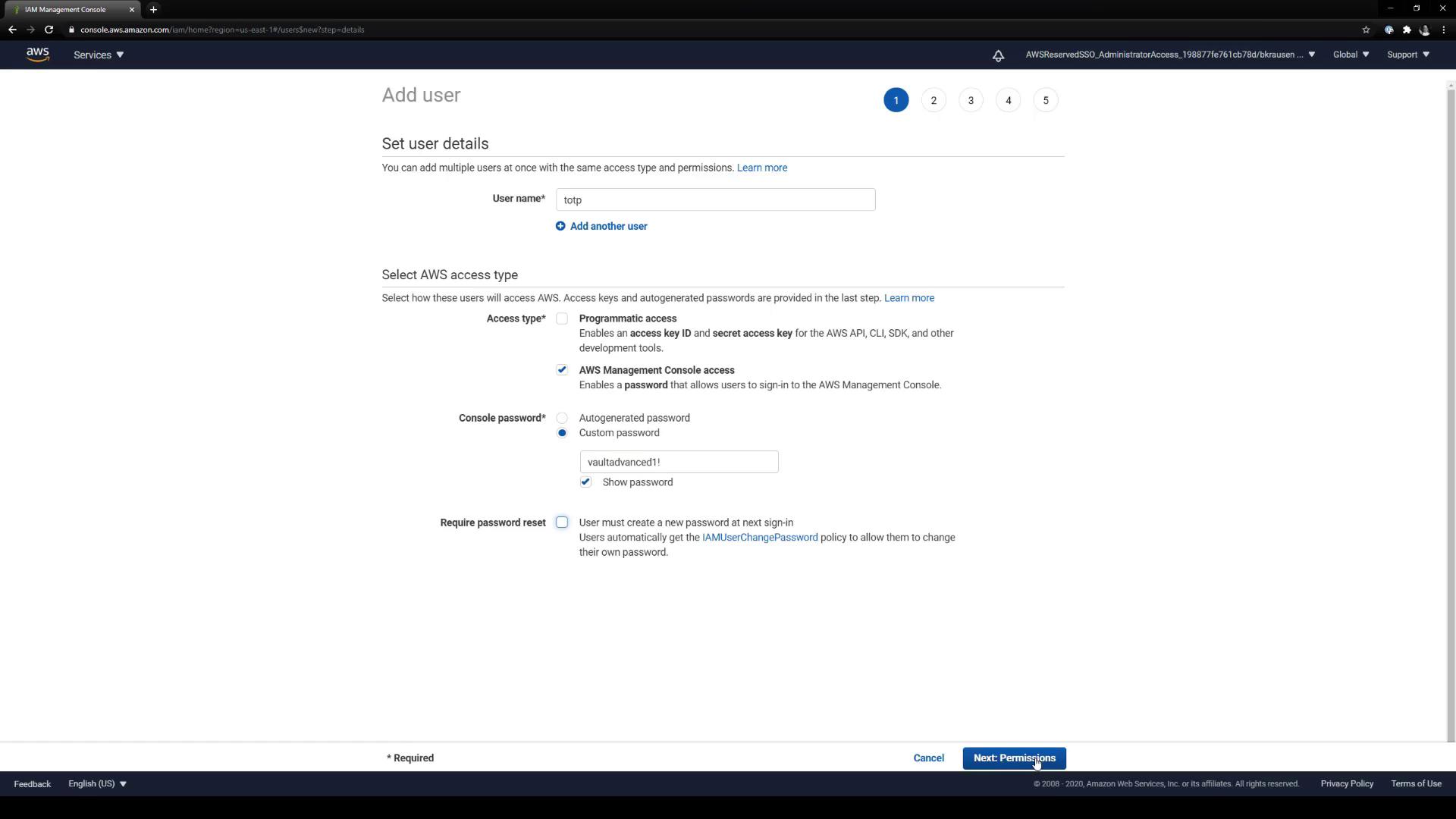
### 2.1 Create a new IAM user
1. In the AWS IAM console, click **Users → Add user**.
2. Enter **TOTP** as the username.
3. Enable **Programmatic access** and **AWS Management Console access**.
4. Attach the necessary policies (e.g., **AdministratorAccess**).
5. Review and create the user.
### 2.2 Open MFA settings
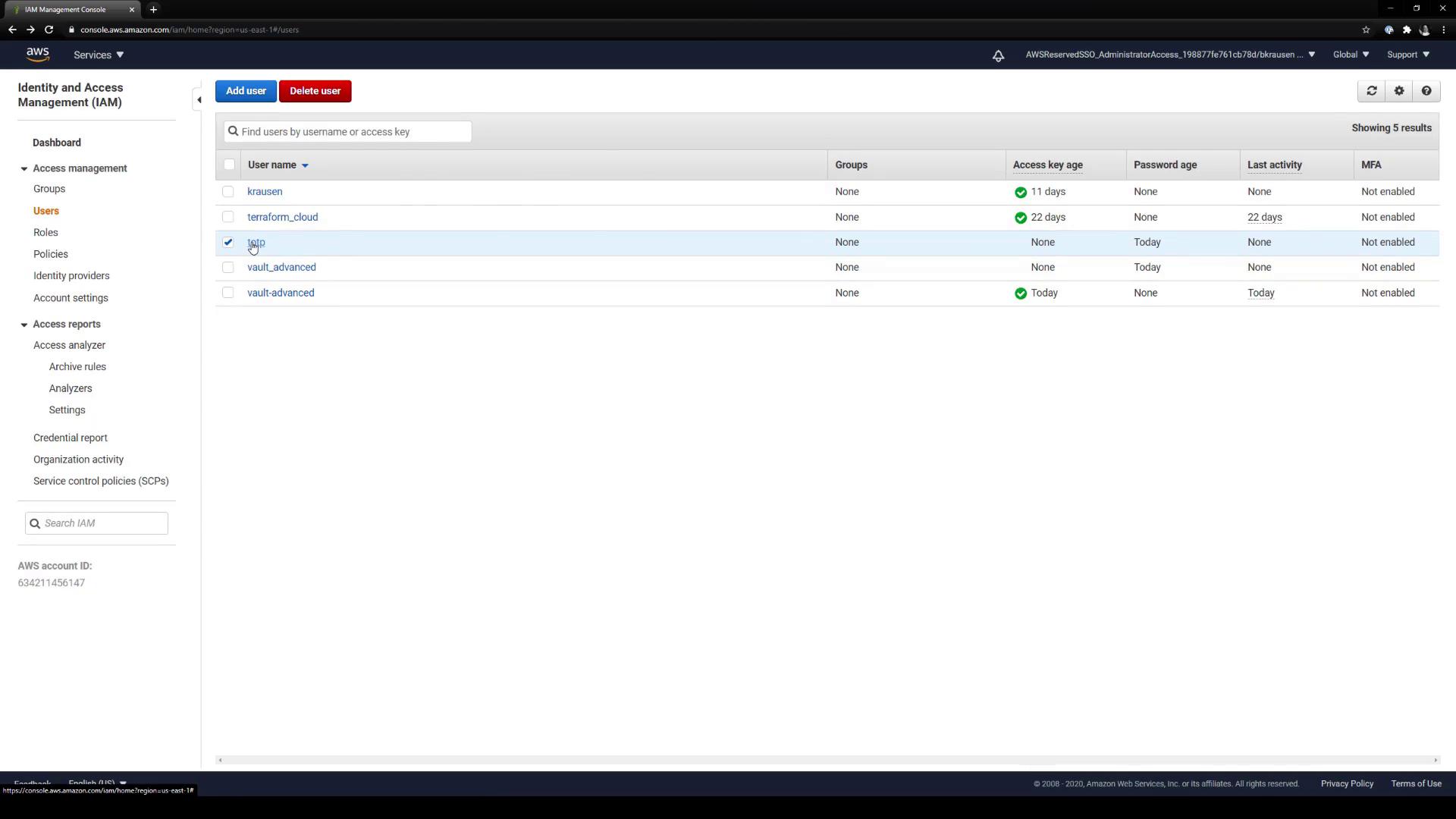
1. In IAM, go to **Users** and select **TOTP**.
2. Under **Security credentials**, locate **MFA device: None assigned** and click **Manage**.
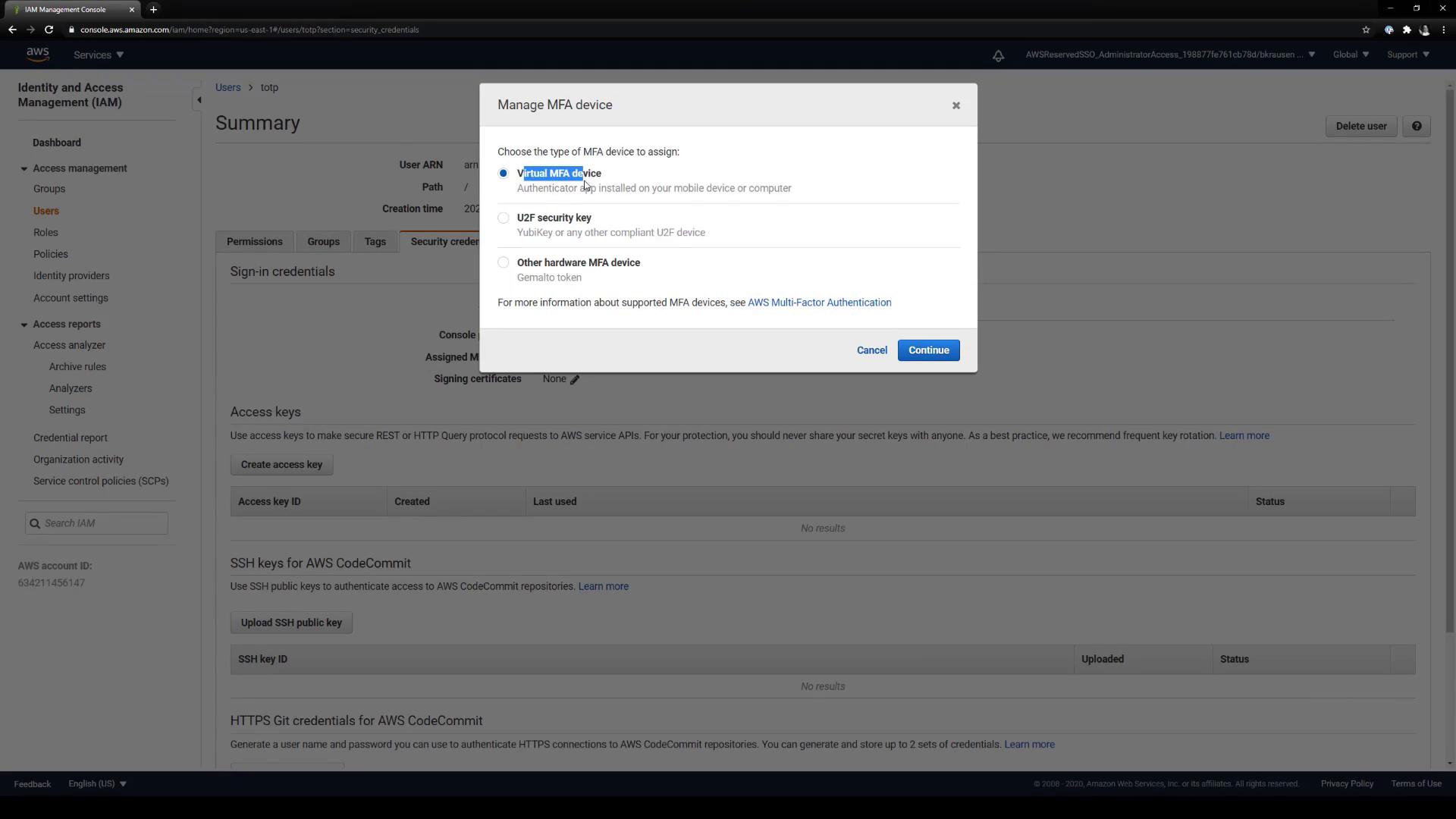
### 2.3 Select Virtual MFA
In the **Manage MFA** popup, choose **Virtual MFA device** and click **Continue**.
### 2.4 Copy the QR code or Base32 secret
AWS displays both a QR code and a Base32-encoded secret. You need the underlying `otpauth://` URL and the secret string to configure Vault.
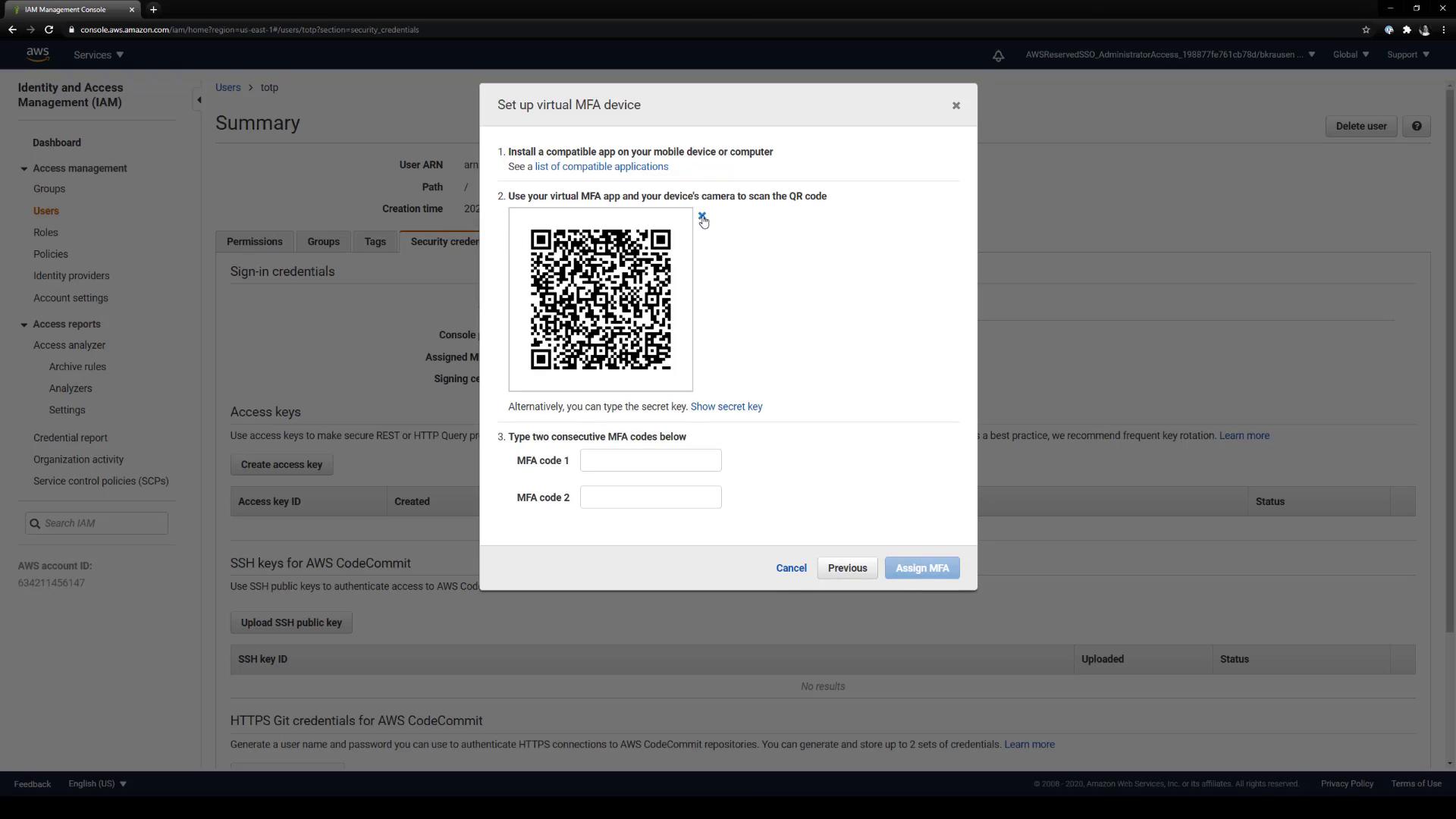
Keep the Base32 secret private. Anyone with this secret can generate valid MFA codes for your AWS account.
***
## 3. Register the TOTP key in Vault
With your `` and ``, write the TOTP key into Vault:
```bash theme={null}
vault write totp/keys/aws \
url="otpauth://totp/Amazon%20Web%20Services/TOTP@?secret="
```
Expected response:
```text theme={null}
Success! Data written to: totp/keys/aws
```
***
## 4. Generate and use TOTP codes
Use Vault to generate the current 6-digit code:
```bash theme={null}
vault read -field=code totp/code/aws
```
```text theme={null}
123456
```
| Action | Command |
| --------------------------------------- | ------------------------------------------ |
| Generate current TOTP code | `vault read -field=code totp/code/aws` |
| Verify code during AWS MFA assignment | Enter two consecutive codes from Vault |
| Sign in to AWS with Vault-generated MFA | Provide code in the AWS console MFA prompt |
### 4.1 Complete AWS MFA setup
In the AWS console’s Virtual MFA setup, enter two consecutive codes from the previous command to finalize the association.
### 4.2 Sign in to AWS with Vault MFA
When prompted for MFA at AWS login:
1. Enter your **TOTP** username and password.
2. Run:
```bash theme={null}
vault read -field=code totp/code/aws
```
3. Supply the returned code in the MFA field.
***
Congratulations! You’ve successfully configured Vault’s TOTP secrets engine as a virtual MFA device for an AWS IAM user. This centralizes MFA management in Vault and eliminates the need for individual authenticator apps or hardware tokens.
## References
* [Vault TOTP Secrets Engine](https://www.vaultproject.io/docs/secrets/totp)
* [AWS IAM Virtual MFA Devices](https://docs.aws.amazon.com/IAM/latest/UserGuide/id_credentials_mfa_enable_virtual.html)