> ## Documentation Index
> Fetch the complete documentation index at: https://notes.kodekloud.com/llms.txt
> Use this file to discover all available pages before exploring further.
# Working with a Secrets Engine
> This article explains how to work with Secrets Engines in Vault, including enabling, managing, and configuring them.
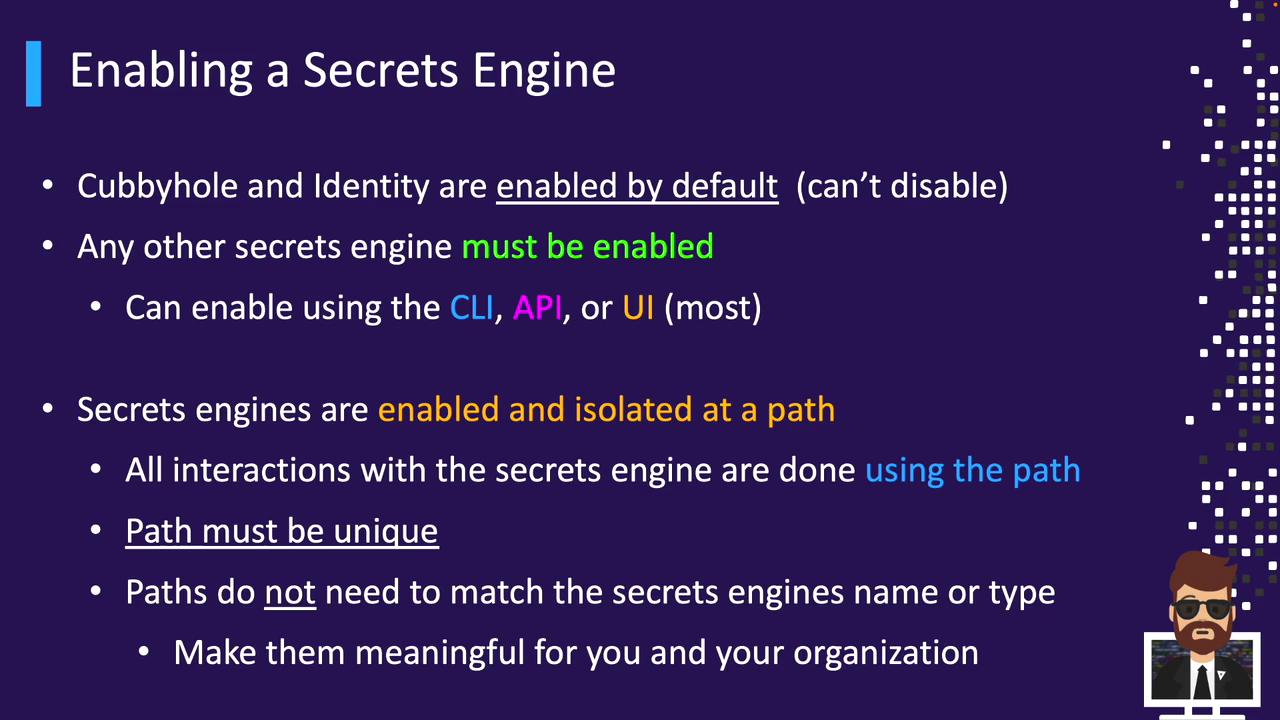
Vault uses **Secrets Engines** to store, generate, and manage sensitive data. Before you can work with any engine, you need to enable it under a unique mount path. Vault ships with two engines enabled by default—**cubbyhole** and **identity**—which cannot be disabled without impacting core functionality.
Vault’s built-in engines `cubbyhole` and `identity` are always enabled and cannot be removed.
All other engines must be enabled explicitly using the CLI, API, or UI (note: not every feature is available in the UI).
1. CLI
2. API
3. UI
## Mounting a Secrets Engine
When you enable a Secrets Engine, you assign it a **path** that isolates all its operations—reads, writes, and configuration. Paths must be unique (avoid reserved prefixes like `sys/` or `auth/`) but don’t have to match the engine’s type name.
Examples:
```bash theme={null}
vault secrets enable -path=starbucks-kv kv-v2
vault secrets enable -path=aws-backups aws
```
Choose descriptive names that align with your team or use case.
***
## Operator vs. Client Responsibilities
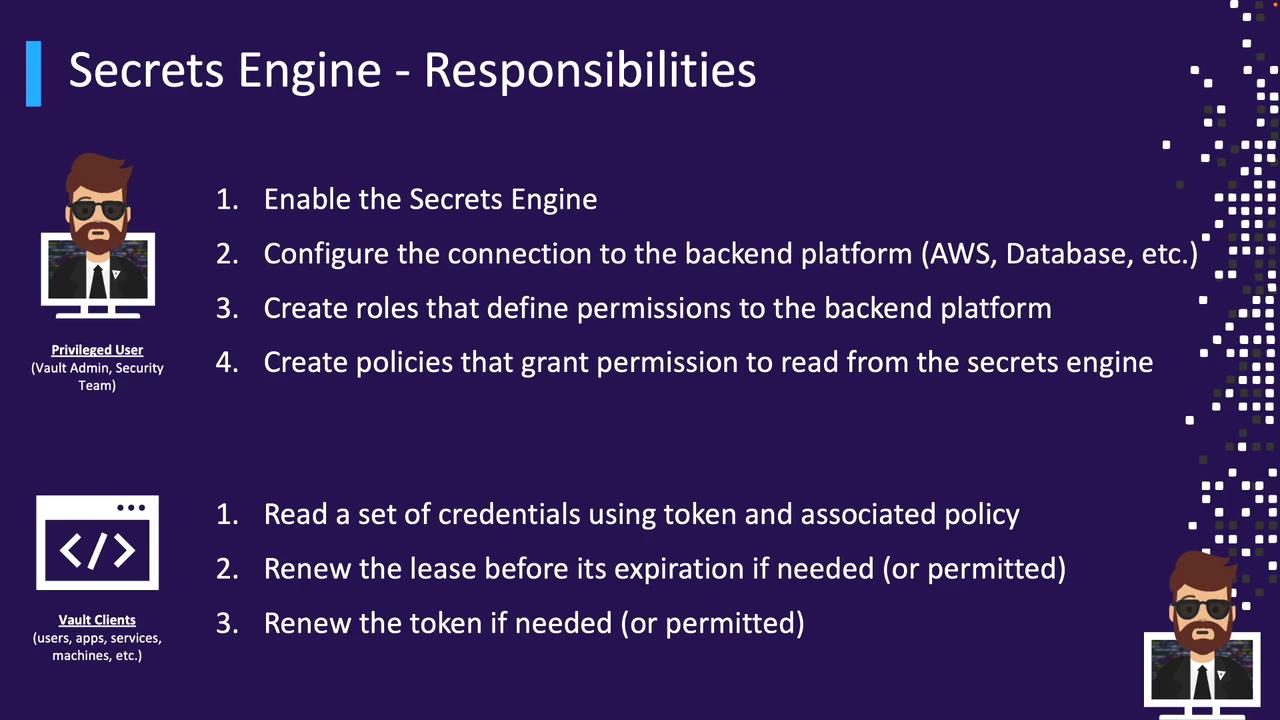
**Operators** (Vault administrators or privileged users) perform these steps for each engine:
1. Enable the Secrets Engine at a chosen path
2. Configure backend connectivity (e.g., AWS credentials, Kubernetes service account token)
3. Create roles that define backend permissions
4. Write Vault policies granting clients access to those roles
**Clients** (applications, developers, CI/CD pipelines) then:
* Read credentials using their Vault token and attached policies
* Renew leases before expiration (if allowed)
* Renew their token (if allowed)
***
## Managing Secrets Engines with the CLI
Vault provides the `vault secrets` command group to administer engines:
| Command | Description |
| ----------------------- | -------------------------------------------------- |
| `vault secrets enable` | Enable a new engine at a specified mount path |
| `vault secrets disable` | Disable and remove an existing engine |
| `vault secrets list` | List enabled engines with mount paths and metadata |
| `vault secrets move` | Change an engine’s mount path |
| `vault secrets tune` | Adjust engine parameters (e.g., default lease TTL) |
### Enabling and Disabling
Mounting an engine registers its configuration in storage. Disabling and then re-enabling the same path resets its settings:
```bash theme={null}
$ vault secrets enable aws
Success! Enabled the aws secrets engine at: aws/
$ vault secrets disable aws
Success! Disabled the aws secrets engine at: aws/
$ vault secrets enable aws
Success! Enabled the aws secrets engine at: aws/
```
Disabling a Secrets Engine removes all configuration data under that mount. Re-enabling creates a fresh configuration.
### Tuning Engine Parameters
Configure defaults such as lease TTLs:
```bash theme={null}
$ vault secrets tune \
-default-lease-ttl=72h \
-max-lease-ttl=744h \
pki/
Success! Tuned the secrets engine at: pki/
```
### Listing Engines
```bash theme={null}
$ vault secrets list
Path Type Accessor Description
---- ---- -------- -----------
aws/ aws aws_dafa7adc n/a
azure/ aws aws_la214ff6 n/a
bryan/ kv kv_28b1ceaa n/a
cloud-team-kv/ kv kv_fa270a3f n/a
cubbyhole/ cubbyhole cubbyhole_88c8e2e3 per-token private secret storage
dev-team-kv/ kv kv_55c319c4 n/a
identity/ identity identity_e60e93cb identity store
kv-v2/ kv kv_eea3206c n/a
sys/ system system_66b0d8ee system endpoints used for control, policy and diagnostics
transit/ transit transit_7b8038ca n/a
```
* Mount paths don’t have to match engine types (e.g., `azure/` above is an AWS engine)
* Use `-detailed` for extended metadata, especially for KV v2
#### Example: Enabling KV v2
```bash theme={null}
vault secrets enable \
-path=cloud-kv \
-description="Static Secrets for Cloud Team" \
kv-v2
```
* `-path=cloud-kv` sets a custom mount point (defaults to engine name)
* `-description` adds context in listings
* `kv-v2` specifies the engine version
***
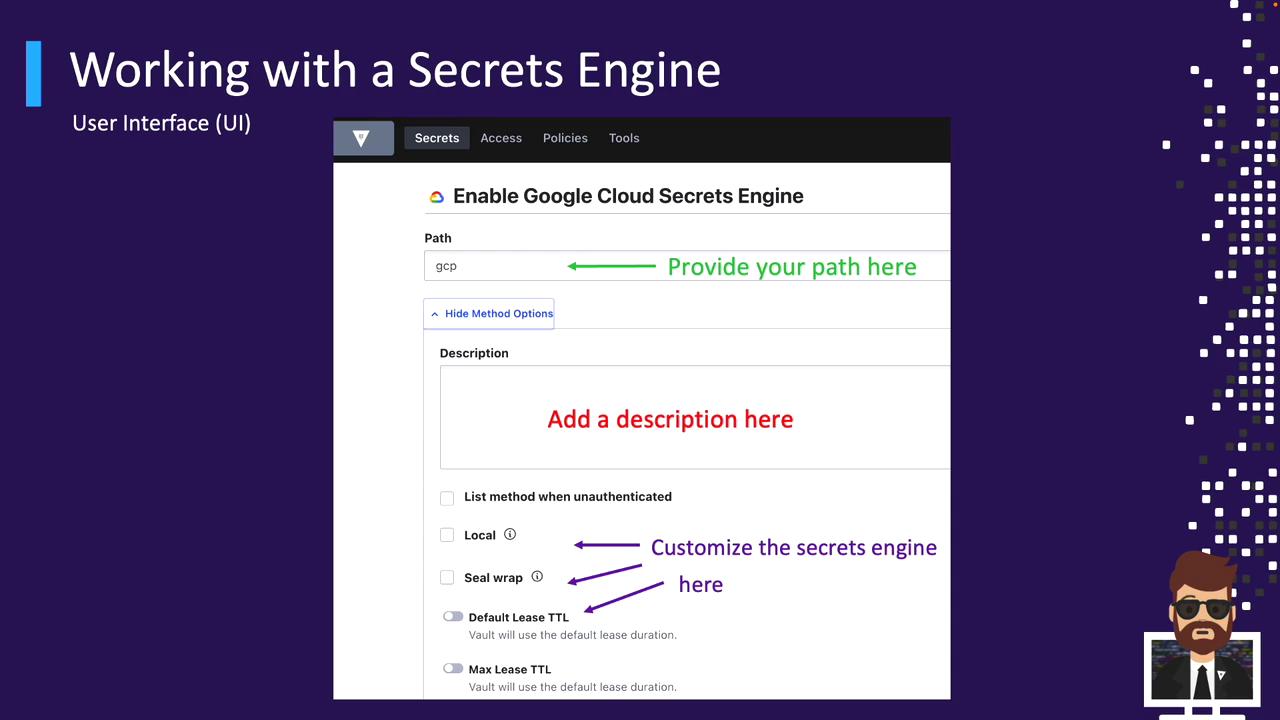
## Enabling via the UI
1. Navigate to **Secrets** → **Enable new engine** in the top-right corner.
2. Select the Secrets Engine type you need (note: not all appear here).

3. Fill in **Path**, **Description**, and any **engine-specific settings** (e.g., TTLs, replication, seal wrap).
***
## Next Steps
In upcoming sections, we'll explore popular Secrets Engines in depth—demonstrating how to:
* Enable and configure each engine
* Define roles and generate dynamic credentials
* Consume and rotate secrets in applications
Stay tuned for hands-on tutorials!
***
## References
* [Vault Secrets Engines](https://www.vaultproject.io/docs/secrets)
* [Vault CLI Commands](https://www.vaultproject.io/docs/commands/secrets)
* [Vault API Reference](https://www.vaultproject.io/api-docs)