> ## Documentation Index
> Fetch the complete documentation index at: https://notes.kodekloud.com/llms.txt
> Use this file to discover all available pages before exploring further.
# Demo Manually Installing Vault
> Learn to download and install the Vault binary on an AWS EC2 instance running Amazon Linux 2 for development and testing.
In this lesson, you’ll learn how to download and install the Vault binary on an AWS EC2 instance running Amazon Linux 2. By following these steps, you’ll have Vault ready for development and testing in minutes.
## Download the Vault Binary
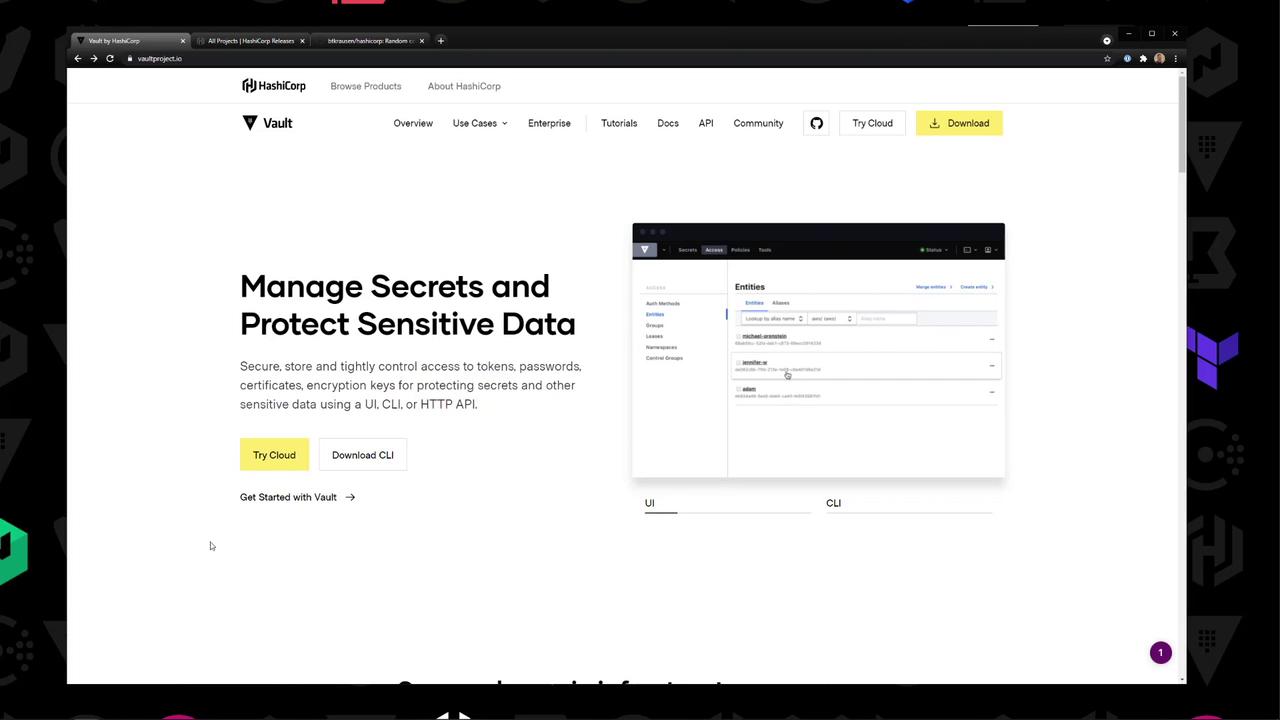
Head over to the Vault [download page](https://www.vaultproject.io/download) and choose:
* **Platform**: Linux
* **Distribution**: Amazon Linux
* **Architecture**: 64 ARM64 (or your target)
Copy the link address for your selected build, or navigate directly to [releases.hashicorp.com](https://releases.hashicorp.com) for all available versions.
Here’s an example Vault policy to control access to your application secrets:
```hcl theme={null}
path "secret/myapp/config" {
capabilities = ["read", "update", "delete"]
}
path "secret/myapp/data" {
capabilities = ["create", "read", "update"]
}
path "secret/myapp/sensitive" {
capabilities = ["read"]
}
```
## Installation Methods
| Method | Steps | Example Commands |
| --------------- | ---------------------------------------------------- | ------------------------------------------------------------------------------------------------------------------------------------------------------------------------ |
| YUM Repository | Enable the official HashiCorp repo and install Vault | `bash
sudo yum install -y yum-utils
sudo yum-config-manager --add-repo https://rpm.releases.hashicorp.com/AmazonLinux/hashicorp.repo
sudo yum -y install vault` |
| Manual Download | Download the ZIP, unzip, and move binary to PATH | `bash
curl -Lo /tmp/vault.zip
unzip /tmp/vault.zip -d /tmp
sudo mv /tmp/vault /usr/local/bin/` |
***
## Adding the HashiCorp YUM Repository
To install Vault via YUM, run:
```bash theme={null}
sudo yum install -y yum-utils
sudo yum-config-manager --add-repo https://rpm.releases.hashicorp.com/AmazonLinux/hashicorp.repo
sudo yum -y install vault
```
***
## Downloading the Binary Manually
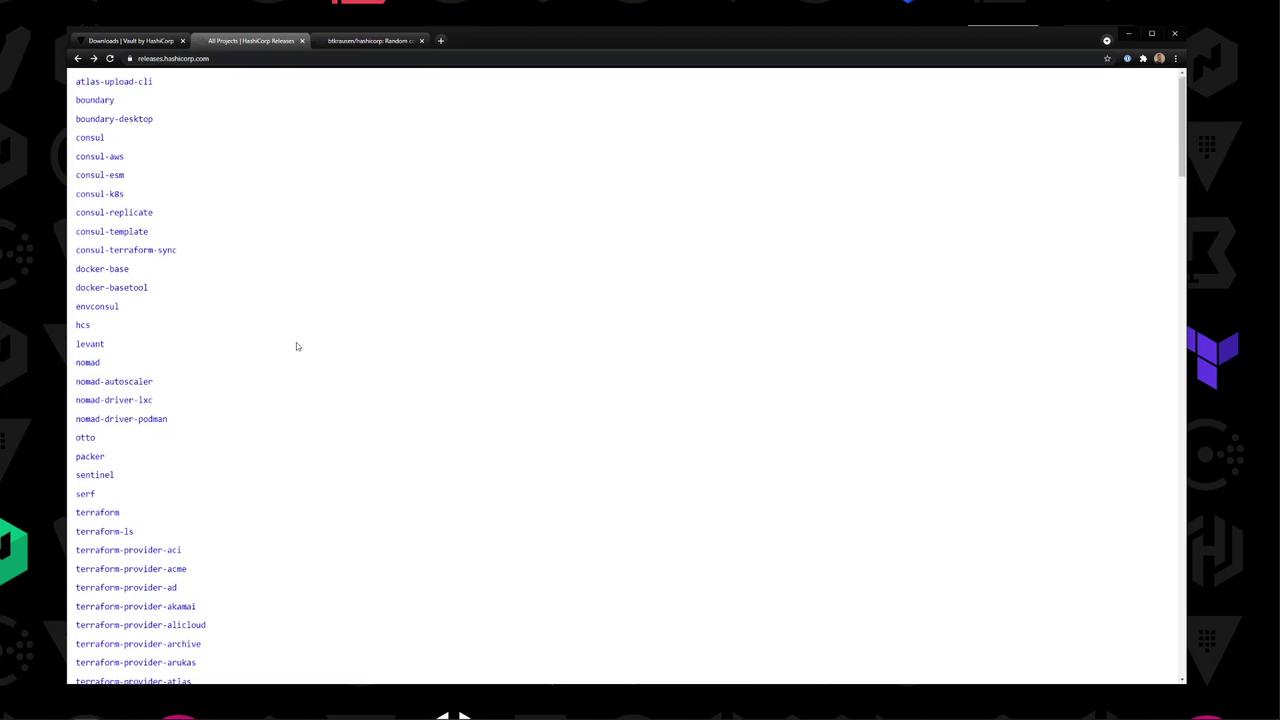
1. Visit [releases.hashicorp.com](https://releases.hashicorp.com) → **Vault** → **1.7.1**.
2. Copy the link for `vault_1.7.1_linux_amd64.zip`.
3. On your EC2 instance, download it with `curl`.
A quick listing of Vault 1.7.1 assets:
```text theme={null}
vault_1.7.1_SHA256SUMS
vault_1.7.1_SHA256SUMS.348FF4C.sig
vault_1.7.1_SHA256SUMS.7207468F.sig
vault_1.7.1_darwin_amd64.zip
vault_1.7.1_freebsd_amd64.zip
vault_1.7.1_freebsd_arm.zip
vault_1.7.1_linux_386.zip
vault_1.7.1_linux_amd64.zip
vault_1.7.1_linux_arm.zip
vault_1.7.1_netbsd_386.zip
vault_1.7.1_netbsd_amd64.zip
vault_1.7.1_openbsd_386.zip
vault_1.7.1_openbsd_amd64.zip
vault_1.7.1_solaris_386.zip
vault_1.7.1_windows_386.zip
vault_1.7.1_windows_amd64.zip
```
***
## Installing the Binary on Amazon Linux 2
1. SSH into your Amazon Linux 2 instance.
2. Verify Vault is not installed:
```bash theme={null}
[root@ip-10-0-1-160 /]# vault
bash: vault: command not found
```
3. Download the ZIP to `/tmp/vault.zip` (replace ``):
```bash theme={null}
[root@ip-10-0-1-160 /]# curl --silent -Lo /tmp/vault.zip https://releases.hashicorp.com/vault/1.7.1/vault_1.7.1_linux_amd64.zip
```
4. Unzip and move the binary into your `PATH`:
```bash theme={null}
[root@ip-10-0-1-160 /]# cd /tmp
[root@ip-10-0-1-160 tmp]# unzip vault.zip
[root@ip-10-0-1-160 tmp]# mv vault /usr/local/bin/
```
5. Exit root, then confirm Vault is available:
```bash theme={null}
[ec2-user@ip-10-0-1-160 ~]$ vault
Usage: vault [args]
Common commands:
read Read data and retrieve secrets
write Write data, configuration, and secrets
delete Delete secrets and configuration
list List data or secrets
login Authenticate locally
agent Start a Vault agent
server Start a Vault server
unwrap Unwrap a wrapped secret
```
6. Check the installed version:
```bash theme={null}
[ec2-user@ip-10-0-1-160 ~]$ vault version
Vault v1.7.1 (abcd1234)
```
***
## Starting a Development Server
Development mode runs entirely in-memory, starts unsealed with a single unseal key, and is *not* suitable for production environments.
Launch Vault in dev mode:
```bash theme={null}
[ec2-user@ip-10-0-1-160 ~]$ vault server -dev
2021-05-11T12:56:42.669Z [INFO] core: vault is unsealed
...
Unseal Key: U+jhCm8lOUJNa5nb1QmQy9ScHjWlow5/T+GE=
Root Token: zT5IvSJEfQzSzrctw8l6I081
```
You may need to set the Vault address:
```bash theme={null}
export VAULT_ADDR='http://127.0.0.1:8200'
```
***
That’s all it takes to manually install the Vault binary, place it in your `PATH`, and spin up a development server on Amazon Linux 2. Happy secret management!
## Links and References
* [Vault Downloads](https://www.vaultproject.io/download)
* [Releases · HashiCorp Vault](https://releases.hashicorp.com/vault/)